Customize an AI Interviewer in Chakra
Last updated: October 28, 2026
You can customize an AI Interviewer in Chakra to update its interview structure, questions, instructions, timing, and role requirements.
Update interview structure
Edit sections
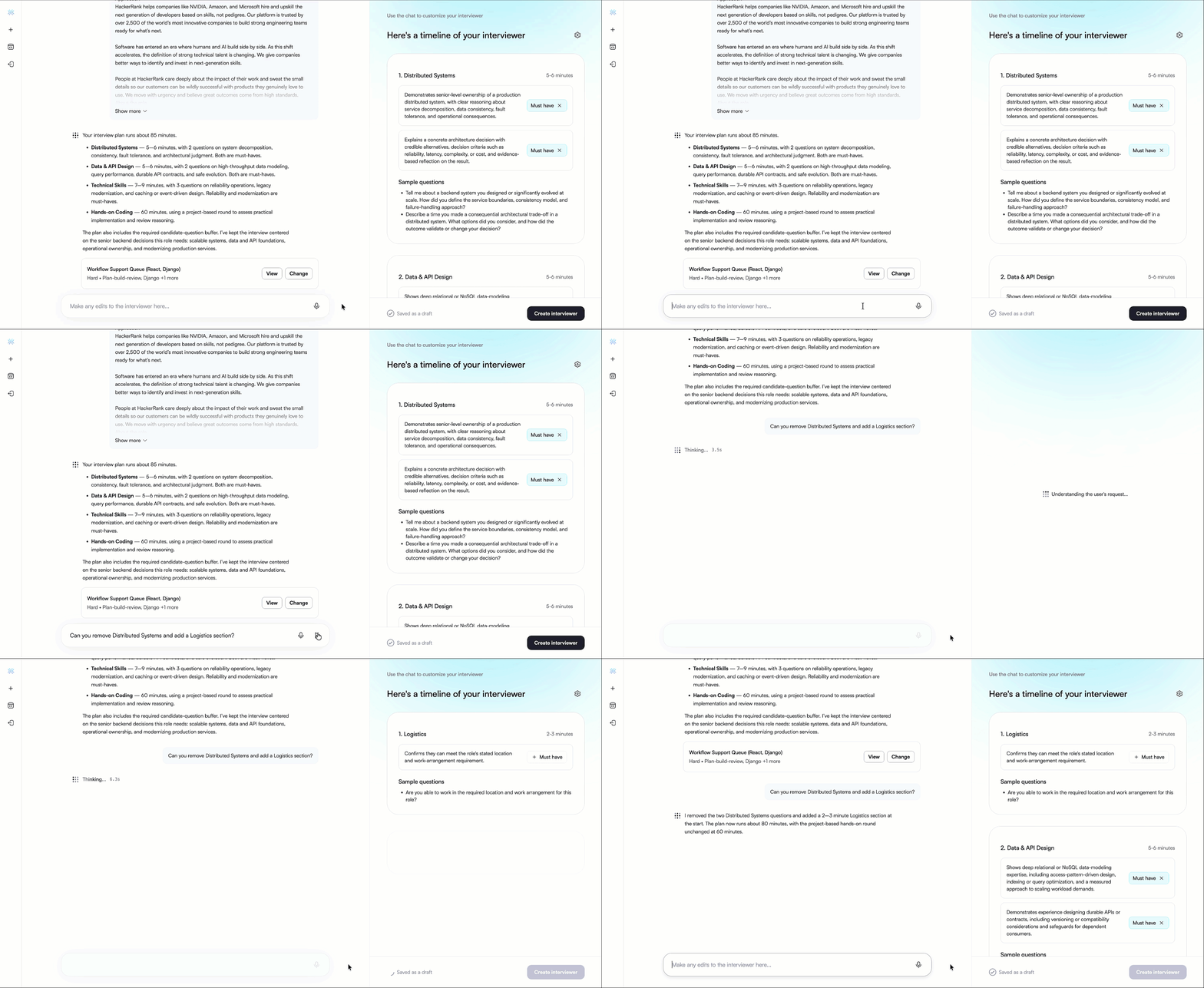
Enter a prompt to add, remove, rename, or reorder interview sections.
Edit questions
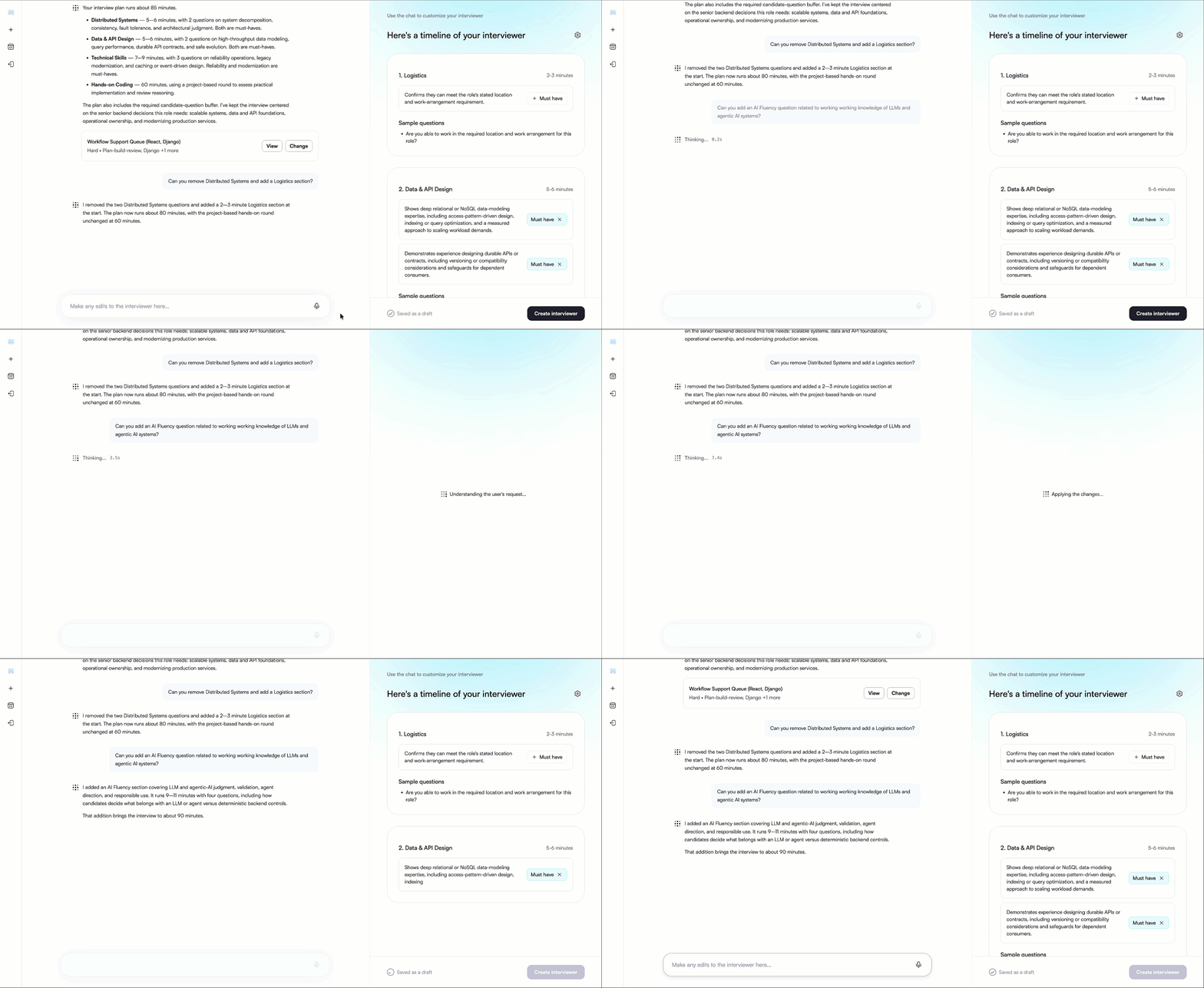
Enter a prompt to add, remove, rewrite, or reorder questions. When you reorder a question, its scoring expectations move with it.
Add instructions
Use prompts to customize how Chakra conducts the interview. For example, you can:
Set a custom spoken introduction or closing message for candidates.
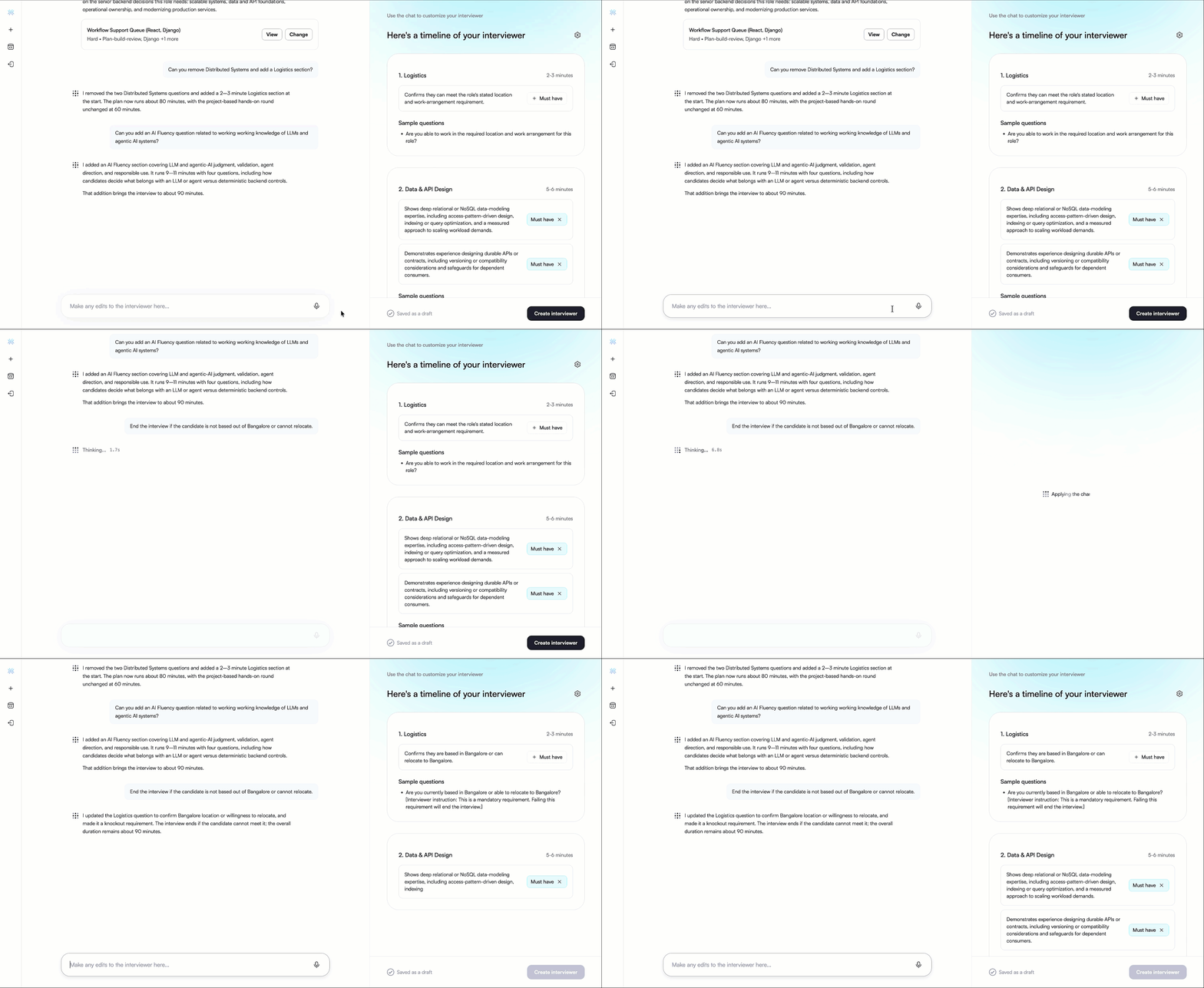
Instruct Chakra to end the interview if the candidate’s answer shows that they do not meet a mandatory role requirement.
Add a dealbreaker instruction to end the interview if a candidate fails a specific question.
Adjust scope and timing
Use prompts to adjust the interview scope and duration:
Add or remove questions to change the scope of the interview.
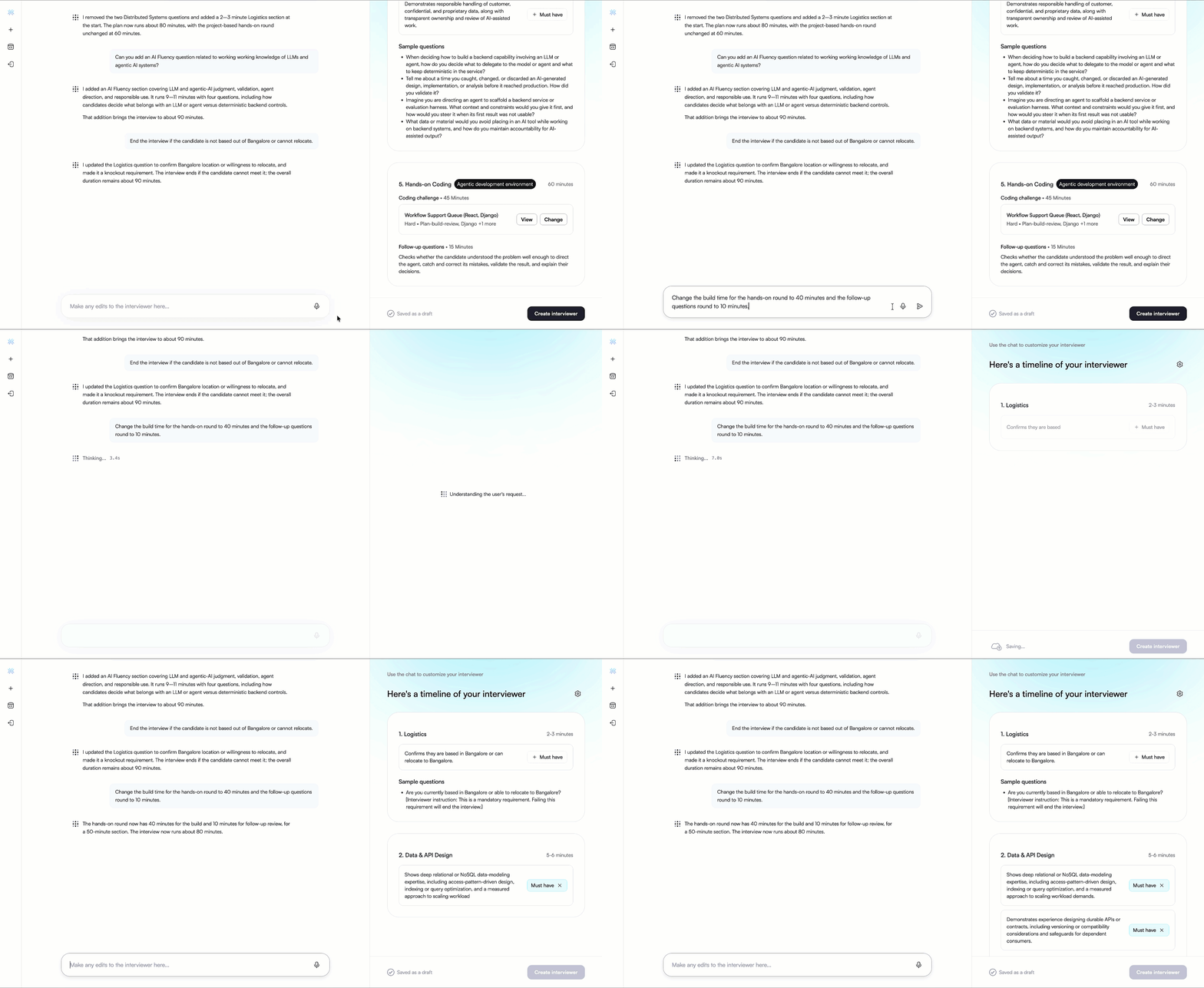
Specify the build time and the time for follow-up questions separately for the hands-on round.
Update company and role background
Enter a prompt to update details about your company, team, projects, or the role. Chakra uses these details to introduce the role and answer candidates’ questions.
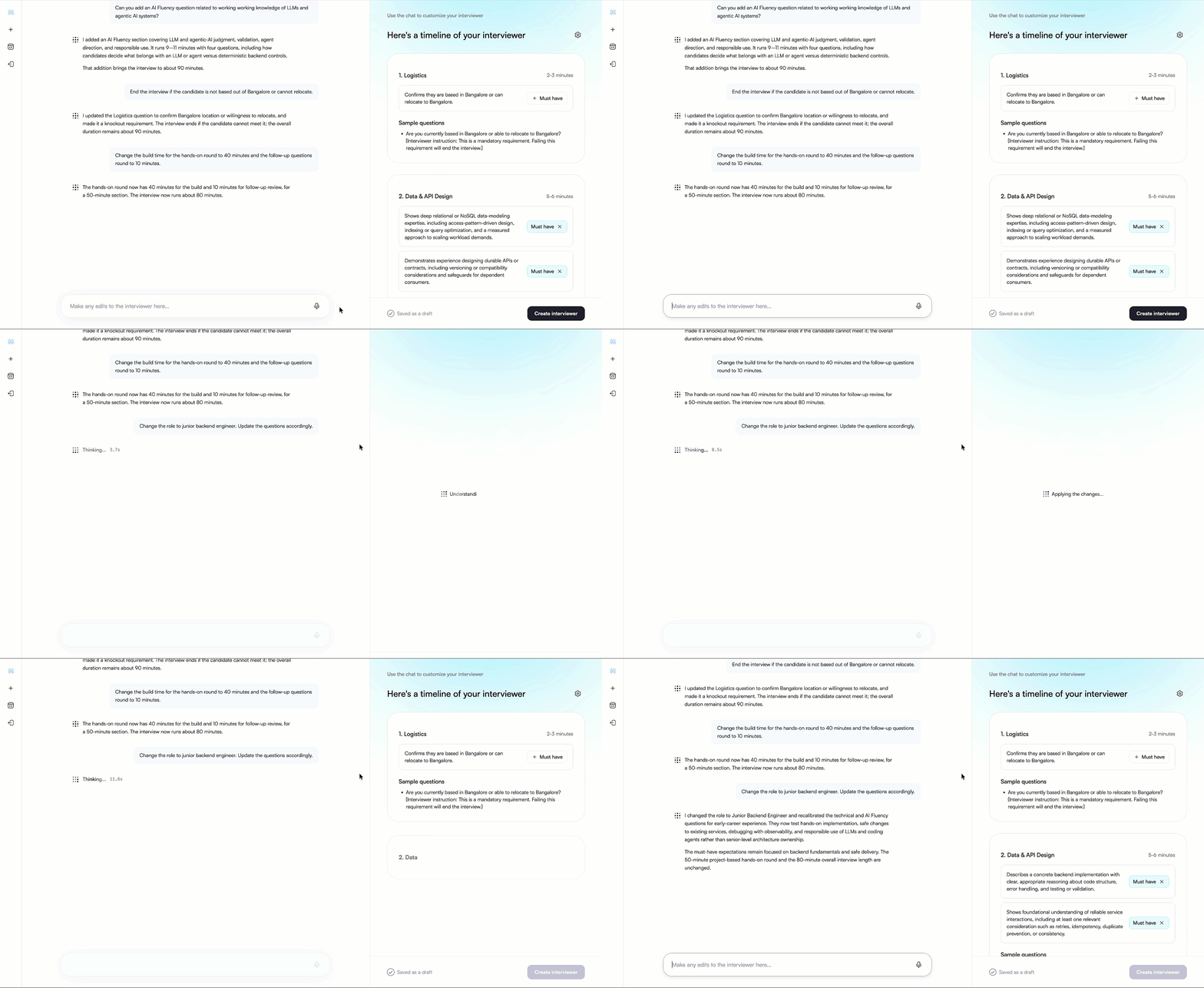
Mark must-have requirements
You can mark requirements that are mandatory for the role as Must have. If a requirement is not mandatory, clear Must have.
Requirements marked as Must have receive greater weight during candidate evaluation.
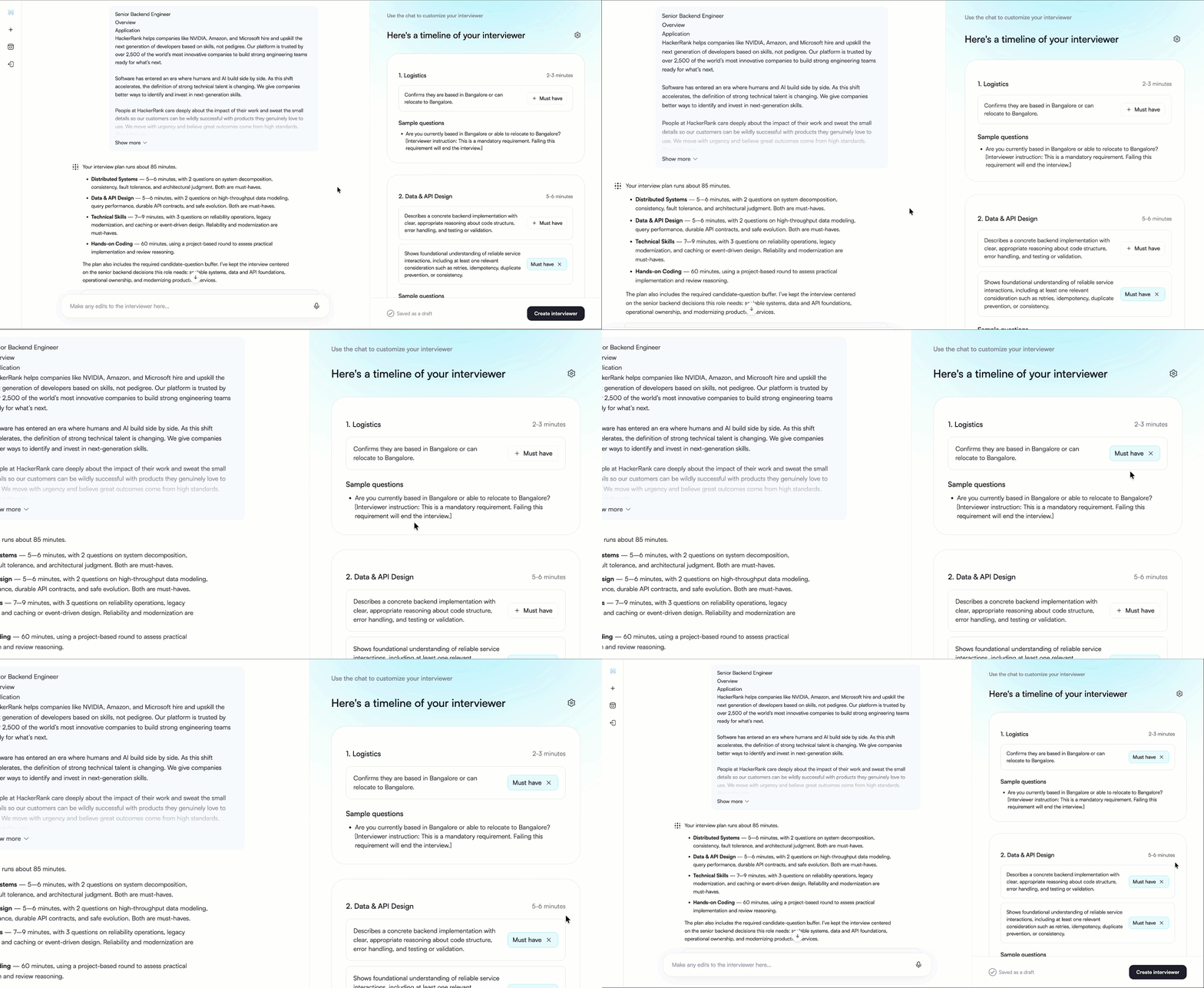
Customize hands-on round
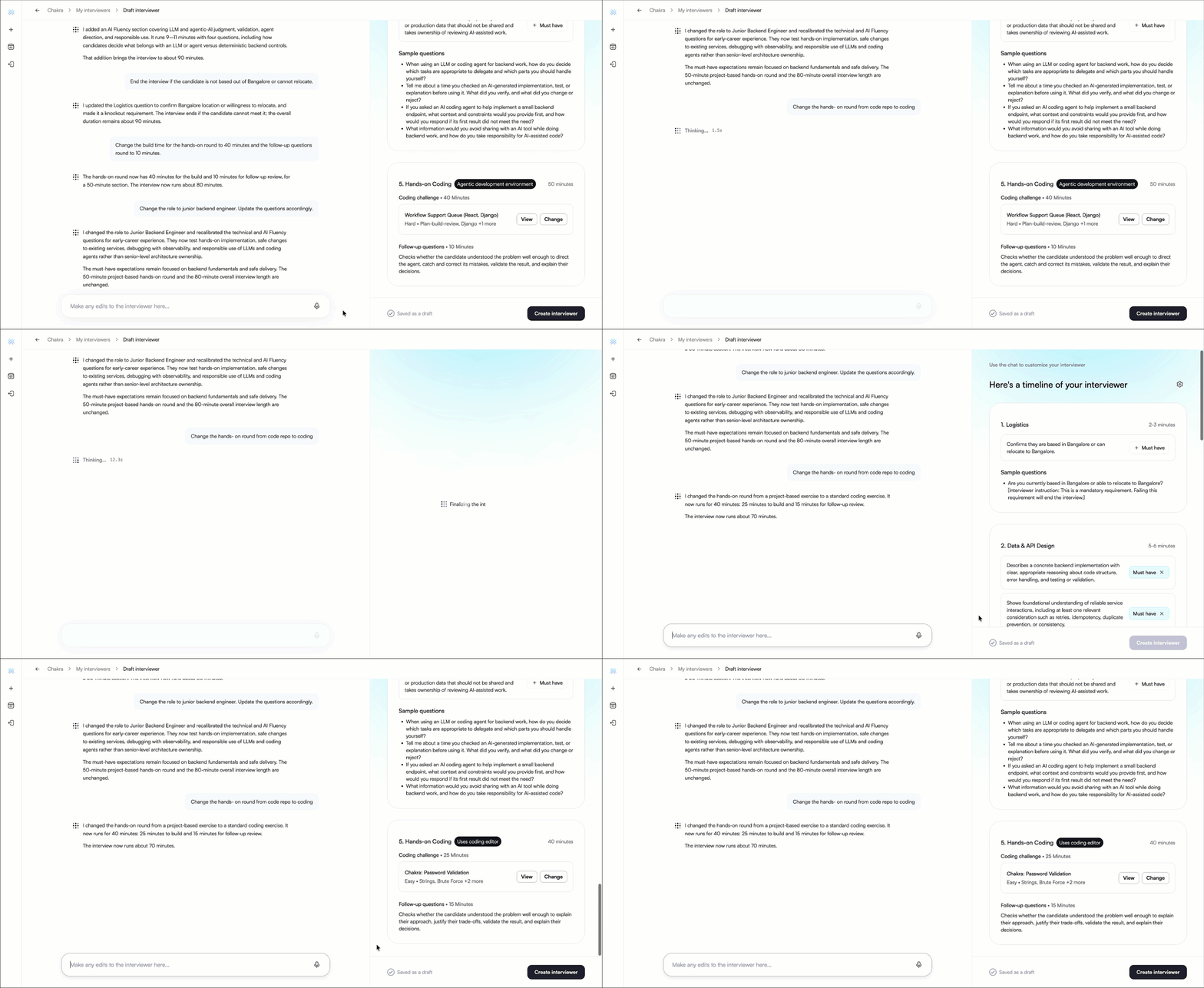
Switch hands-on round format
You can switch the hands-on round between a Coding question and a Code Repository question:
Coding questions: Candidates write a solution in the coding editor.
Code Repository questions: Candidates direct an AI agent to work in a real codebase in the Agentic Development Environment (ADE).
Enter a prompt to request the format change. After Chakra applies the change, review the selected question, build time, time for follow-up questions, and overall interview duration.
Change a question
You can change the selected Coding or Code Repository question when you set up an AI Interviewer in Chakra.
To change a question:
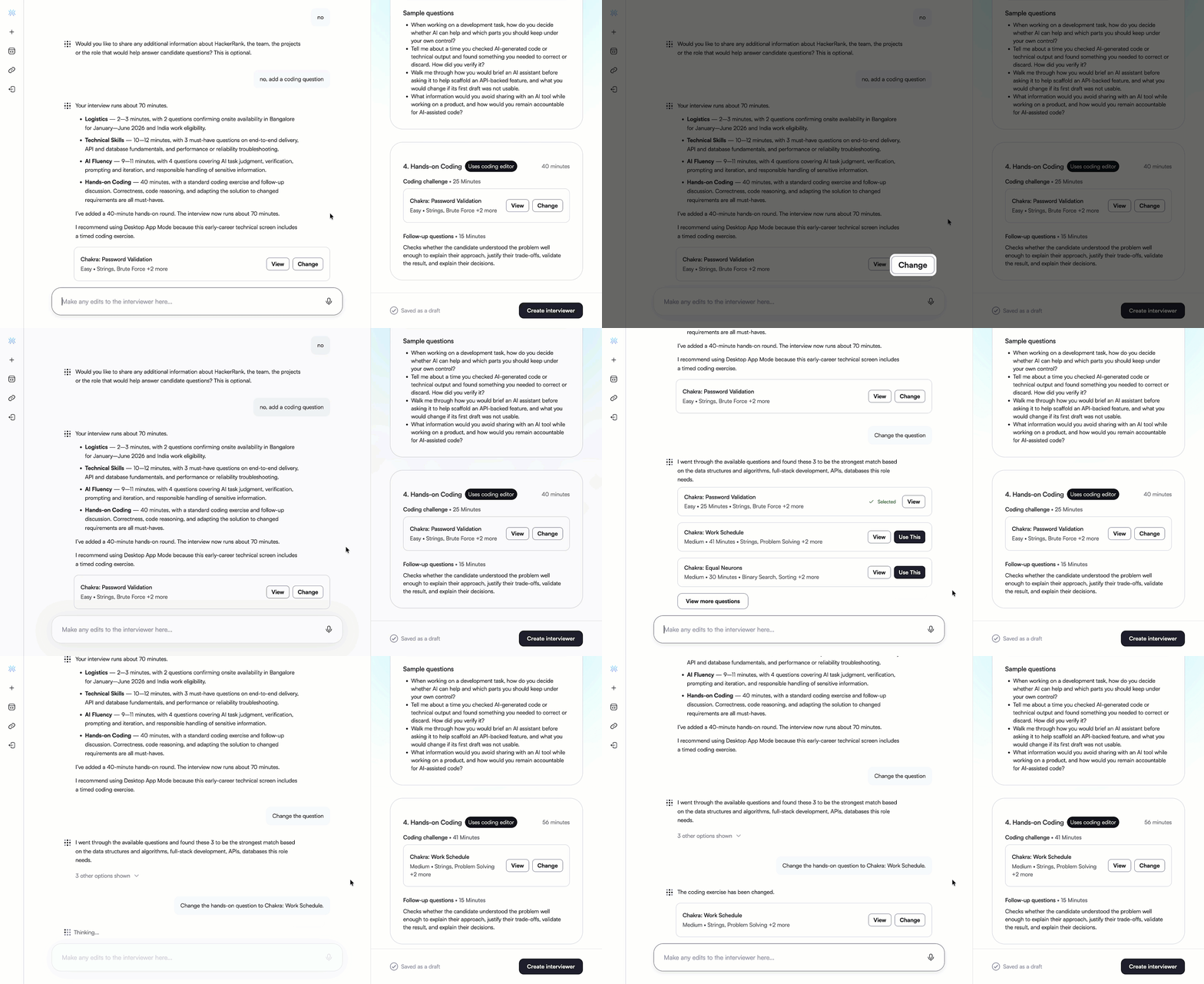
Click Change in the question card in the chat or the Hands-on Coding section of the timeline.
Review the suggested questions, or click View more questions to see additional options.
Click View to review a question’s details, if required.
Click Use This next to the question you want to select.
Check the interview timeline to confirm that it shows the new question and the time allocated to it.
Chakra replaces the previous question with your selection.
You can also enter a prompt in the chat to change the selected question.
Create a custom Coding question
You can create custom Coding questions for the hands-on round when you set up an AI Interviewer in Chakra. You can provide relevant details, such as the question title, problem statement, input and output formats, constraints, and examples with explanations.
To create a custom Coding question:
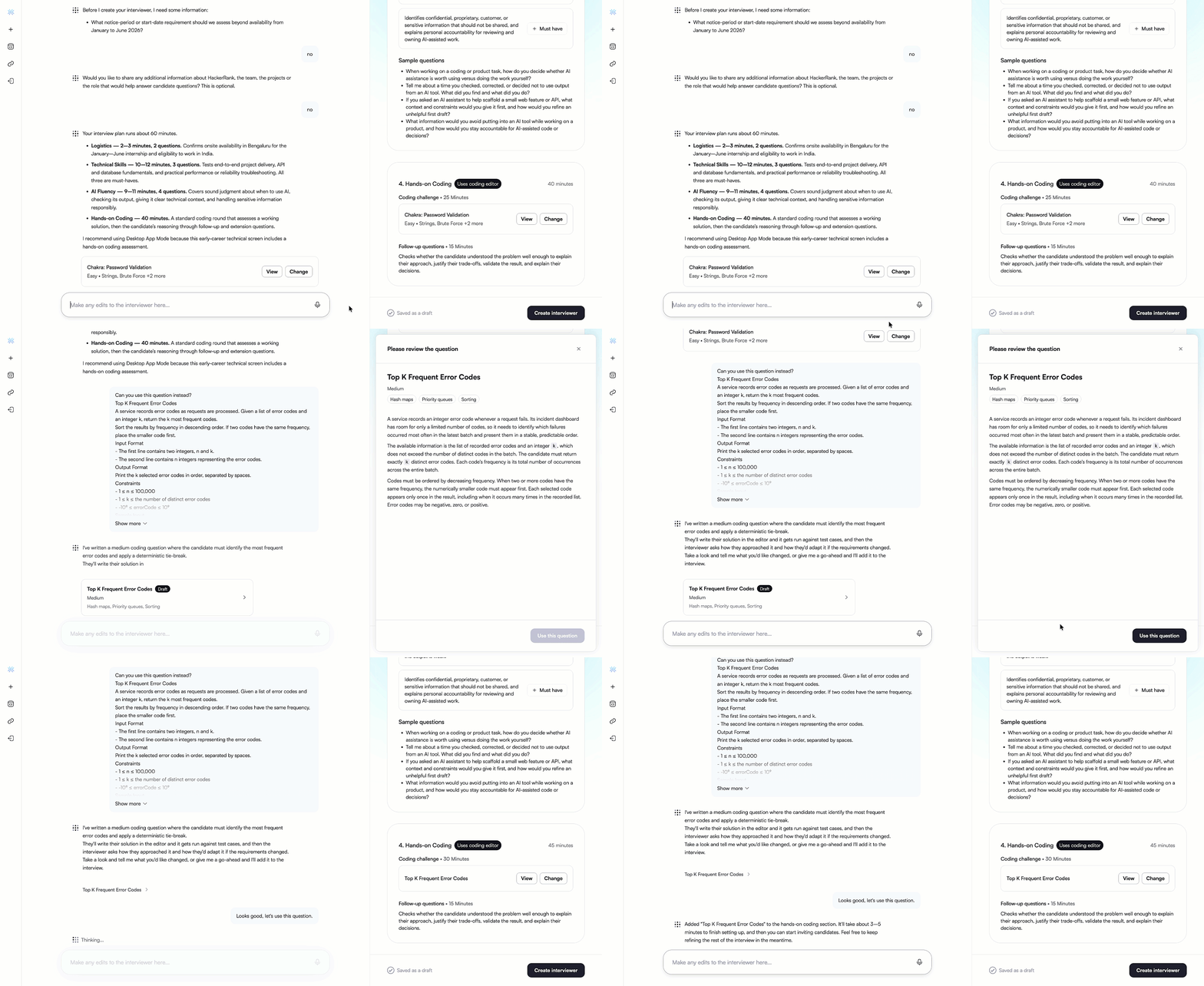
Enter a prompt with the question details and ask Chakra to use the question in the hands-on round.
Click the send icon.
Review the generated draft in the question review panel.
Request revisions using additional prompts and review the updated draft, if required.
Click Use this question when the draft meets your requirements.
Note: You can also enter a prompt in the chat to approve the draft.
Chakra adds the custom question to the hands-on round and updates the interview timeline.
Try a Code Repository question
You can try a Code Repository question in the Agentic Development Environment (ADE) before you add it to an AI Interviewer in Chakra.
To try a Code Repository question:
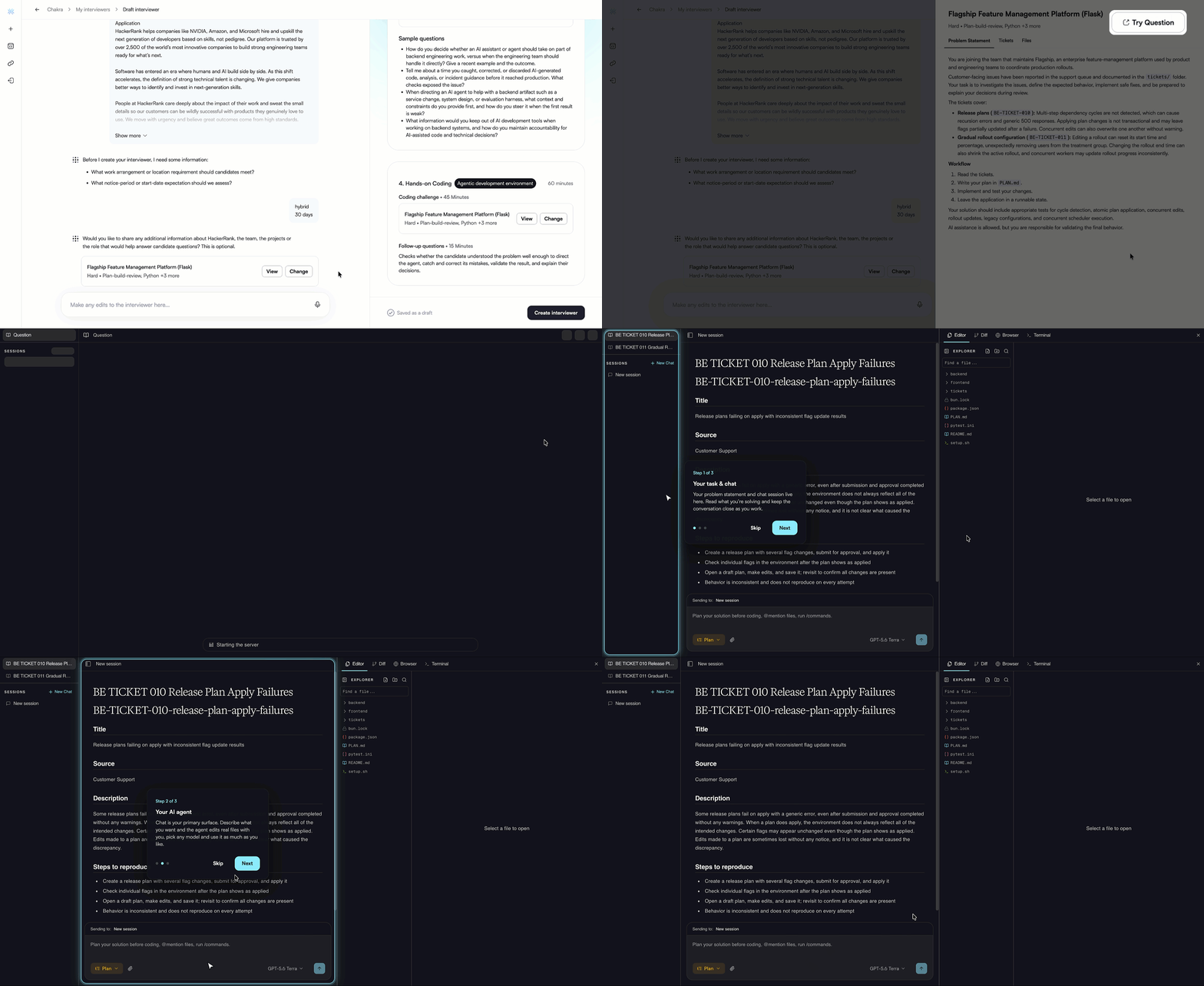
Click View for the question you want to try.
Review the Problem Statement, Tickets, and Files tabs.
Click Try Question to open ADE.
The question opens in ADE, where you can try it as a candidate and check whether the question meets your requirements.