Set Up the Event Challenge
Last updated: October 15, 2025
HackerRank Engage recommends a set of coding questions by default to help you quickly set up challenges for your event.
To set up a challenge:
Step 1: Review recommended questions
To review recommended questions:
Log in to your Engage account using your credentials.
Select the event for which you want to set up the challenge.
In the left panel, select Challenges.
Click the arrow icon next to a question to preview it. The question opens in a pop-up window.
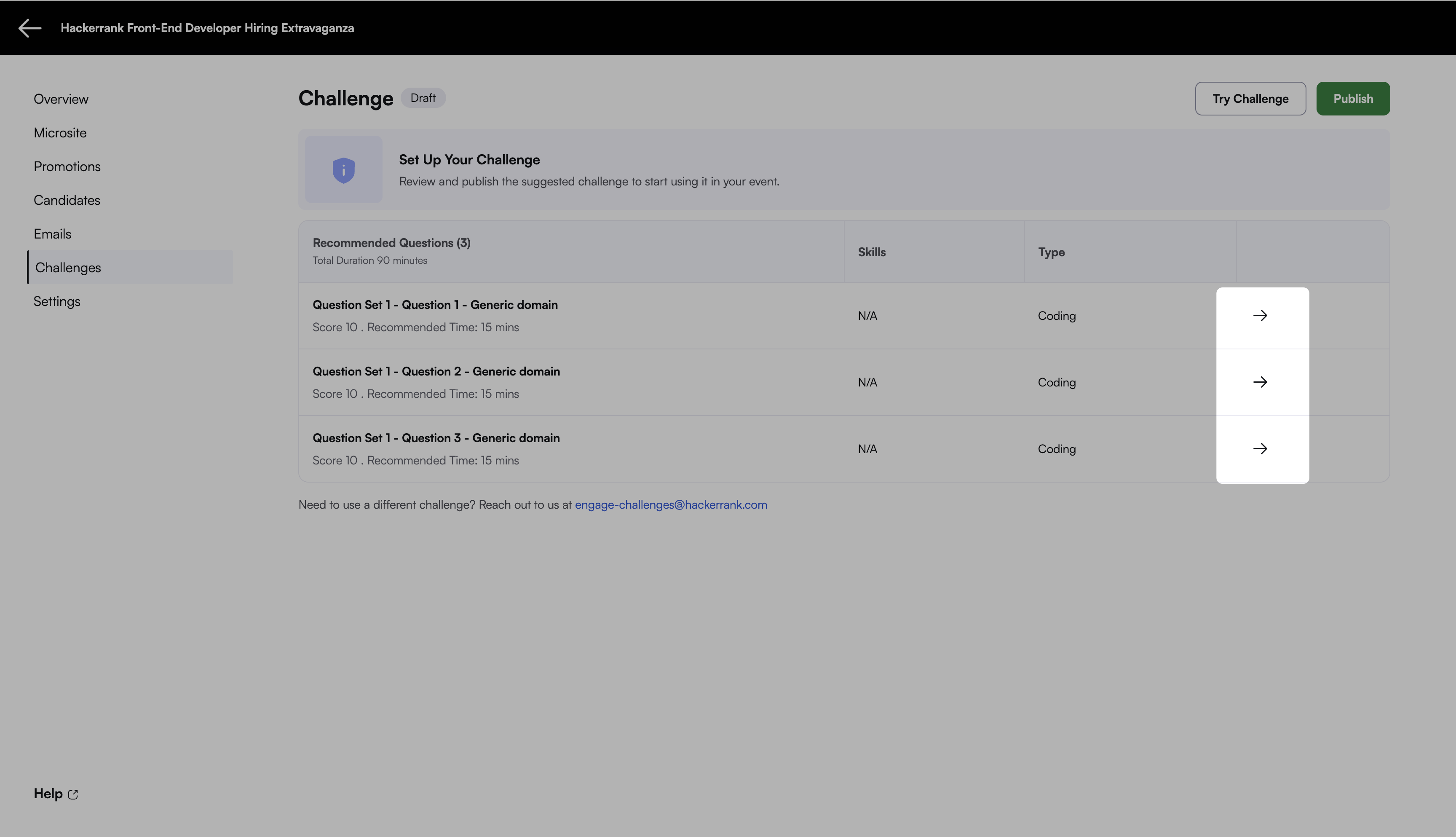
Review all the recommended questions before publishing the challenge.
Note: Use the Try Challenge option to test the questions before proceeding.
If the recommended questions do not meet your requirements, contact the Engage team at engage-challenges@hackerrank.com. This notifies the Content, Professional Services, and Product teams at HackerRank. You can expect a response within one business day.
Step 2: Review challenge settings
By default, the challenge uses the centralized test settings configured in your account. When you publish a challenge, a consent prompt appears for enabling the recommended test integrity settings.
To apply the recommended settings, select the checkbox labeled Enable the recommended integrity settings including those that make use of AI.
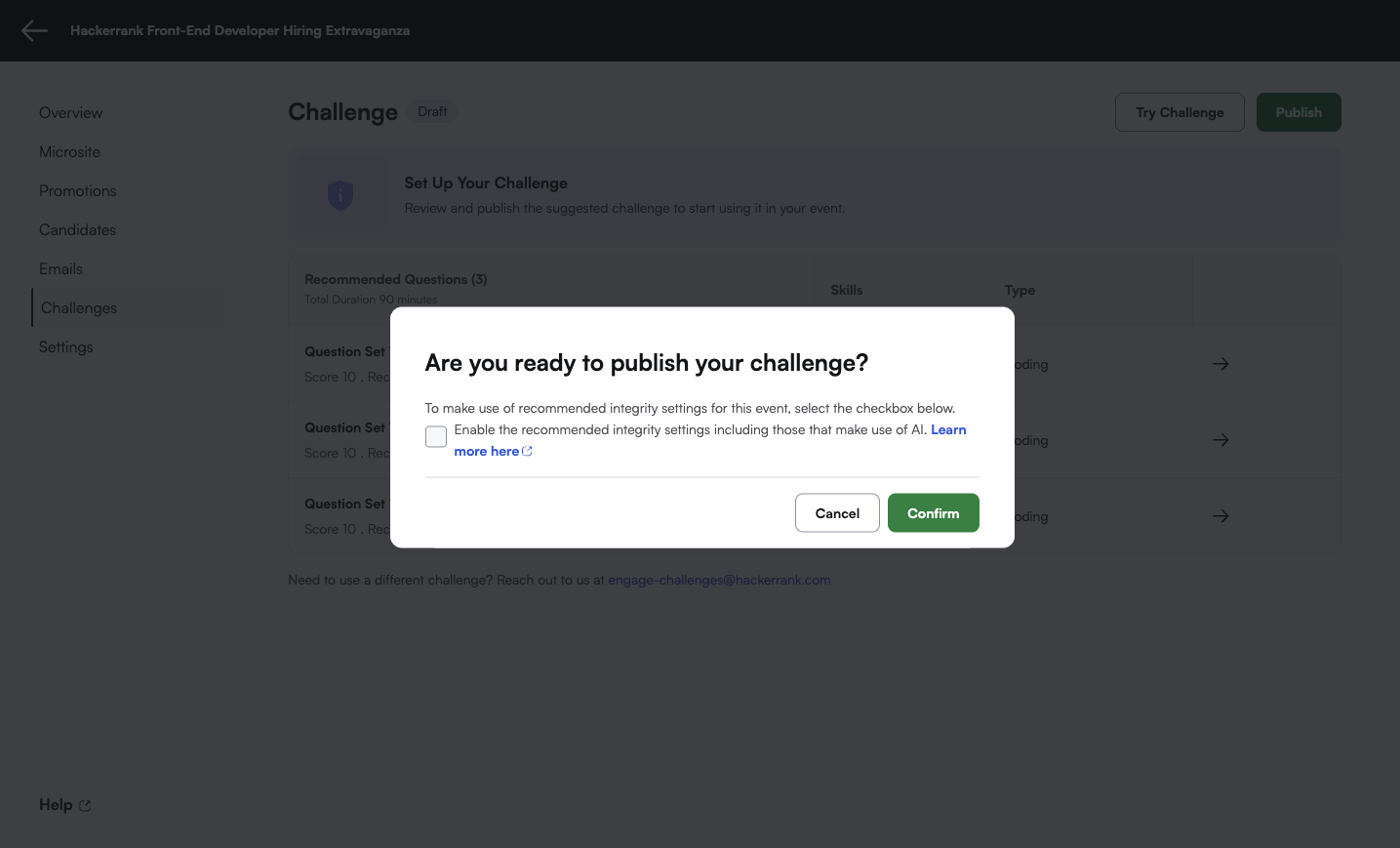
The recommended test integrity settings include the following:
Copy-paste tracking
Tab proctoring
Image proctoring with AI image analysis
Multiple monitor detection
AI-based plagiarism detection
Step 3: Publish challenge
After reviewing the challenge and settings:
Click Publish.
In the confirmation pop-up up window, click Confirm to publish the challenge.
Note: Once the microsite is published, you cannot change the participation type.To request changes, contact engage-challenges@hackerrank.com.