Approximate Solution Type Questions
Last updated: July 13, 2026
Approximate Solution questions allow you to assess a candidate’s ability to solve optimization problems where more than one correct answer exists, such as in image processing or computer vision.
For example, consider a question that asks for a list of five prime numbers less than 100. There are 25 prime numbers in this range, so a candidate can submit any combination of five prime numbers and still receive a correct result. In the custom checker, you can also assign partial credit. For example, if a candidate lists three prime numbers and two composite numbers, you can award three points out of five.
Unlike the binary pass-or-fail scoring used for coding questions, a custom checker lets you apply your own logic and assign partial scores for more accurate evaluation.
Creating an approximate solution question
To create an approximate solution question:
Log in to your HackerRank for Work account using your credentials.
Go to the Library tab.
Click Create Question.
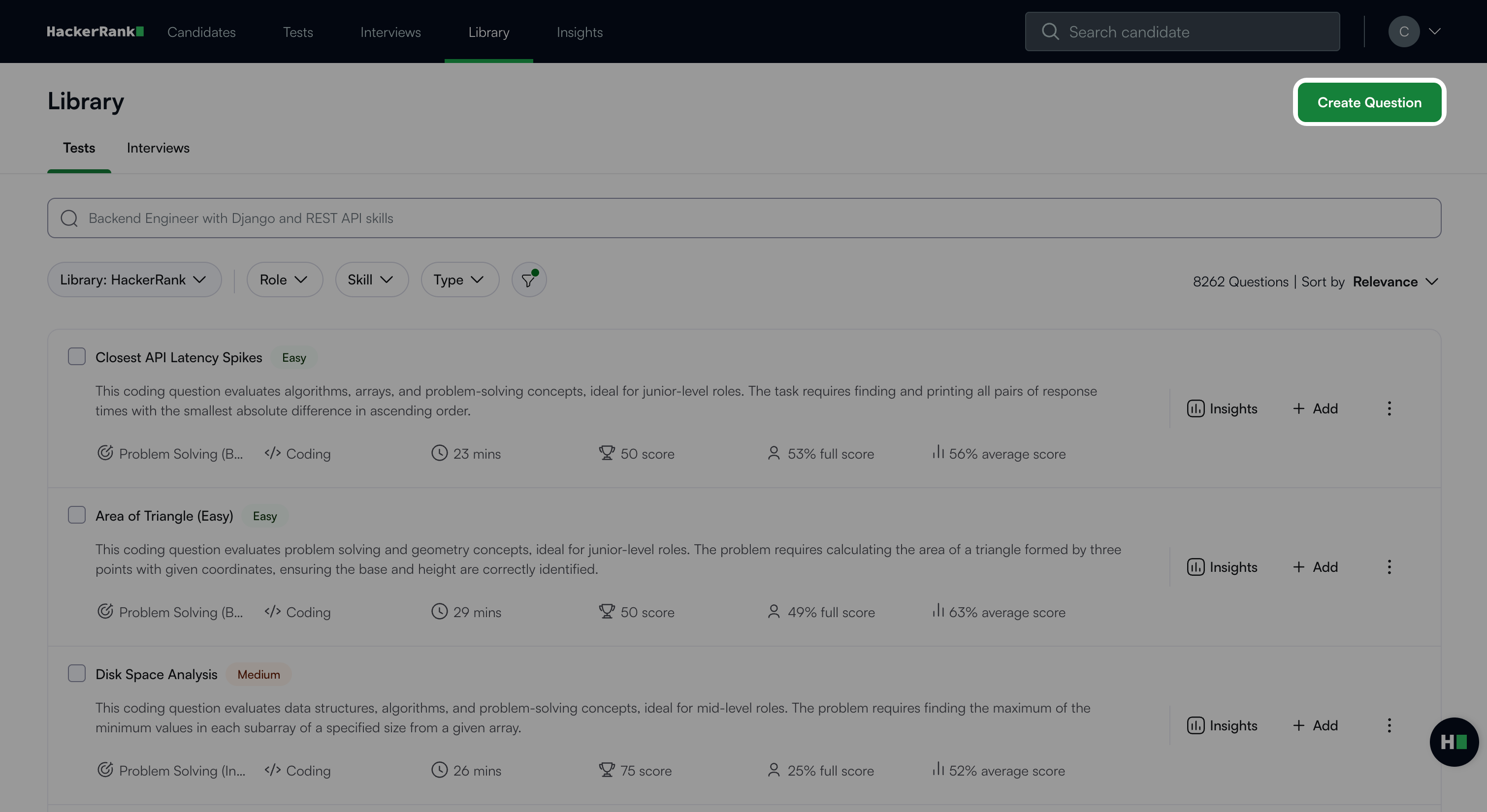
Select Approximate Solution under Programming.
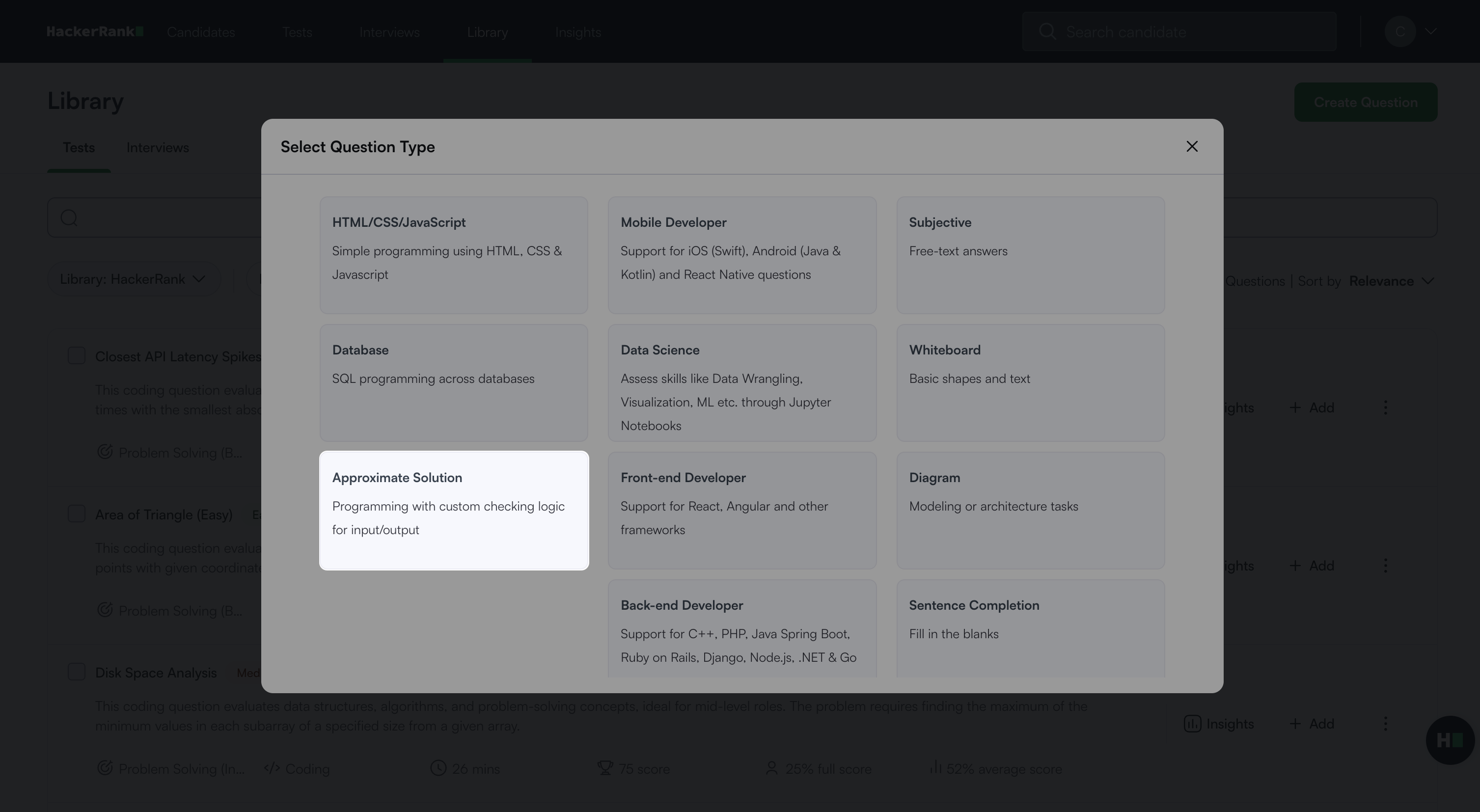
The approximate solution question creation workflow opens with the following five steps.
Step 1: Question Details
In the Problem details section:
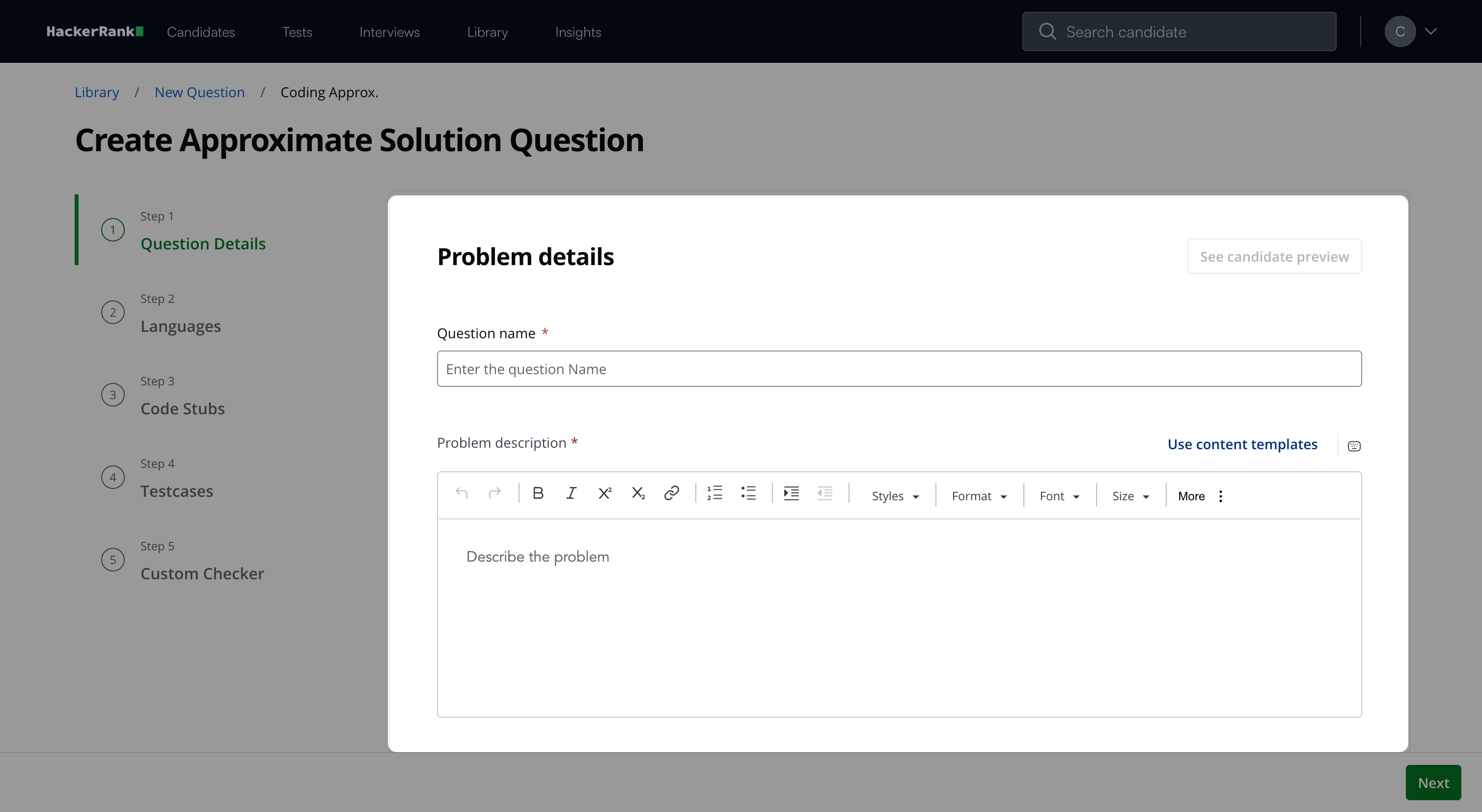
Enter the question name.
Describe the problem in the Problem description field. You can use the formatting menu to format the text or to include elements such as tables or images.
Note: Click See candidate preview to view how the question appears to candidates.
In the Question properties section:
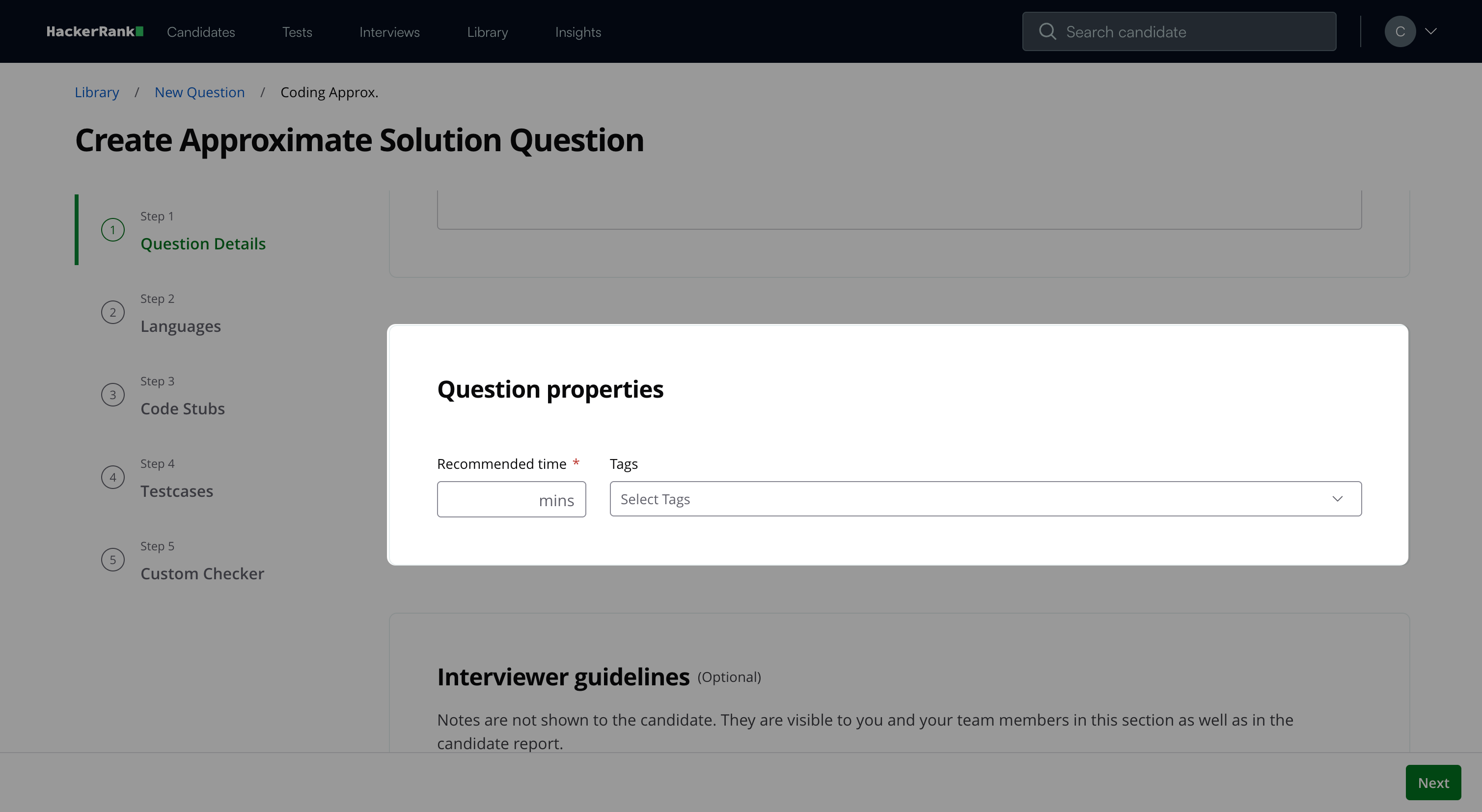
Add Recommended time in minutes.
(Optional) Add Tags from the drop-down list or create new ones.
(Optional) Add Interviewer guidelines for internal use, such as evaluation notes, hints, or reference solutions.
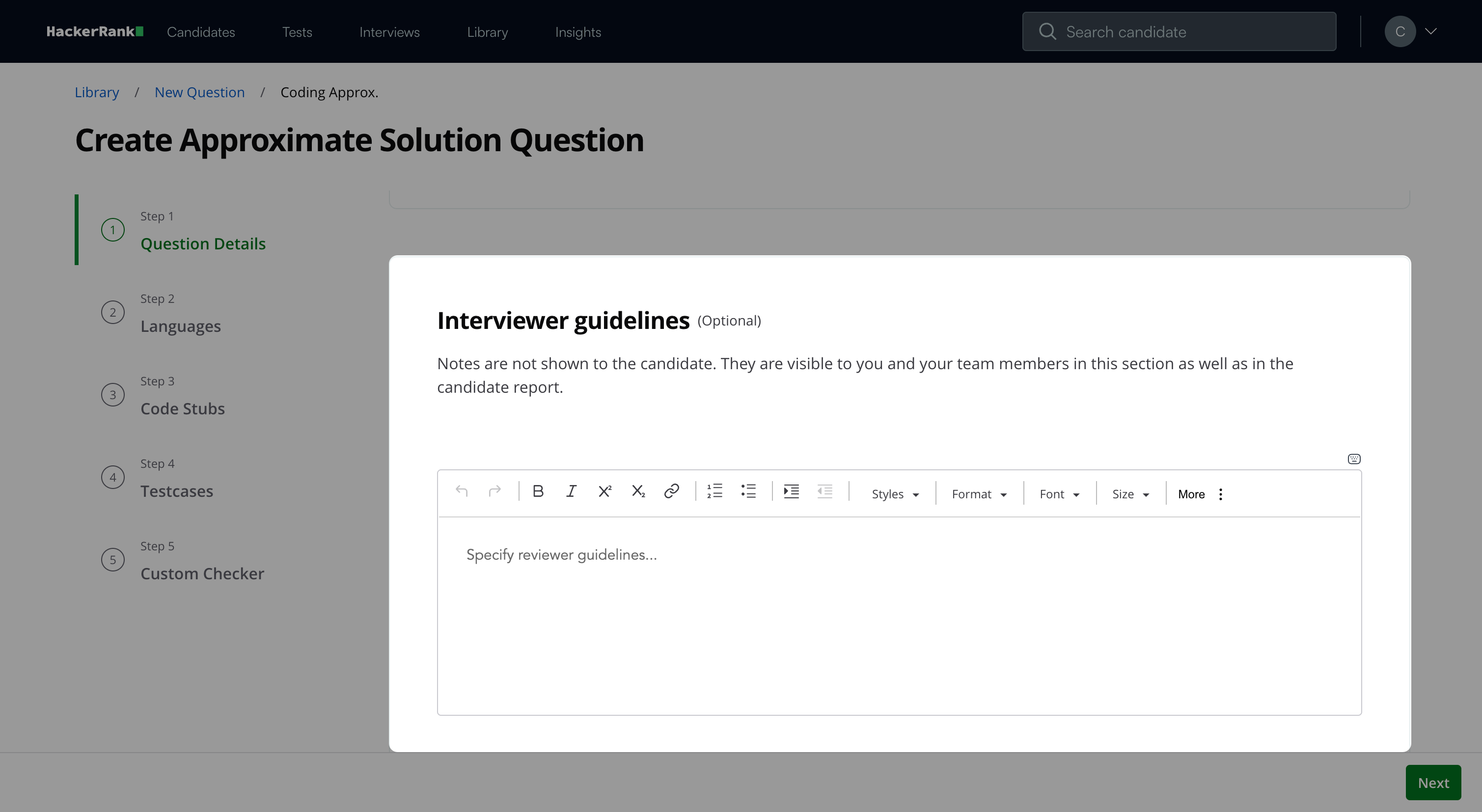
Click Next.
Step 2: Languages
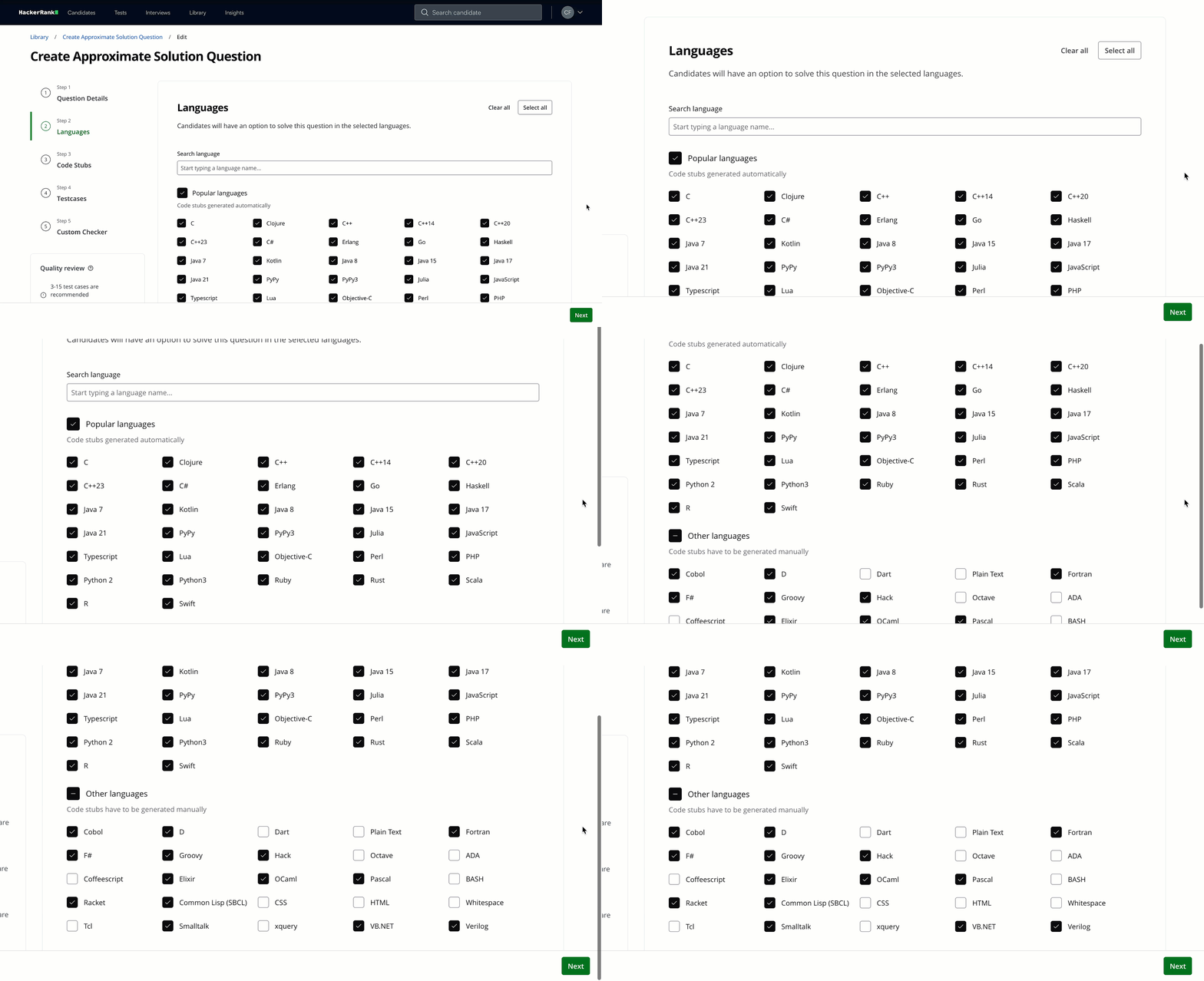
Select the programming languages that candidates can use to attempt the question.
The platform groups languages into two categories:Popular languages: The platform automatically generates code stubs.
Select the Popular languages checkbox to include all popular languages.
Other languages: You must generate code stubs manually.
Select the Other languages checkbox to include all other languages.
Click Next.
Note:
Click Select all to enable all languages.
Click Clear all to remove all selections.
Use the search bar to find a specific language.
Step 3: Code Stubs
Define the function signature and generate code stubs for supported languages.
Enter the Function name.
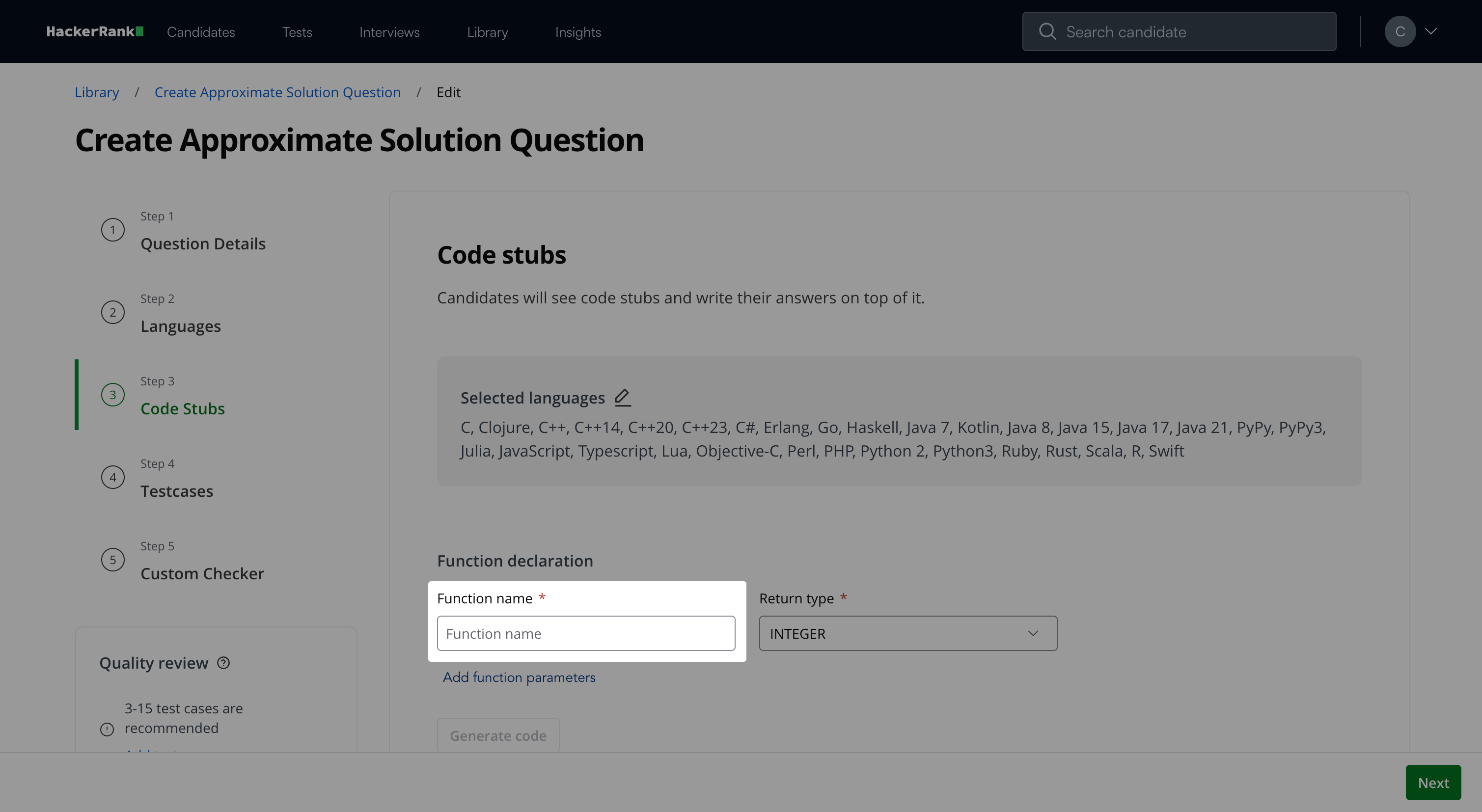
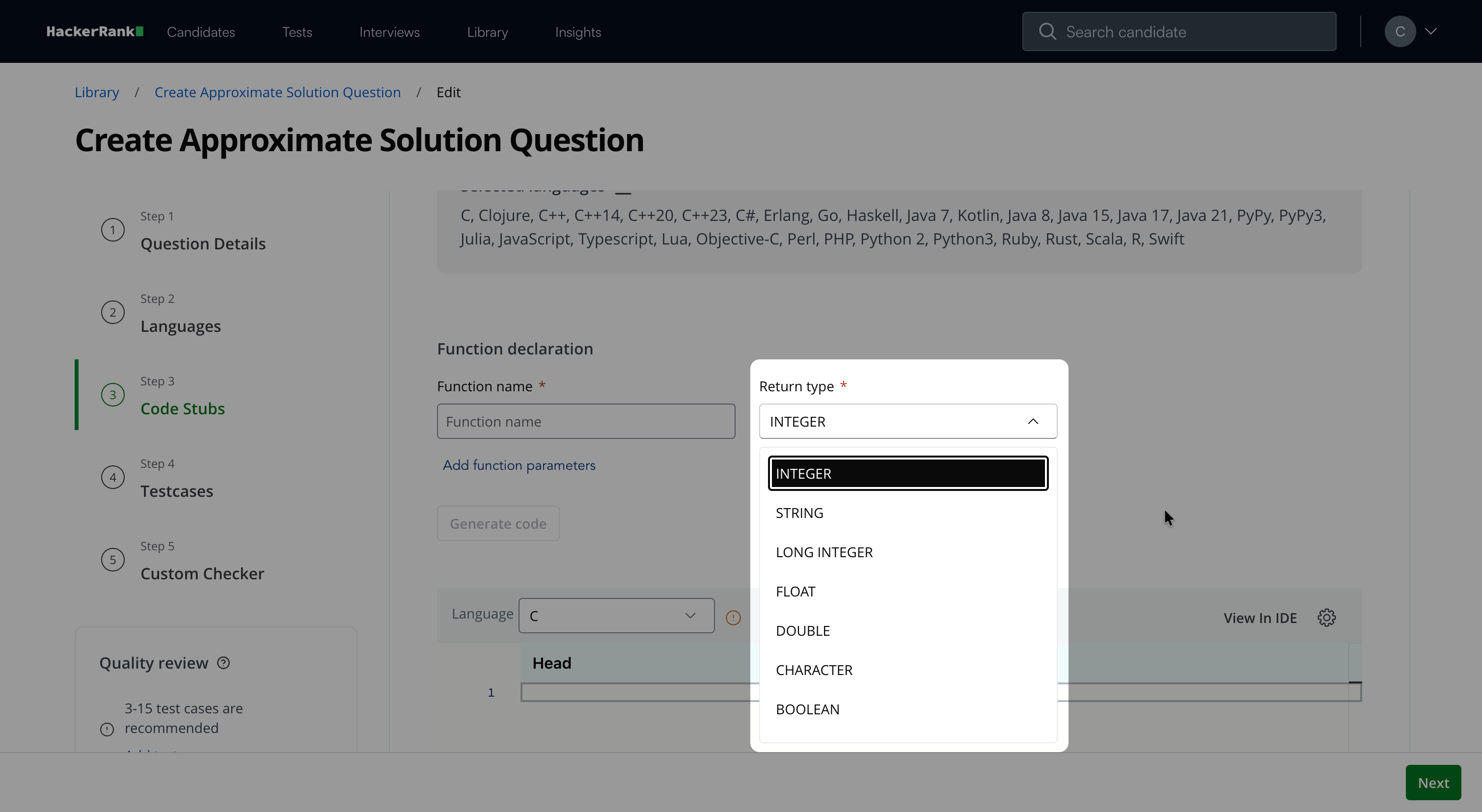
Select a Return type from the dropdown.
(Optional) Click Add function parameters.
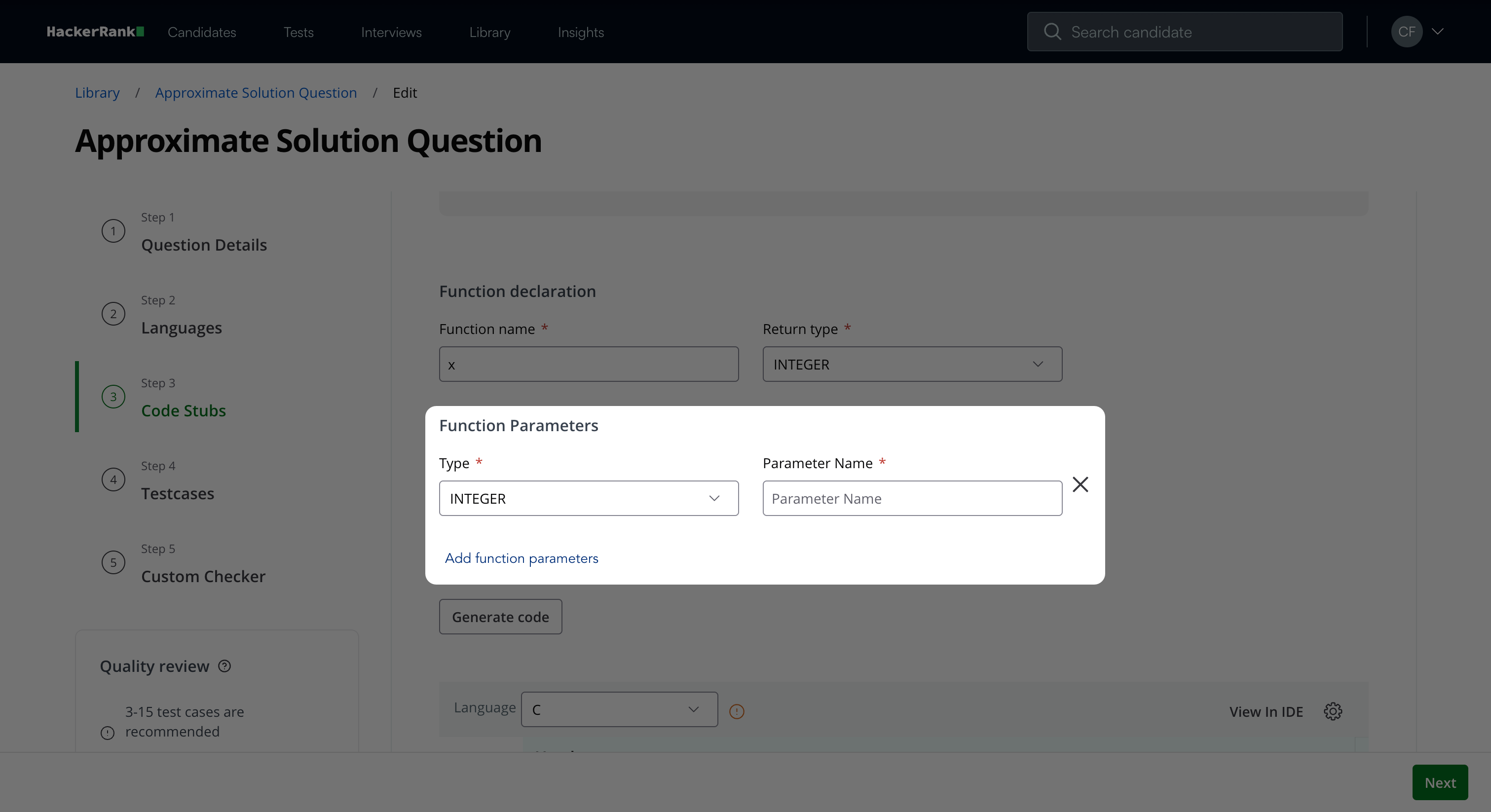
Select a Type from the dropdown.
Enter the Parameter Name.
Note: Click the ✕ icon to remove a parameter.
Click Generate code.
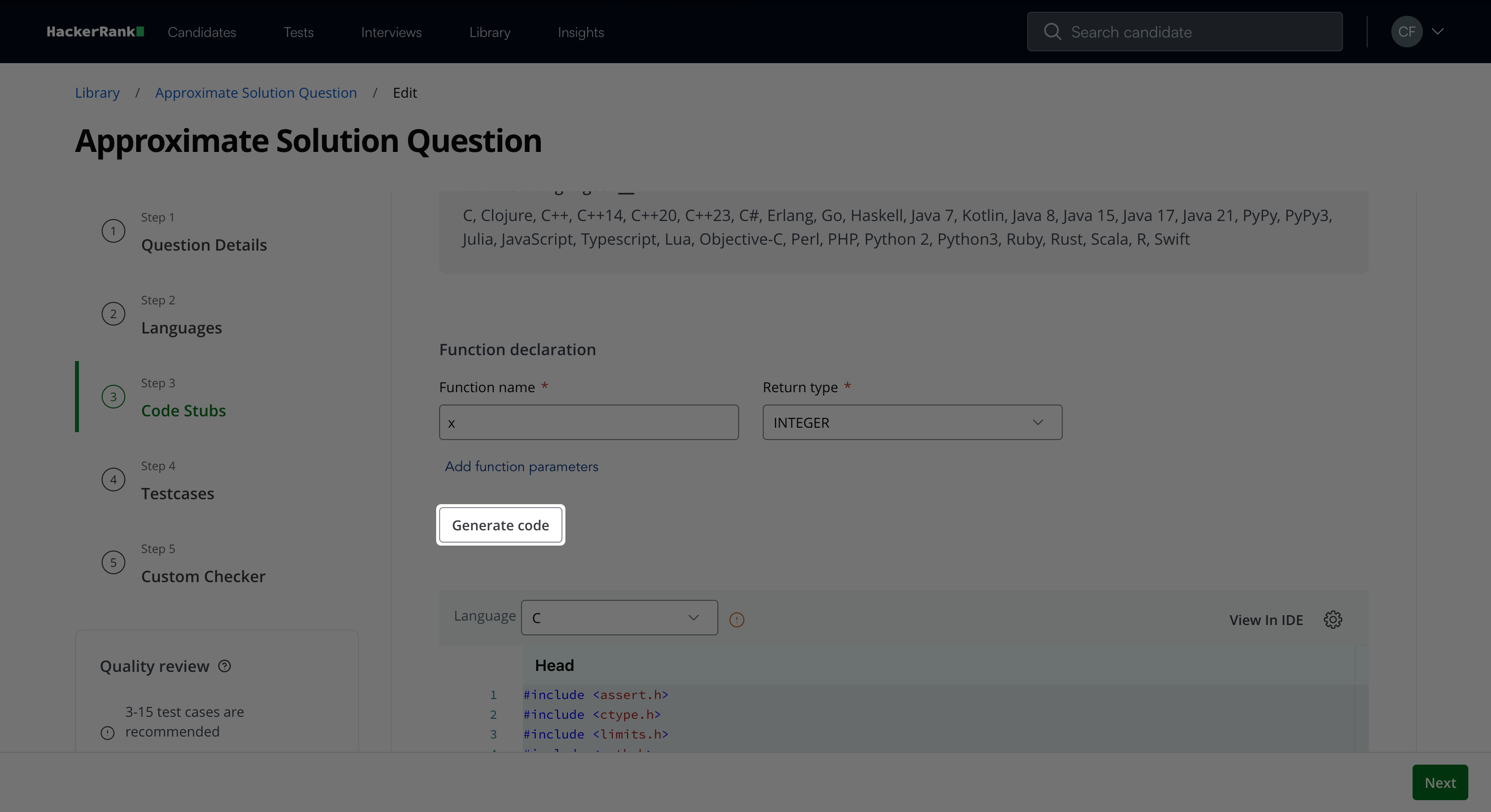
The platform generates code stubs for the Popular languages selected in Step 2 and displays a success message. If you selected languages under Other, follow the steps in Handle unsupported languages.
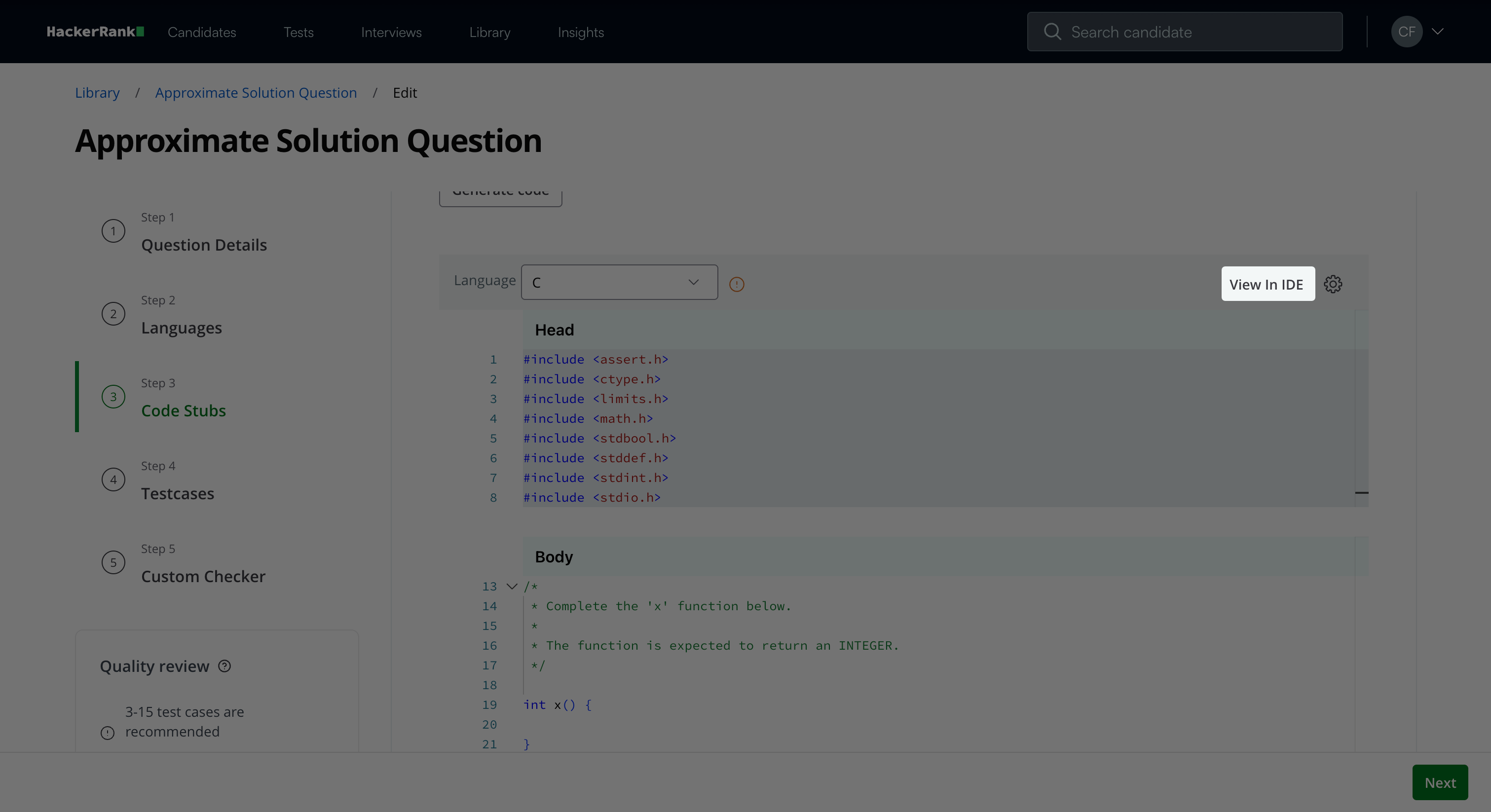
(Optional) Review the generated code.
(Optional) Click View in IDE to open the code in the IDE.
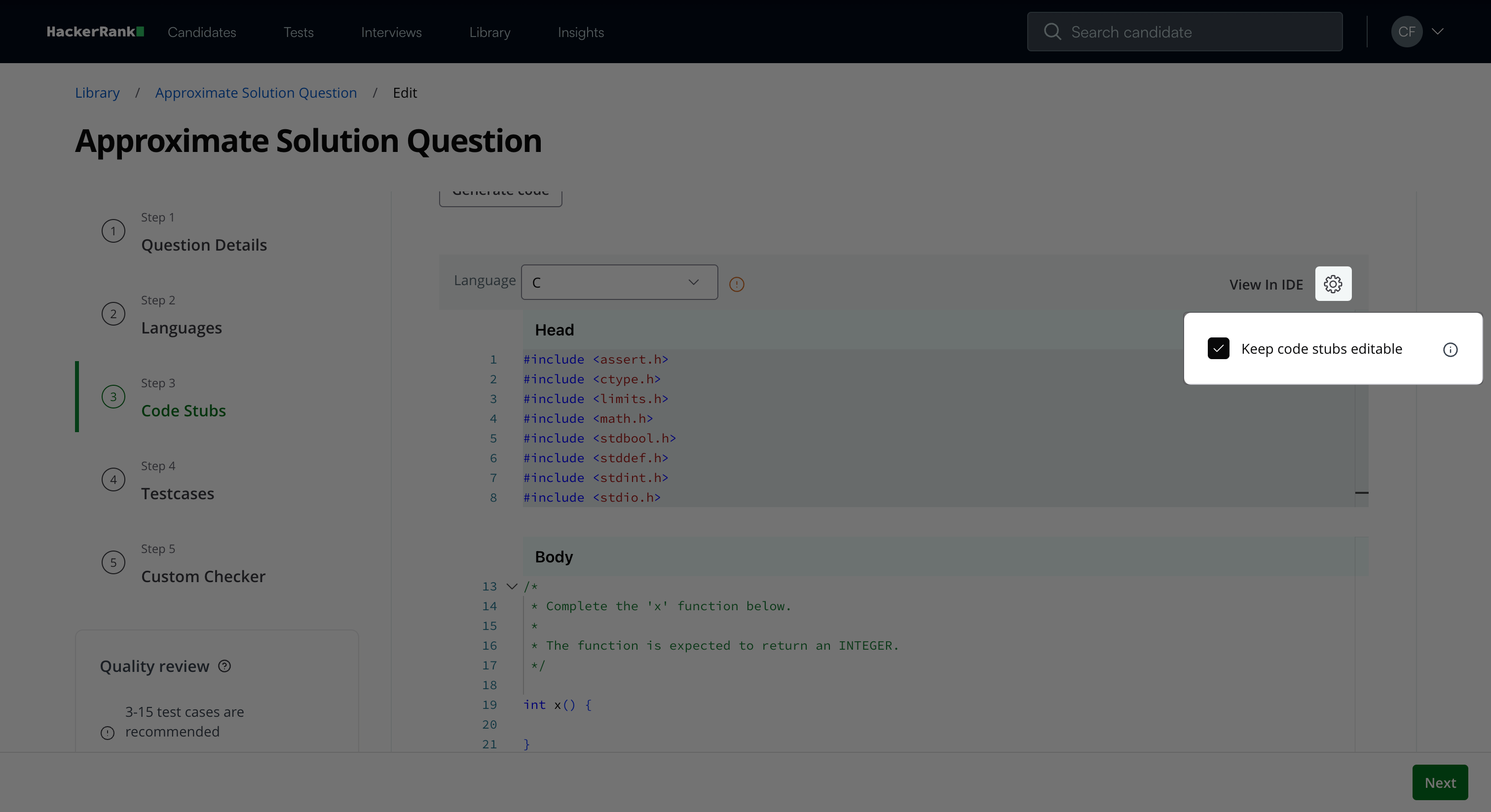
Click the settings icon to enable or disable Keep code stubs editable. The option is enabled by default.
Click Next.
Handle unsupported languages
If you select languages that do not support automatic code stub generation, the platform displays a dialog listing the unsupported languages.
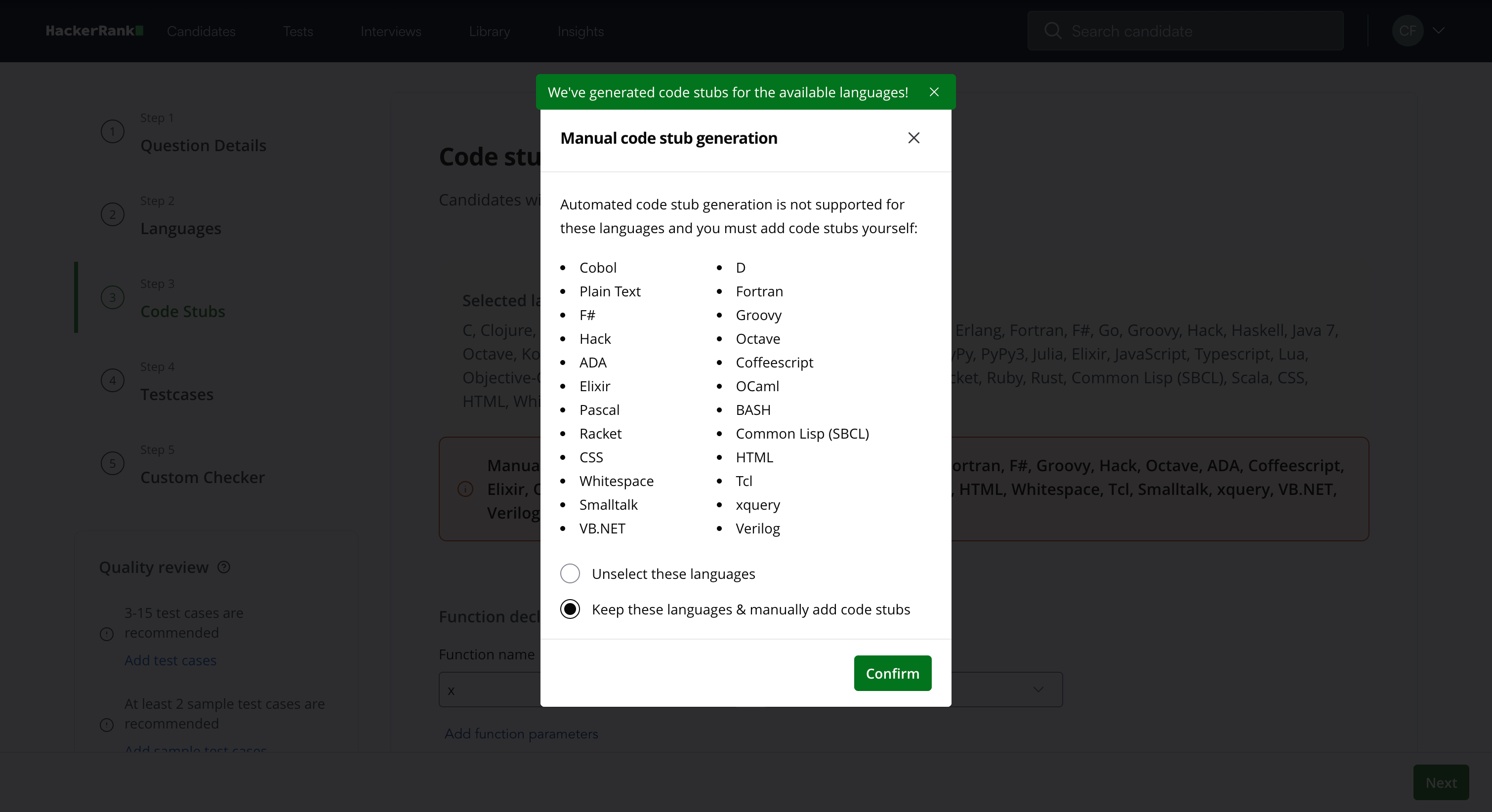
Choose one of the following options:
Unselect these languages: Removes the unsupported languages from the question.
Keep these languages & manually add code stubs: Keeps the languages and continues without auto-generated stubs. You must add the code stubs manually.
To add code stubs manually:
Open the code editor.
Search for the required language.
Add the code stub manually.
Click Confirm.
Step 4: Testcases
Use this step to upload solutions and define test cases for the question.
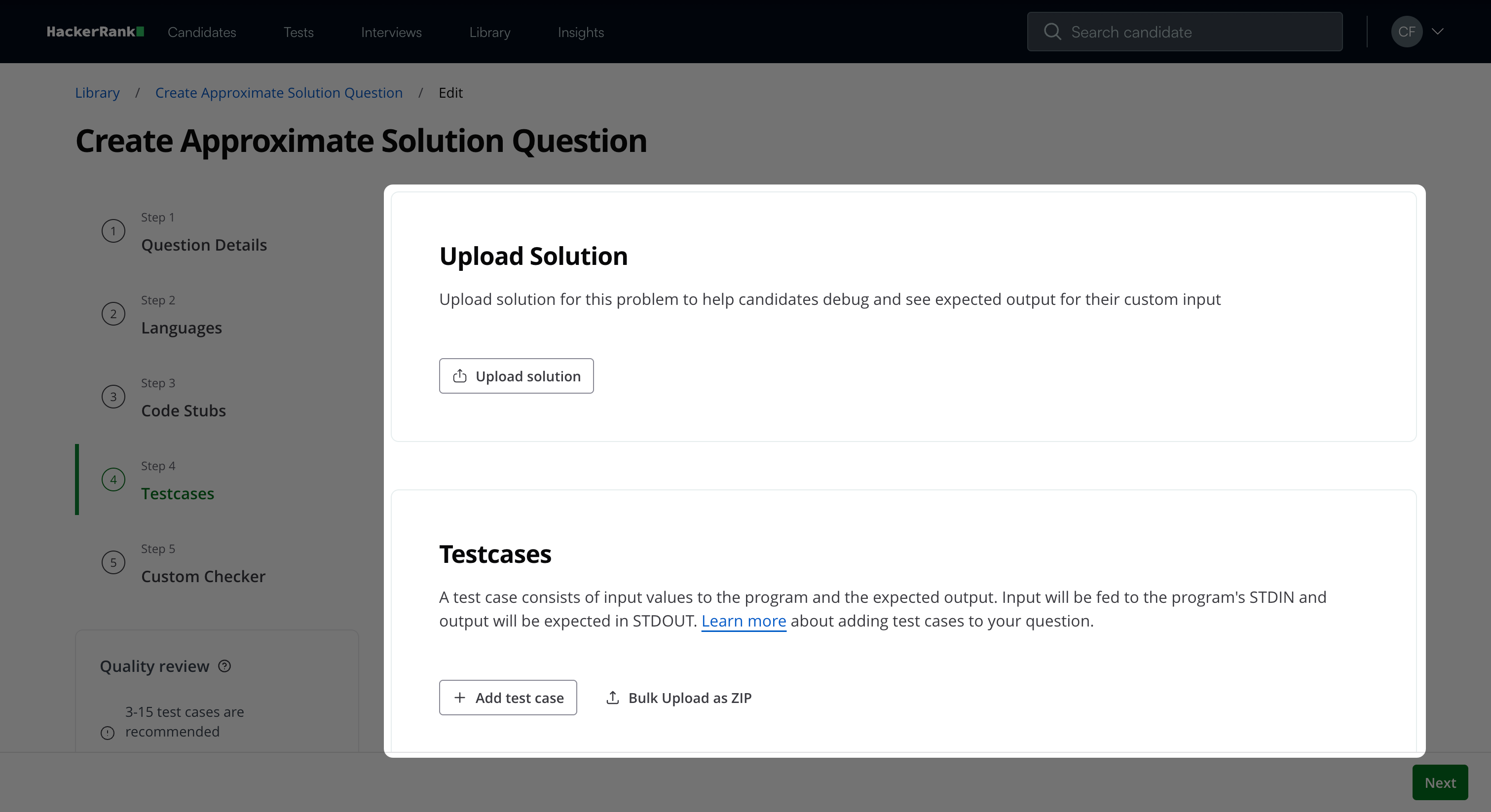
In the Upload Solution section:
Click Upload Solution to upload a solution file.
In the Upload Solution dialog:
Click Select file and choose the solution file.
Click Language and select the language of the solution file, or select Auto detect. Auto detect is enabled by default.
Click Upload.
In the Testcases section:
Click Add test case to manually add test cases.
In the Add test case dialog:
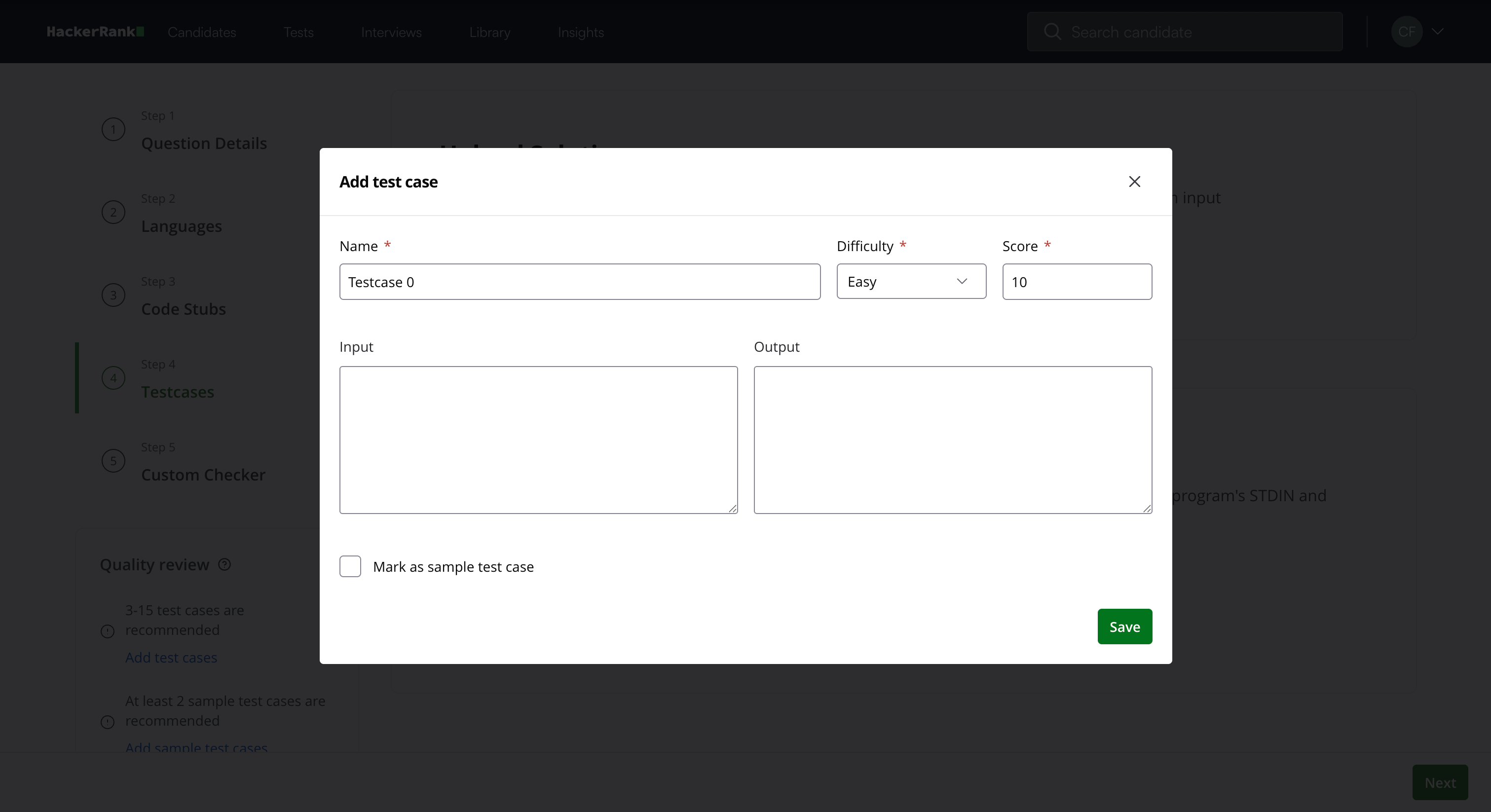
Enter the Name of the test case.
Select a difficulty level from the Difficulty dropdown
Assign a Score.
(Optional) Enter Input values.
(Optional) Enter Output values.
(Optional) Select Mark as sample test case to make the test case visible as a sample. For more information on test cases, see 📄 Test Cases in Coding and Approximate Solution Questions.
Click Save.
Step 5: Custom Checker
Use the custom checker to define scoring logic.
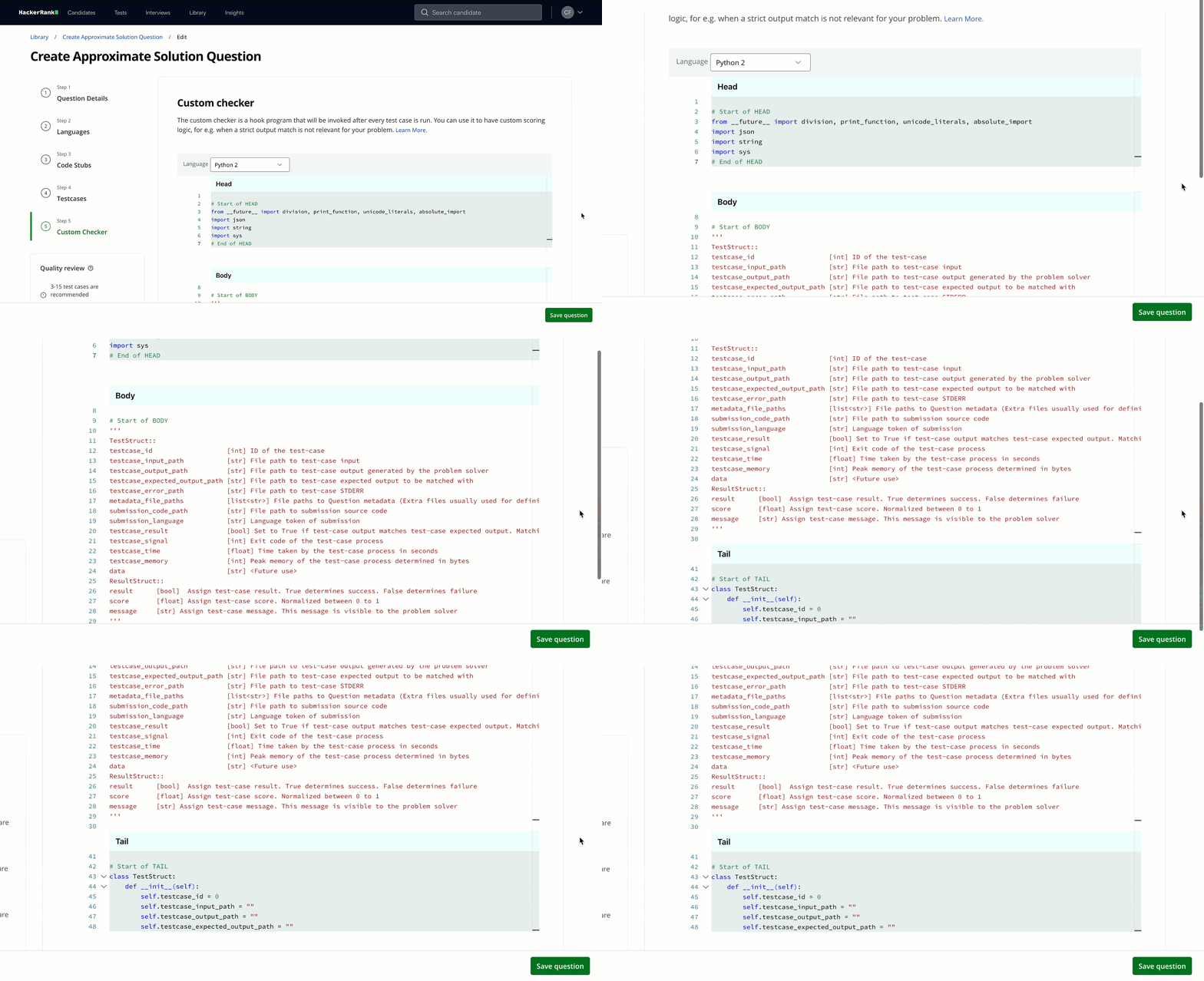
Edit the body of the custom checker.
For more information on the custom checker, see 📄 Custom Checker in Approximate Solution Type Questions.Click Save question.
The question appears under My Company questions in the HackerRank Library.
Scoring an approximate solution question in tests
Approximate Solution questions use automatic scoring.
If you configure a custom checker, the platform uses it to score submissions.
If you do not configure a custom checker, the platform scores the question like a standard coding question using test cases.
How scoring works with a custom checker
When you use a custom checker, the platform evaluates submissions at the test case level using your scoring logic.
The platform runs the candidate’s code once for each test case.
For each test case:
The candidate’s output is passed to the custom checker.
The custom checker evaluates the output and assigns a score.
The platform adds the scores from all test cases to calculate the candidate’s final score.
For more information on the custom checker, see 📄 Custom Checker in Approximate Solution Type Questions.