Database Questions
Last updated: March 26, 2026
Database questions allow you to assess a candidate’s ability to work with SQL and Database Management Systems (DBMS). These questions measure skills such as writing queries, retrieving data, and managing database structures.
Creating a database question
To create a database question:
Log in to your HackerRank for Work account using your credentials.
Go to the Library tab.
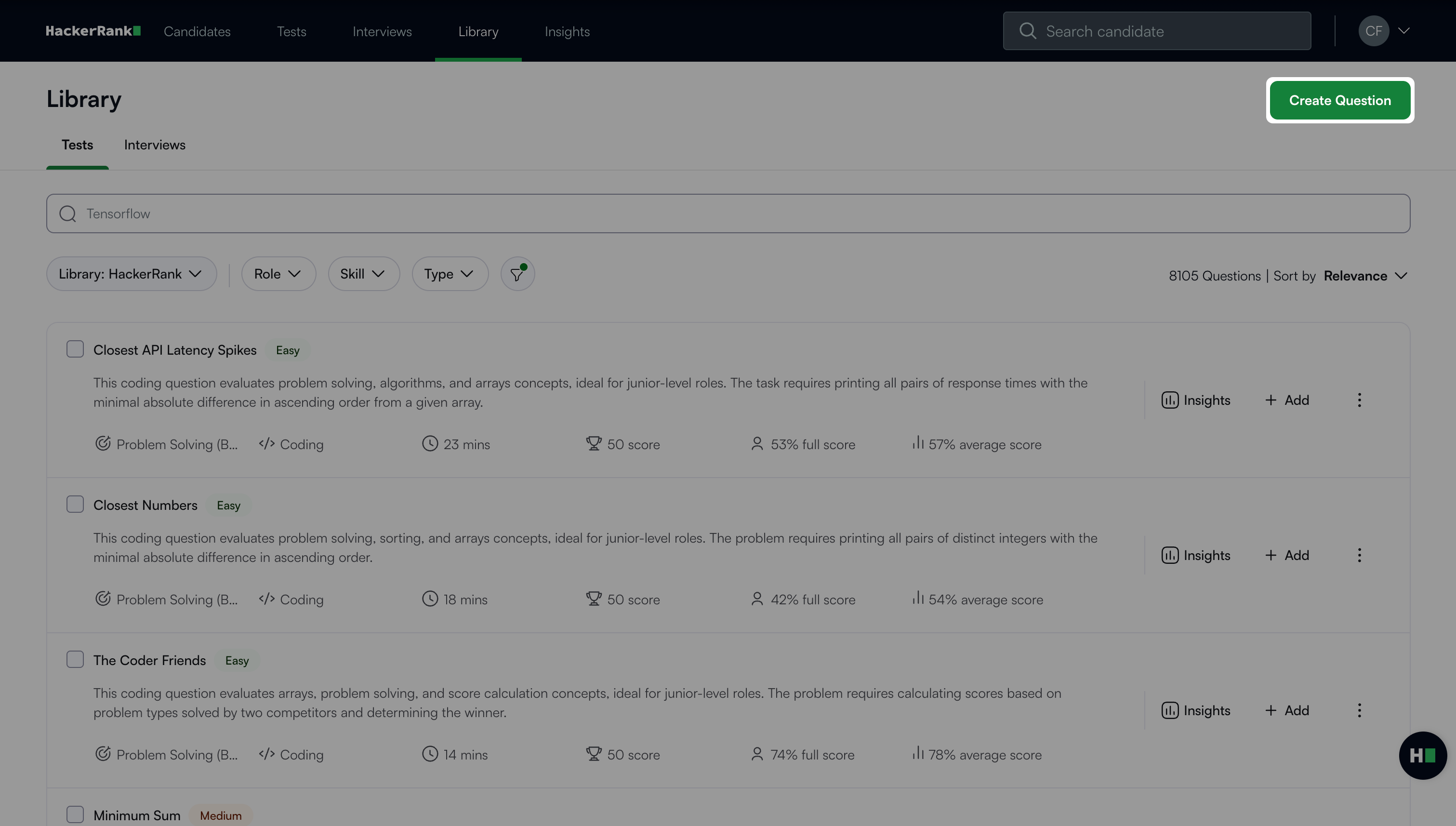
Click Create Question.
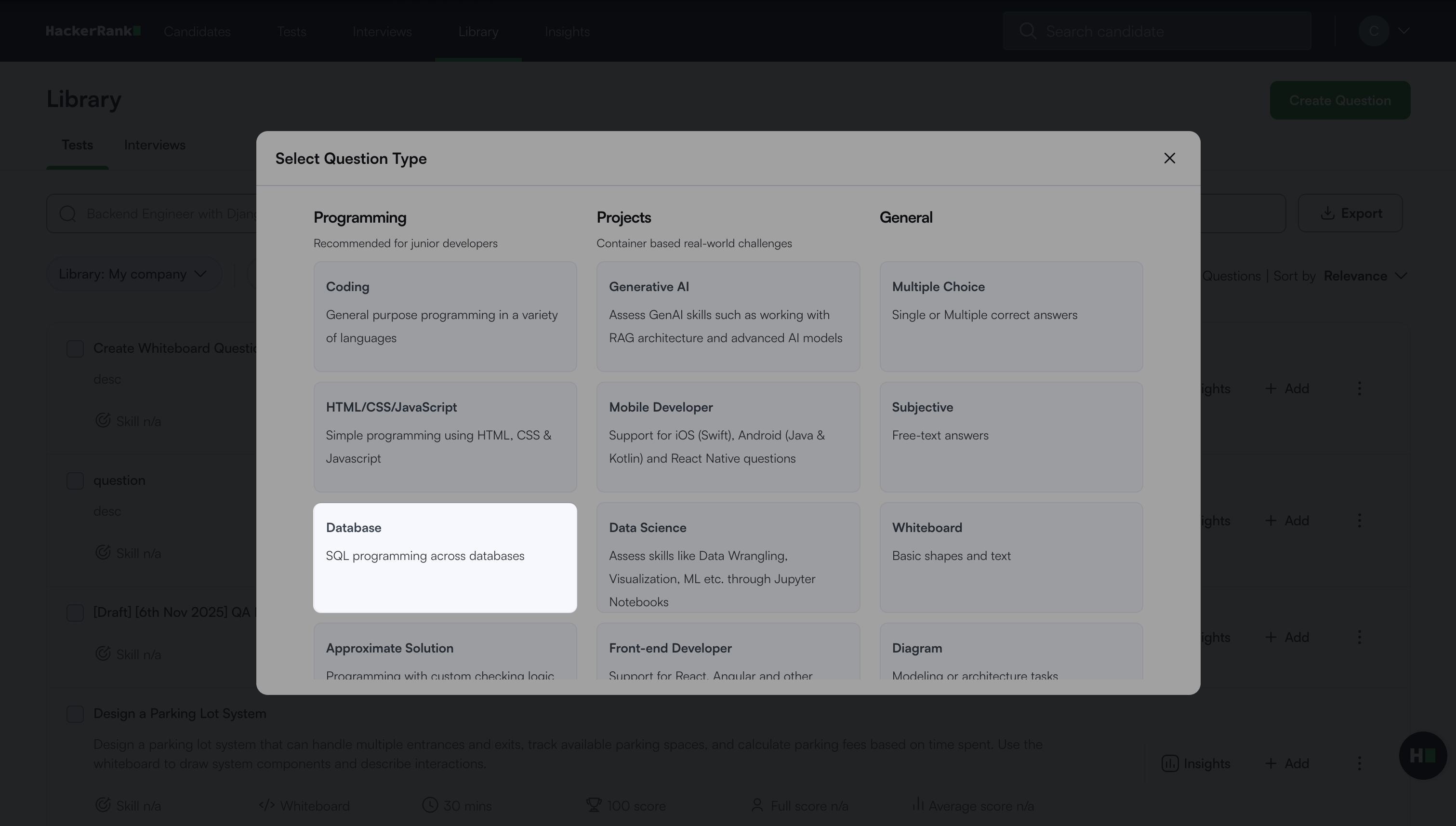
Select Database under Programming.
The database question creation workflow opens with the following two steps.
Step 1: Question Details
In the Problem details section:
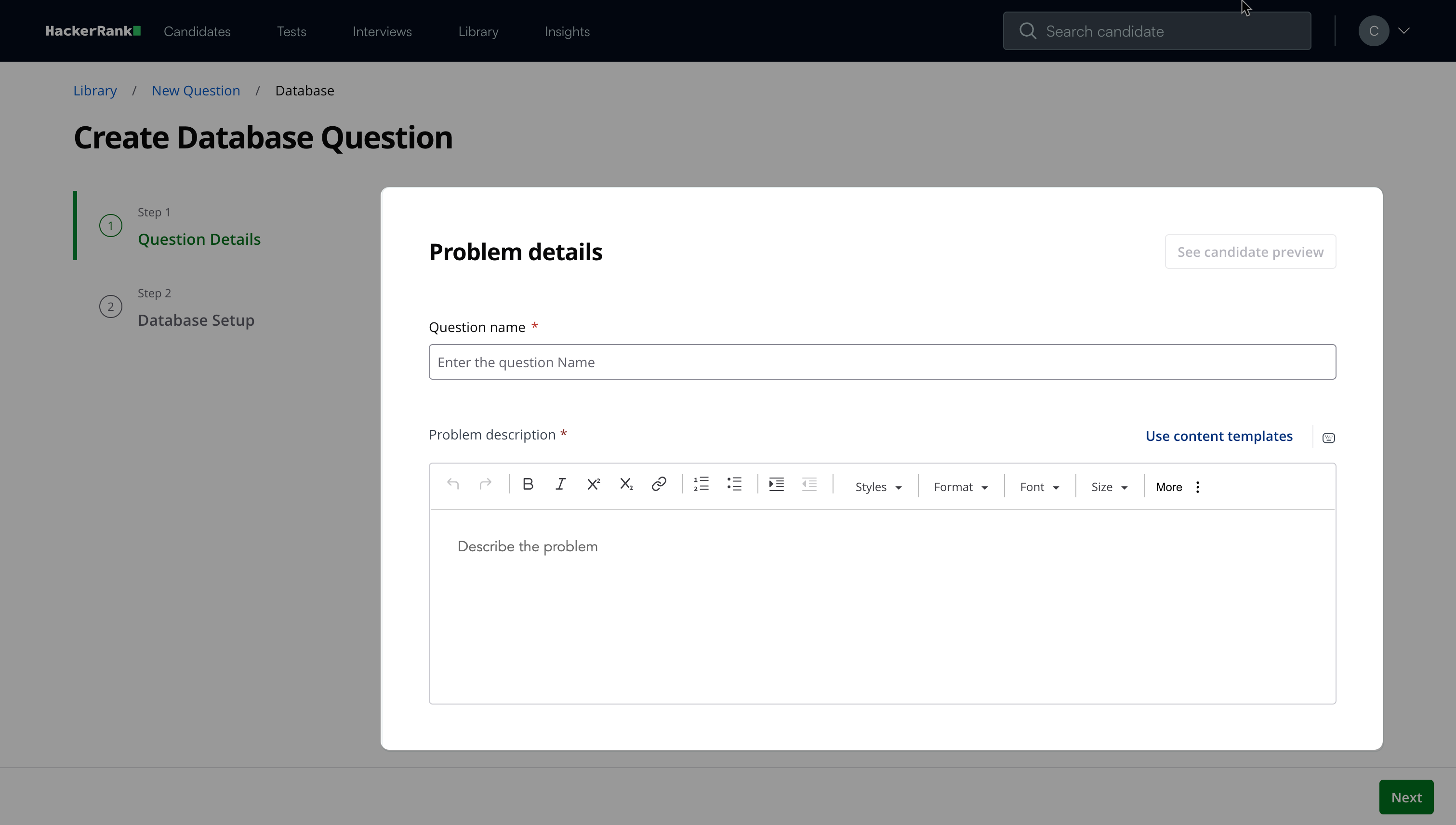
Enter the Question name.
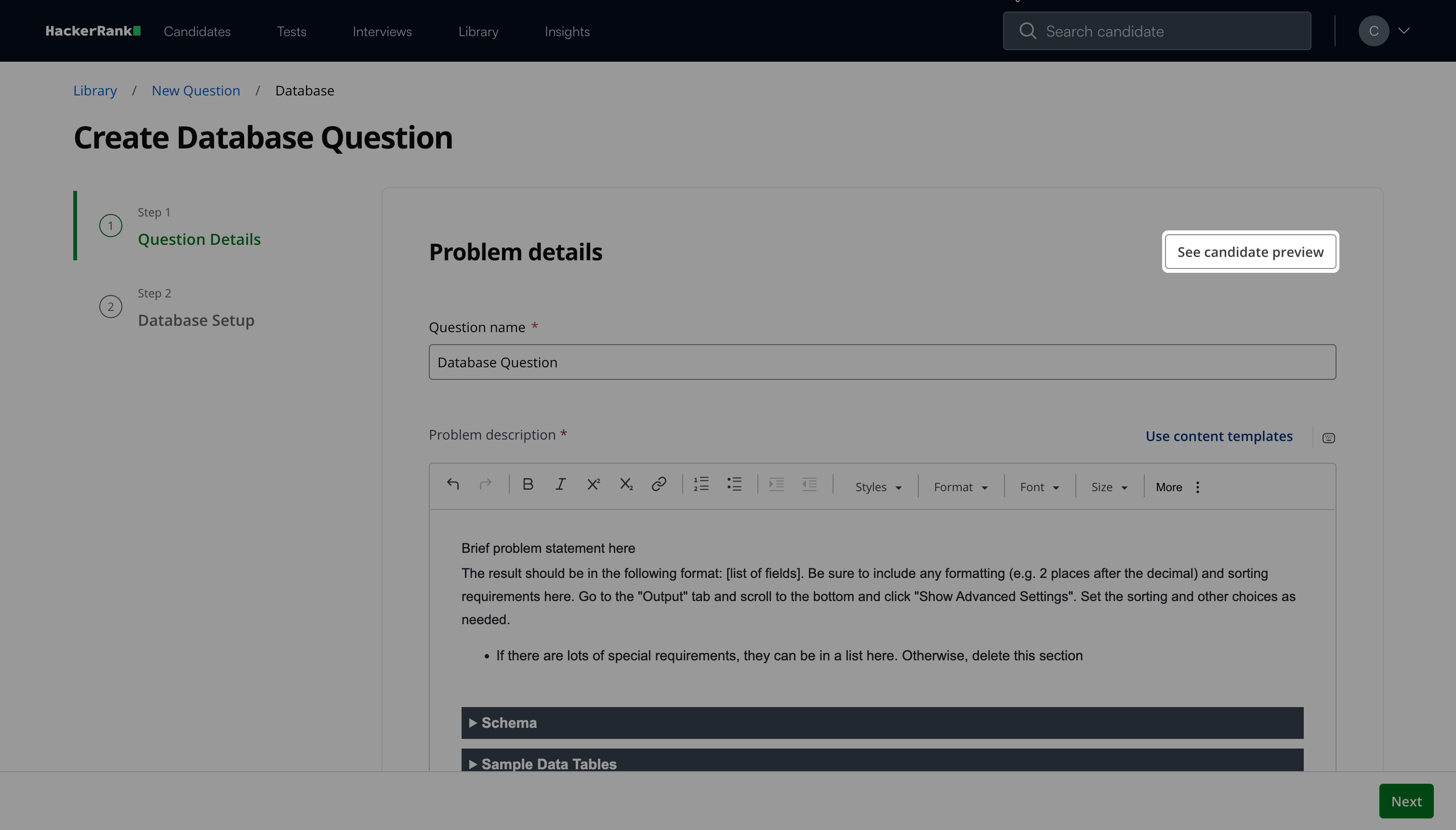
Describe the problem in the Problem description field. You can use the formatting menu to format the text or to include elements such as tables or images.
Note:
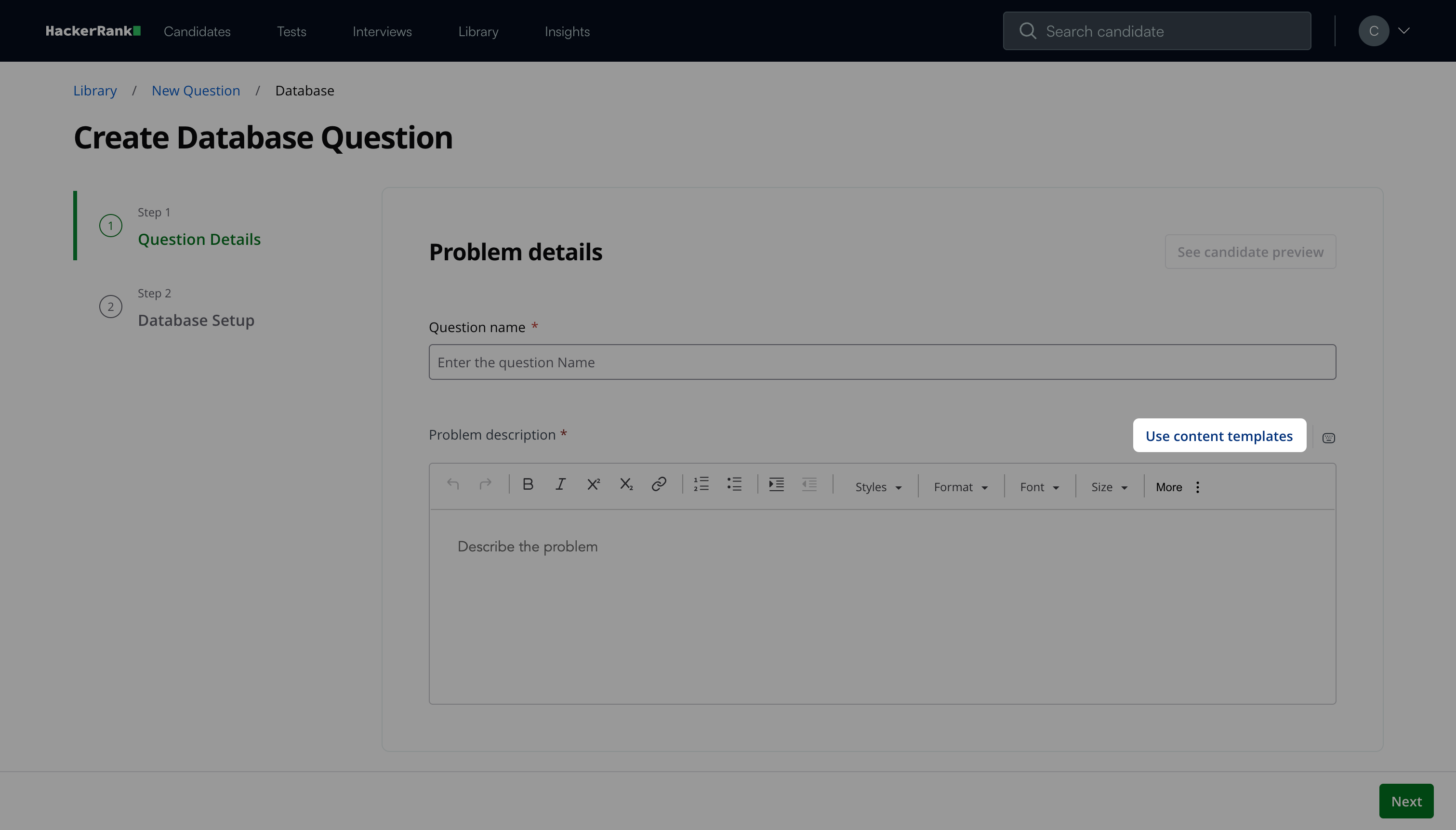
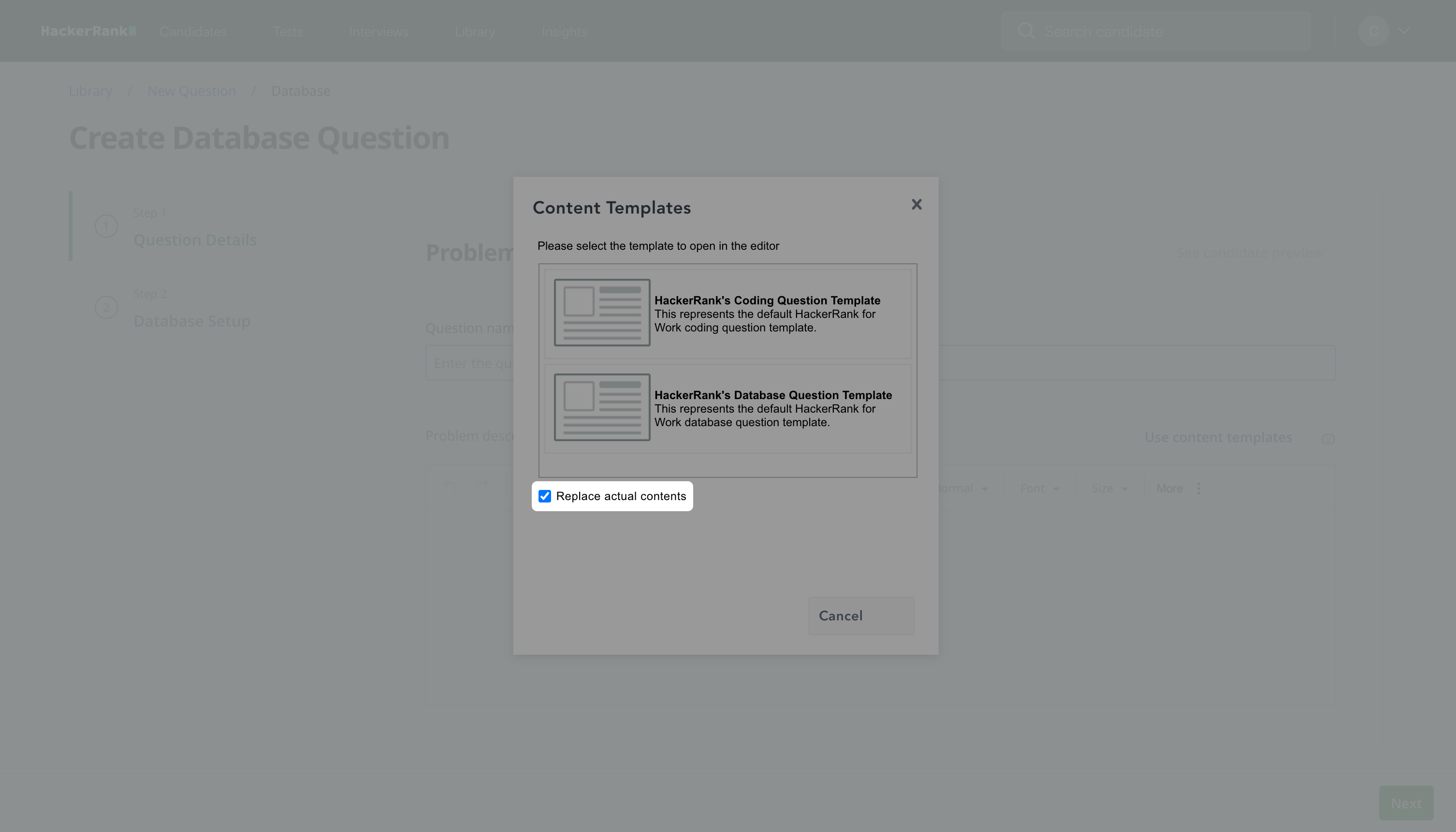
Click Use content templates and then select HackerRank’s Database Question Template to insert a predefined template.
Clear the Replace actual contents checkbox if you want to overwrite the existing content in the editor.
Click See candidate preview to view how the question appears to candidates.
In the Question properties section:
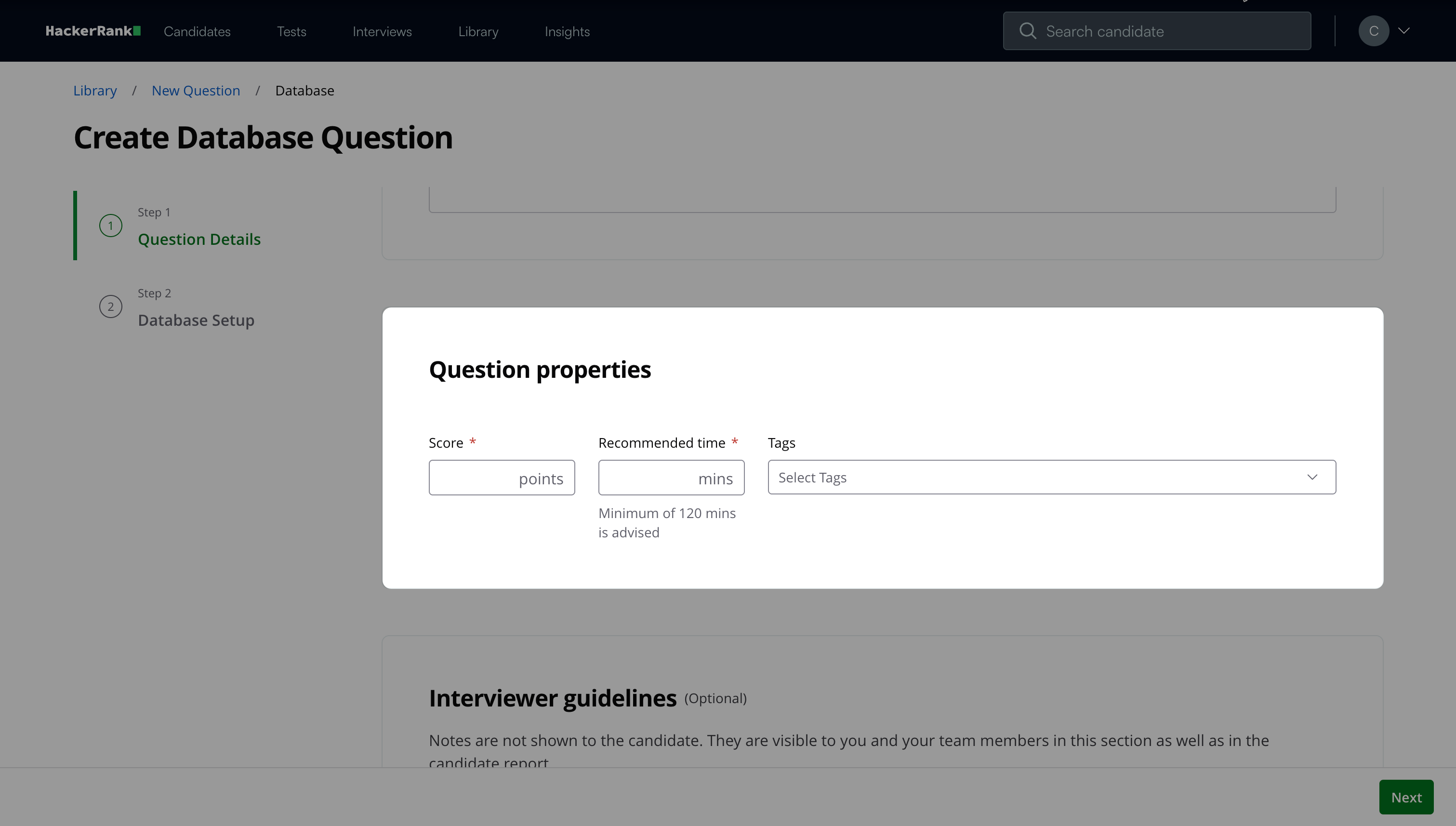
Enter the Score and Recommended time in minutes based on difficulty. The table below shows score and time recommended by HackerRank for each difficulty level.
(Optional) Add Tags from the drop-down list or create new ones.
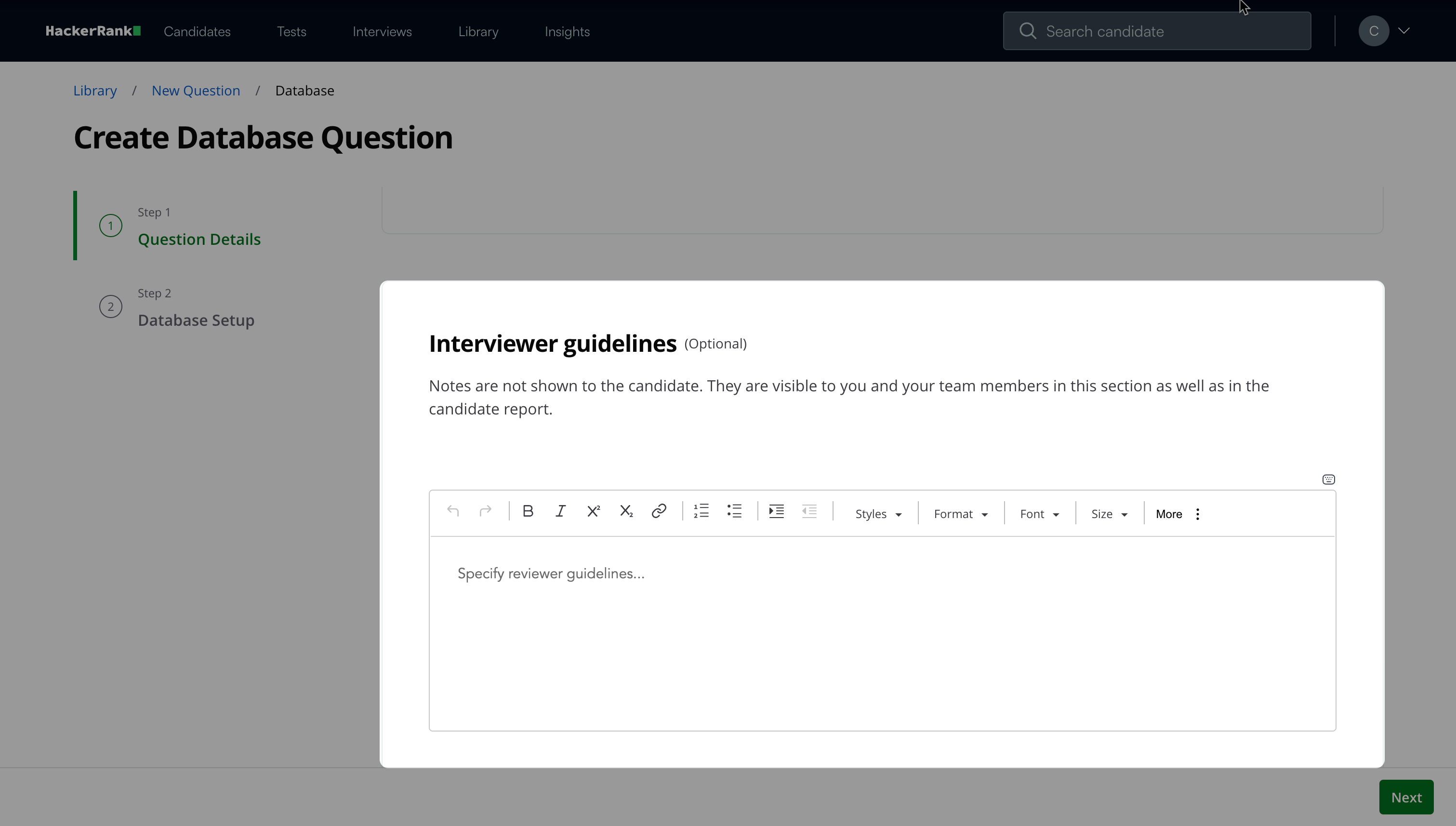
(Optional) Add Interviewer guidelines for internal use, such as evaluation notes, hints, or reference solutions.
Click Next.
Step 2: Database Setup
Configure the database schema and define the expected output for the question.
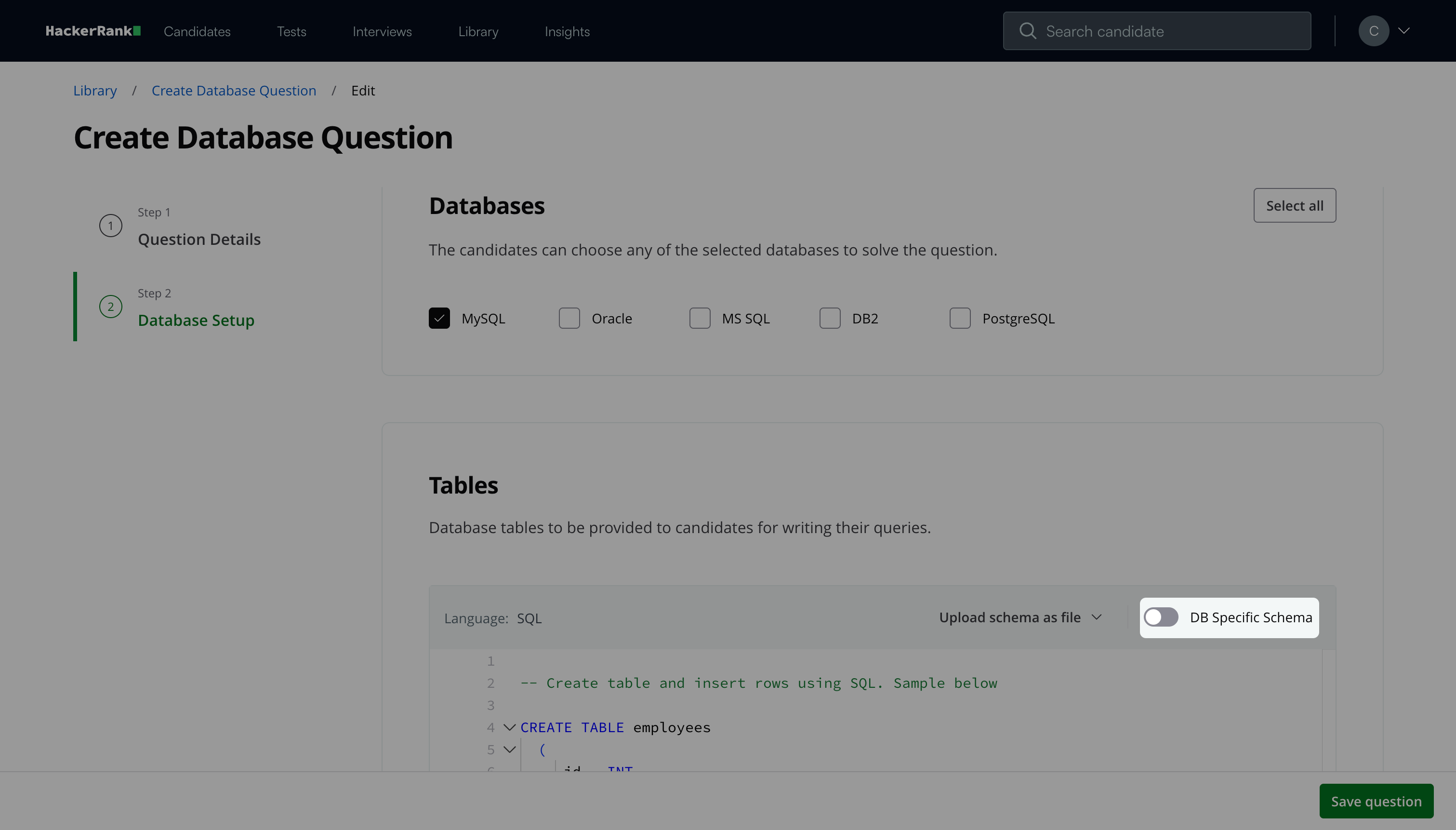
Select one or more databases for the question.
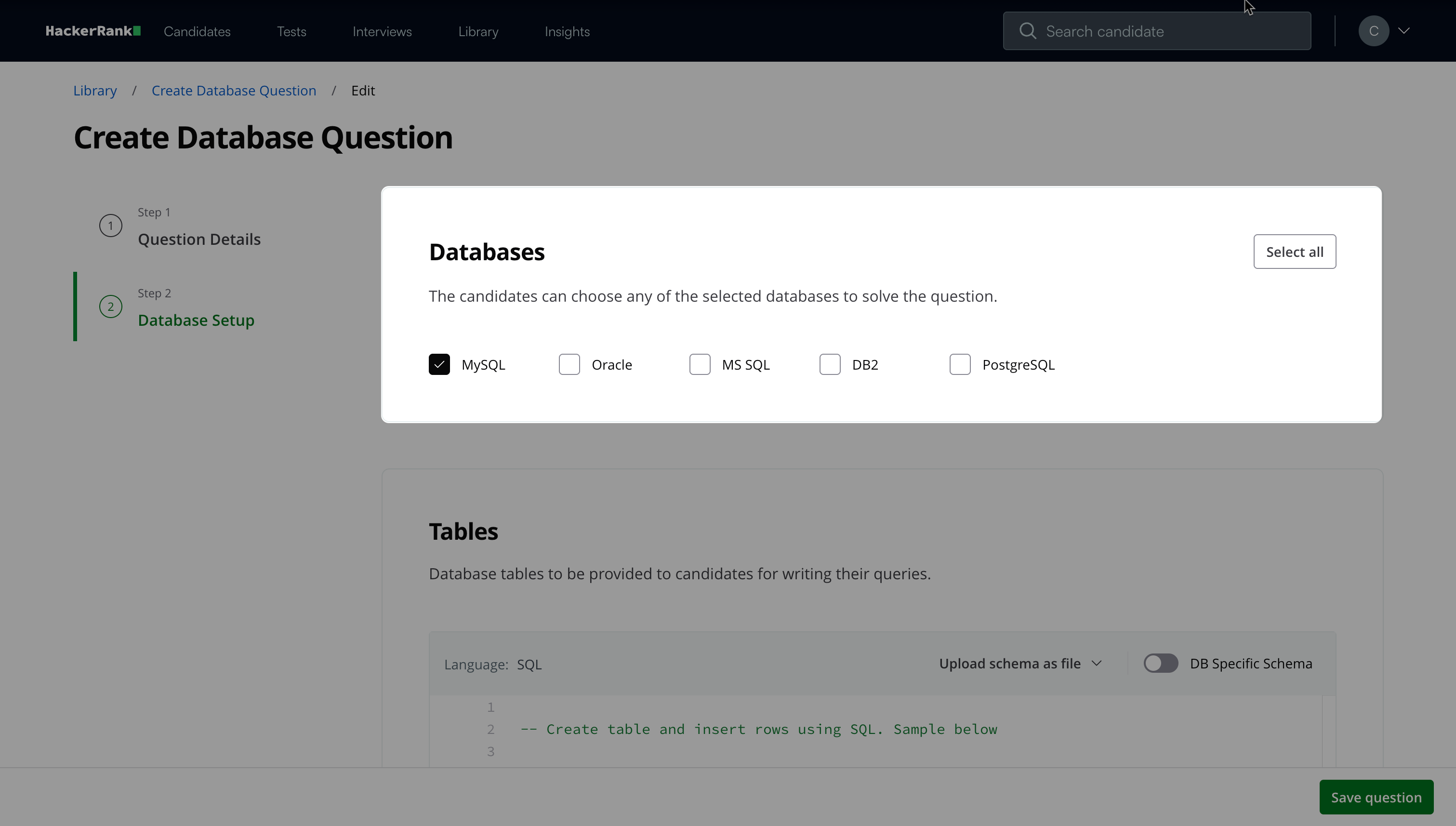
Candidates can choose any of the selected databases to solve the question.
Note: Click Select all to select all available databases.
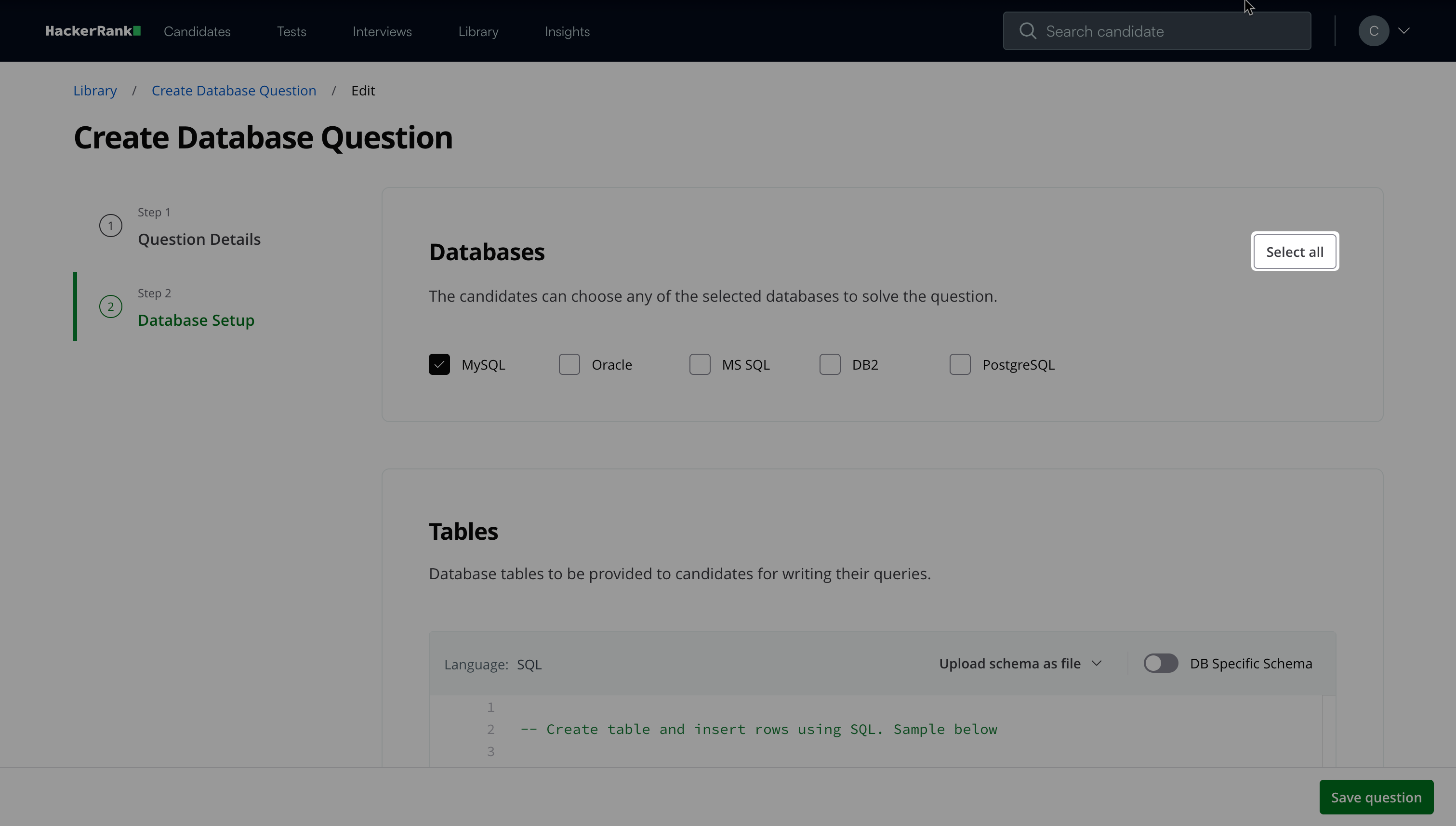
In the Tables section:
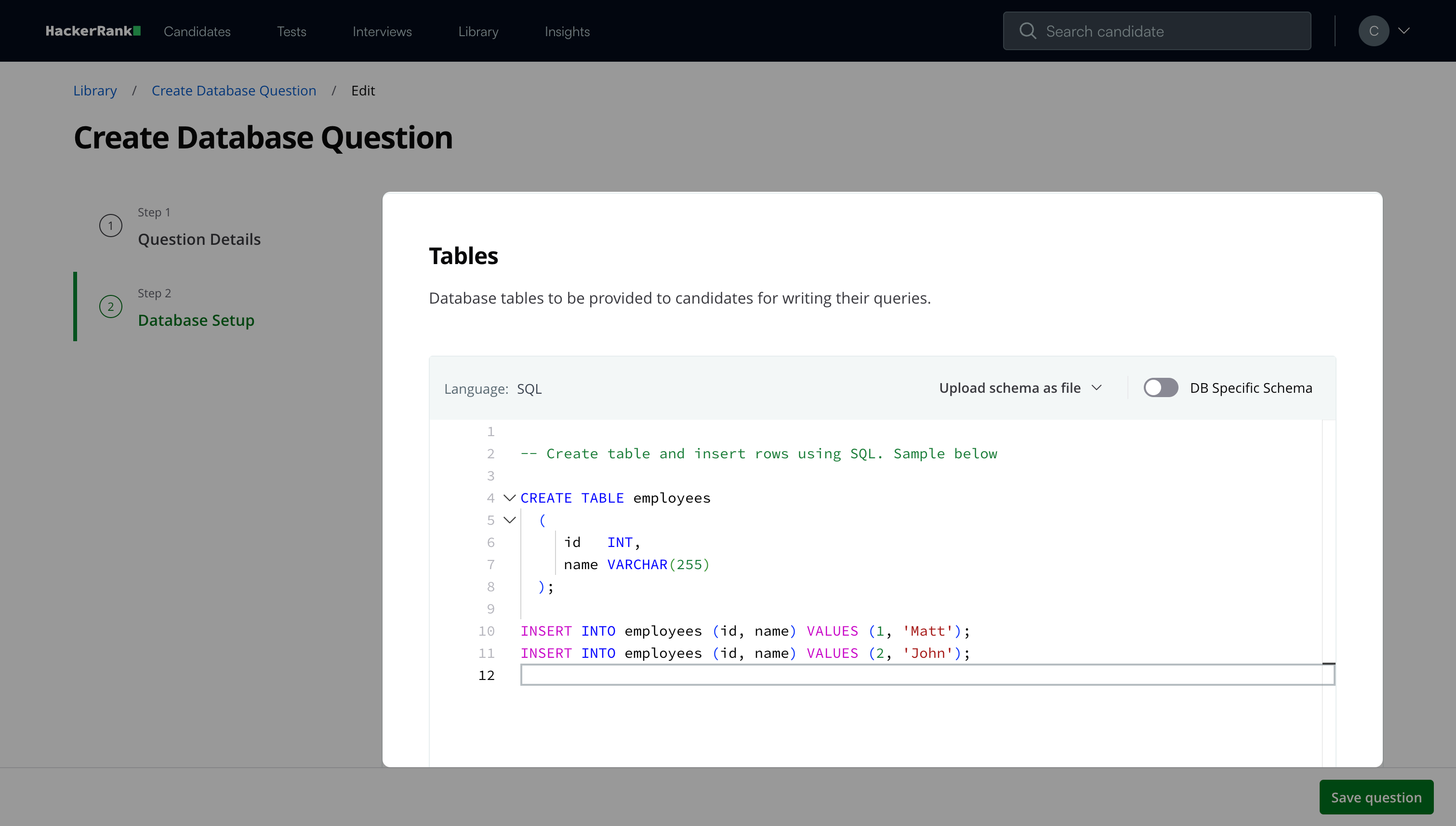
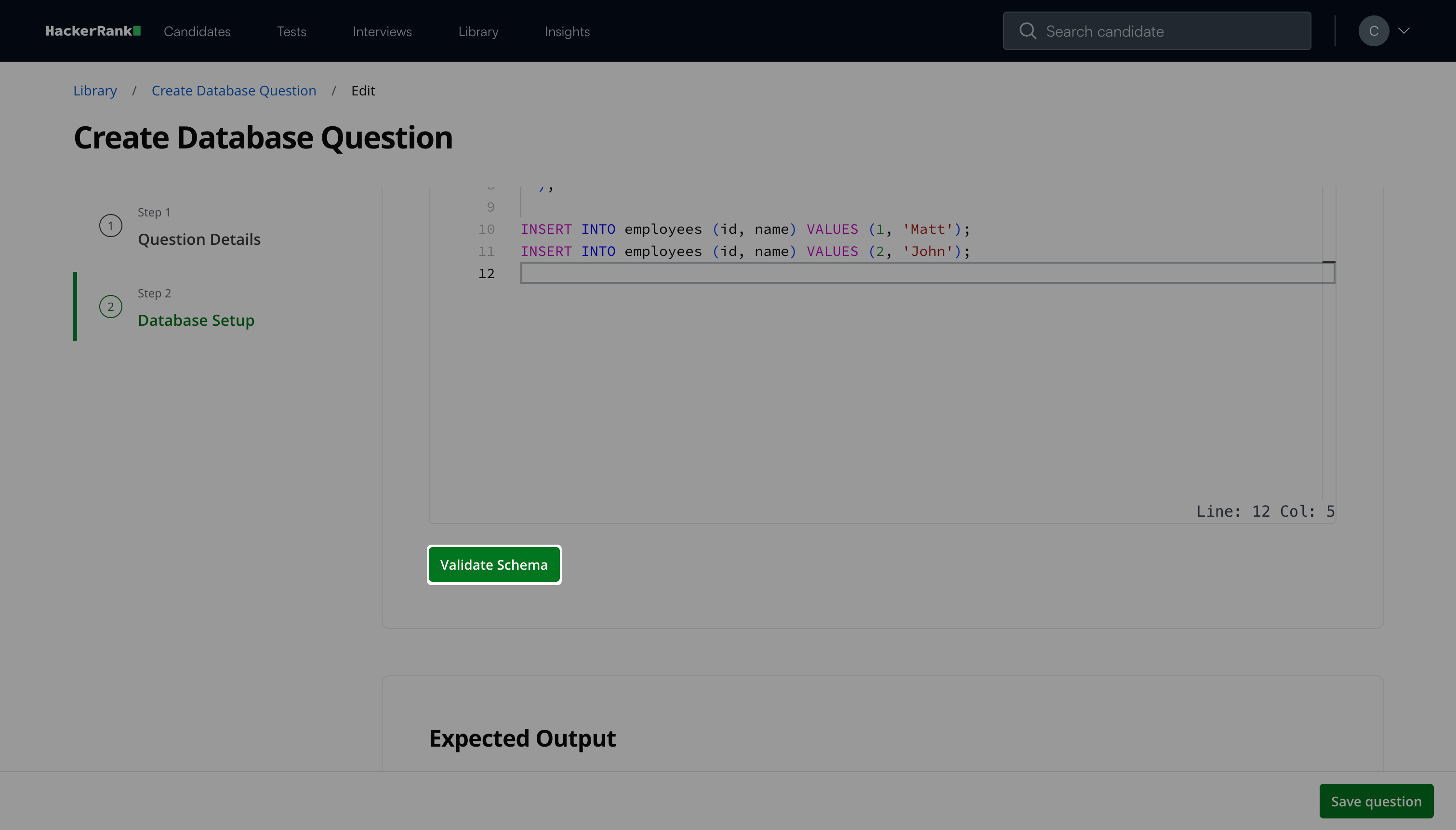
Create the required tables using SQL statements in the editor.
Use CREATE TABLE statements to define table structures.
Use INSERT statements to add data.
Note: To upload an existing schema, click Upload schema as file, and then select Upload CSV or Upload SQL.
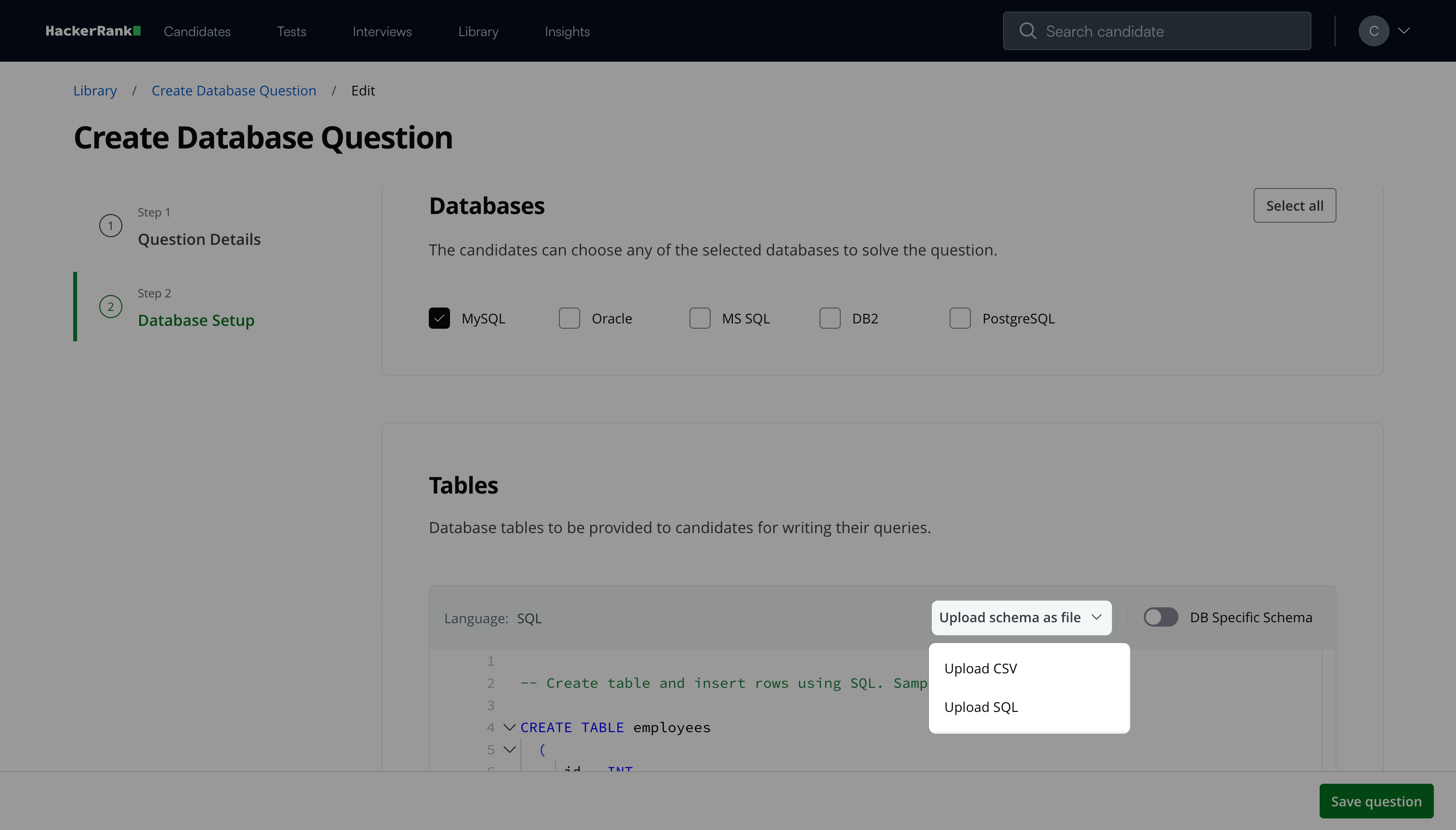
(Optional) Turn on DB Specific Schema to define different schemas for each selected database.
Click Validate Schema. A success message confirms that the schema is valid.
In the Expected Output section:
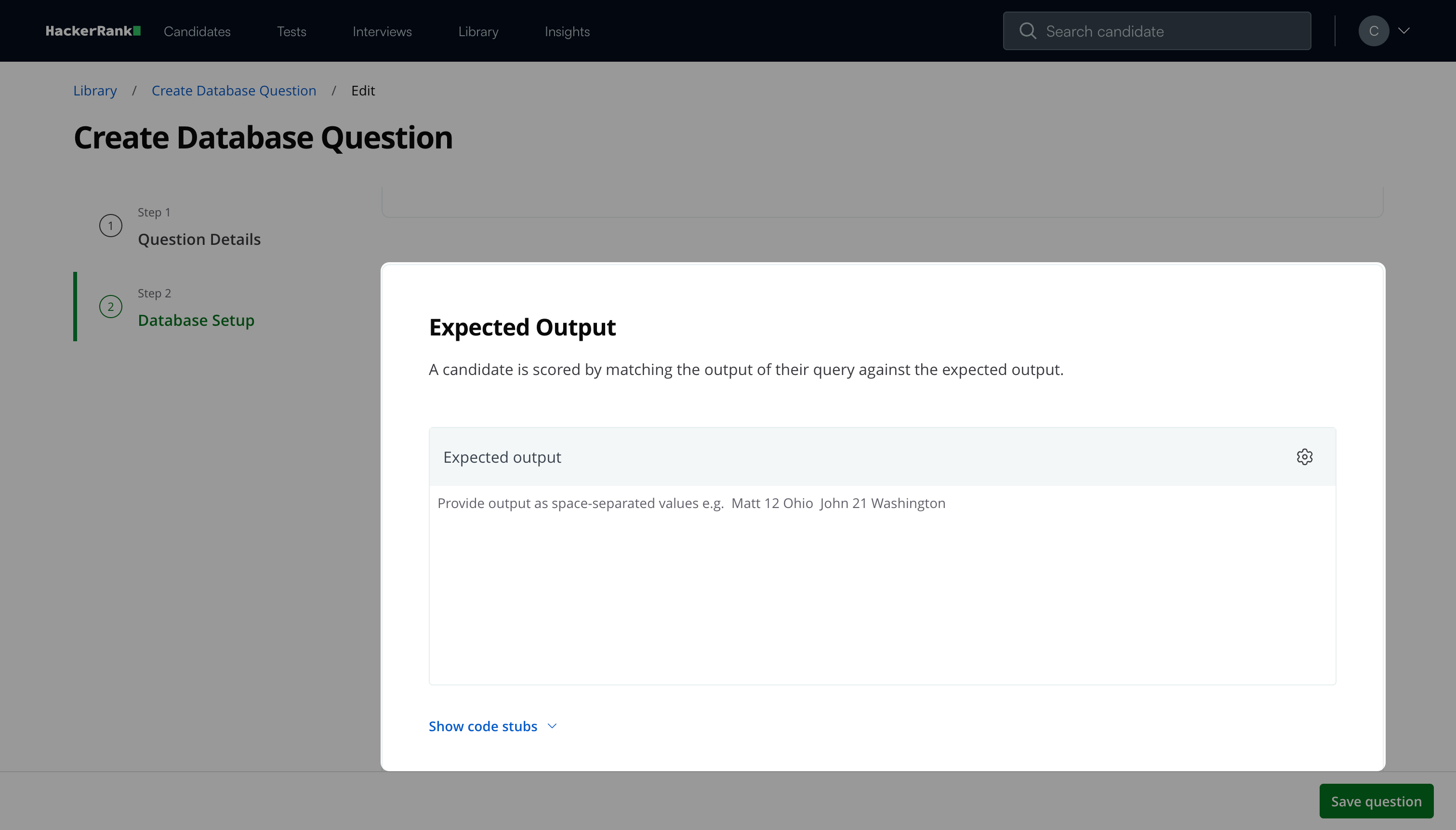
Enter the expected result of the query as space-separated values. For example, Matt 12 Washington. The system evaluates the candidate’s submission by comparing the query output with this value.
(Optional) Configure code stubs to guide candidates:
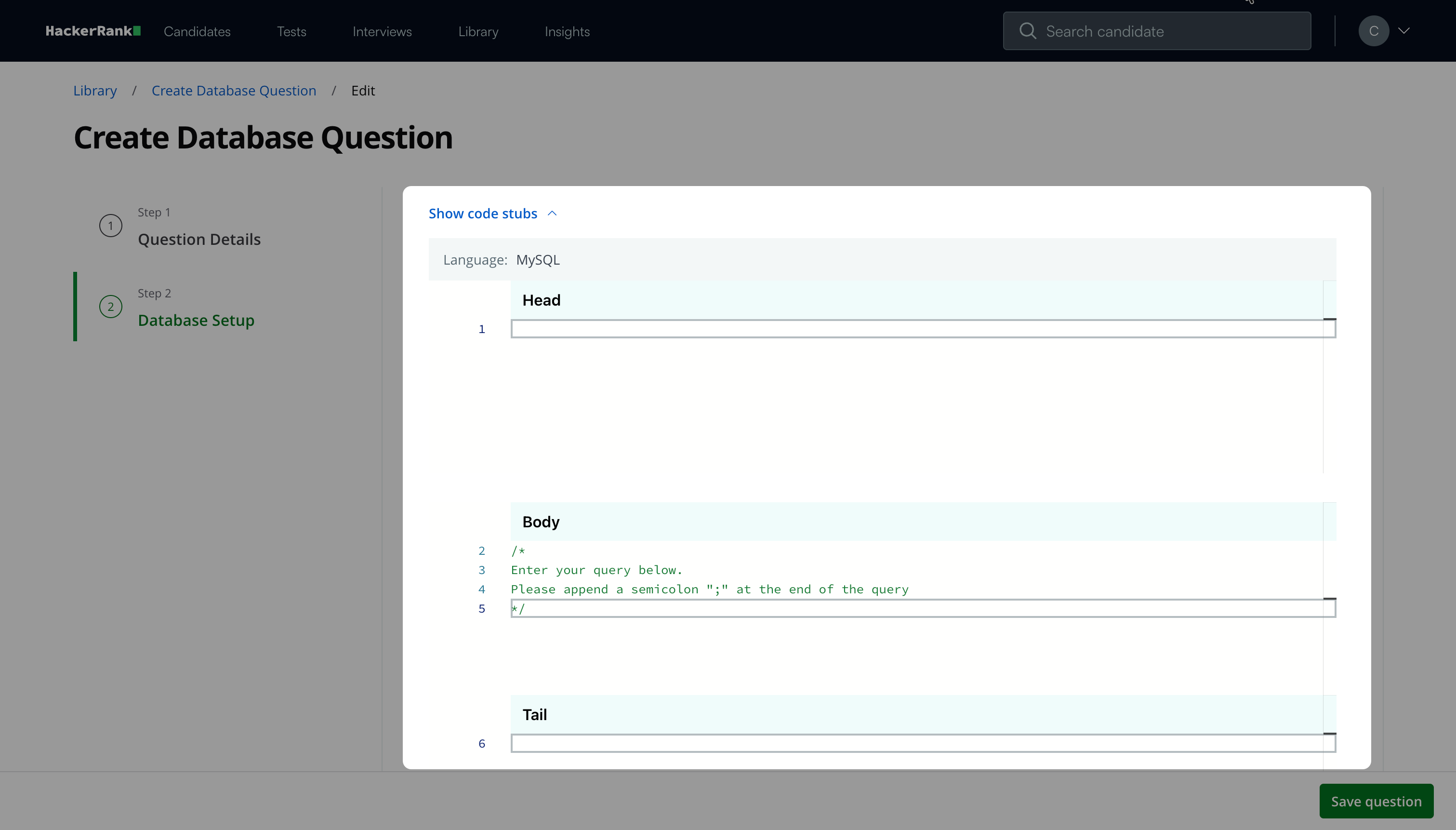
Select Show code stubs.
Add content to the following sections:
Head: Statements that must run before the candidate’s query.
Body: Instructions or comments where candidates write their query.
Tail: Statements that must run after the candidate’s query.
(Optional) Click the settings icon and select one or more of the following options:
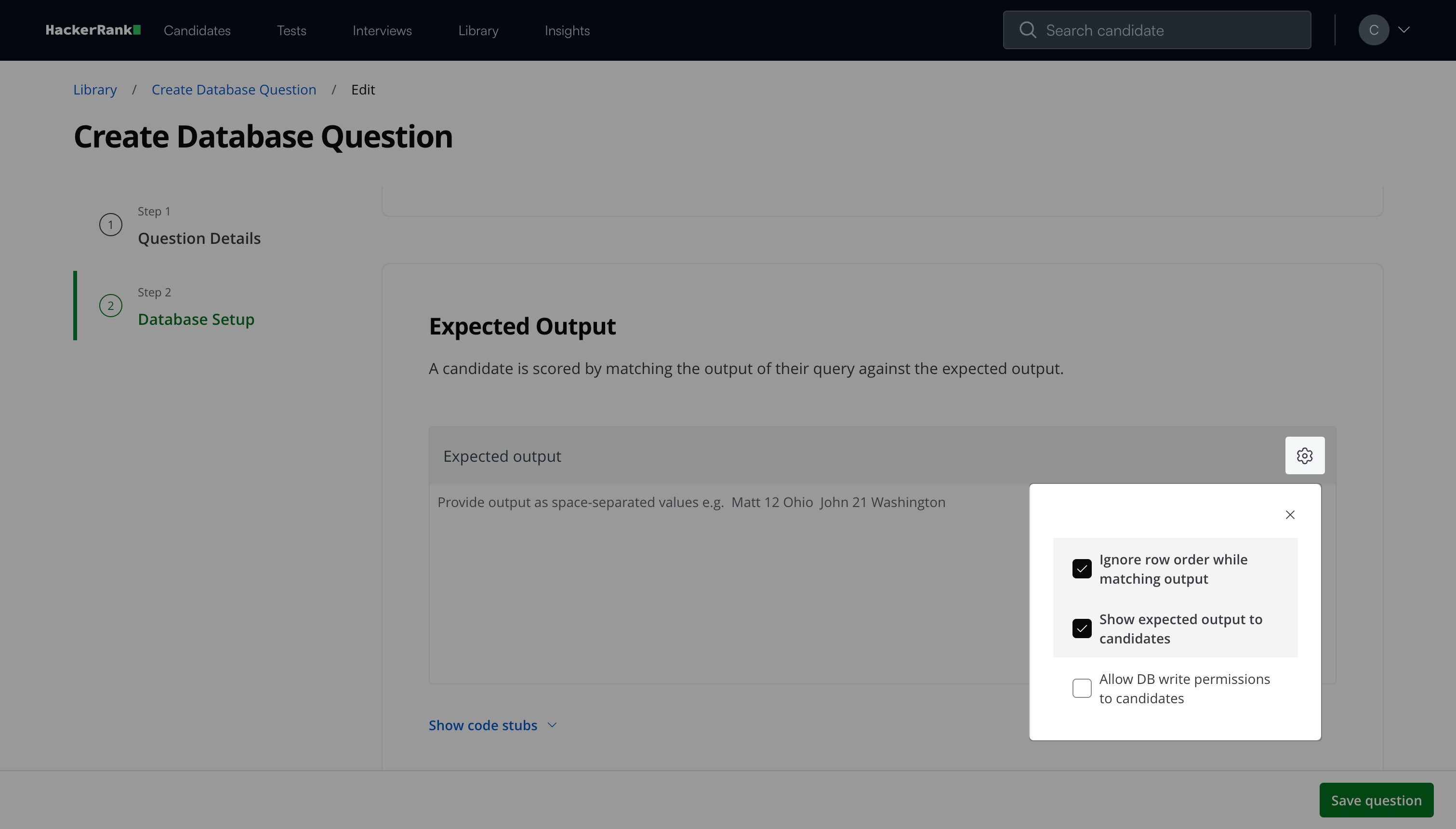
Ignore row order while matching output: Compare query results without considering the order of rows.
Show expected output to candidates: Display the expected output during the test.
Allow DB write permissions to candidates: Allow candidates to run write operations such as
INSERT,UPDATE, orDELETE.
Click Save Question.
The question appears under My Company questions in the HackerRank Library.
Candidate experience
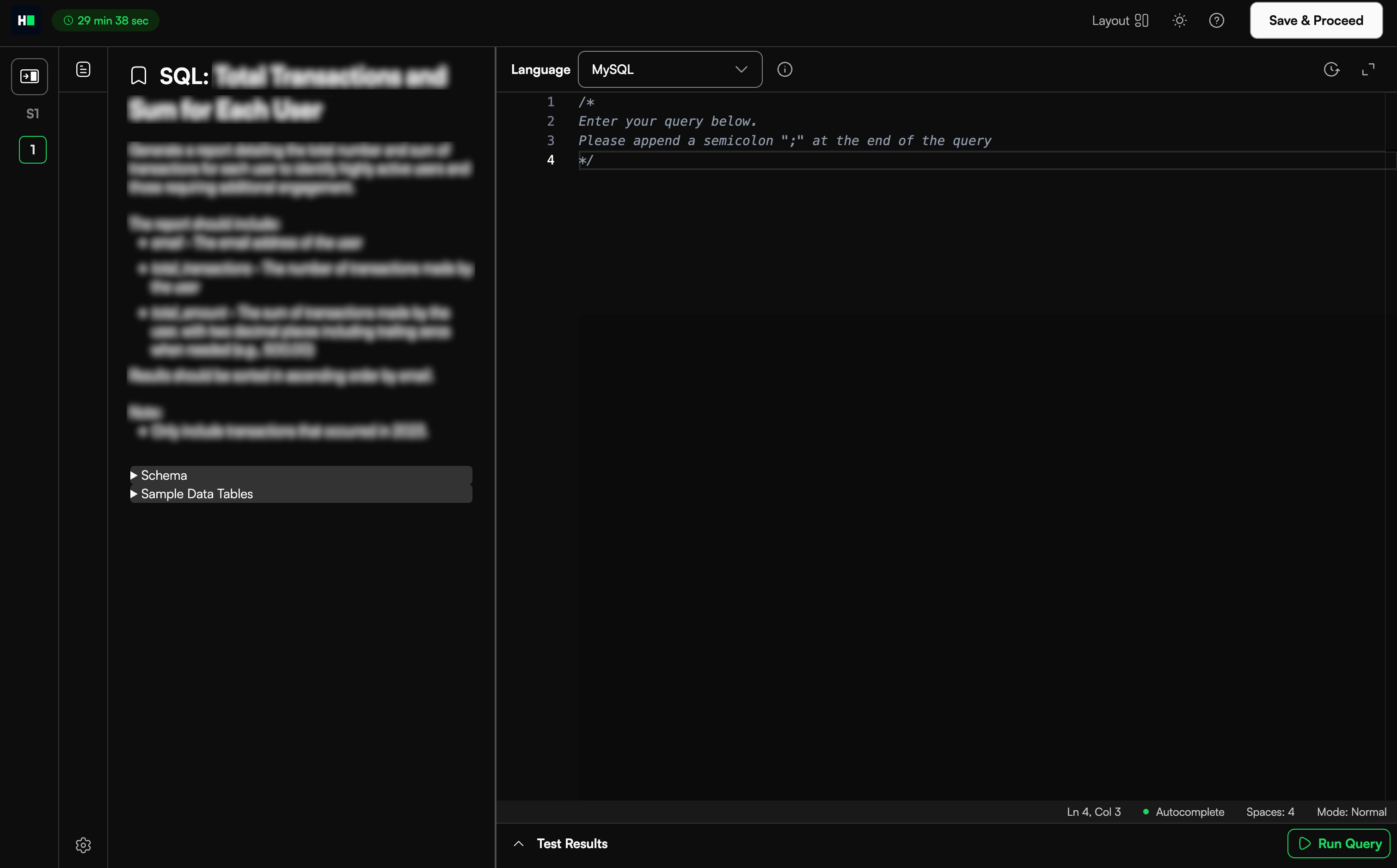
The candidate can view the question on the left-hand side and enter the query on the right-hand side.
Scoring a database question in tests
HackerRank scores Database questions automatically by comparing the candidate’s query result with the expected output.
If the query result matches the expected output, the candidate receives the full score.
If the query result does not match, the system assigns a score of zero.
When creating the question, you can choose whether scoring considers the row order. For more information, see Step 2: Database Setup.
If the query logic is correct but the output differs slightly, review the response manually. You can update the score from the candidate’s Detailed Report to award partial credit. For more information, see 📄 Viewing a Candidate's Detailed Test Report.