Coding Questions in Interviews
Last updated: November 25, 2026
This article applies to the new Interview experience.
Coding questions in HackerRank Interviews provide a code editor where you and the candidate can write, run, and test code. Use them to evaluate algorithms and data structures skills. You can select a programming language and run code with custom input. For library questions, you can also run the code against test cases.
To add a Coding question to your interview, see 📄 Manage Questions in an Interview → Adding a Coding or Whiteboard question.
Coding question components
A Coding question contains a collapsible question panel on the left, the code editor in the center with the Input / Output panel below it, and a collapsible AI Assistant panel on the right.
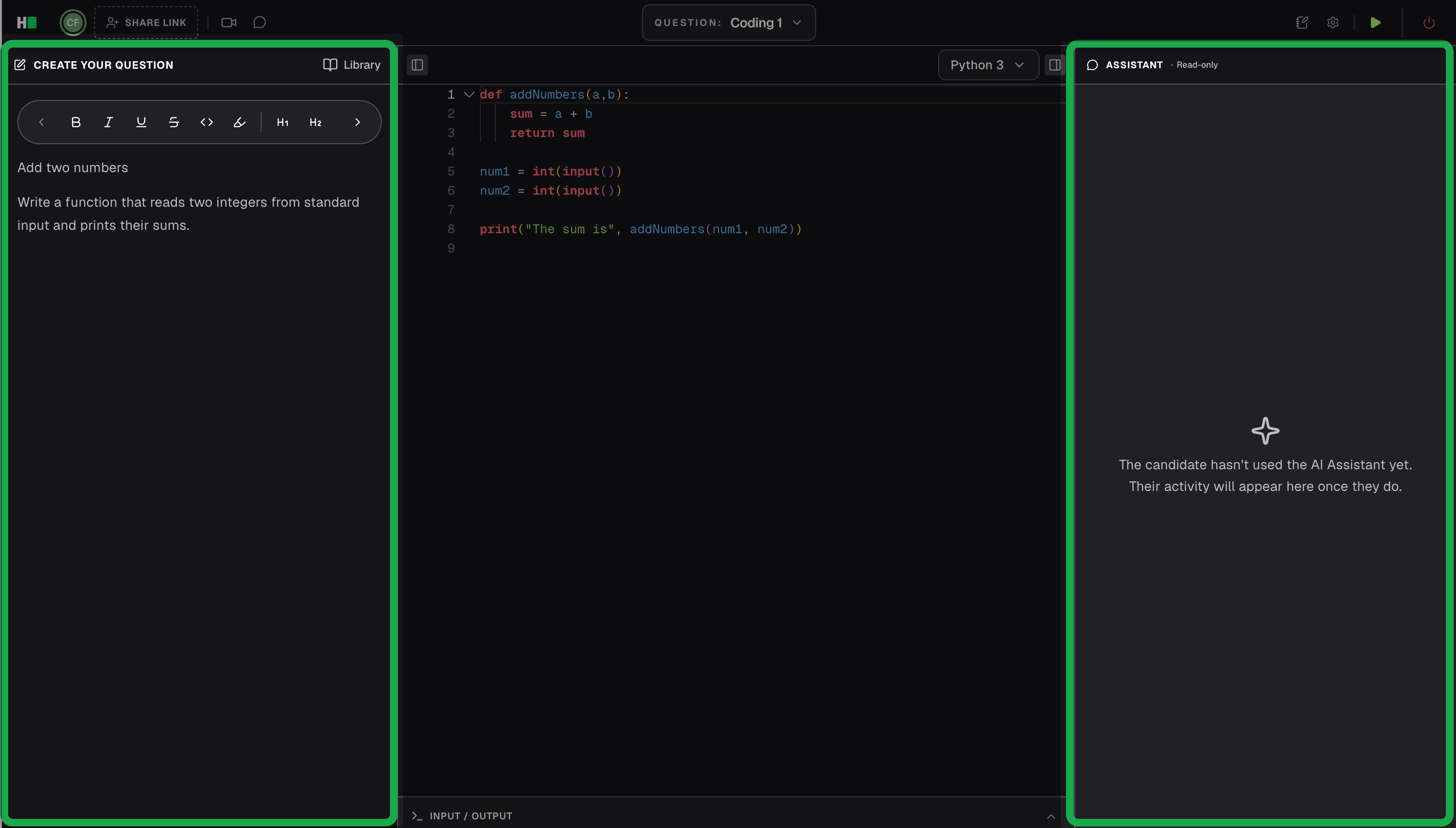
For information about other interview controls, see 📄 Navigate the Interview Interface and Controls.
Important Note: The AI Assistant panel is available only when AI assistance is enabled. AI assistance can be enabled at the company level or for individual interviews. For more information, see 📄 AI Assistant in Interviews → Enabling AI Assistant for interviews.
Question panel
The left panel displays the question based on its type:
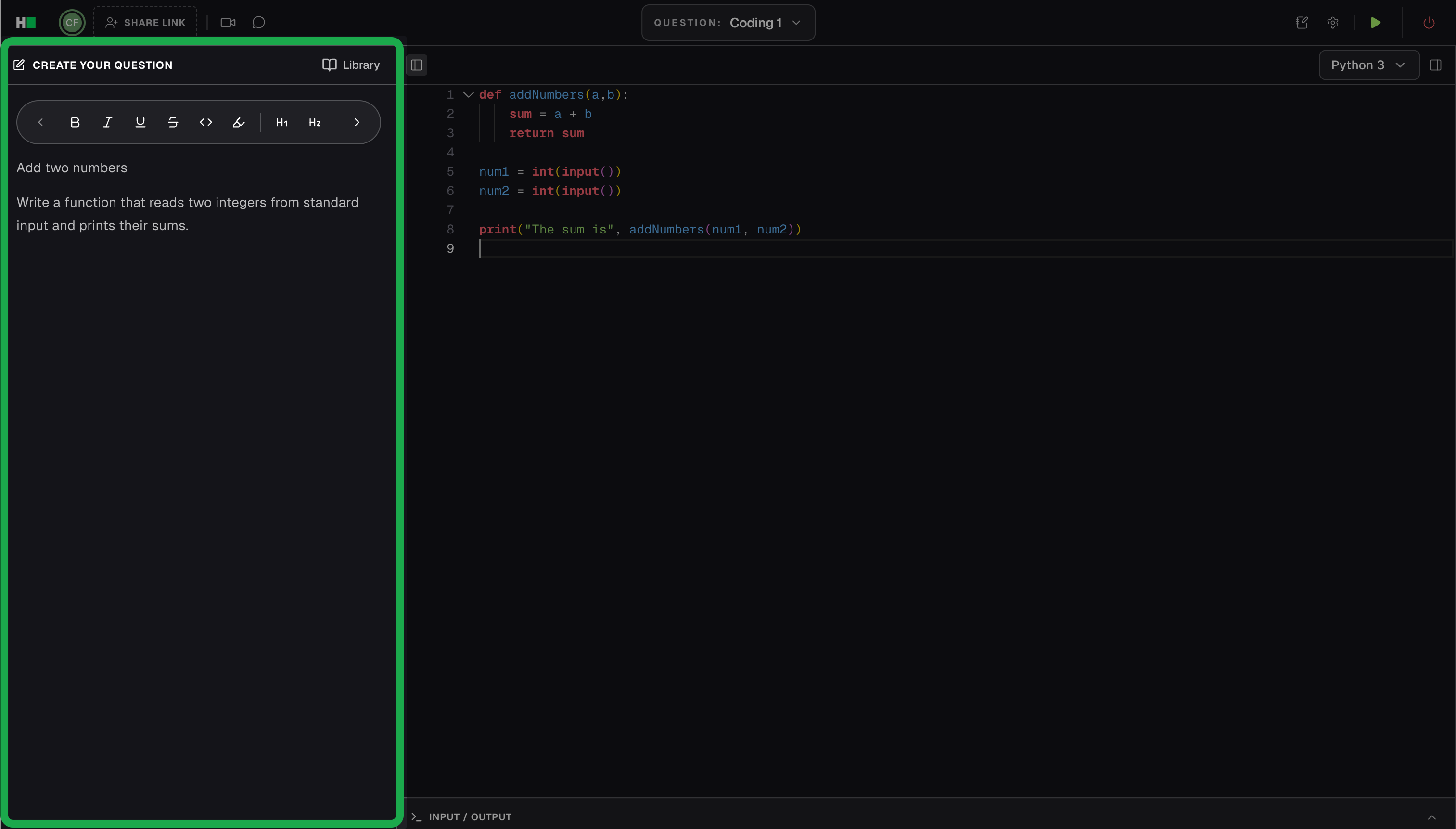
Custom question: The Create your question panel displays a text editor. As you type, the question appears to the candidate. Use the formatting toolbar to apply Bold, Italic, Underline, Strikethrough, Inline code, Highlight, Heading 1, Heading 2, Heading 3, Bullet list, Numbered list, Quote, Code block, and Divider. Use the left and right arrows on the toolbar to view more options.
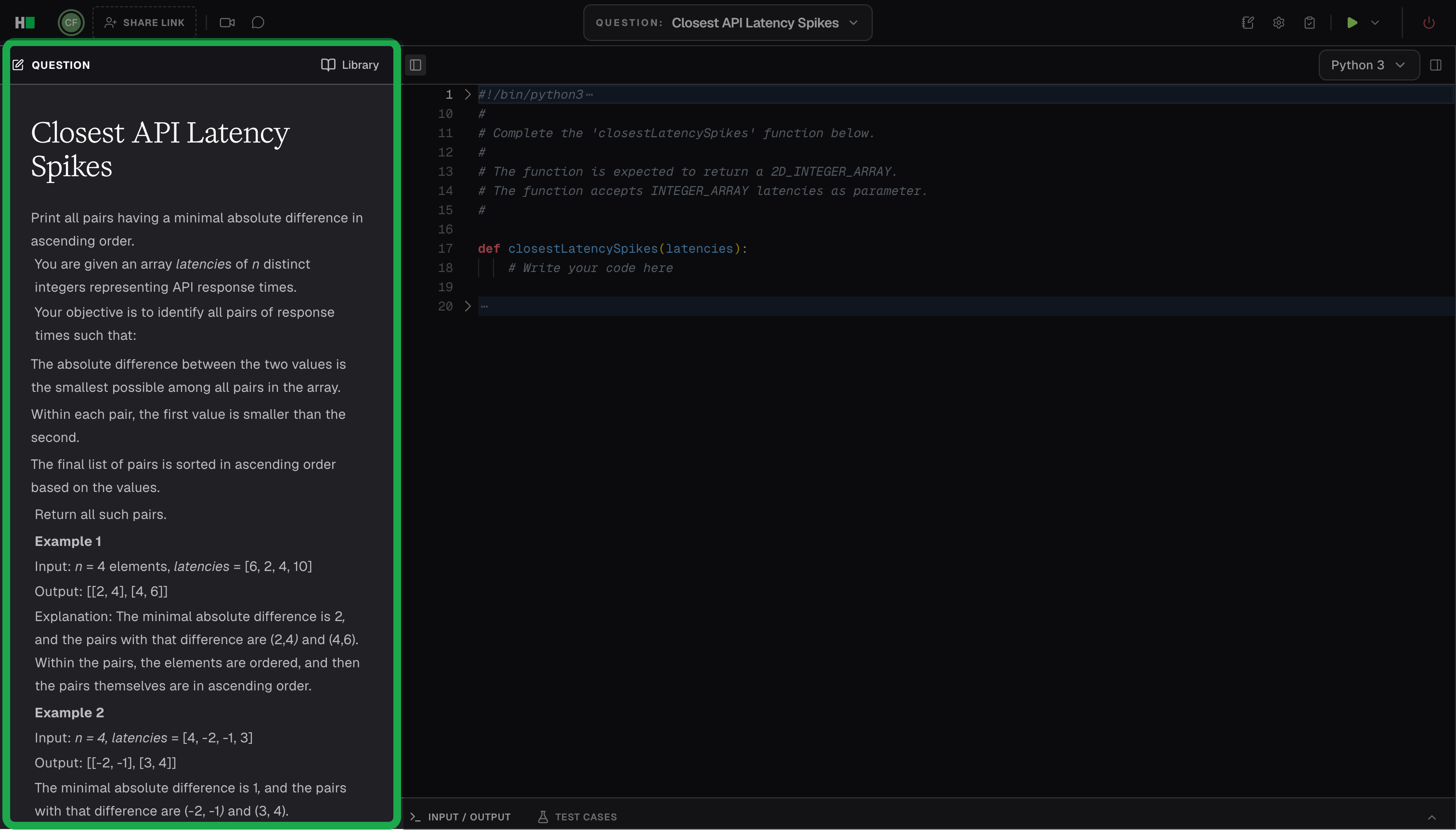
Library question: The Question panel displays the question title and problem statement, including examples. Library questions can also load starter code in the code editor.
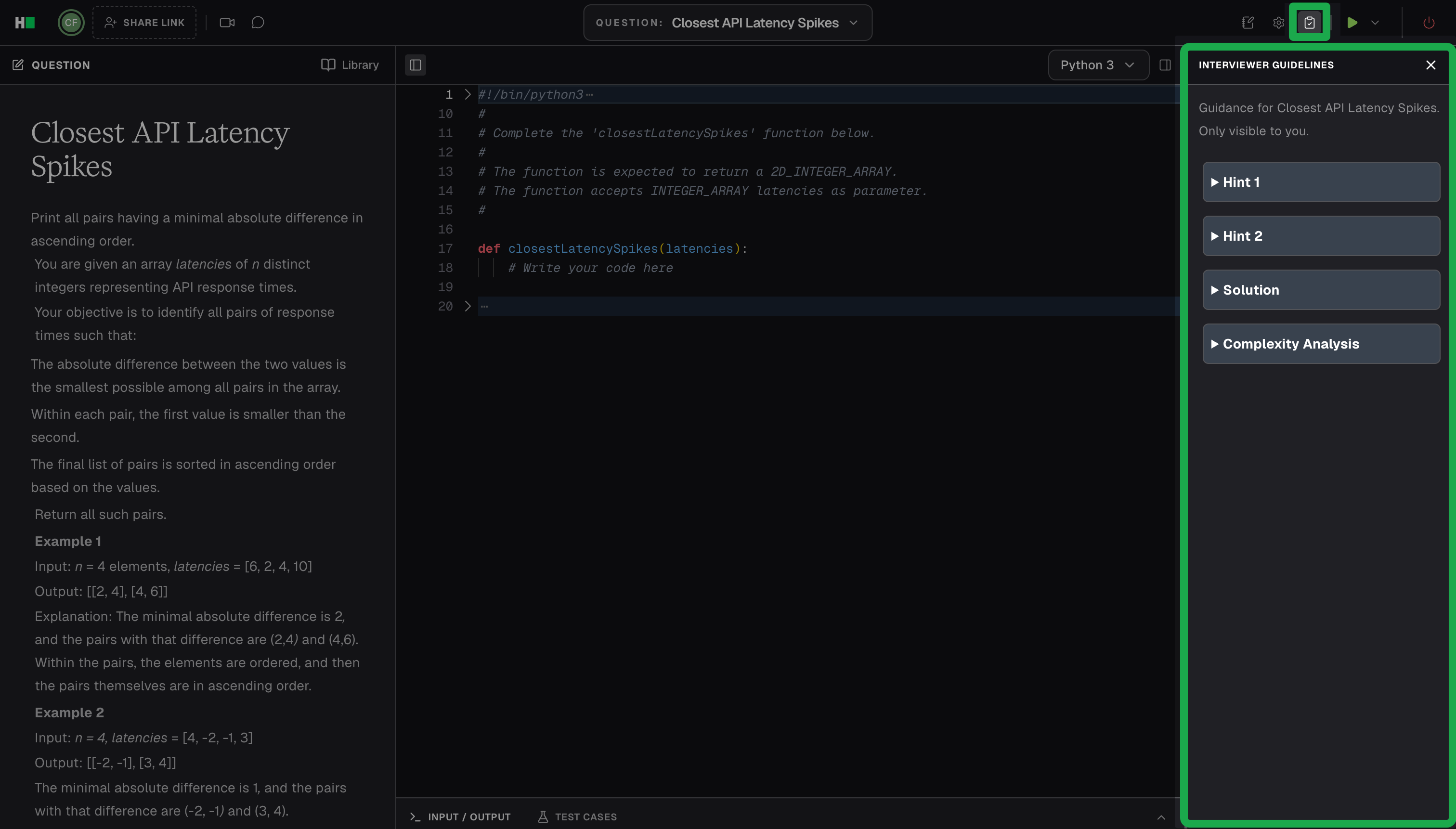
Note: Library questions include interviewer guidelines. To view them, click the Interviewer Guidelines icon in the upper-right corner. Only interviewers can see the guidelines. For more information, see 📄 Navigate the Interview Interface and Controls → View interviewer guidelines.
Click the Toggle left panel icon in the upper-left corner of the code editor to hide or show the question panel.
Note: If you click Library in the question panel and select a question, a Replace existing question? dialog appears. Click Replace Question to replace the current question, or click Cancel to keep it. You lose any work done on the replaced question. For more information, see 📄 Manage Questions in an Interview → Using question library.
Code editor
Use the code editor in the center to write and edit code. The editor displays line numbers and highlights code based on the selected language. To expand or collapse a section of code, click the arrow next to the line number.
Select a programming language
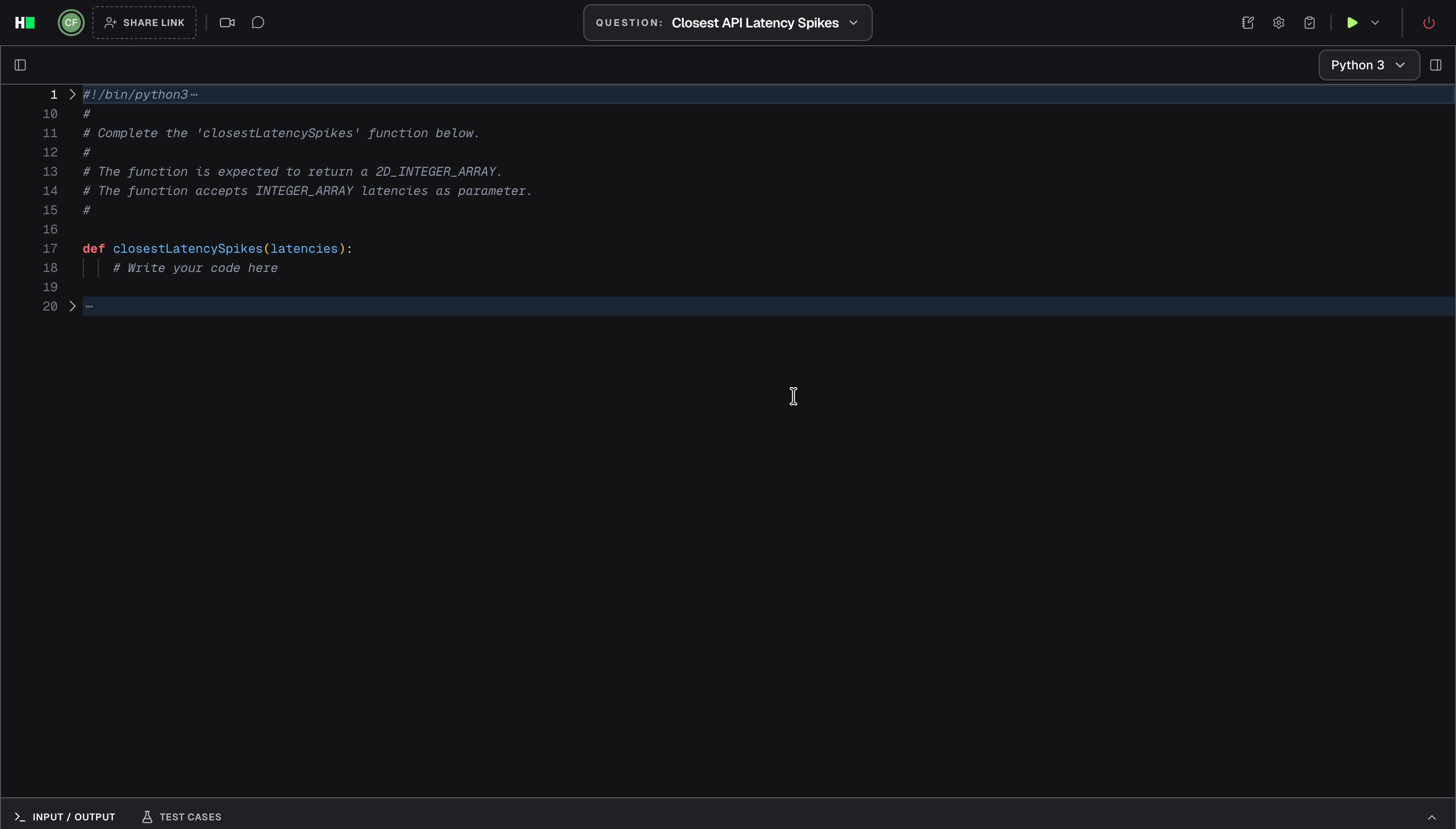
Click the language dropdown in the upper-right corner of the code editor, and select a language.
Run code
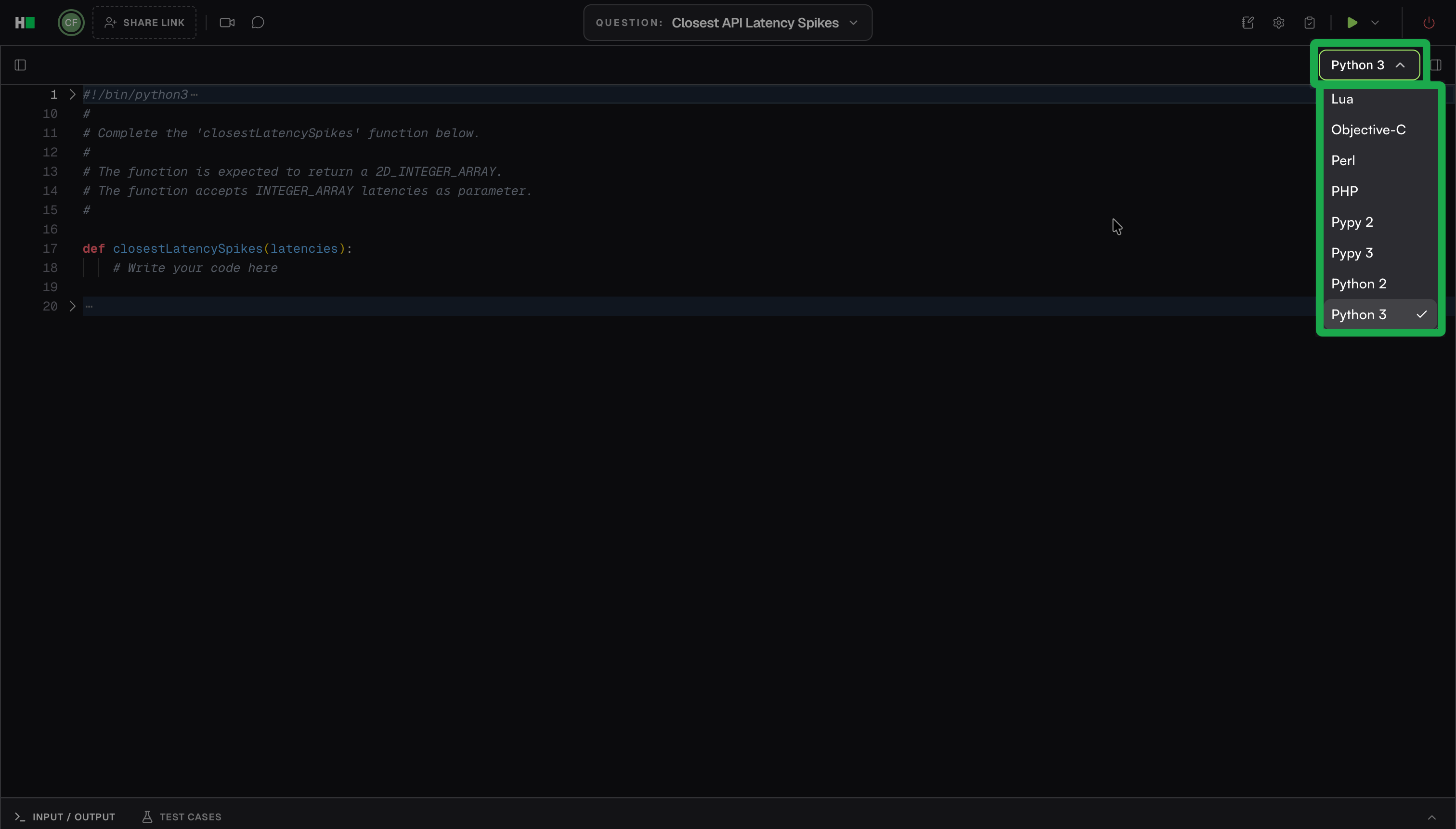
Click the Run Code icon in the upper-right corner to run the code. The result appears in the Input / Output panel.
Input / Output
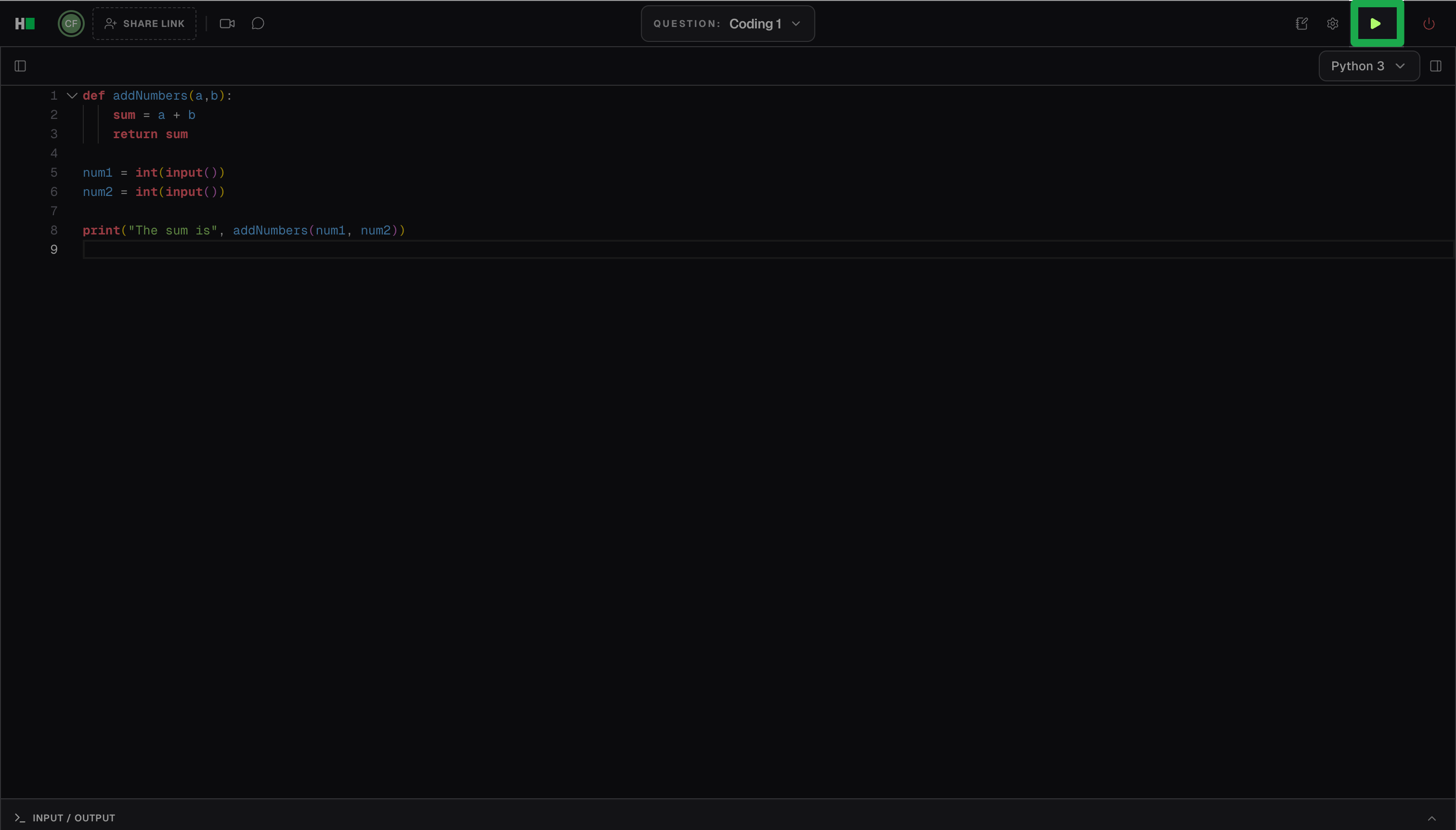
Click Input / Output at the bottom of the code editor, or click the arrow on the right side of the panel, to expand or collapse it. The panel contains the following sections:
Custom Input: Enter the input to pass to the code when it runs. Library questions can prefill this field with sample input.
Output: View the output after you run the code. To download the output, click the Download output icon next to Output.
Test cases
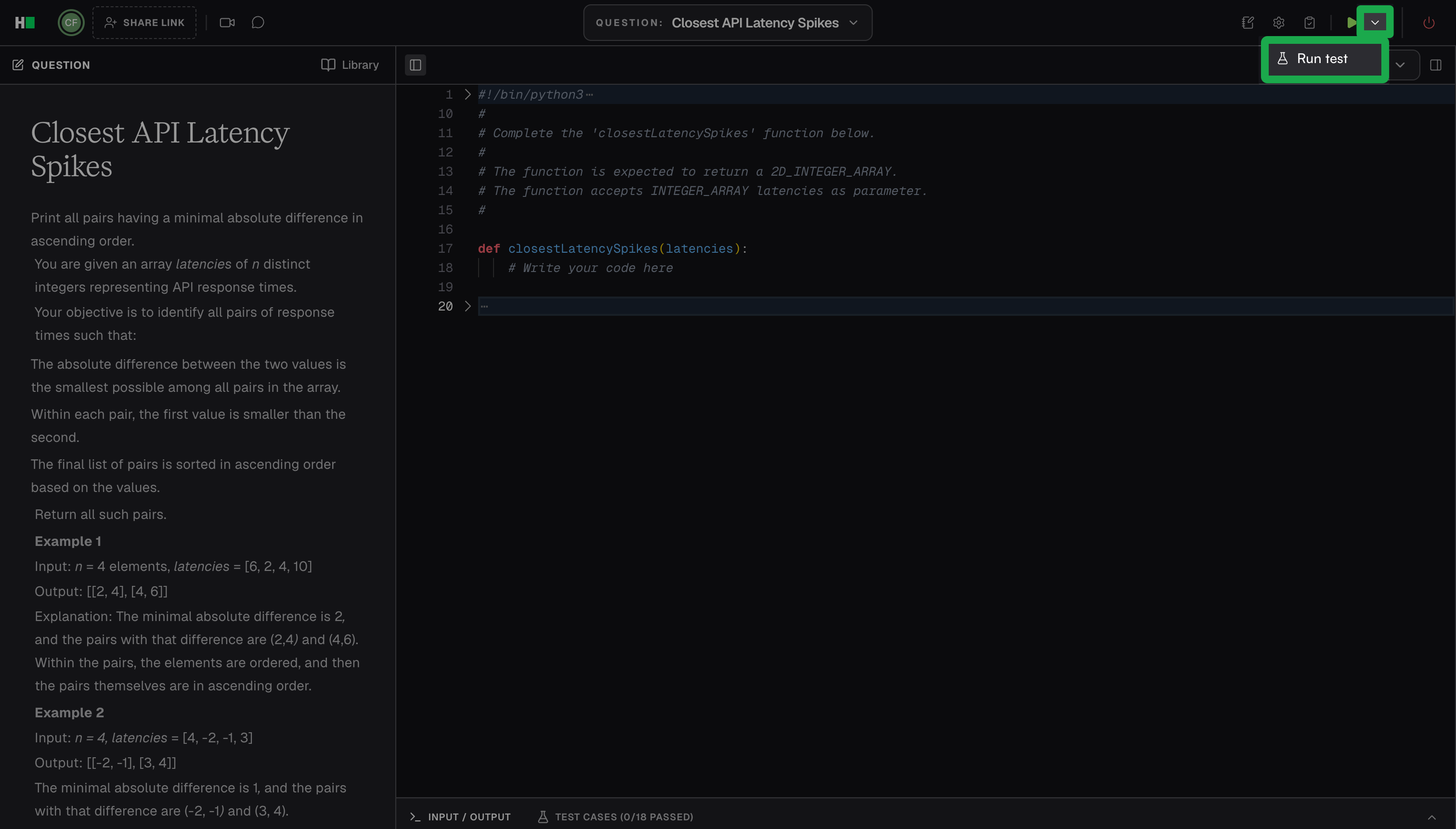
Library questions include test cases. To run the code against all sample and hidden test cases, click the arrow next to the Run Code icon and select Run test. The Test Cases tab and the Run test option are not available for custom questions.
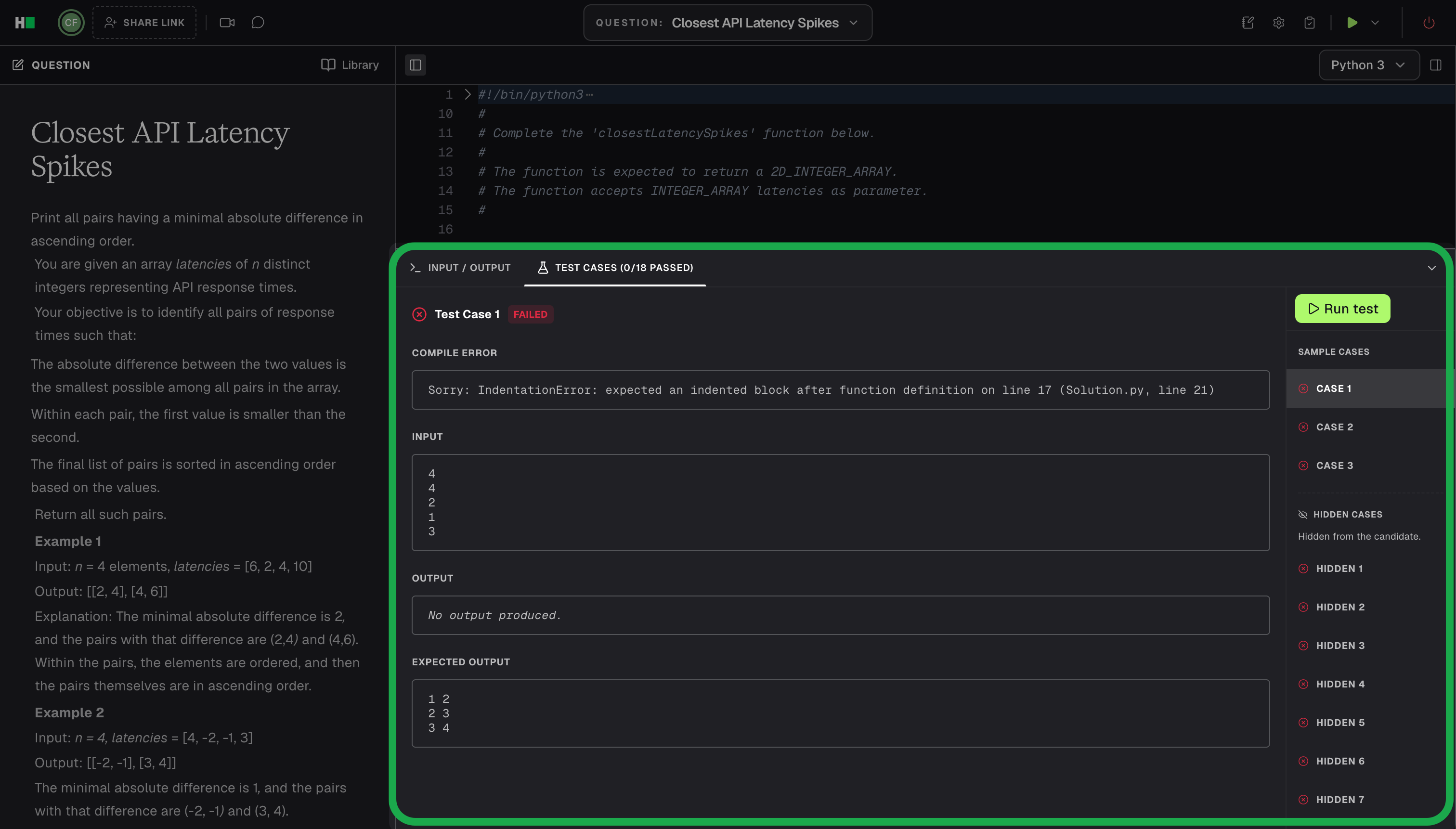
The Test Cases tab in the bottom panel displays the number of test cases that passed. It includes the following:
Sample Cases: Lists the test cases that the candidate can see.
Hidden Cases: Lists the test cases that are hidden from the candidate.
Test case details: Shows the status, any compile error, the Input, the Output, and the Expected Output for the selected test case.
To run the test cases again, click Run test in the Test Cases tab.
AI Assistant panel
The Assistant panel on the right displays the candidate's AI Assistant activity in read-only mode. Until the candidate uses the AI Assistant, the panel displays a message that the candidate has not used it yet. For more information, see 📄 AI Assistant in Interviews.
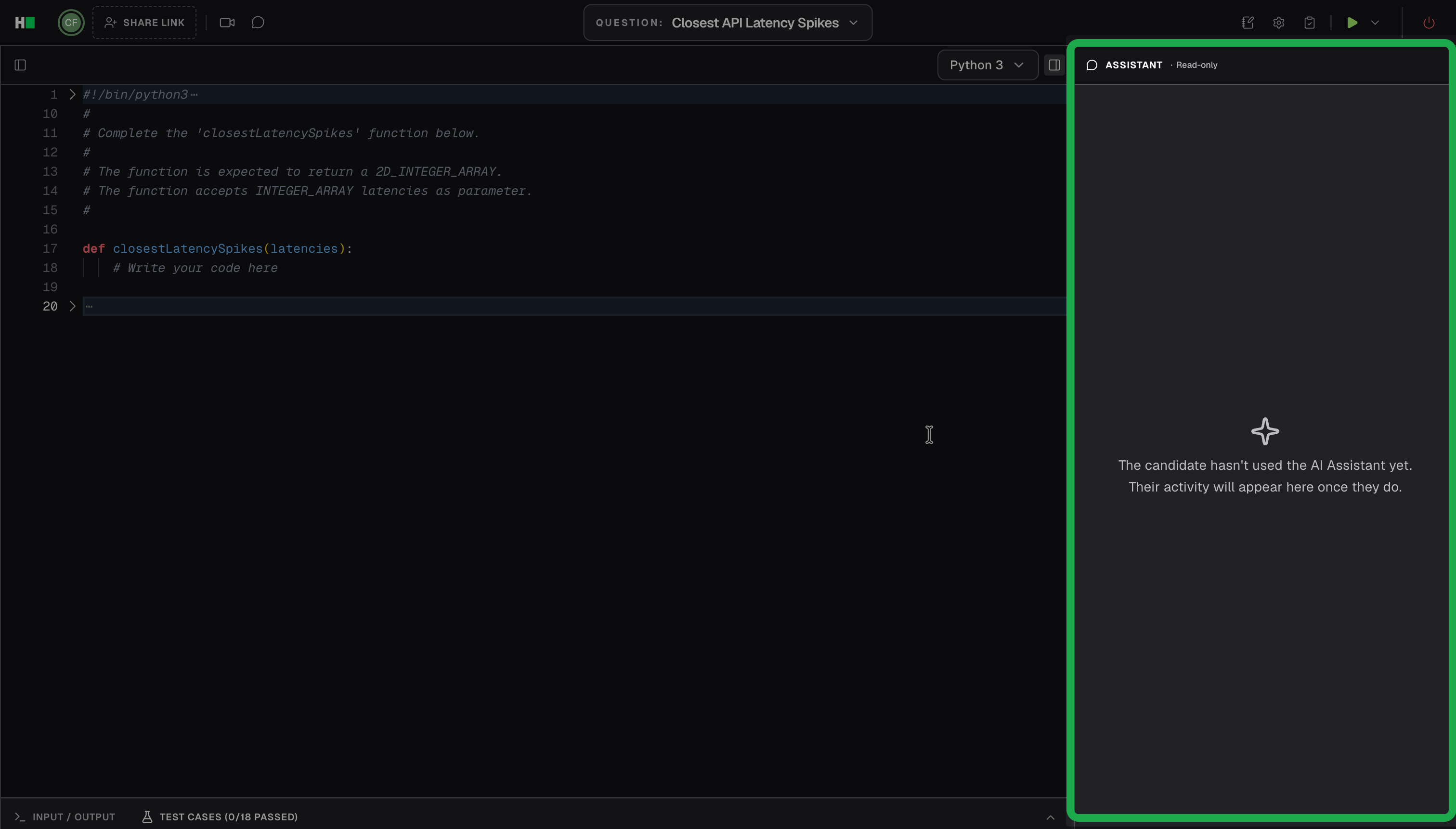
Click the Toggle right panel icon in the upper-right corner of the code editor to hide or show the AI Assistant panel.
Editor settings
To change the code editor settings, click the Settings icon in the upper-right corner and select the Editor tab. You can change the following settings:
Font Size: Select a font size from 12 to 16.
Tab Size: Select 2 spaces, 4 spaces, or 8 spaces.
Mode: Select Normal or Vim.
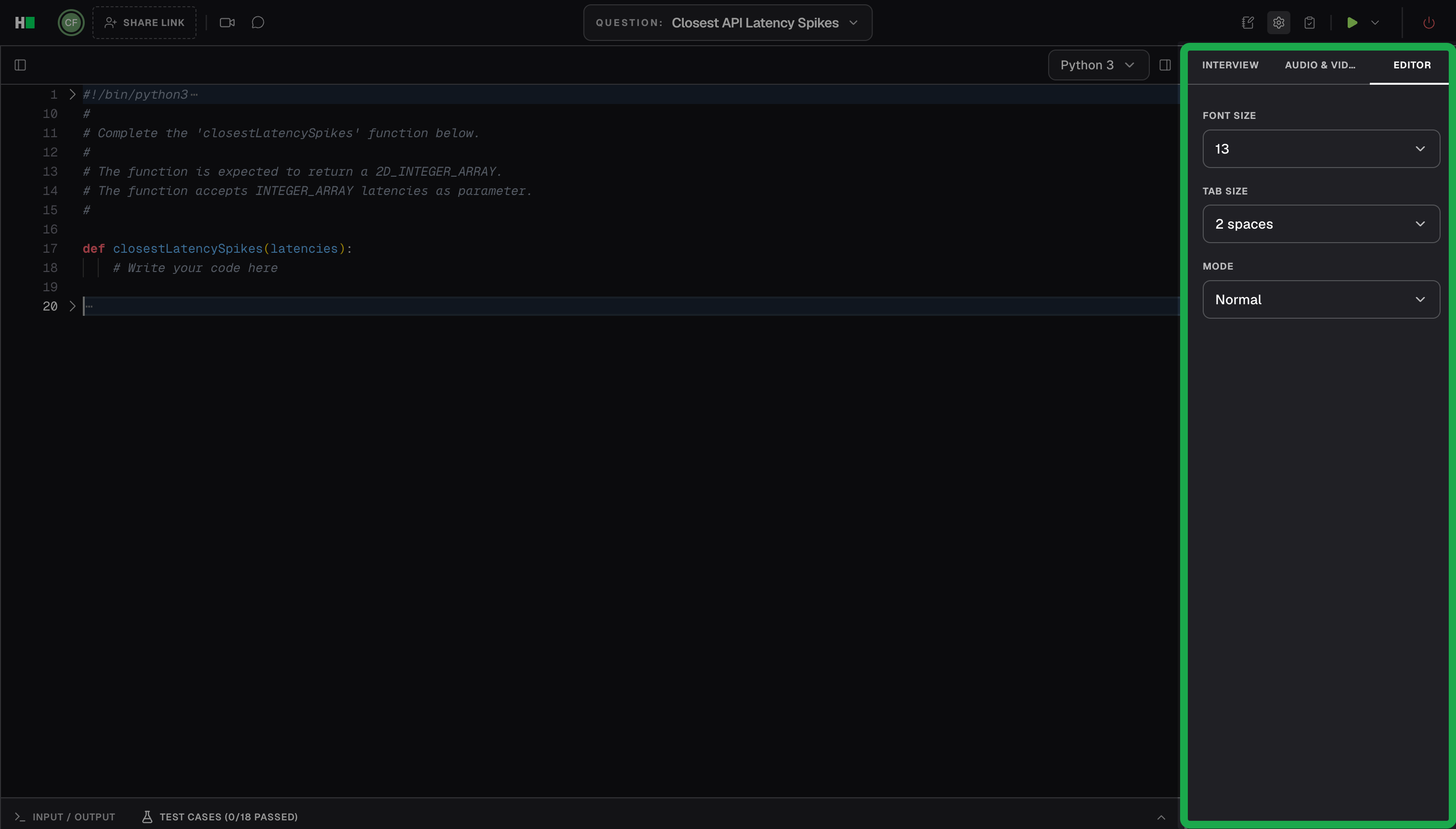
Note: The Editor tab is available only for Coding and Database questions. It is not available for Whiteboard questions. For information about other settings, see 📄 Navigate the Interview Interface and Controls → Configure interview settings.