Manage Questions in an Interview
Last updated: August 27, 2026
This article applies to the new Interview experience. If your interview interface looks different, see 📄 Add Questions to Interview for the legacy Interview experience.
During an interview, you can add existing questions from the HackerRank Library, your company library, or interview templates, or you can create custom questions. You can also rename or delete questions.
Prerequisite
You must have joined an interview session. For instructions, see 📄 Join an Interview.
Adding questions to an interview
You can add questions to an interview by using:
Question tiles
Question library
Interview templates
Using question tiles
When you join an interview, the Start Your Interview page displays tiles for the available question types.
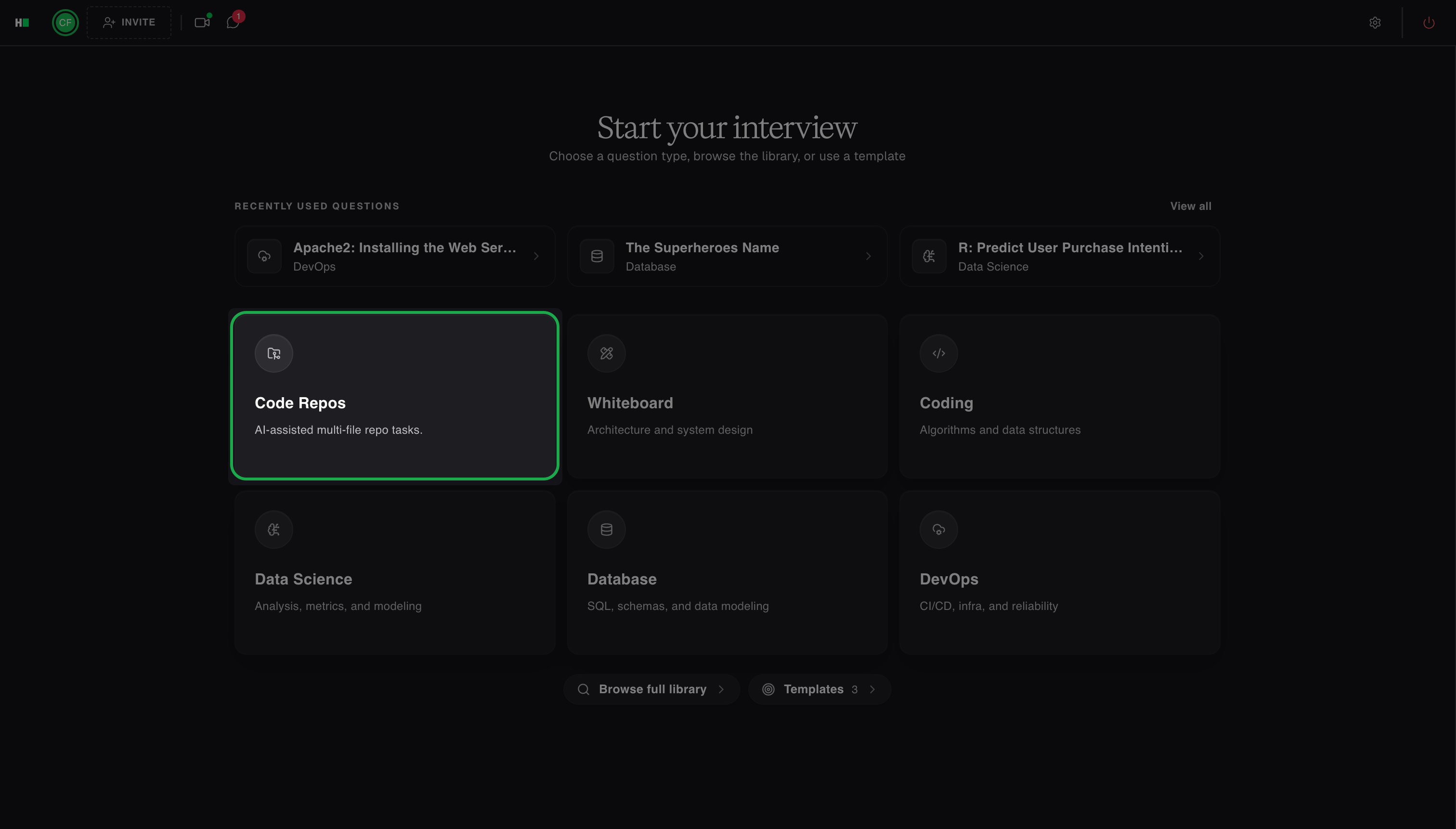
Adding a Code Repos question
To add a Code Repos question:
Select the Code Repos question tile from the Start Your Interview page.
Locate a question from the library, and click Use.
HackerRank adds the Code Repos question and opens it in the ADE environment. For more information, see 📄 Use ADE in Interviews.
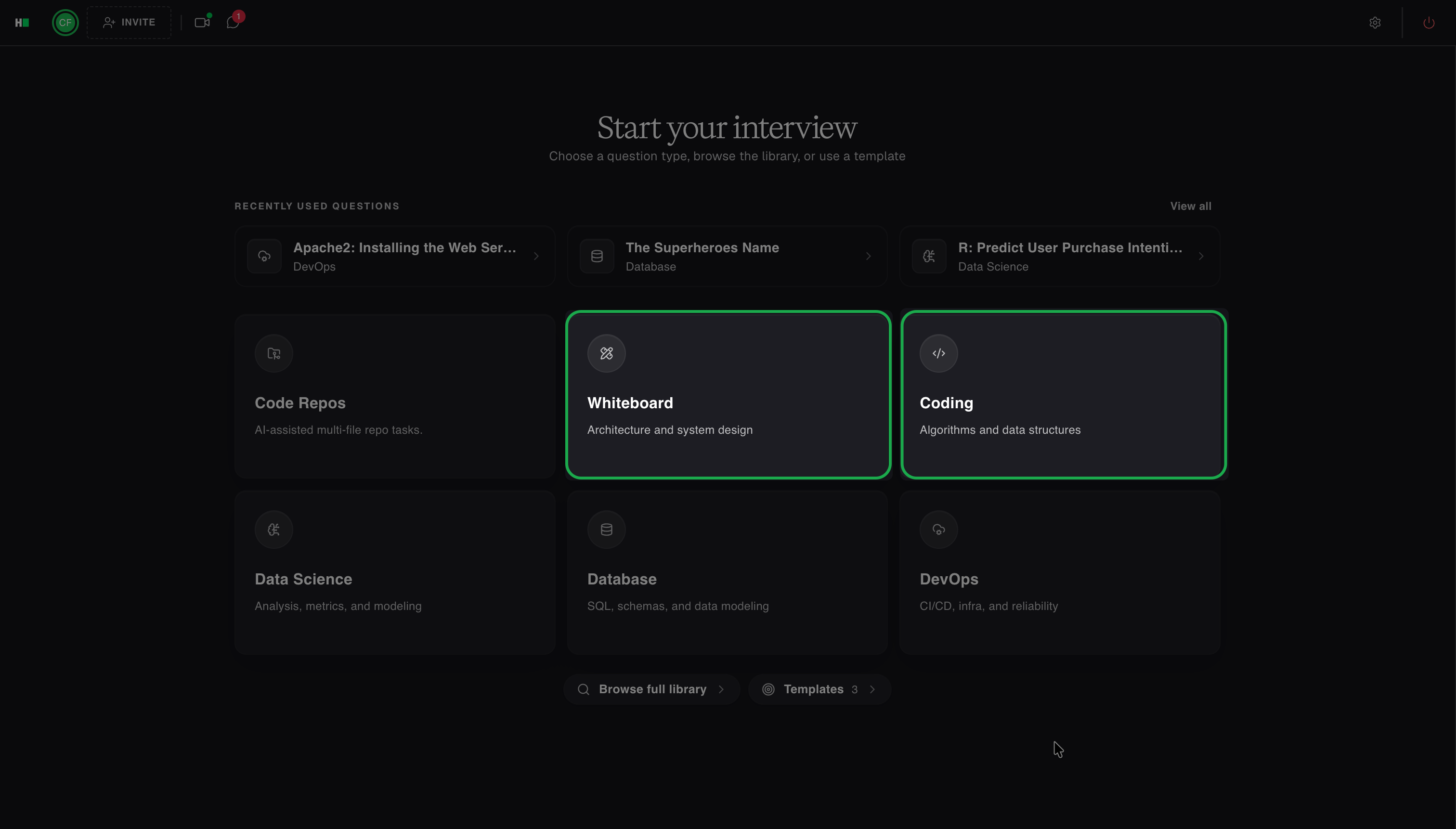
Adding a Coding or Whiteboard question
To add a Coding or Whiteboard question:
Select the Coding or Whiteboard question tile from the Start Your Interview page.
Create a custom question or import a question from the library.
To create a custom question:
Type the question in the Create your question panel.
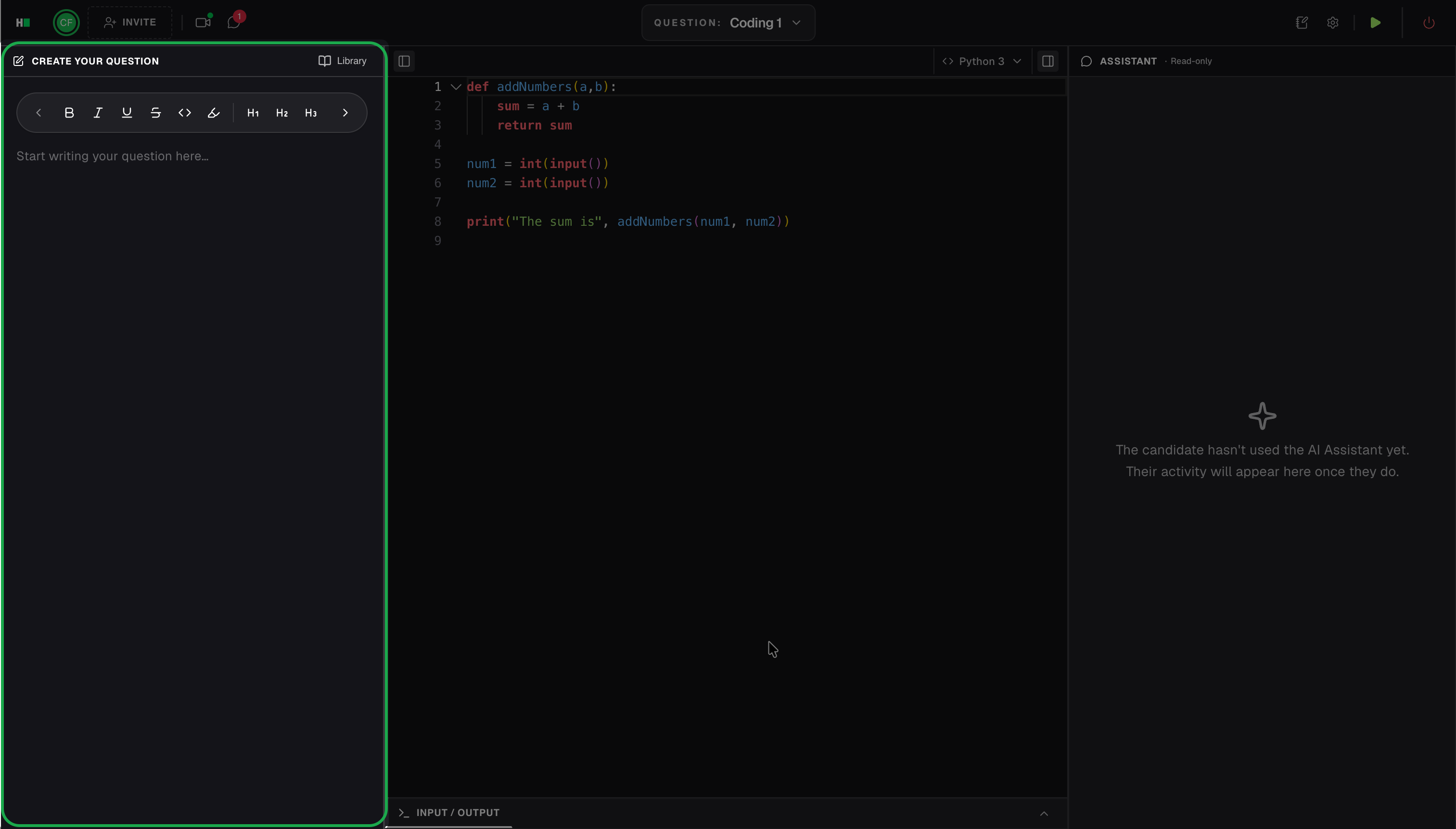
Format the content using the available formatting options such as bold, italics, bullet or numbered lists, and code snippets.
Note:
The question will be displayed to the candidate as you type. You can prepare the question before the candidate joins.
To rename the question title, see Renaming a question title in an interview.
To import a question from the library:
Select Library.
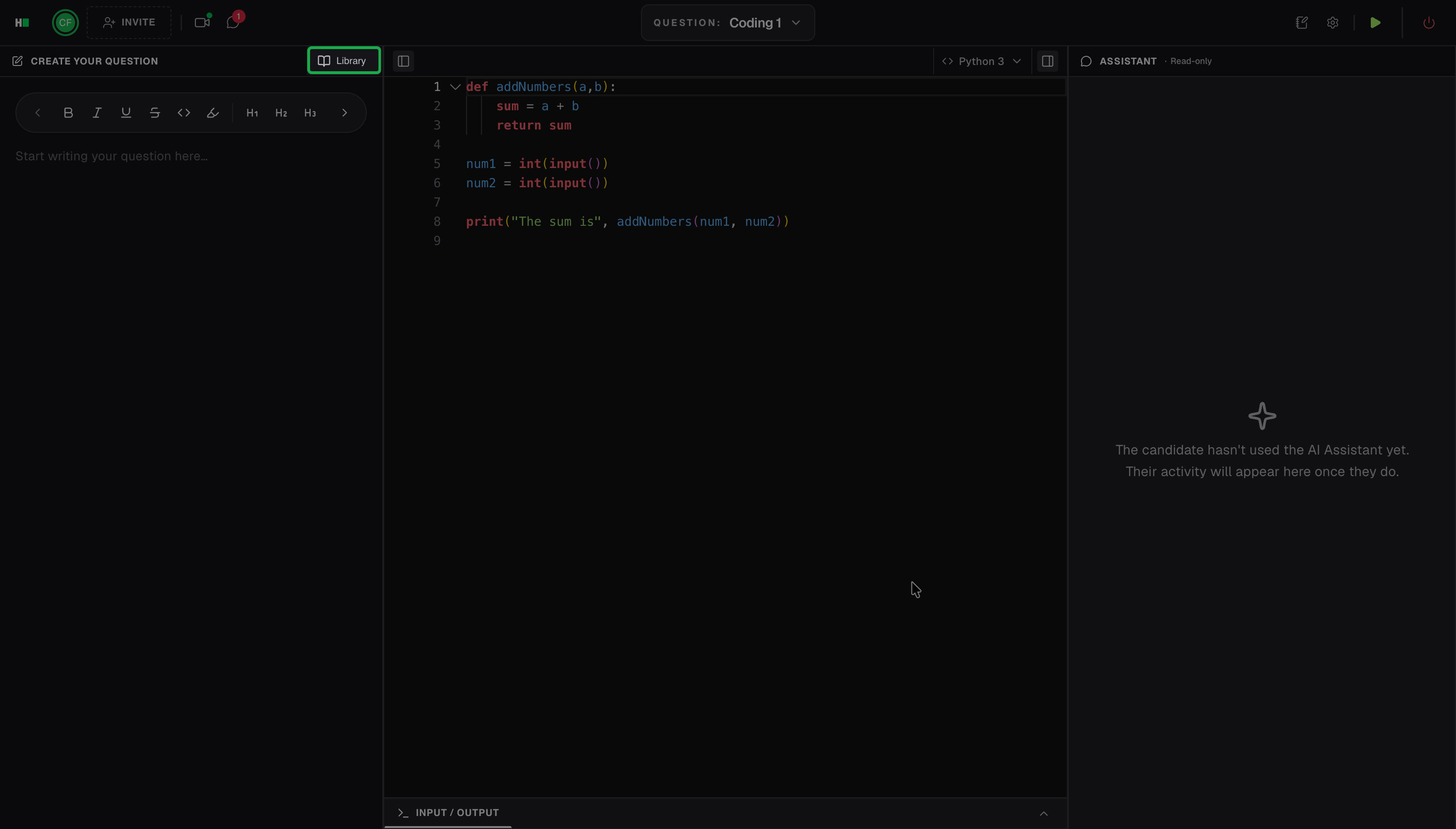
Locate a question from the library, and click Use.
HackerRank adds the question to the interview.
Adding a Data Science, Database, or DevOps question
To add a Data Science, Database, or DevOps question:
Select the Data Science, Database, or DevOps question tile from the Start Your Interview page.
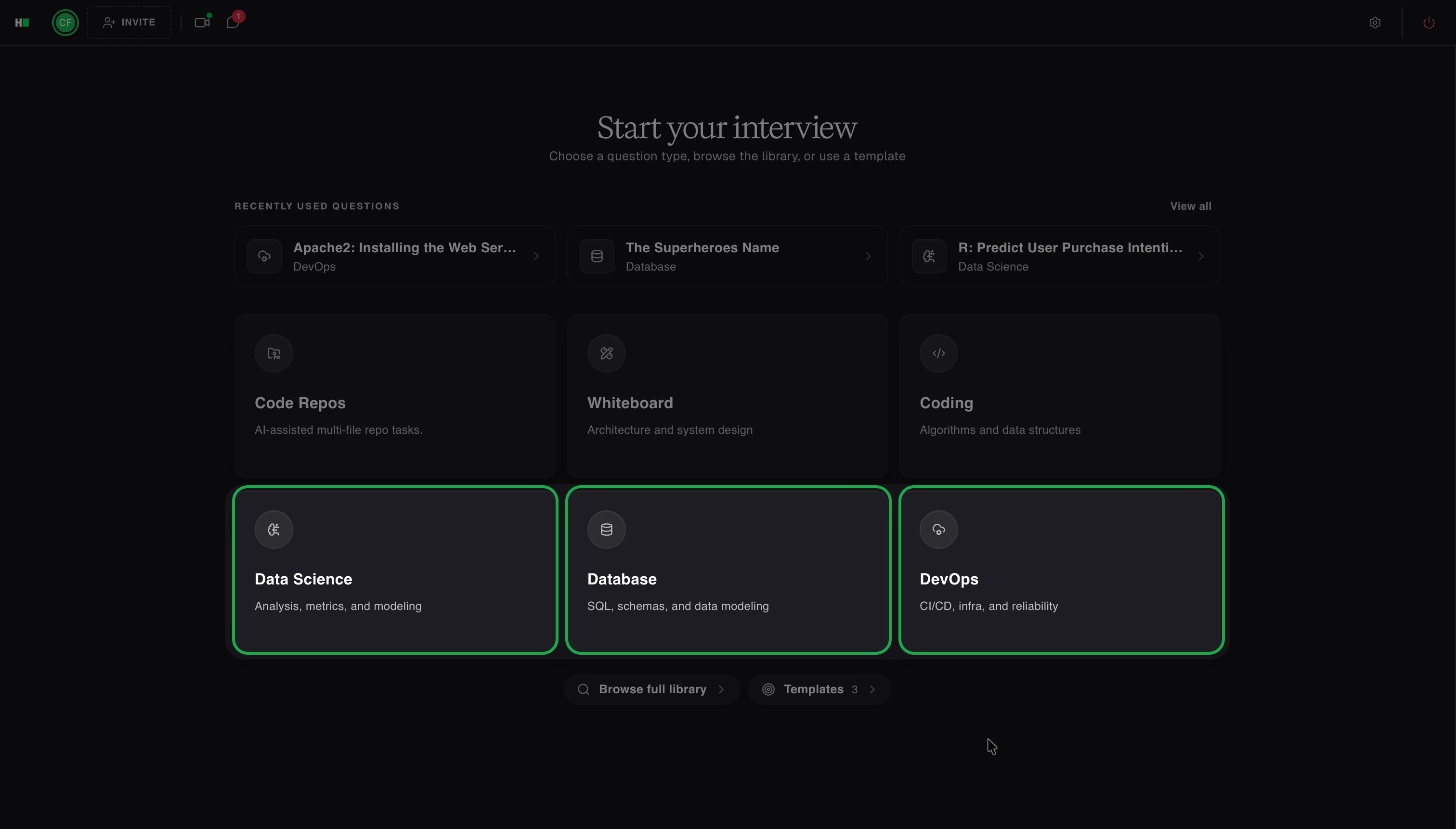
Locate a question from the library, and click Use.
HackerRank adds the question to the interview.
Using question library
To add questions from the Question Library:
Click Browse full library from the Start Your Interview page.
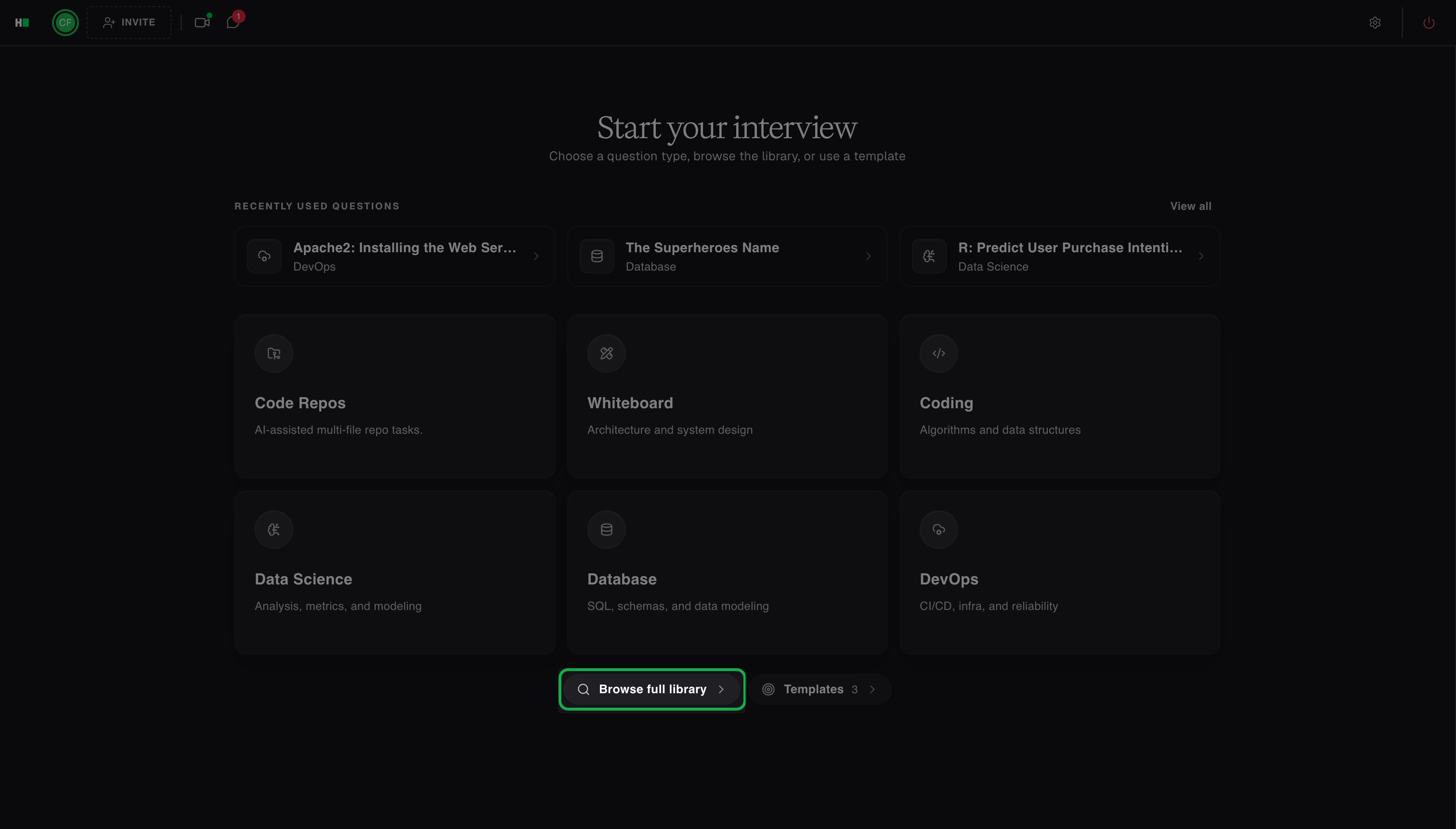
(Optional) Select the question source. You can select one of the following:
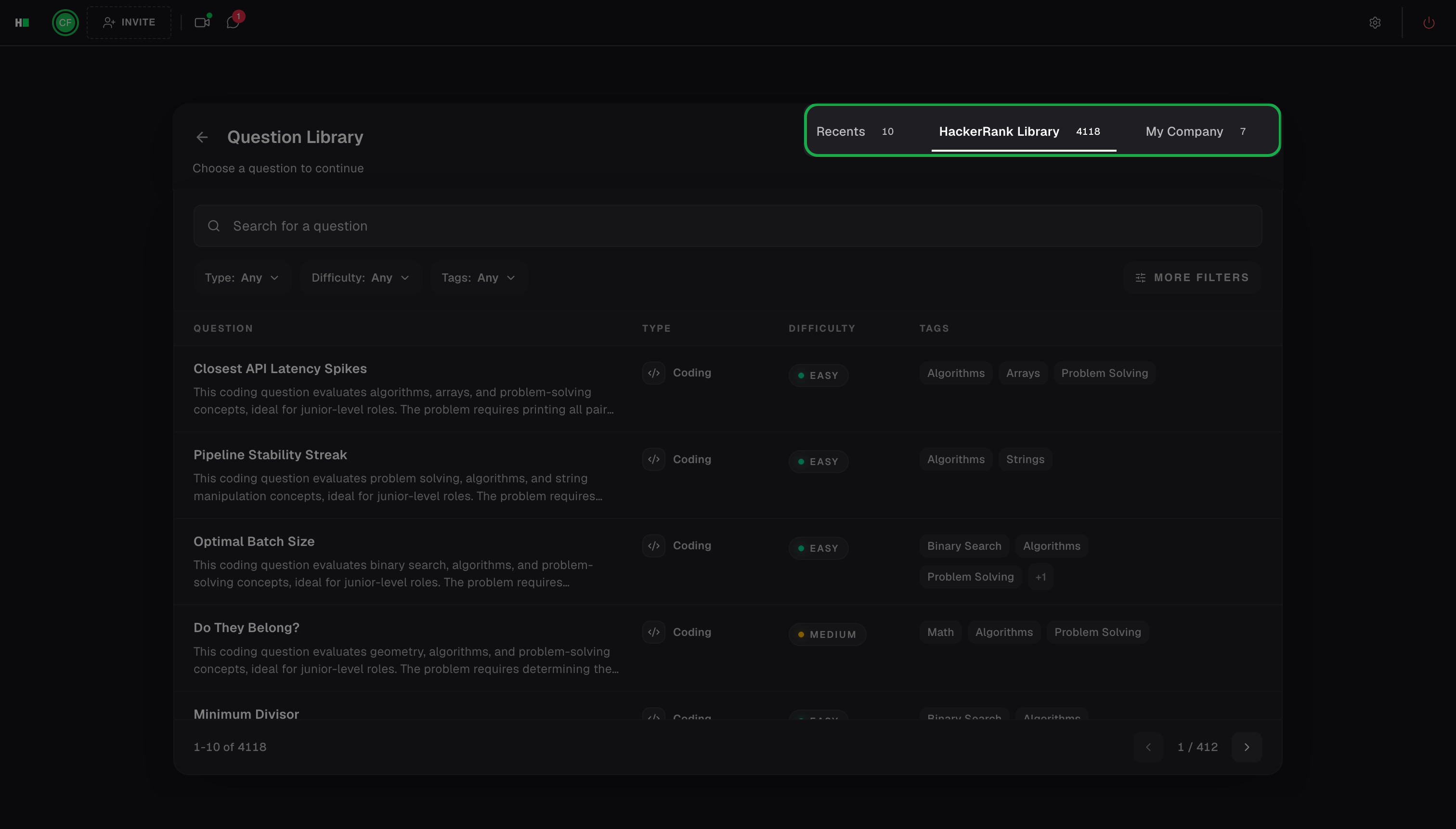
Recents: Displays questions you recently used.
HackerRank Library: Displays questions from the HackerRank Library.
My Company: Displays questions that your company created or shared with you.
(Optional) Use the search bar or filters to quickly find the questions.
Search: Enter a keyword in the search bar to find specific questions. You can enclose a search term in quotation marks ( " " ) to perform an exact match search. For example, “Questions".
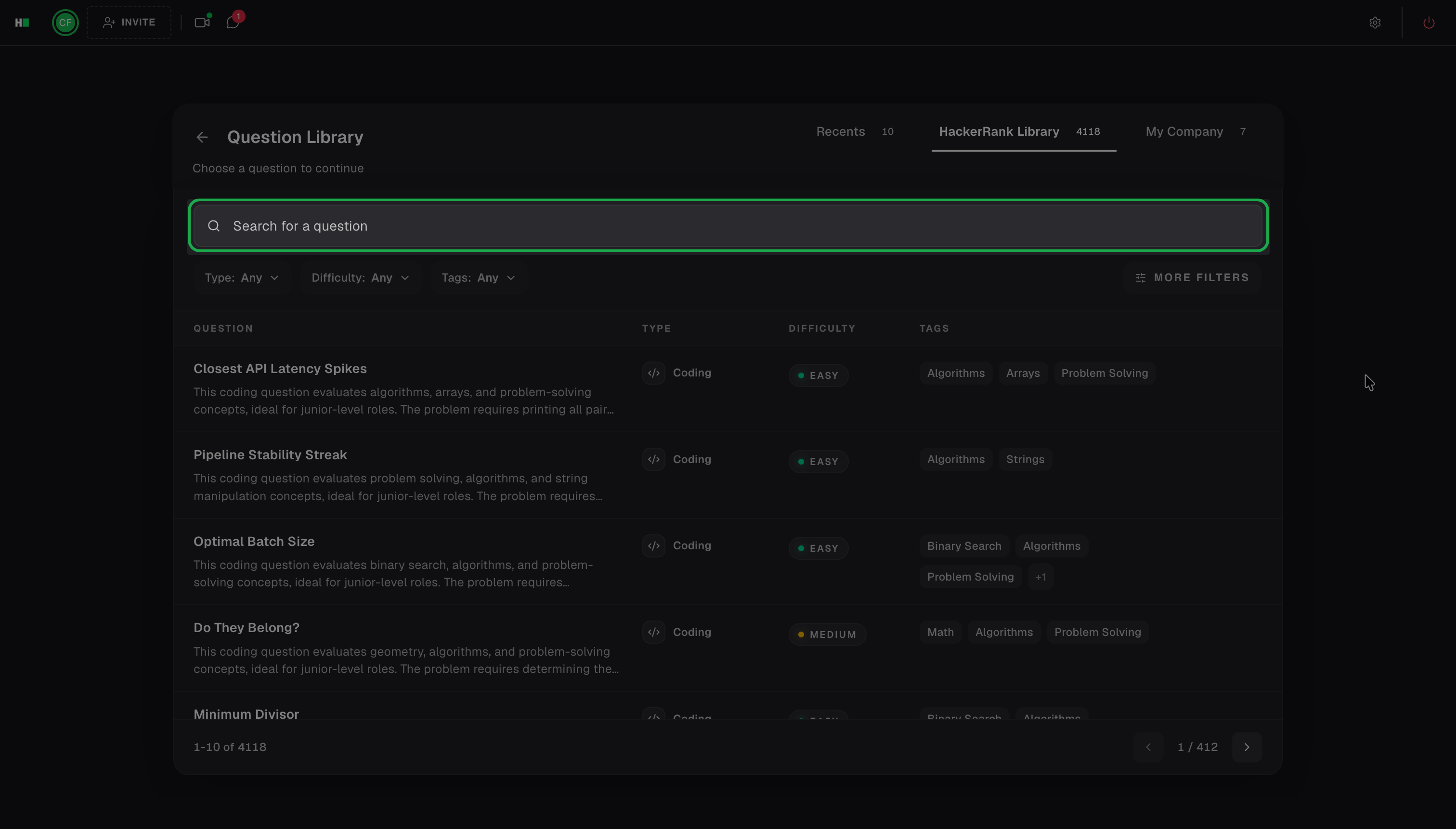
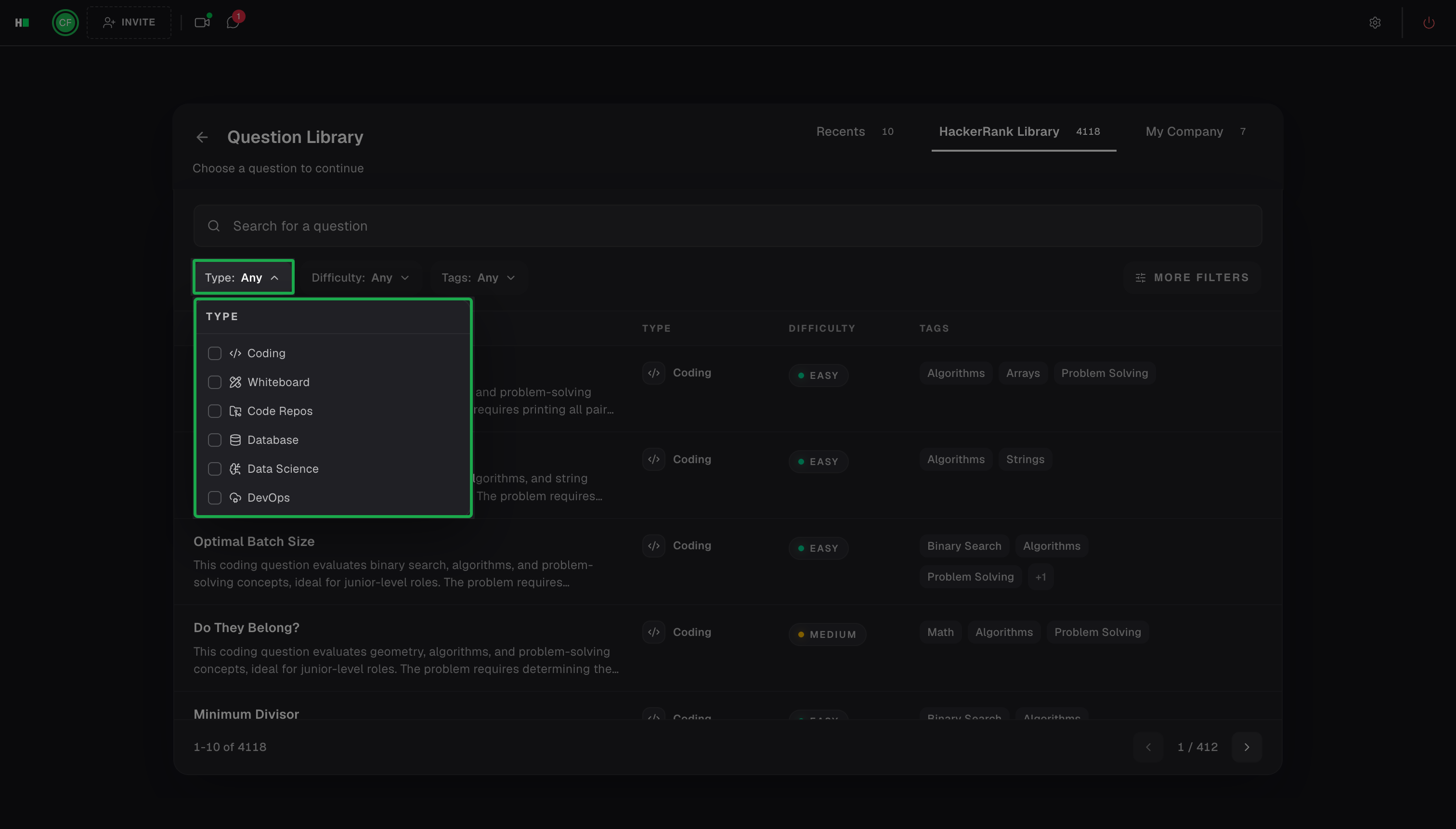
Type: Filter by question type. For example, Coding, Code Repos, Database.
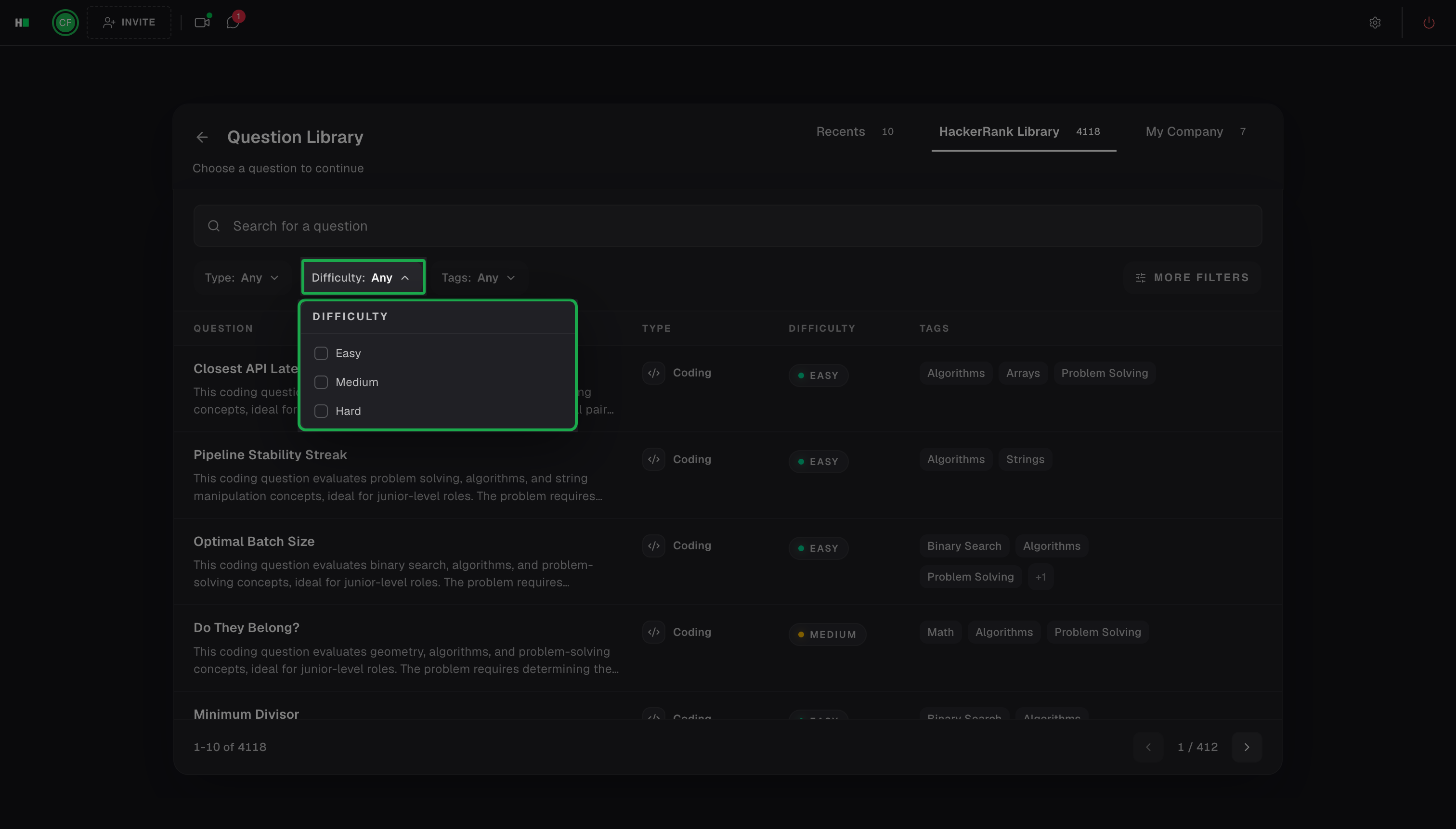
Difficulty: Filter the question by difficulty. Select Easy, Medium, or Hard.
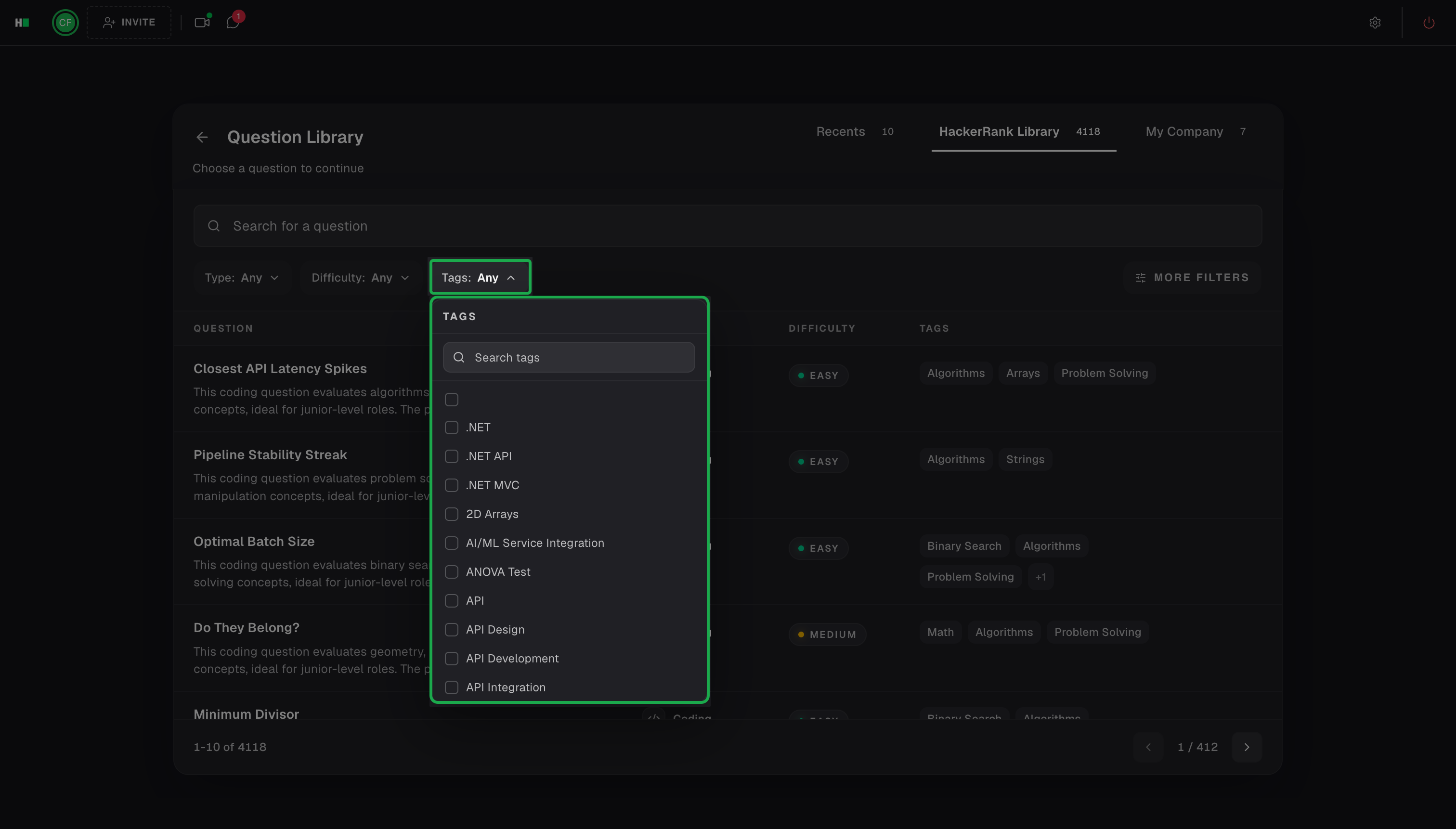
Tags: Select Tags using checkboxes or search for specific tags, then click Apply.
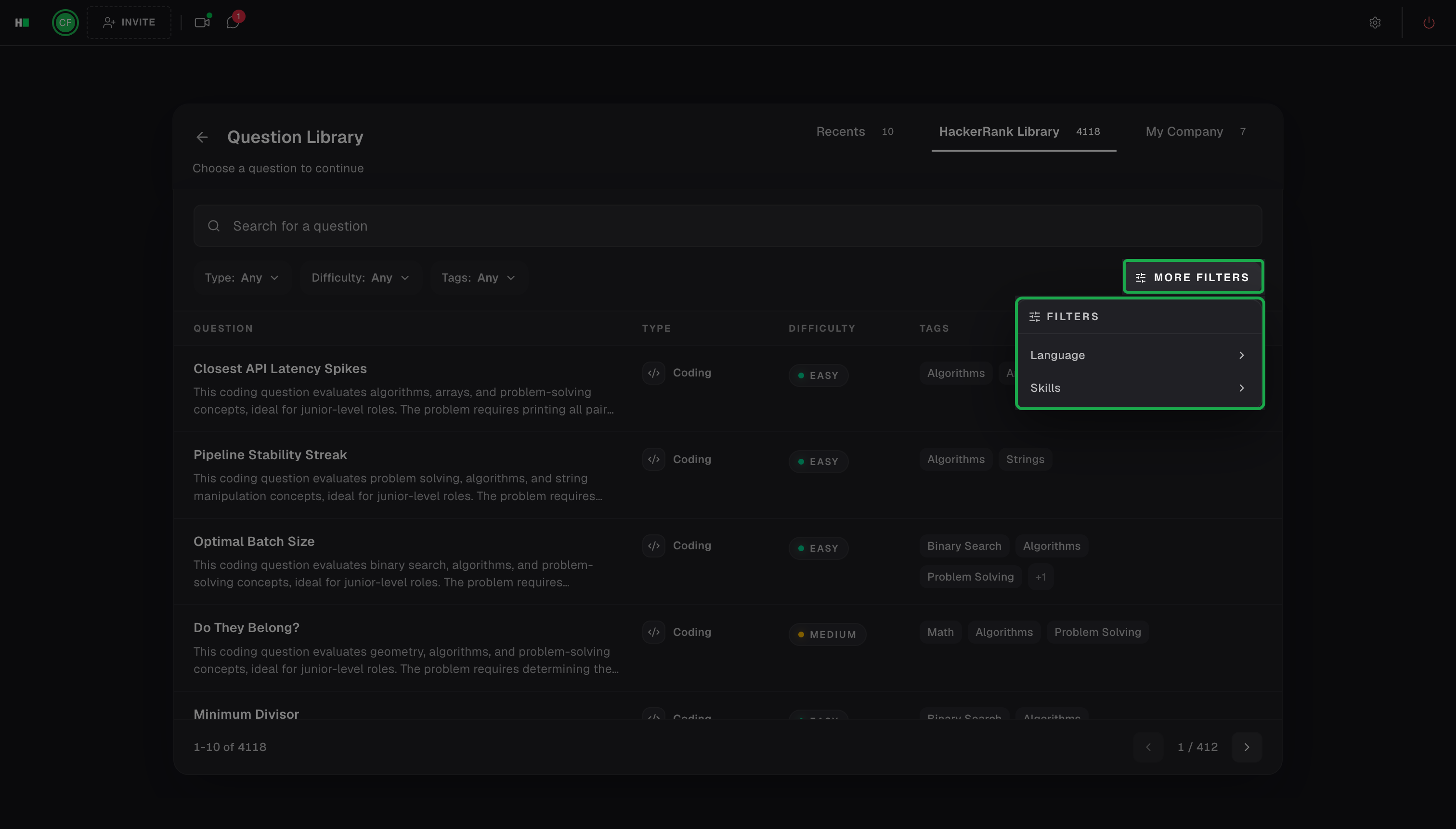
More Filters: Filter the questions further by Language or Skills.
Click Use next to the question that you want to add.
HackerRank adds the question to the interview.
Using an interview template
You can access the pre-built template directory shared by your team.
Note:
If you select a template when you create the interview, HackerRank loads it automatically when the interview starts. Otherwise, the default interview screen appears. For more information, see 📄 Create an Interview.
To manage a template, see 📄 Manage Interview Templates.
To add questions from an interview template:
Click Templates from the Start Your Interview page.
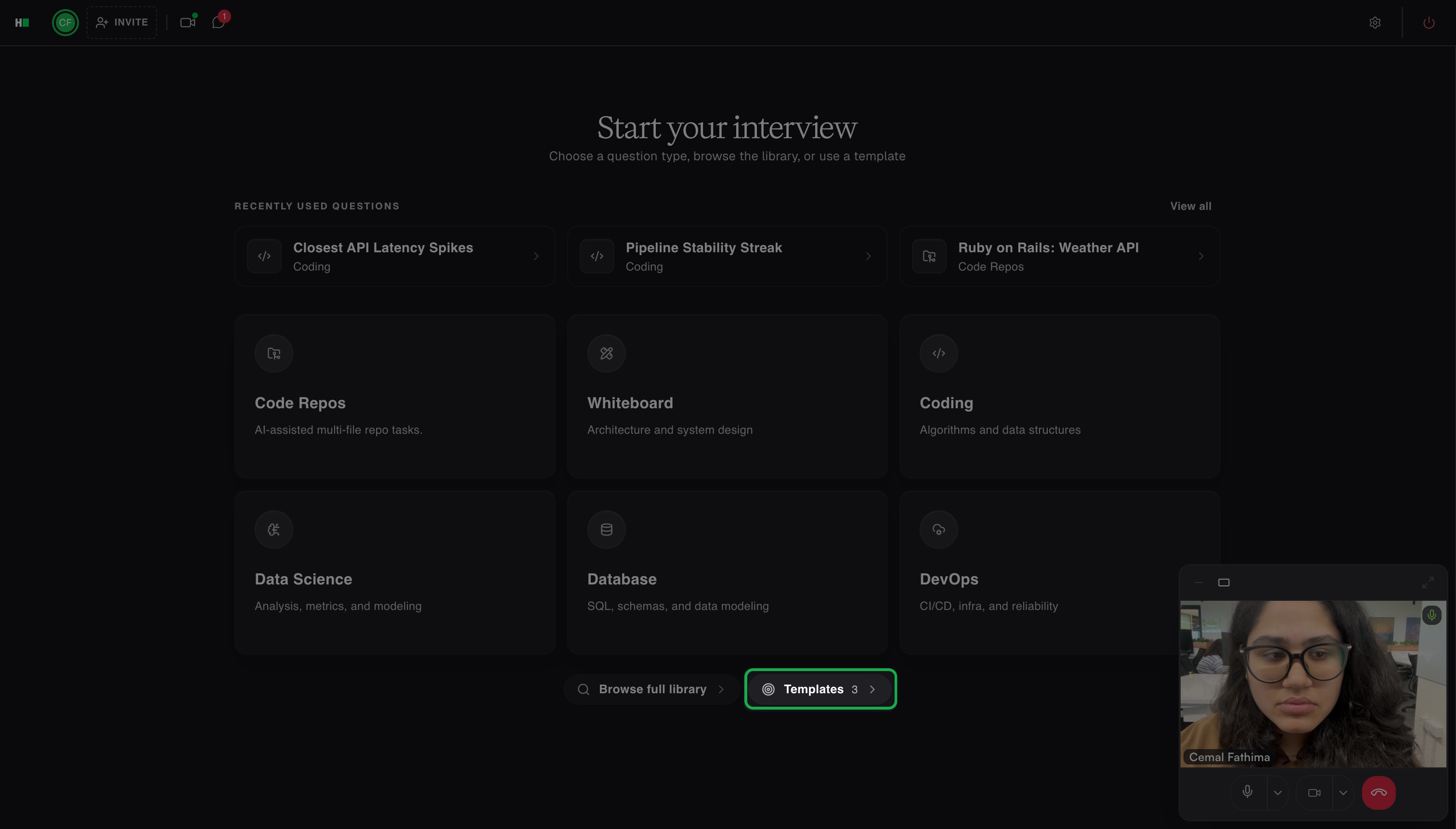
Select the template you want to use. Each template displays its associated questions.
Add questions by using one of the following options:
Click Use All to add every question in the template.
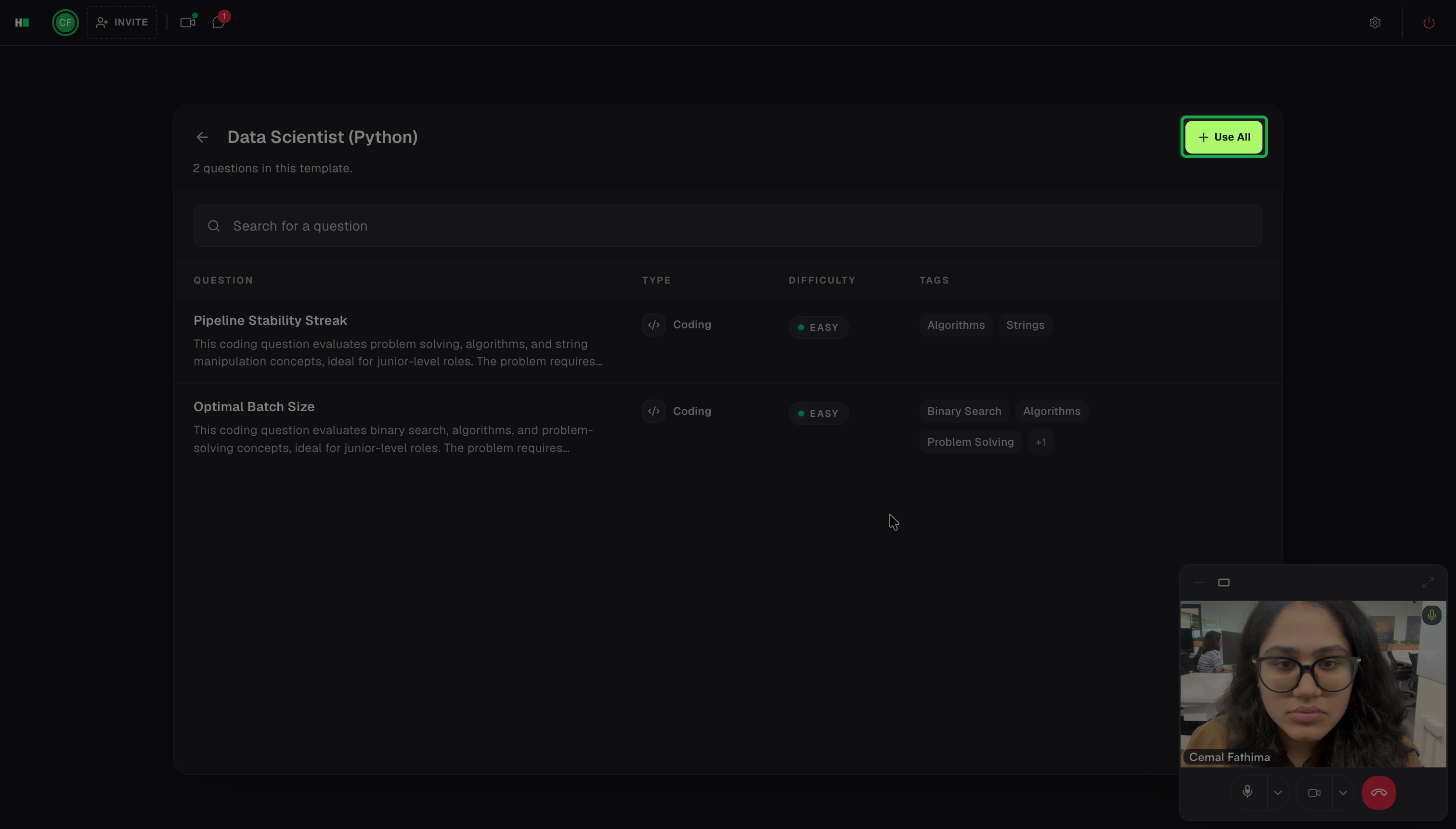
Note: You can use this option only for templates that contain five or fewer questions.
Click Use next to a specific question to add only that question.
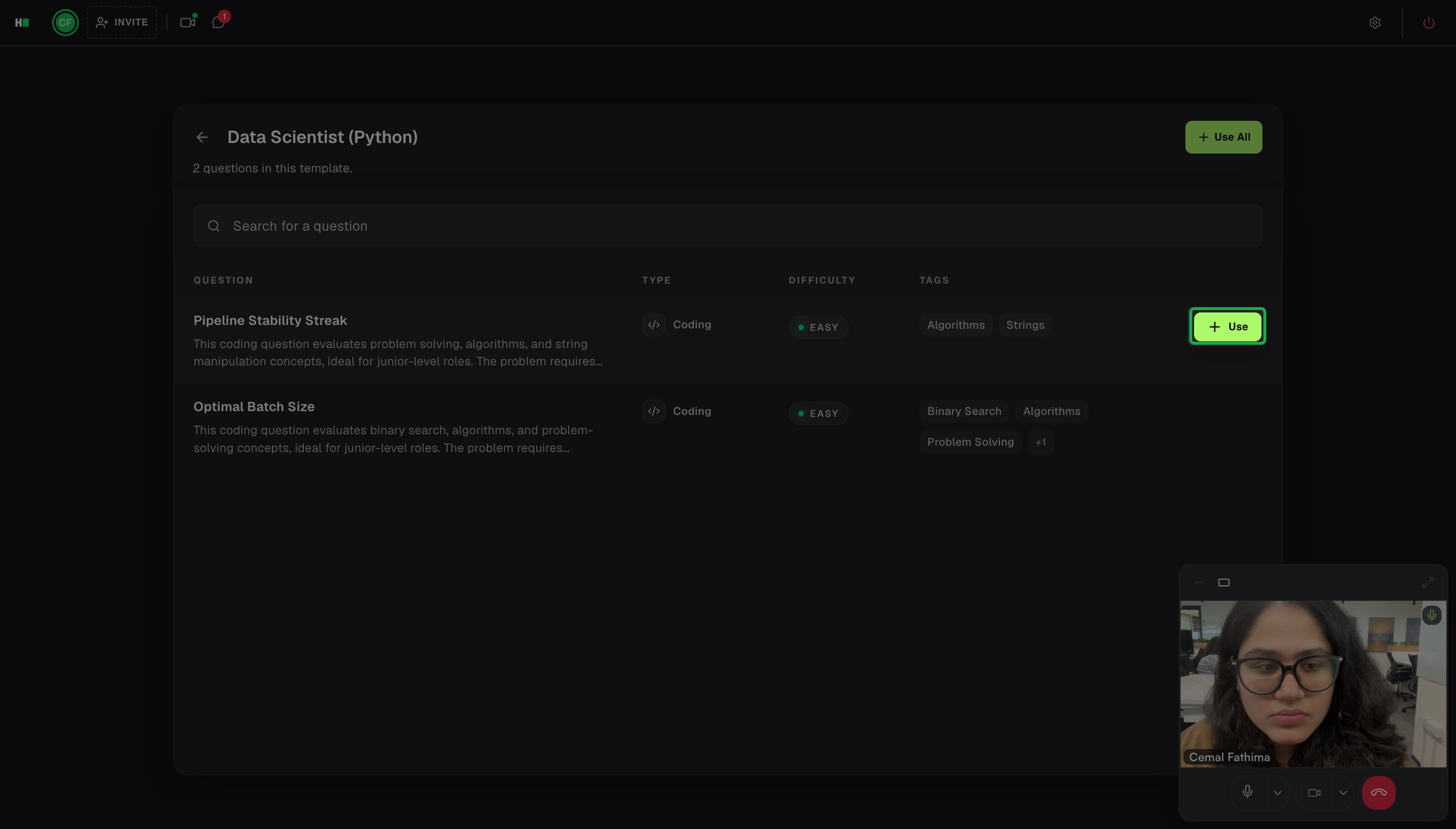
HackerRank adds the selected questions to the interview.
Renaming a question title in an interview
To rename a question title:
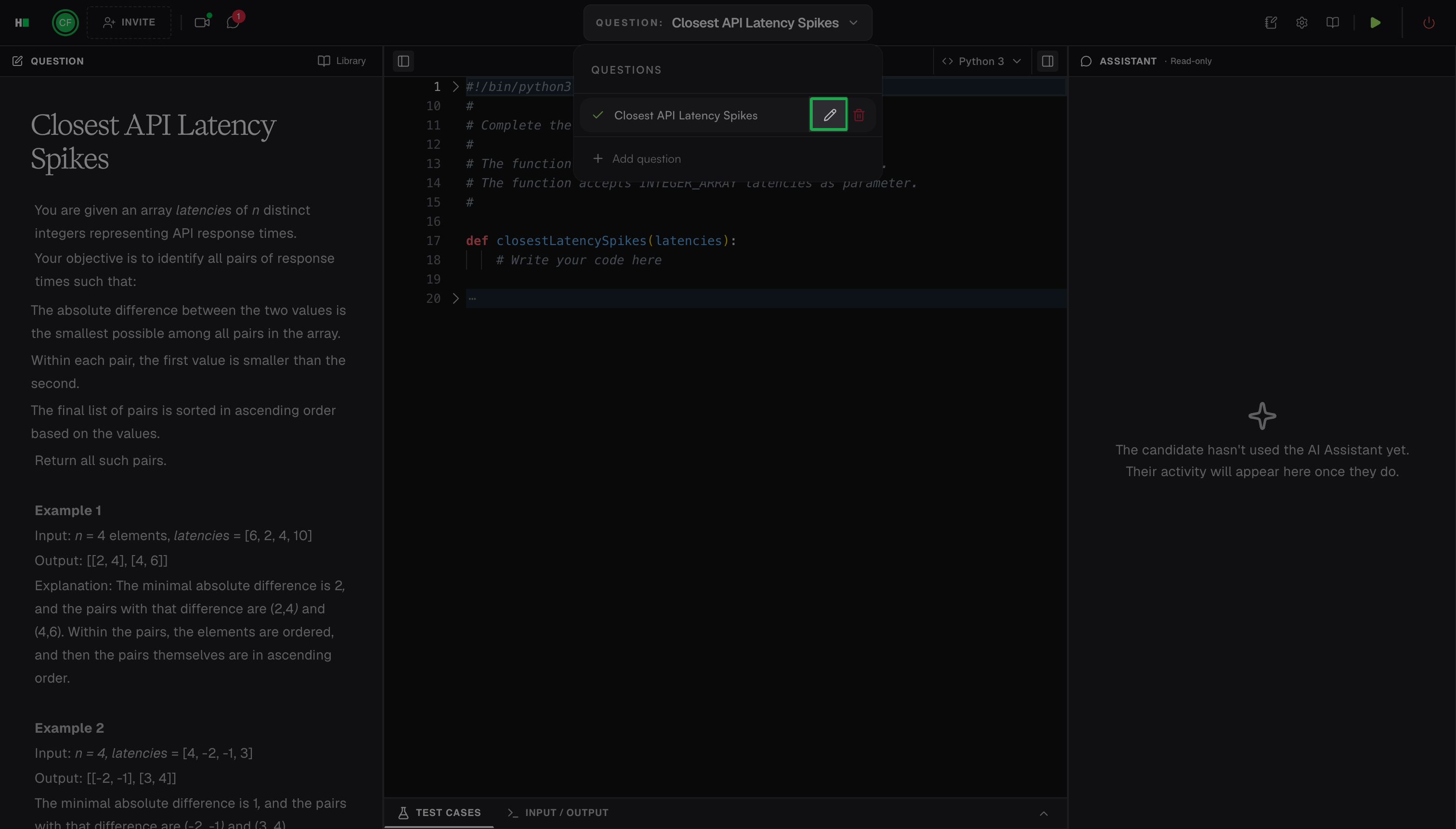
Click the Question dropdown.
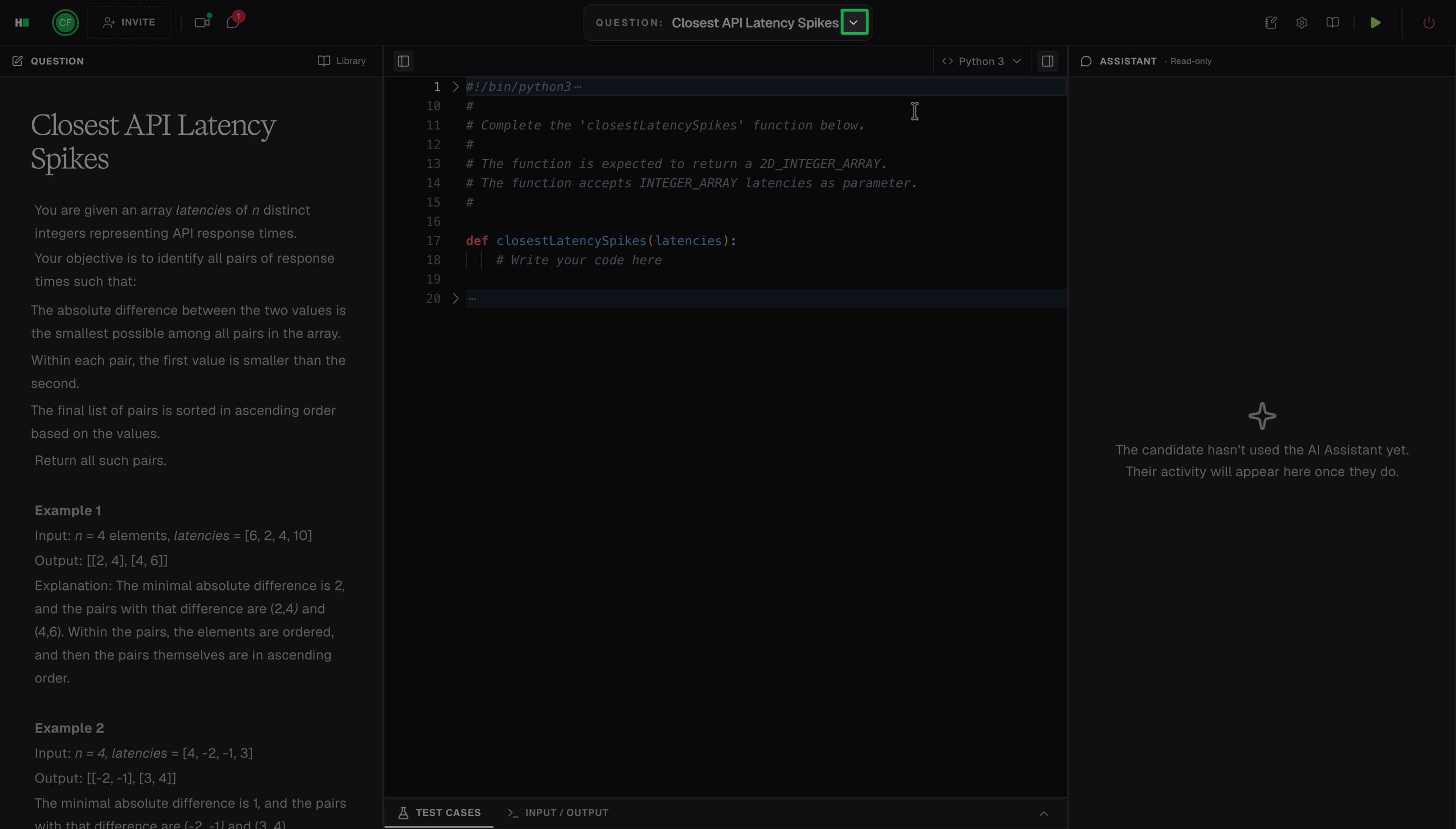
Click the edit icon next to the question you want to rename.
In the Rename question dialog box, enter a new question title.
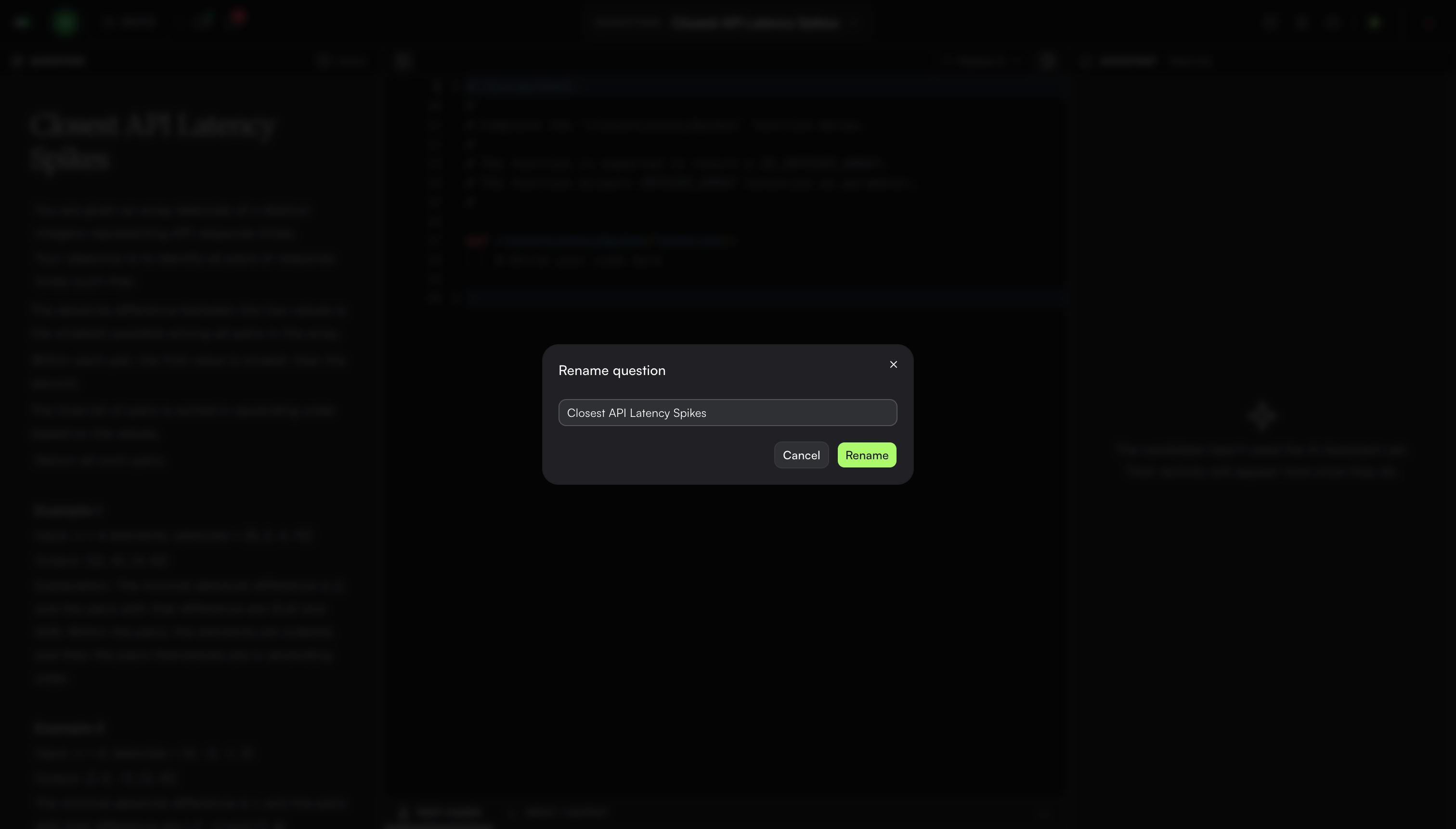
Click Rename.
The updated question title appears in the interview.
Deleting a question from an interview
To delete a question from an interview:
Click the Question dropdown.
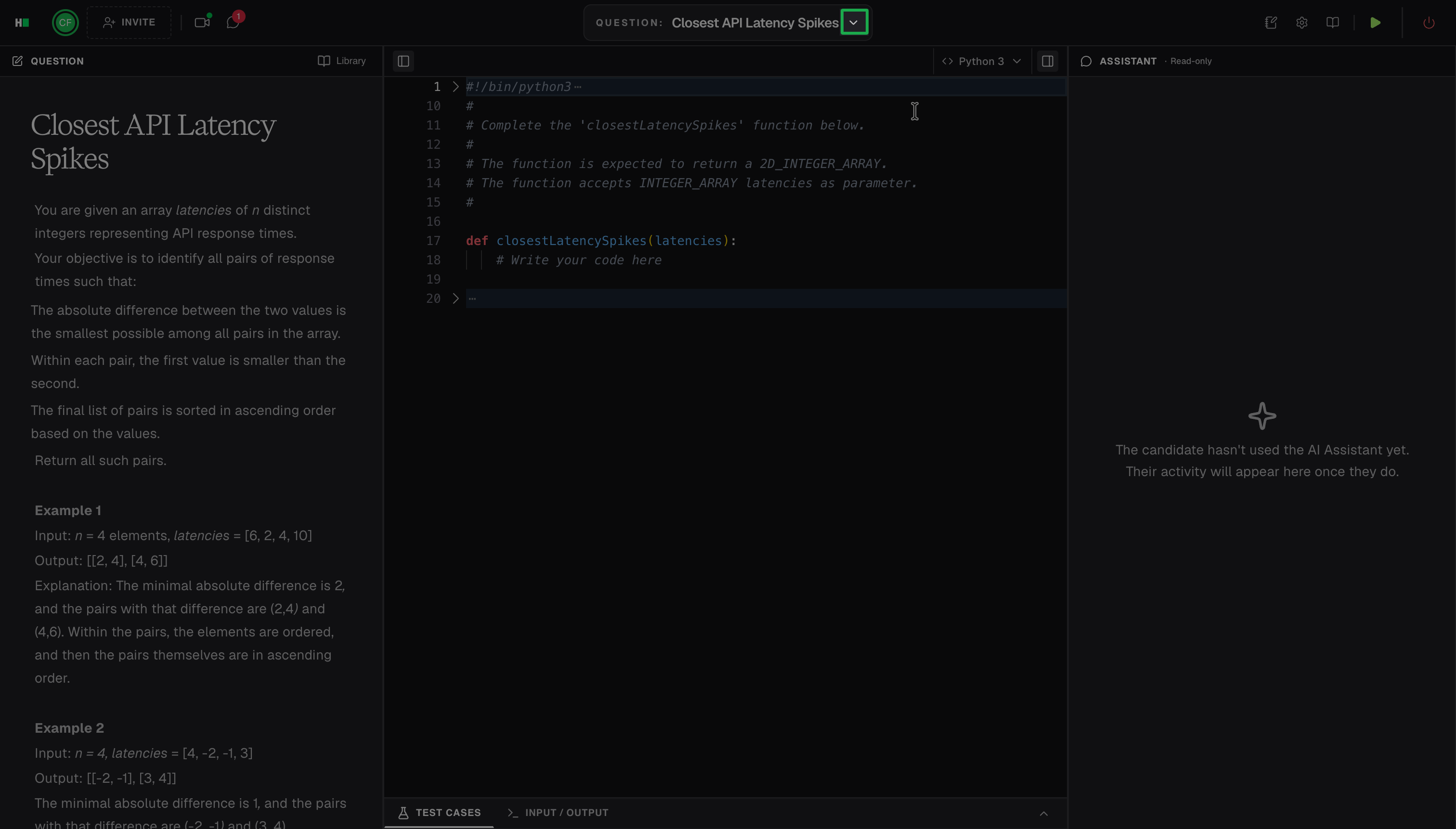
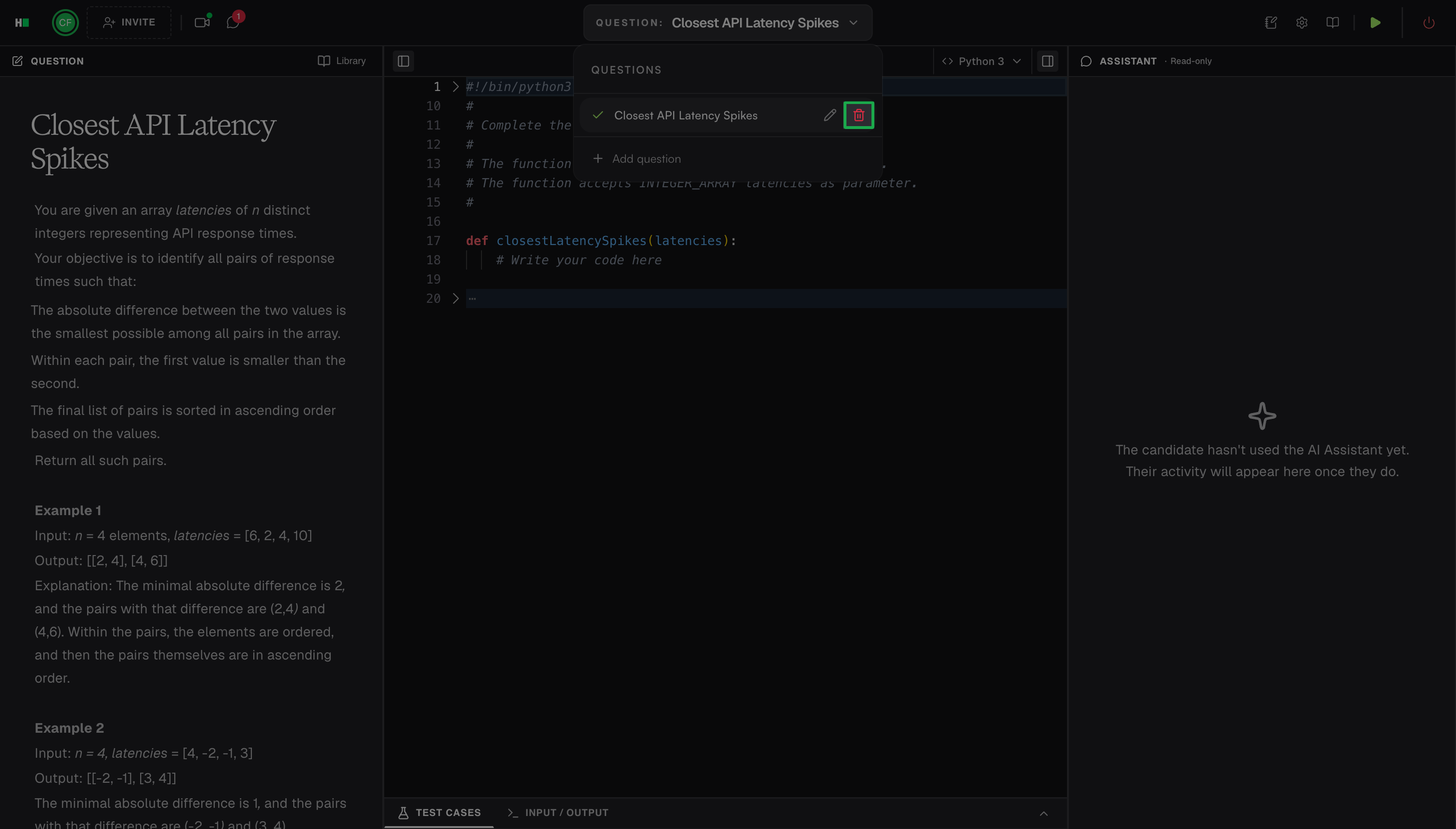
Click the delete icon next to the question that you want to delete.
Click Delete in the confirmation dialog box.
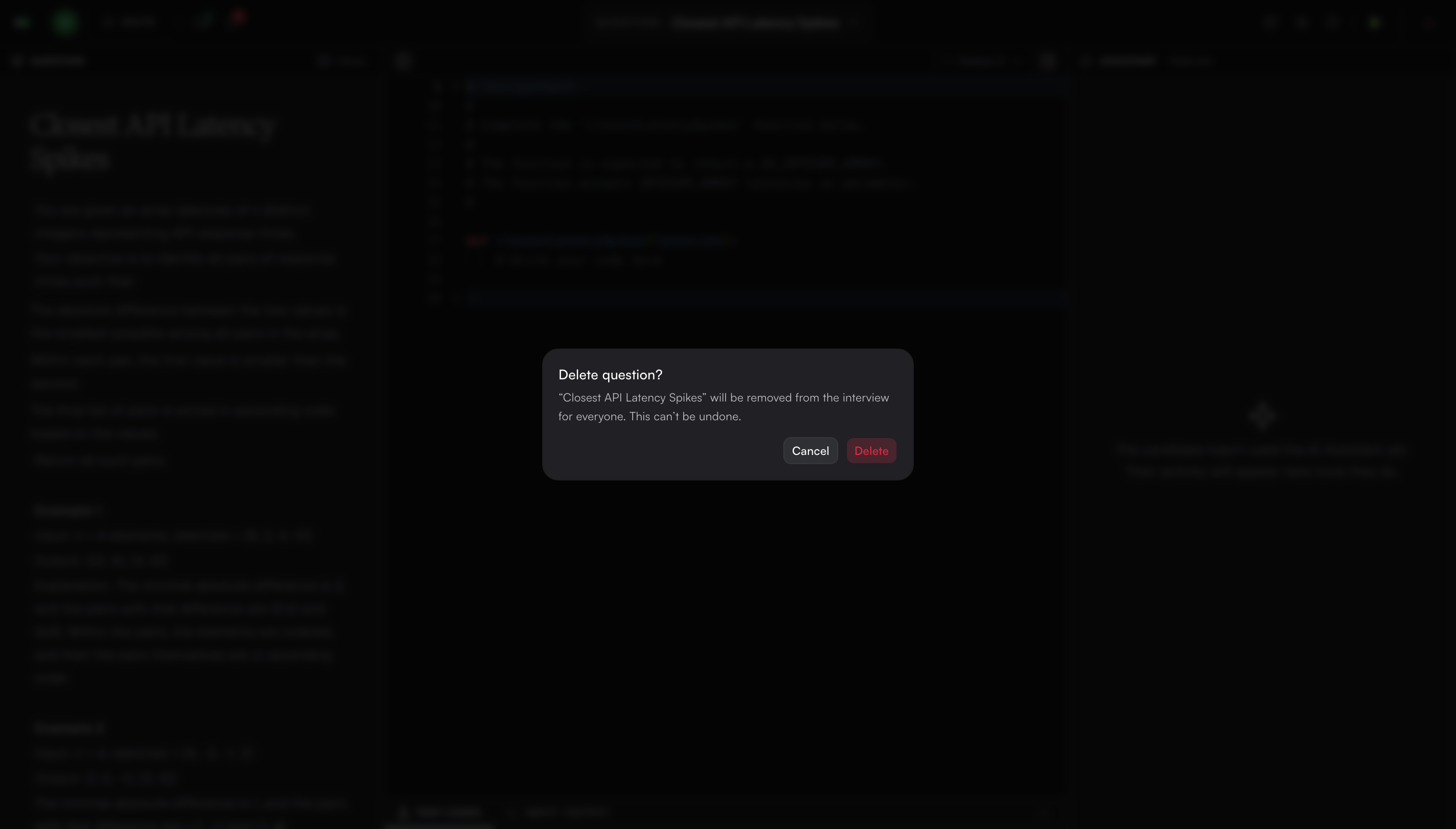
HackerRank deletes the question from the interview.