HackerRank Desktop App Mode in Chakra
Last updated: July 30, 2026
HackerRank Desktop App Mode allows you to conduct AI interviews in a secure, lightweight desktop application. It extends the standard AI interview experience with additional desktop-only integrity controls that are not available in web browsers.
Key integrity controls
The following controls apply when Desktop App Mode is enabled:
Prevents candidates from sharing remote access to their systems.
Prevents candidates from sharing their screen or taking screenshots.
Blocks the use of other applications during the interview, including video conferencing and AI assistant tools.
Blocks additional monitors and screen mirroring.
Enforces full-screen mode throughout the interview.
Prevents the interview from running on a virtual machine.
Enable HackerRank Desktop App Mode
You can enable Desktop App Mode while creating a new AI interviewer or editing an existing AI interviewer.
To enable HackerRank Desktop App Mode:
Log in to Chakra using your credentials.
Create a new AI interviewer or edit an existing AI interviewer. For more information, see 📄 Create an AI Interviewer.
In the Draft interviewer page, click the settings icon.
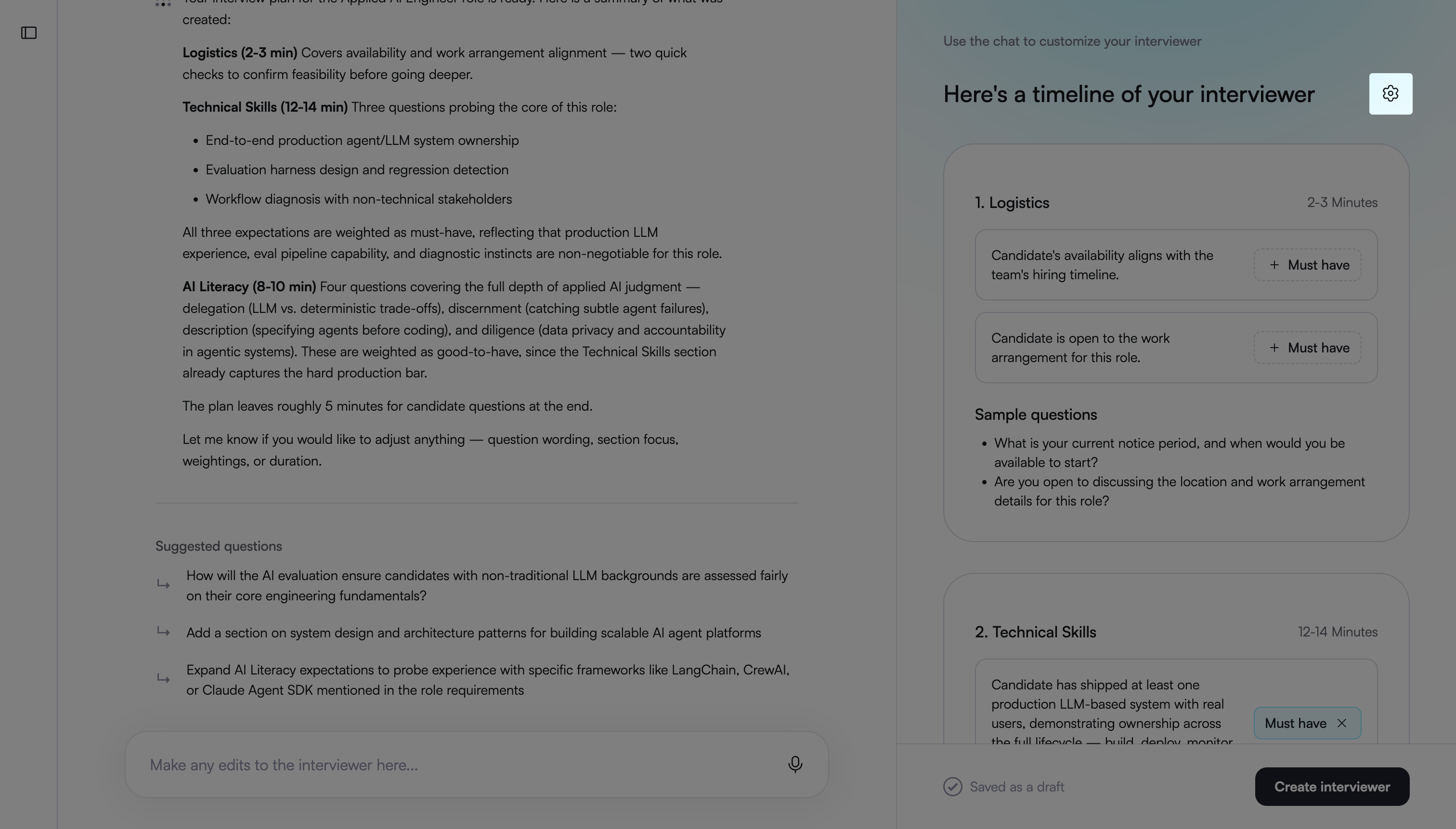
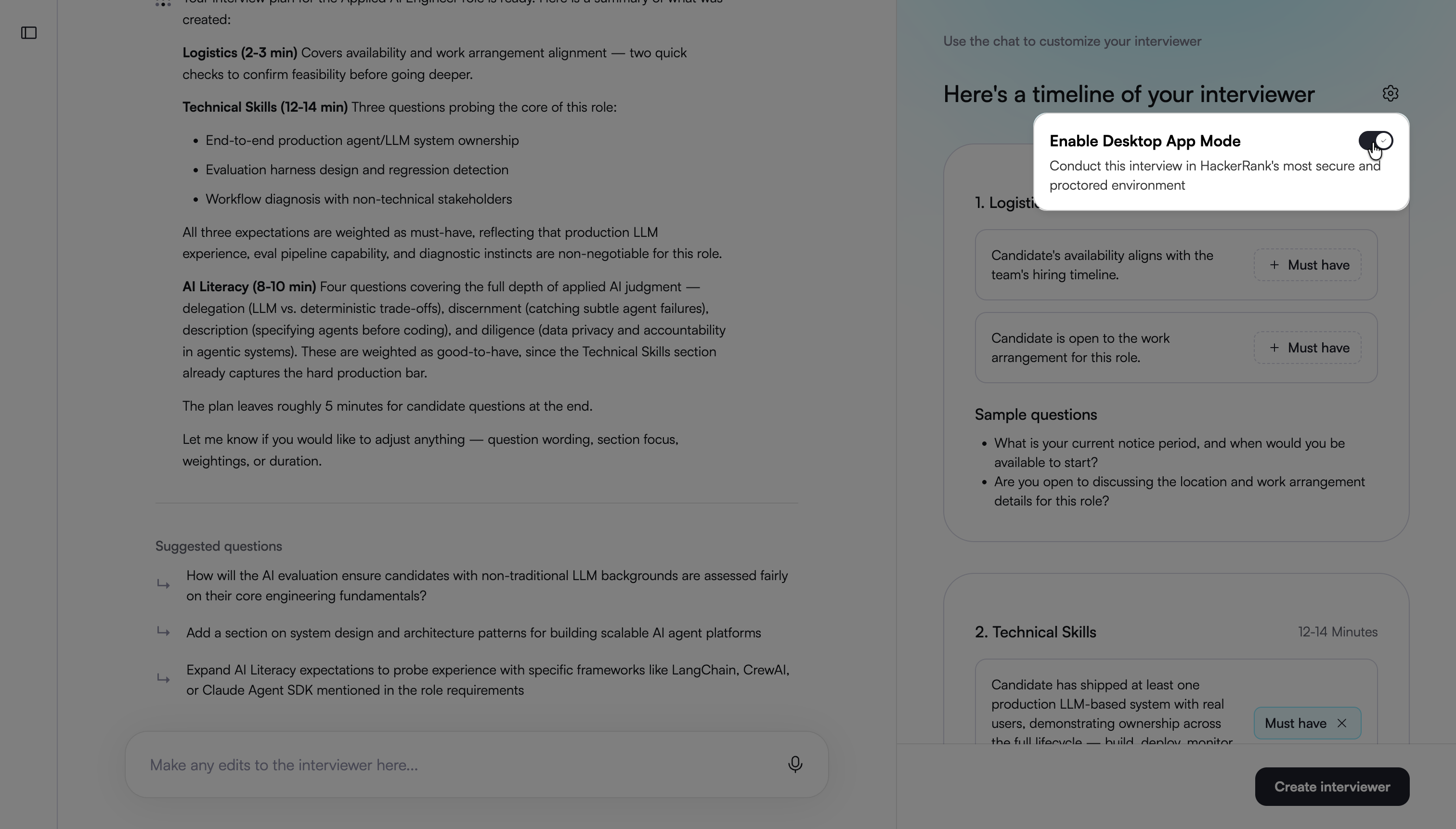
Turn on the Enable Desktop App Mode toggle.
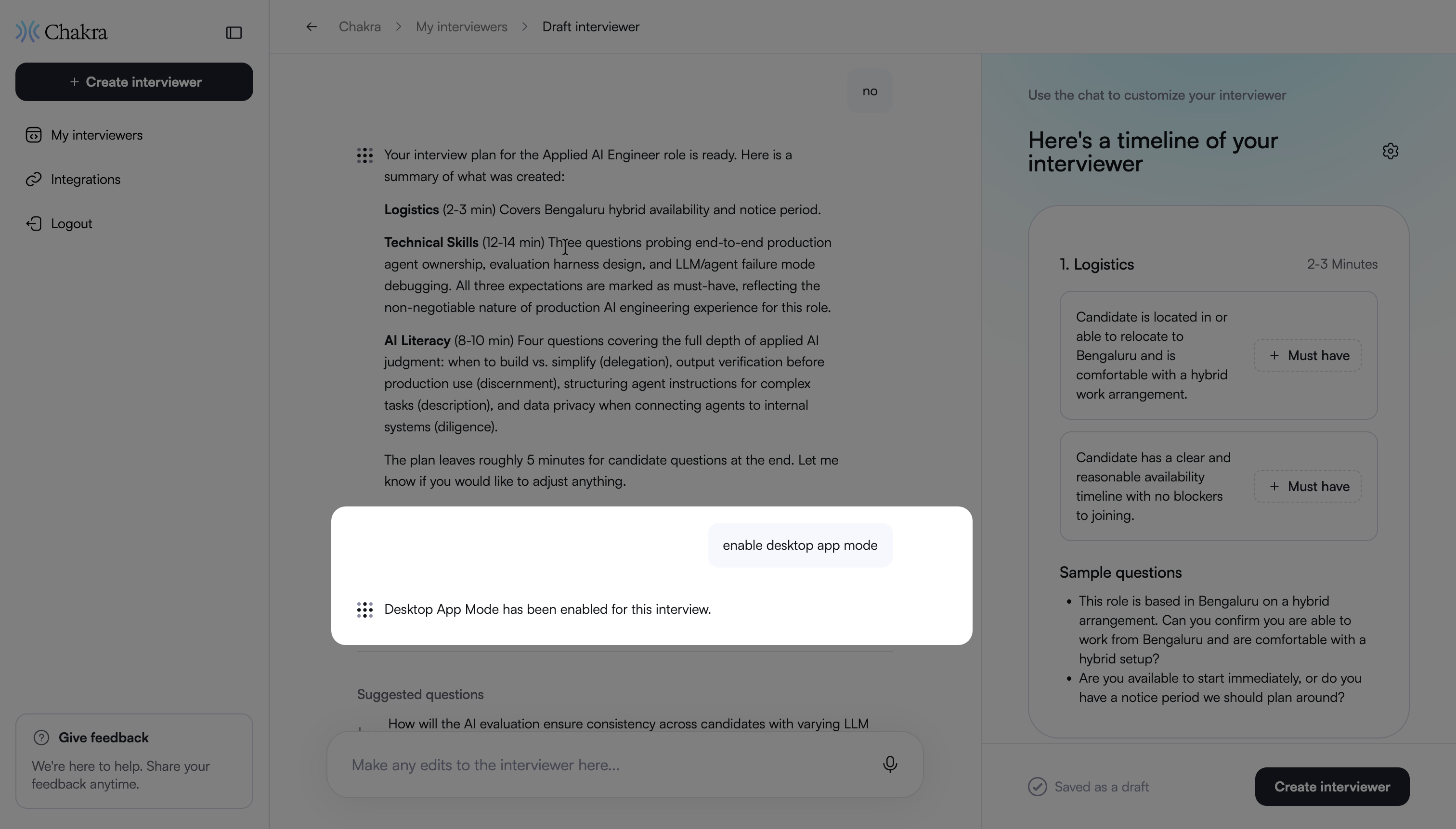
Note: You can also ask the AI assistant to enable Desktop App Mode while creating or editing the interview.
How Desktop App Mode works
Desktop App Mode enforces integrity at every stage of the interview session.
Before the interview
Note: Candidates invited to an interview with Desktop App Mode enabled receive joining instructions that reference the Desktop App and its operating system requirements instead of browser requirements.
Candidates follow a guided onboarding flow that prepares them for the interview and prevents integrity issues.
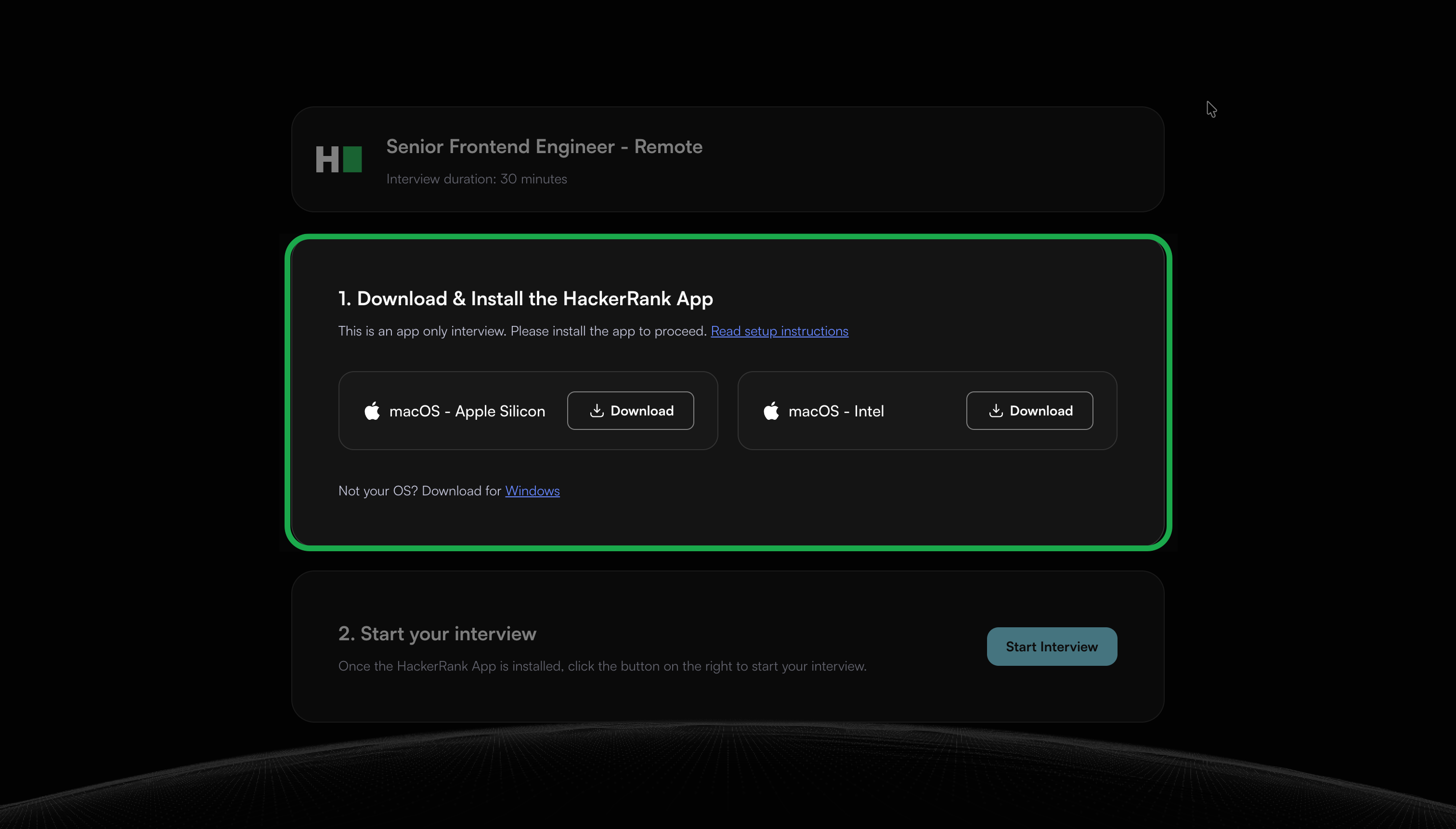
Download desktop application: Candidates download a lightweight HackerRank desktop application, available for Windows and macOS. Once downloaded, candidates click Start Interview to launch the application.
System permissions: When a candidate uses the desktop application for the first time, they must grant the required system permissions. These permissions allow the application to monitor the candidate’s system effectively during the interview.
Consent and interview rules: Candidates review and acknowledge a list of prohibited actions, such as switching tabs or using external tools, and must give consent to proceed.
Permissions: Candidates must grant the following permissions to start the interview:
Close blocked applications: Candidates must close unauthorized applications before starting the interview. They can close them manually or click Close applications.
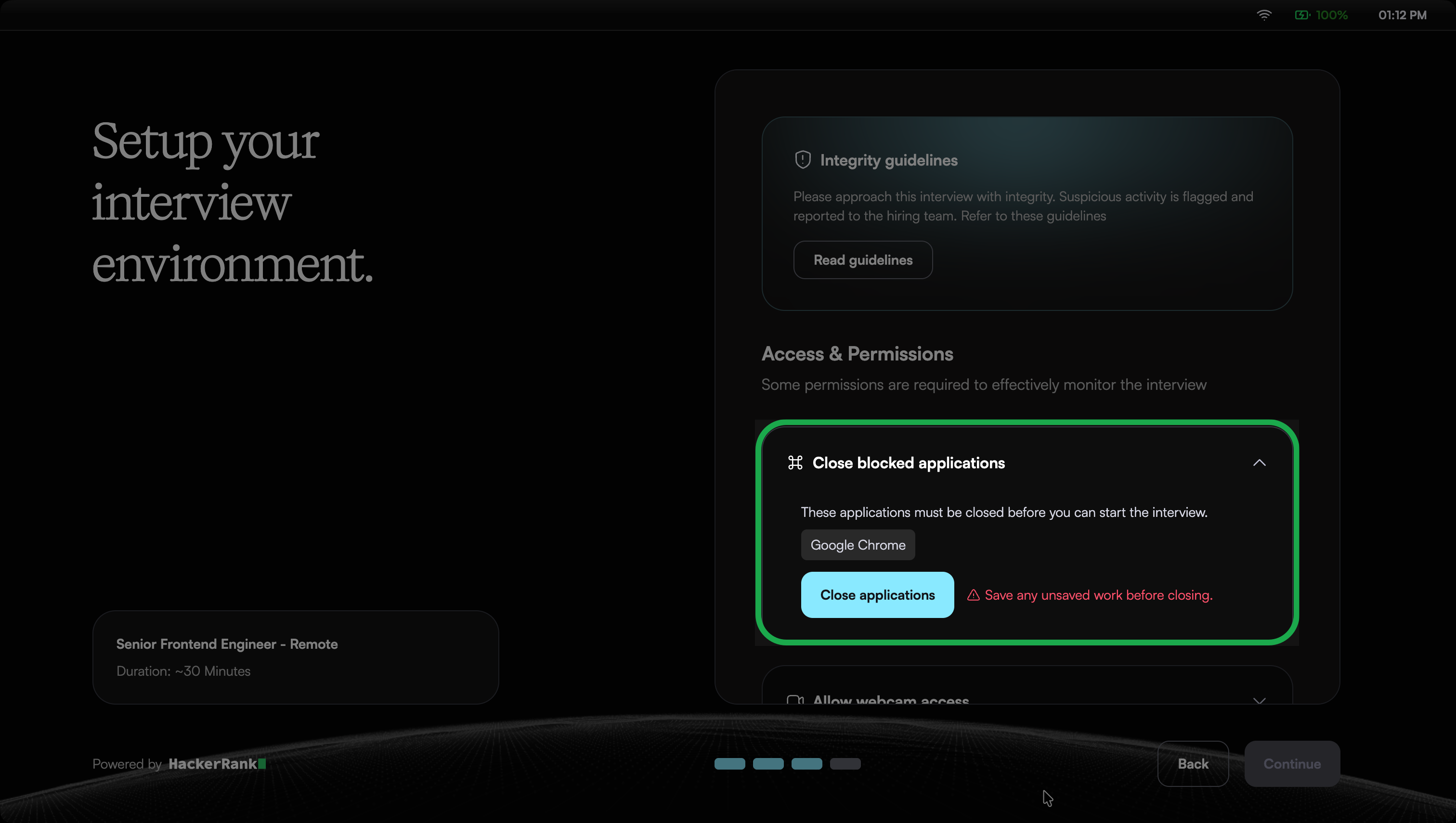
Webcam access: Allows the system to monitor and record the candidate through the webcam during the test.
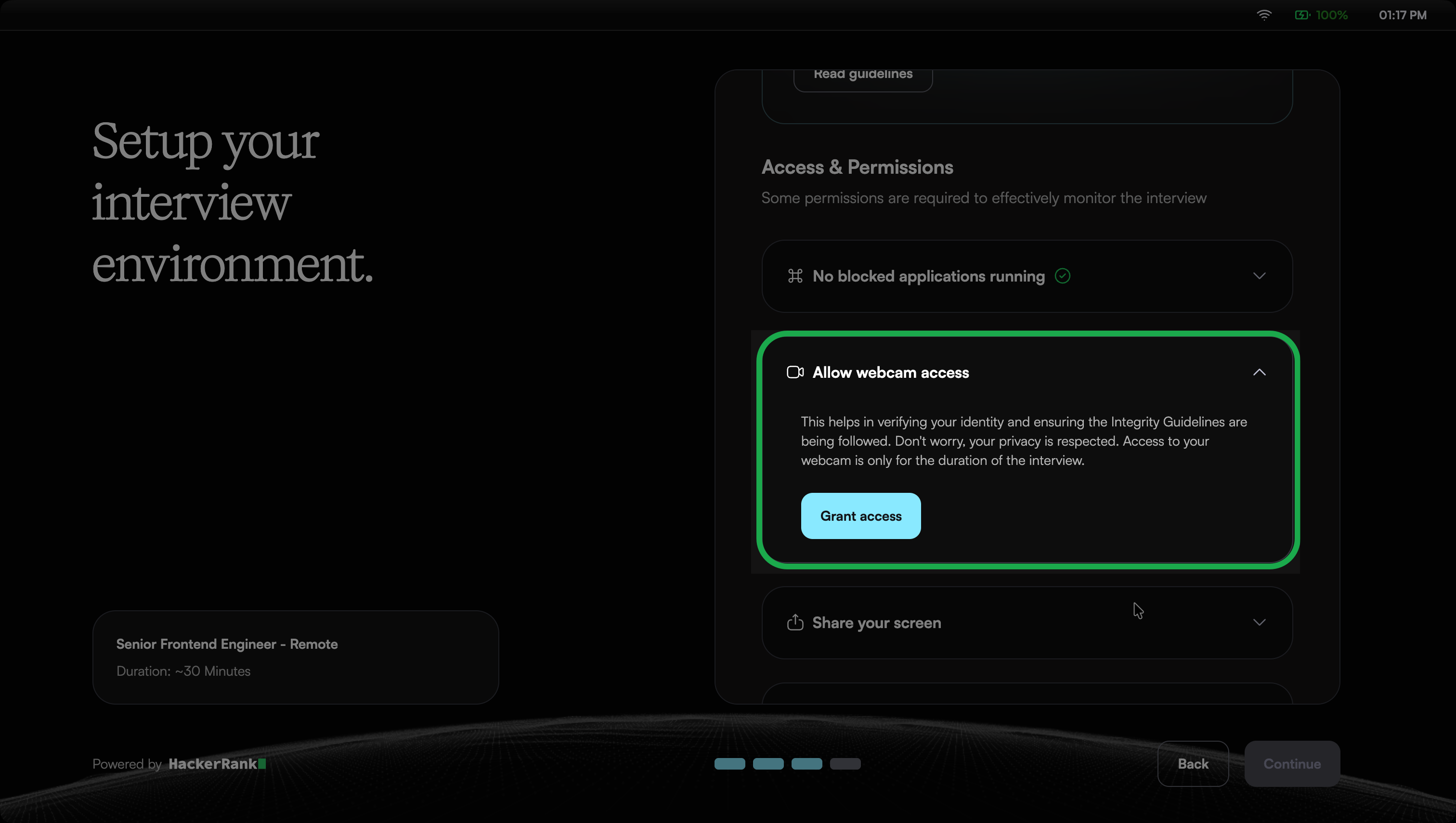
Screen sharing access: Allows the system to monitor the candidate’s screen activity during the interview.
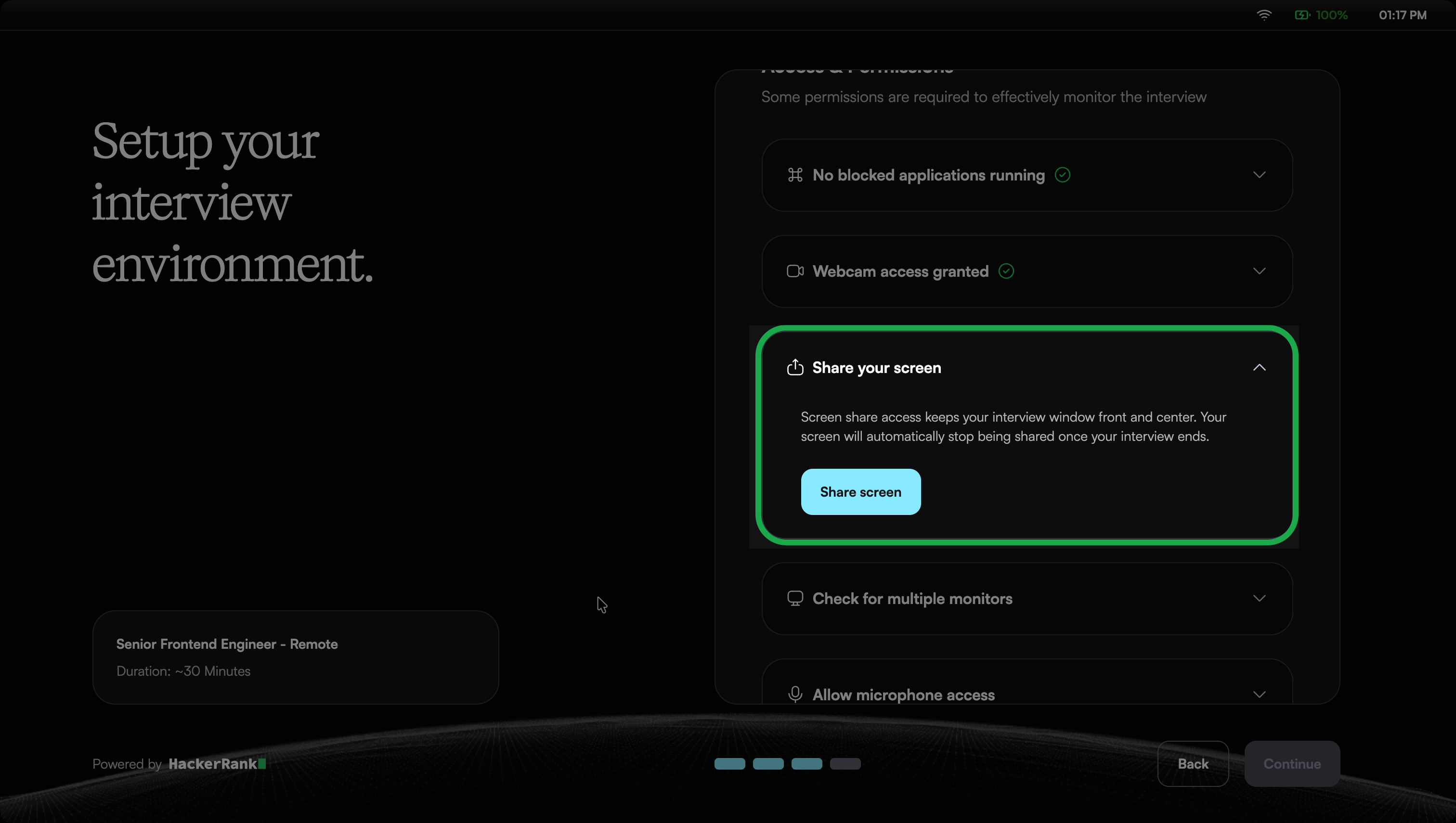
Multiple monitor and screen mirroring check: The system checks for multiple monitors and screen mirroring (when the screen is duplicated on another display). Candidates can start the interview only if a single, non-mirrored display is in use.
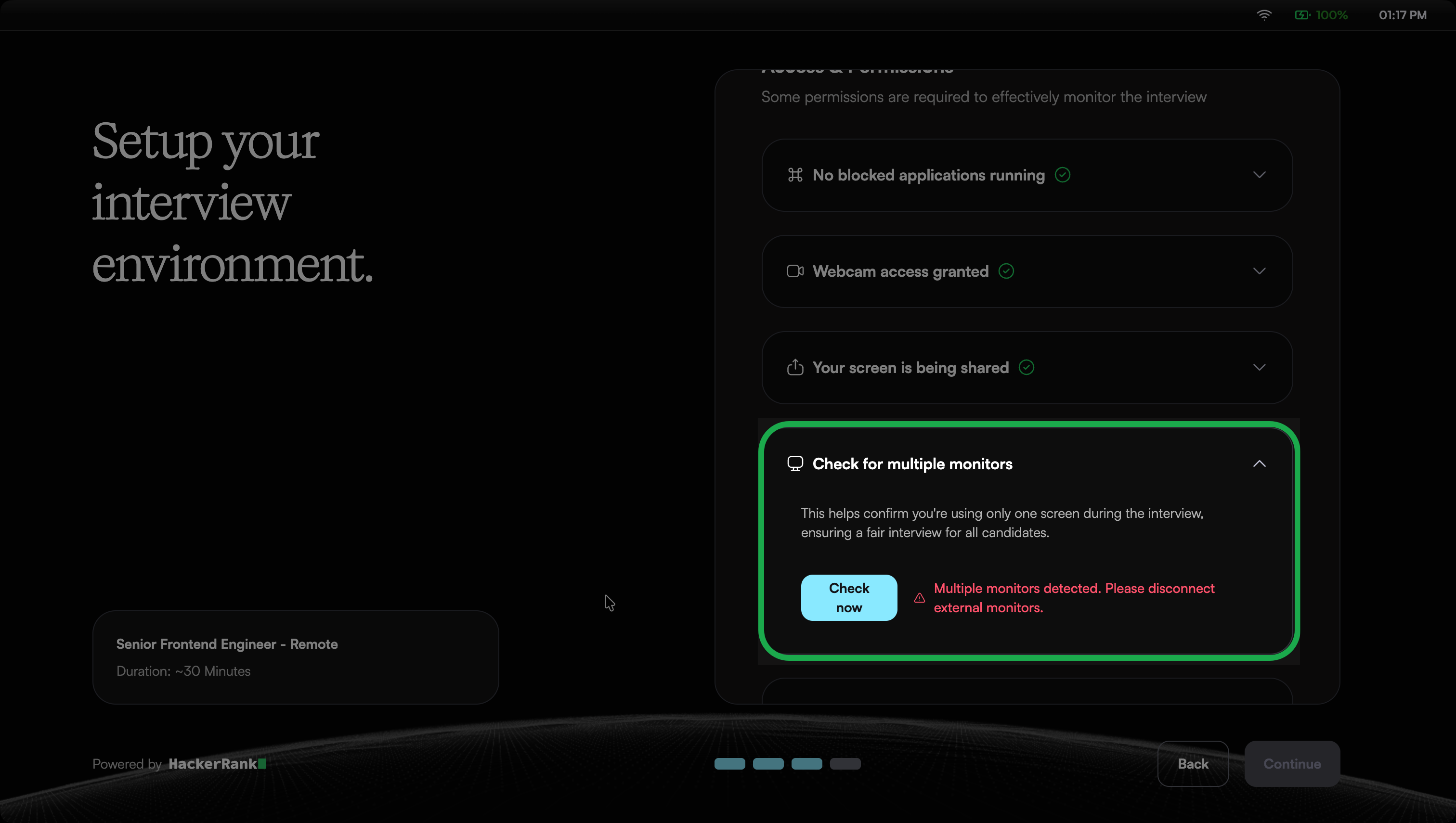
Microphone access: Allow microphone access for the voice interview and audio monitoring.
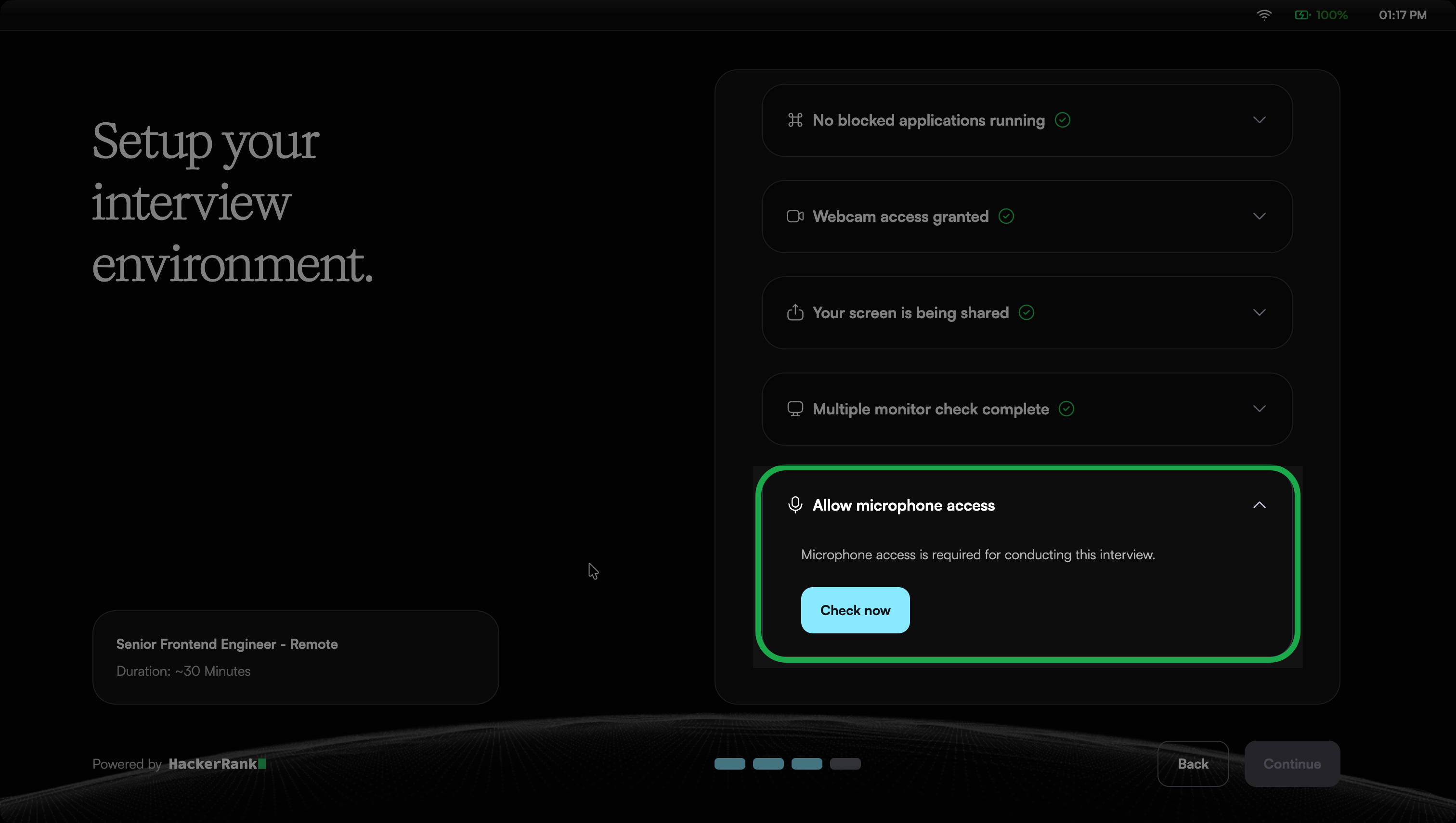
Once candidates select Start Interview, the application launches the interview in full-screen mode. Candidates can exit full-screen mode after completing the interview.
During the interview
Full-screen enforcement: The application prevents candidates from exiting full-screen mode or switching to other applications. It blocks all such attempts. If a candidate bypasses these restrictions, the system automatically flags and logs the activity.
Application monitoring: The application detects and closes any other programs that candidates try to open during the interview, including invisible cheating tools such as Cluely and Ultracode.
Webcam monitoring: AI continuously monitors candidate presence. If the candidate is not visible or multiple faces are detected, a warning appears, and the event is recorded.
Object detection in webcam feed: Detects and flags mobile phones and tablets in the candidate’s webcam feed. It captures images with the detected objects and adds them to the report for review.
Multiple monitor and screen mirroring detection: The system continuously checks for multiple monitors and screen mirroring during the test. It flags any new monitor connections or mirroring activity, and candidates must disconnect them to continue.
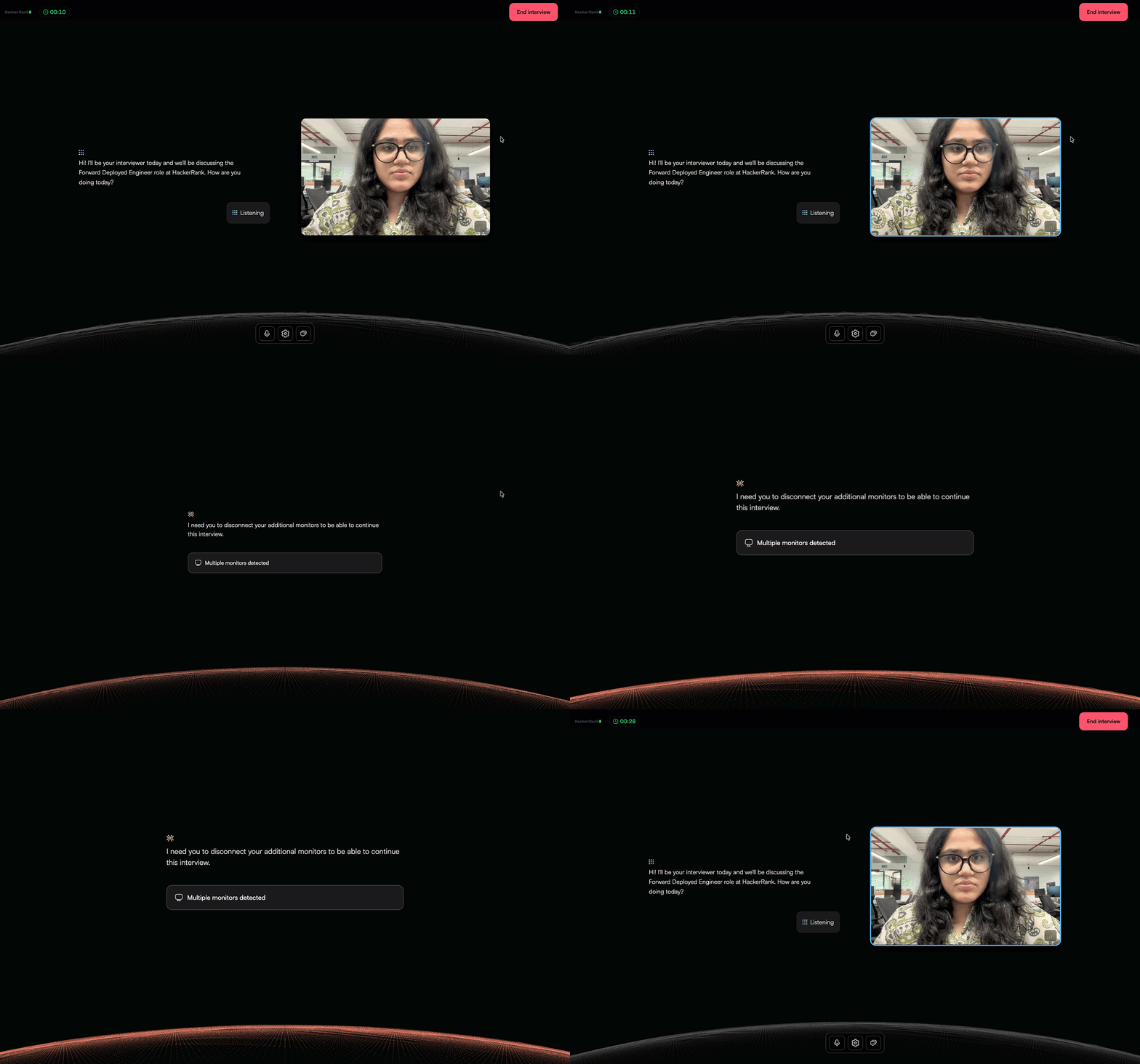
Prevent screenshots: The application prevents the candidate from taking screenshots during the test. If the candidate manages to take a screenshot, the screenshot appears blank.
Copy-paste restrictions: Copy-paste functionality is disabled to prevent pasting content from external sources.
Virtual machine prevention: The interview cannot run inside a virtual machine.
After the interview
The interview report includes the integrity signals recorded during the interview. Evaluators can review the flagged events and supporting evidence to assess interview integrity.
To view the report, see 📄 View Candidate Report in Chakra.