Review Integrity Issues in Proctor Mode
Last updated: August 13, 2026
Proctor Mode generates Summary Report, Session Replay, and Detailed Report to help you assess candidate behavior and overall test integrity. This article explains how to interpret these reports and review common integrity issues.
Reporting views in Proctor Mode
Proctor Mode offers three reporting views. Each view provides a different level of visibility into a candidate’s test activity and helps you evaluate potential integrity concerns.
Summary Report
The Summary Report provides a high-level overview of the test session. It includes:
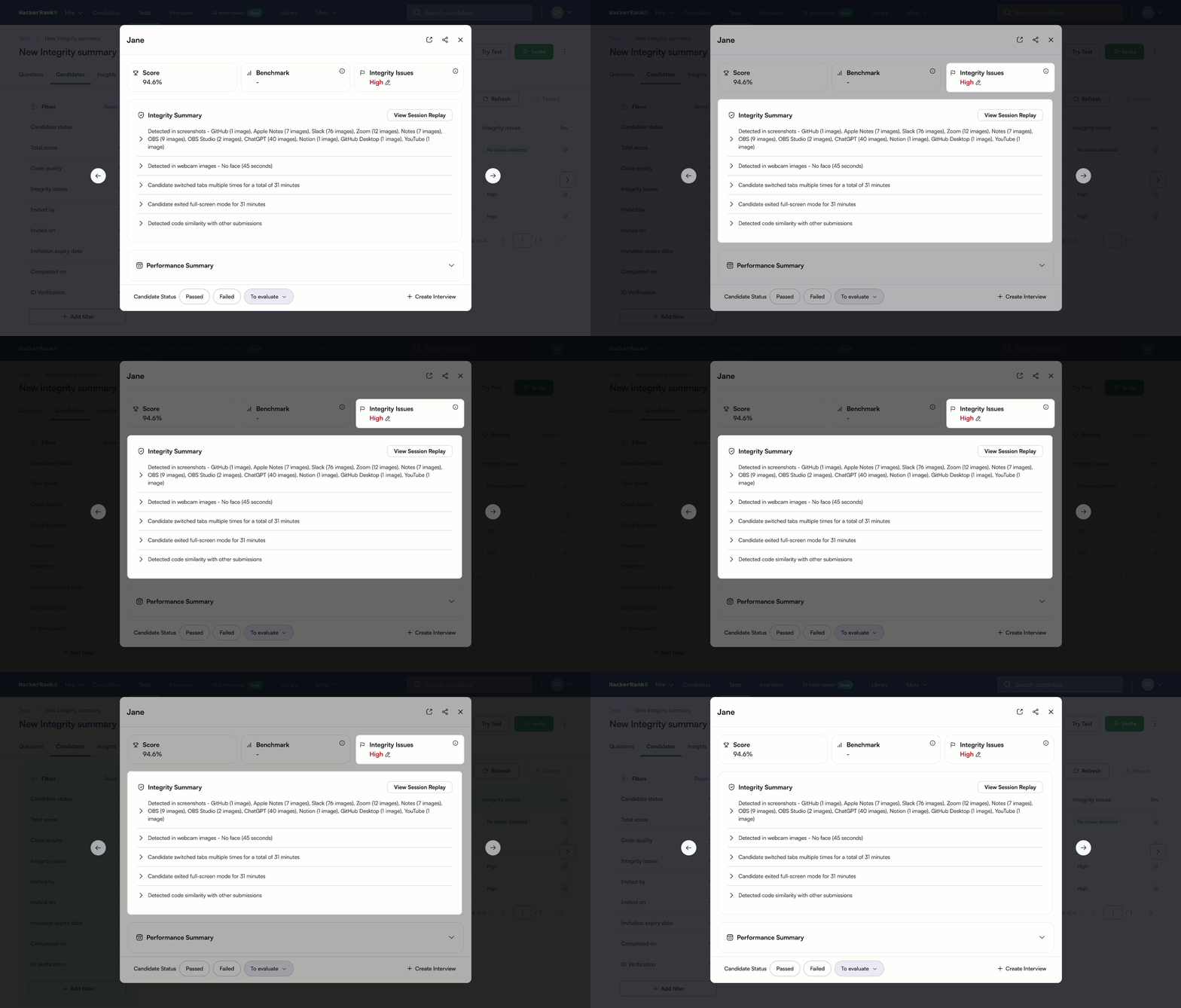
Integrity Issues indicator: Indicates whether Proctor Mode detected any integrity issues during the session and displays the severity level.
Integrity Summary: Lists each reason the system flagged the session. Each suspicious activity appears as a separate bullet.
Session Replay
Session Replay provides a timeline-based, video-style view of the test session. It includes:
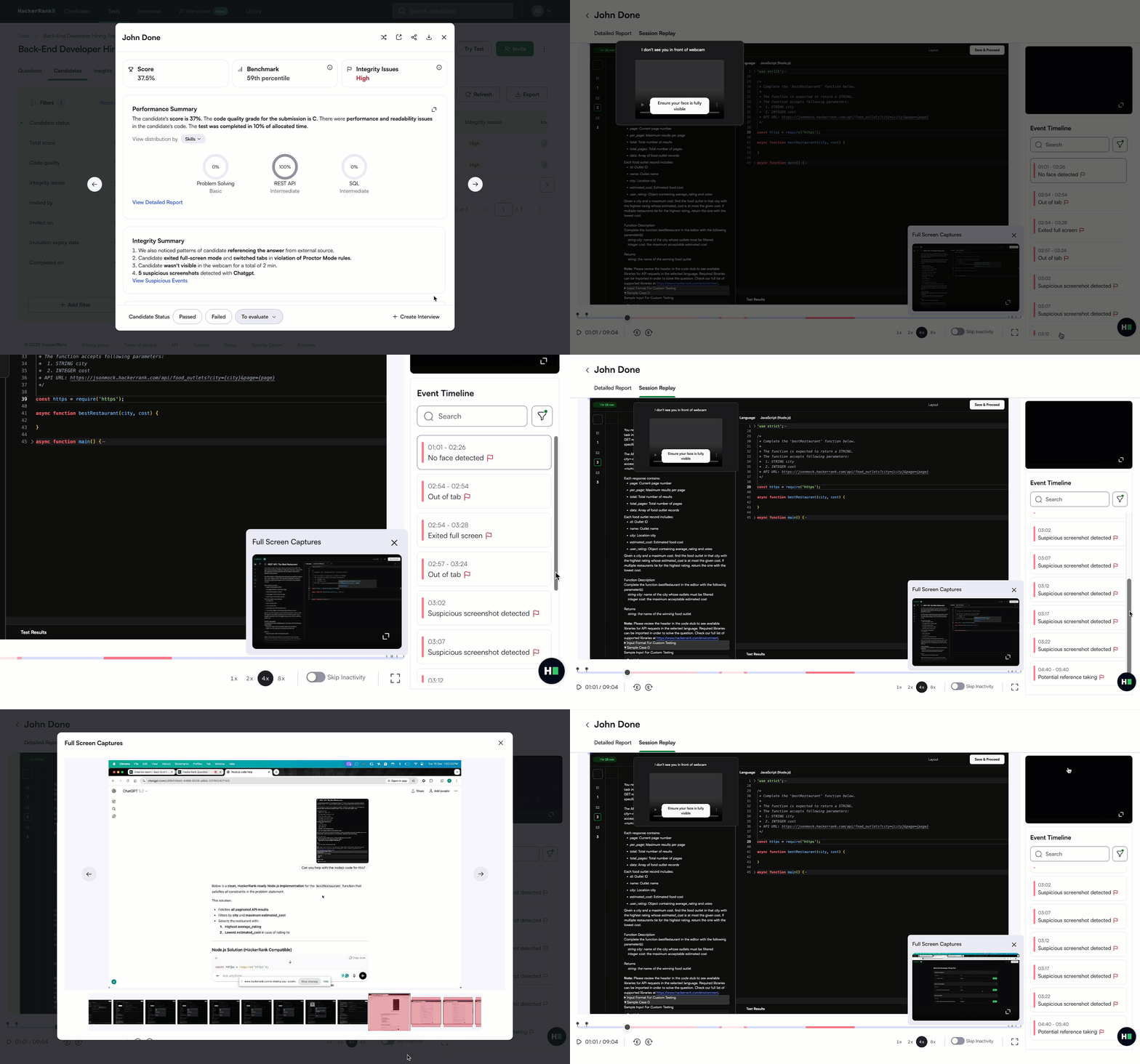
Recording of the candidate’s test session across the full browser screen.
Lists all critical test events, including integrity events. You can search for events and click any event to jump to the corresponding timestamp in the recording.
Synchronized timeline showing test activity, webcam images, and screenshots by timestamp.
Screenshots and webcam images are captured every 15 seconds, with increased frequency around integrity violations to provide contextual evidence.
Automated analysis of screenshots and webcam images that highlights suspicious activity.
Detailed Report
The Detailed Report offers an in-depth view of how the candidate performed on each question. You can use this report to investigate a candidate’s performance at a granular level and to review integrity issues, especially when a candidate is flagged for code similarity.
Workflow for reviewing integrity issues
Follow these steps to evaluate integrity issues in a candidate’s test session.
Step 1: Check the Integrity Issues indicator
Open the candidate’s Summary Report and check the Integrity Issues indicator in the upper-right corner.
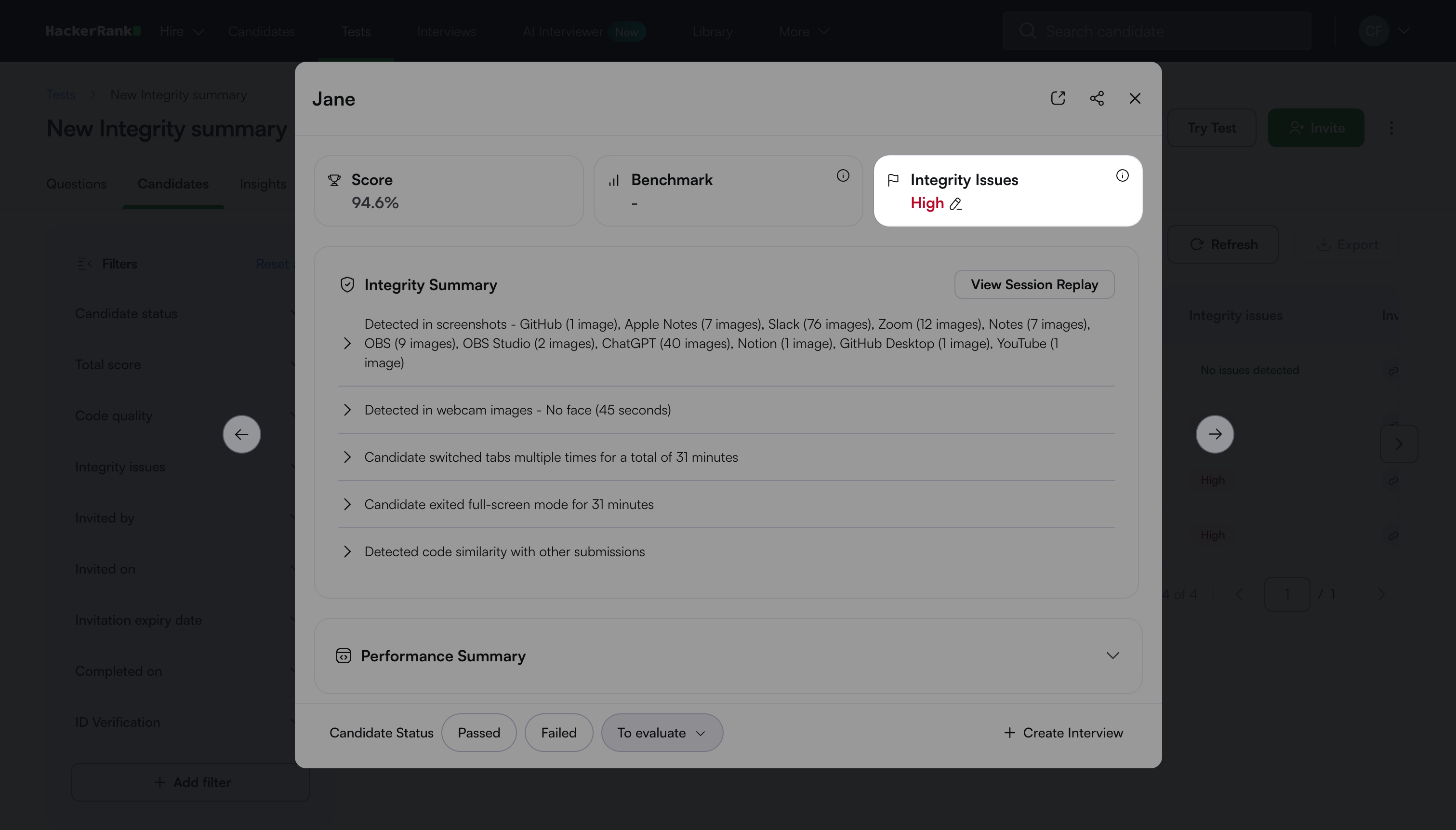
The indicator shows one of the following values, depending on the severity of the detected issues:
High
Medium
No issues detected
If the report shows No issues detected, no further integrity review is required.
If the report shows High or Medium, continue to the next step.
Step 2: Review the Integrity Summary
Scroll to the Integrity Summary to view the specific reasons the system flagged the session. Each item represents a type of suspicious activity that requires review.
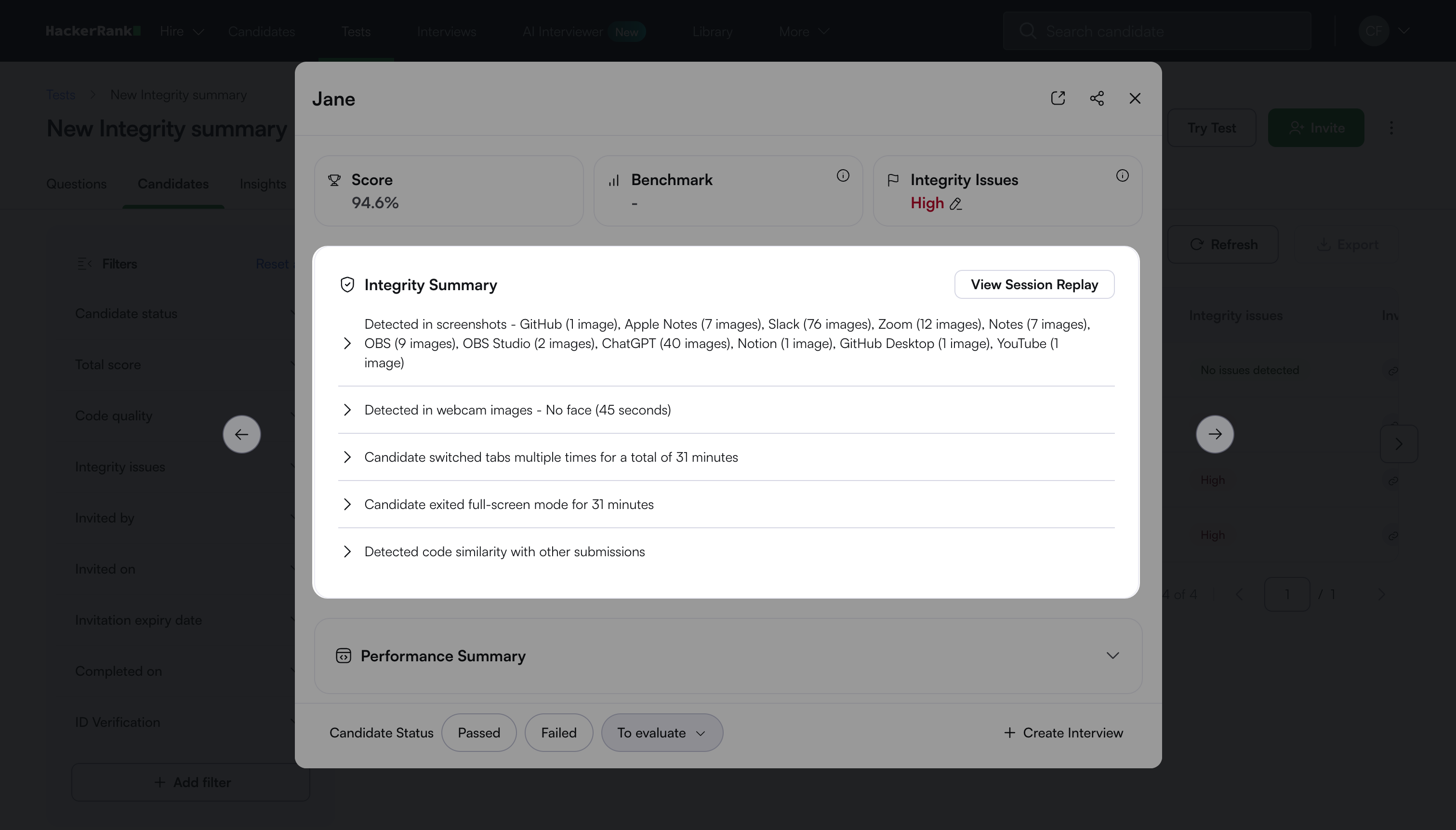
Continue to the next step for a detailed review of each activity type.
Step 3: Review each suspicious activity in detail
The sections below describe common types of suspicious activity and how to evaluate them.
Tab switch or full-screen exit
Proctor Mode flags the session when the candidate:
Leaves the test tab beyond the predefined threshold.
Exits full-screen mode beyond the predefined threshold.
How to review
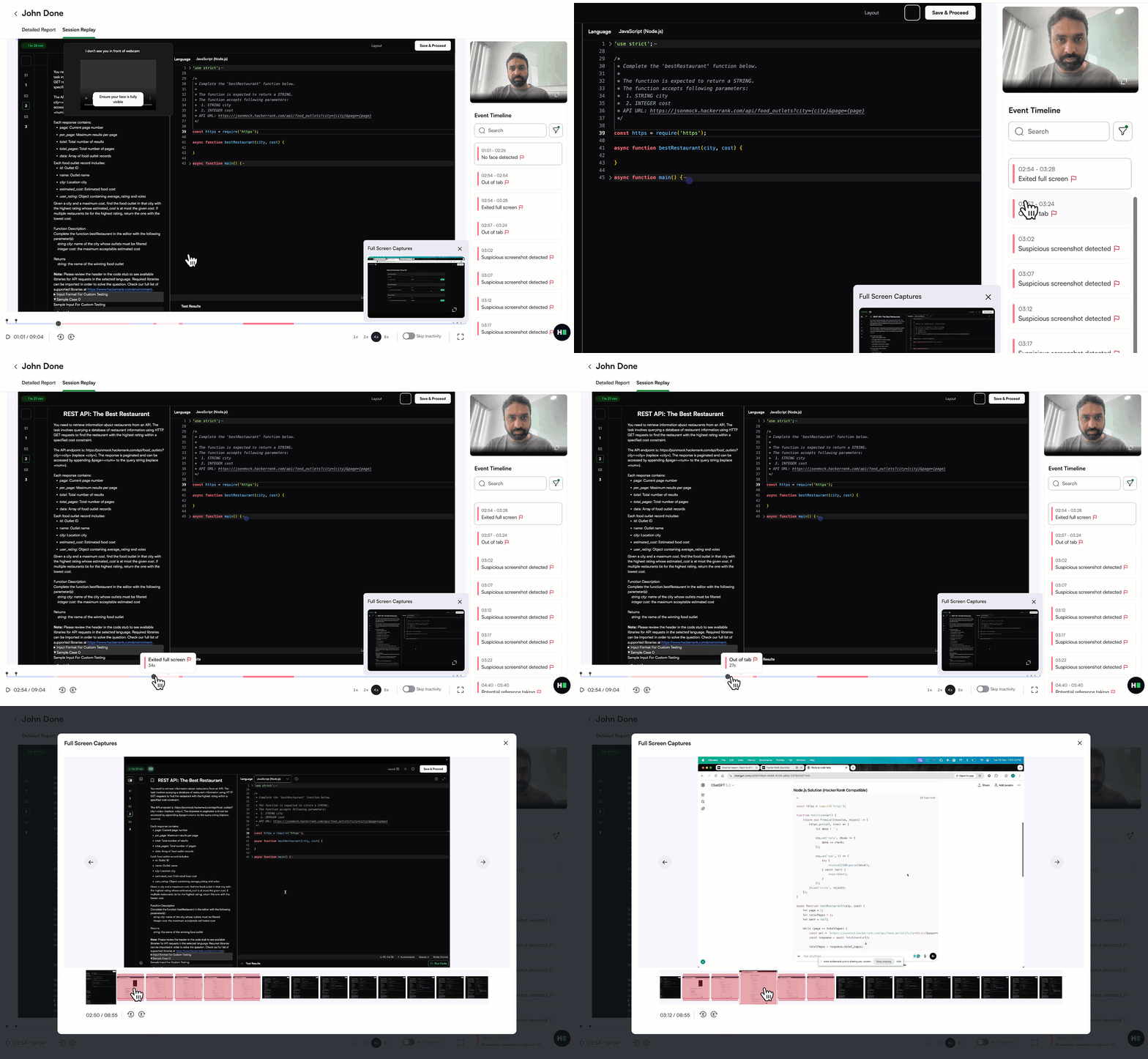
Open the Summary Report for the candidate.
Go to Integrity Summary.
Expand Candidate switched tabs or Candidate exited full-screen mode to view flagged time ranges and the duration for each instance.
Select a flagged time range to open the Session Replay.
Review the screenshots captured during the flagged time range to understand what the candidate was doing while away from the test tab.
Watch the test-taking tab recording to observe the candidate’s activity immediately after returning to the test.
Tip: Look for sudden, high-quality code written after the candidate returns to the test. This pattern may indicate the use of external references.
Webcam-related integrity issues
If Image Analysis is enabled, Proctor Mode captures webcam images every 15 seconds and analyzes them using an automated model. The system flags unusual activity, such as:
The candidate’s face missing for an extended period
Multiple faces visible
Secondary faces detected
How to review
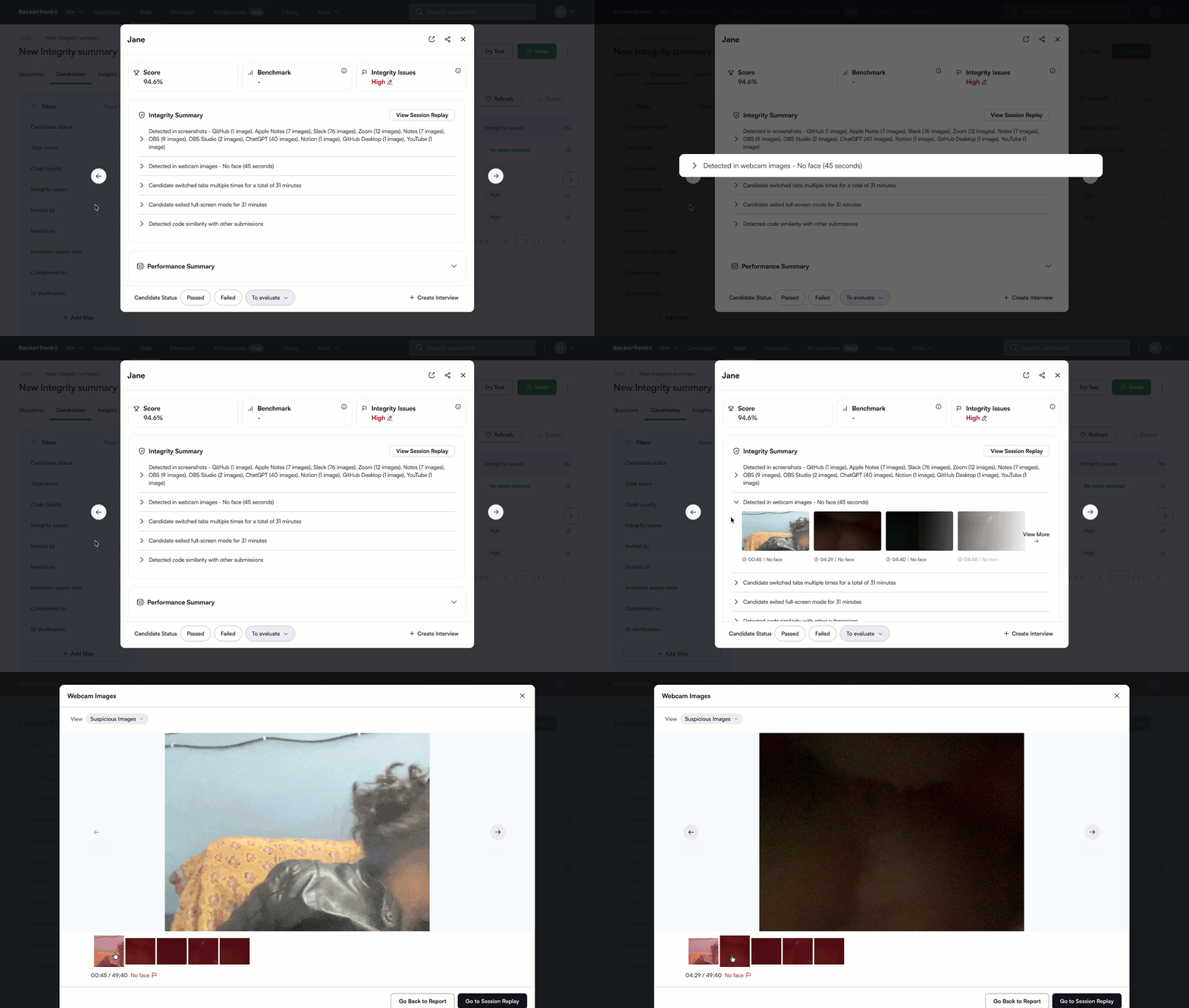
Open the Summary Report for the candidate.
Go to Integrity Summary.
Expand Detected in webcam images to view the flagged images and the timestamp of each occurrence.
Select a flagged image to open it in full size.
Verify that the images match the flagged integrity issue.
To review the candidate’s activity in detail, open Session replay.
Screenshot analysis issues
Proctor Mode takes screenshots every 15 seconds and analyzes them using an automated model. The system flags any screenshot that appears to show unauthorized tools or applications.
How to review
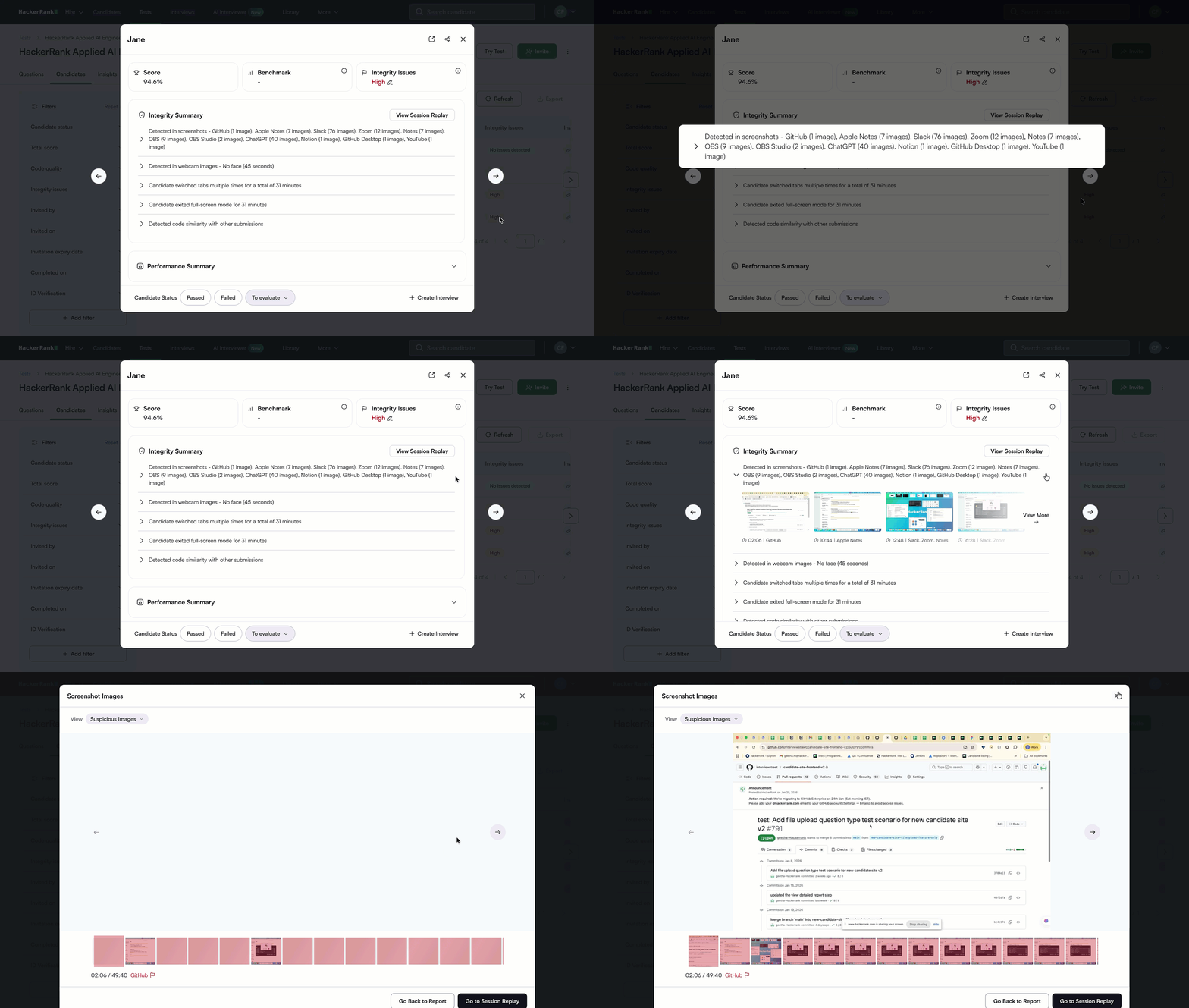
Open the Summary Report for the candidate.
Go to Integrity Summary.
Expand Detected in screenshots to view the flagged screenshots
along with the following information:
The detected application or tool
The timestamp of the activity.
Select a flagged screenshot to open it in full size.
Verify whether the screenshot shows an unauthorized tool or application.
To review the candidate’s activity in detail, open Session replay.
Object detection in webcam feed
Proctor Mode detects and flags mobile phones and tablets in the candidate’s webcam feed during an assessment.
How to review
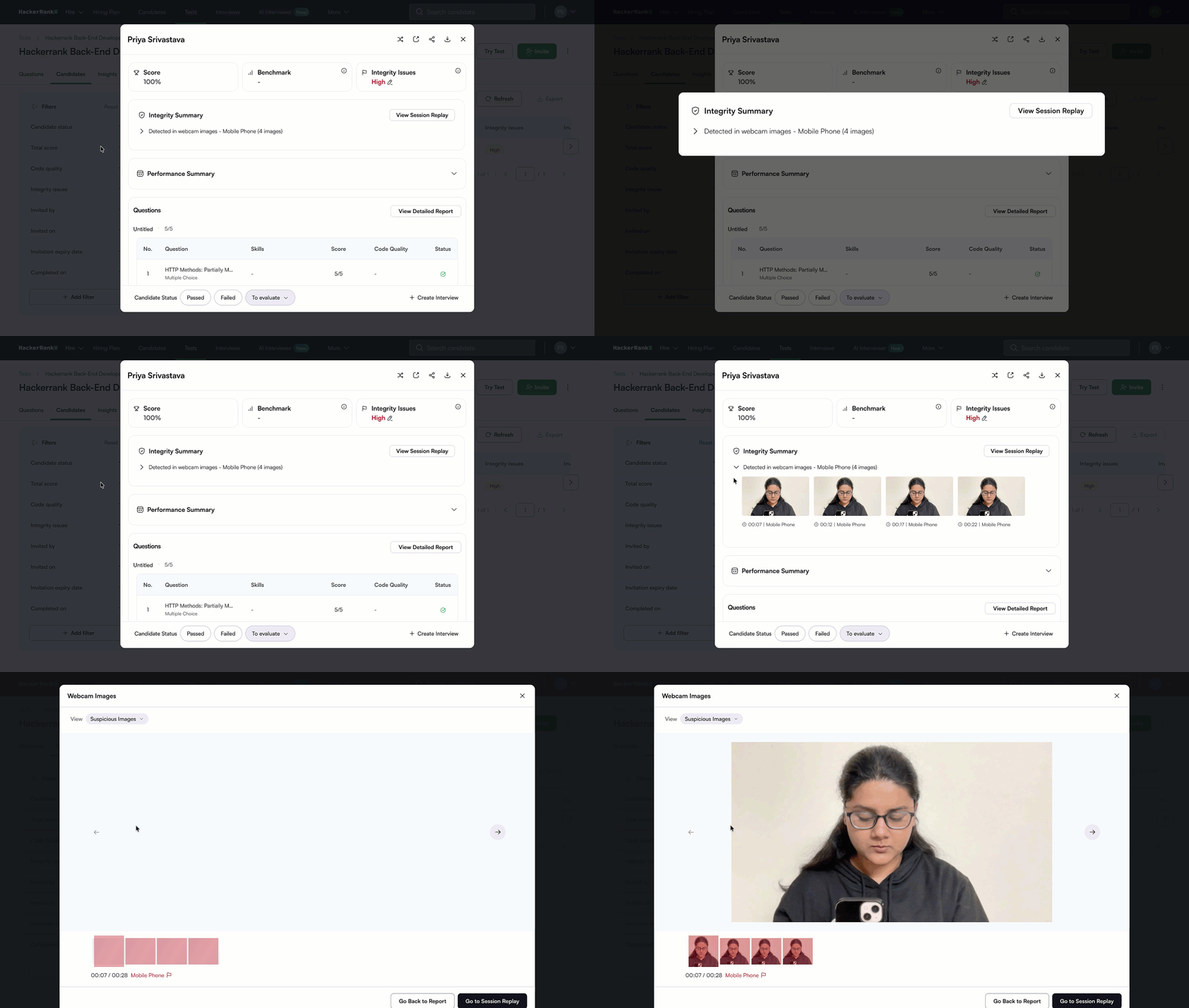
Open the Summary Report for the candidate.
Go to Integrity Summary.
Expand Detected in webcam images to view flagged images and timestamps.
Select a flagged image to open it in full size.
Verify whether a mobile phone or tablet is visible in the image.
To review the activity in detail, open Session Replay.
Conversation detection in the code editor
Proctor Mode detects patterns where candidates type and delete content in the editor, including regional languages written in English. This behavior may indicate external communication. The system flags such activity for review as potential external assistance.
How to review
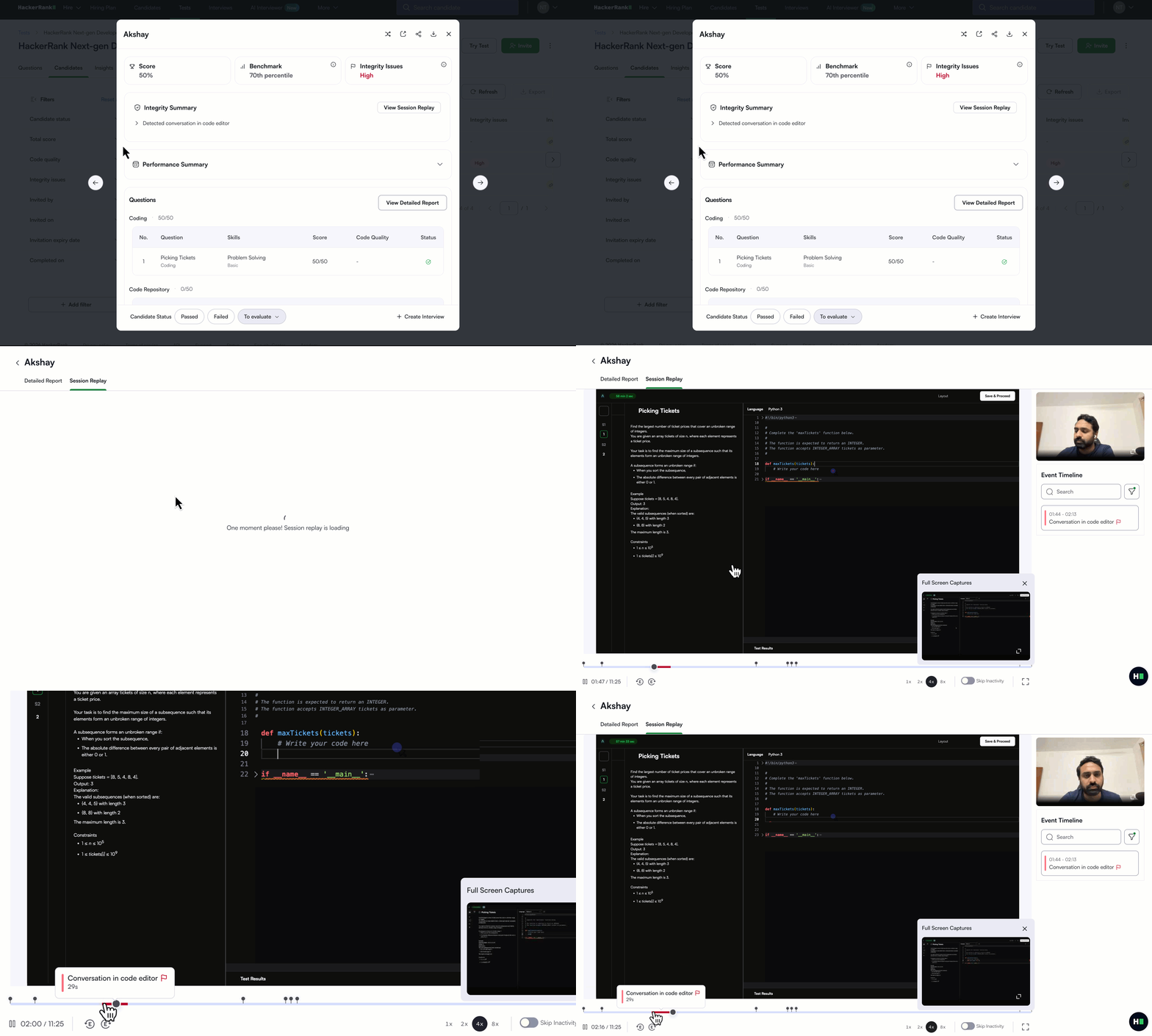
Open the Summary Report for the candidate.
Go to Integrity Summary.
Expand Detected conversation in code editor to view the flagged time ranges and the duration for each instance.
Select a flagged time range to open the Session Replay.
Review the candidate’s typing activity during the flagged duration to identify potential external communication.
Gaze detection
Proctor Mode analyzes the candidate's eye and head movements captured by the webcam during an assessment. It detects repeated patterns of the candidate looking away from the screen and returning to type. Such behavior may indicate the use of external resources, such as a mobile phone or secondary display, and is flagged for review.
How to review
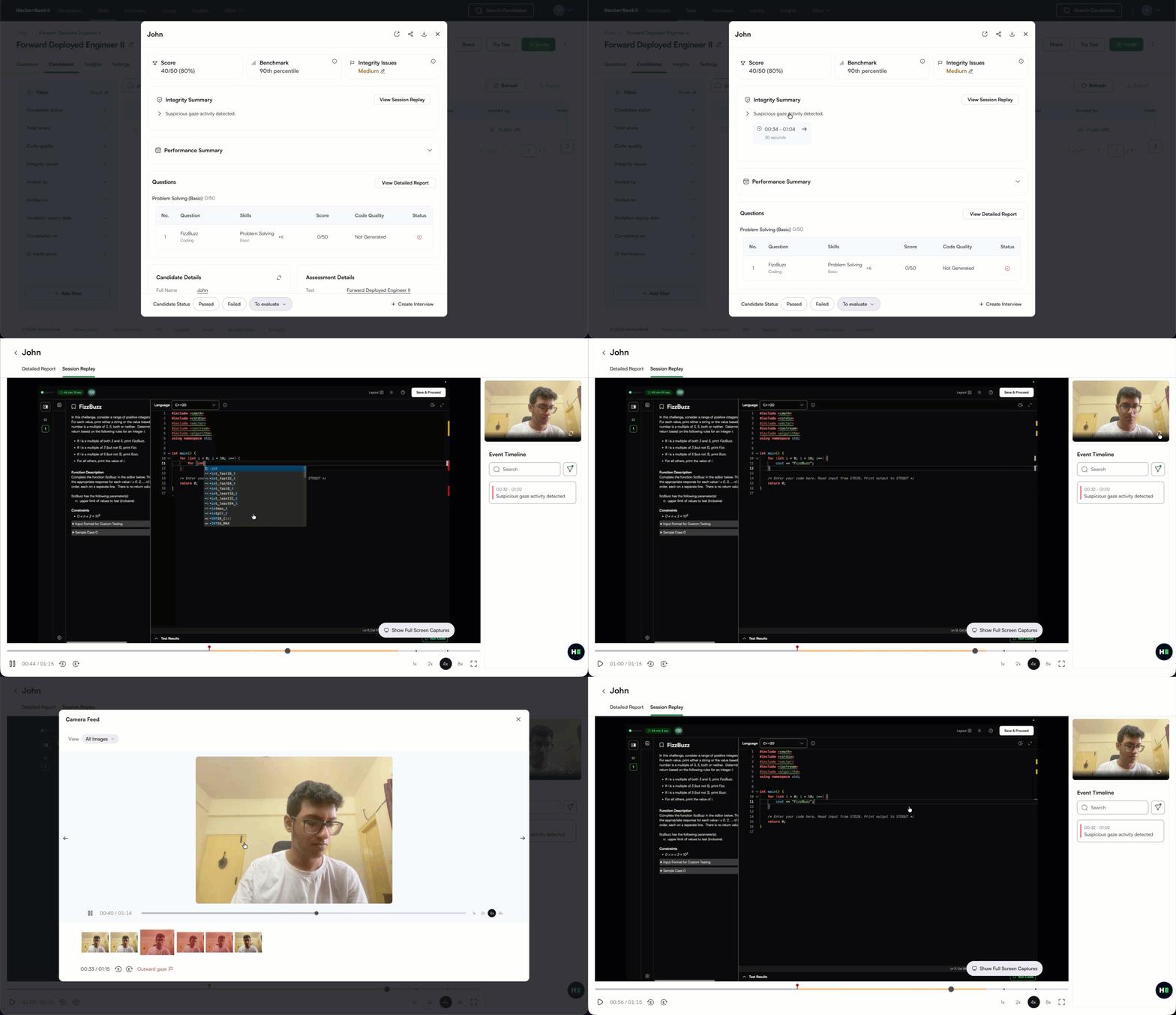
Open the Summary Report for the candidate.
Go to Integrity Summary.
Expand Suspicious gaze activity detected to view flagged timestamps.
Select a flagged time range to open the Session Replay.
Watch the recording and review the screenshots captured during the selected time range to understand the candidate's behavior.
Note: The Gaze detection feature is currently available in limited availability. Contact your account manager to request access.
High code similarity
HackerRank reviews the code submitted by the candidate to detect high similarity with another candidate’s submission. Proctor Mode flags a question when the candidate’s submission is highly similar to one or more other candidates’ solutions, indicating potential plagiarism.
How to review
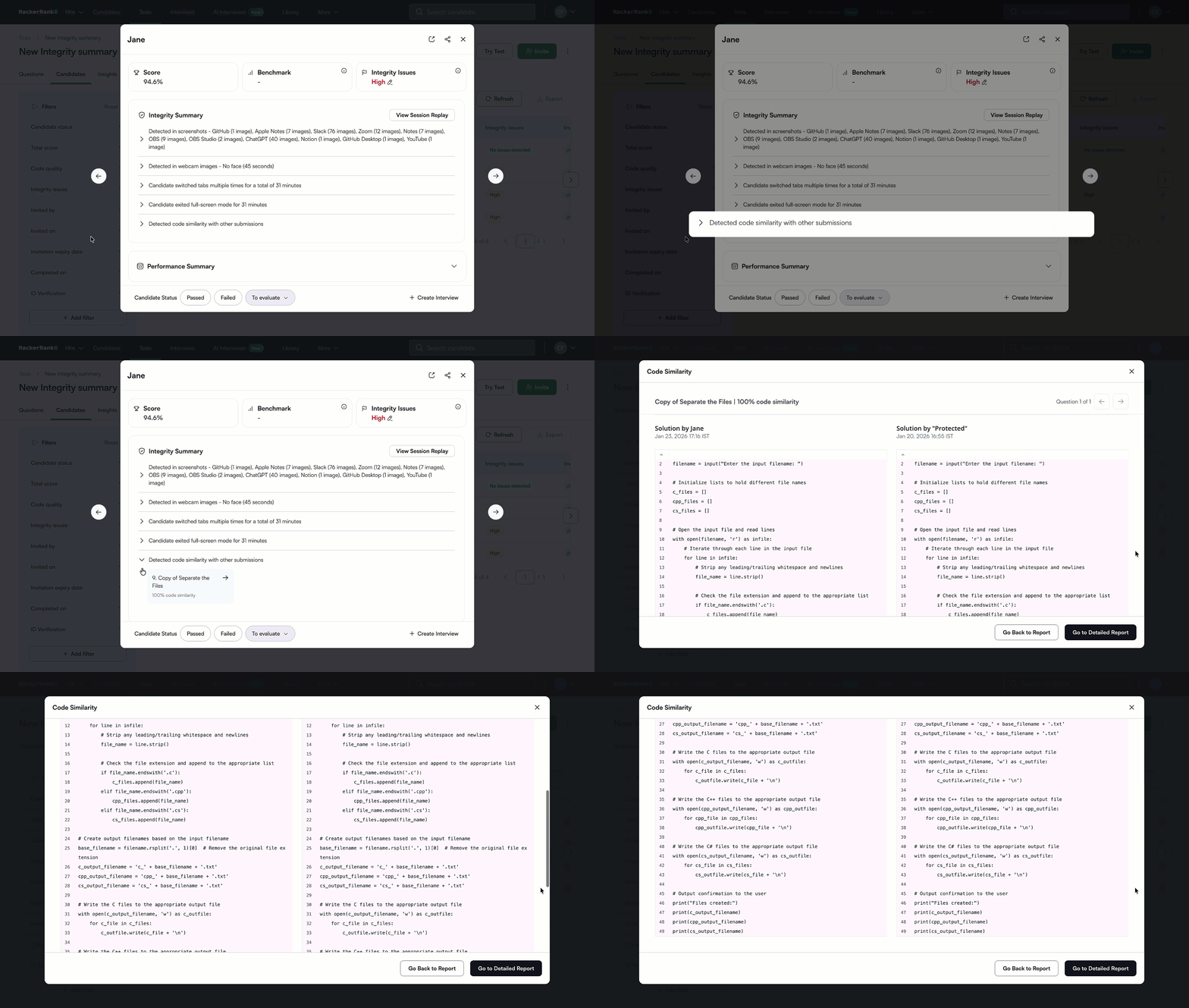
Open the Summary Report for the candidate.
Go to Integrity Summary.
Expand Detected code similarity with other submissions to view the affected question and the similarity percentage.
Select the flagged item to open the side-by-side code comparison.
Compare the submissions to determine whether the similarity is legitimate or suspicious.
(Optional) Click Go to Detailed Report to review additional context.