Set Up Emails
Last updated: October 16, 2025
Use email communication to engage eligible candidates to improve participation on the day of your event.
Set up email sequences
You can customize the recommended emails to align with your brand tone and communication strategy.
To set up an email sequence:
Log in to Engage using your credentials.
Select the event for which you want to set up the email sequence.
Go to the Emails tab.
The Email Sequences tab displays all candidate-facing emails, including the Registration Confirmation Email, Engagement Emails, Invitation Email, and Reminder Email.Select the email you want to edit, and update the content as needed.
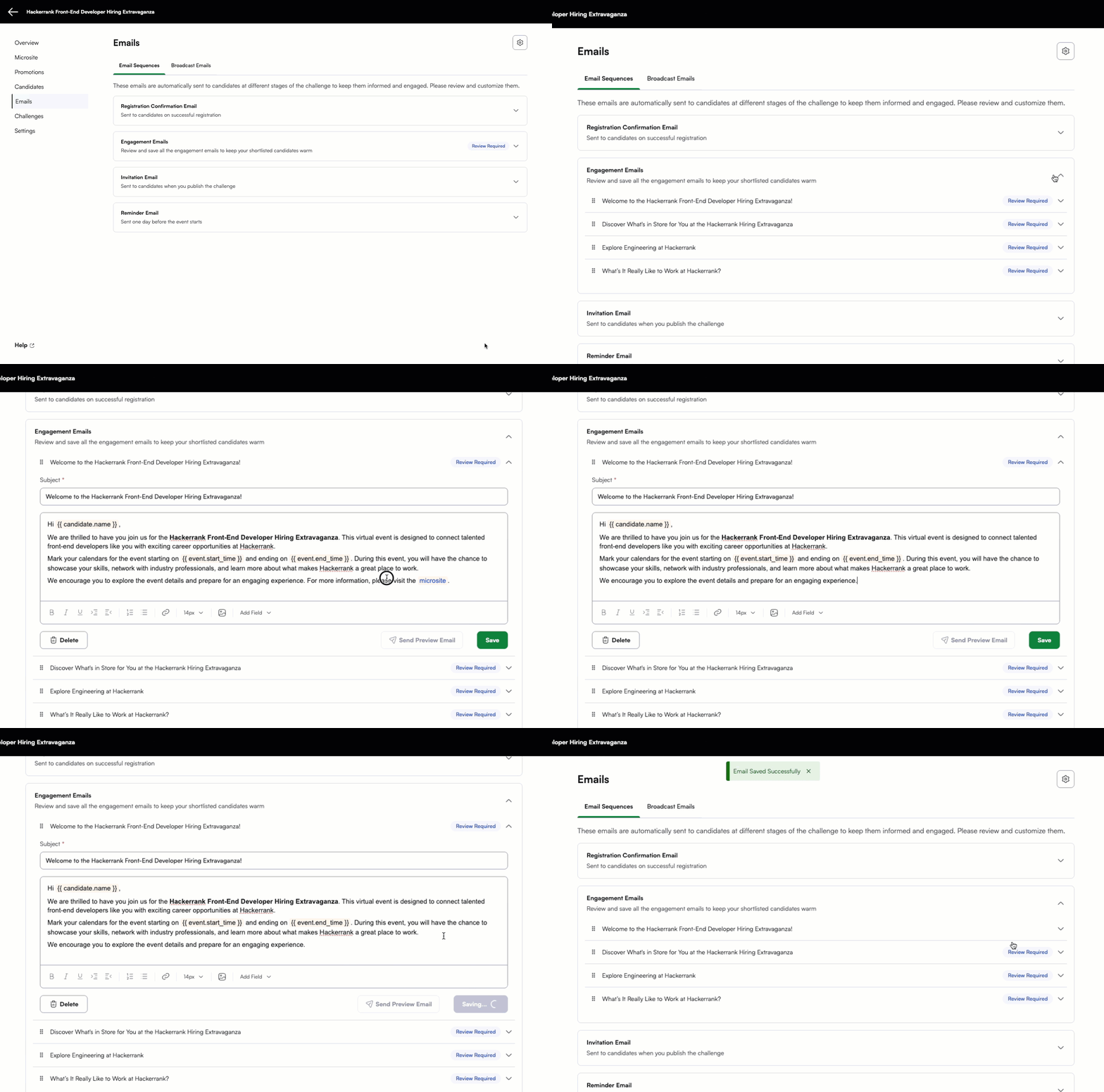
For Engagement Emails, a Review Required label appears if edits are pending. You must review and update the content.
Note: You are required to review only the Engagement Emails. The other emails use a standard template and are optional to edit.
Click Save to apply your changes.
(Optional) Click Send Preview Email to send a preview to yourself.
(Optional) Click the email settings icon at the top right corner to configure the Reply-to address for registration confirmation, invitation, and reminder emails.
After you save all engagement emails, a confirmation dialog appears.
Click Save & Start to begin sending engagement emails immediately.
Note: You must publish the microsite to activate the engagement sequence.
Click I'll Send Later to save the sequence as a draft or if the microsite remains unpublished.
After you publish the microsite, a Start button appears below the Engagement Emails list. Click Start to begin sending engagement emails.
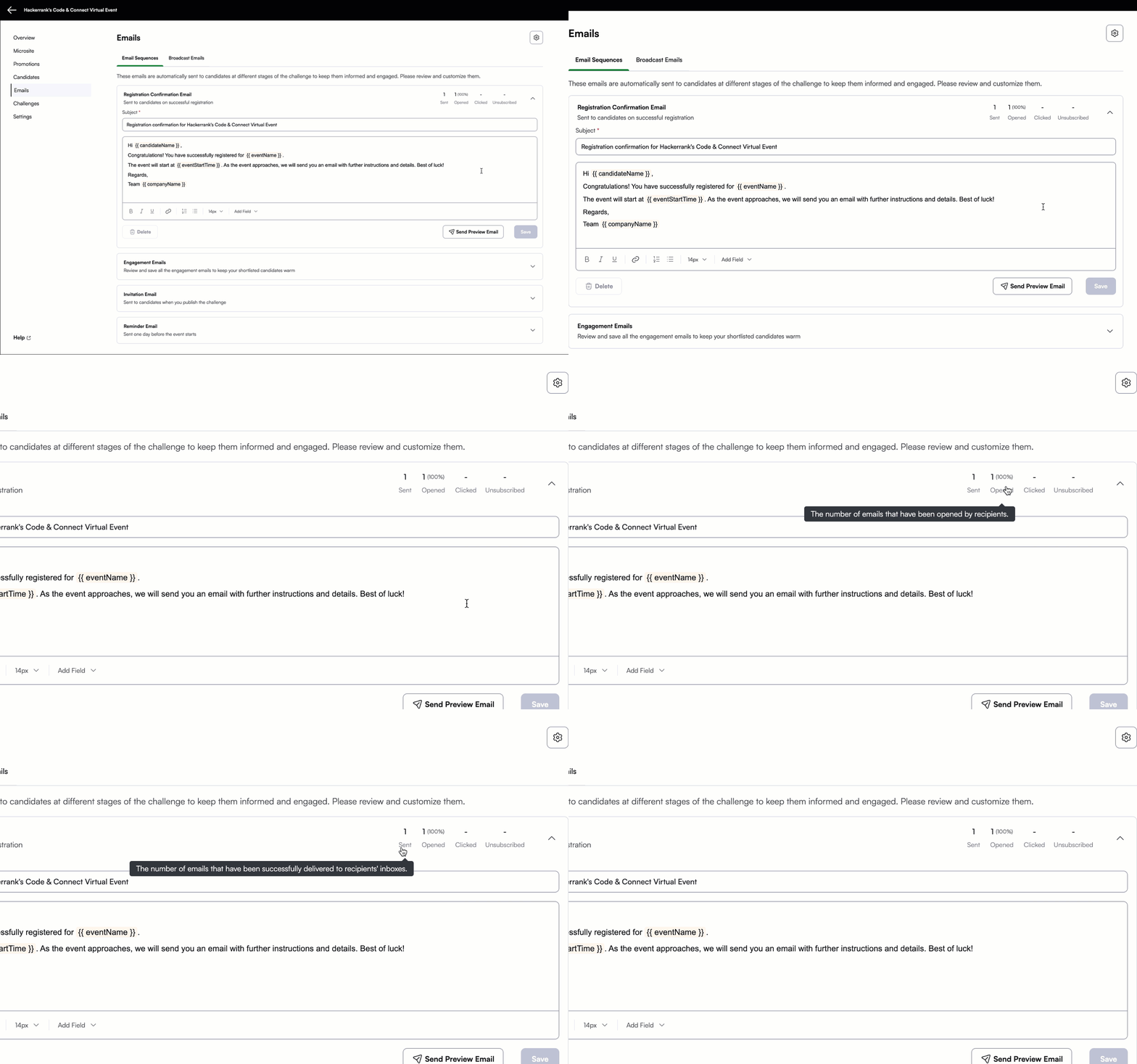
Once the emails are sent, you can view performance metrics such as Sent, Opened, Clicked, and Unsubscribed.
Set up broadcast emails
Use broadcast emails to send timely updates such as reminders or nudges after the event begins.
To create a broadcast email:
Log in to your Engage account using your credentials.
Select the event you want to set up the broadcast email for.
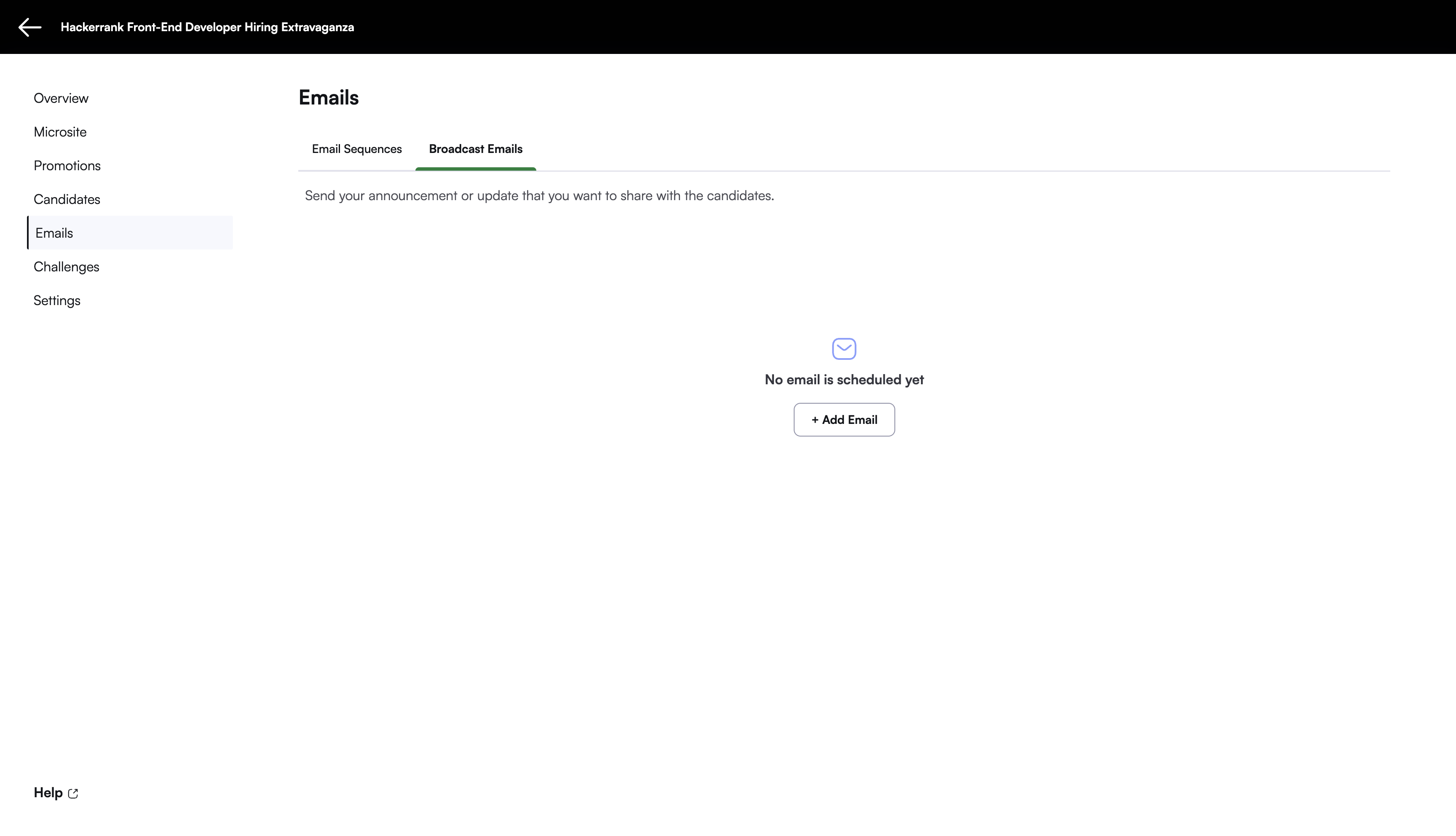
Go to Emails > Broadcast Emails.
Click Add Email.
Apply filters in the email editor to target specific candidates.
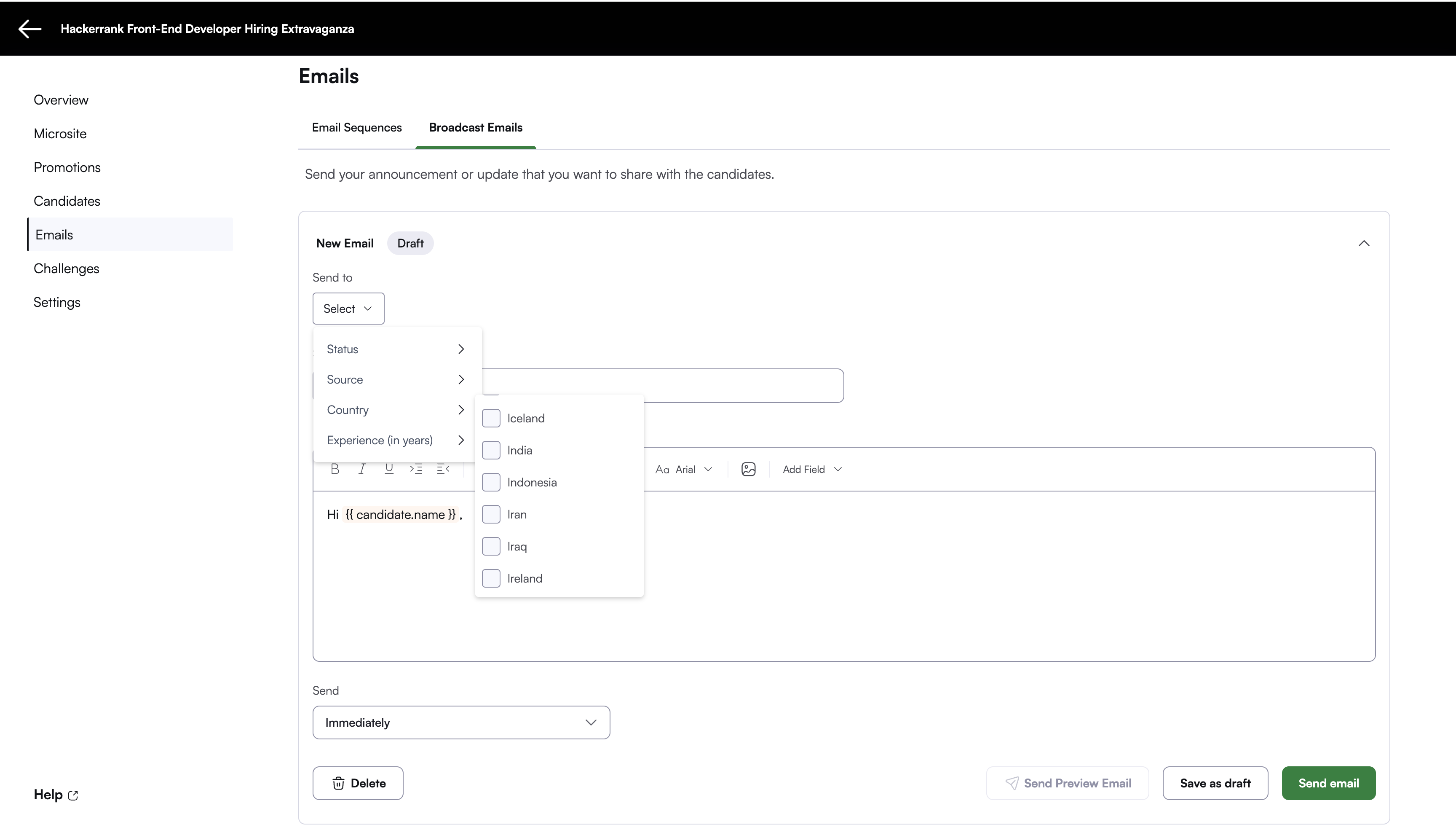
Compose the email content.
(Optional) Click Save as Draft if you are not ready to send the message.
(Optional) Click Send Preview Email to review the message in your inbox.
Click Send Email to deliver the message to the selected recipients.