Manage Team Members
Last updated: March 3, 2026
HackerRank allows you to manage team members to control access and permissions. You can add or remove team members and update team member roles.
Prerequisite
You must have Company Admin or Team Admin access.
Managing team members
To manage team members:
Log in to your HackerRank for Work account using your credentials.
Select your profile icon in the upper-right corner.
Select Teams Management from the drop-down menu.
Go to the Teams tab.
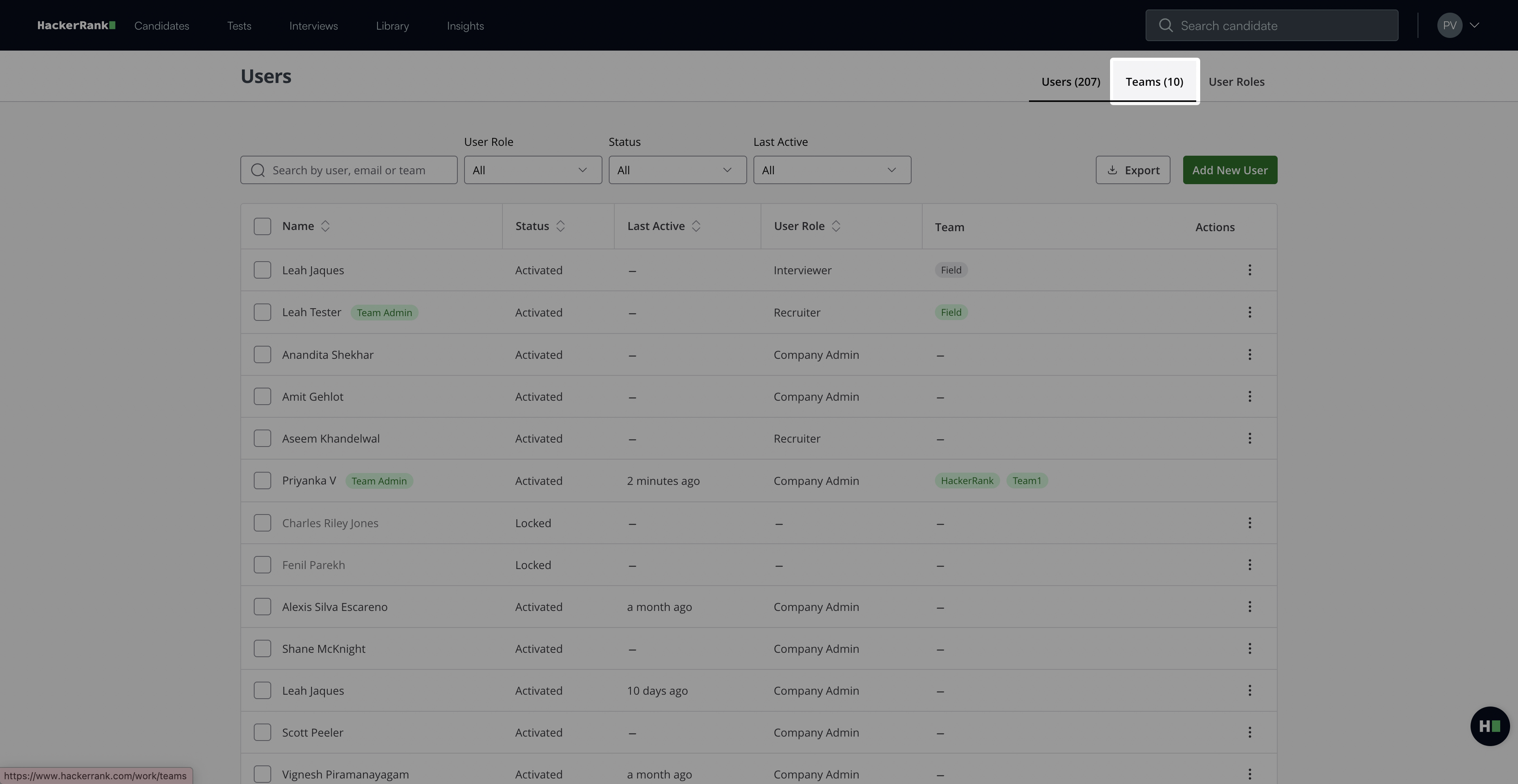
Select the team you want to update.
Select the Users tab to add team members, update their roles, or remove team members.
Adding an existing user to a team
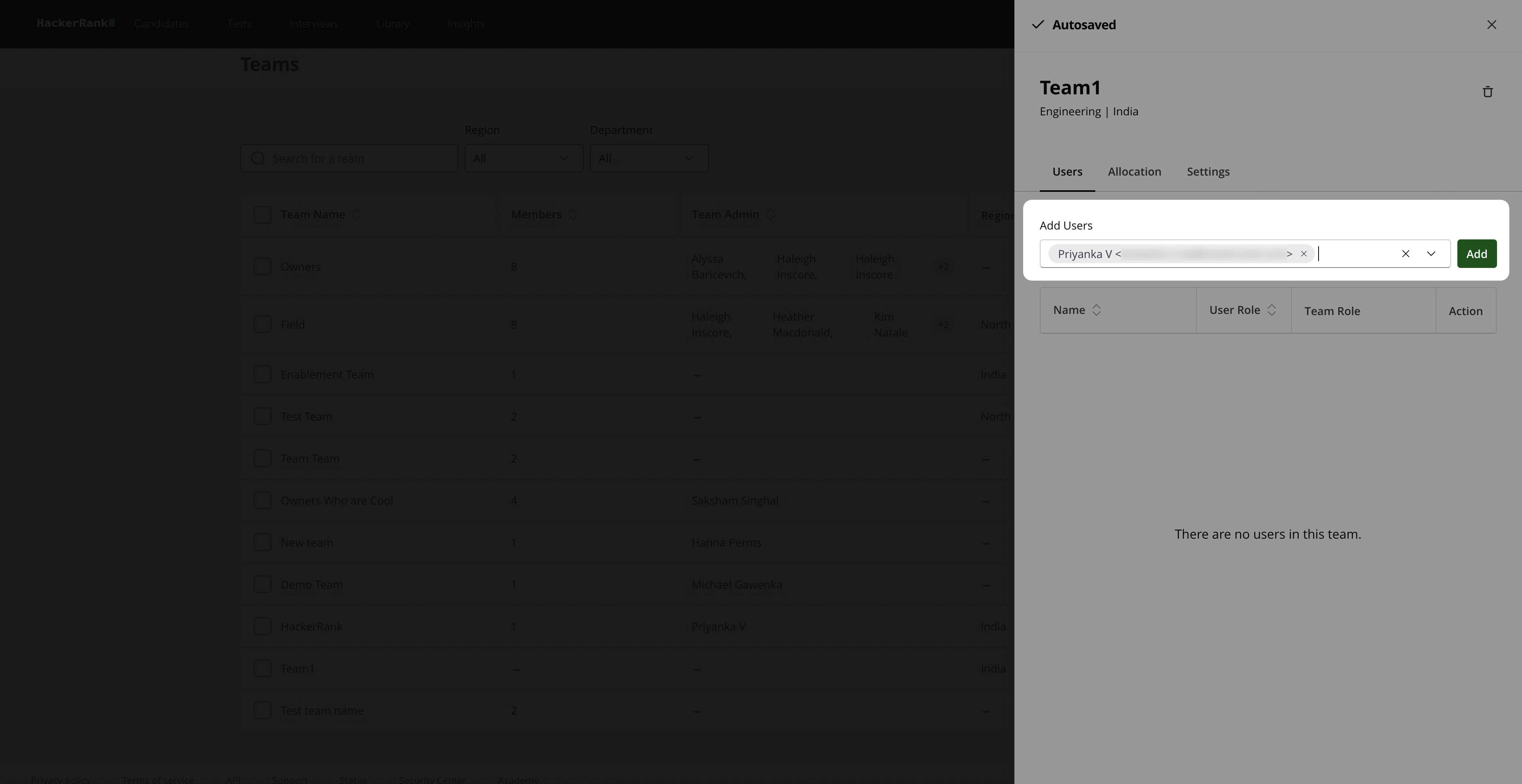
To add an existing user to a team:
Type or select users from the Add Users drop-down menu
Click Add.
Updating team member role
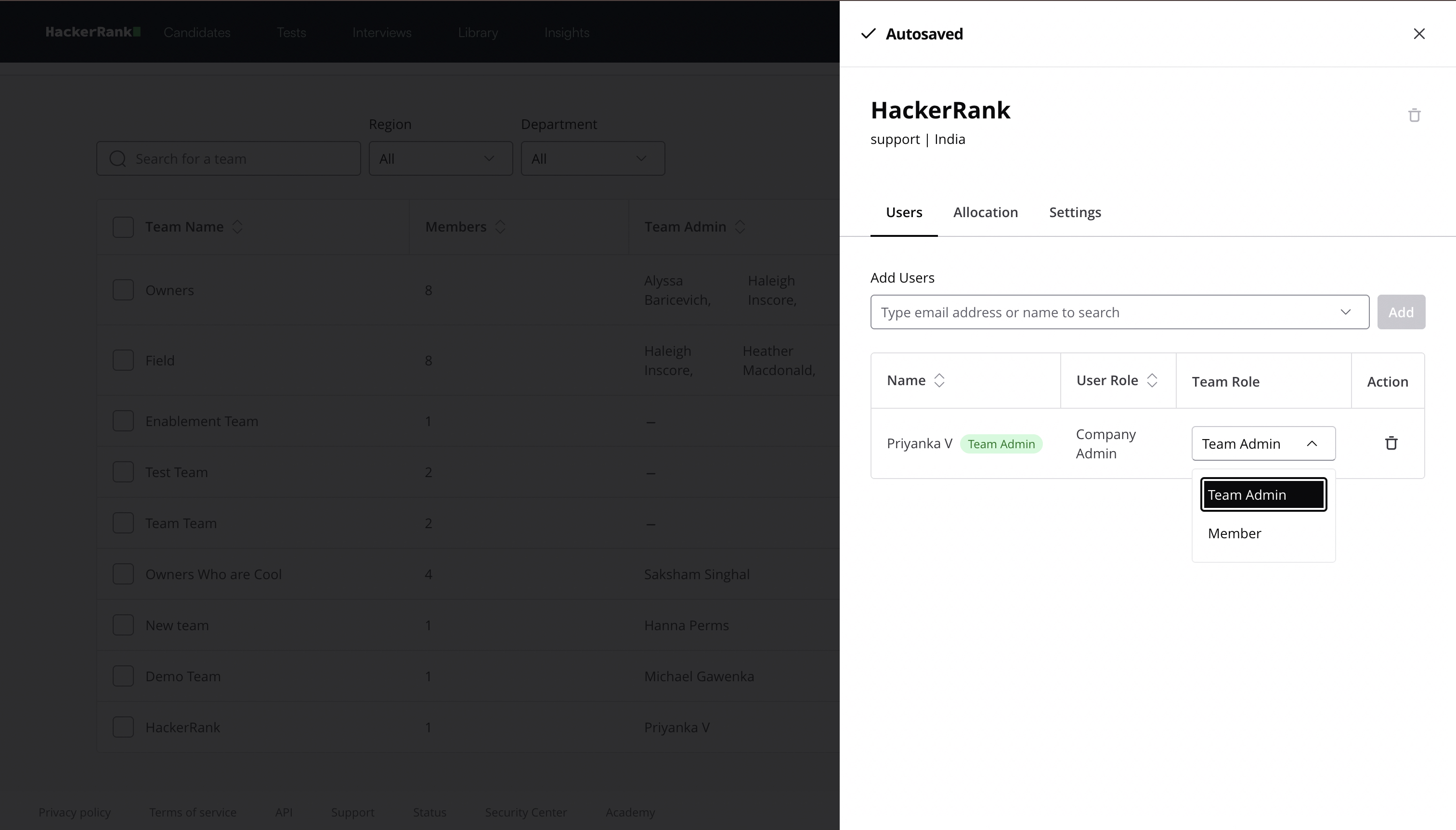
To modify the role of a team member:
Locate the user in the list.
Select the Team Role dropdown.
Choose Team Admin or Member.
Removing a team member
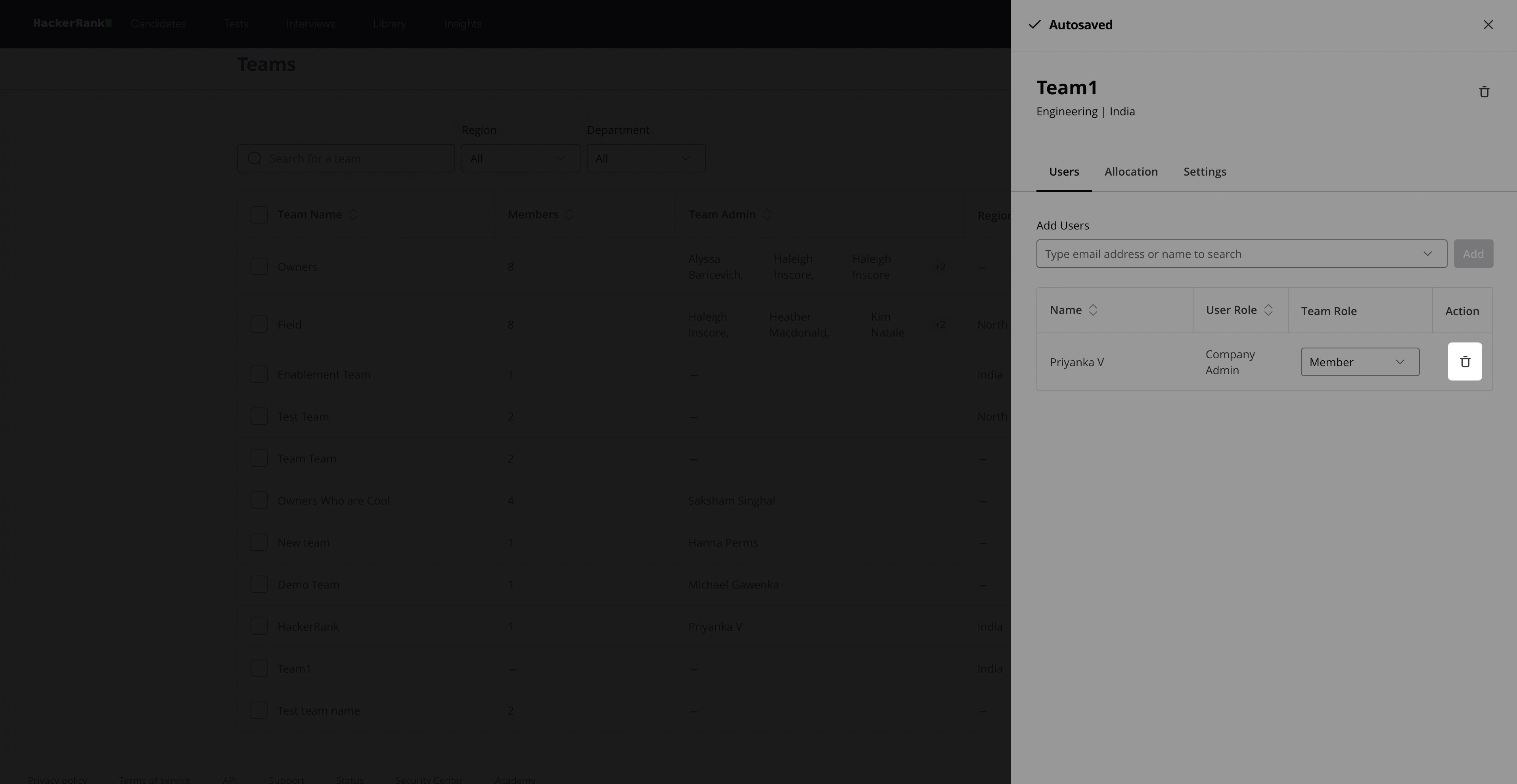
To remove a team member from the team:
Locate the user in the list.
Select the delete icon in the Action column.
Note:
To update the team role allocation limit, see 📄 Update Team Role Allocation Limit.
To update the team settings, see 📄 Update Team Settings.