Multiple Choice Questions
Last updated: March 26, 2026
Multiple Choice Questions (MCQs) allow candidates to select one or more correct answers from a list of options. The system evaluates responses automatically based on the answer key defined for the question.
Creating a Multiple Choice question
To create a multiple choice question:
Log in to your HackerRank for Work account using your credentials.
Go to the Library tab.
Click Create Question.
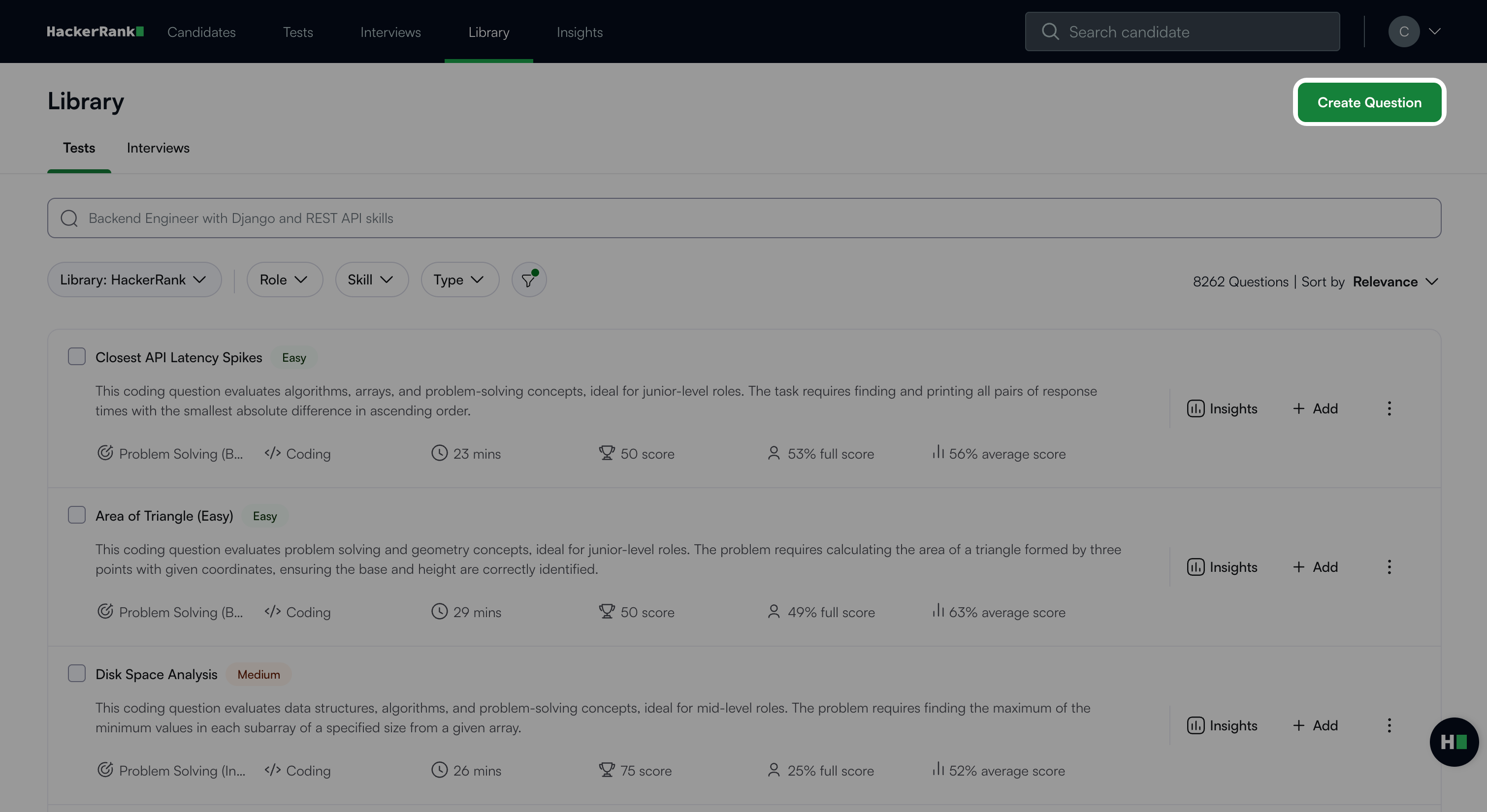
Select Multiple Choice under General.
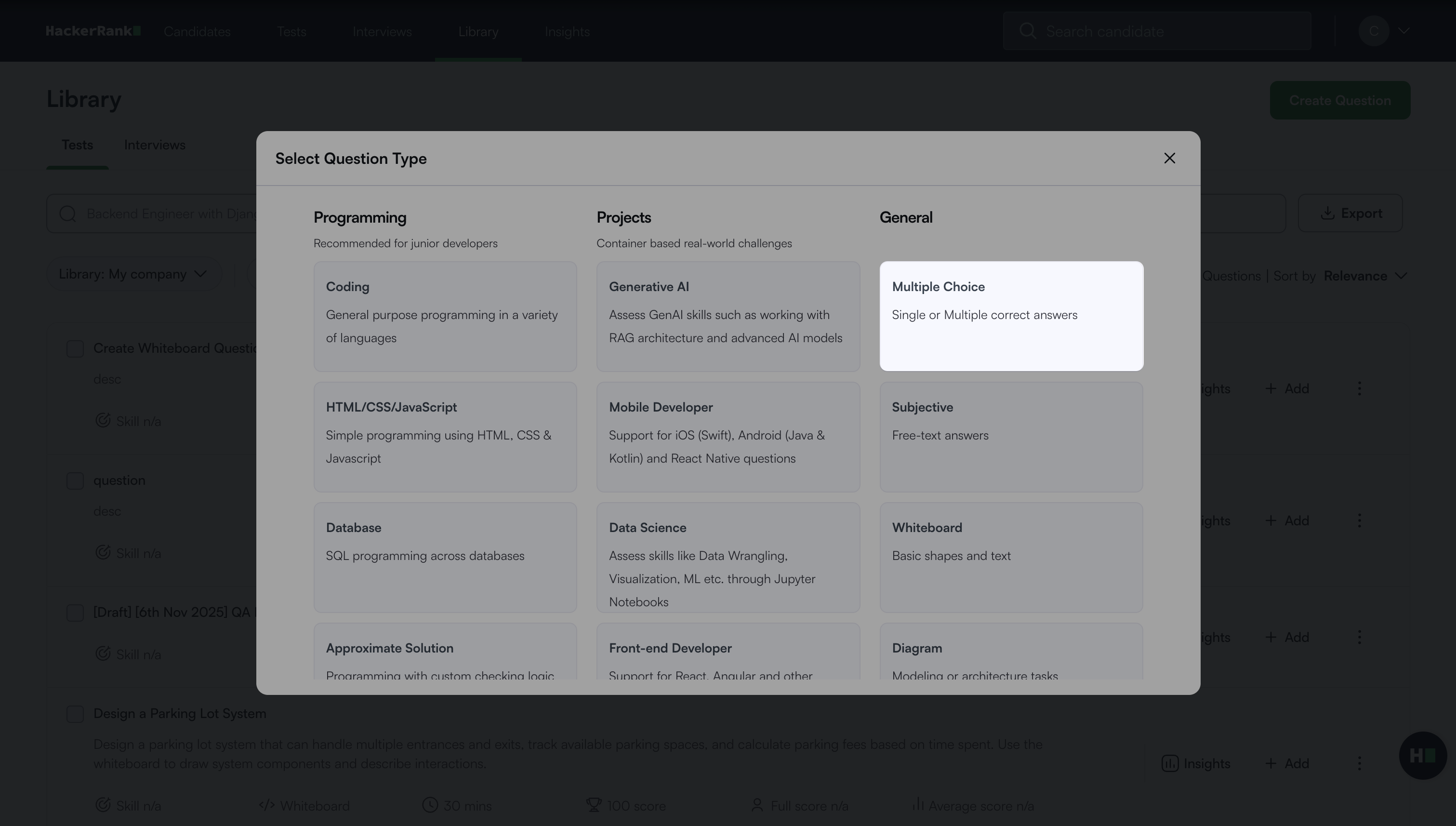
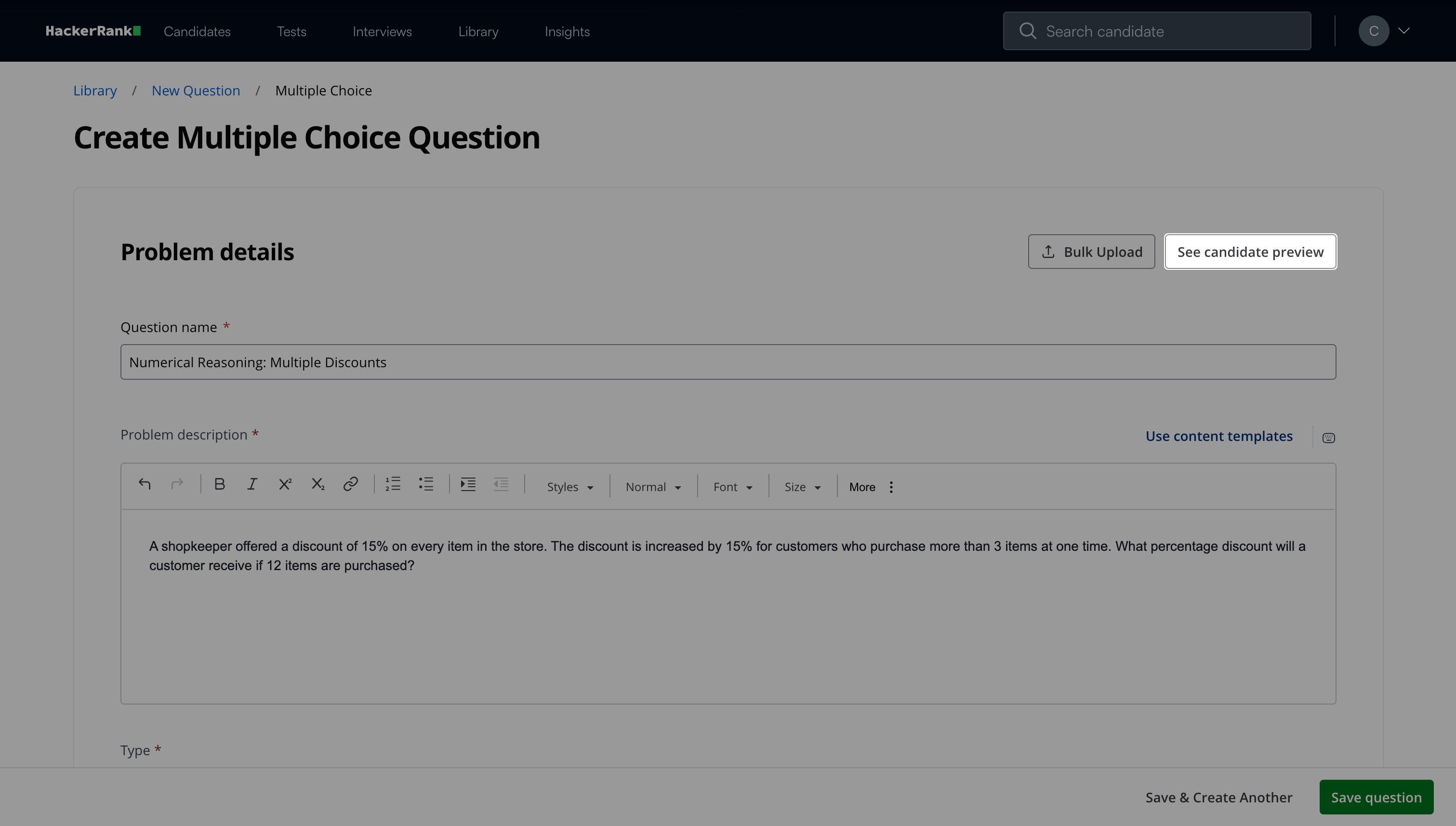
In the Problem details section:
Enter the Question name.
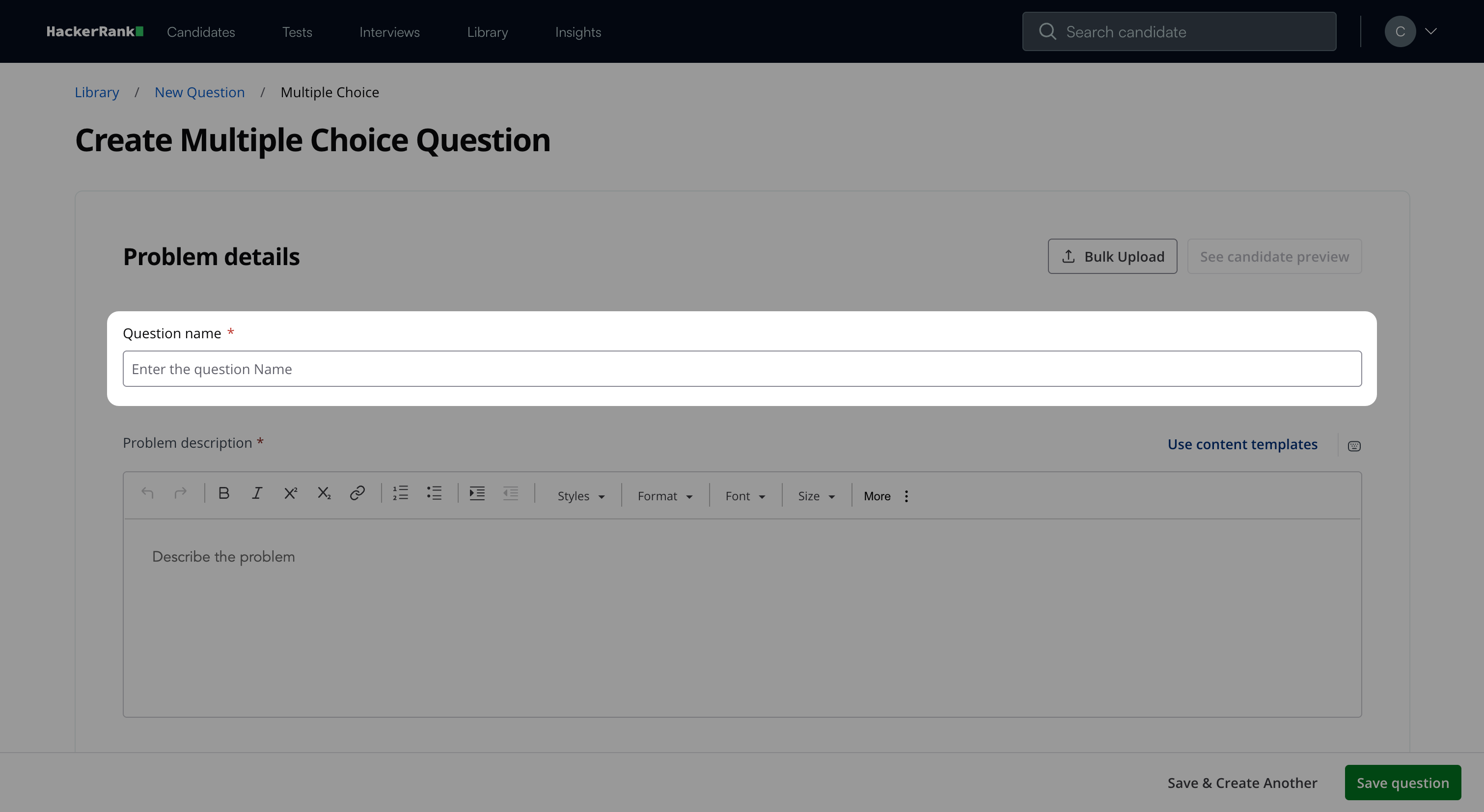
Describe the problem in the Problem description field. You can use the formatting menu to format the text or to include elements such as tables or images.
Select the Type:
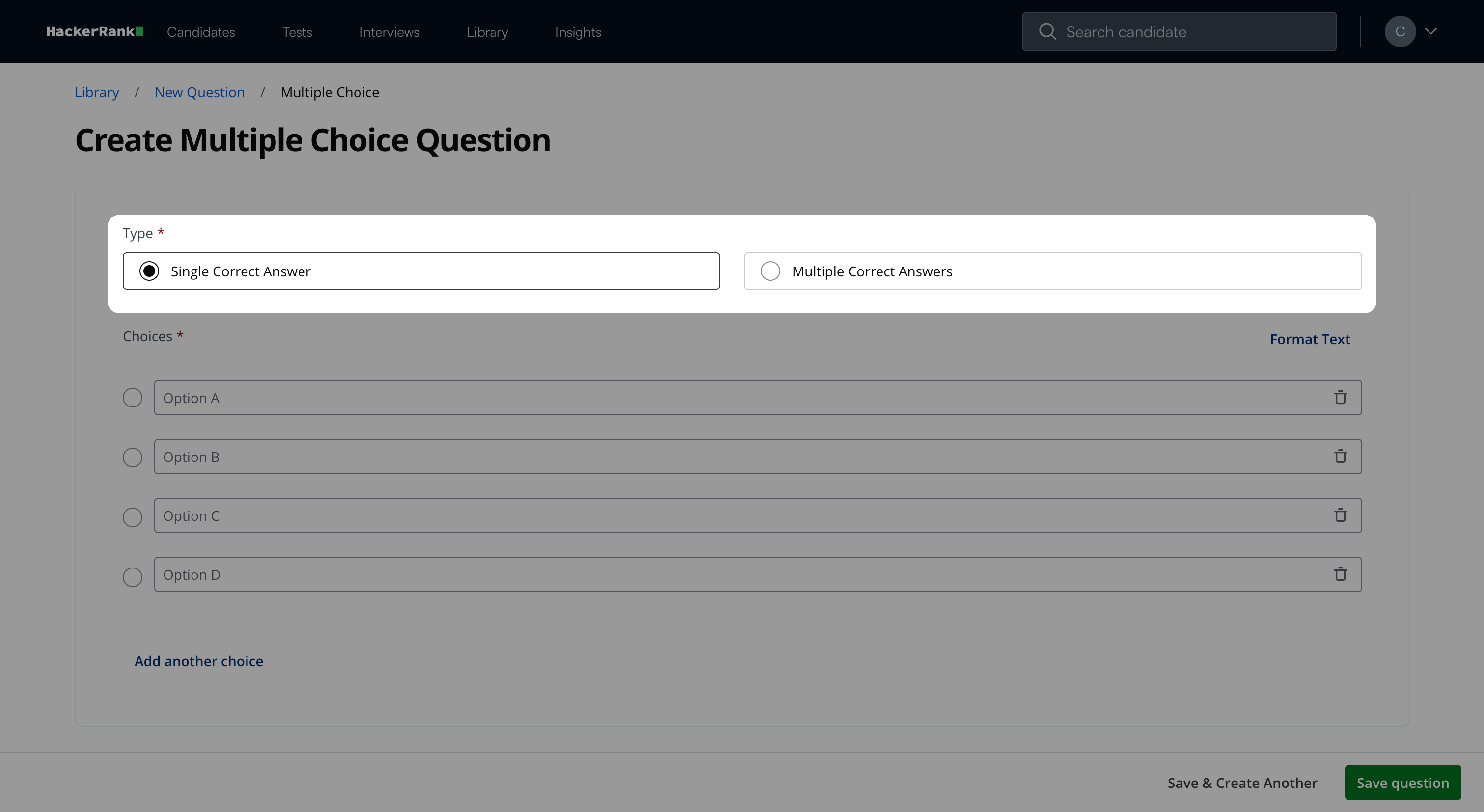
Single Correct Answer: Select this option if only one answer is correct.
Multiple Correct Answers: Select this option if more than one answer is correct.
Enter the answer options in the Choices field.
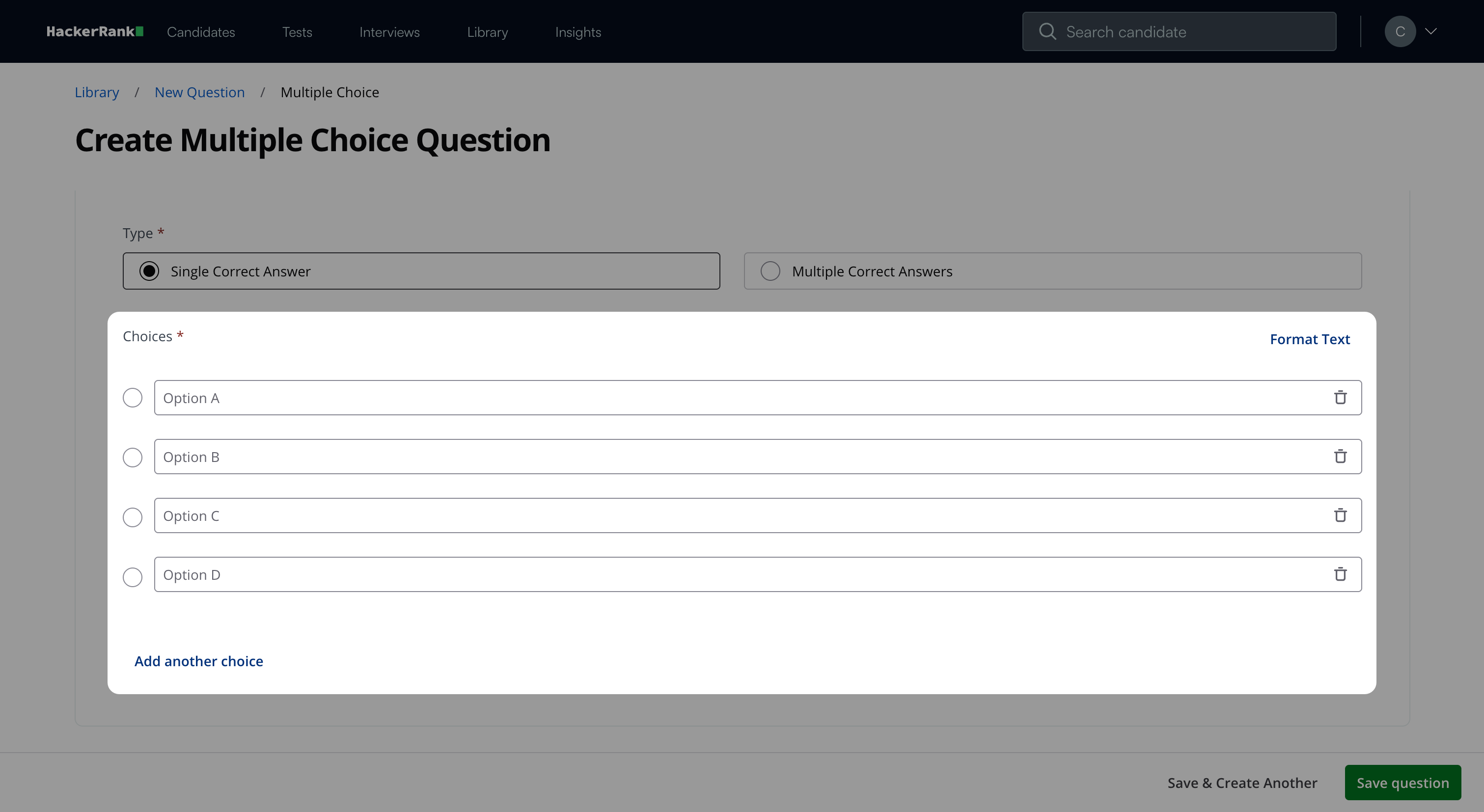
By default, the system provides four options. You can update the choices in the following ways:
Select Format Text to switch to the rich-text editor for each choice. To return to the standard input fields, select Edit as plain text.
Select Add another choice to add more options.
Select the delete icon to remove an option. A minimum of two answer options is required.
Note:
Click Bulk Upload to upload questions in bulk. For more information, see Bulk uploading Multiple Choice questions.
Click See candidate preview to view how the question appears to candidates.
In the Question properties section:
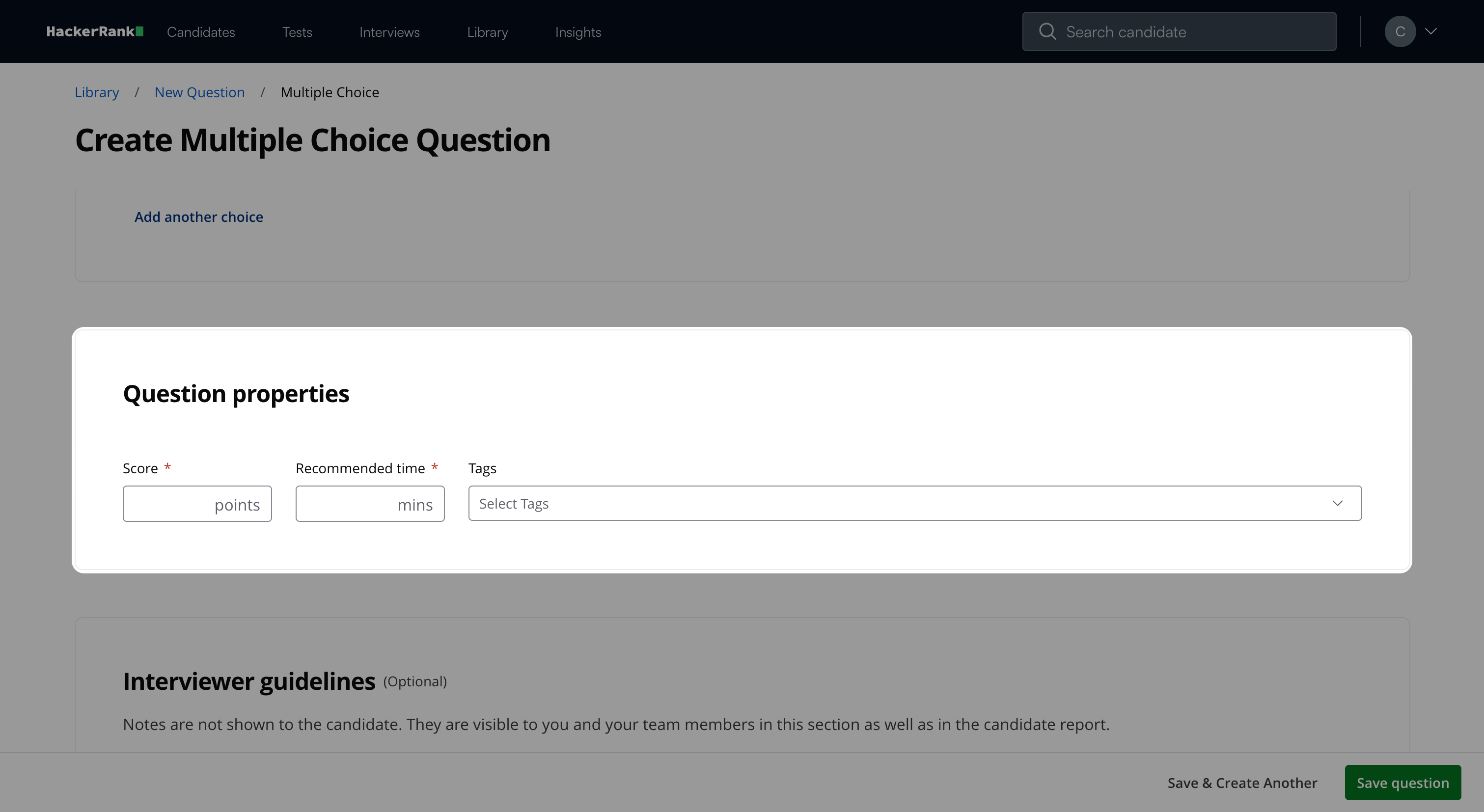
Enter the Score based on difficulty.
Add Recommended time in minutes.
(Optional) Add Tags from the drop-down list or create new ones.
(Optional) Add Interviewer guidelines for internal use, such as evaluation notes and hints.
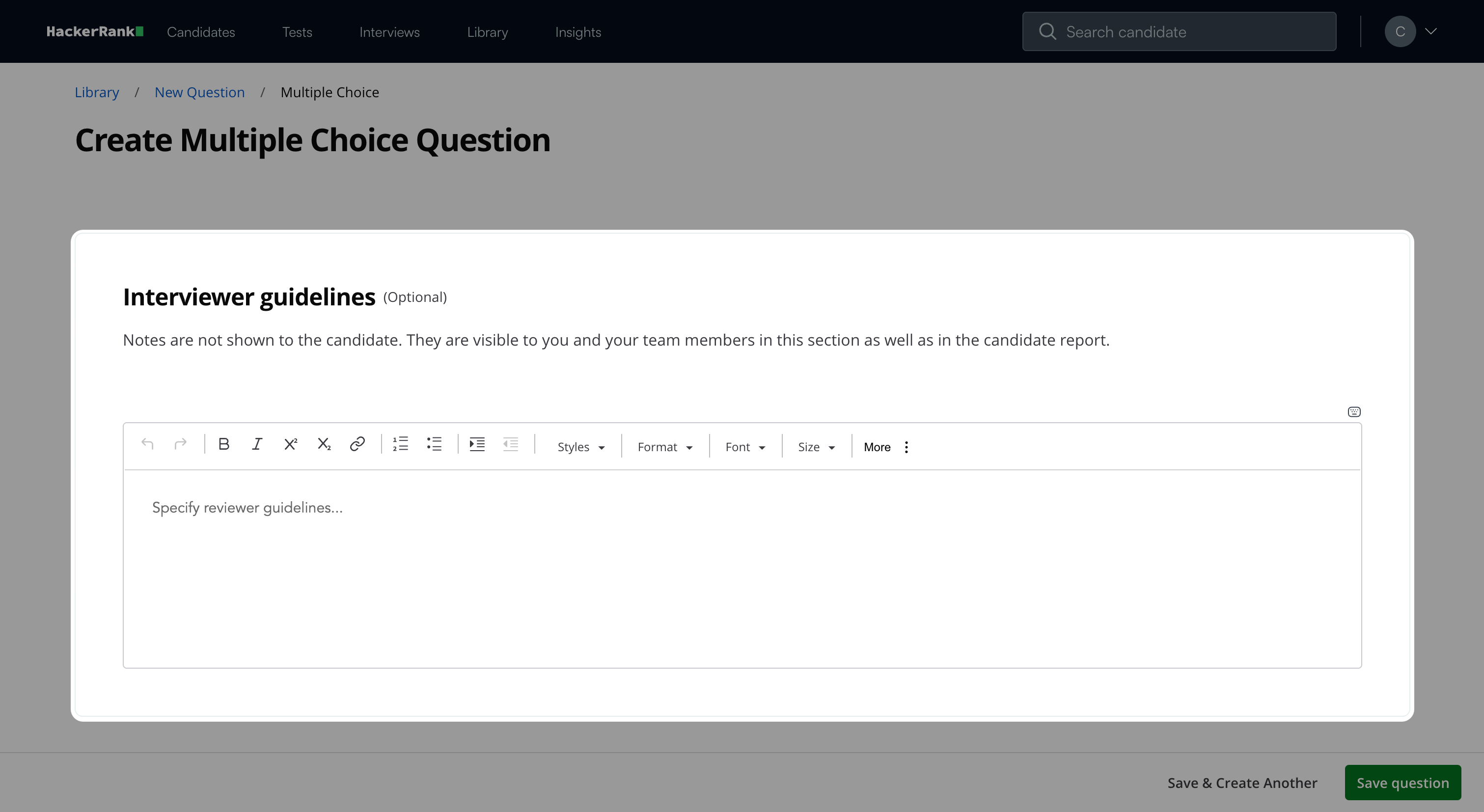
Click Save question.
Note: Click Save & Create Another to create another question.
The question appears under My Company questions in the HackerRank Library.
Bulk uploading Multiple Choice questions
You can upload up to 100 MCQs at once using a CSV or XLSX file.
To bulk upload multiple choice questions:
In the Problem details section, click Bulk Upload.
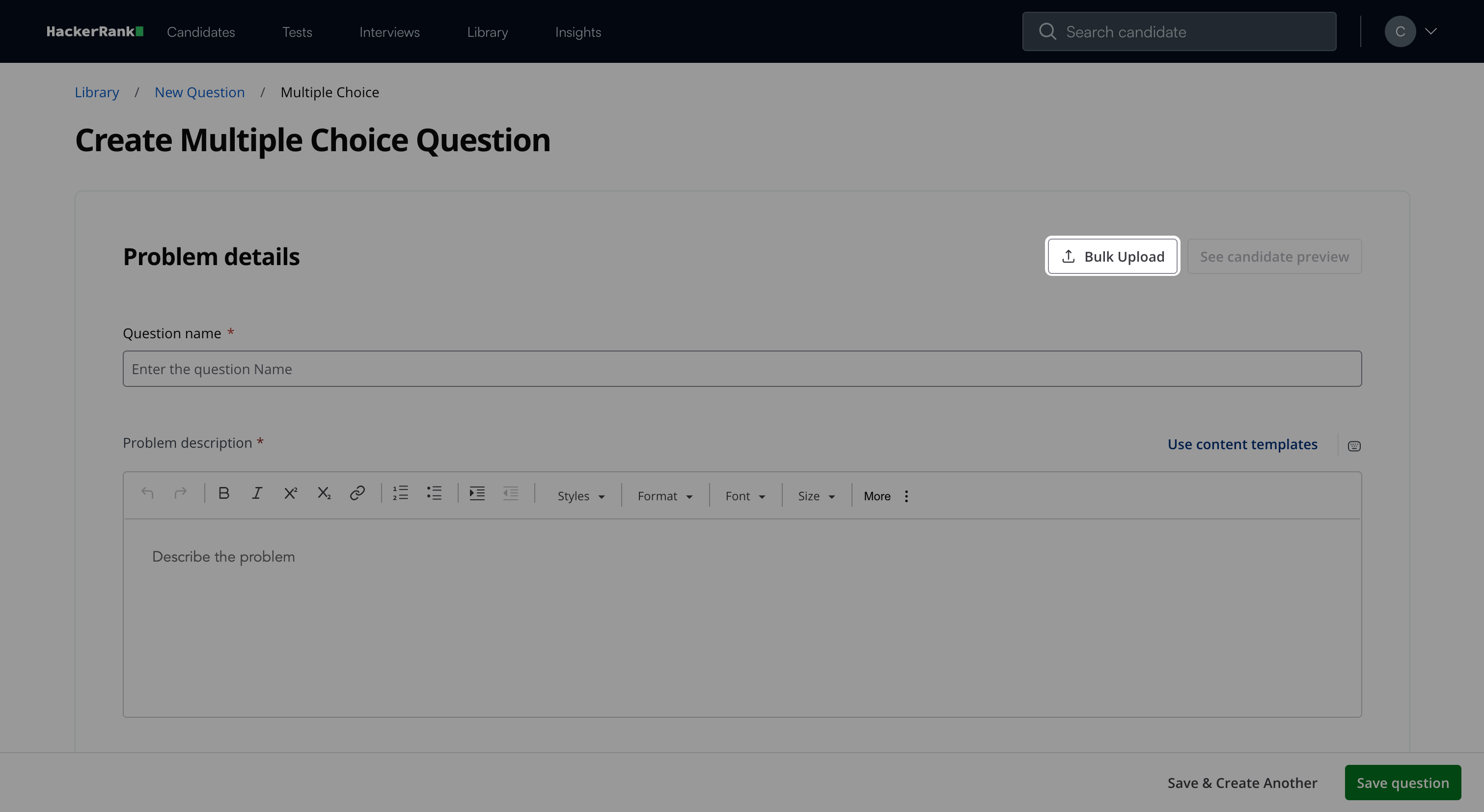
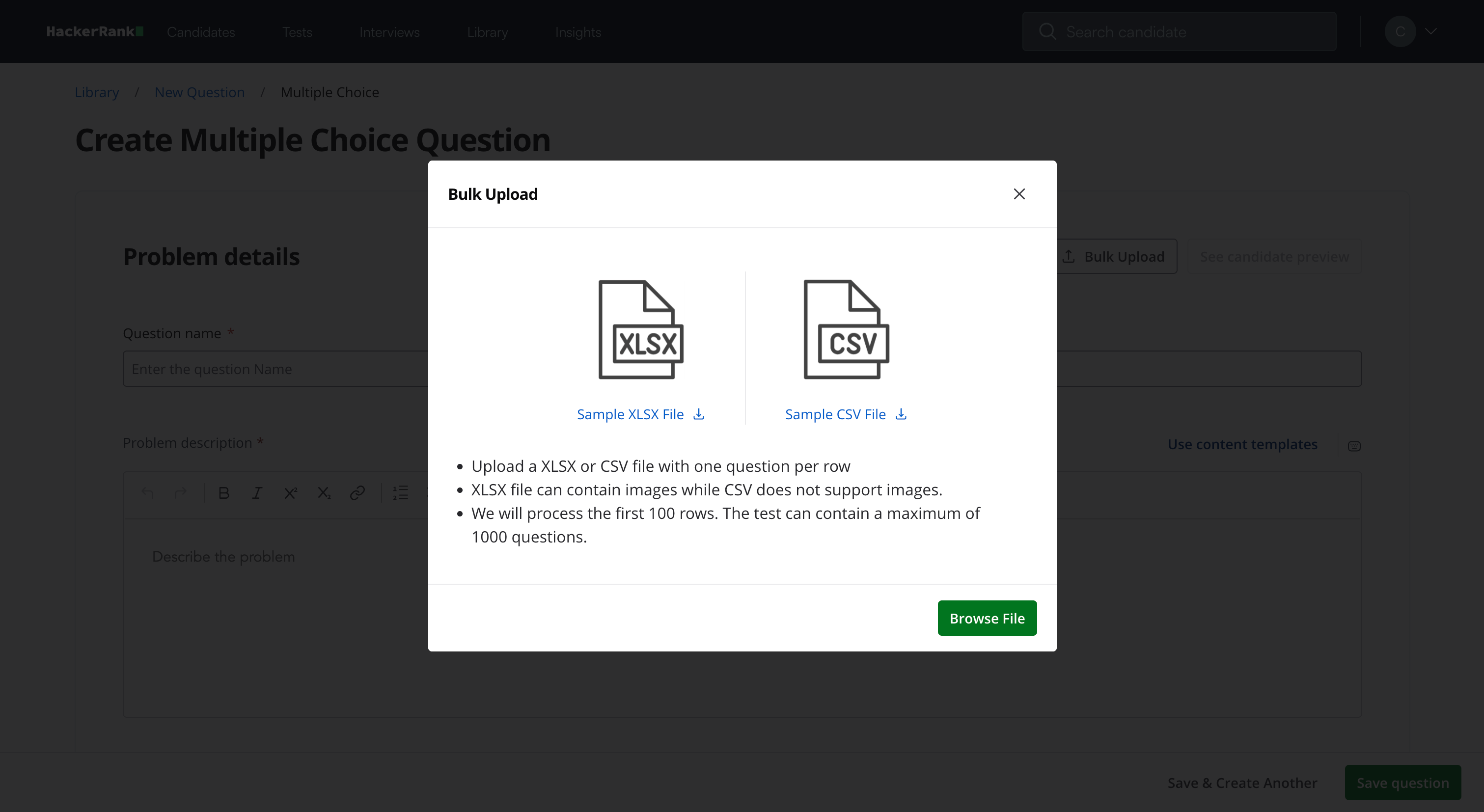
Click Browse File to upload a file.
Note: You can click Undo Upload to undo the upload.
Upload an XLSX or CSV file.
Note:
Ensure the file includes the question, corresponding answer choices, and assigned score for each entry. For more information, see File upload column specifications.
You can download the sample XLSX or CSV file from the Bulk Upload dialog box, if needed.
(Optional) Review and edit the uploaded questions
Click Save All Questions.
Note:
The XLSX format allows you to add images to the MCQ questions.
The maximum file size allowed is 512KB.
The system processes only the first 100 rows in the file.
File upload column specifications
The table below shows the supported column headers for bulk uploading multiple choice questions.
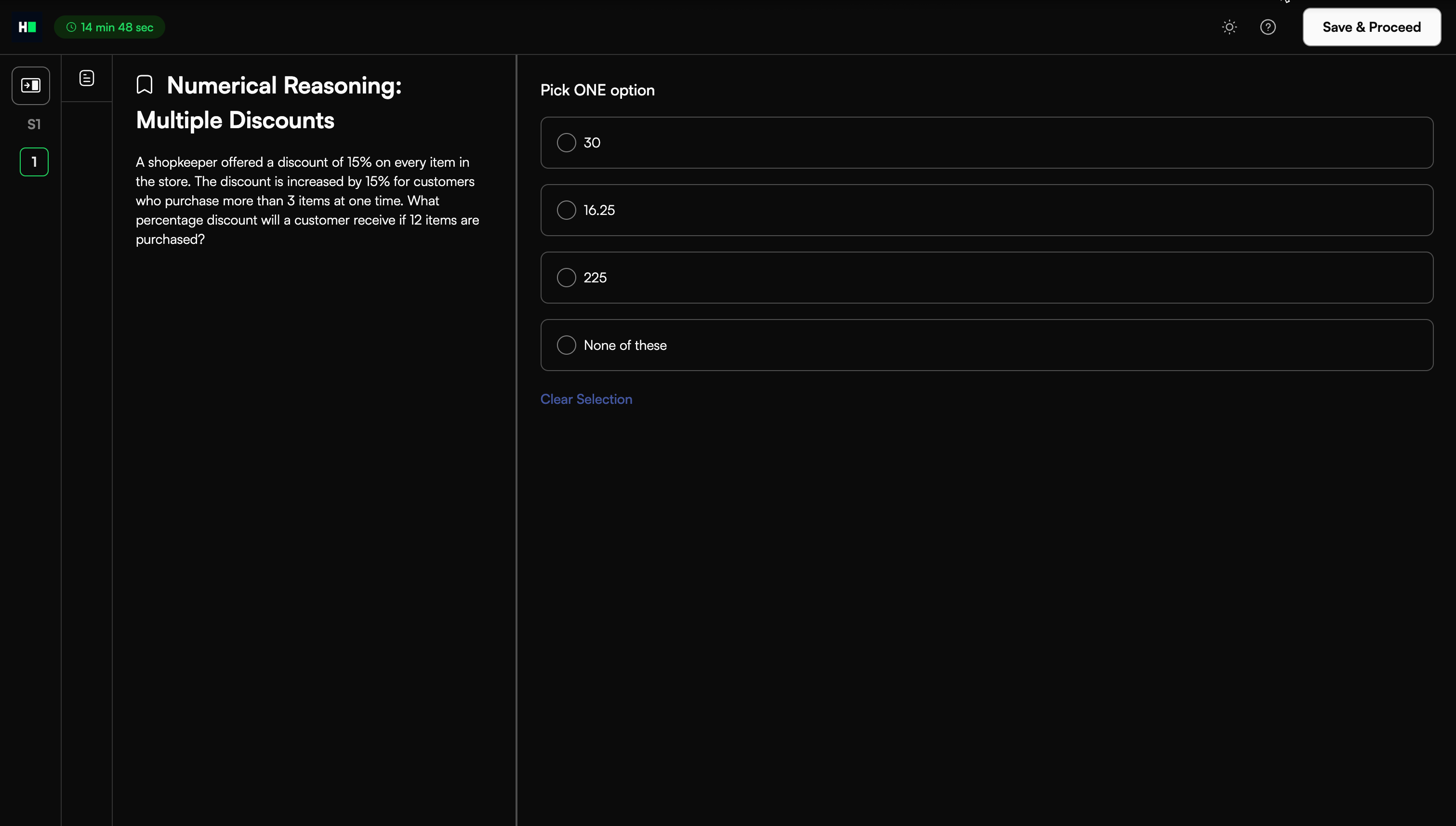
Candidate experience
The question appears on the left side. The candidate can attempt the question and select the answer(s) of their choice.
Scoring Multiple Choice questions in tests
HackerRank automatically evaluates MCQs. You can configure scoring at:
Question level
Test level
Question-level scoring
You can use question-level scoring to define a custom score for an individual MCQ.
If a question has multiple correct answers:
The system divides the total score equally among the correct answers.
The candidate receives partial credit if they select some correct answers.
The system assigns zero points if the candidate selects more options than the total number of correct answers.
Example
Consider an MCQ with the following configuration:
Total score: 5 points
Number of correct answers: 2
Since there are two correct answers, the system assigns 2.5 points per correct answer.
The table below shows how the system calculates the final score based on the candidate’s selection.
Test-level scoring
You can use test-level scoring to apply a uniform score to all MCQs in a test.
When you define a test-level MCQ score:
The system applies the same score to all MCQs in the test.
The test-level score overrides any custom question-level scores.
To configure scoring for correct answers at the test level, see 📄 Modify Evaluation Settings for Tests.
Example
Consider a test that contains four MCQs. You set the test-level MCQ score to 10.
The table below shows how the system calculates the final score for each question.
All questions use the test-level score of 10.
If you do not define a test-level score, each question retains its custom question-level score.
Negative scoring
You can assign negative scores for incorrect answers at the test level.
When you enable negative marking, the system applies the following rules:
Awards partial points for each correct option selected
Deducts partial points for each incorrect option selected
Calculates the final score by adding awarded points and subtracting deducted points
If the candidate selects more options than the number of correct answers, the system assigns the full negative score for the question.
To configure negative scoring at the test level, see 📄 Modify Evaluation Settings for Tests.
Example:
Consider the following scoring configuration:
Correct answer score: 5 points
Incorrect answer score: -1 point
Number of correct answers: A and C (2 correct answers)
The system calculates the score as follows:
Each correct answer earns 5 ÷ 2 = 2.5 points
Each incorrect answer deducts -1 ÷ 2 = -0.5 points
If the candidate selects more options than the number of correct answers, the system assigns -1 point for the question.
The table below shows how the system calculates scores for each selection: