Secure Mode
Last updated: April 22, 2026
Secure Mode helps maintain the integrity of assessments by preventing unfair practices and ensuring a controlled testing environment. It ensures candidates rely solely on their skills for a fair evaluation.
When you enable Secure Mode, the following integrity controls apply:
Full-screen enforcement: Prevents candidates from minimizing or resizing the test window.
Tab switch alerts: Warns candidates when they attempt to navigate away from the test.
Copy/paste restriction: Blocks external copy and paste actions during the test.
Multiple monitor check: Detects the use of multiple monitors and allows candidates to continue only if a single monitor is in use.
Enable Secure Mode
To enable Secure Mode:
Log in to your HackerRank for Work account using your credentials.
Go to the Tests tab.
Select the relevant test.
Go to Settings > Test Integrity.
Turn on the Secure Mode toggle.
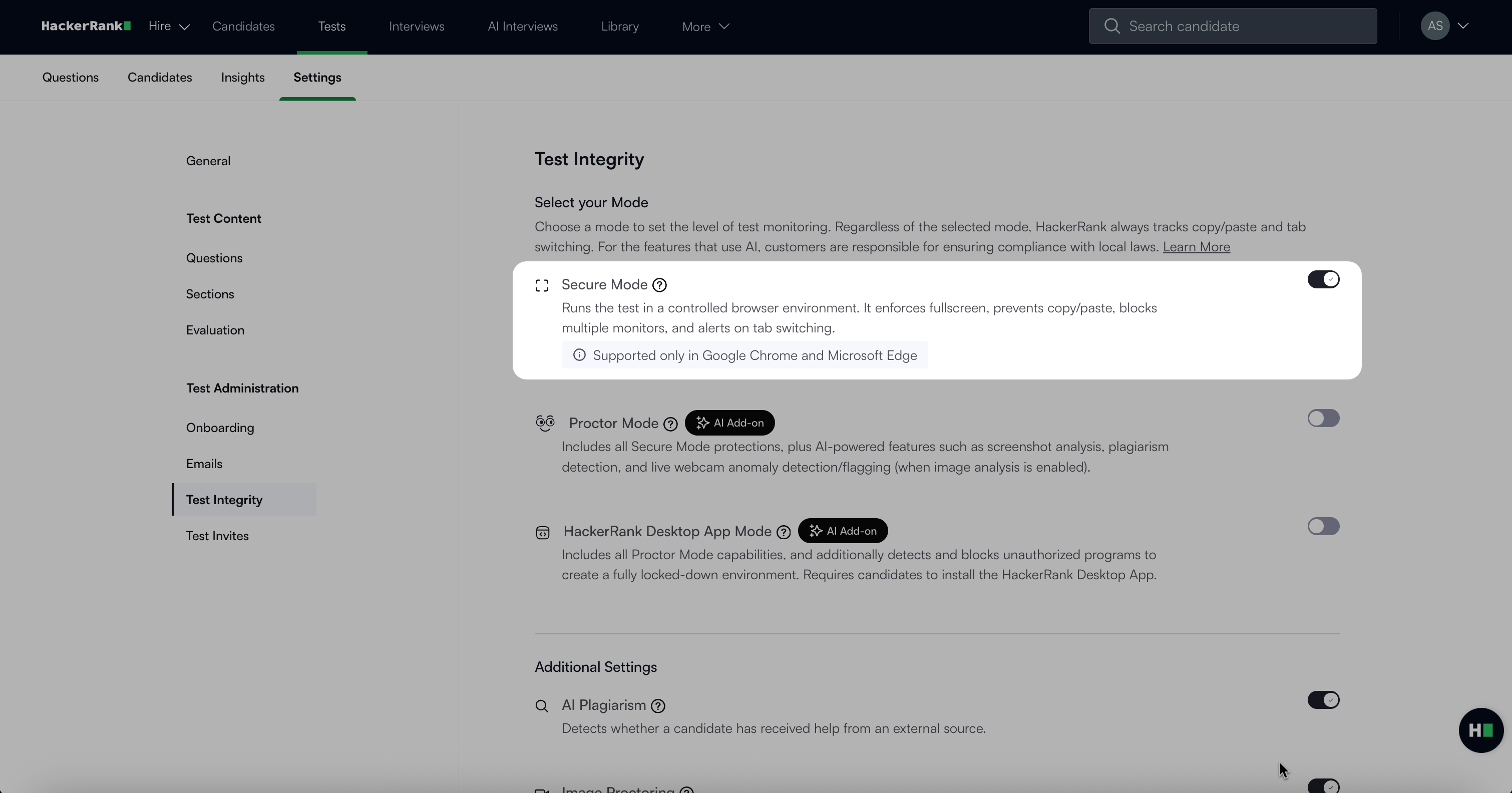
Click Save Changes.
How Secure Mode works
Secure Mode applies integrity controls at every stage of the test session.
Before the test
Secure Mode starts with an onboarding flow that prepares candidates and helps prevent integrity issues:
The system displays the Integrity Guidelines and requests candidates to review them.
Candidates must grant the following permissions to start the test:
Multiple monitor check: The system checks for multiple monitors. Candidates can continue only if a single monitor is in use.
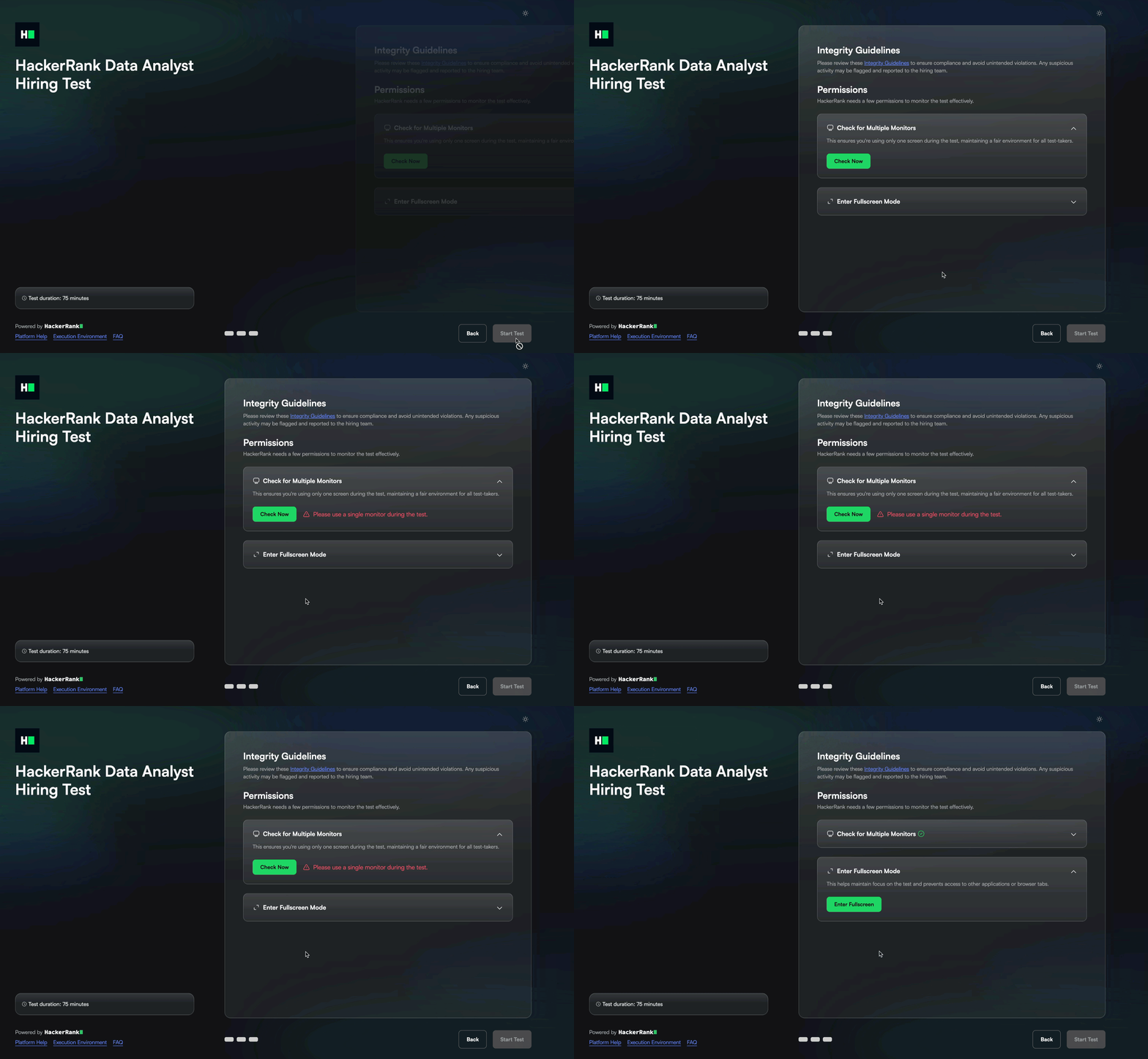
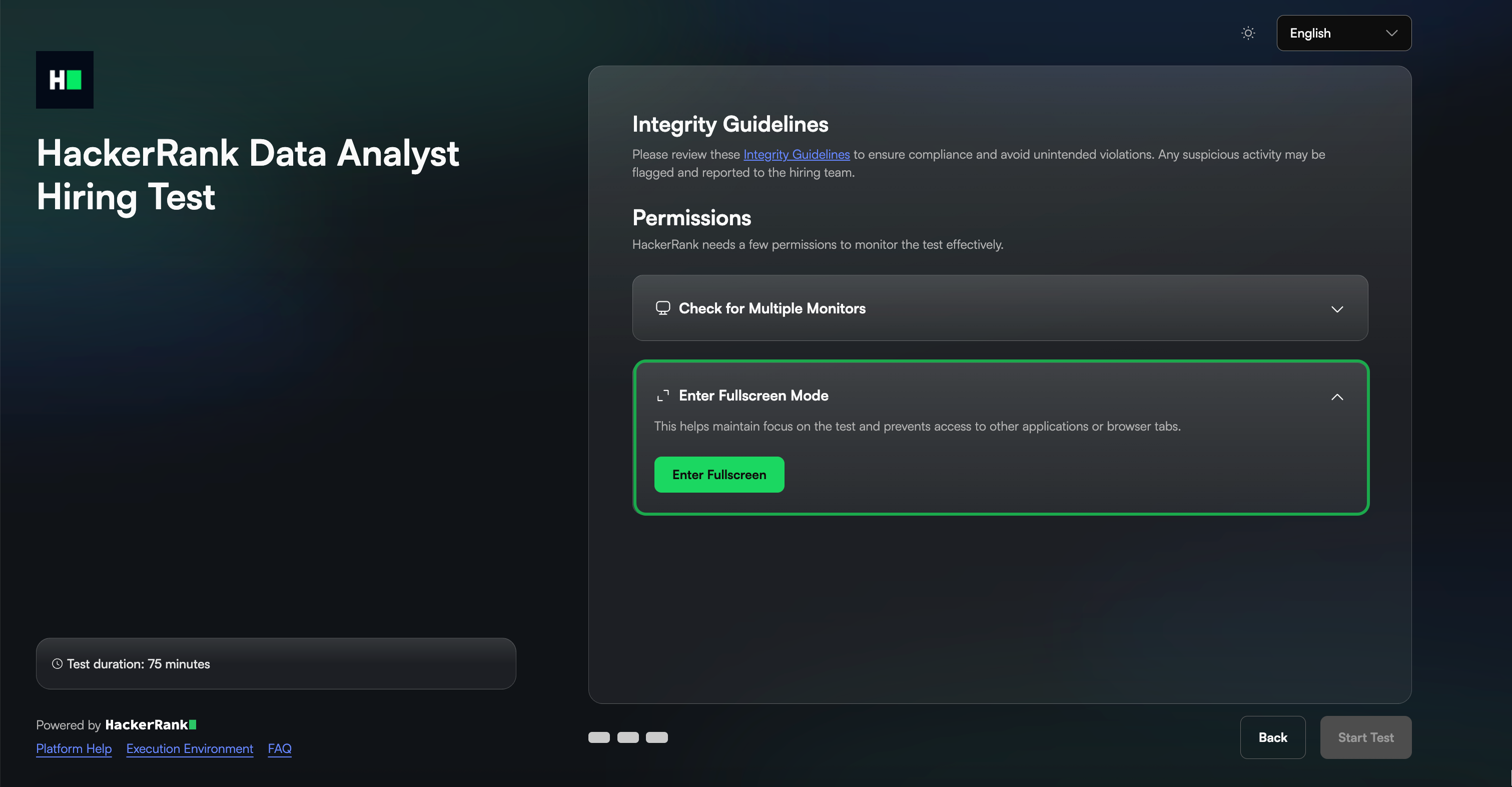
Full-screen mode: The test launches in full-screen mode to reduce distractions and reinforce integrity.
During the test
Secure Mode actively monitors and enforces integrity controls:
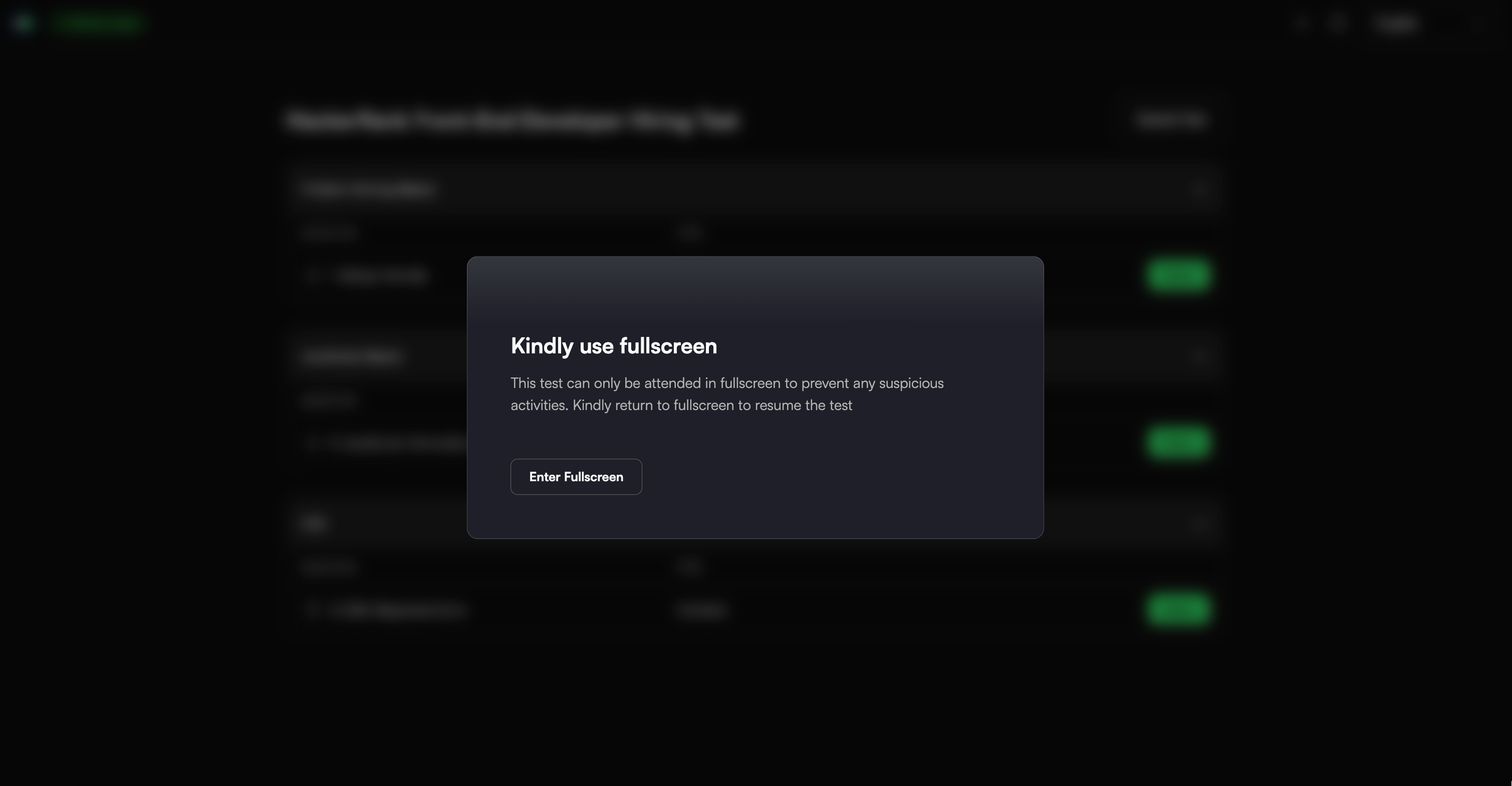
Full-screen enforcement: When a candidate exits full-screen mode, a warning appears prompting them to re-enter full-screen.
Tab-switch alerts: When a candidate switches browser tabs, the system immediately displays a warning.
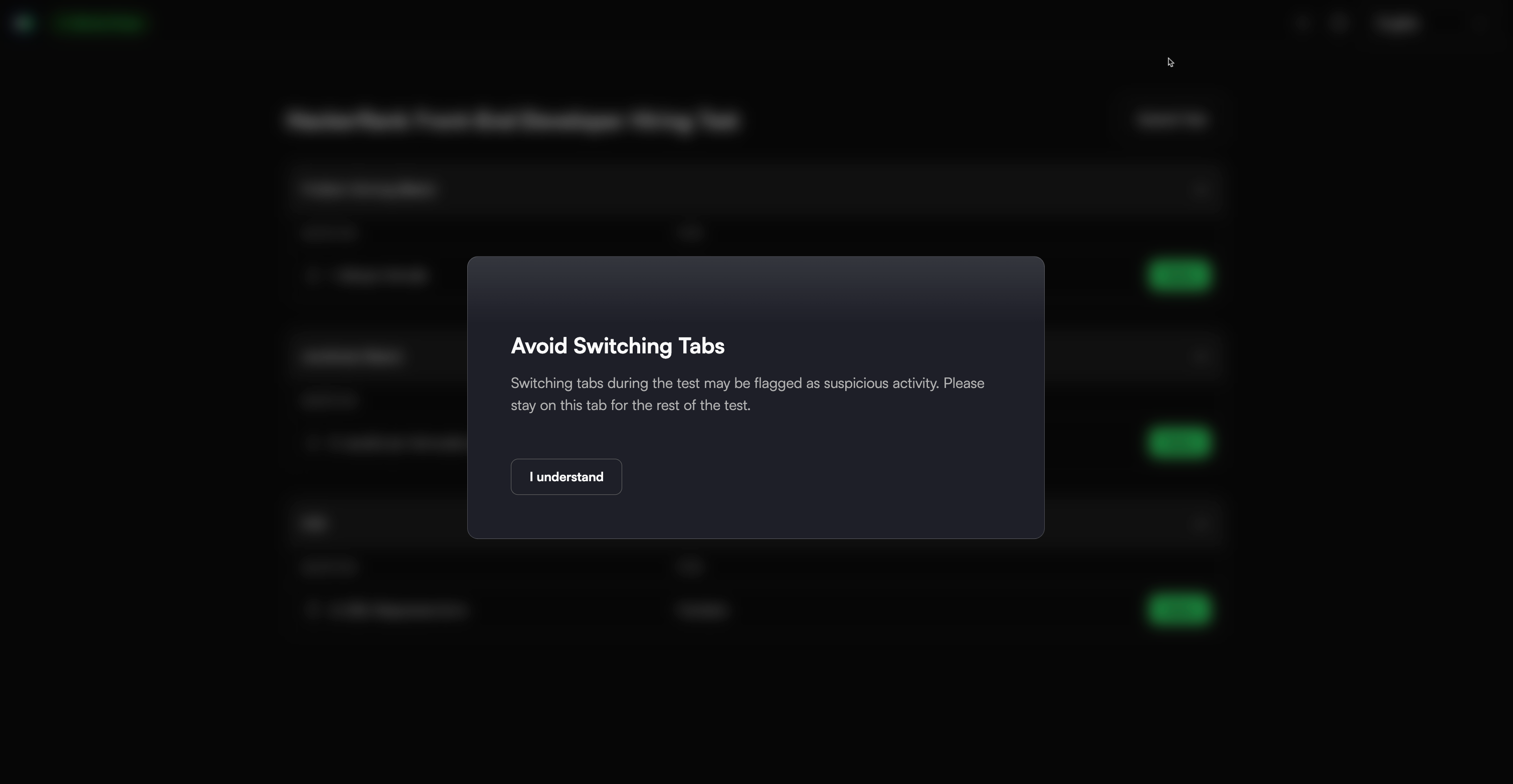
Copy/paste restriction: Copy-paste functionality is disabled to prevent pasting content from external sources into the editor.
Multiple monitor detection: The system continuously verifies that only one monitor remains connected. It flags any new monitor connections made during the test.
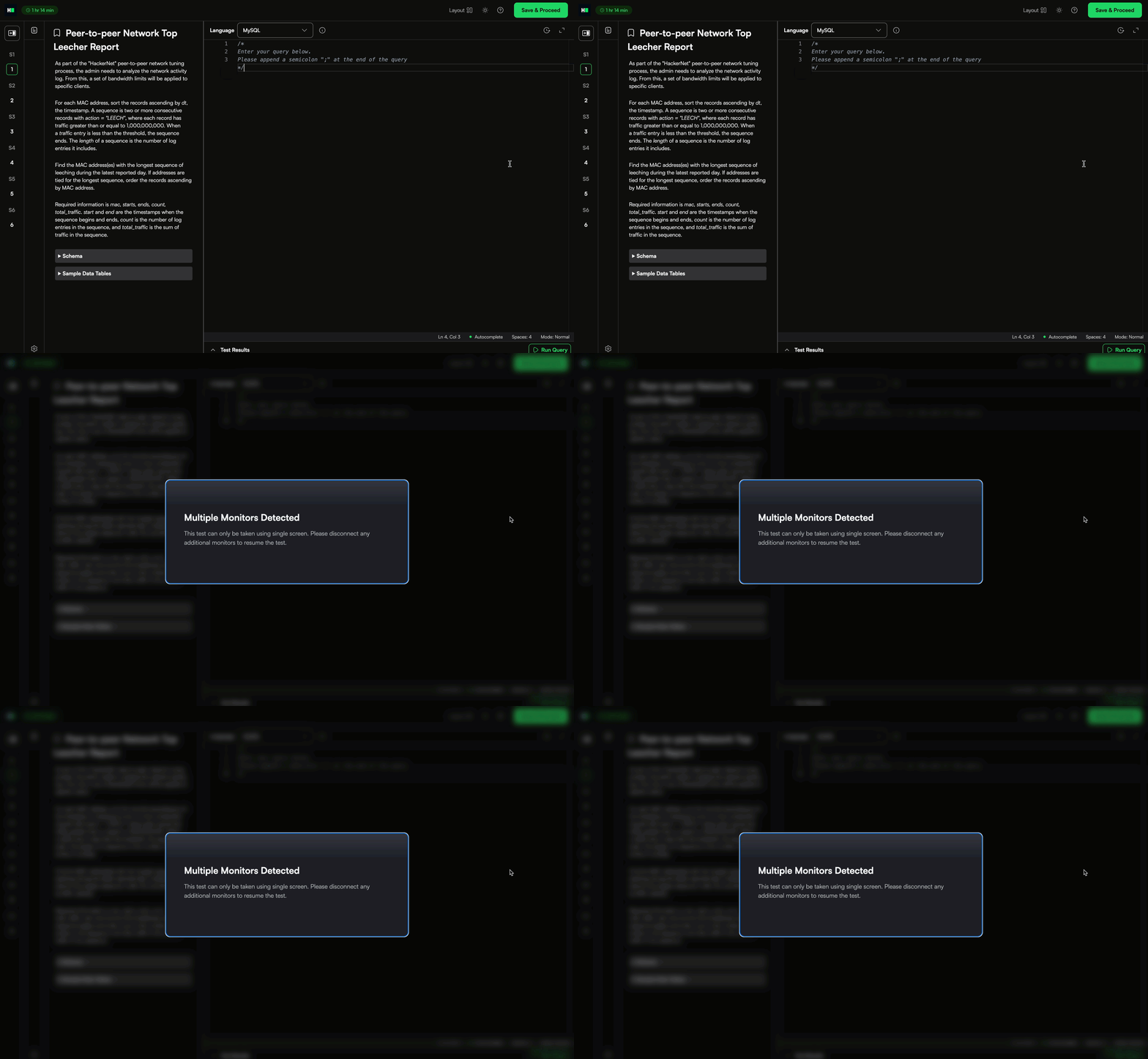
Secure Mode logs all violations in the candidate’s report for review.
After the test
Secure Mode generates summary and detailed reports that help you assess candidate behavior and overall test integrity.
Summary report
The summary report offers a concise overview of the session, including:
Indication of whether integrity issues occurred
Integrity summary
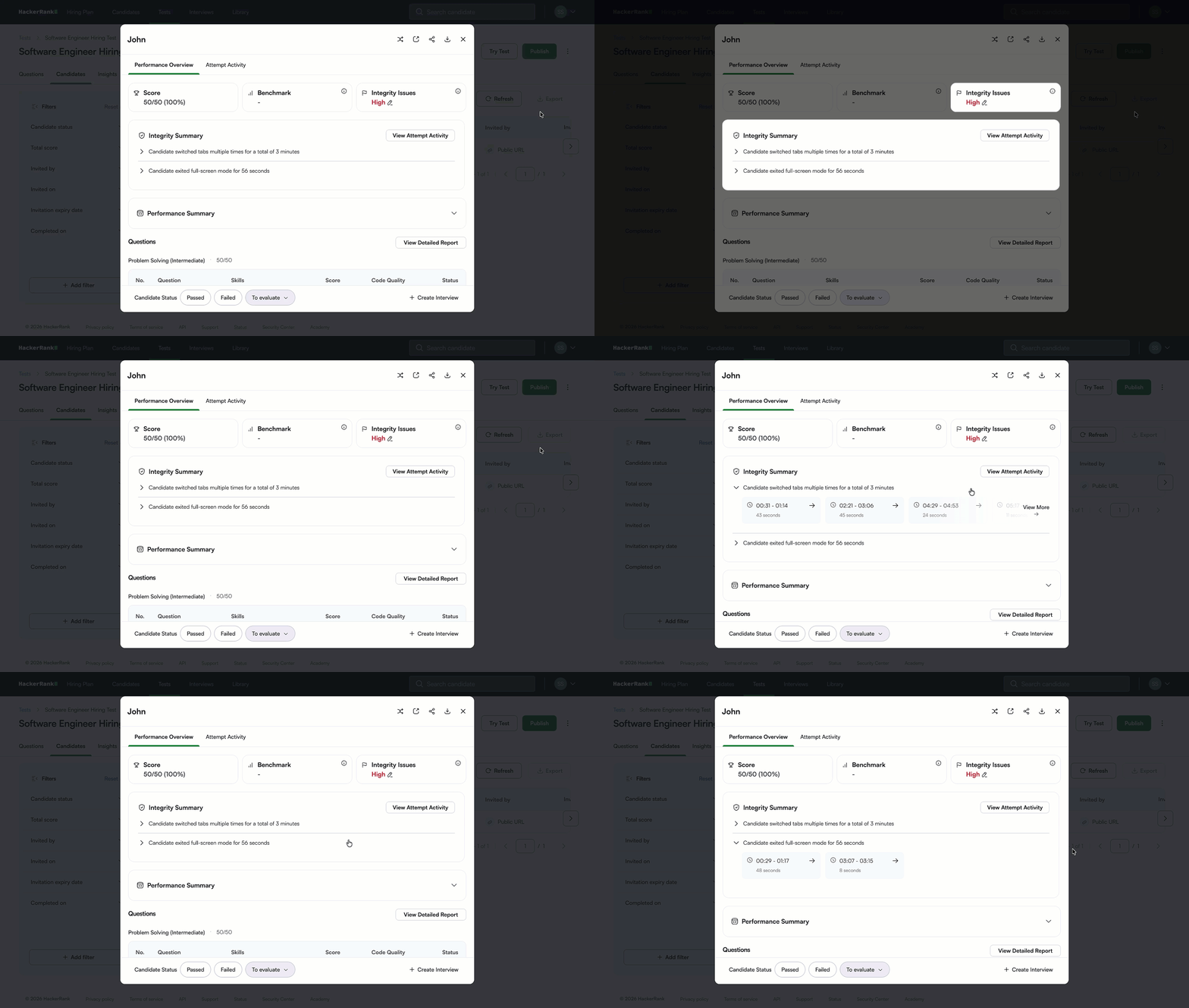
Integrity results
Secure Mode assigns a final integrity result of High or Medium based on the severity of detected issues. The integrity results evaluate violation based on Secure Mode rules such as exiting full-screen mode and switching tabs.
Integrity summary
The Integrity Summary provides a consolidated view of all detected integrity signals for a candidate. It lets you preview issues and drill down into supporting evidence, such as timestamps and duration, within the same section.