Photo Identification
Last updated: July 8, 2026
The Photo Identification feature helps verify a candidate’s identity. When enabled, the system prompts candidates to capture a photo using their webcam before starting the test. The hiring team can later review the captured photo to confirm the candidate’s identity. This feature is disabled by default.
Enable Photo Identification
You can enable Photo Identification at the Company level or the Test level.
Company level: Applies to all new tests within the company. You can override this setting for individual tests unless it is locked.
Test level: Applies only to the selected test.
Enabling Photo Identification in Company Settings
To enable Photo Identification in Company Settings:
Log in to your HackerRank for Work account using your credentials.
Go to Settings > Test Settings.
In the Test Integrity section, turn on Photo Identification.
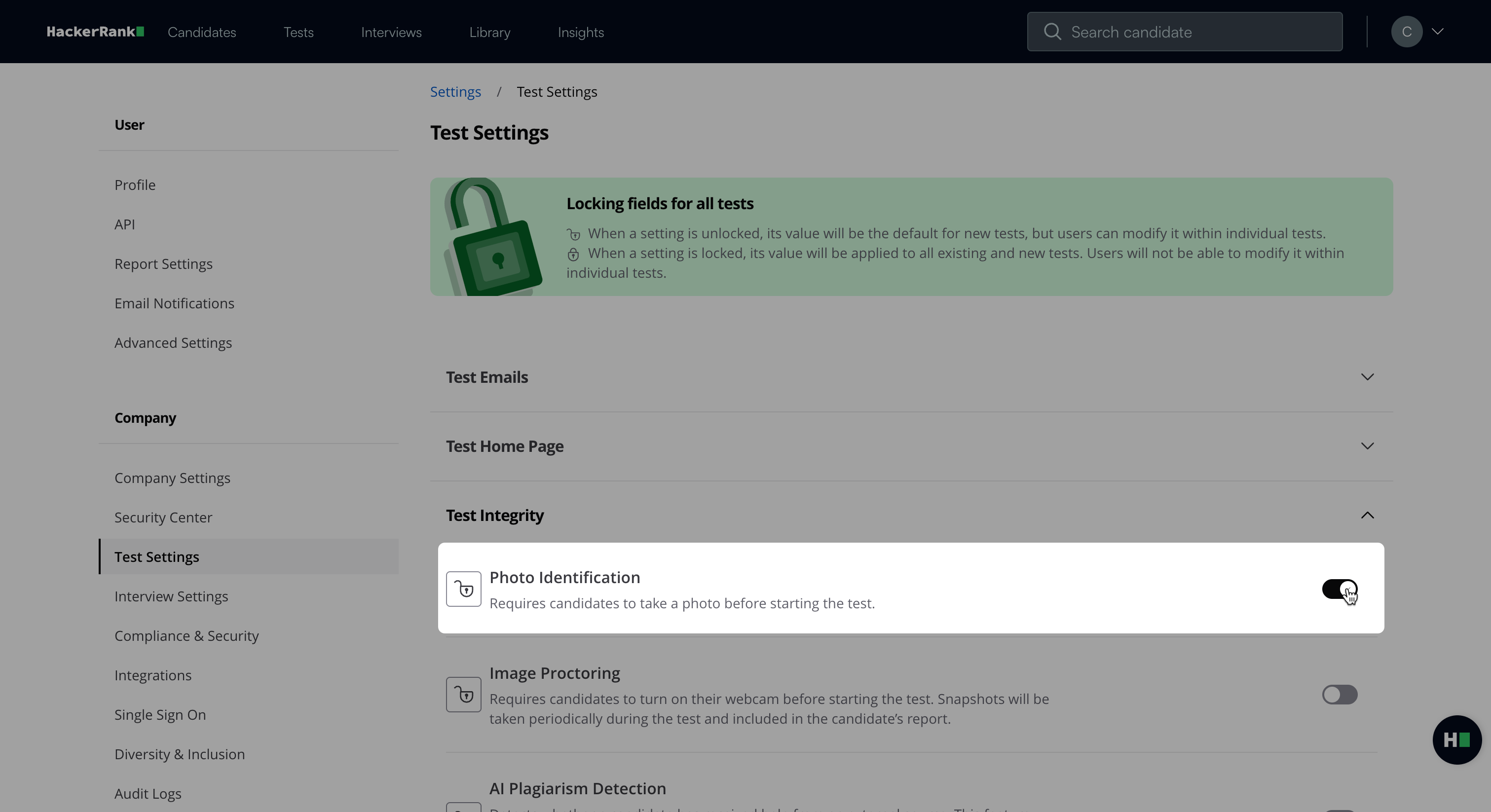
Click Save Changes.
Enabling Photo Identification at the test level
To enable Photo Identification at the test level:
Go to the Tests tab.
Select the test you want to configure.
Go to Settings > Test Integrity.
Turn on Photo Identification.
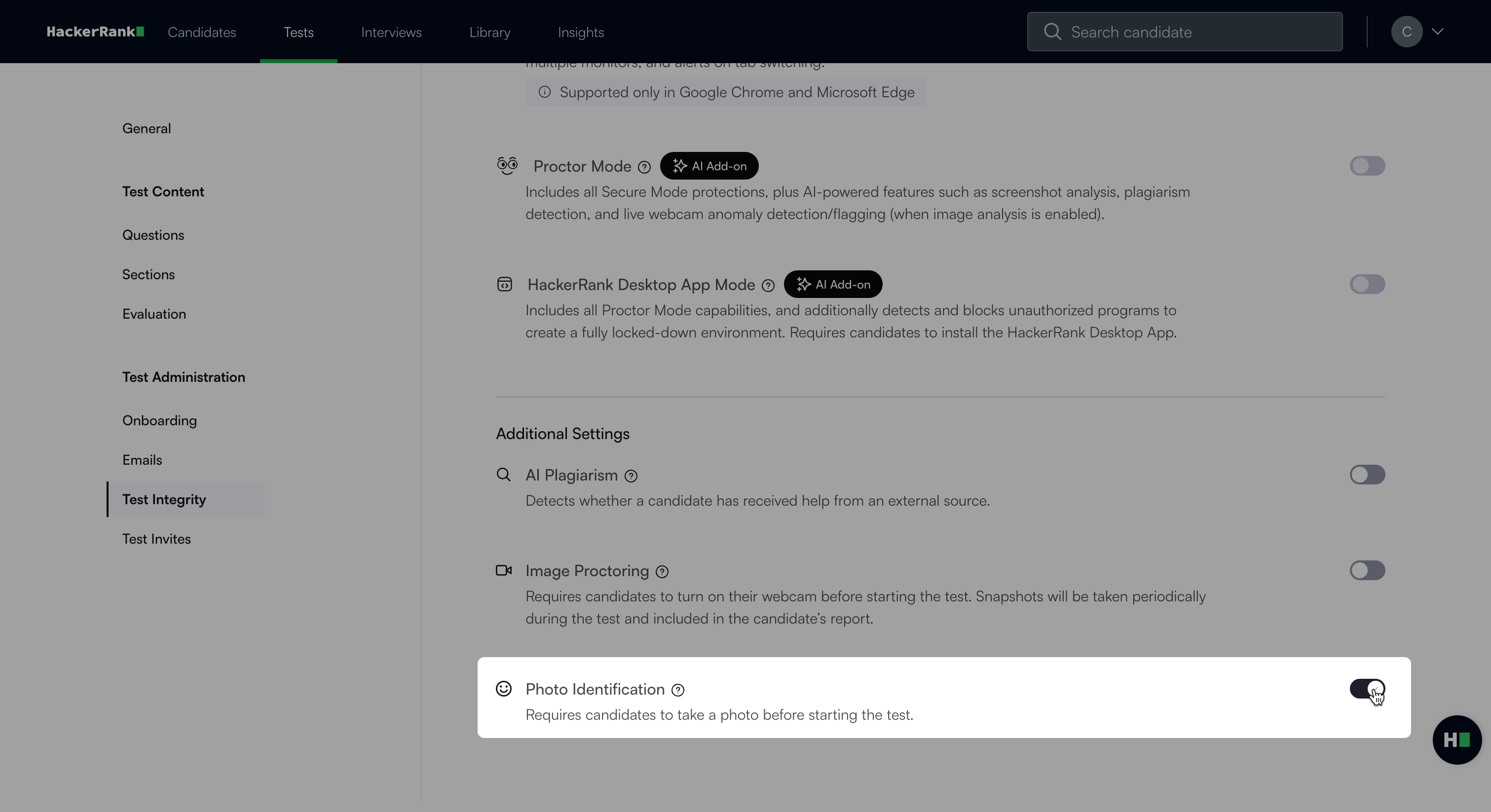
Click Save Changes.
How Photo Identification works
Before the test
The system prompts candidates to allow in-session photo capture access. Candidates must select Allow Photos under In-Session Photo Capture to proceed.
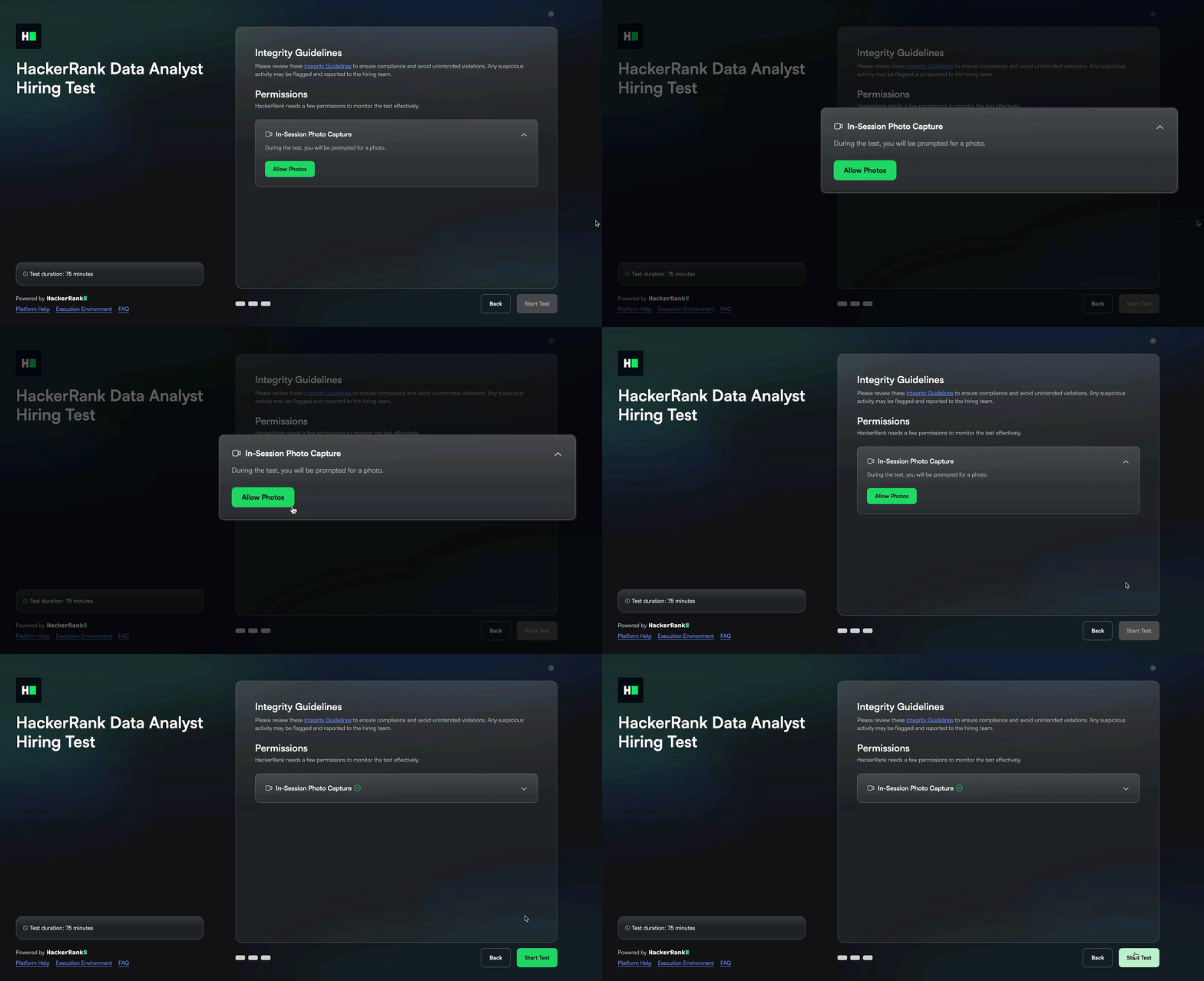
The system then prompts candidates to capture their photo for identity verification.
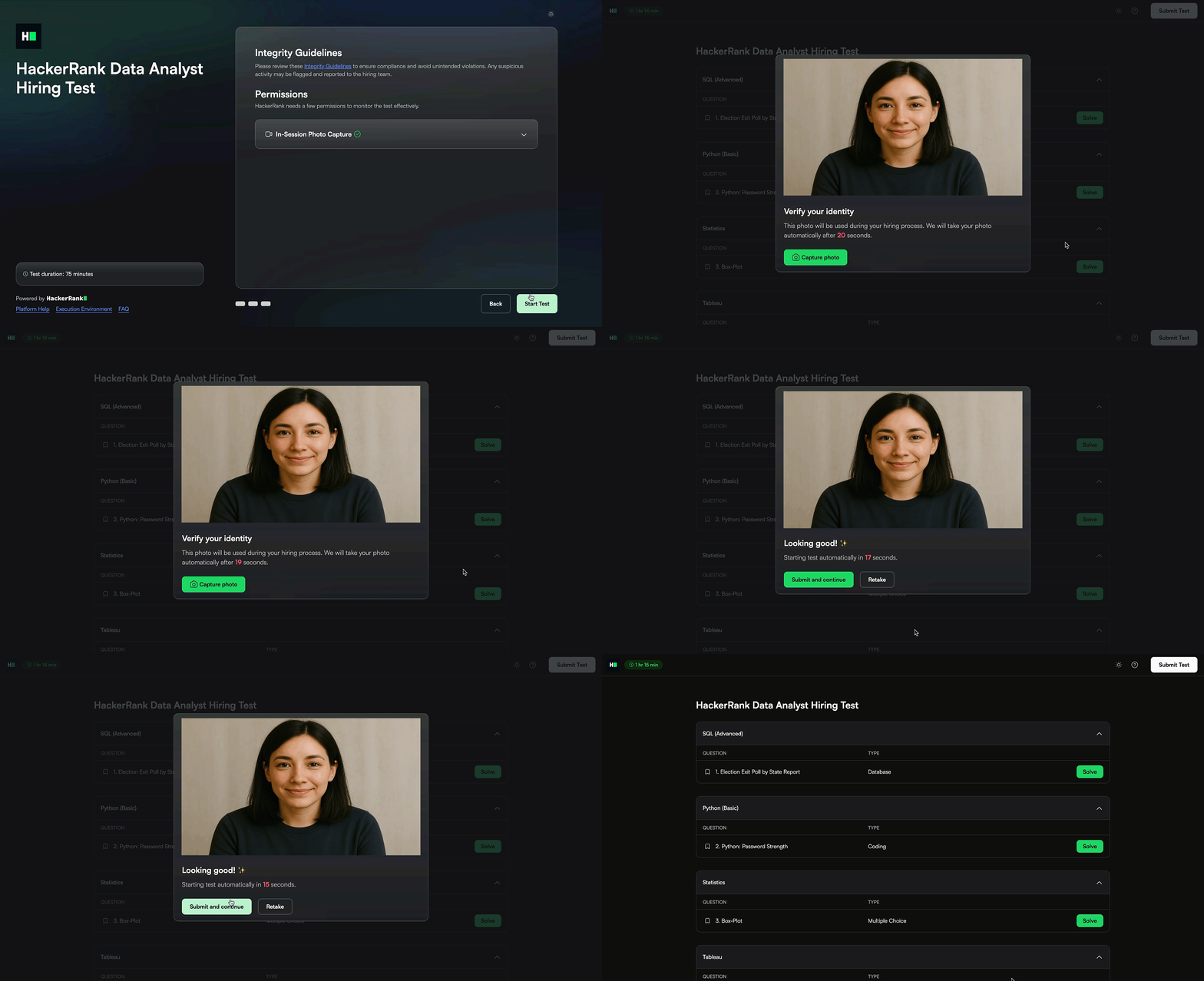
If a candidate does not capture the photo manually, the system captures it automatically after a short countdown. The test begins immediately after the photo is submitted.
Note: The system does not automatically validate or flag candidates based on their captured photo. The hiring team must manually verify each candidate’s photo after the test.
After the test
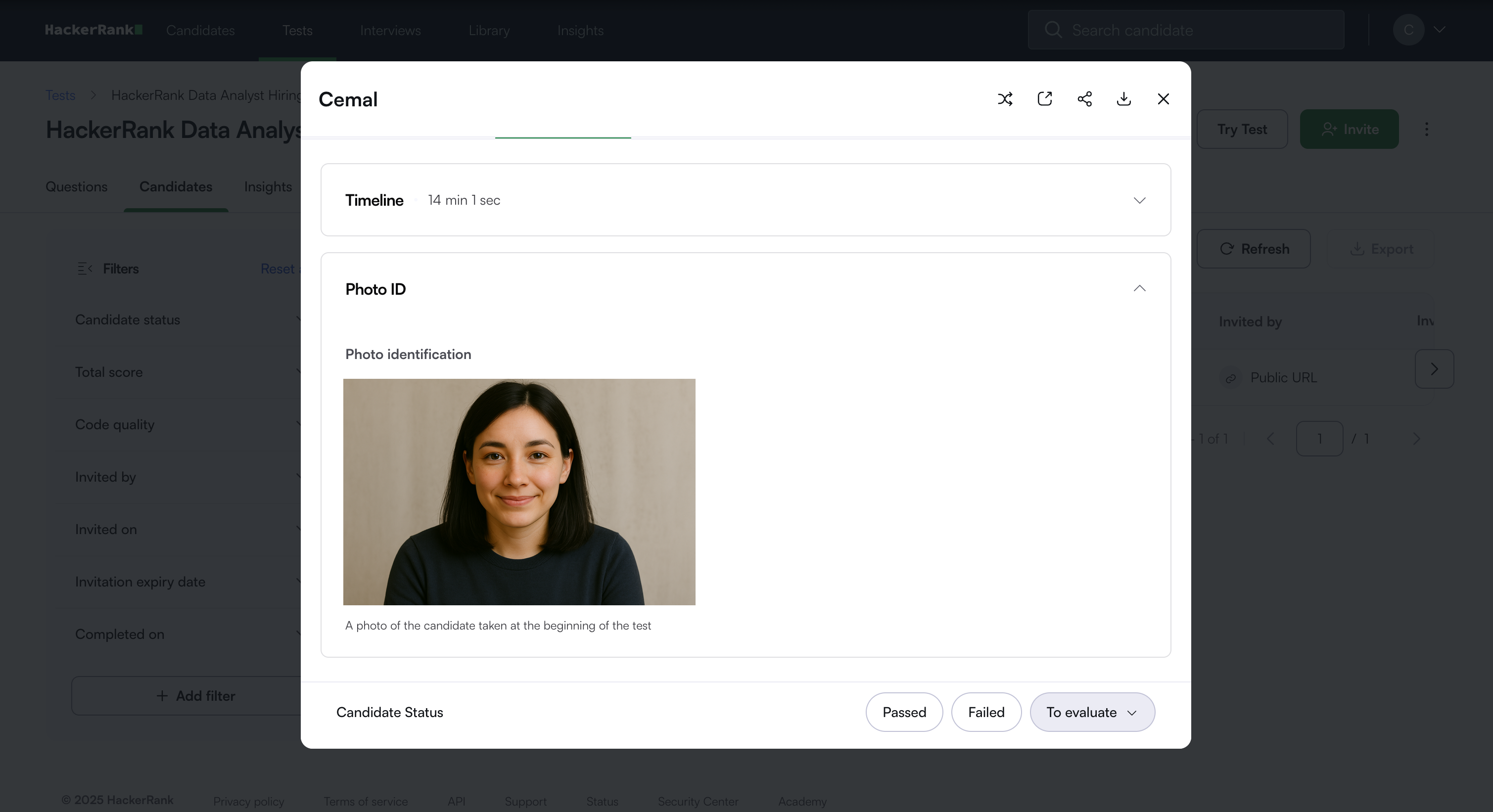
The captured photo appears in the candidate’s Summary Report for manual verification.
To view the candidate photo:
Open the candidate’s Summary Report. For detailed steps to access the Summary Report, see Accessing the Summary Report.
Go to the Attempt Activity tab.
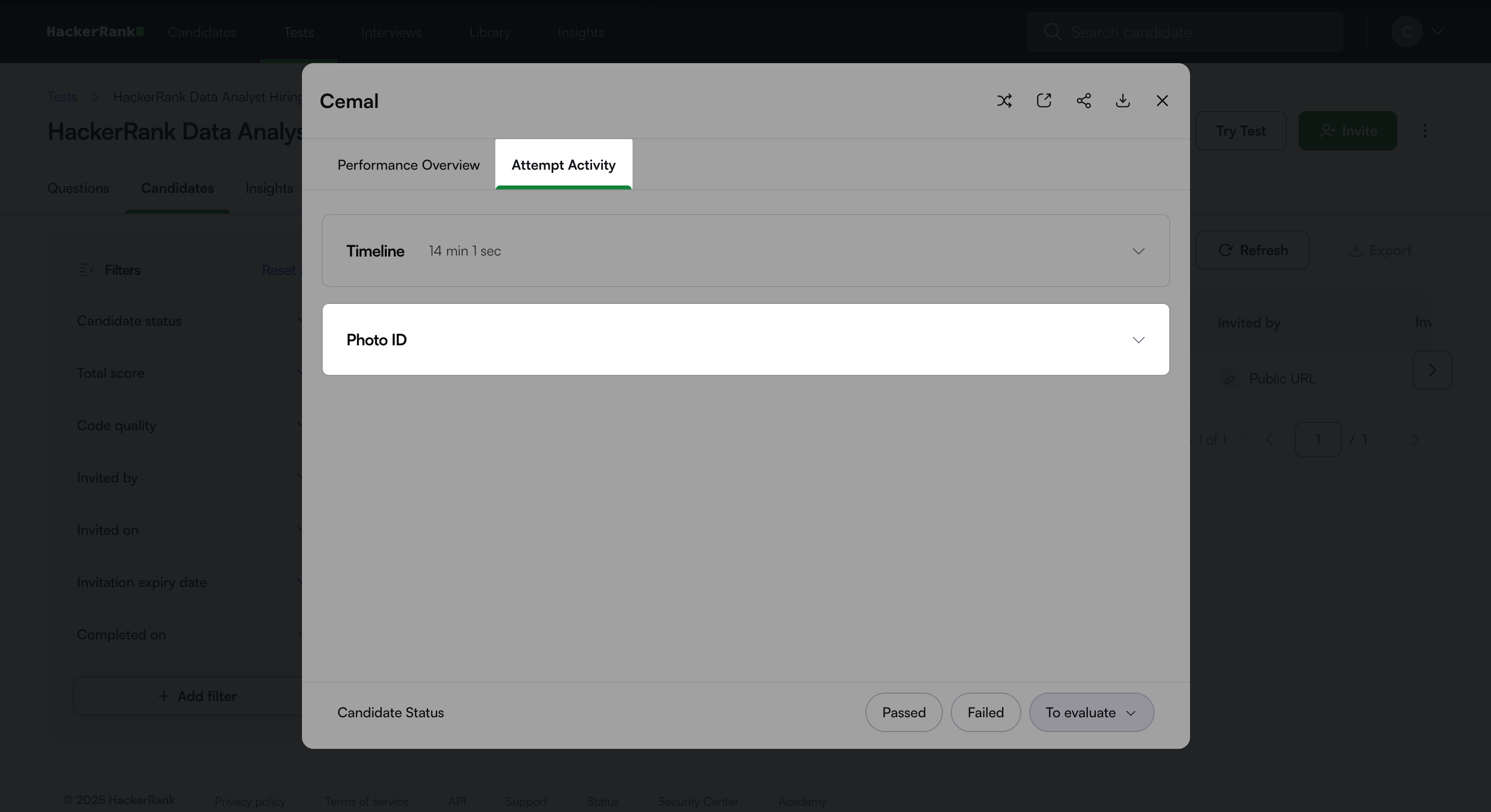
Expand the Photo ID section to view the photo.