Accessing SkillUp Employer Platform
Last updated: April 3, 2025
The SkillUp platform for employers consolidates skill-level data in a single portal.
To access:
Log in to your HackerRank account.
Navigate to the top menu and click on Hire.
Select SkillUp from the dropdown menu.
The platform consists of two main pages: Overview and Talent.
Overview Page
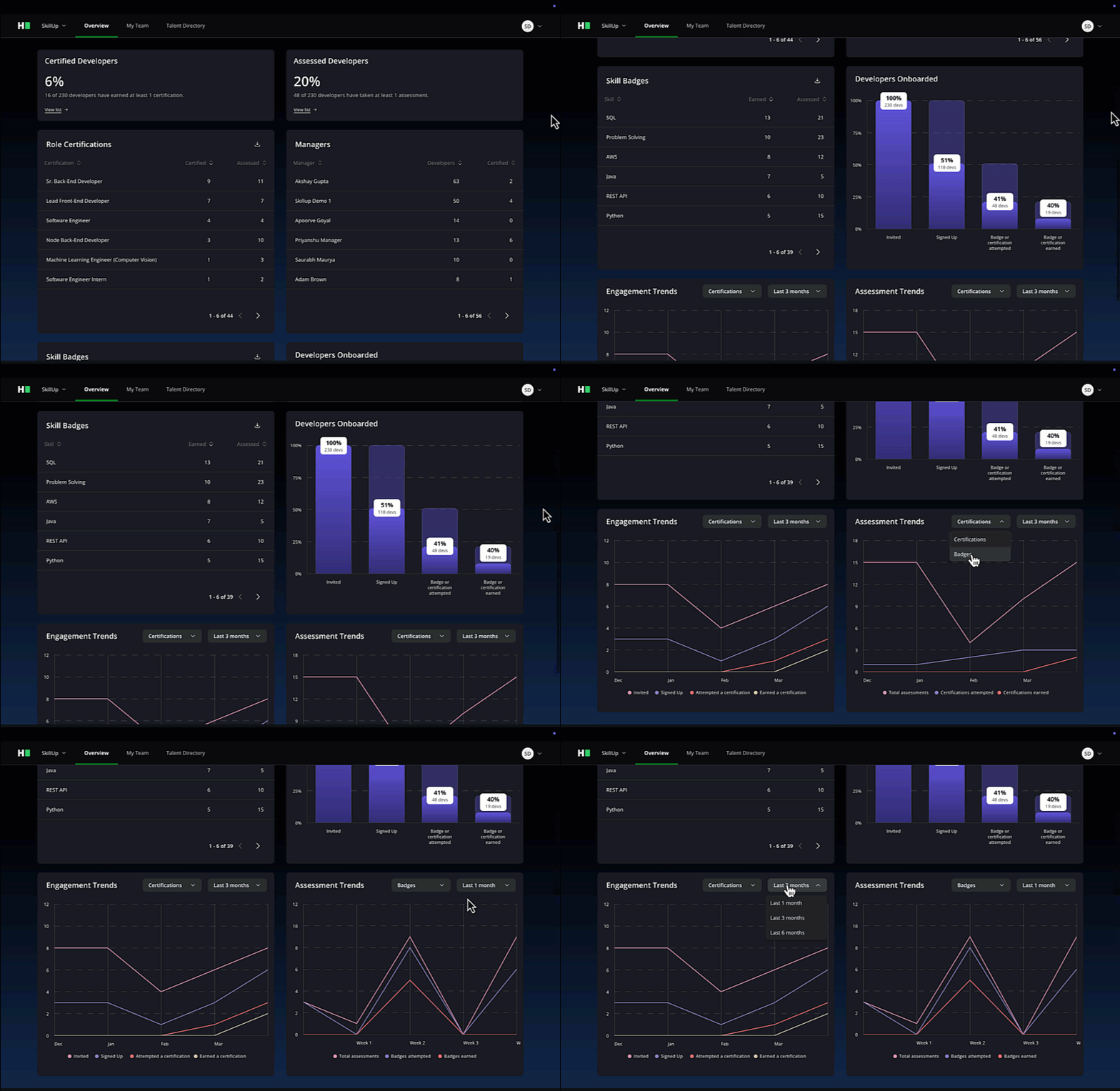
This section provides a graphical representation of your organization’s certified roles and skills.
Key Components
Company Overview: Displays metrics for certified developers, assessed developers, and onboarded managers. It also tracks certifications and skill badges earned within your organization.
Role Certification Funnel: Click on a role to see a detailed breakdown of employee certifications with the ability to download the data.
Certification Trends: View certification trends over time, filtered by specific roles or periods.
Engagement and Assessment Trends: View engagement and Assessment trends over time, filtered by certifications and badges.
Track Developer Actions: On the Developers Onboqarded dashboard, you can track the details such as:
Number of developers invited
Number of developers signed up
Number of developers attempted to get a badge or certification
Number of developers who completed a badge or certification
Talent Directory
The Talent directory helps organize your developers based on Designation, Certifications, and Skills Proficiency.
Features
Use filters to narrow down employees by Job Titles, Certifications, Skills, or Managers.
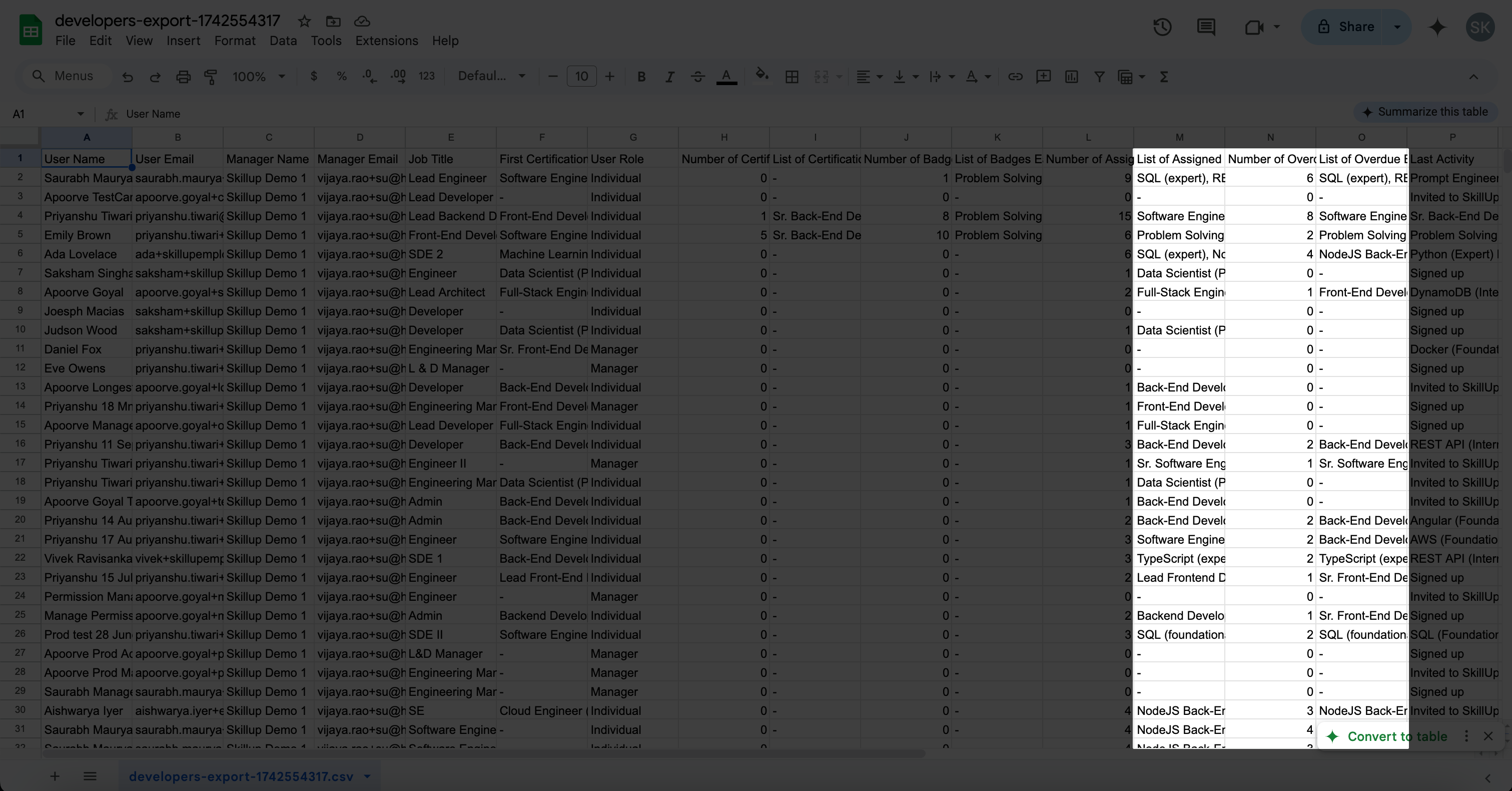
Click the Export button to export the data. The exported reports have clear formatting, helping you quickly find the assigned and overdue assignments.
Select any employee to invite them to a certification or skill badge test.

My Team Dashboard
Managers can access the My Team dashboard to review their team's progress.
The dashboard consists of two tabs:
Direct Reports: Displays data of team members who directly report to you.
All Reports: Displays data of all employees within your department beyond your direct reports.
Search and Export Data
Use the search bar to find employees. The filters will help refine the search based on skills, activities, and managers.
To download all of the employee data, click on the Export option.

Track Employee Progress
Click on the employee's name to view their progress. The slider highlights all the certifications self-assigned or assigned by the employer. You can click on the certification name to expand the timeline of events. Further, you can send reminders and a due date for the certification.

Note: You cannot send reminders or set a due date for the self-assigned certifications.
User Management
The User Management section provides access to all users within your organization.
To access:
Click the profile icon.
Select User Management.

You can filter users and add new ones by clicking Add New Users. There are two types of users:
Individual Users: Developers in your organization with SkillUp accounts. They can access the platform to earn skill badges and certifications.
Organizational Users: Admins or managers who oversee teams of developers.
You can modify user roles by clicking the three dots next to a user’s name and selecting Modify User Role.

Inviting Employees for Certification or Badge
You can invite the employees/team members to take new certifications or badges.
To invite an Employee:
Select an Employee from the dashboard.
Click Invite to Badge/Certification.
Choose the certification or badge in the pop-up window and set the due date.
Customize the email content if needed and send it to the selected Employees.


