Set Team Logo and Sender Name
Last updated: March 11, 2026
You can set the logo and sender name for each team. The logo and sender name appear in all candidate invitation emails sent by users in that team.
Prerequisites
You must have created a team.
You must have admin access to manage teams.
Set a logo at the team Level
To set a logo at the team level:
Log in to HackerRank for Work using your credentials.
Select your profile icon in the upper-right corner.
Select Teams Management from the drop-down menu.
Select the Teams tab.
Locate the team you want to update and click the three-dot menu next to it.
Select Set logo at team level.
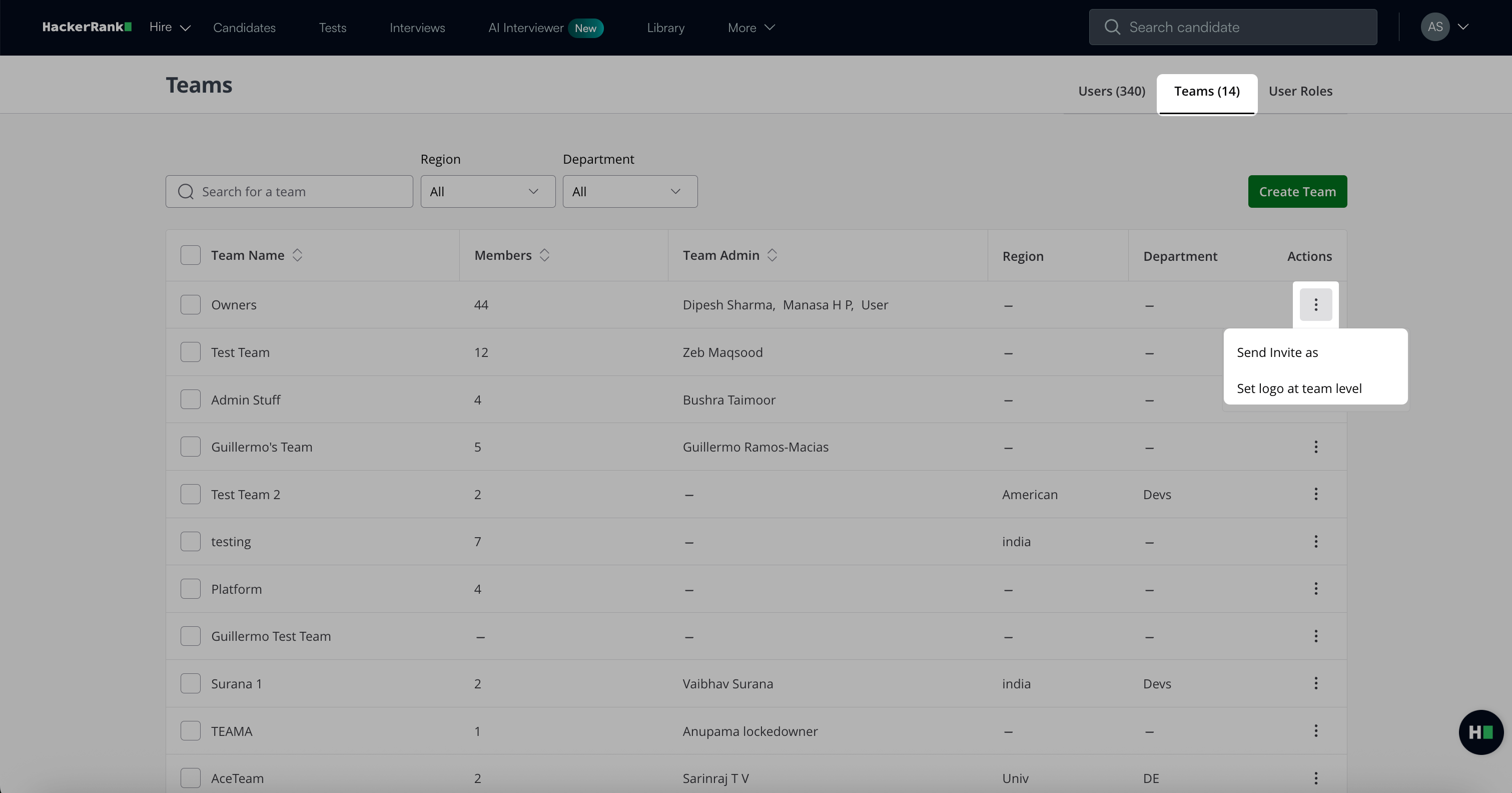
In the Set team logo dialog box, choose an existing logo or upload a new one.
Click Set Logo.
Your changes apply immediately.
Set a sender name at the team level
To set a sender name at the team level:
Log in to HackerRank for Work using your credentials.
Select your profile icon in the upper-right corner.
Select Teams Management from the drop-down menu.
Select the Teams tab.
Locate the team you want to update and click the three-dot menu next to it.
Select Send Invite as.
In the Send Invite as dialog box, enter the sender name you want candidates to see.
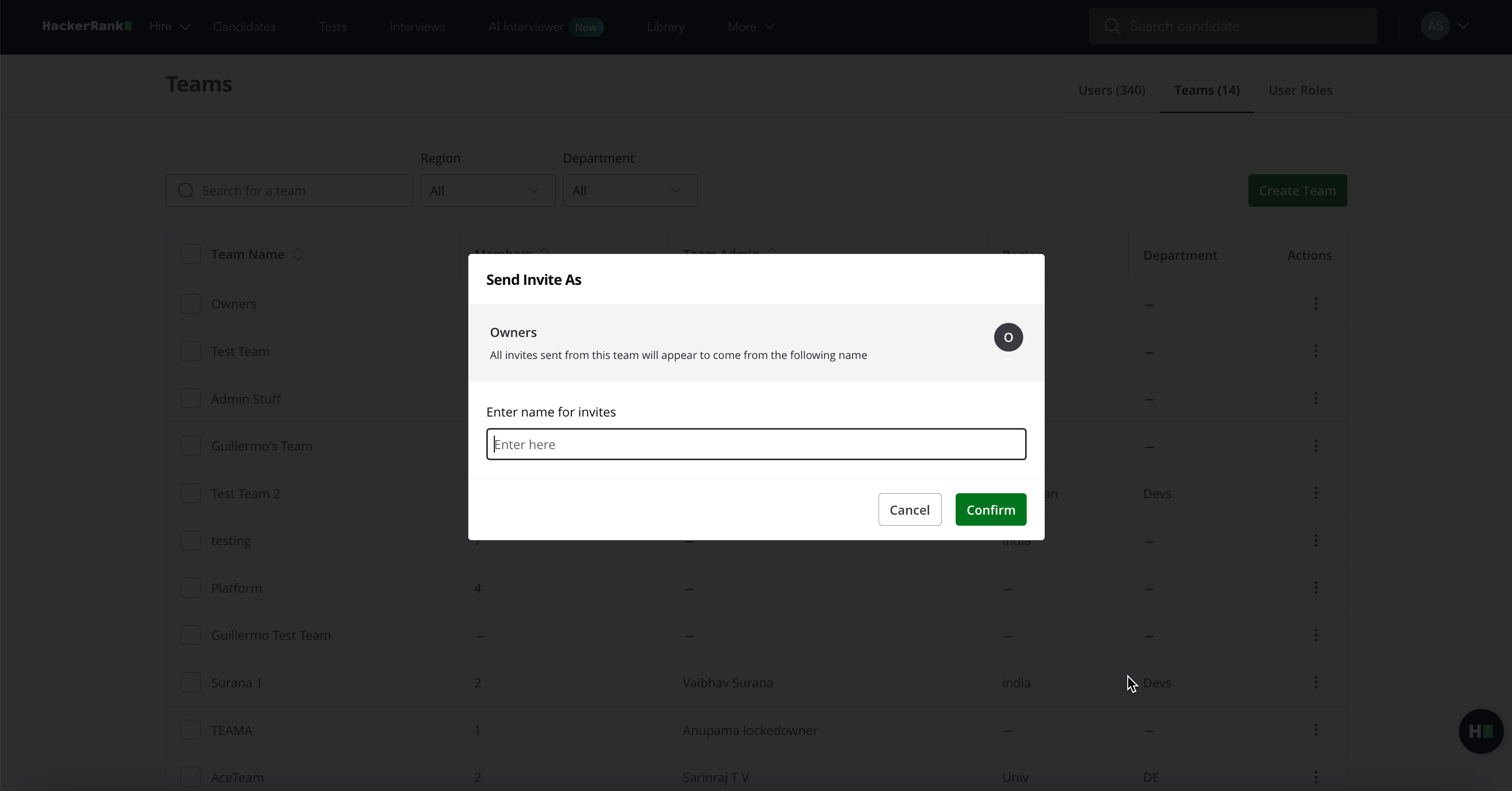
Click Confirm. All invitations sent from this team will display this sender name.
Important Note: If a user belongs to multiple teams, the sender name set at the team level does not apply.