Lock User Access
Last updated: April 23, 2026
HackerRank for Work lets you lock user access to prevent users from accessing the platform. You can lock individual users or multiple users.
Prerequisite
You have Team Admin or Company Admin access.
Locking user access
To lock user access:
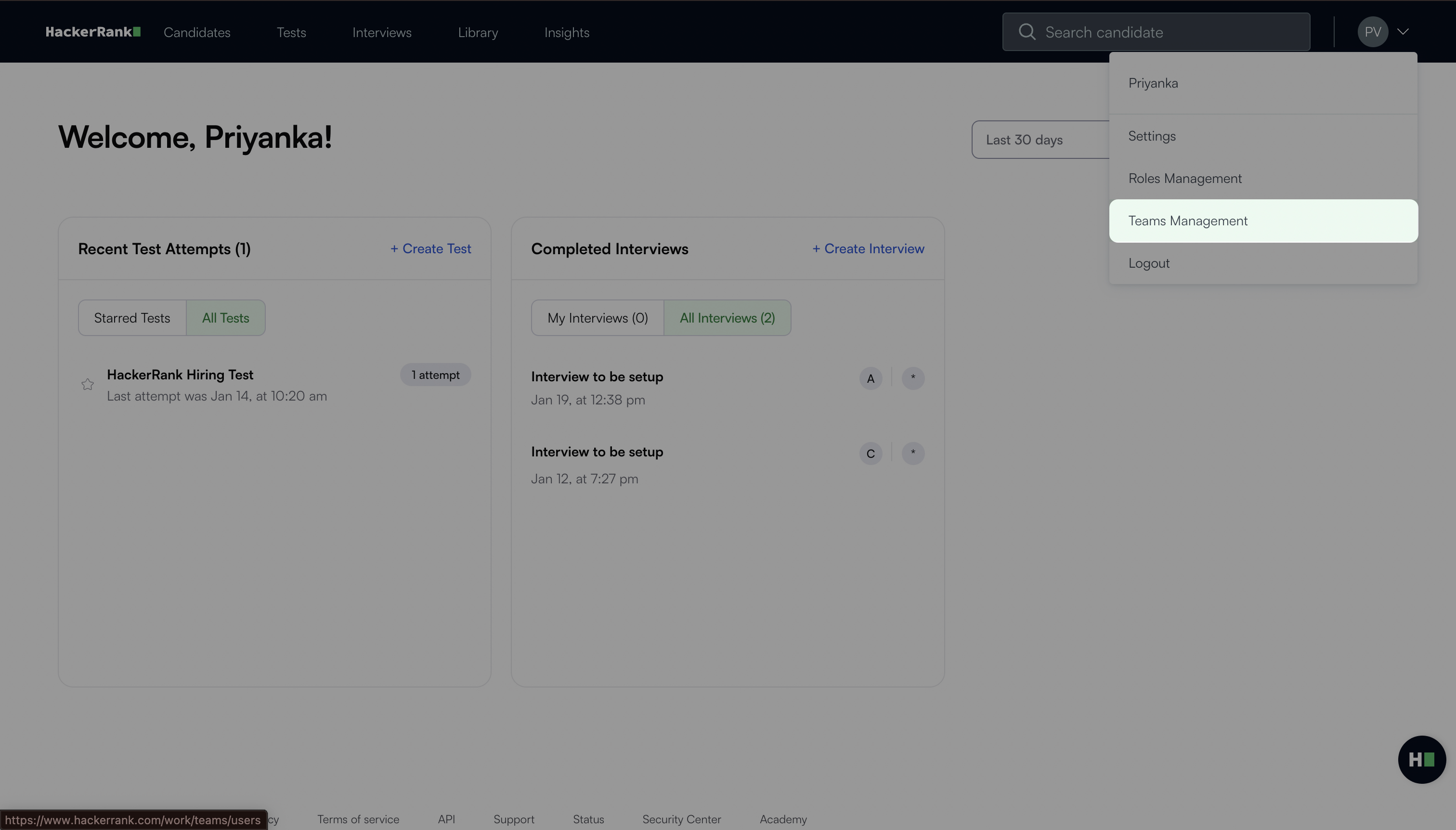
Log in to your HackerRank for Work account using your credentials.
Select your profile icon in the upper-right corner.
Select Teams Management from the drop-down menu.
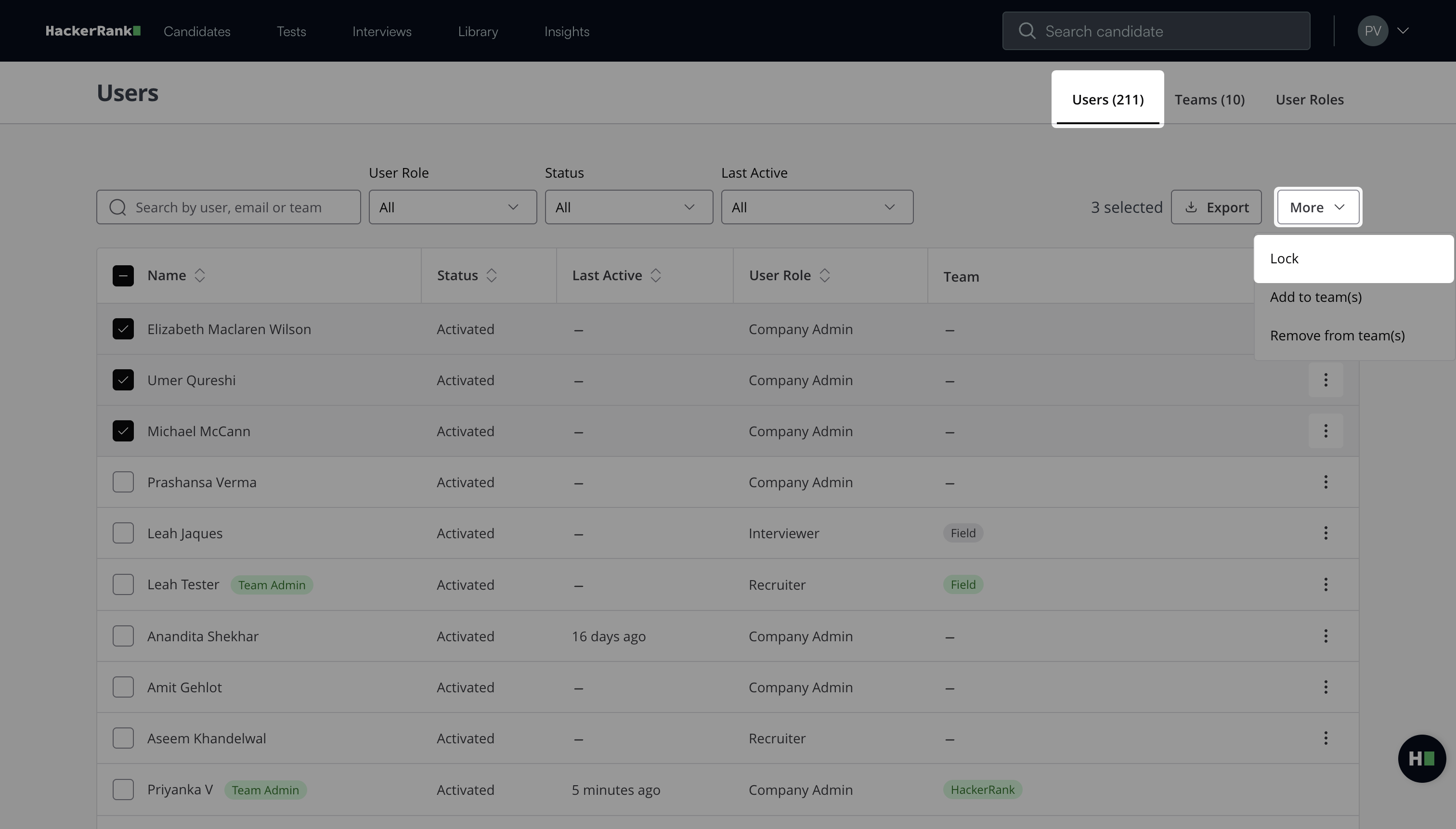
Go to the Users tab.
Select one or more users.
Click More and select Lock.
In the Lock Users dialog:
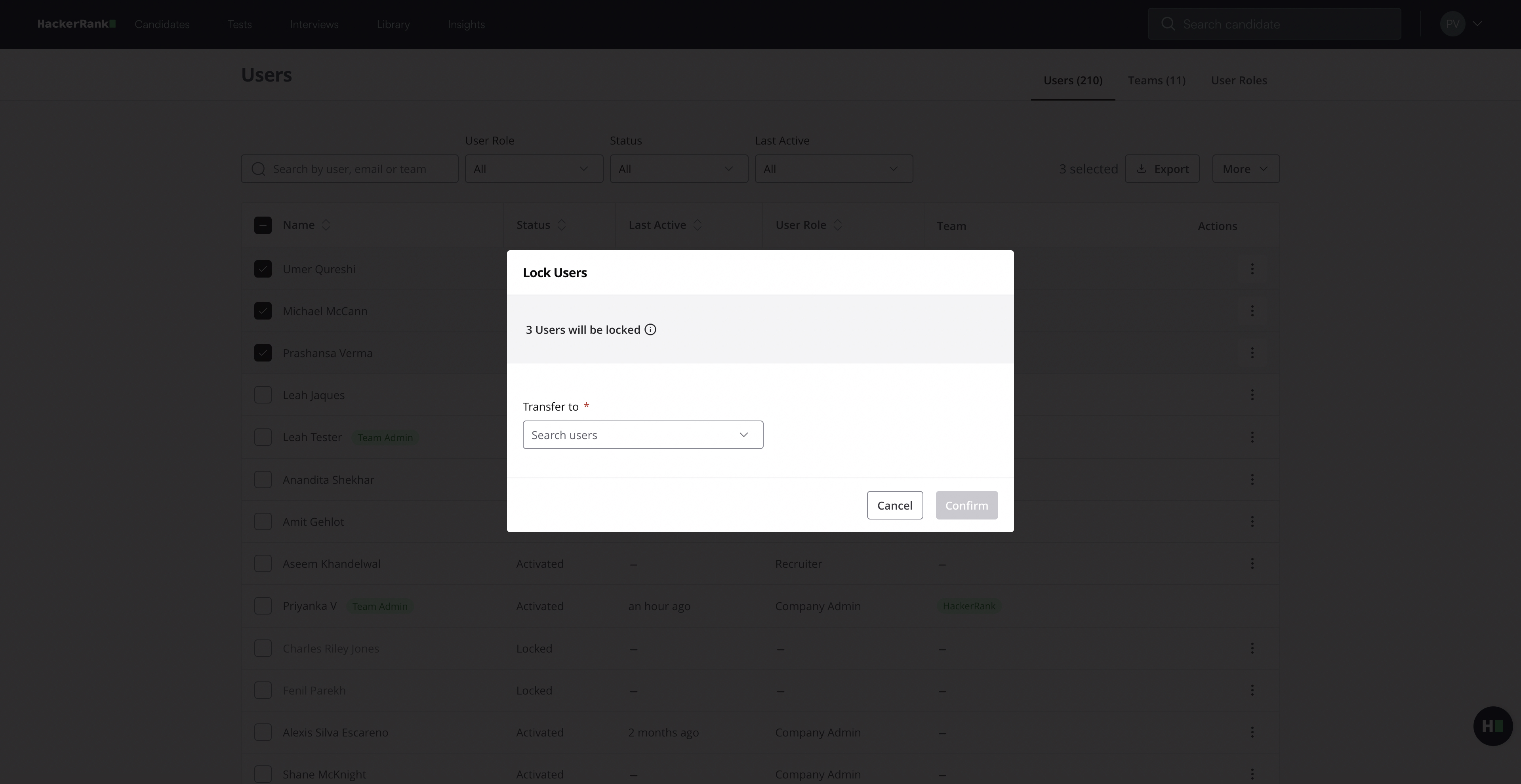
Select a user under Transfer to to transfer resource ownership. For more information, see 📄 Transfer Resource Ownership.
Click Confirm.
The platform transfers resources and locks the selected users. The account remains available for reuse.
Locked users cannot log in and see an error message if they attempt to access the platform.
Note: If a user belongs to only one team, removing the user from that team or deleting the team locks the user.
Unlocking user access
You can unlock a user account to restore access to the platform at any time.
To unlock user access:
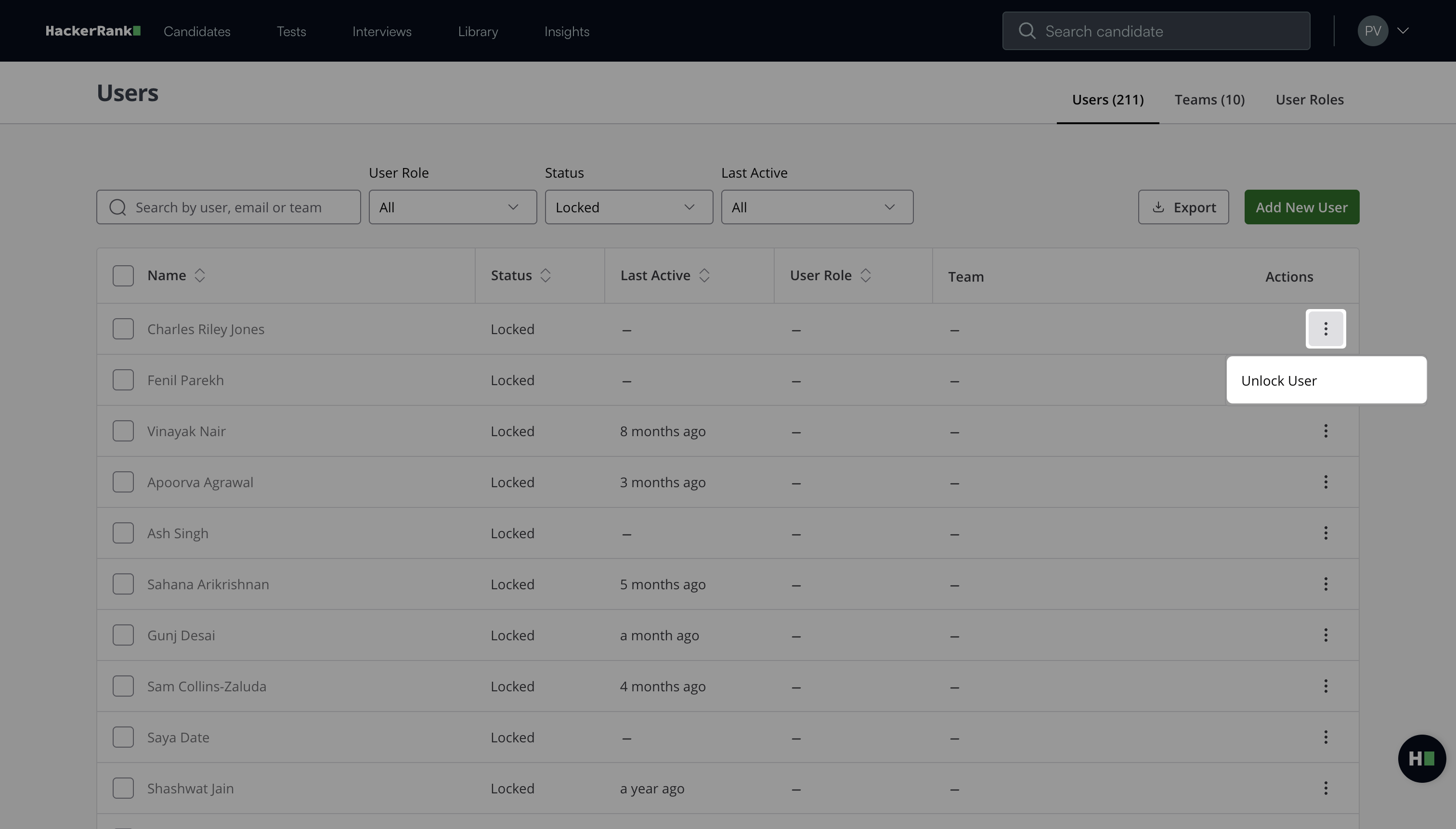
Go to the Users tab.
Locate the user you want to unlock.
Click the more options menu under Actions.
Select Unlock User.
In the Unlock Users dialog:
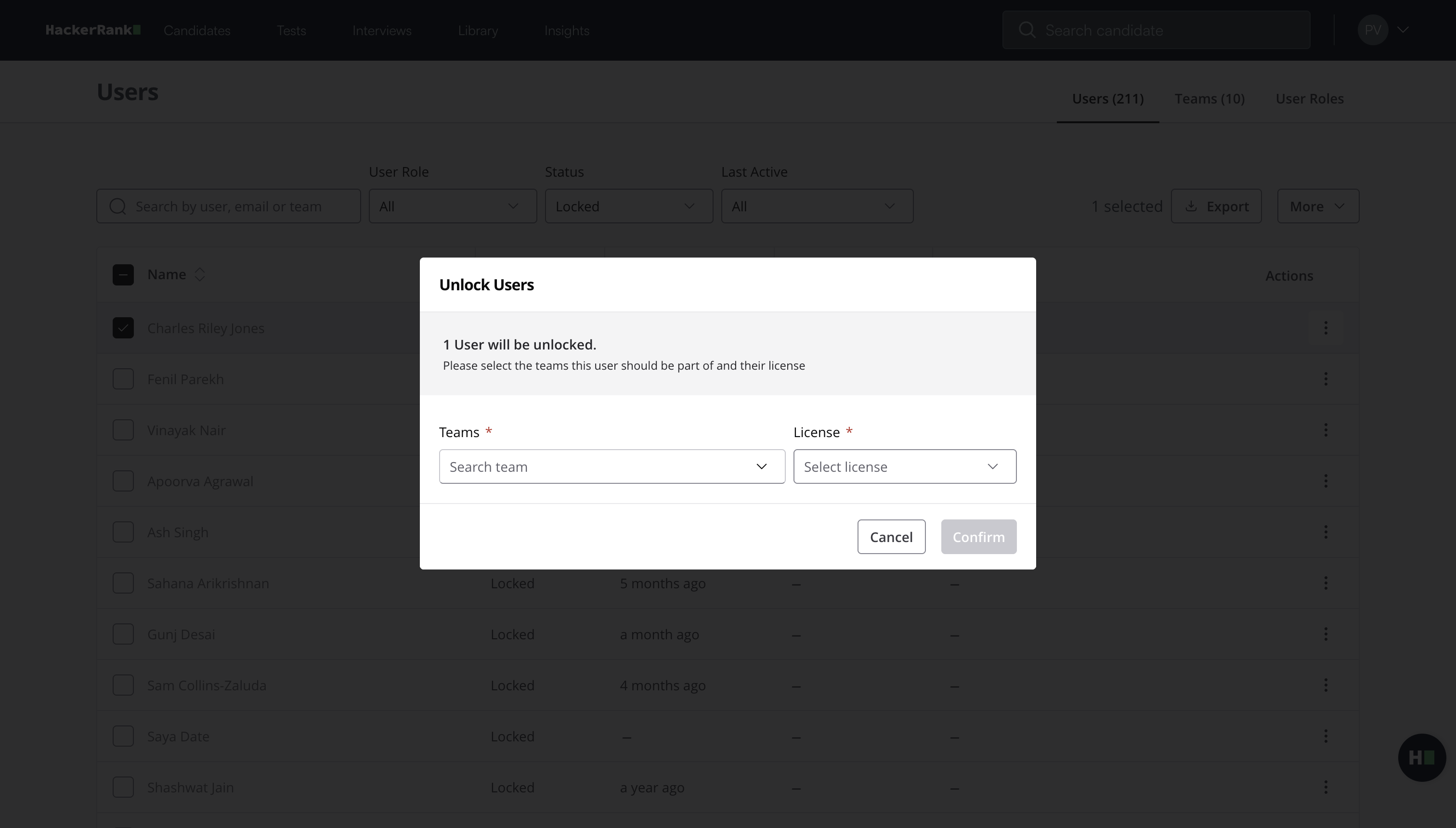
Select the team to assign the user.
Select a license. For more information, see 📄 Types of User Roles.
Click Confirm.
The user is unlocked and can access the platform.