HackerRank Desktop App Mode
Last updated: July 22, 2026
This feature is part of the AI Add-on. For more information, see 📄 HackerRank AI Add-on.
HackerRank Desktop App Mode allows you to conduct tests in a secure, lightweight desktop application. This mode provides stricter proctoring controls that are not possible in web browsers.
When you enable Desktop App Mode, the following integrity controls apply:
Prevents candidates from sharing remote access to their systems.
Prevents candidates from sharing their screen or taking screenshots.
Blocks the use of other applications during the test, including tools such as Cluely, video conferencing, messaging applications, or LLM applications.
Enforces full-screen mode throughout the test and does not allow candidates to navigate away from the test interface.
Prevents the test from running on a virtual machine.
Desktop App Mode includes all features available in 📄 Proctor Mode and provides the highest level of integrity controls for administering tests on the HackerRank platform.
Note: HackerRank Desktop App supports the following question types: Approximate Solution, Code Repository, Code Review, Coding, Database, Diagram, File Upload, Multiple Choice (MCQ), Projects (Back-end Developer, Data Science, DevOps, Front-end Developer, Full-stack Developer, and QA), Sentence Completion, Subjective, and Whiteboard.
Enable HackerRank Desktop App Mode
HackerRank Desktop App Mode builds on the features of Proctor Mode. To use it in tests, first enable Proctor Mode at the company level, and then enable Desktop App Mode at the test level.
To enable HackerRank Desktop App Mode:
Step 1: Enable Proctor Mode in Company Settings
Log in to your HackerRank for Work account using your credentials.
Go to Settings > Test Settings.
In the Test Integrity section, turn on Proctor Mode.
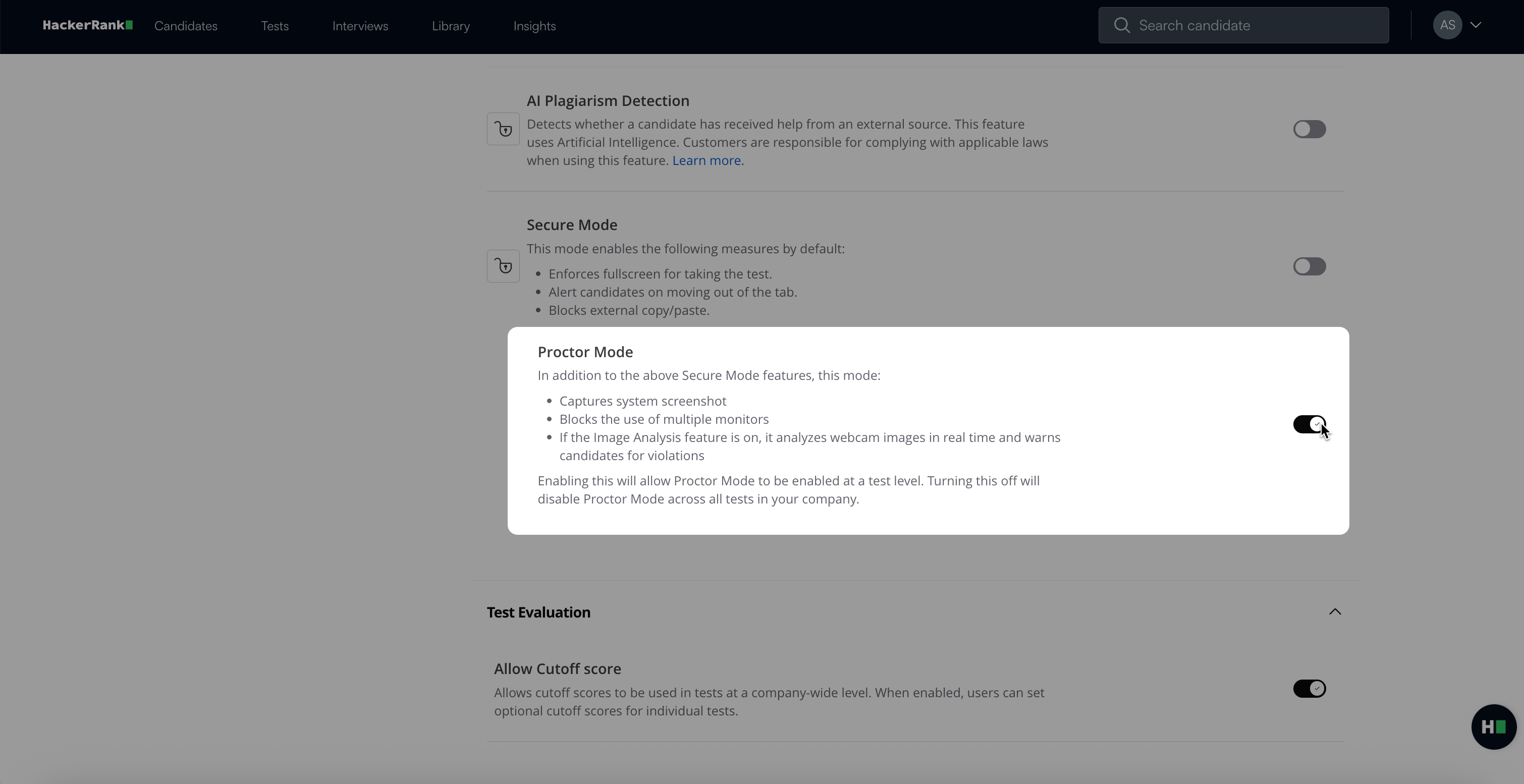
In the confirmation dialog box, click Agree & Enable.
Click Save Changes.
Step 2: Enable HackerRank Desktop App Mode at the test level
Go to the Tests tab.
Select the test you want to configure.
Go to Settings > Test Integrity.
Turn on the HackerRank Desktop App Mode toggle.
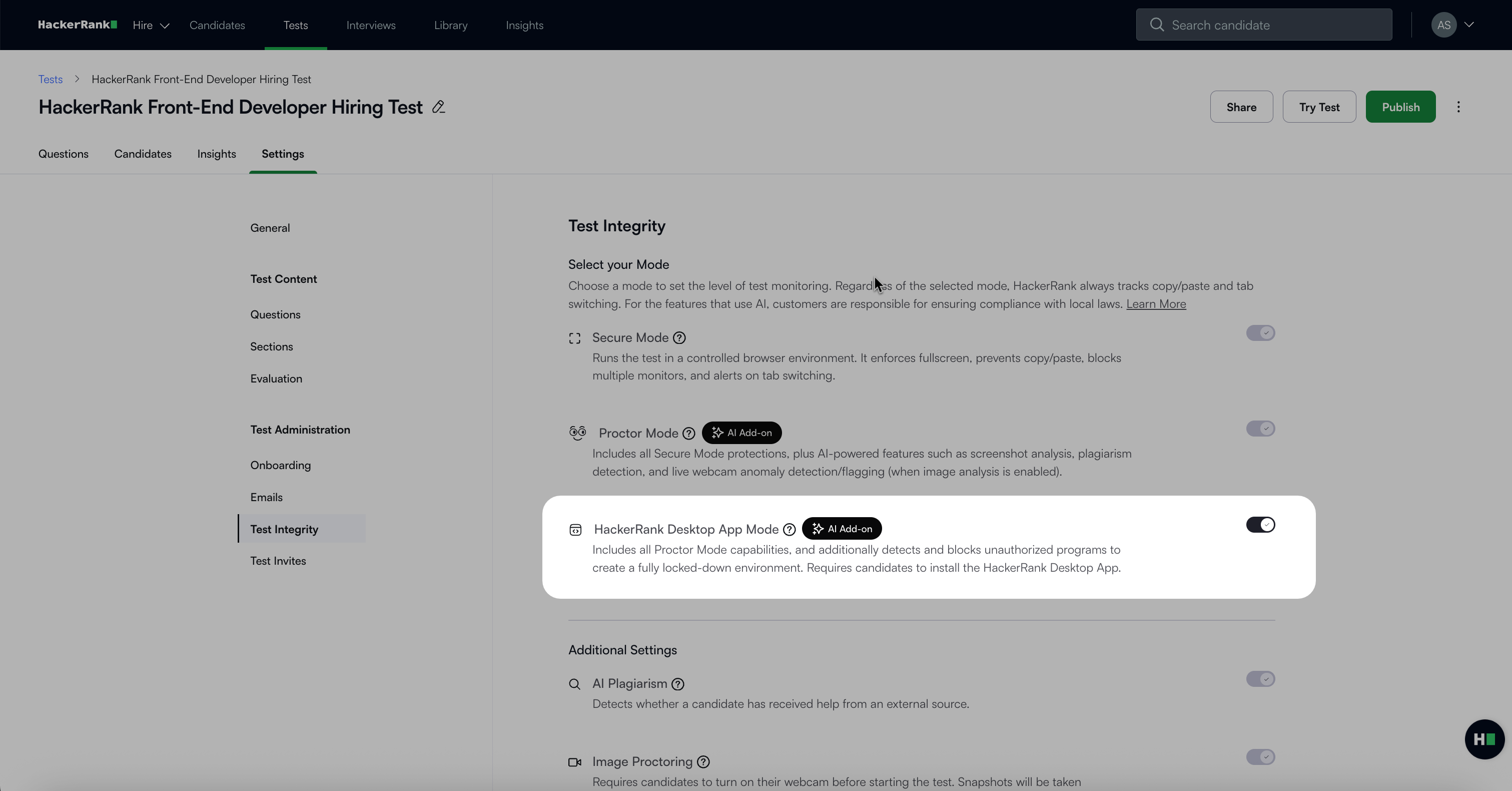
Click Save Changes.
Note: When HackerRank Desktop App Mode is enabled, AI Plagiarism Detection and Image Analysis are enabled by default.
How HackerRank Desktop App Mode works
Desktop App Mode enforces integrity at every stage of the test session.
Before the test
Candidates follow a guided onboarding flow that prepares them for the test and prevents integrity issues.
Download desktop application: Candidates download a lightweight HackerRank desktop application, available for Windows and macOS. Once downloaded, candidates click Start Test to launch the application.
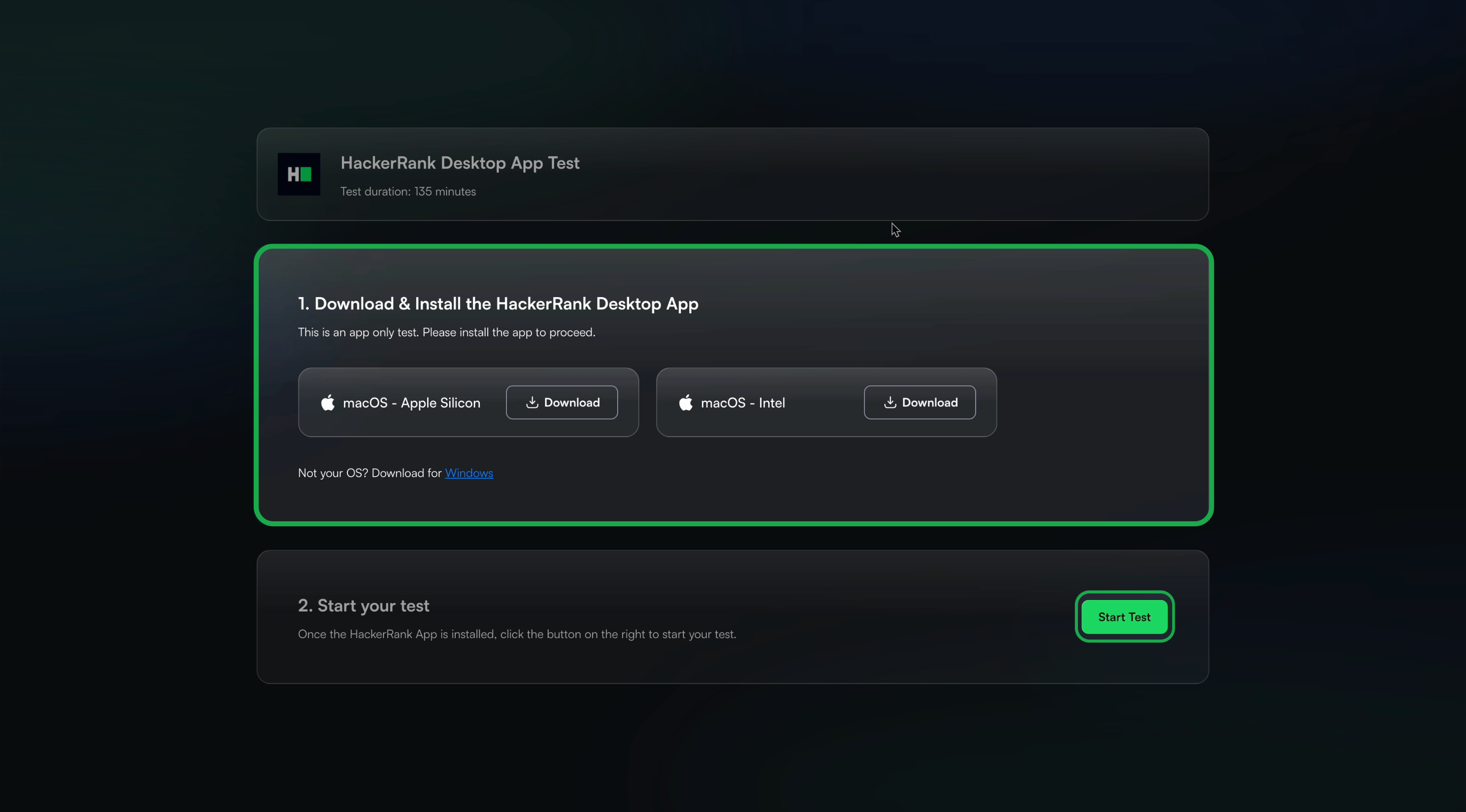
System permissions: When a candidate uses the desktop application for the first time, they must grant the required system permissions. These permissions allow the application to monitor the candidate’s system effectively during the test.
Consent and test rules: Candidates review and acknowledge a list of prohibited actions, such as switching tabs or using external tools, and must give consent to proceed.
Permissions: Candidates must grant the following permissions to start the test:
Close additional applications: Candidates must close unauthorized applications before starting the test. They can close them manually or click Force Close All Apps.
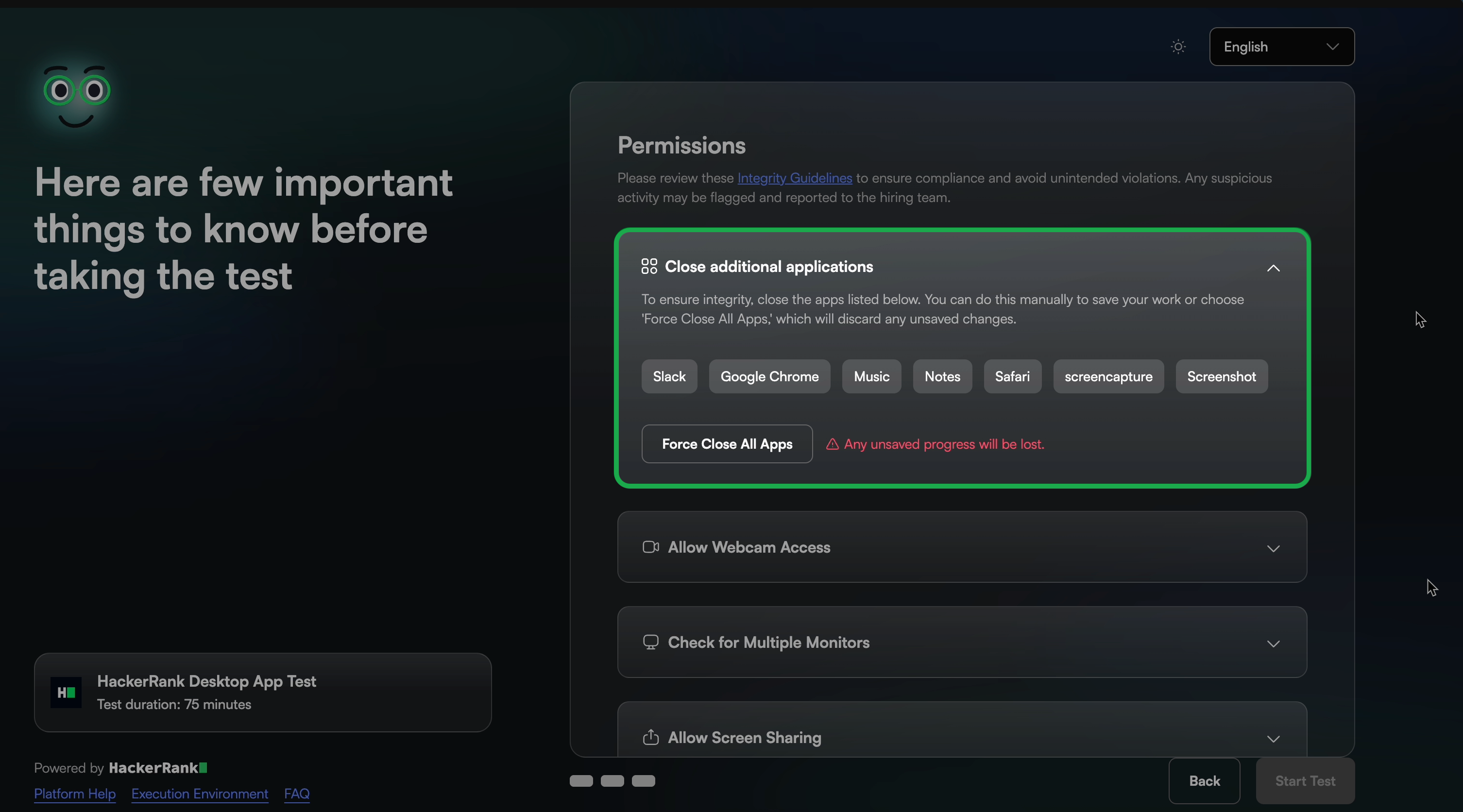
Webcam access: Allows the system to monitor and record the candidate through the webcam during the test.
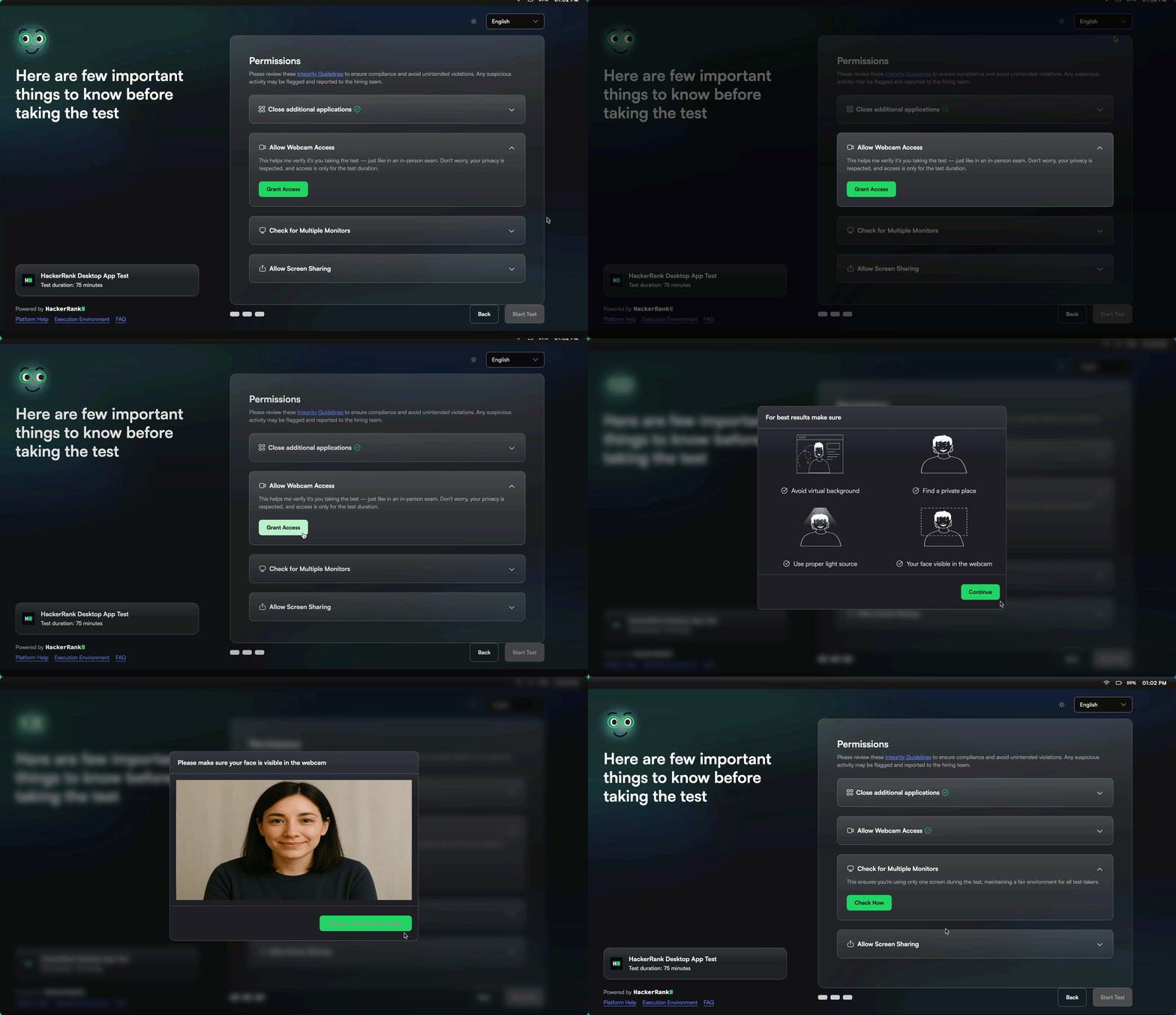
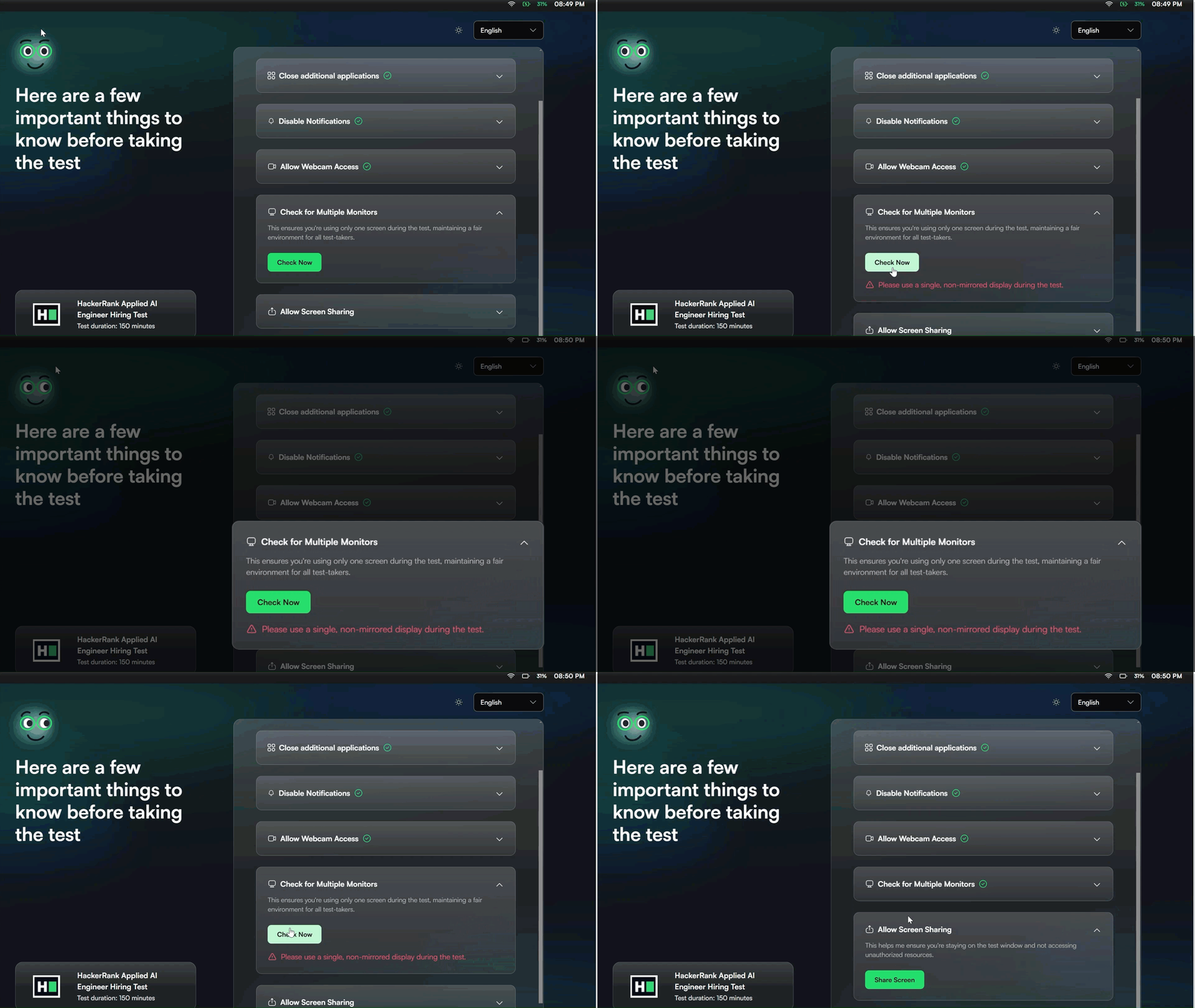
Multiple monitor and screen mirroring check: The system checks for multiple monitors and screen mirroring (when the screen is duplicated on another display). Candidates can start the test only if a single, non-mirrored display is in use.
Screen sharing access: Allows the system to monitor the candidate’s screen activity during the test.
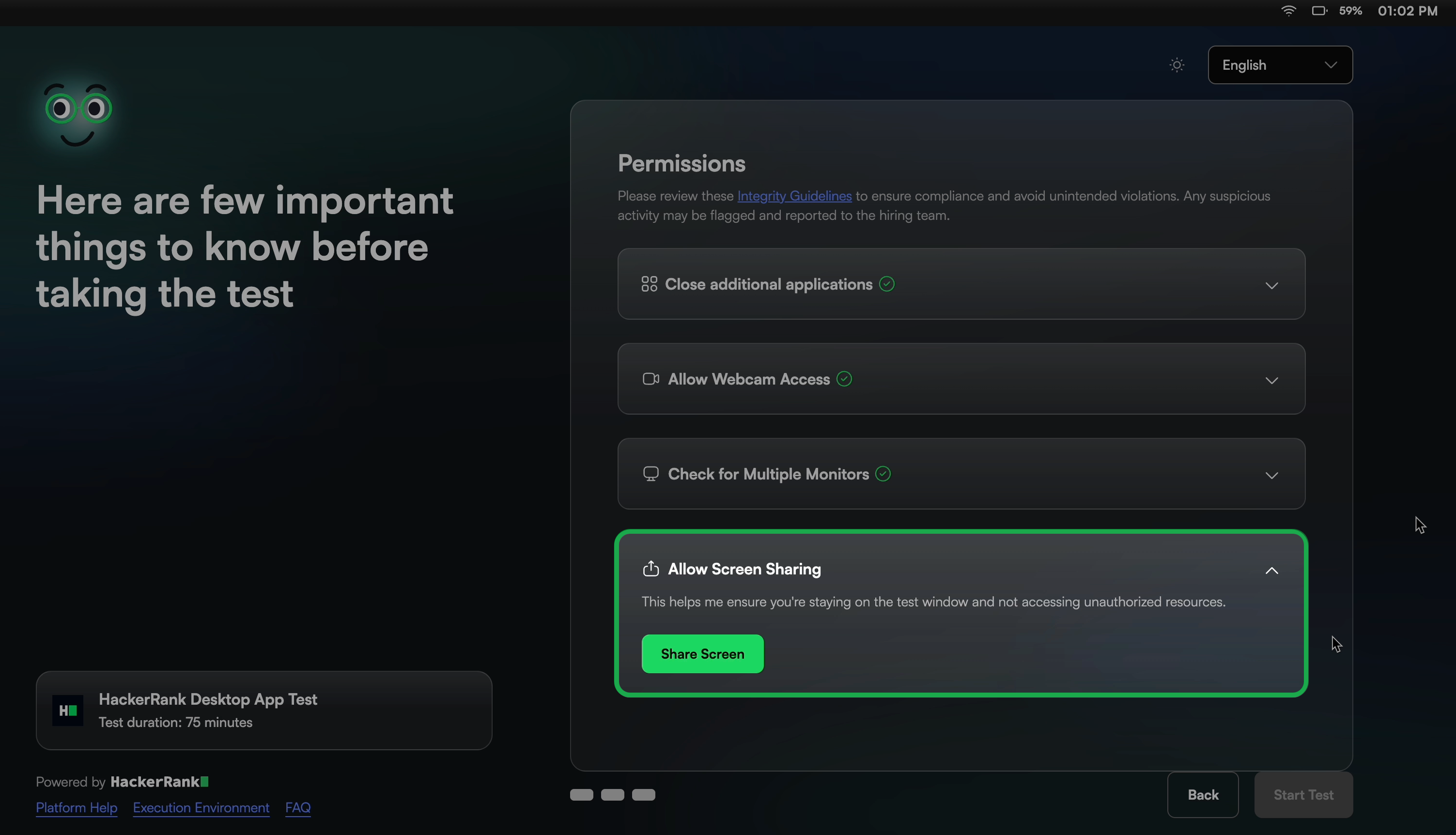
Once candidates select Start Test, the application launches the test in full-screen mode. Candidates can exit full-screen mode after completing the test.
During the test
Full-screen enforcement: The application prevents candidates from exiting full-screen mode or switching to other applications. It blocks all such attempts. If a candidate bypasses these restrictions, the system automatically flags and logs the activity.
Application monitoring: The application detects and closes any other programs that candidates try to open during the test, including invisible cheating tools such as Cluely and Ultracode.
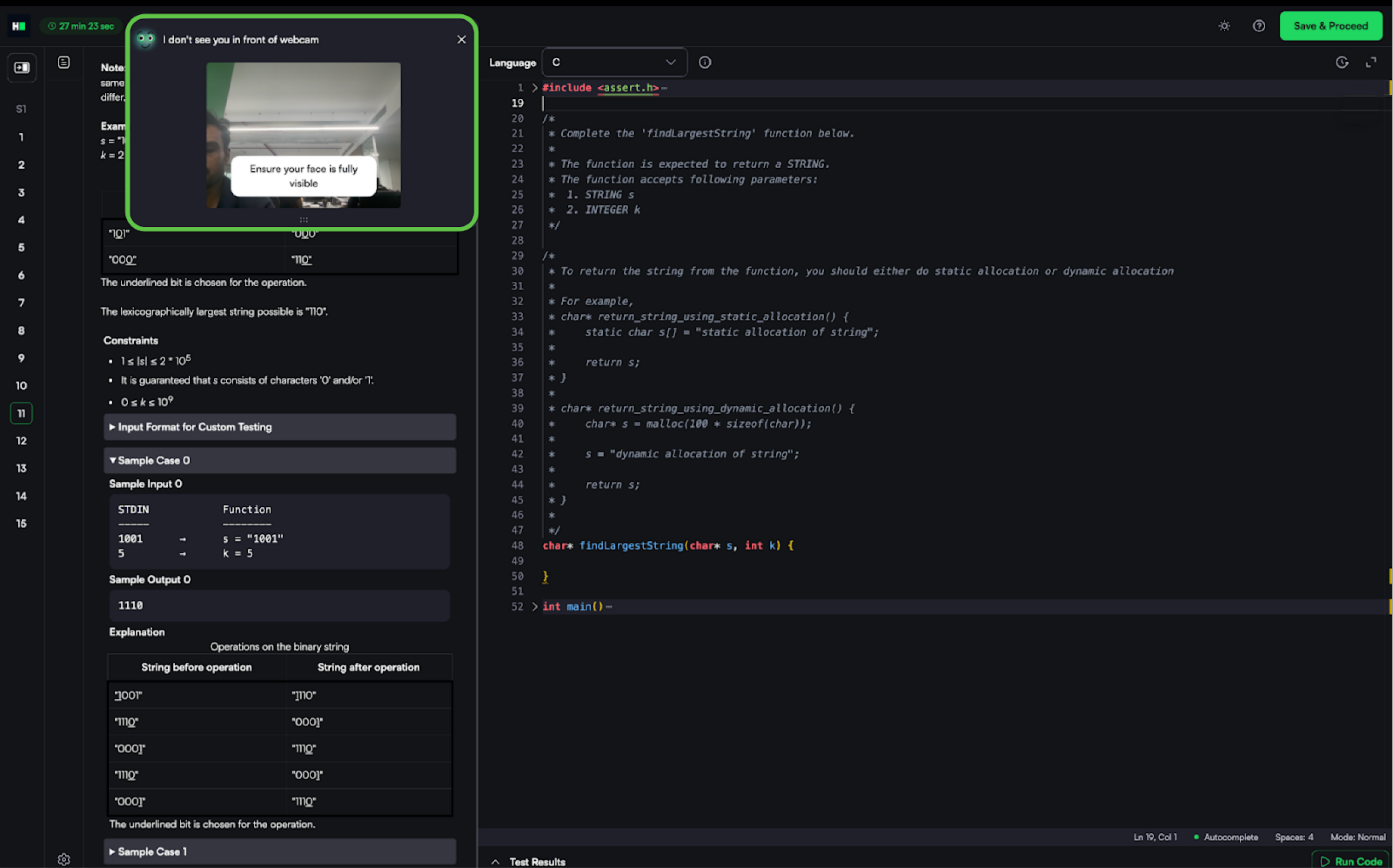
Webcam monitoring: AI continuously monitors candidate presence. If the candidate is not visible or multiple faces are detected, a warning appears, and the event is recorded.
Object detection in webcam feed: Detects and flags mobile phones and tablets in the candidate’s webcam feed, including when devices are only partially visible in the frame. It captures images with the detected objects and adds them to the report for review.
Multiple monitor and screen mirroring detection: The system continuously checks for multiple monitors and screen mirroring during the test. It flags any new monitor connections or mirroring activity, and candidates must disconnect them to continue.
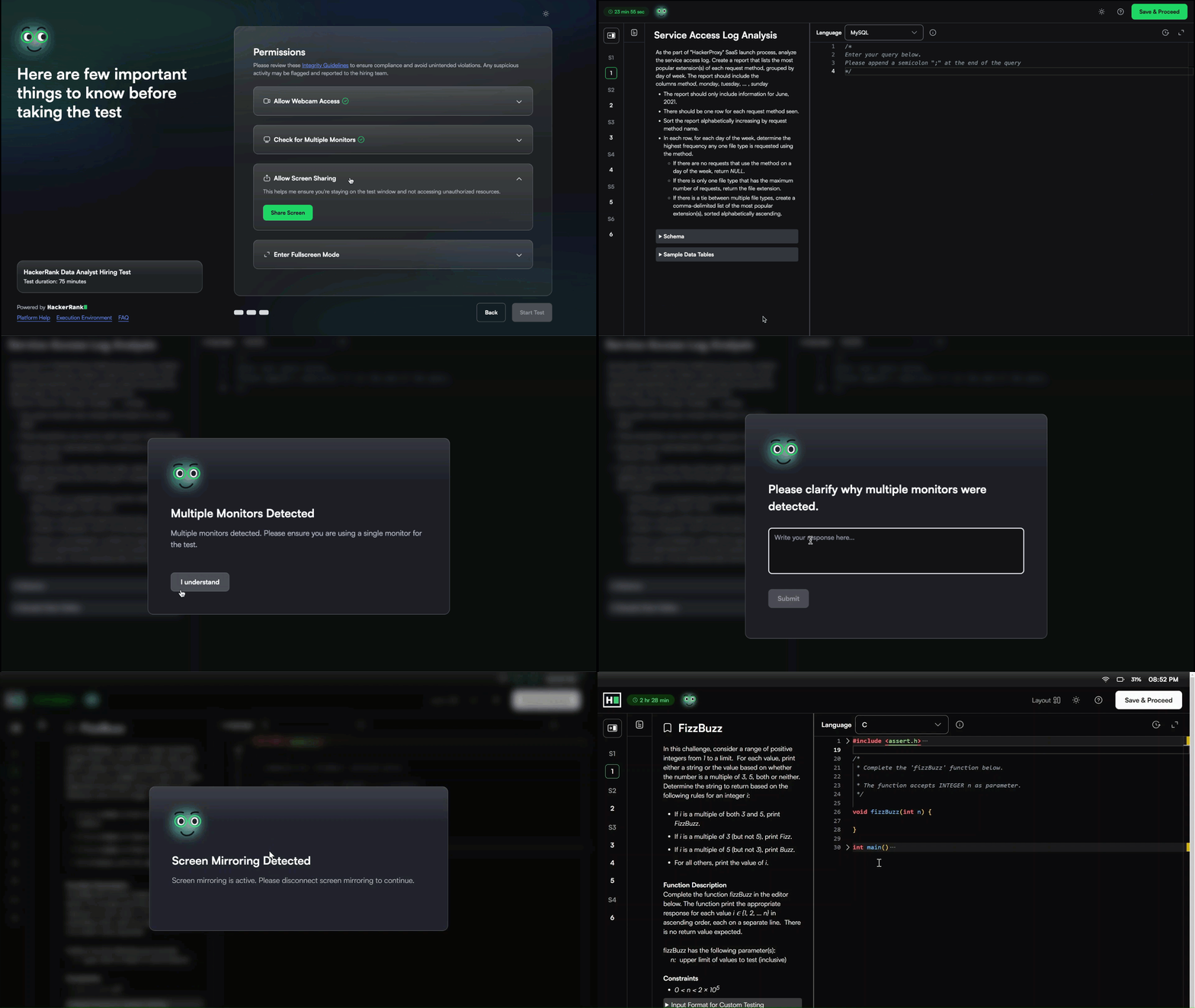
Prevent screenshots: The application prevents the candidate from taking screenshots during the test. If the candidate manages to take a screenshot, the screenshot appears blank.
Conversation detection in the code editor: Detects patterns where candidates type and delete content in the editor that may indicate external communication, including regional languages written in English. Such activity is flagged for review as potential external assistance.
Gaze detection: Analyzes the candidate's eye and head movements captured by the webcam to identify repeated patterns of looking away from the screen and returning to type, which may indicate the use of external resources such as a mobile phone or secondary display. Only high-confidence behavioral patterns are flagged as suspicious activity for review.
Note: The Gaze detection feature is currently available in limited availability. Contact your account manager to request access.
Copy-paste restrictions: Copy-paste functionality is disabled to prevent pasting content from external sources into the editor.
After the test
When the test ends, the system generates a comprehensive summary and detailed reports that help you assess candidate behaviour and overall test integrity. These reports are similar to those available in 📄 Proctor Mode.
Summary report
The summary report offers a concise overview of the session, including:
Indication of whether integrity issues occurred
Integrity summary
Integrity results
The system assigns an integrity rating of High or Medium based on the severity of detected issues.
The integrity results evaluate violations across two areas:
Webcam images: Analyze webcam images for suspicious behavior. For example, missing candidate face for a long period, multiple faces, or secondary faces.
Code Similarity: Compares the code submitted by a candidate with the code submitted by other candidates.
Integrity summary
The integrity result is paired with additional details in the Integrity Summary. The Integrity Summary provides a consolidated view of all detected integrity signals for a candidate. It lets you preview issues and drill down into supporting evidence within the same section.

Session Replay
Session Replay provides a timeline-based, video-style view of the test session. It includes the following features:

Recording of the candidate’s test session across the full browser screen
Lists all critical test events, including integrity events. You can search for events and click any event to jump to the corresponding timestamp in the recording.
Displays a synchronized timeline with test activity and webcam images by timestamp.
Captures webcam images every 15 seconds.
Note: Content protection is temporarily unavailable in the HackerRank Desktop App because screen recording requires screenshot permissions that were previously restricted.