Centralized Test Settings
Last updated: December 26, 2024
The Centralized Test Settings page enables Company Admins to configure default test settings for the entire organization. By standardizing test rules and experiences upfront, you can save time and ensure consistency across all tests.
Tip: For more details, refer to Test Settings and Configuration.
Prerequisites
Company Admin license
Accessing Centralized Test Settings
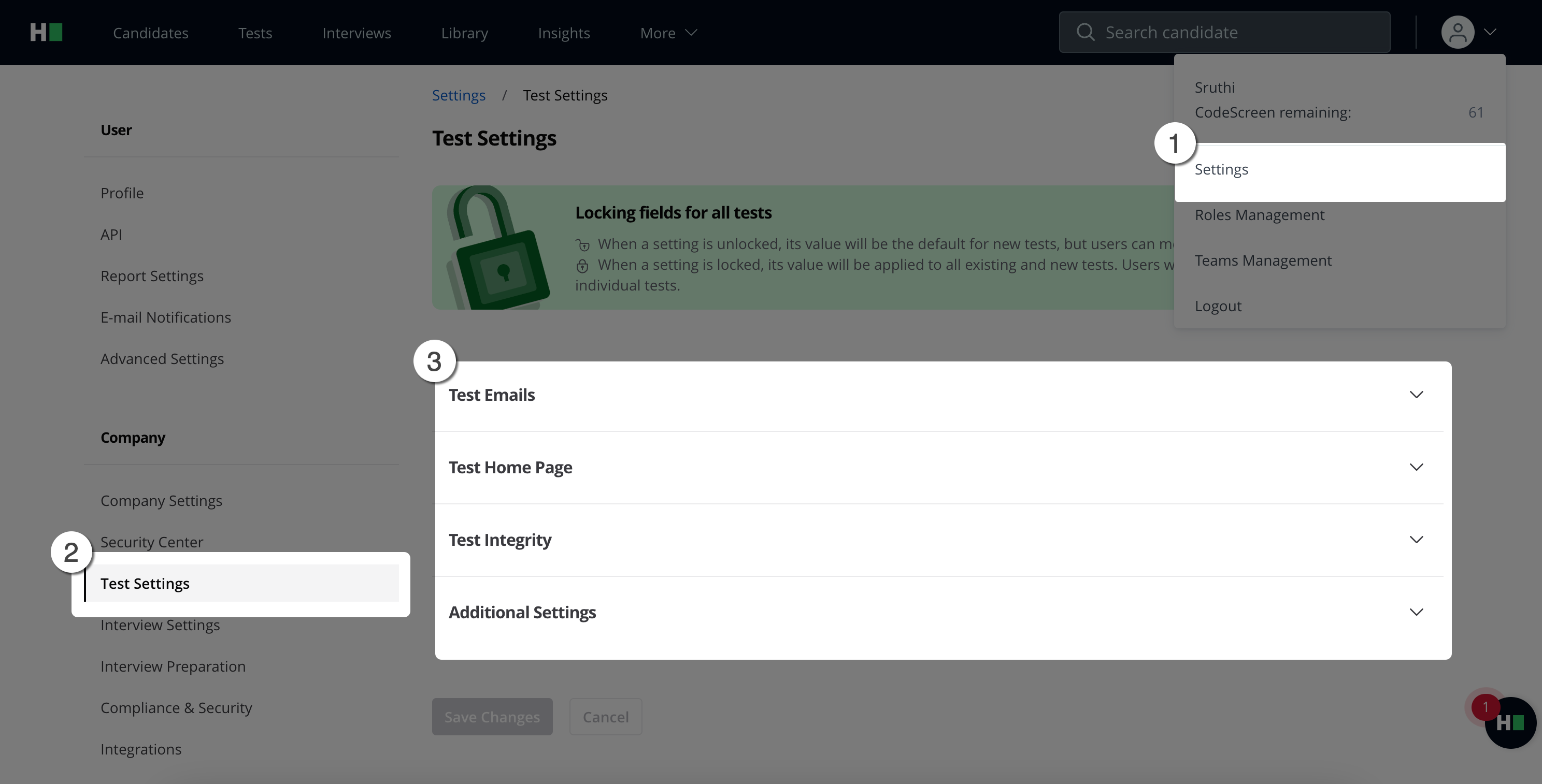
Click your profile icon and select Settings from the dropdown menu.
In the left-hand menu, navigate to Test Settings.
Applying Centralized Settings
As a Company Admin, you can manage test settings in two ways:
1. Change Default Settings
Toggle switches to enable or disable default settings for newly created tests.
Users can still override these defaults at the individual test level.
2. Lock Default Settings
Use the lock icon to enforce specific settings across all tests.
Other users cannot modify locked settings, which will apply to every test in your organization.
Note:
1. Unlocked defaults apply only to new tests and do not retroactively affect existing ones.
2. Locked defaults override all test settings, ensuring organization-wide consistency.
Configuring Test Settings
Test Email Settings
Manage the default settings for email communication with candidates during the screening process:
Confirmation Email: Customize content and subject.
Invite Email: Define content and expiry.
Reminder Emails: Set conditions for reminders with or without expiration dates.
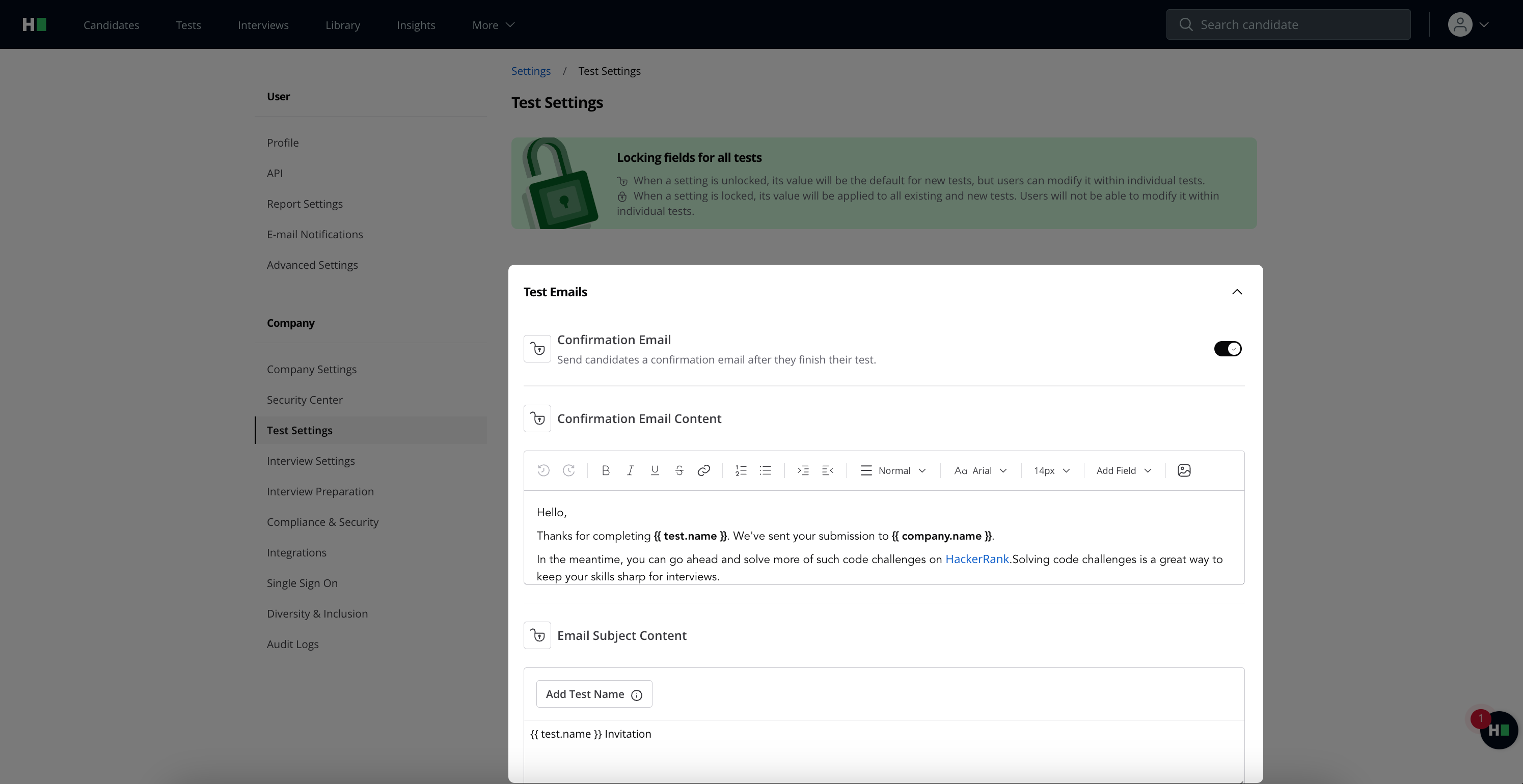
Note: To enable the Reminder Email toggle, at least one valid value must be entered for "Reminder Email with Expiration" or "Reminder Email without Expiration.
Refer to the table below for conditions:
With Expiration | Without Expiration | Reminder Email Status |
❌ | ❌ | Disabled |
❌ | ✅ | Disabled |
✅ | ❌ | Disabled |
✅ | ✅ | Enabled |
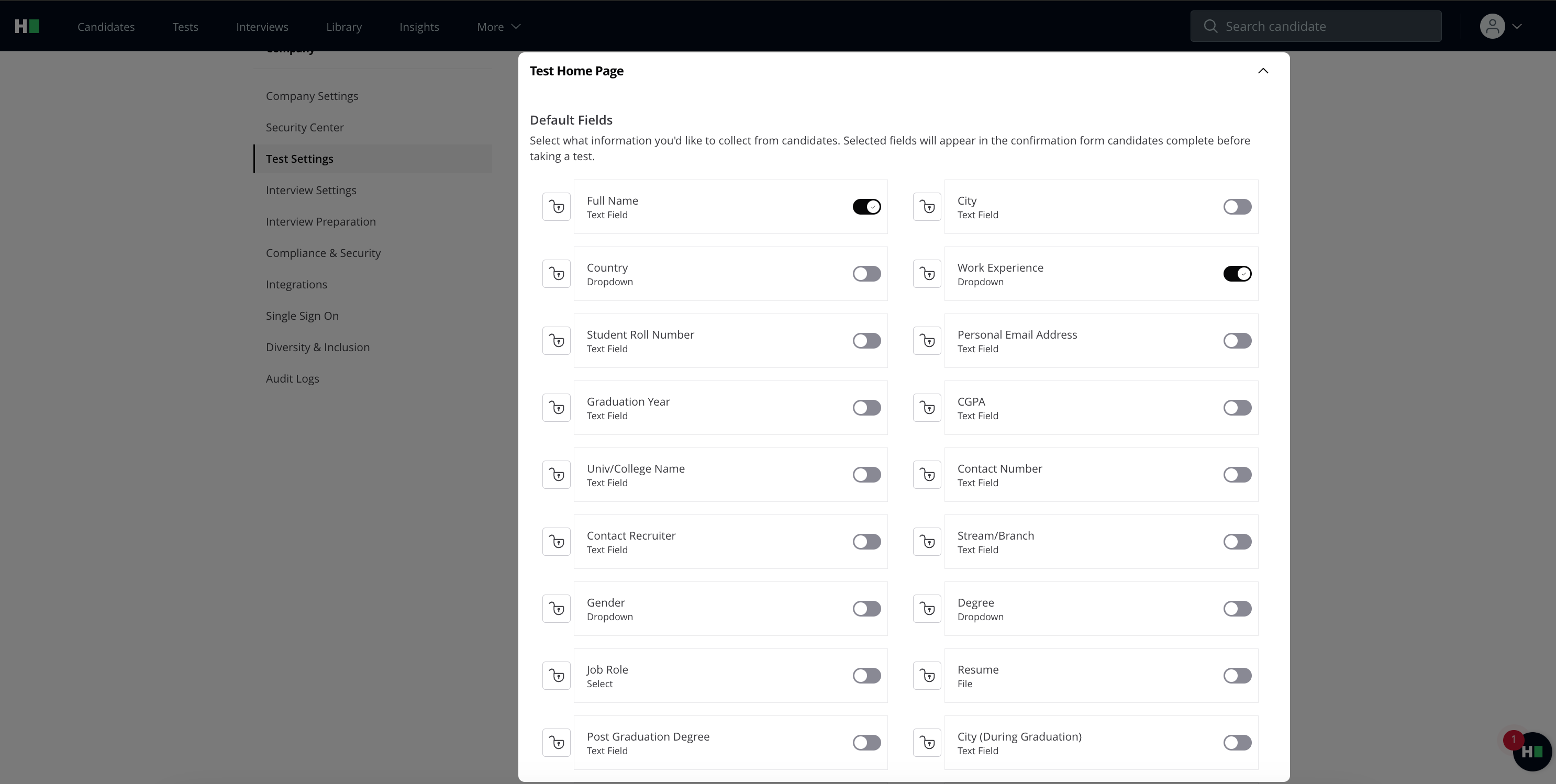
Test Homepage Settings
Customize the test homepage with standardized instructions, disclaimers, and mandatory fields. Before starting the test, you can add custom fields to the candidate's confirmation form.
Test Integrity Settings
Control proctoring settings for all tests, such as enabling Image Proctoring or AI Plagiarism Detection.
Dependencies and Interdependencies
AI Plagiarism Detection: Requires Copy Paste Tracking and Tab Proctoring to be enabled.
If AI Plagiarism is enabled, a dialog box prompts you to enable the dependent settings.
Photo Identification vs. Image Proctoring: These settings are mutually exclusive.
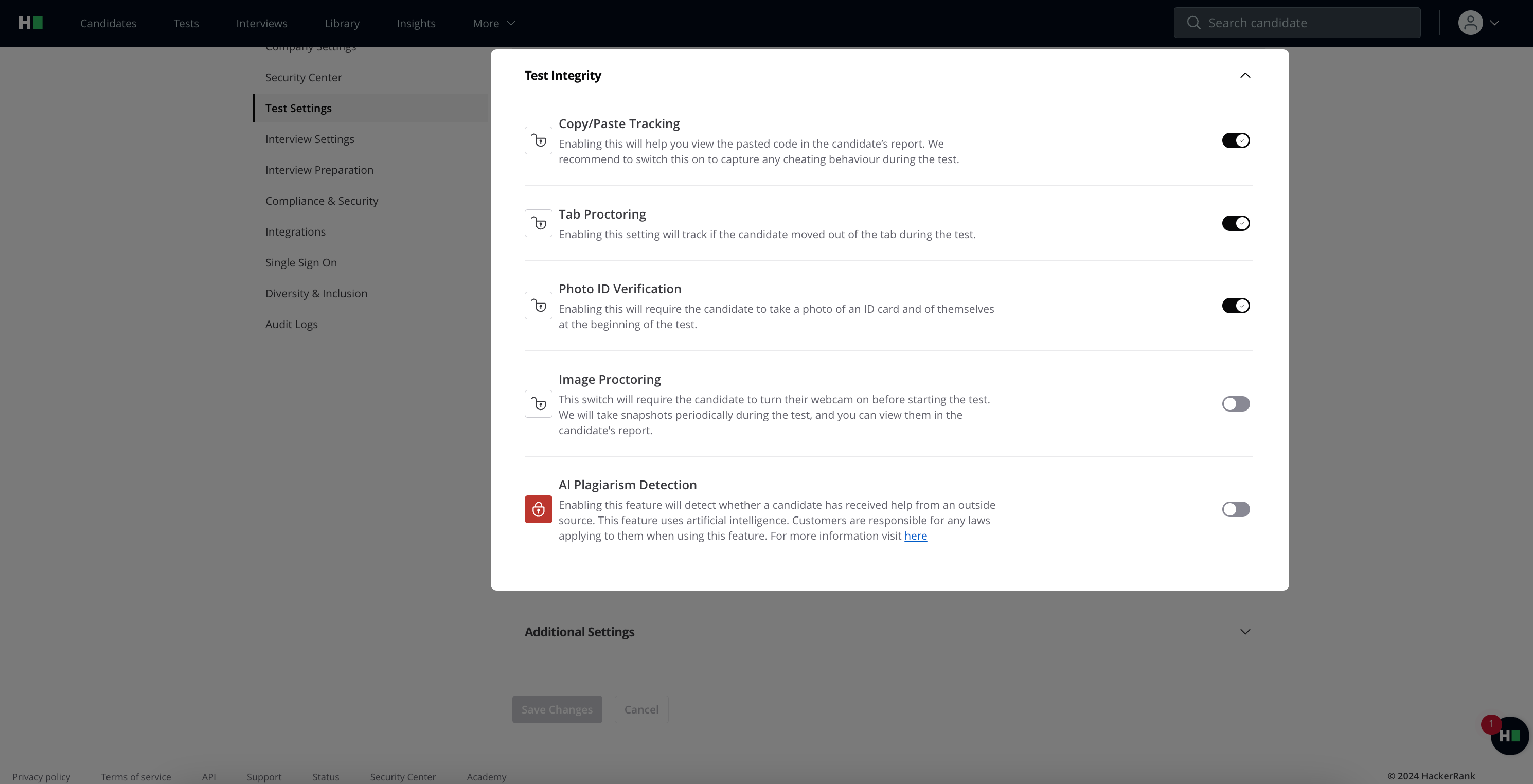
The table below outlines valid combinations:
Photo Identification | Image Proctoring | Validity |
❌ | ❌ | Valid |
❌ | ✅ | Valid |
✅ | ❌ | Valid |
✅ | ✅ | Invalid |
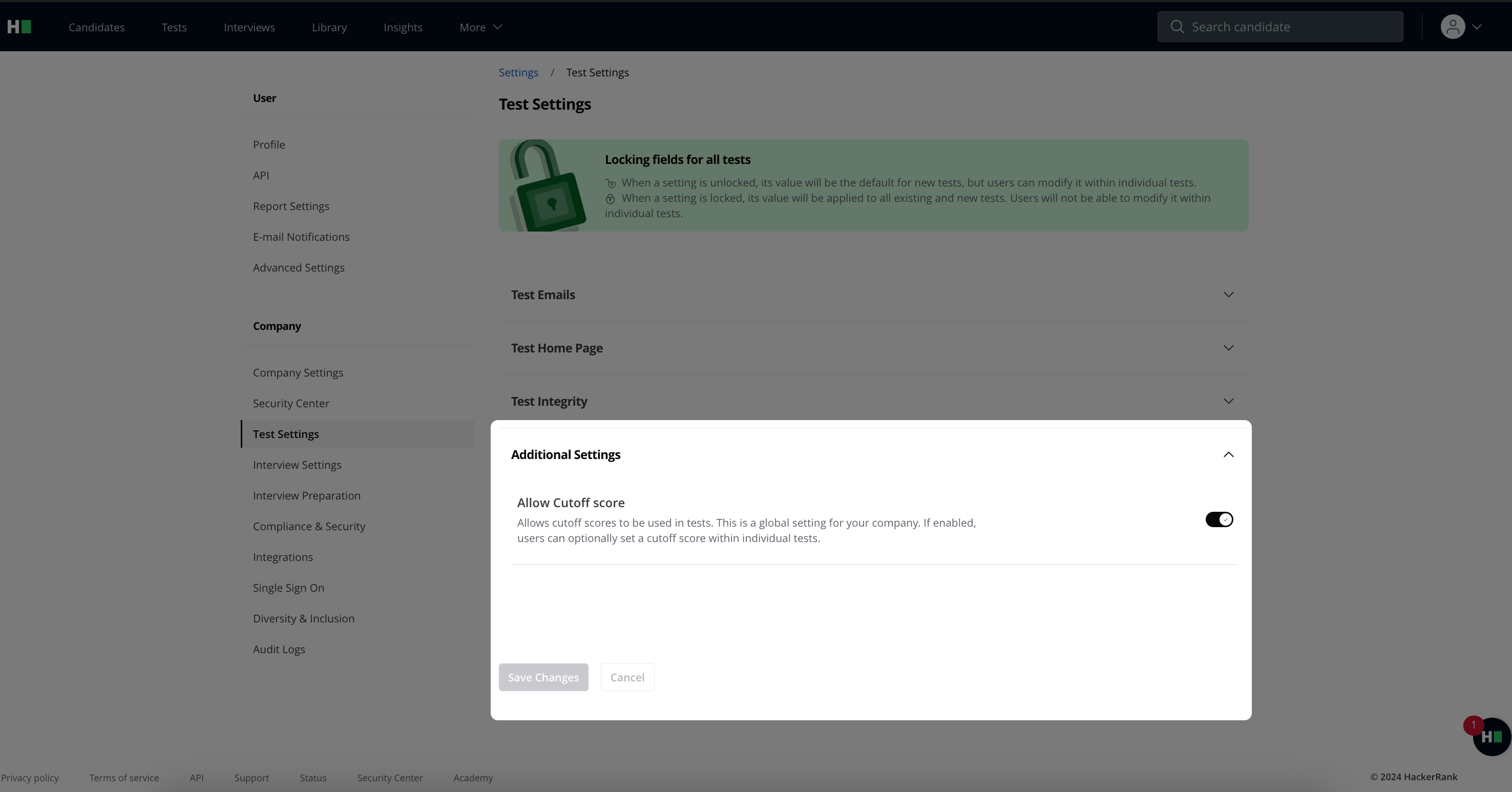
Additional Settings
Control if individual users can configure test cutoff scores.
Saving Your Settings
After making changes, click Save Changes to apply the new default settings.