Centralized Interview Settings
Last updated: August 27, 2026
The Centralized Interview Settings page allows Company Admins to define and manage default settings for all interviews in the organization.
Prerequisite
You must have Admin access to configure centralized interview settings..
Accessing centralized interview settings
To access centralized interview settings:
Log in to your HackerRank for Work account using your credentials.
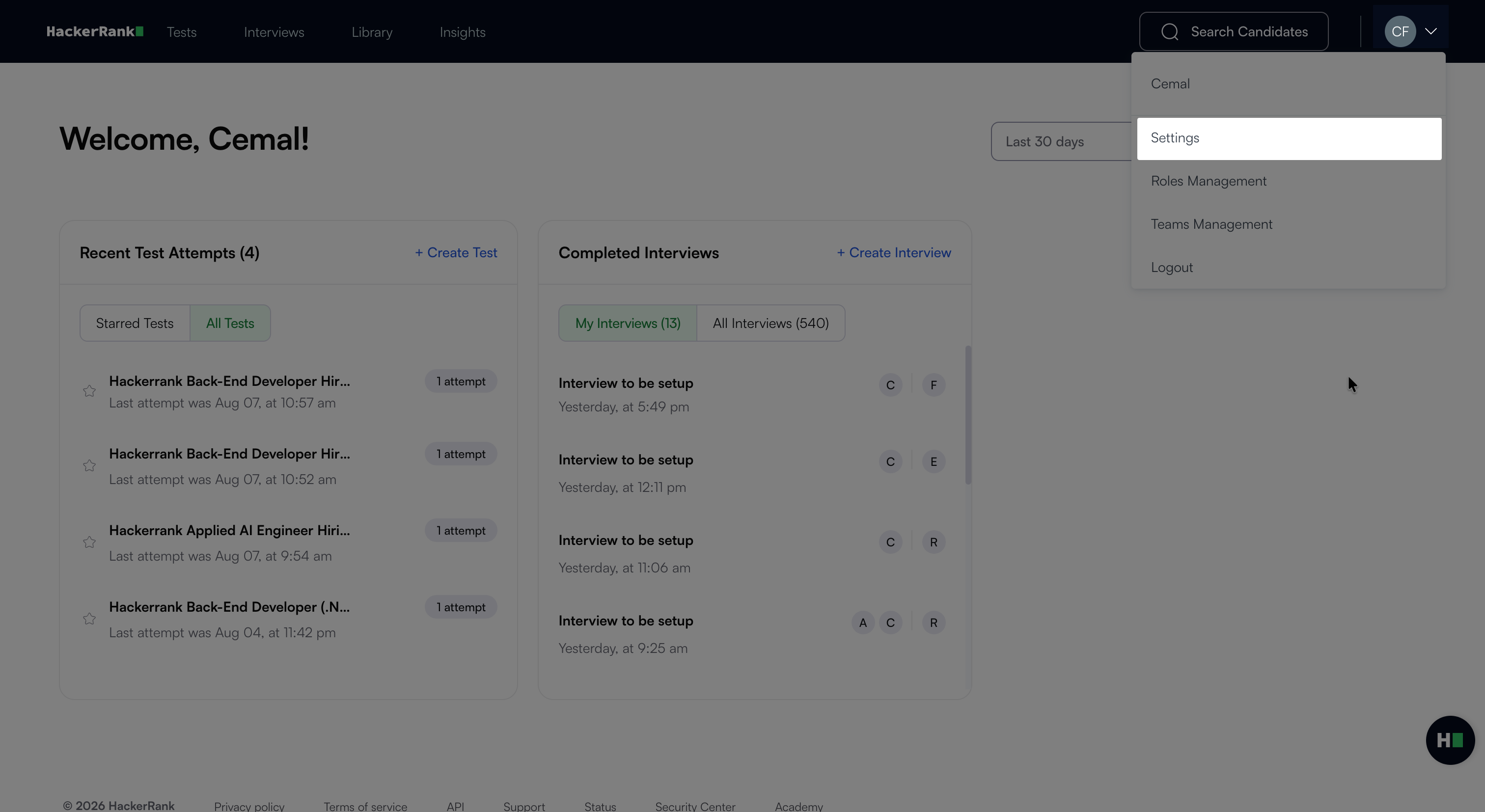
Click your profile icon in the upper-right corner.
Select Settings from the drop-down menu.
Go to Interview Settings under the Company section.
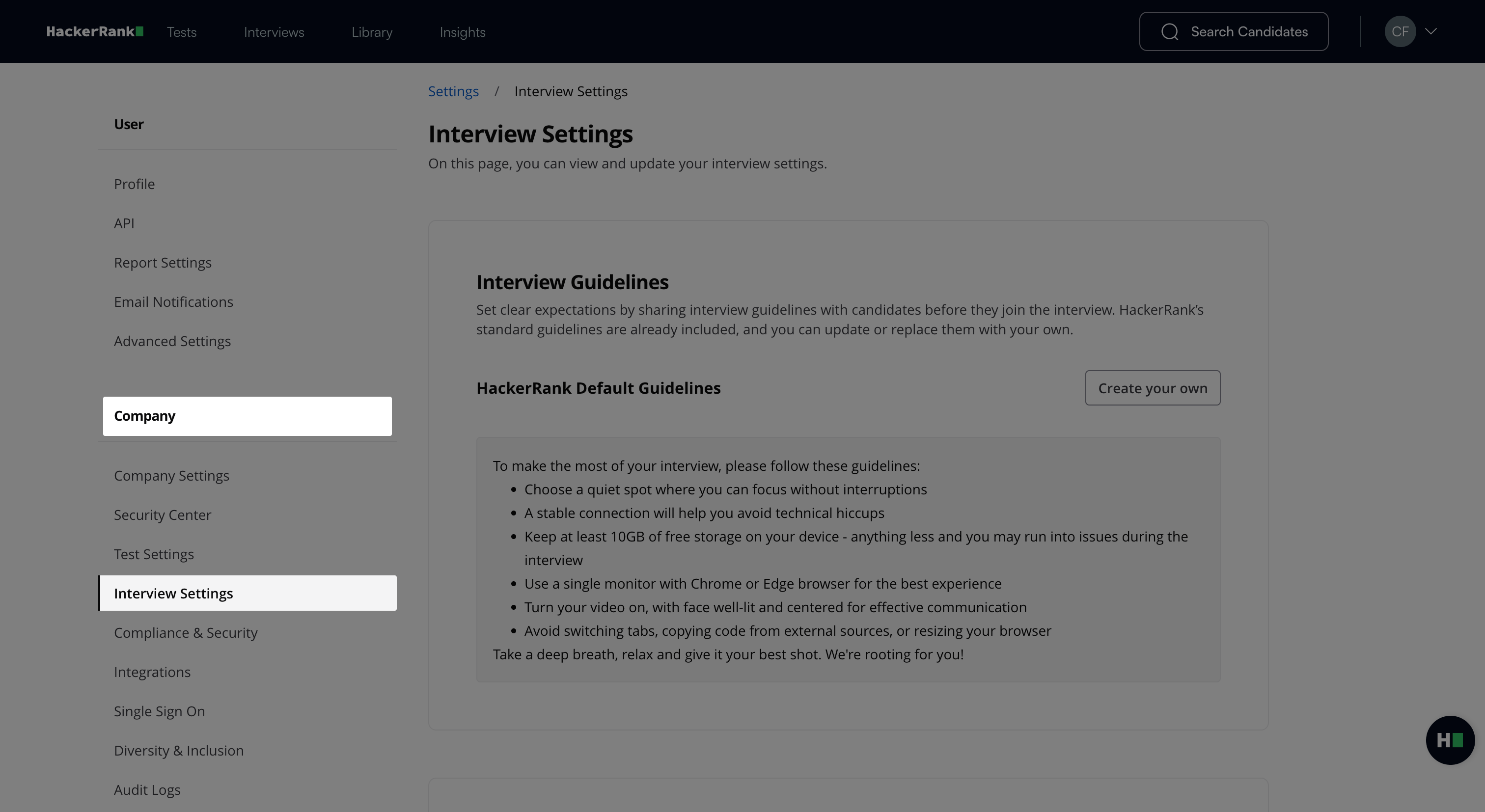
Available interview settings
New Interview Experience
You can configure the following options in the Interview Settings section:
Interview Guidelines: Customize the standard guidelines that candidates view before an interview.
To customize the guidelines:Click Create your own.
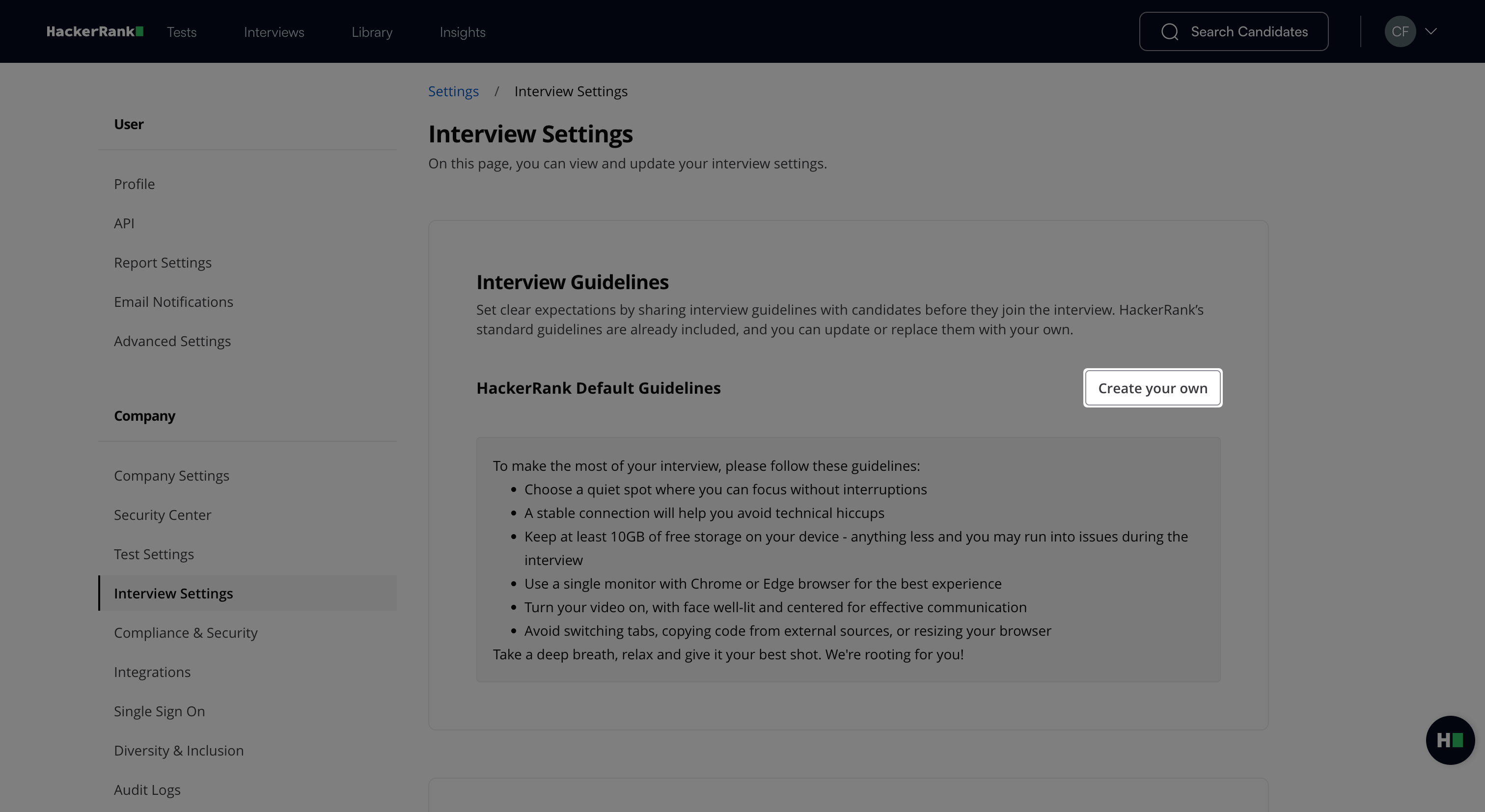
Update the guidelines. You can add rich text formatting options such as bold text, bulleted lists, and hyperlinks.
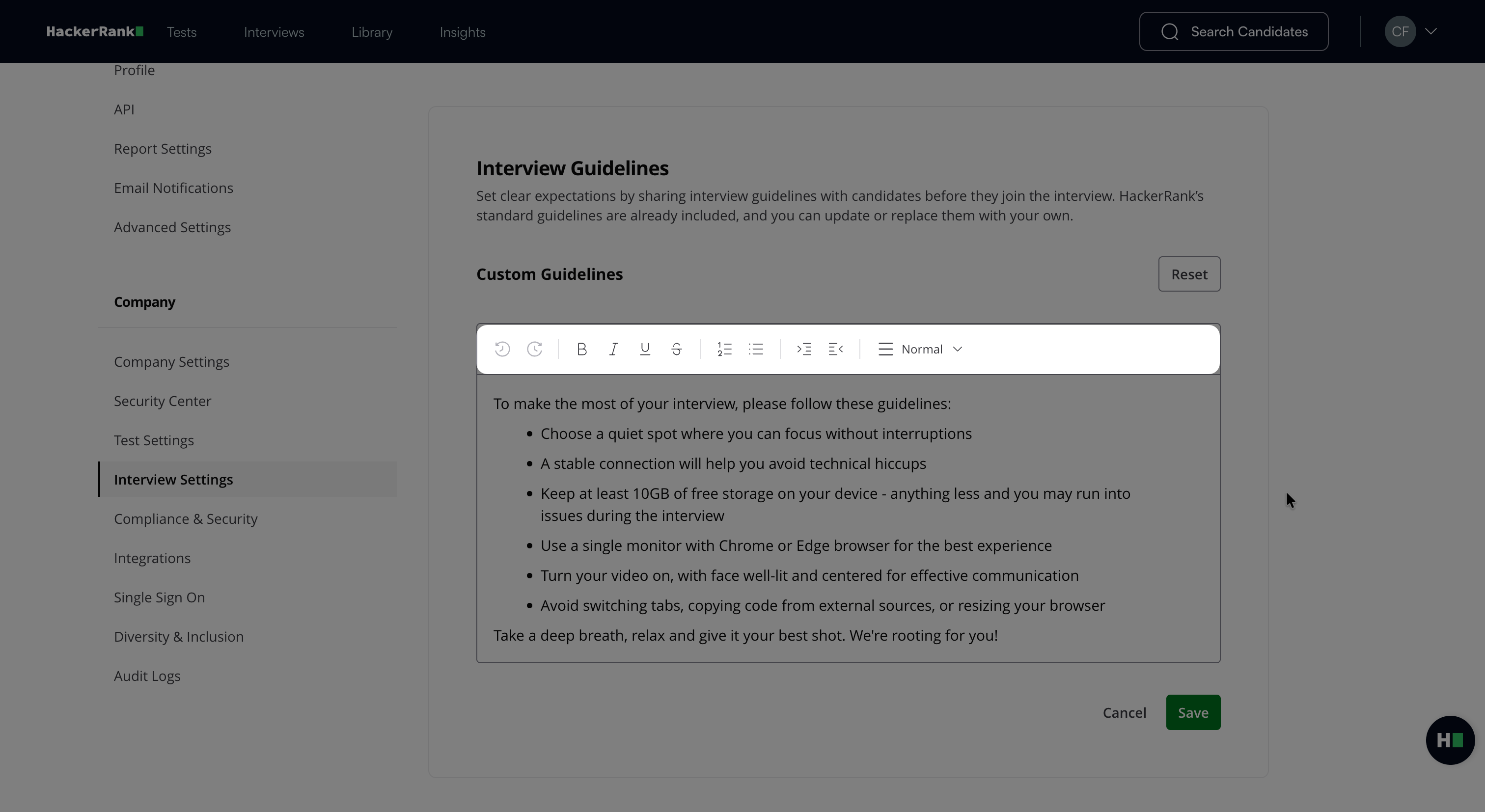
Click Save.
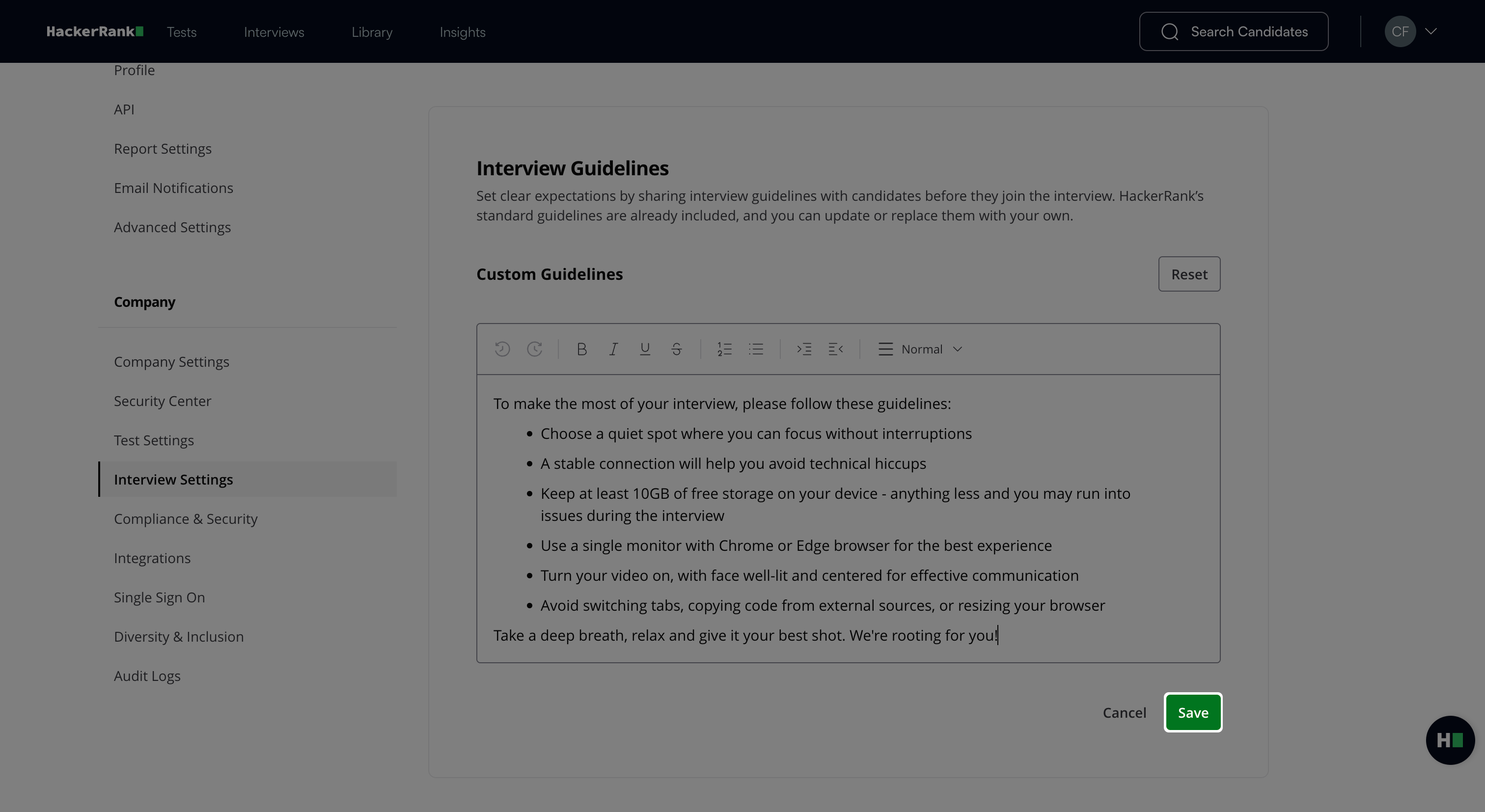
The updated guidelines appear immediately on the candidate onboarding page.
Virtual Lobby: Enable a virtual lobby to create a waiting room for interviews. The virtual lobby allows you to:
Restrict candidates from entering until the interviewer permits.
Conduct multiple interviews with a candidate using a single link.
View the real-time status of attendees without joining the interview.
To enable the virtual lobby, select the Enable virtual lobby checkbox.
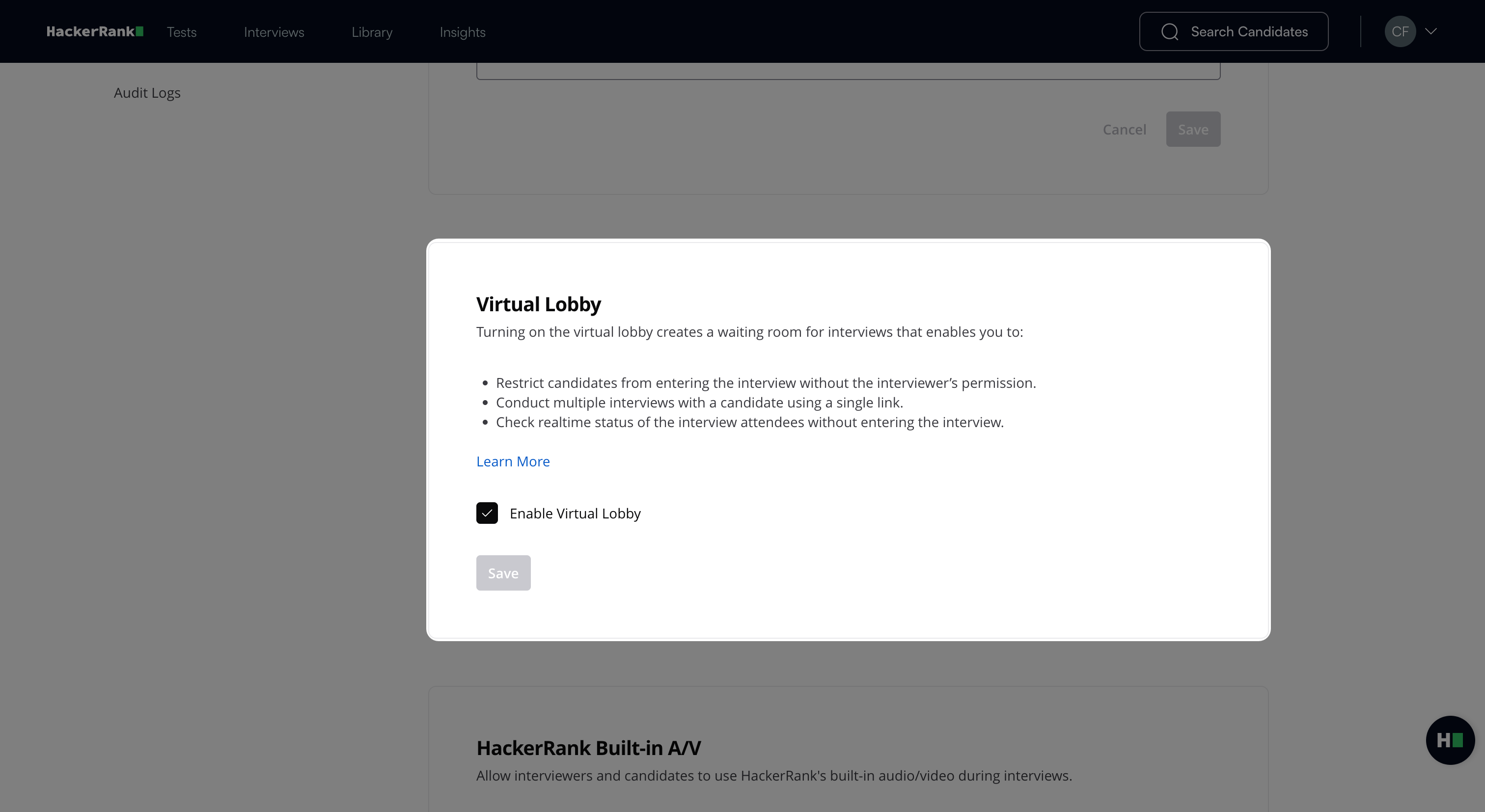
Note: By default, the virtual lobby will not be enabled for your account.
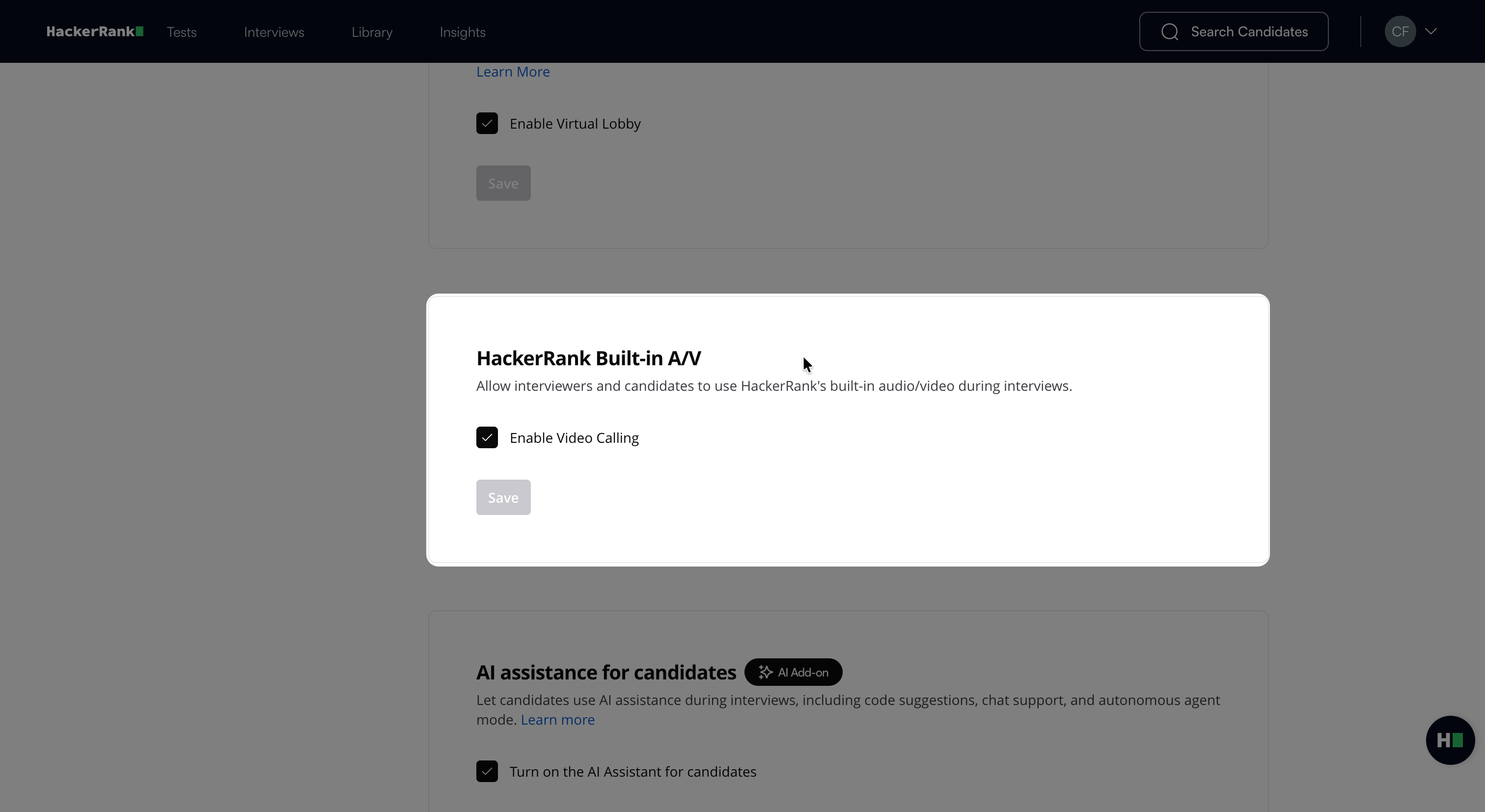
HackerRank Built-in A/V: Interviewers and candidates can use HackerRank’s built-in audio and video during interviews. This option is enabled by default. You can disable this option if you use external communication tools such as Zoom or Microsoft Teams.
AI Assistant for Candidates: Allow candidates to use code suggestions, chat support, and autonomous Agent mode during interviews. To configure AI Assistant, see 📄 AI Assistant in Interviews.
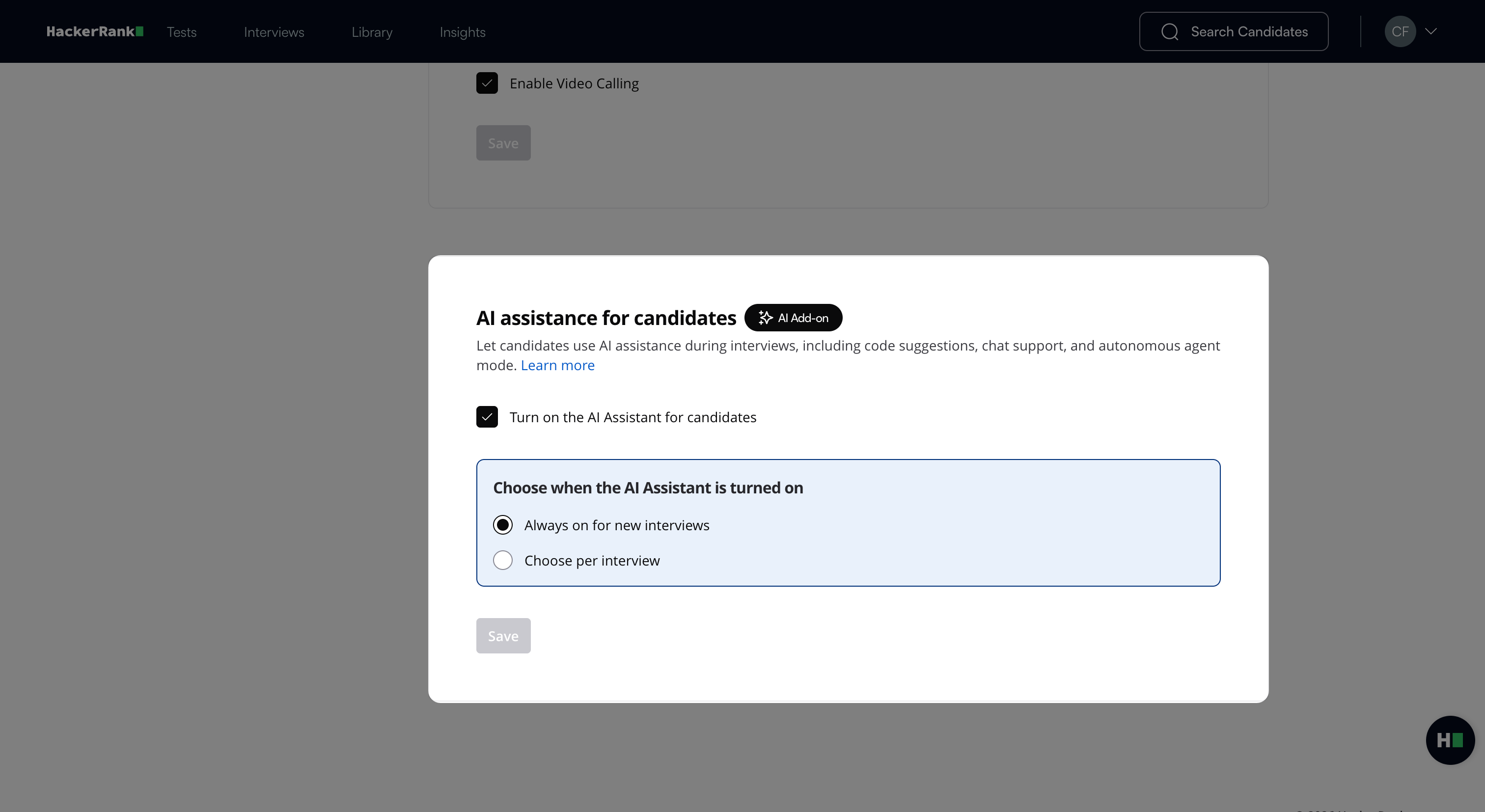
Note: This feature is part of the AI Add-on.
Legacy Interview Experience
You can configure the following options in the Interview Settings section:
Filter Interview Questions Library: Use tag selection to control which questions appear during interviews. If you leave the selection empty, all questions appear.
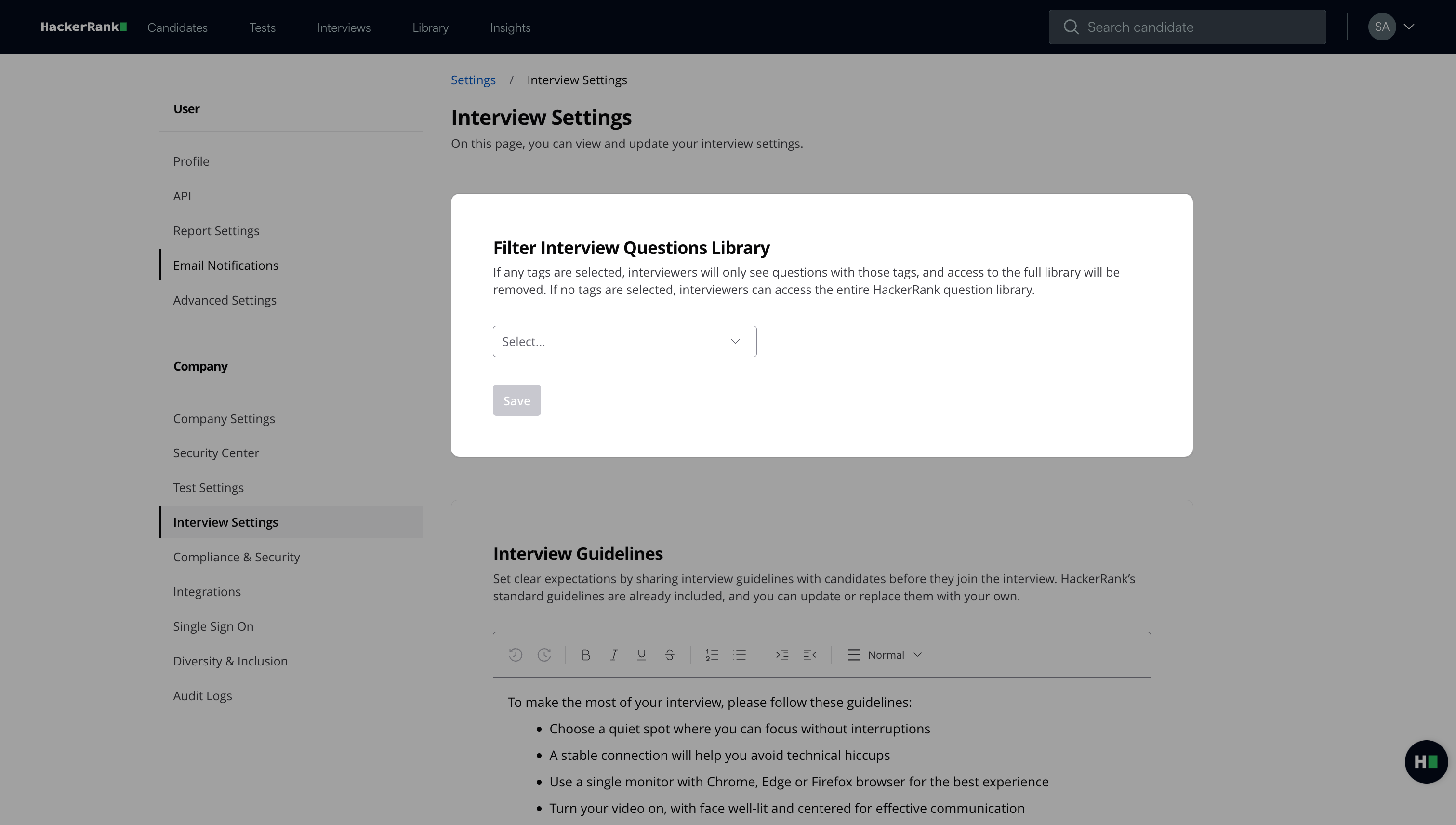
Interview Guidelines: Customize or replace HackerRank’s standard interview guidelines that candidates view before an interview.
Admins can configure company-specific guidelines with rich text formatting options such as bold, bullets, and hyperlinks. Updated guidelines appear instantly on the candidate’s onboarding page.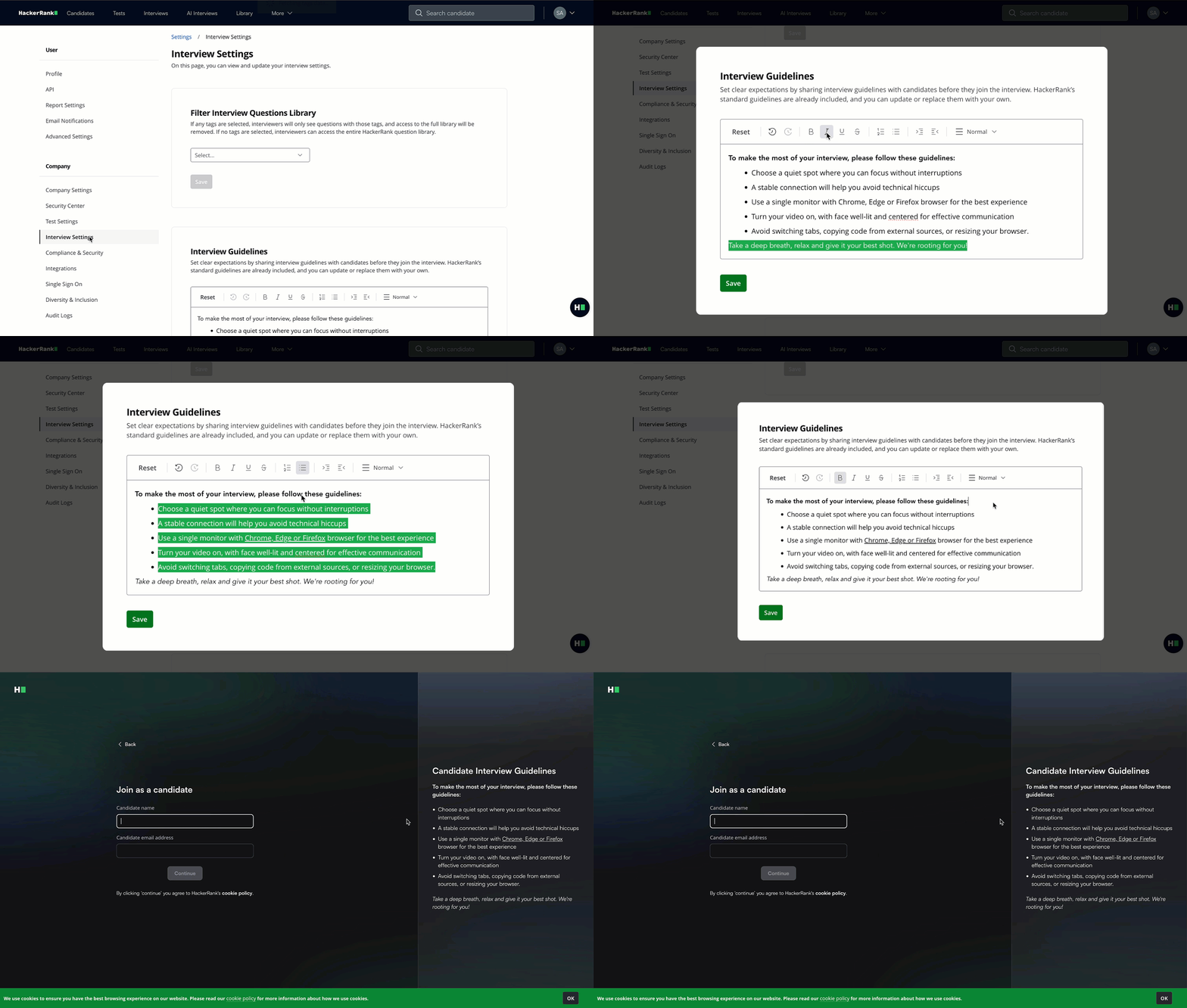
Self-Signup for Interviewers: Allow interviewers without an account to sign up before starting an interview. For more information, see 📄 Self-Signup for Interviewers.
Virtual Lobby: Enable a virtual lobby to create a waiting room for interviews. The virtual lobby allows you to:
Restrict candidates from entering until the interviewer permits.
Conduct multiple interviews with a candidate using a single link.
View the real-time status of attendees without joining the interview.
To enable the virtual lobby, select the Enable virtual lobby checkbox.
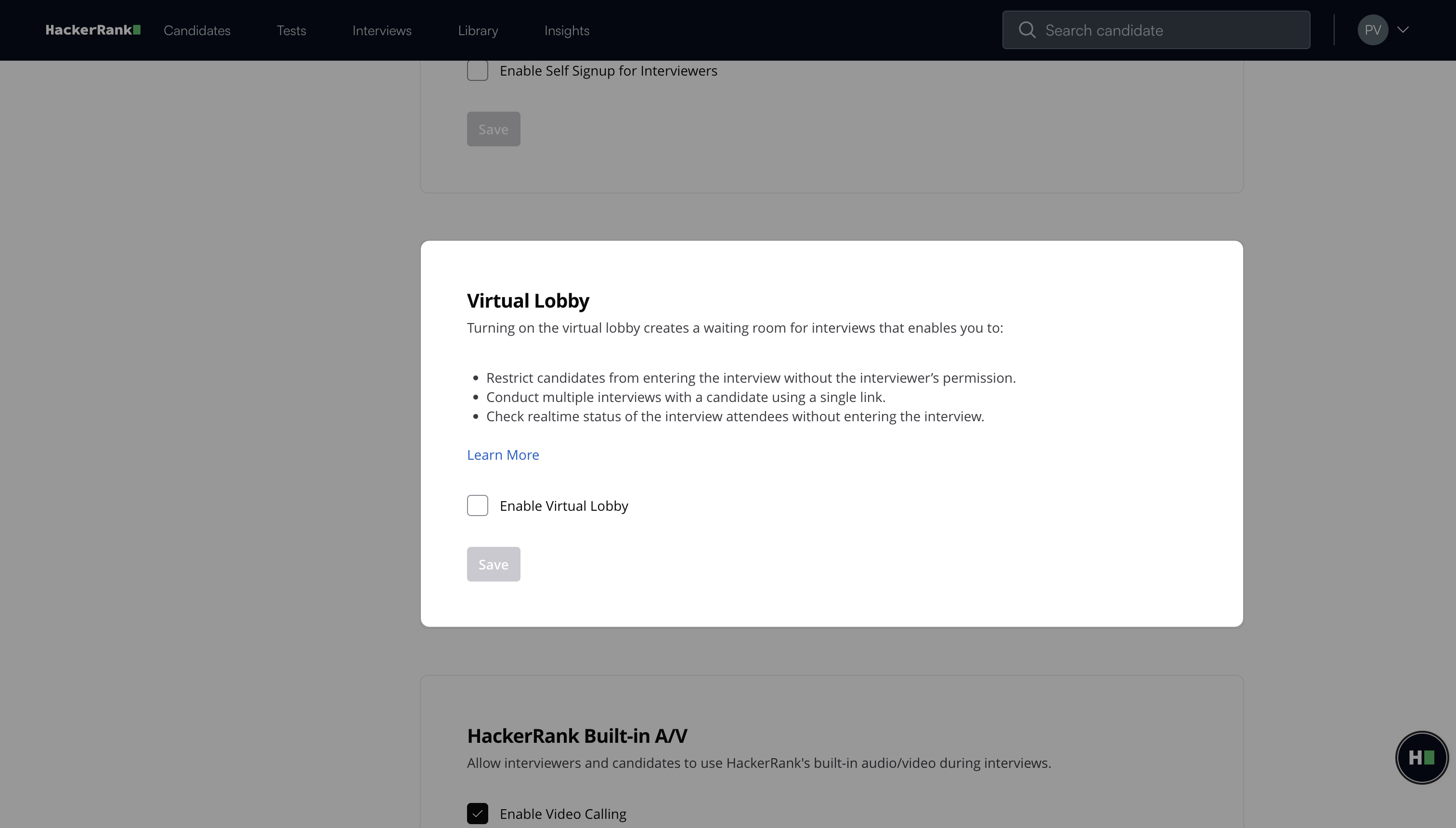
Note: By default, the virtual lobby will not be enabled for your account.
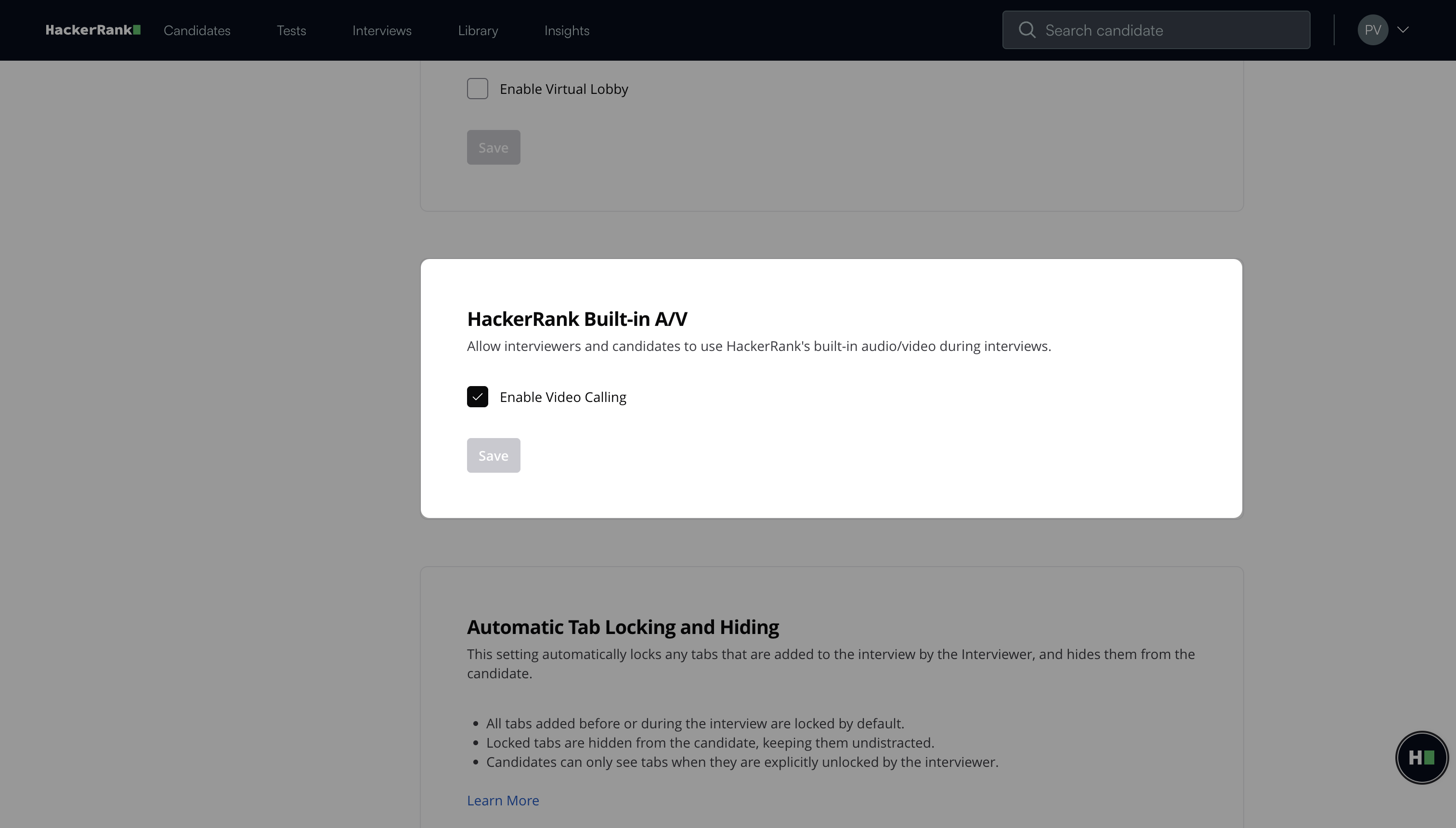
HackerRank Built-in A/V: Interviewers and candidates can use HackerRank’s built-in audio and video during interviews. This option is enabled by default. You can disable this option if you use external communication tools such as Zoom or Microsoft Teams.
Automatic Tab Locking and Hiding: Automatically locks tabs that interviewers add to the interview and hides them from candidates until unlocked. For more information, see 📄 Hide Locked Tabs in Interviews.
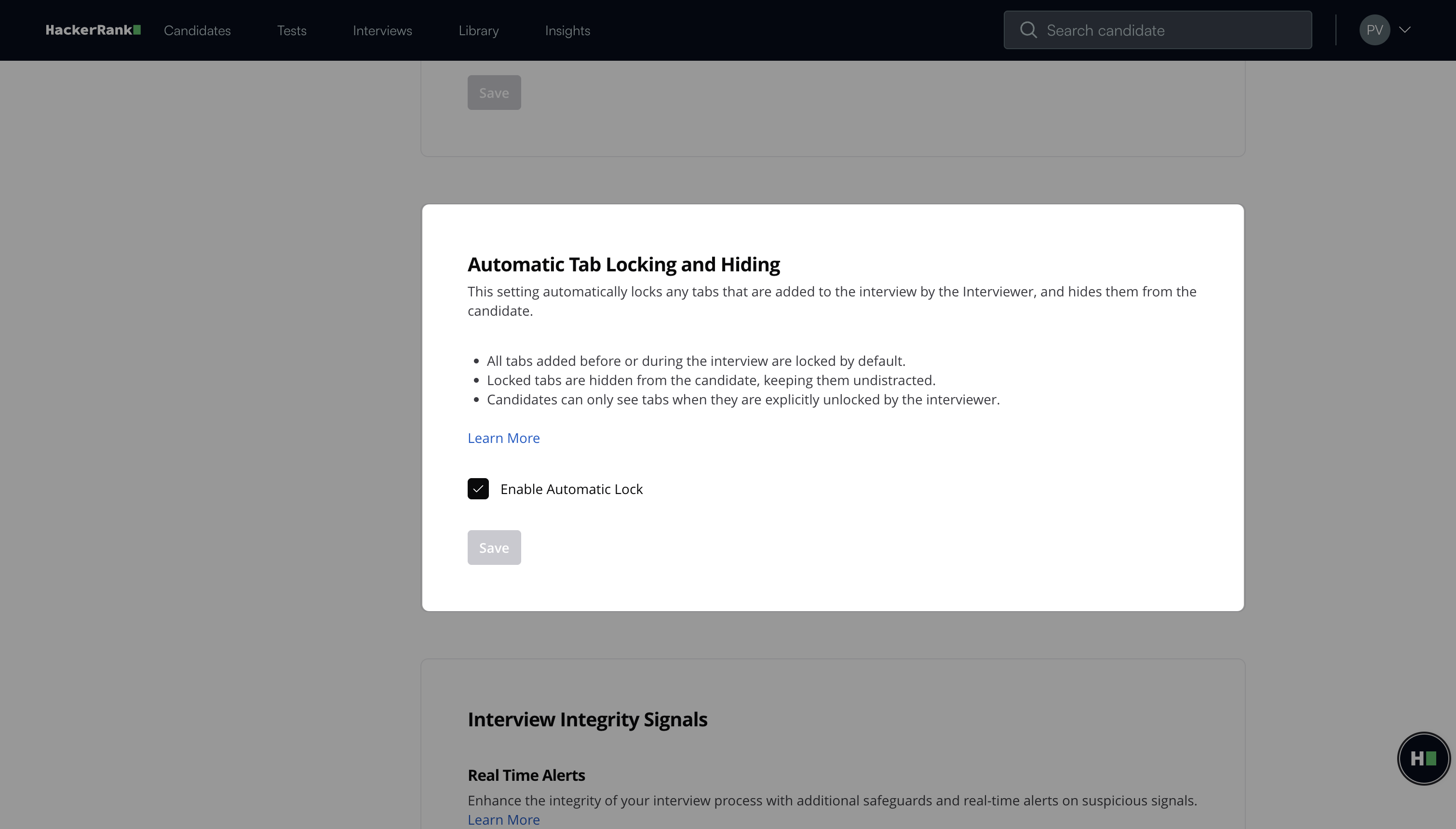
Interview Integrity Signals: The Interview Integrity Signals feature provides real-time alerts for suspicious activity during interviews. The Screen-to-Interview Identity Match verifies that the candidate who completed the screening test is the same individual attending the interview. For more information, see 📄 Interview Integrity Signalsand 📄 Screen-to-Interview Identity Match.
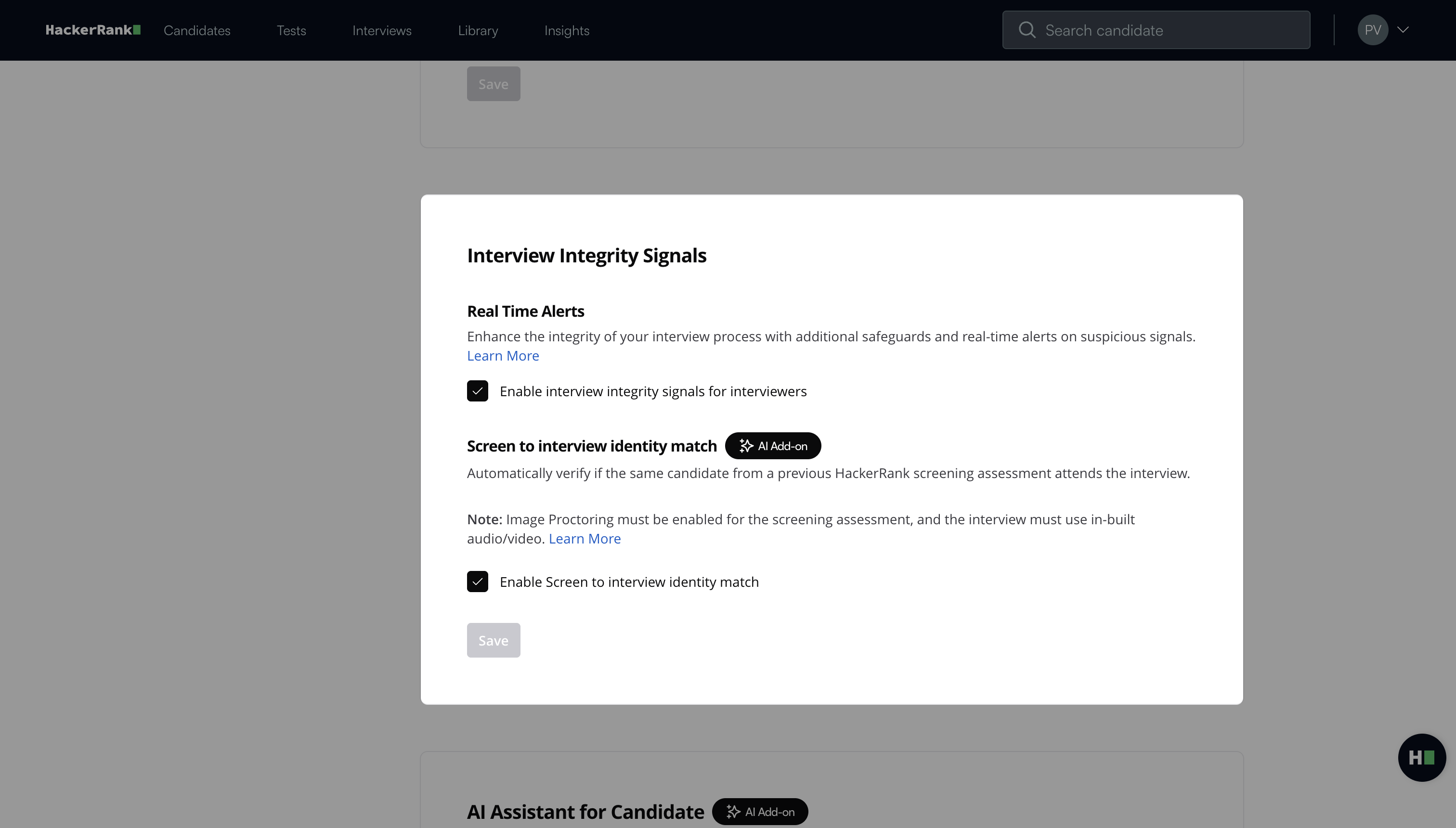
Note: Screen-to-Interview Identity Match feature is part of the AI Add-on.
AI Assistant for Candidates: Allow candidates to use AI-powered features such as Chat, Autocomplete, and Agent mode within the IDE. For more information, see 📄 AI-Assisted Interviews.
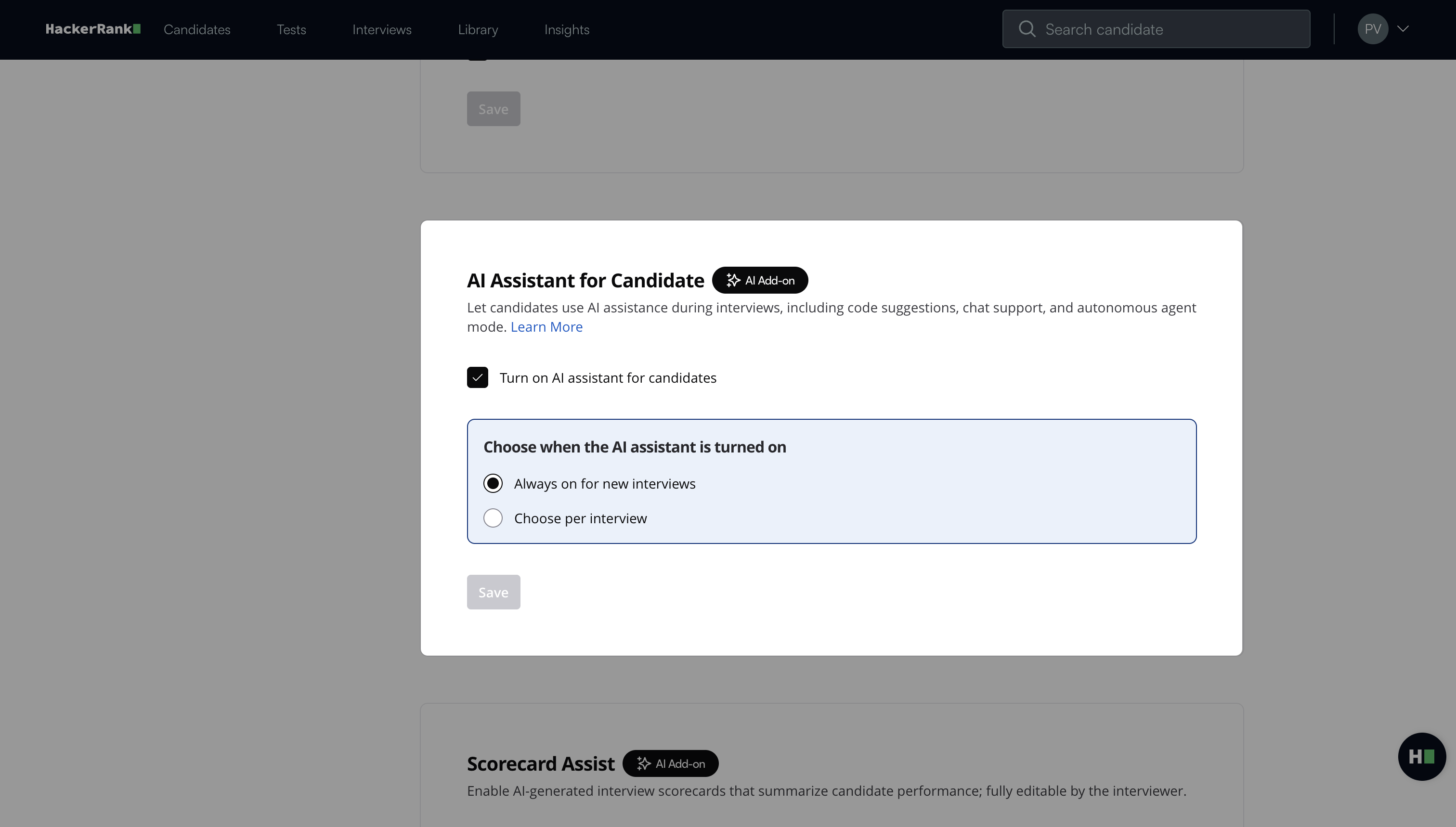
Note: This feature is part of the AI Add-on.
Scorecard Assist: Enable AI-generated interview scorecards that summarize candidate performance. Interviewers can edit these scorecards as needed. For more information, see 📄 Scorecard Assist.
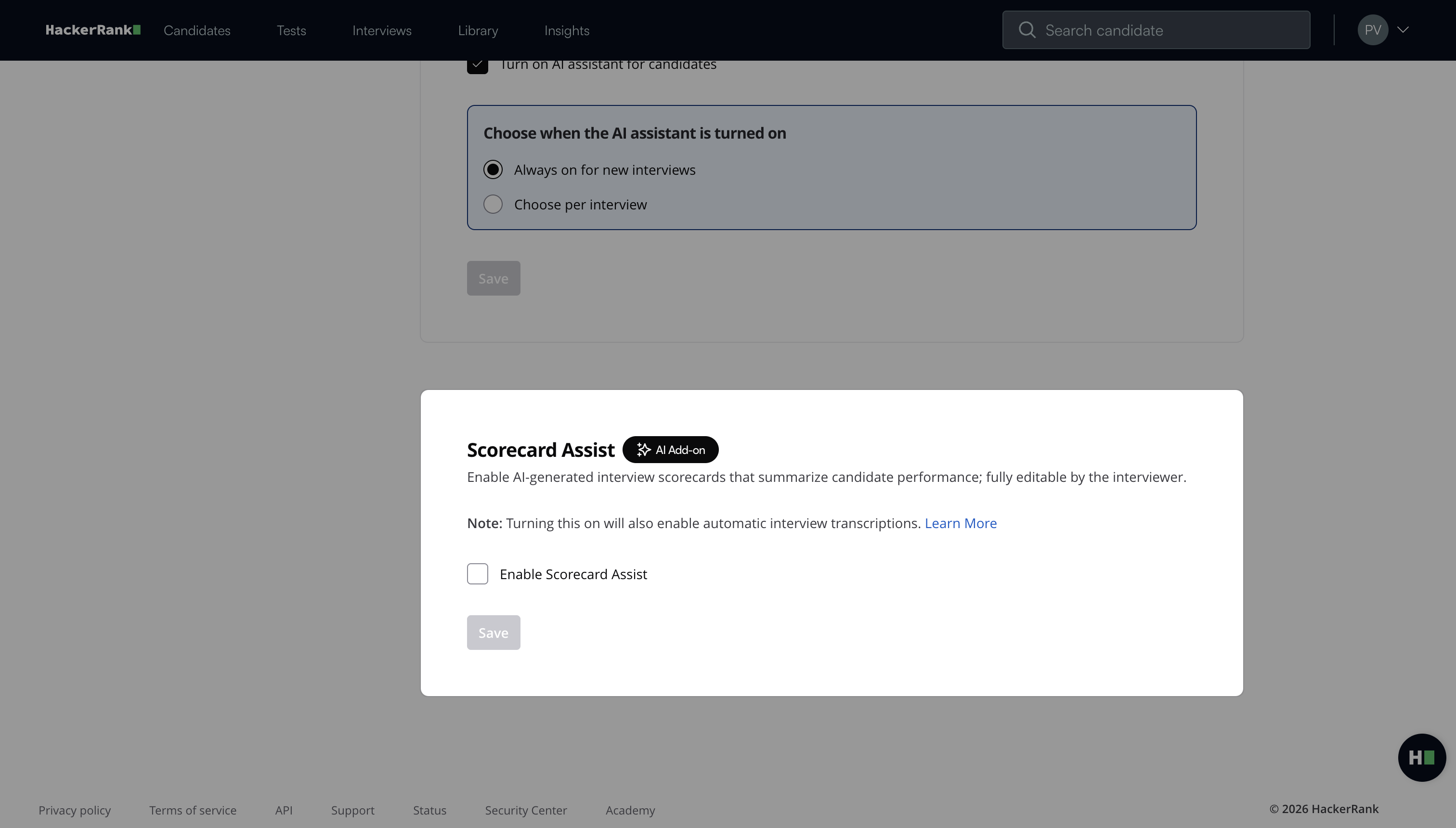
Note: This feature is part of the AI Add-on.