Update Company Name and Sender Name
Last updated: December 15, 2025
You can update the company name and the sender name that appear in candidate invitation emails.
Prerequisite
You must have Company Admin access.
Updating the company name and sender name
To update the company name and sender name:
Log in to HackerRank for Work using your credentials.
Select your profile icon in the upper-right corner.
Select Settings from the drop-down menu.
In the left panel, select Company Settings under the Company section.
In the Company Details section:
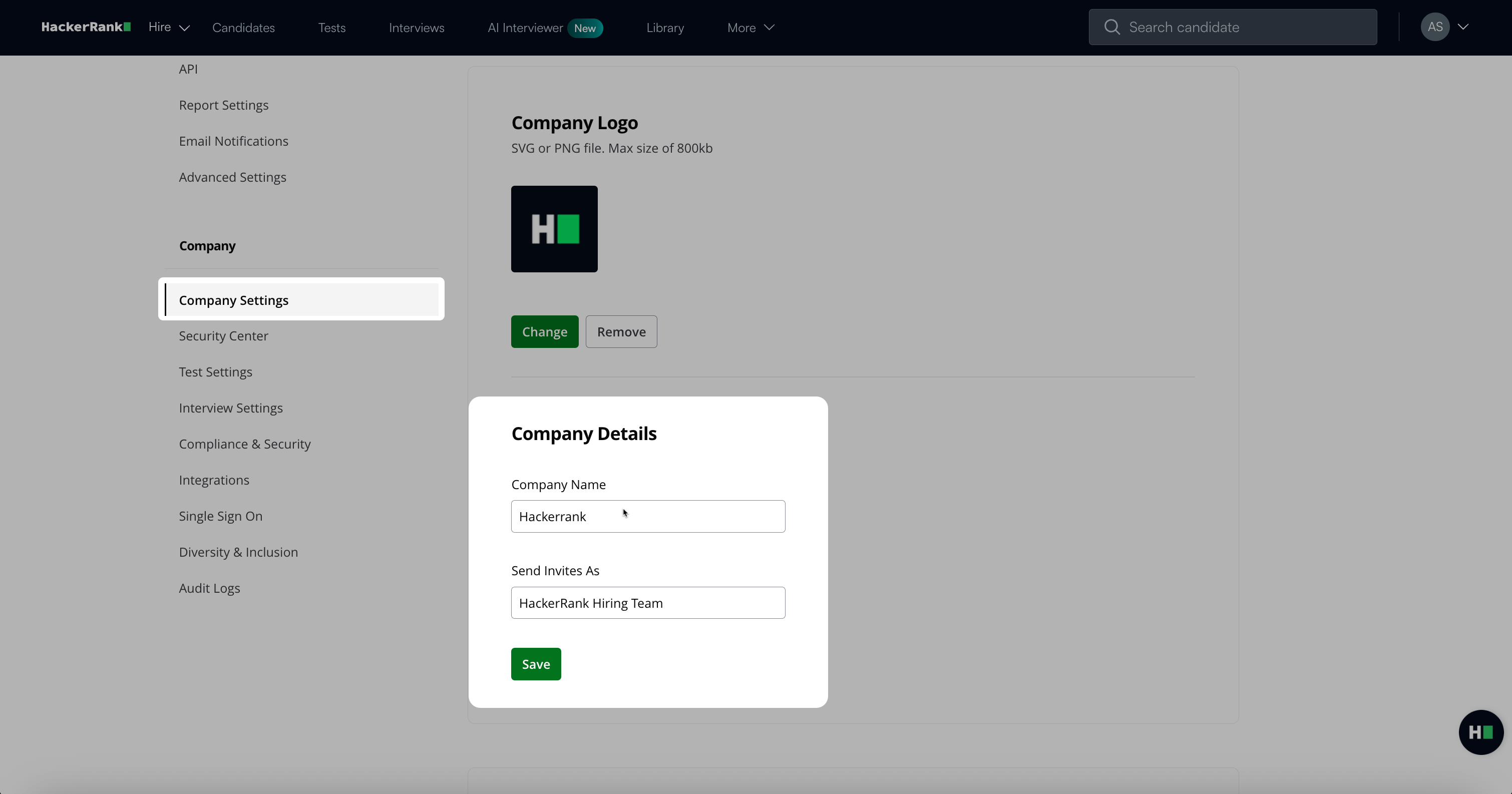
Enter the updated company name in the Company Name field.
Enter the sender name you want candidates to see in the Send Invites As field.
Click Save.
Note: If the user who sends the invitation belongs to a single team and that team has a Send Invites as value set, HackerRank uses the team-level sender name for all invitations. For more information, see 📄 Set Team Logo and Sender Name.