Coding Questions
Last updated: March 27, 2026
Coding questions allow you to assess a candidate’s problem-solving skills in specific programming languages. The system evaluates the candidate code submission using predefined test cases.
Coding questions support more than 35 programming languages.
Creating a coding question
To create a coding question:
Log in to your HackerRank for Work account using your credentials.
Go to the Library tab.
Click Create Question.
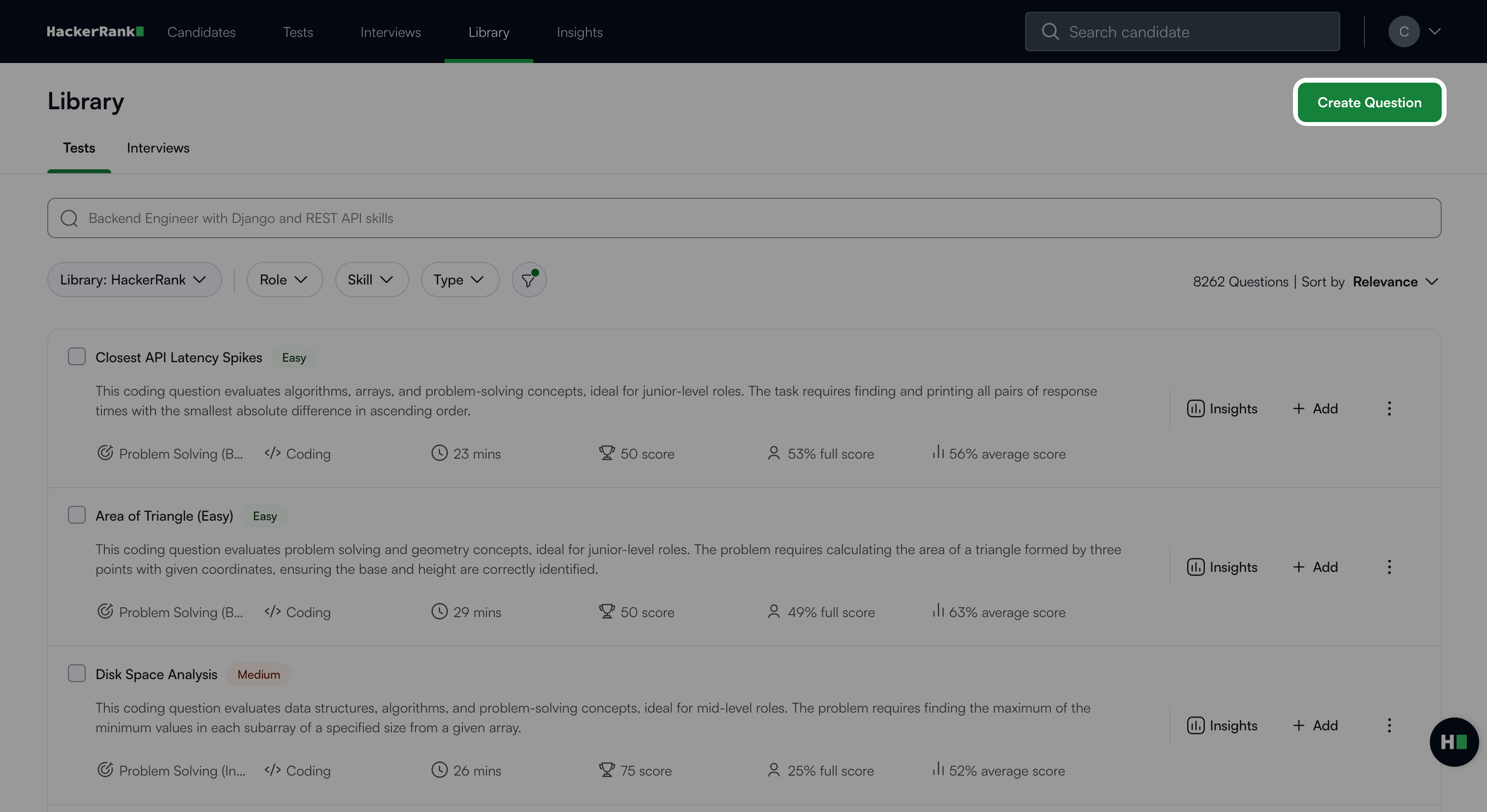
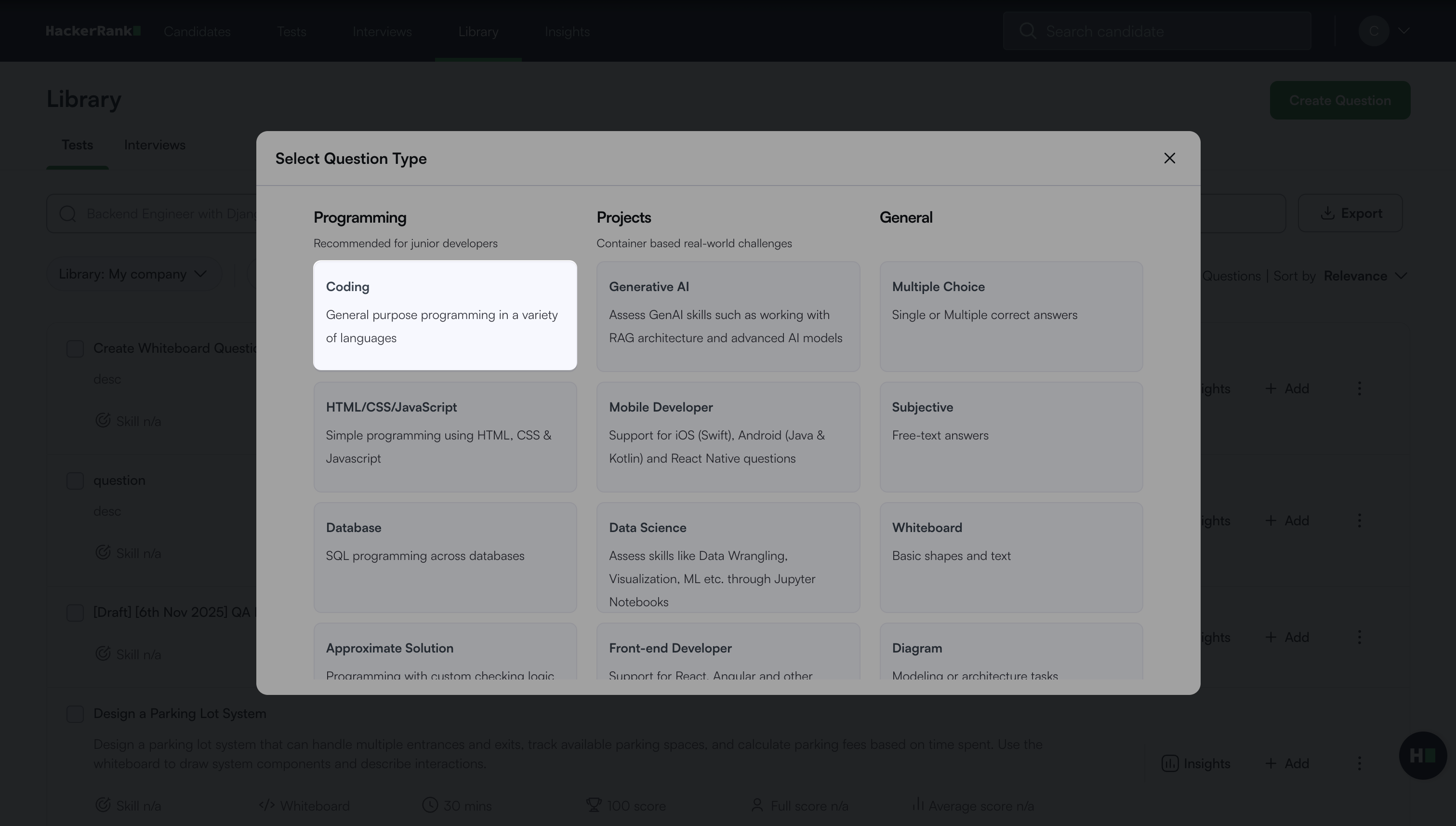
Select Coding under Programming.
The coding question creation workflow opens with the following four steps.
Step 1: Question Details
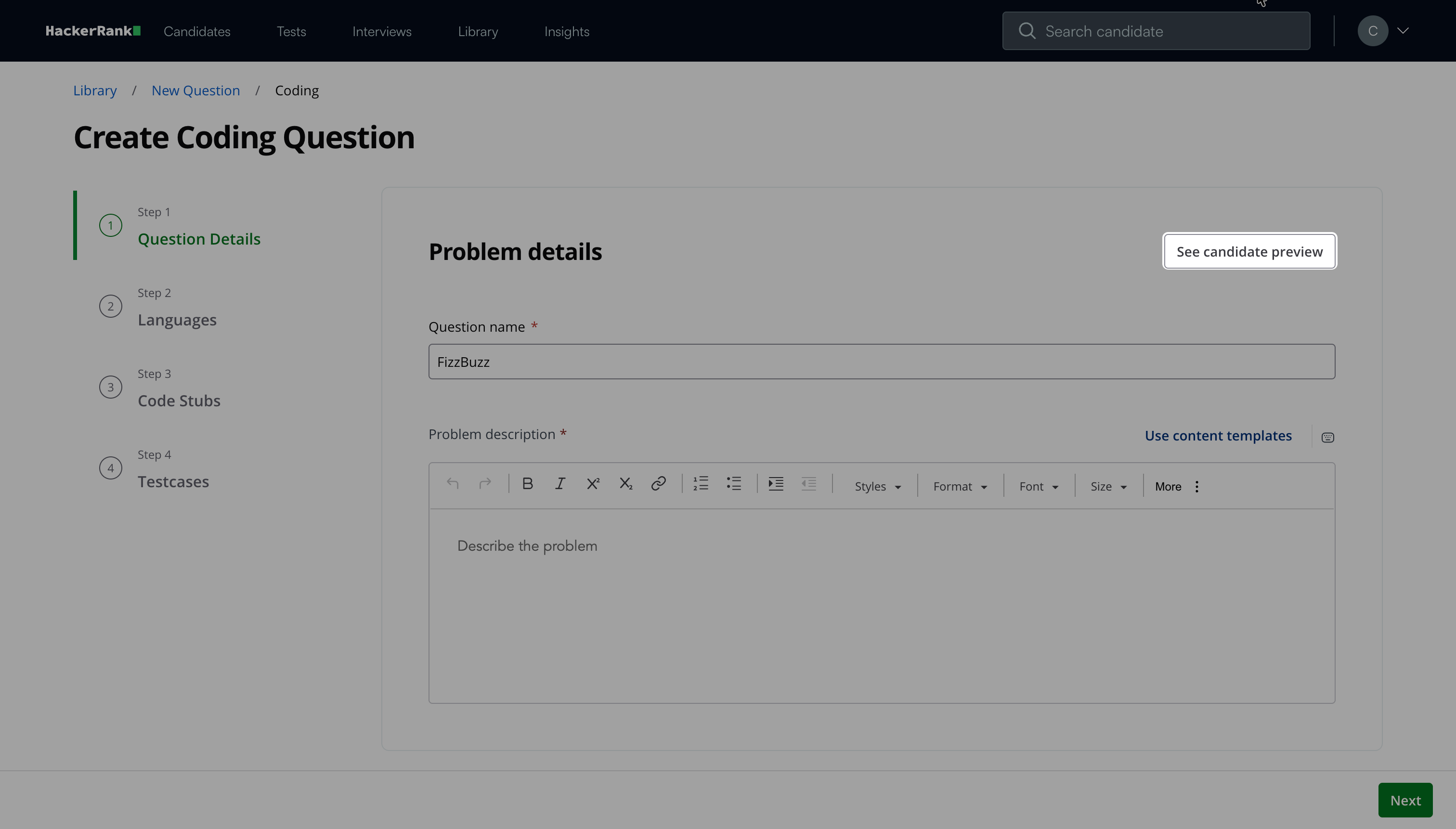
In the Problem details section:
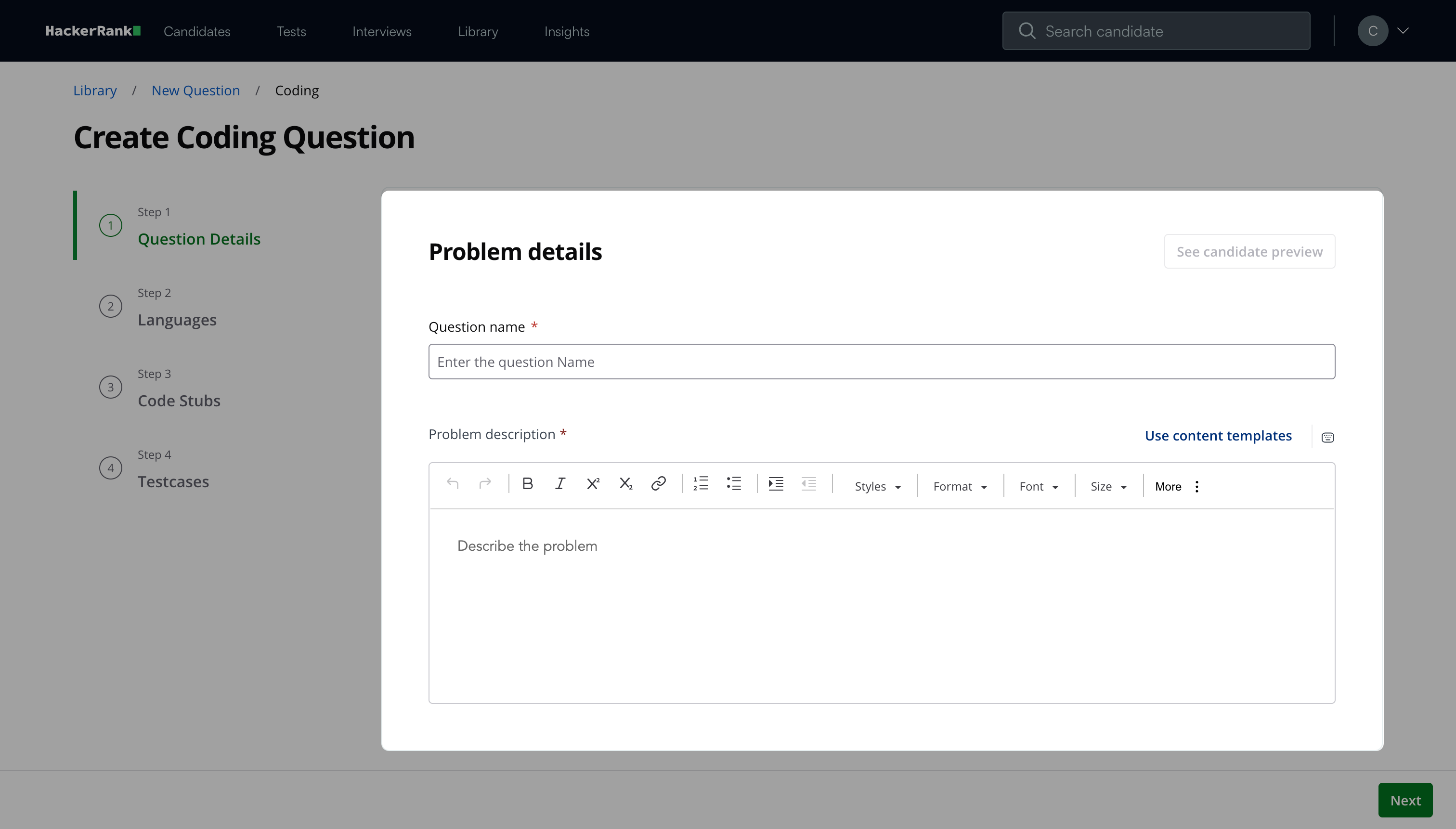
Enter the Question name.
Describe the problem in the Problem description field. You can use the formatting menu to format the text or to include elements such as tables or images.
Note:
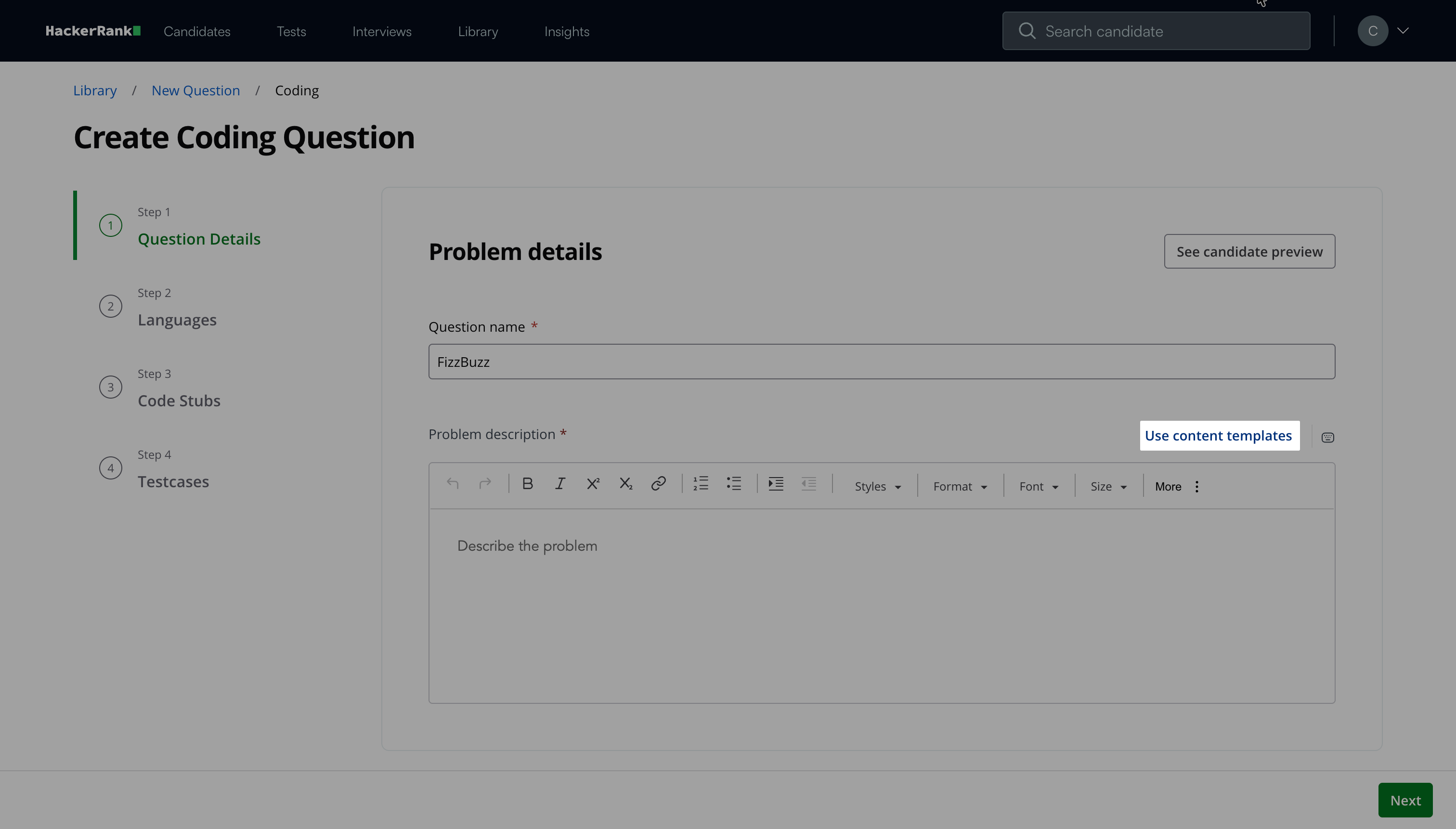
Click Use content templates to use a template and select HackerRank’s Coding Question Template.
Click See candidate preview to view how the question appears to candidates.
In the Question properties section:
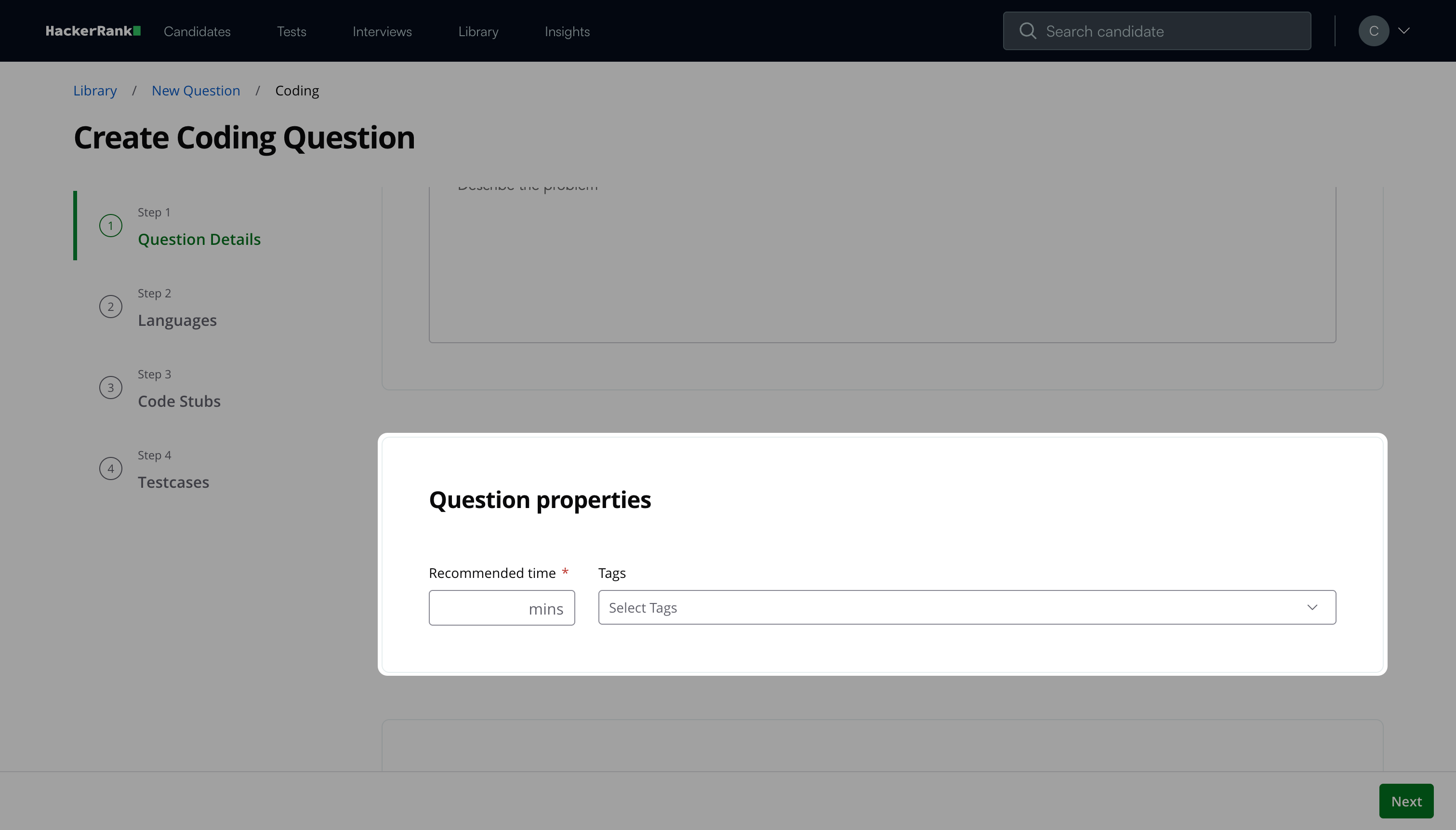
Add Recommended time in minutes.
(Optional) Add Tags from the drop-down list or create new ones.
(Optional) Add Interviewer guidelines for internal use, such as evaluation notes, hints, or reference solutions.
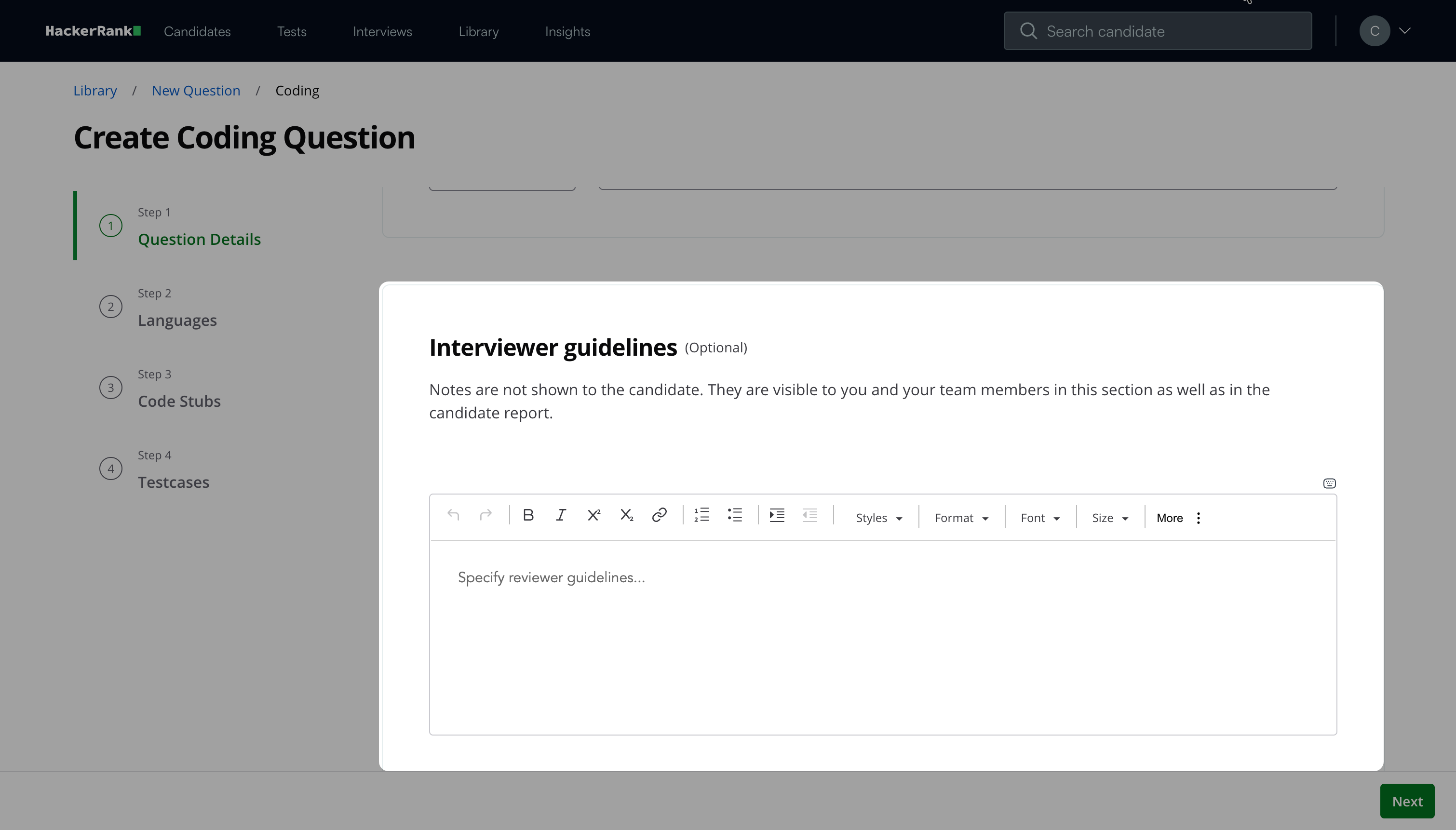
Click Next.
Step 2: Languages
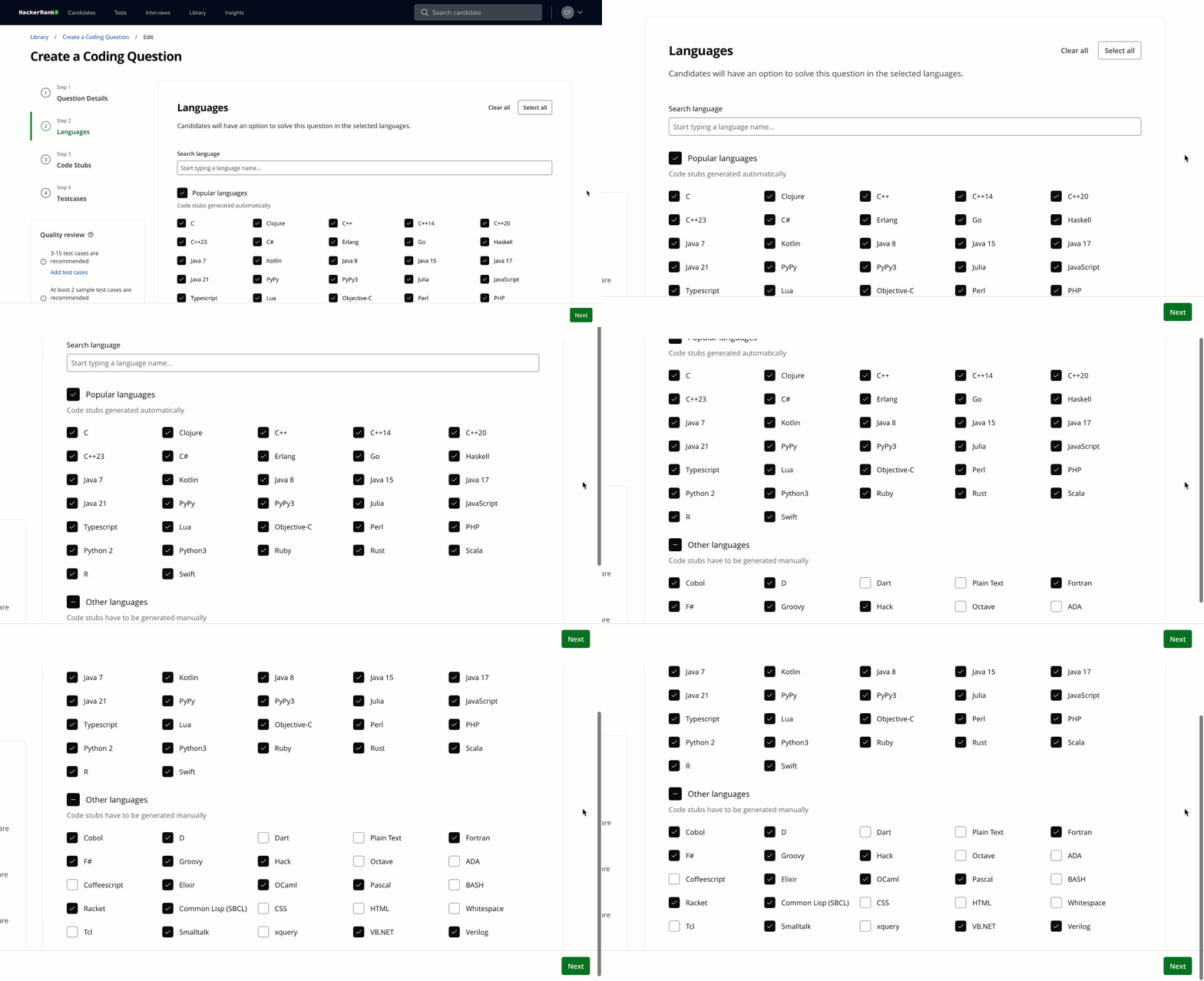
Select the programming languages that candidates can use to attempt the question.
The platform groups languages into two categories:Popular languages: The platform automatically generates code stubs. Select the Popular languages checkbox to include all popular languages.
Other languages: You must generate code stubs manually. Select the Other languages checkbox to include all other languages.
Click Next.
Note:
Click Select all to enable all languages.
Click Clear all to remove all selections.
Use the search bar to find a specific language.
Step 3: Code Stubs
Define the function signature and generate code stubs for supported languages.
Enter the Function name.
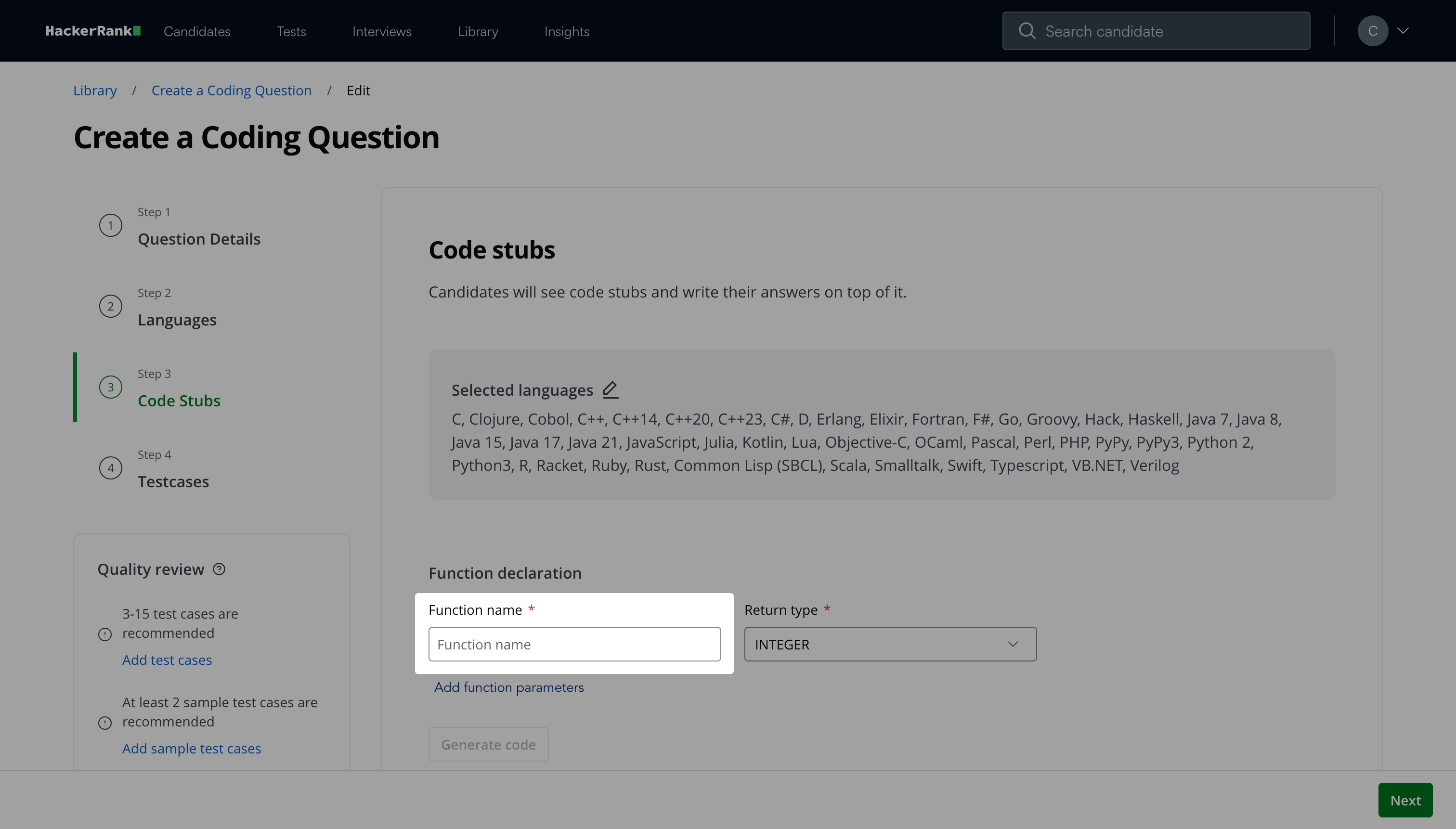
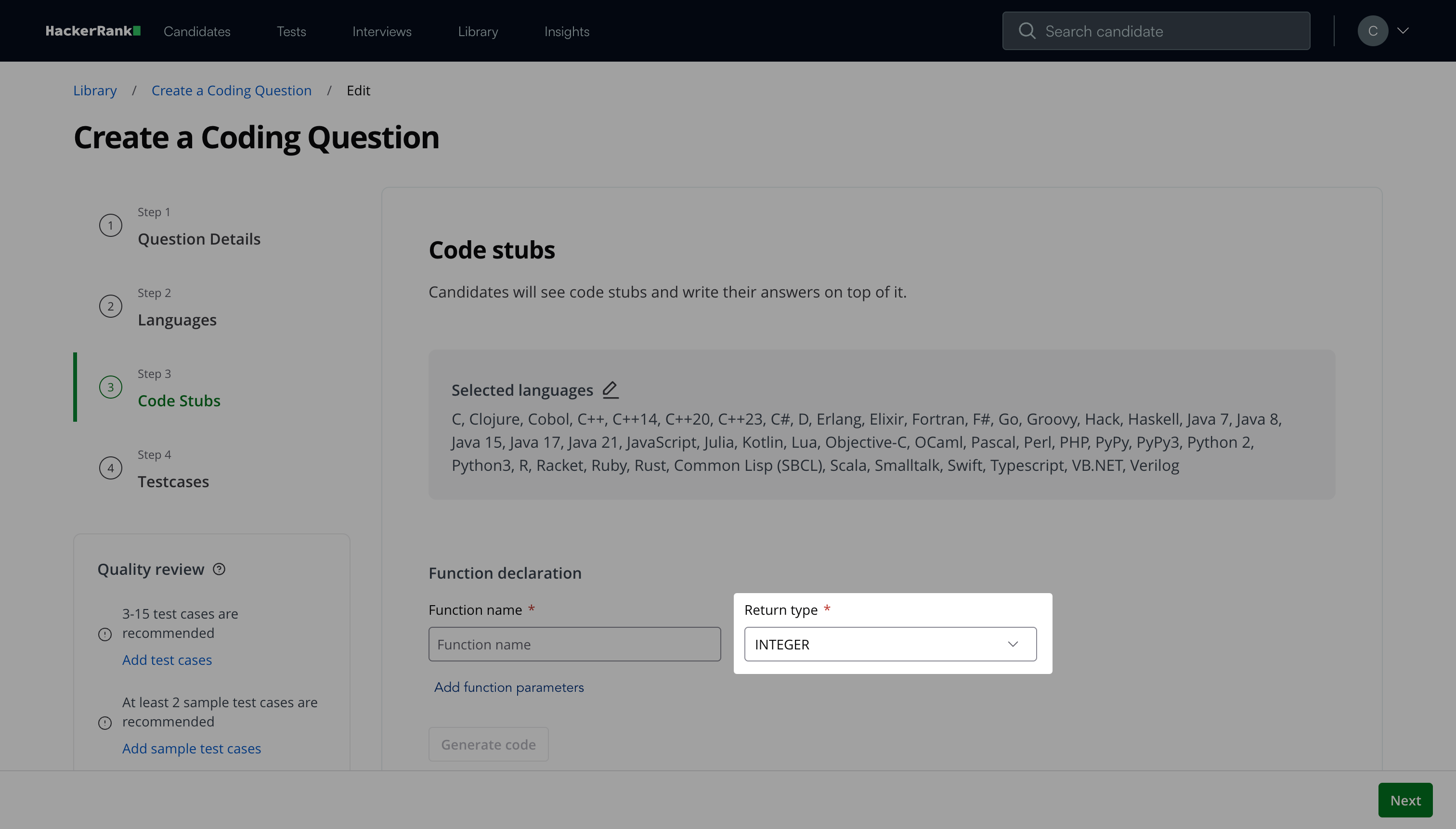
Select a Return type from the dropdown.
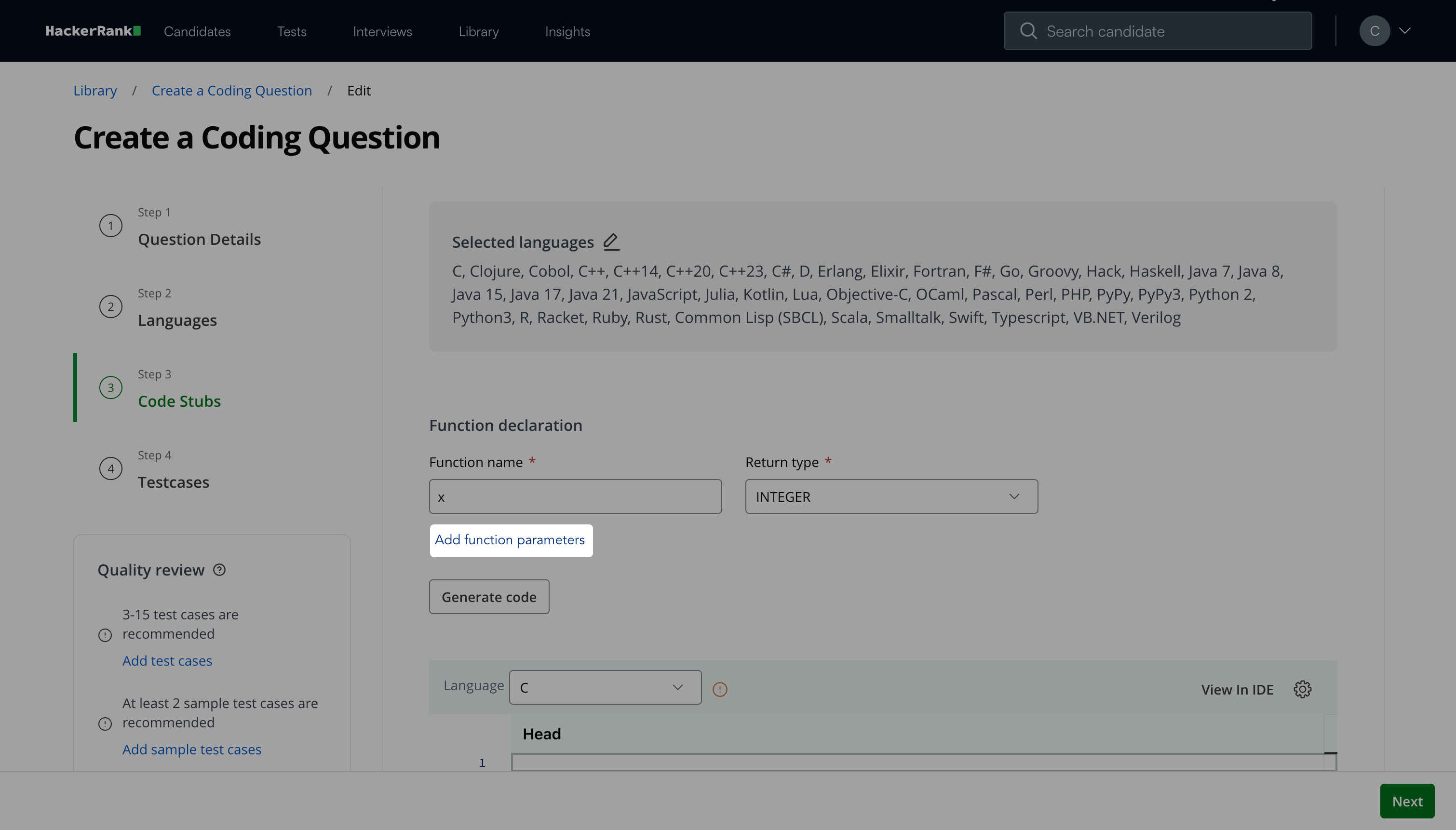
(Optional) Click Add function parameters.
Select a Type from the dropdown.
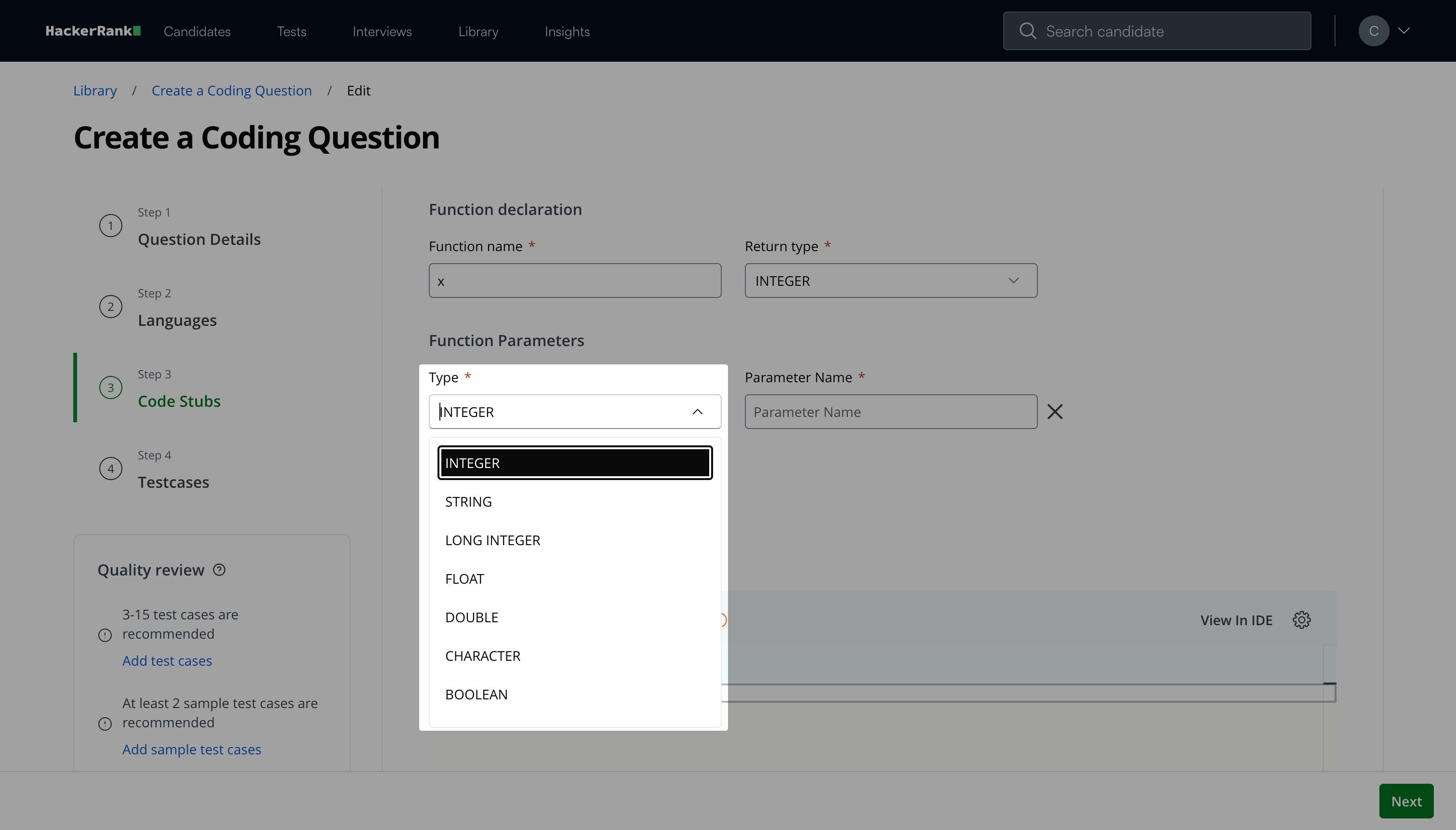
Enter the Parameter Name.
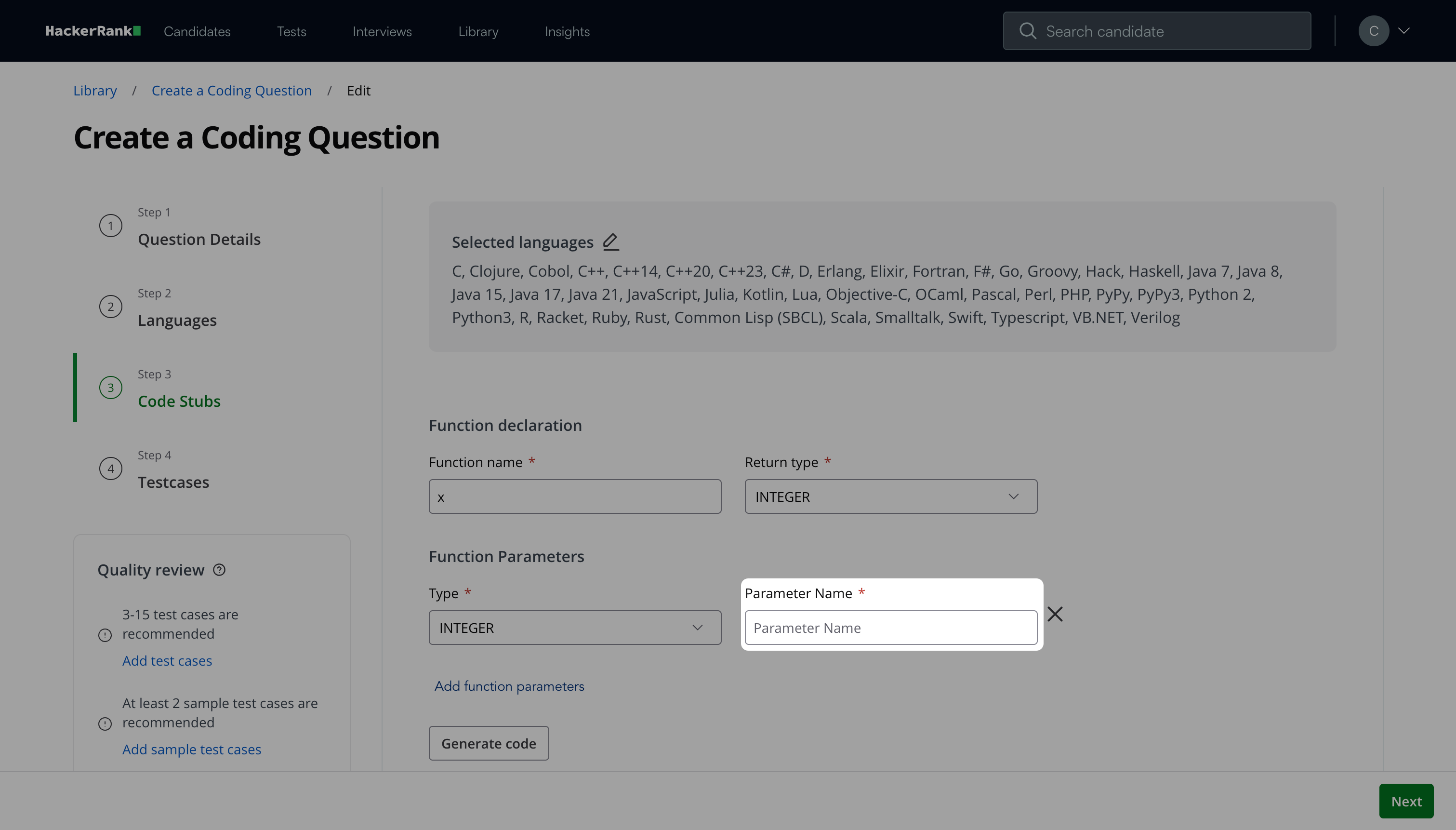
Note: Click the ✕ icon to remove a parameter.
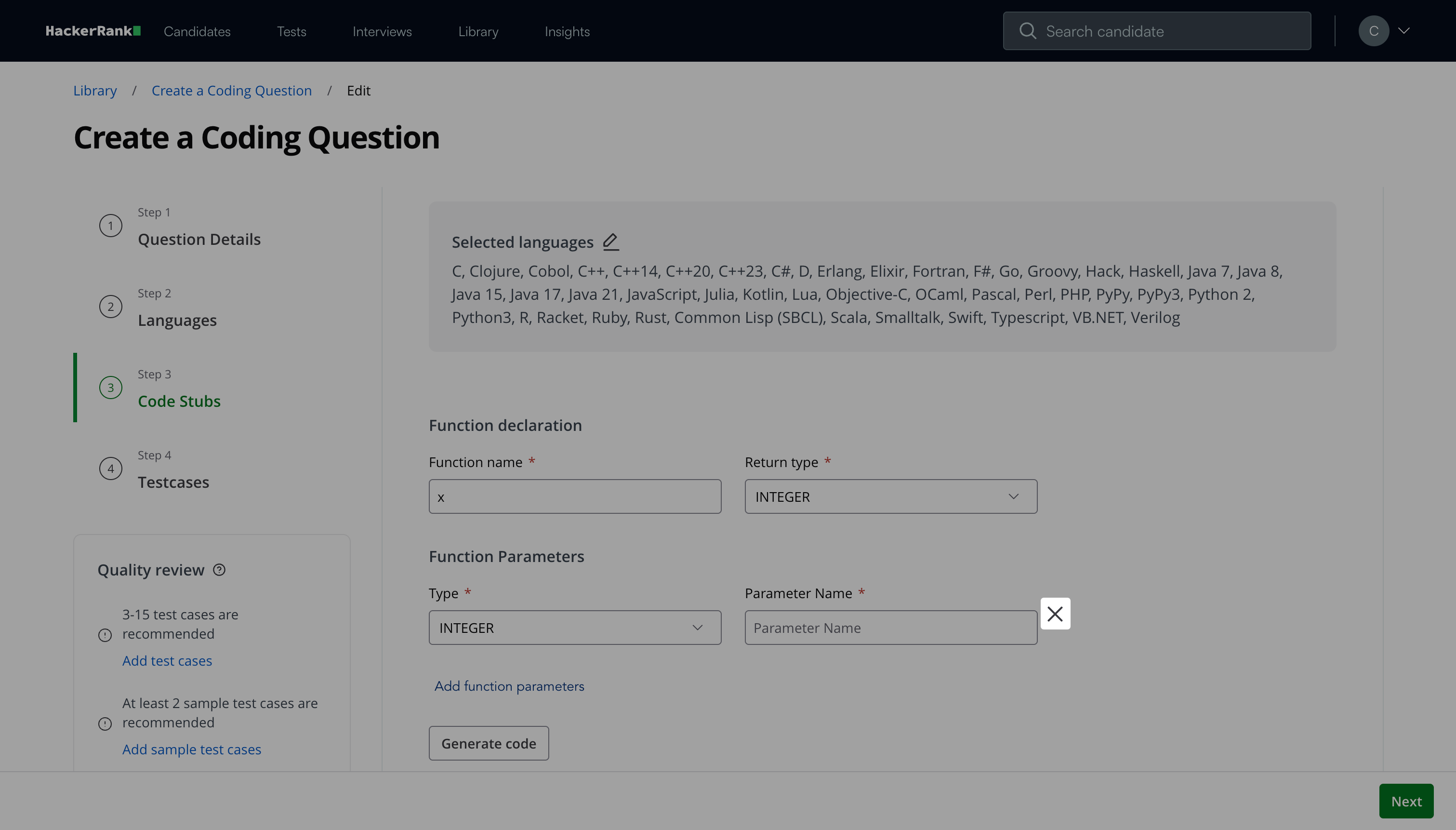
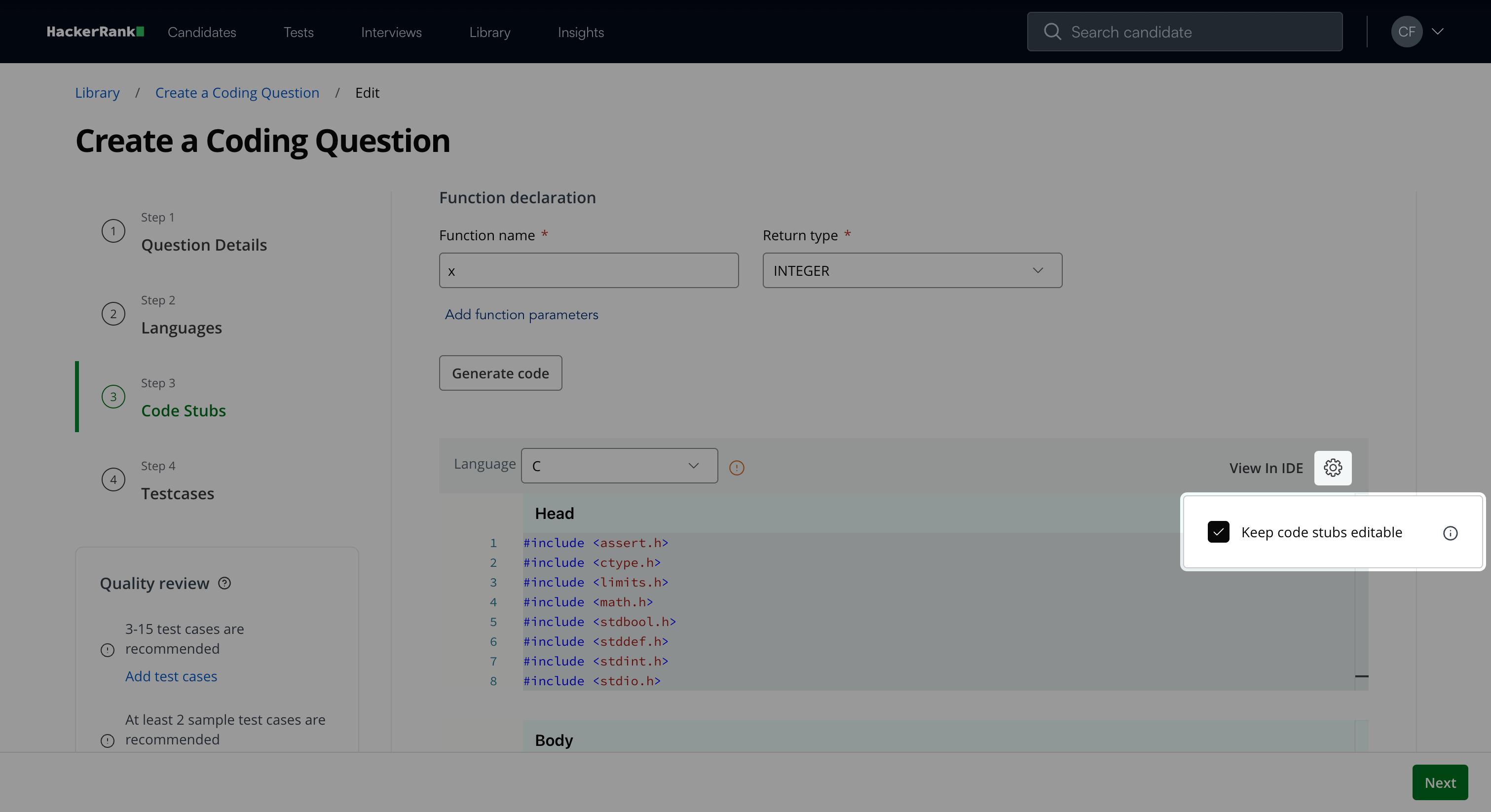
Click Generate code.
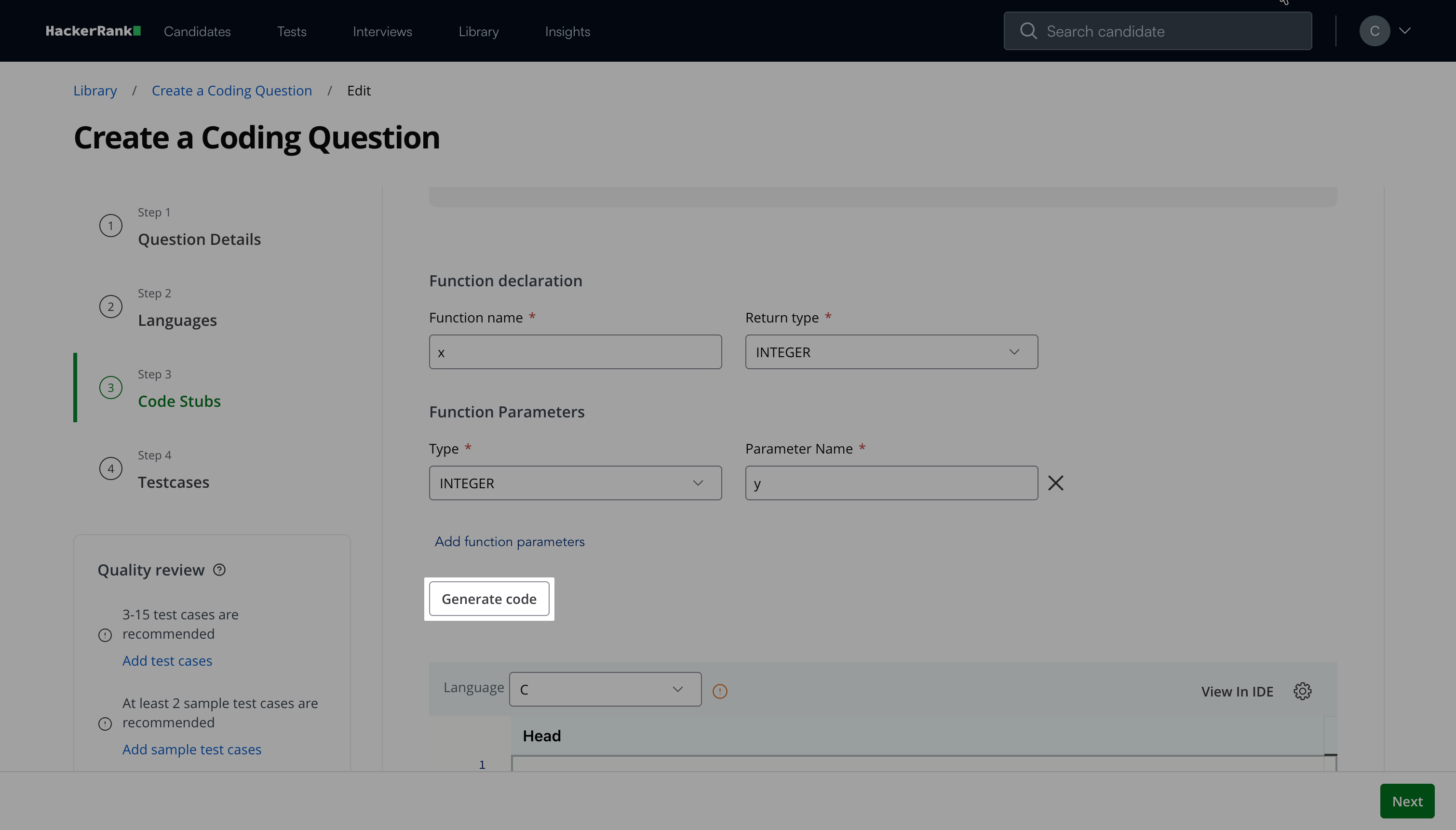
The platform generates code stubs for the Popular languages selected in Step 2 and displays a success message. If you selected languages under Other, follow the steps in Handle unsupported languages.

(Optional) Review the generated code.
(Optional) Click View in IDE to open the code in the IDE.
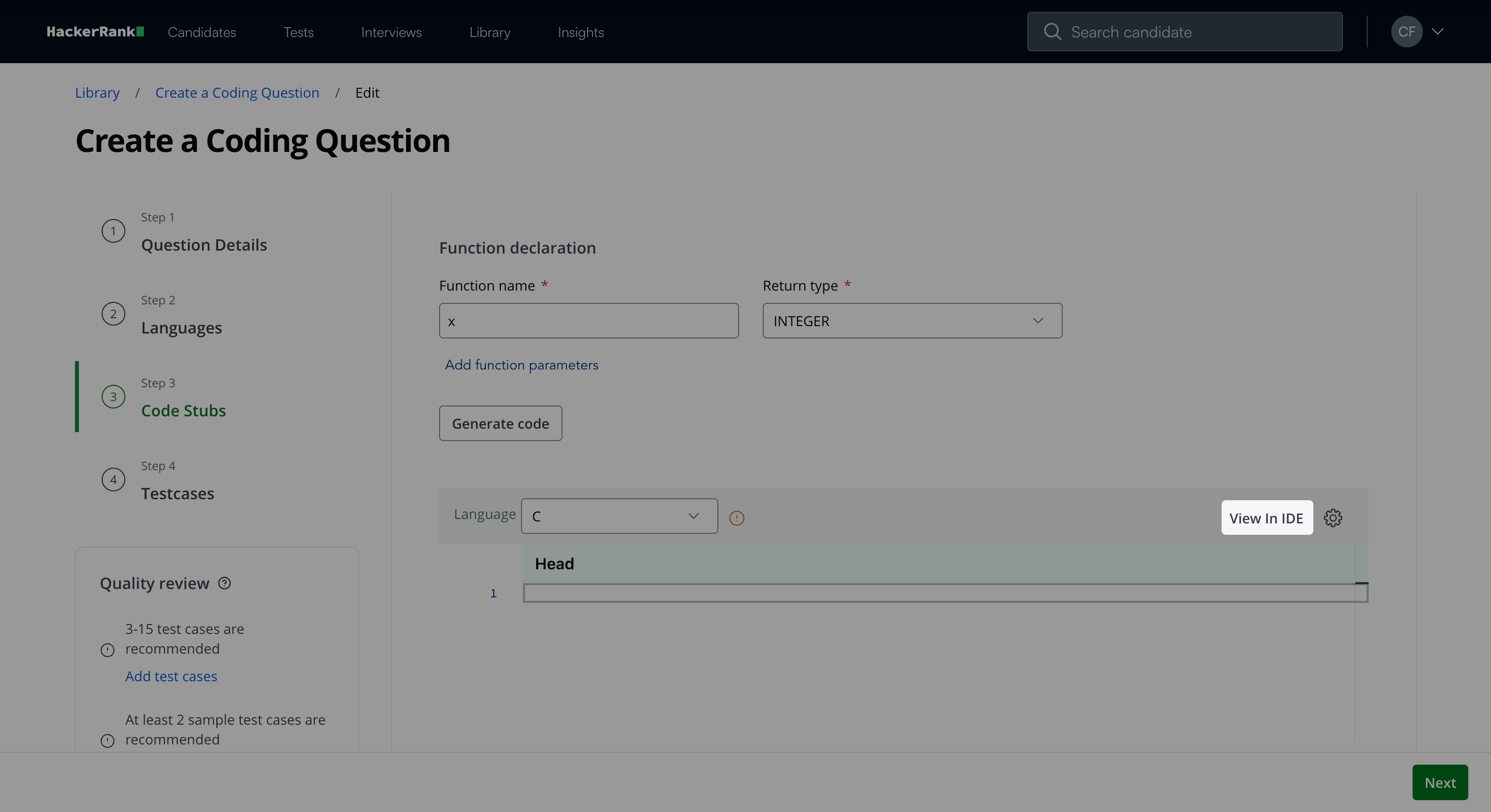
(Optional) Click the settings icon to enable or disable Keep code stubs editable. The option is enabled by default.
Click Next.
Handle unsupported languages
If you select languages that do not support automatic code stub generation, the platform displays a dialog listing the unsupported languages.
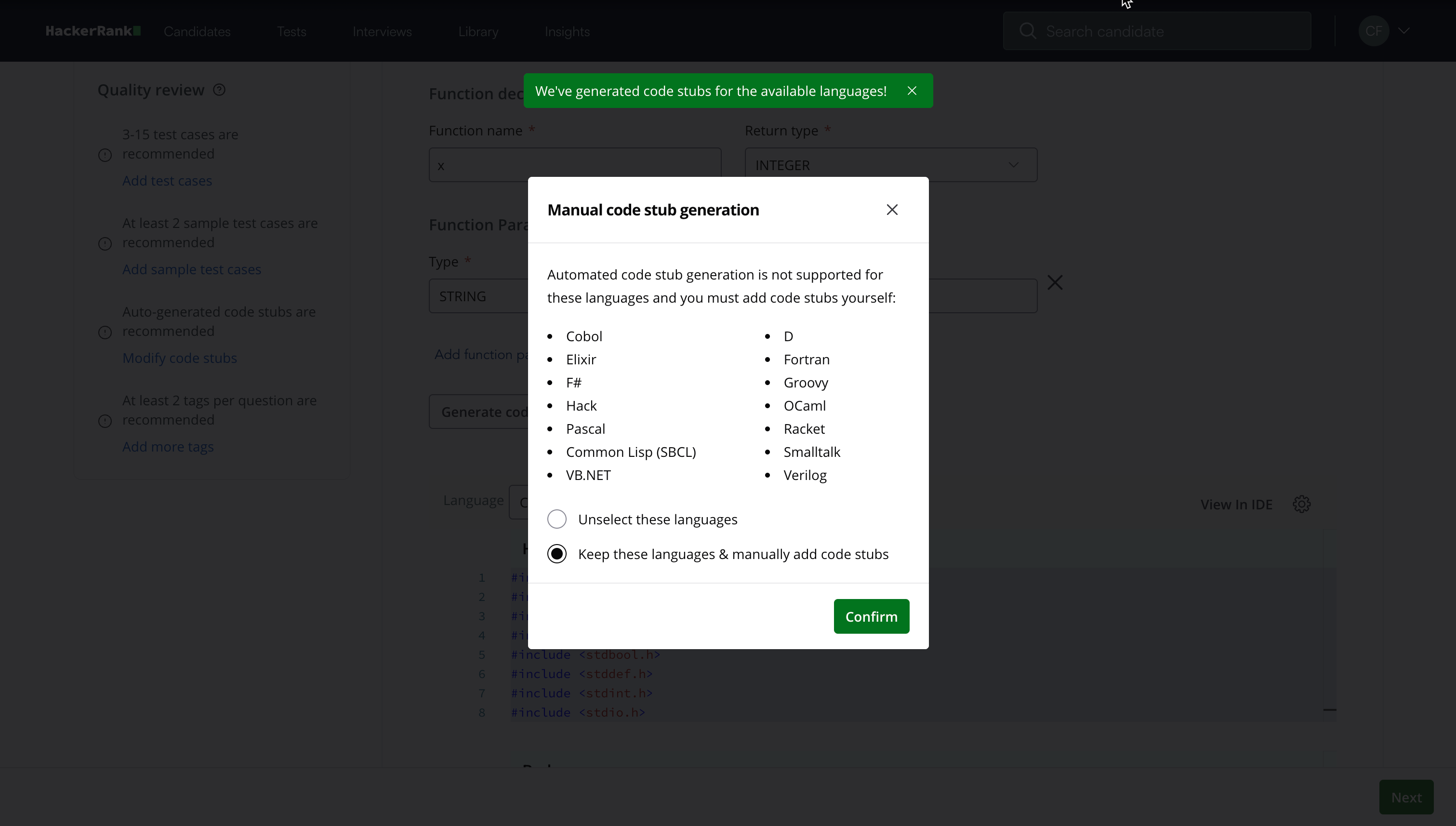
Choose one of the following options:
Unselect these languages: Removes the unsupported languages from the question.
Keep these languages & manually add code stubs: Keeps the languages and continues without auto-generated stubs. You must add the code stubs manually.
To add code stubs manually:
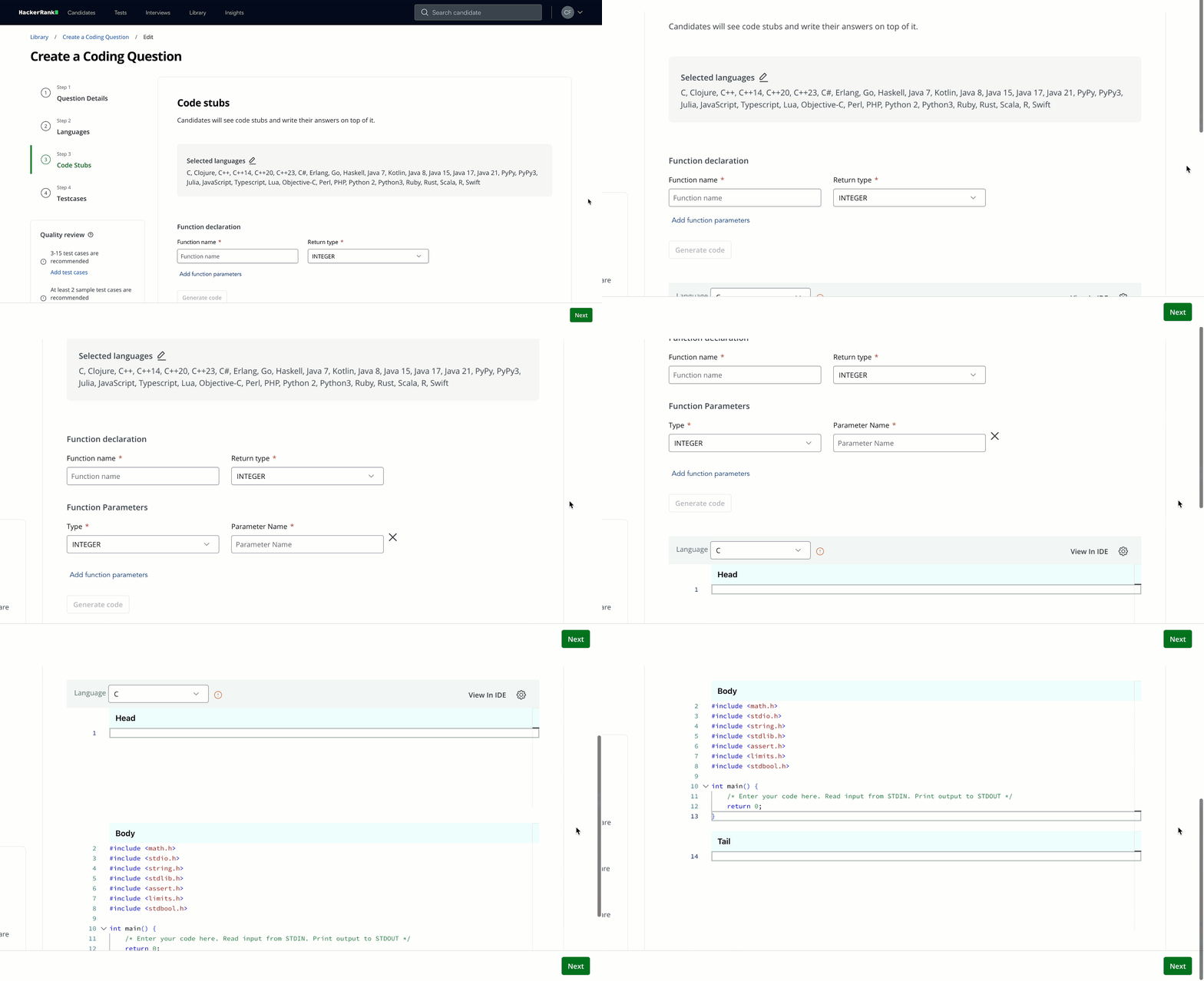
Open the code editor.
Search for the required language.
Add the code stub manually.
Step 4: Testcases
Use this step to upload solutions and define test cases for the question.
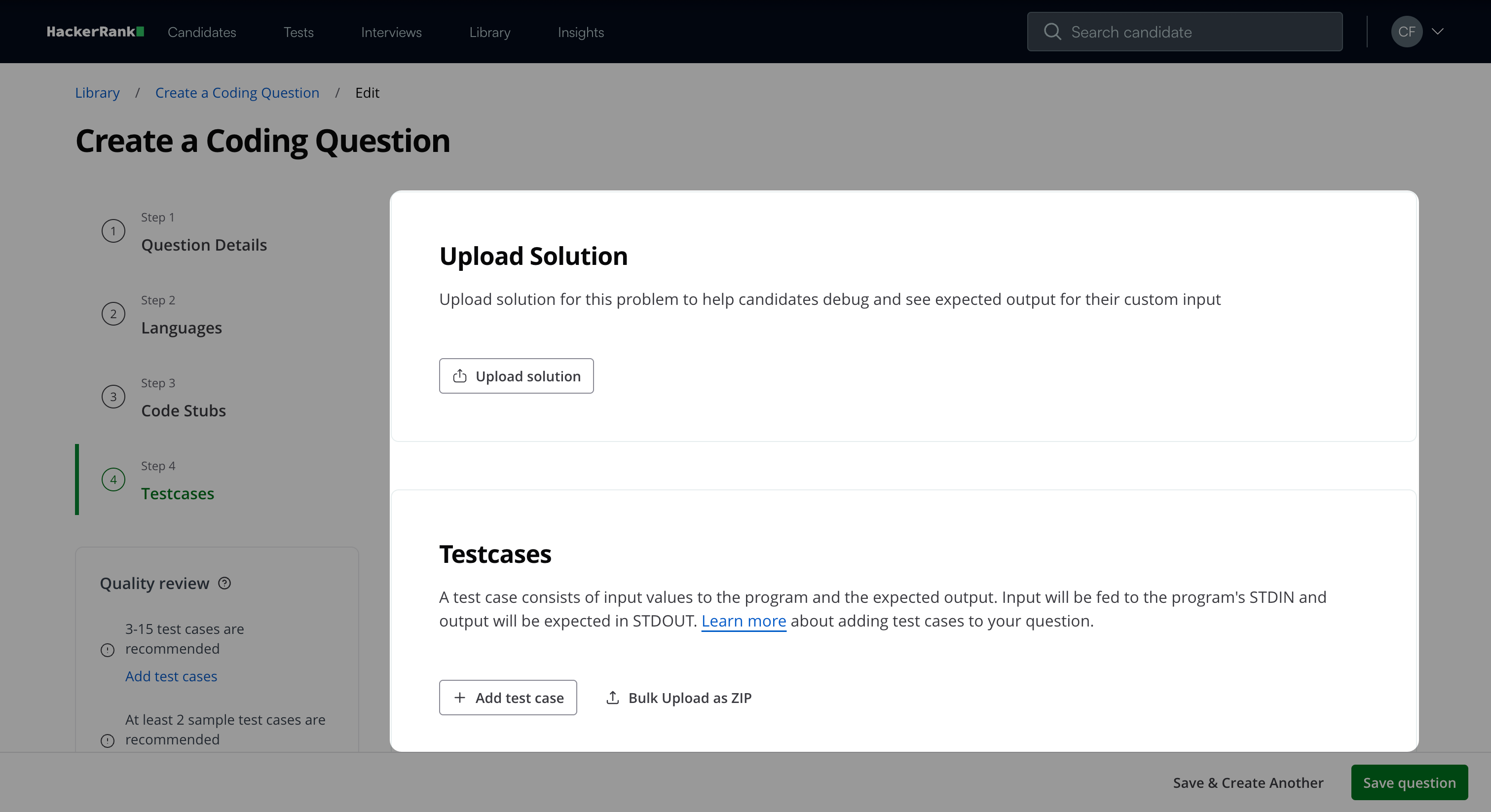
In the Upload Solution section:
Click Upload Solution to upload a solution file.
In the Upload Solution dialog:
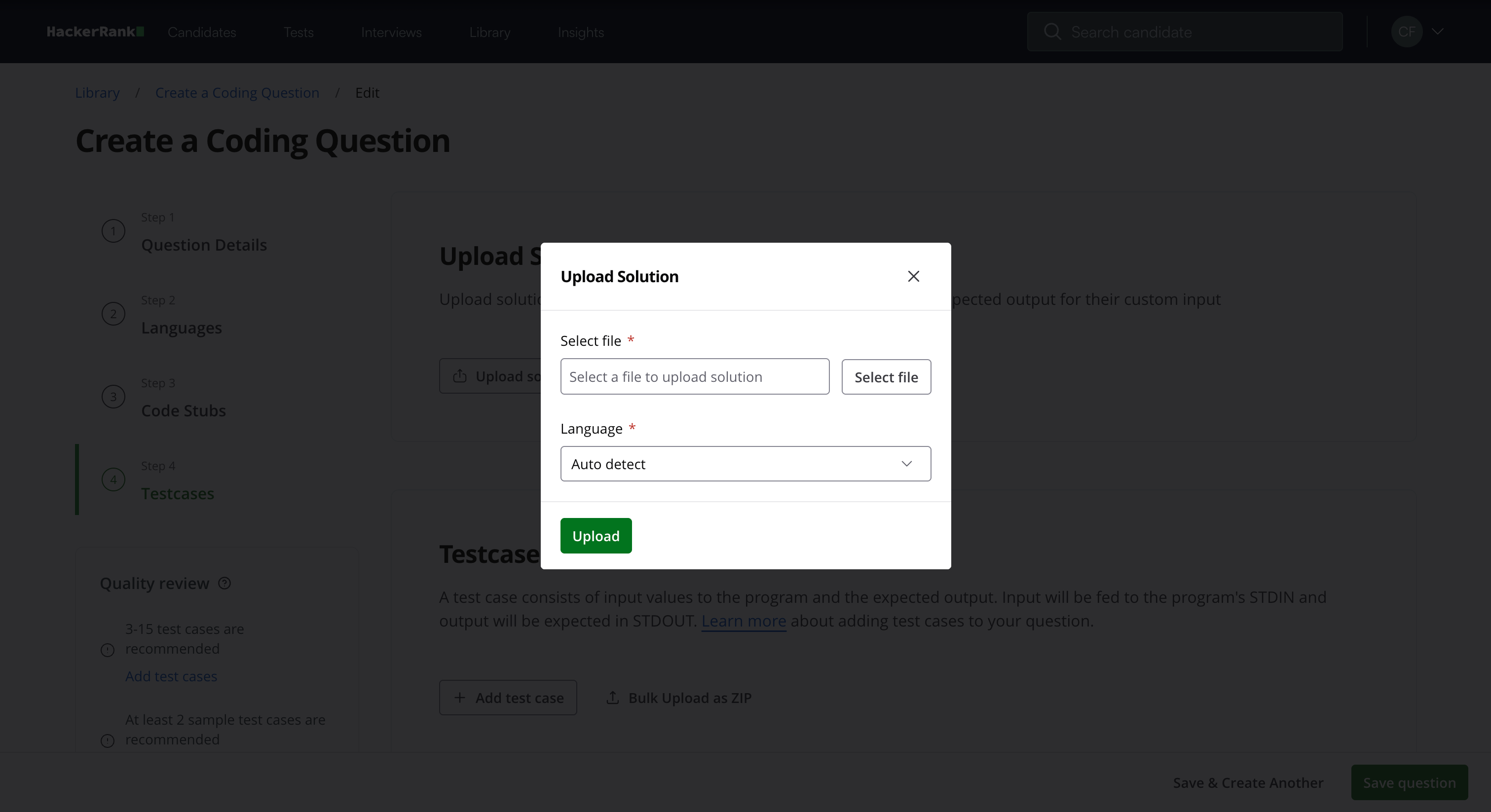
Click Select file and choose the solution file.
Click Language and select the language of the solution file, or select Auto detect. Auto detect is enabled by default.
Click Upload.
In the Testcases section:
Click Add test case to manually add test cases.
Note: Click Bulk Upload as ZIP to upload multiple test cases in a ZIP file.
In the Add test case dialog:
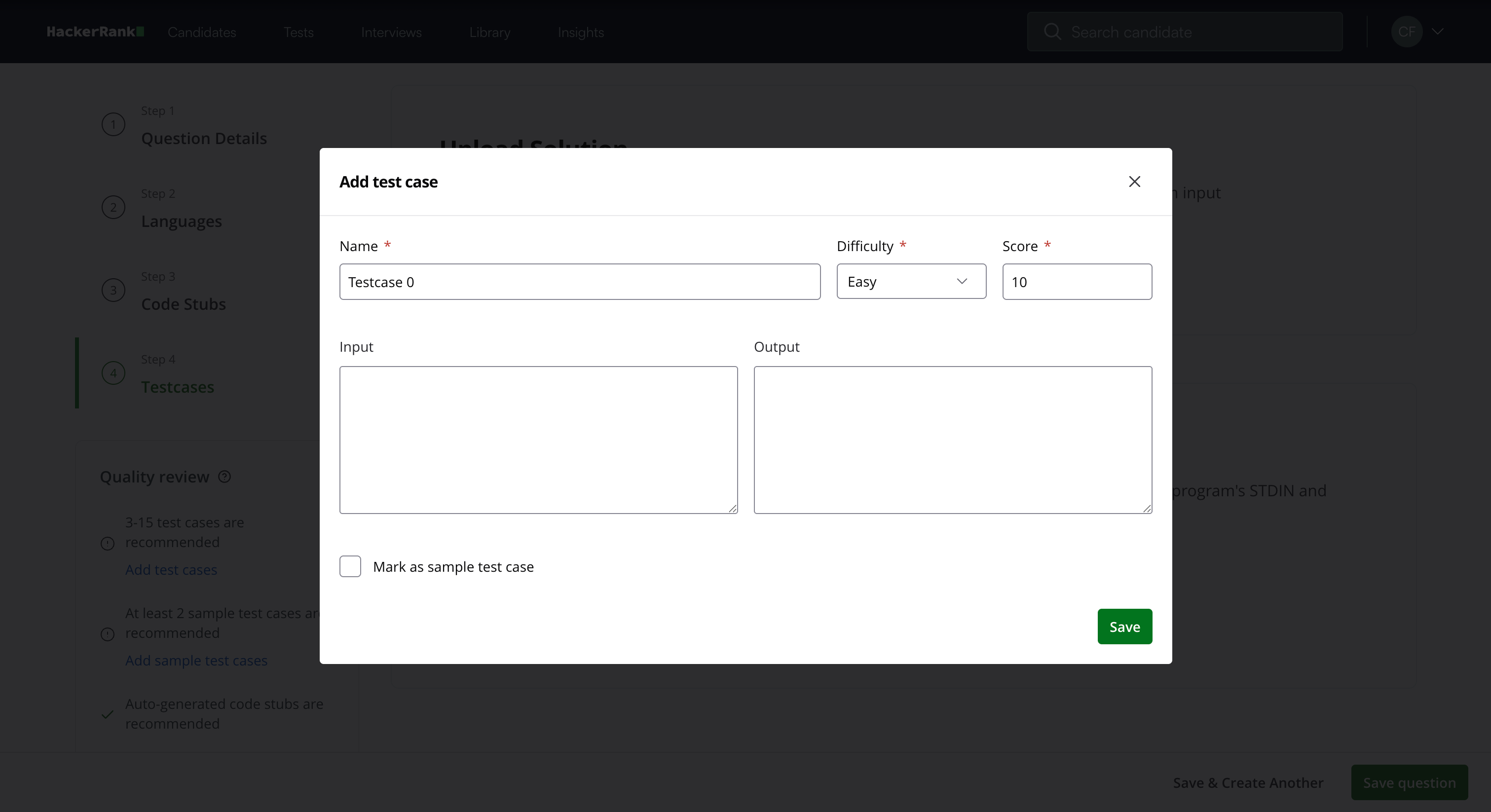
Enter the Name of the test case.
Select a difficulty level from the Difficulty dropdown
Assign a Score.
(Optional) Enter Input values.
(Optional) Enter Output values.
(Optional) Select Mark as sample test case to make the test case visible as a sample. For more information on test cases, see 📄 Test Cases in Coding and Approximate Solution Questions.
Click Save.
Note:
If you do not enter an output, candidates see only their own output while solving the question.
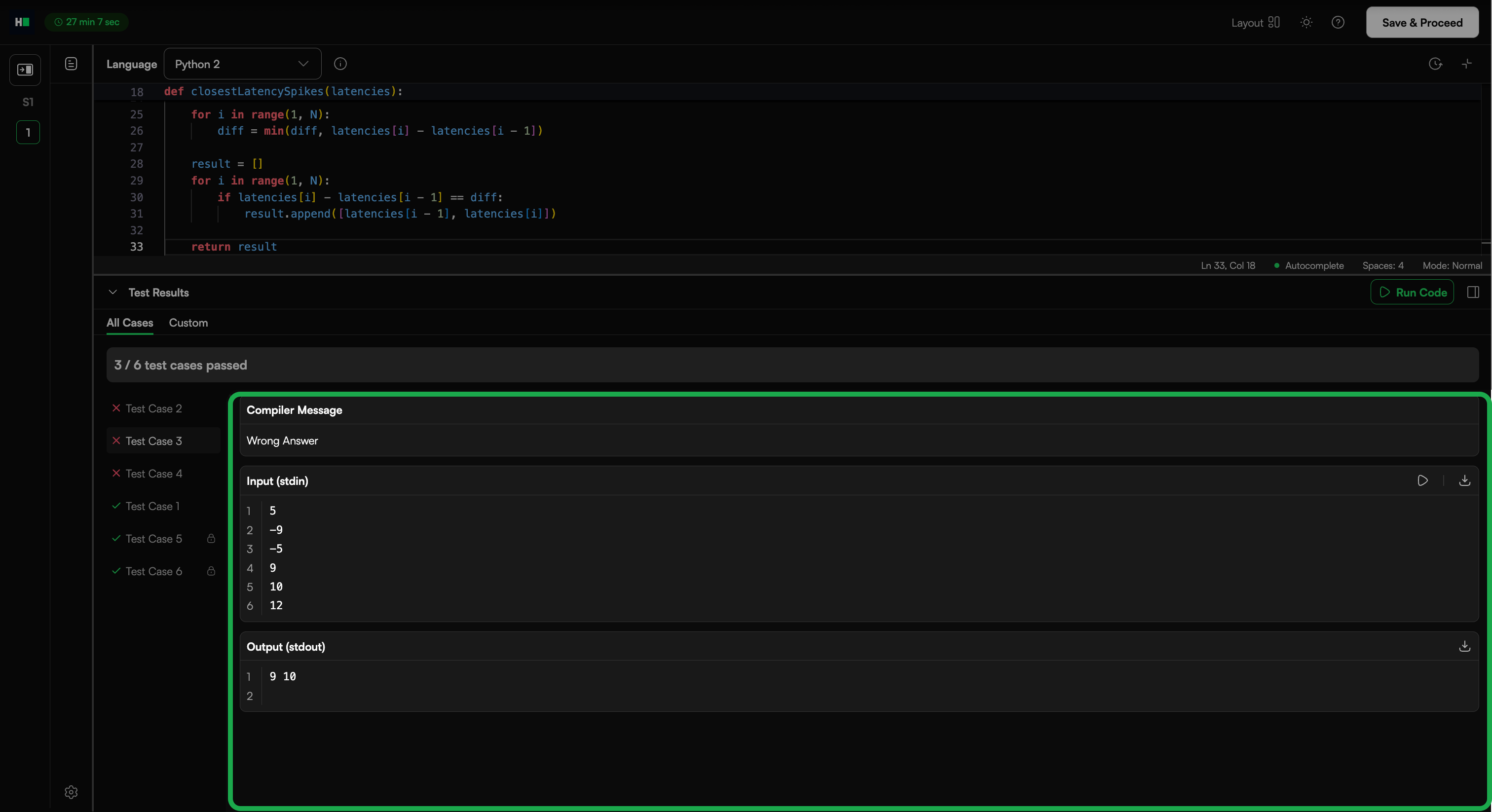
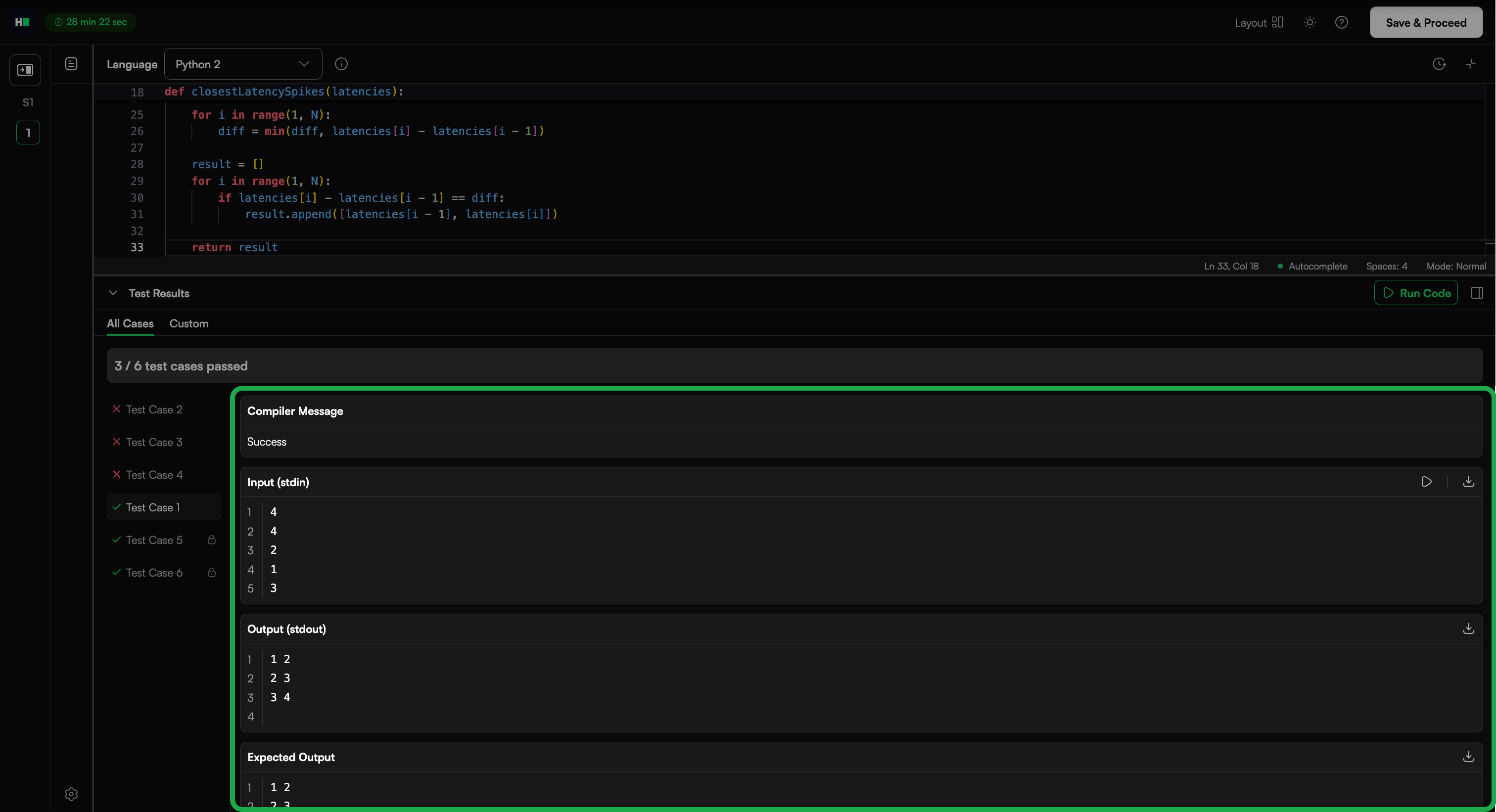
If you enter an output, candidates see both their output and the expected output while solving the question.
If you do not add test cases, you must manually review and score candidate submissions.
Review the Quality review panel to evaluate the question quality and view recommendations. For more information, see Quality review.
Click Save question.
Note: Click Save & Create Another to create another question.
The question appears under My Company questions in the HackerRank Library.
Quality review
Quality review helps you evaluate and improve the quality of a coding question before you use it in a test or interview.
The system analyzes the question and provides actionable recommendations.
Evaluation criteria
Quality Review evaluates the following parameters:
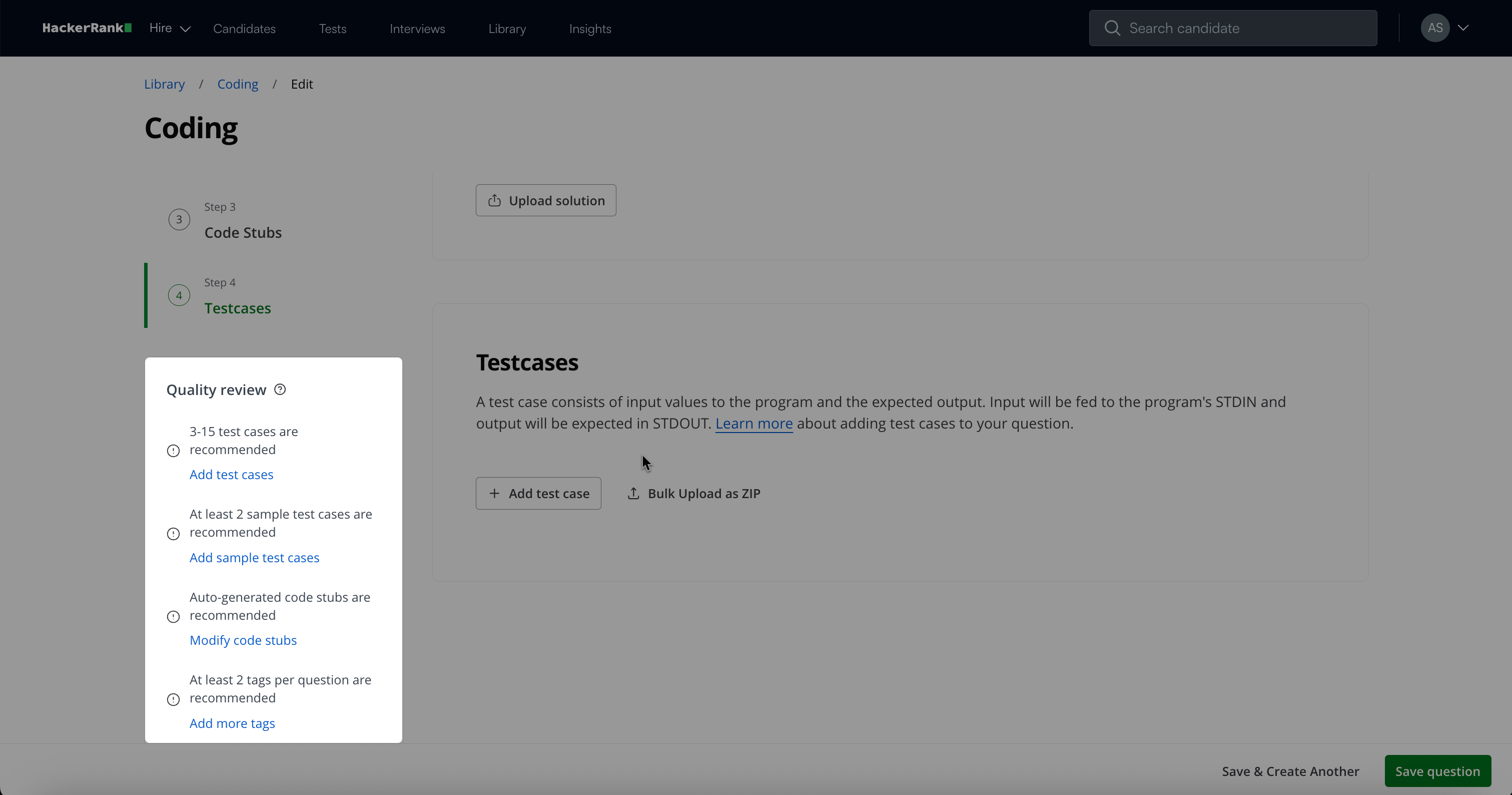
Total number of test cases: Test cases enable automatic scoring.
Without test cases:
The platform cannot score the question.
The assessment lacks an objective evaluation.
Recommendation
Add 3–15 test cases.
Cover Easy, Medium, and Hard difficulty levels.
Include edge and corner cases.
Sample test cases: Help candidates understand input and output formats and validate basic logic before submission.
Recommendation
Add at least 2 sample test cases.
Ensure outputs clearly match expectations.
Auto-generated code stubs: Auto-generated stubs standardize input/output handling using STDIN and STDOUT. They reduce formatting errors, prevent incorrect output handling, and ensure consistent evaluation behavior.
Recommendation
Use auto-generated stubs whenever possible.
Note: Manual stubs are required in scenarios such as reading a binary tree or returning a class object. In such cases, modify the default stubs or write custom stubs manually.
Descriptive tags: Tags organize and classify questions. They improve library searchability, enable skill-based filtering, and support assessment alignment.
Recommendation
Add at least two tags, including:
Difficulty level (Easy, Medium, Hard)
Skill area (Algorithms, Data Structures, Problem Solving, and so on)
Add concept-specific tags when relevant.
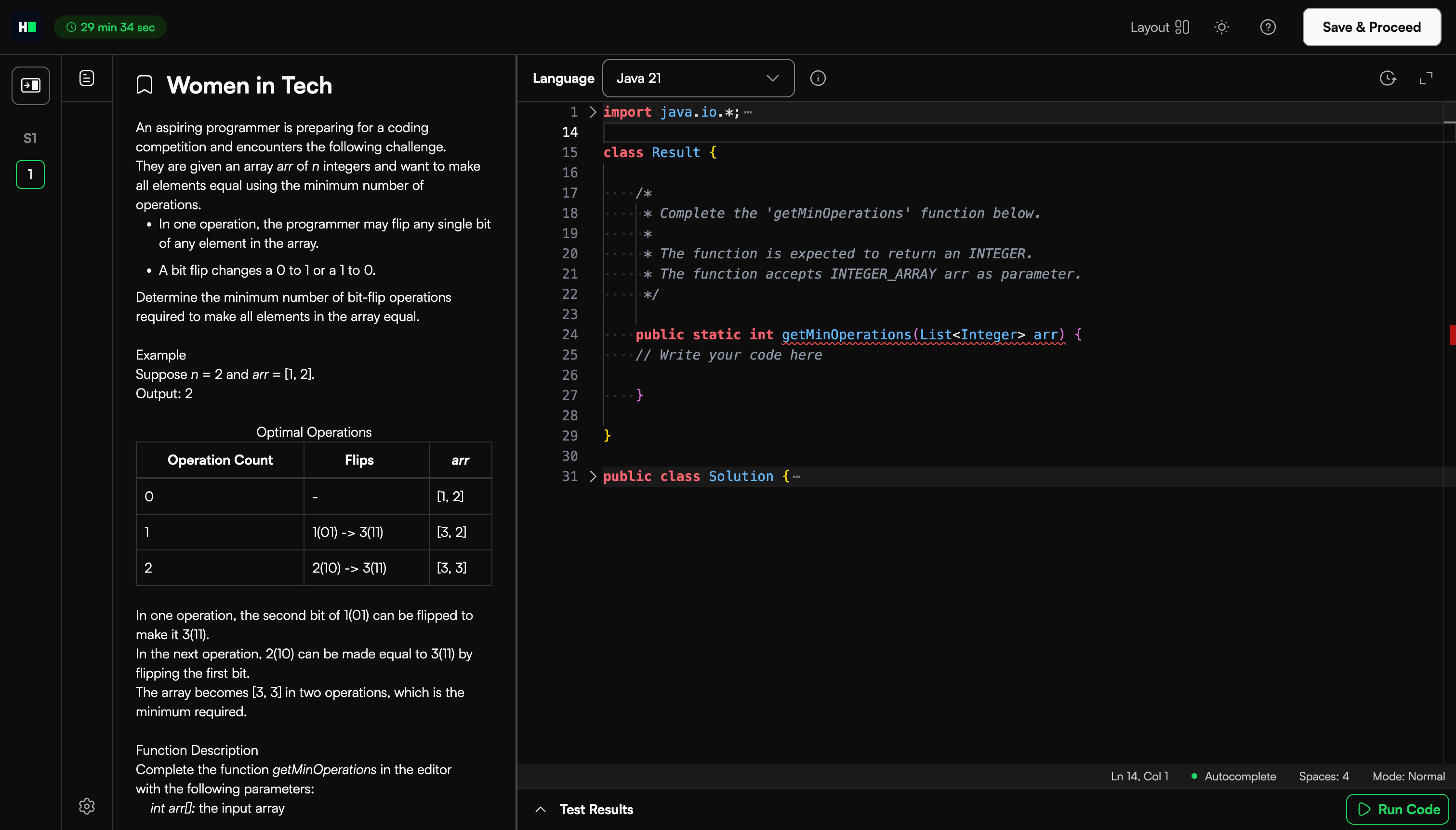
Candidate experience
The candidate can attempt the question in the editor and click Run to run the test cases.
Scoring a coding question in tests
HackerRank evaluates coding questions using predefined test cases that measure correctness and efficiency. Each test case includes defined input, expected output, and execution conditions. The system executes the submitted code against all test cases and calculates the score automatically.
How scoring works
The system evaluates submissions as follows:
Run the submitted code in a standard execution environment against all test cases.
Compare the candidate’s output with the expected output for each test case.
Each test case has a predefined score.
If the code passes the test case, the candidate receives the full predefined score.
If the code fails the test case, the candidate receives a score of zero.
Note: Partial scoring does not apply.
The total score equals the sum of the scores for all passed test cases.
Example
The following example shows how the system calculates the score for a coding question with 11 total test cases, including 2 sample test cases and 9 hidden test cases.
Type of Test Case | Number of Test Cases | Points Assigned to a Test Case | Total Possible Points | Number of Test Cases Passed by the Candidate | Candidate's Total Score |
Sample | 2 | 0 | 2*0=0 | 2 | 2*0= 0 |
Hidden- Easy | 3 | 5 | 3*5=15 | 3 | 3*5=15 |
Hidden- Medium | 4 | 10 | 4*10=40 | 3 | 3*10=30 |
Hidden Difficult | 2 | 20 | 2*20=40 | 1 | 1*20=20 |
Total | 11 | - | 95 | - | 65 |
In this example, the candidate earns a total score of 65 out of 95.