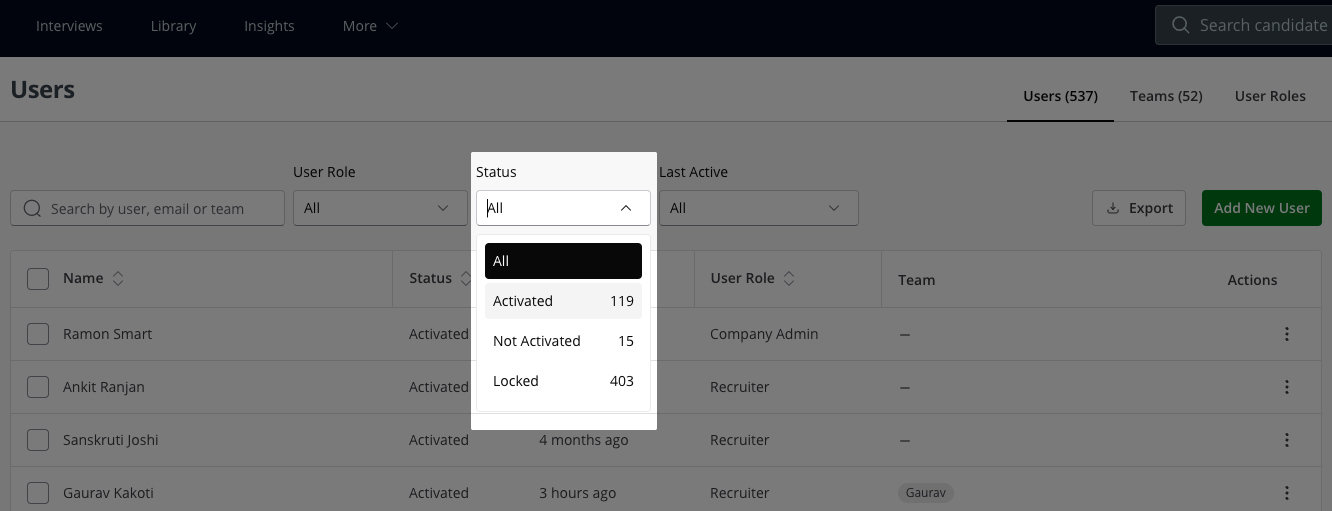
Team Member Status
Last updated: December 27, 2024
HackerRank for Work allows you to categorize team members based on their current status, such as Activated, Not Activated, or Locked. A team member’s status indicates their position within the organization. You can search for team members by status, review their status, and take relevant actions as needed.
Steps to Identify Team Member Status
Access Teams Management
Log in to your HackerRank for Work account.
Click the arrow next to the user icon in the top-right corner of the homepage.
Select Teams Management from the dropdown menu.
Navigate to the Users Tab
On the Teams Management page, click the Users tab.
The page displays a list of all users and details such as team, region, and department.
Filter by Status
Use the Status filter at the top of the page to refine the user list.
Select one of the following options from the dropdown:
Activated: Indicates that the user has activated their account using the activation email and is part of one or more teams.
Not Activated: Indicates that the user belongs to one or more teams but has not yet activated their account.
Locked: Indicates that the user is not part of any team and has no resources allocated.
View Users by Status
Selecting any status option displays a list of users categorized under the chosen status.