Enhancing your Account Security on Hackerrank for Work
Last updated: January 29, 2025
Best Practices for Securing Your HackerRank for Work Account
Ensuring the security of your account and protecting your data is critical in today's environment. To enhance your experience with HackerRank, follow these best practices to safeguard your account.
Why Security Compliance Matters
Maintaining IT security compliance is essential for organizations to:
Enhance Security: Mitigate risks associated with unauthorized access.
Reduce Data Loss: Prevent accidental or malicious breaches.
Build Trust: Establish confidence among stakeholders by demonstrating robust data protection.
In line with organizational security measures, HackerRank provides best practices to help secure your HackerRank for Work account. This guide outlines the key steps to protect your account.
Key Practices for Keeping Your Account Secure
1. Create a Strong Password
A robust password is your first line of defense. Follow these recommendations when setting up your HackerRank account password:
Use a combination of alphanumeric characters.
Ensure the password is at least eight characters long.
Include at least one uppercase letter, one lowercase letter, and one digit.
2. Keep Your Account Credentials Private
Do not share your login credentials with others. HackerRank provides an additional layer of security to prevent unauthorized access:
You will receive a warning message if you attempt to log in on multiple devices or browsers simultaneously.
Choose to either cancel the new login or log out of existing sessions.
Proceeding with the new login will automatically log you out of all other active sessions.

Note: This feature includes a mandatory authentication check. If you encounter repeated warning messages, consider updating your password.
3. Set a Timeout for Inactive Sessions
Company Admins can configure a session inactivity timeout to enhance security and ensure compliance. Inactive sessions will automatically log out after the set threshold.
Steps to Configure Timeout for Inactive Sessions:
Log in to your HackerRank for Work account.
Click the Settings option in the top-right dropdown menu.
Select Compliance & Security from the left-hand panel on the Settings page.
Scroll to the Timeout for Inactive Sessions section.
Check the box to enable timeout for inactive sessions and set a timeout limit (30 minutes to 24 hours).
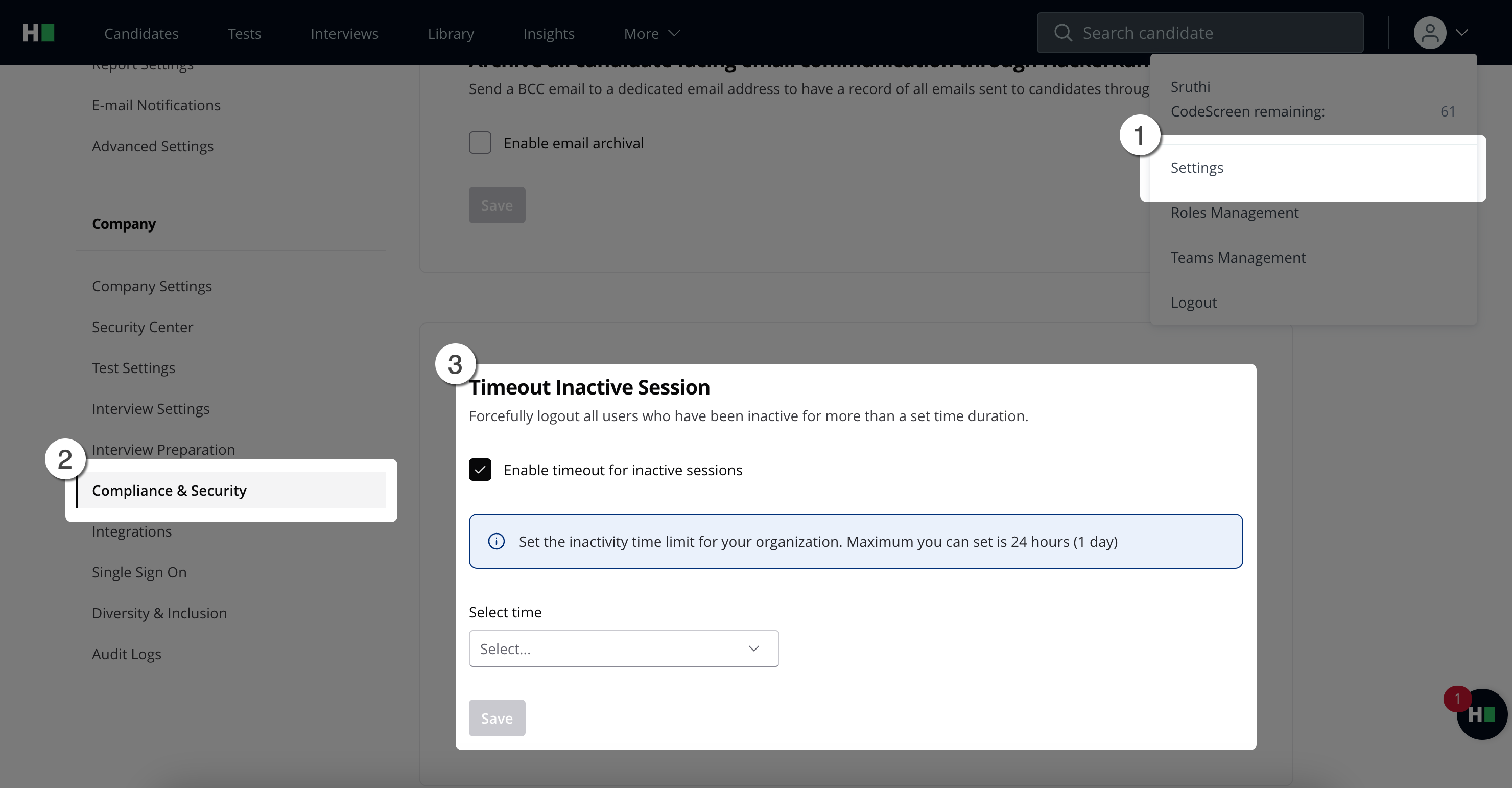
Note: The default timeout for inactive sessions is 24 hours if no custom limit is set.
When users remain inactive beyond the threshold:
A warning message will appear, prompting them to log in again.
Users will be redirected to the login page. Unsaved progress will be lost if the session expires.
Recommendation: A 30-minute timeout provides a balance between usability and security.
4. Close Your Account After Use
Always log out of your account once your work is complete. This minimizes the risk of unauthorized access and prevents data loss. Save any changes before logging out to ensure your progress is not lost.