Create Test Variants
Last updated: January 28, 2026
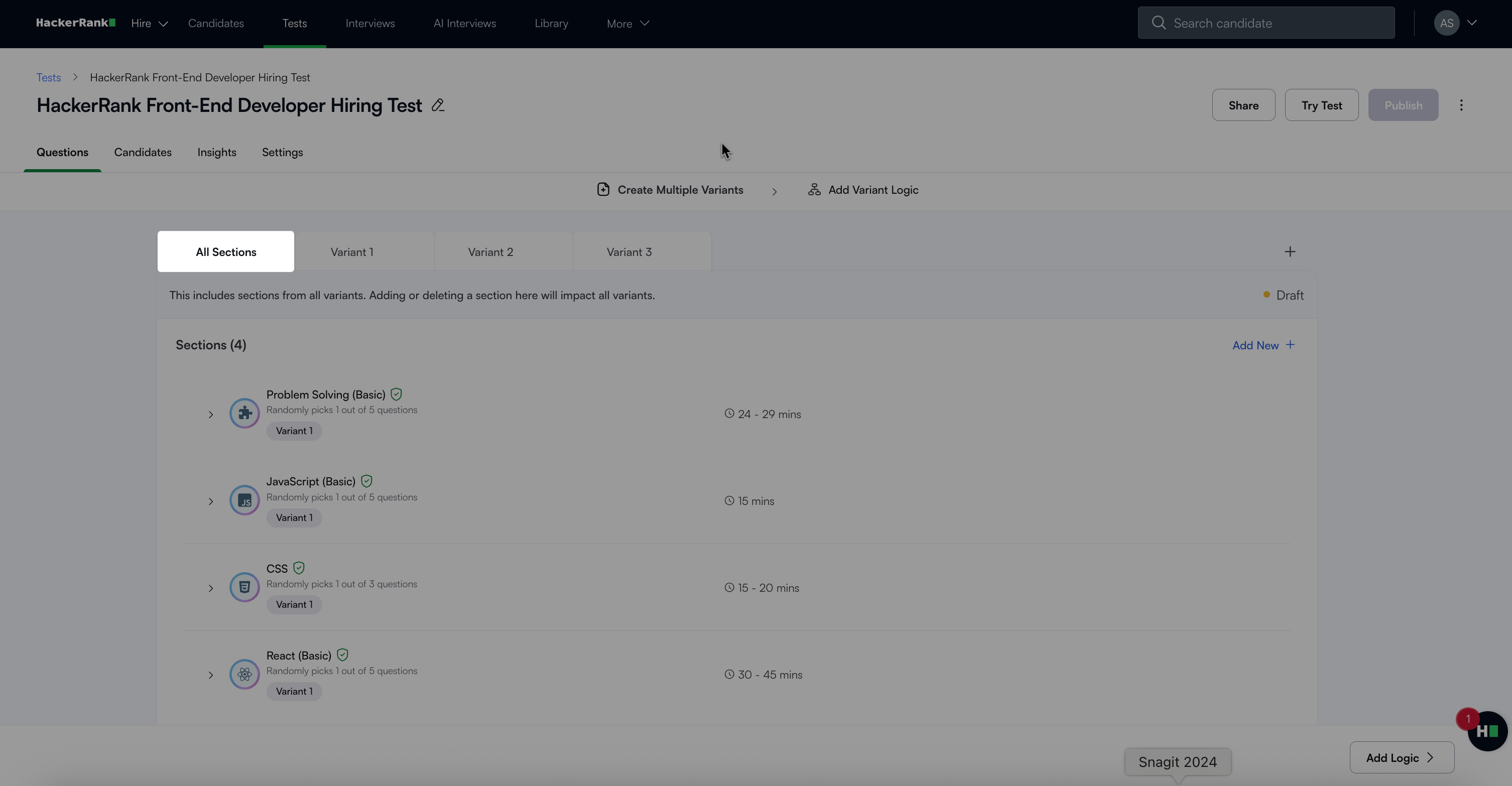
Test variants allow you to create a single assessment that adapts to different candidate profiles. You can design multiple variants within the same assessment to personalize the evaluation based on roles, skills, or other criteria. This approach eliminates the need to manage separate tests, improves efficiency, and ensures candidates are assessed on the most relevant content.
Creating test variants
To create test variants:
Log in to your HackerRank for Work account using your credentials.
Go to the Tests tab.
Open the test you want to modify.
Go to the Questions tab.
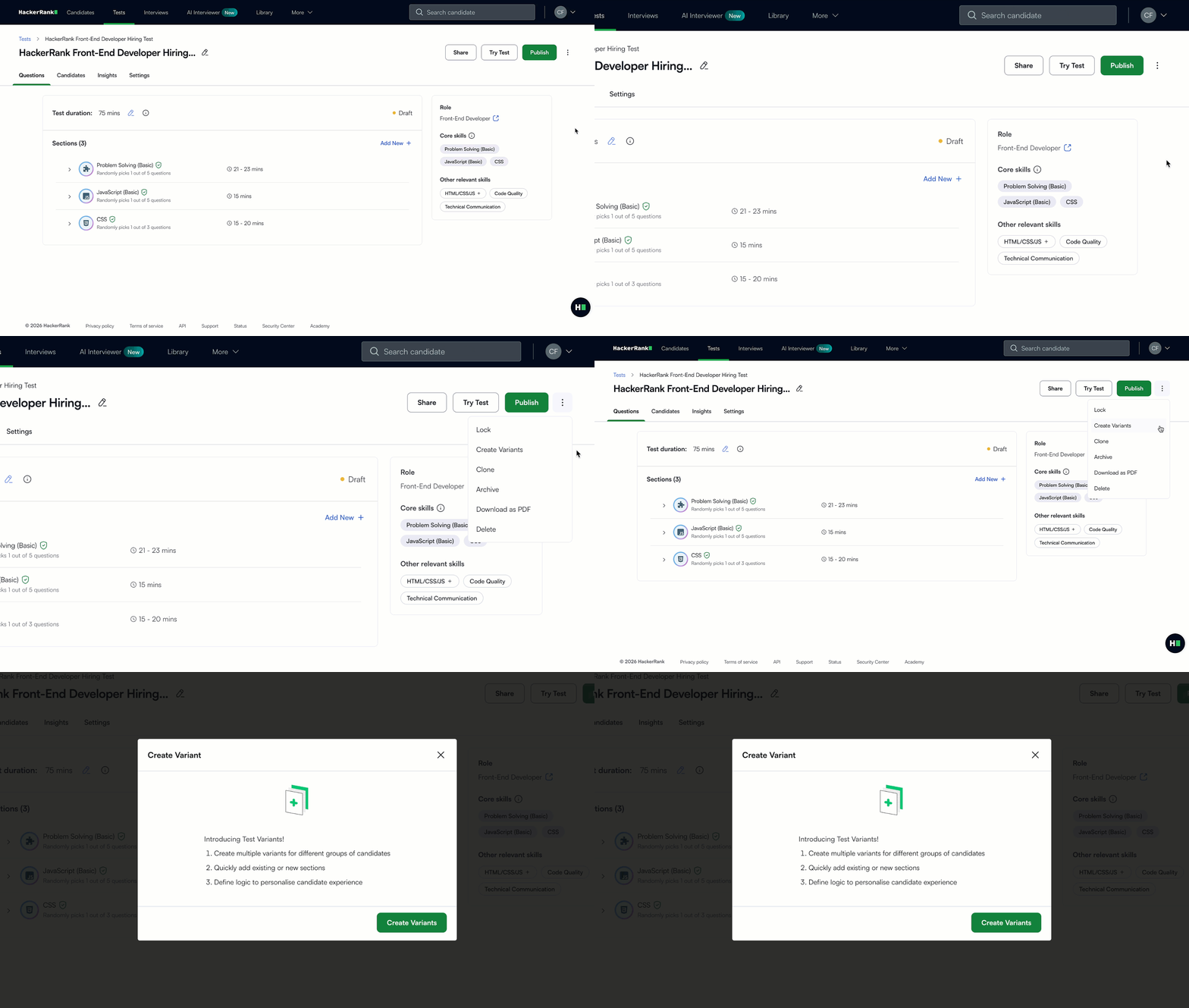
Click the more option menu (⋮) in the top right corner.
Select Create Variants.
Click Create Variants.
The system converts the existing test into Variant 1 and opens Variant 2, where you can start creating the second version. To add more variants, select the + icon next to the tabs.
Note: A variant-based test requires at least two variants.
Renaming a variant
To rename a test variant:
Click the more option menu (⋮) next to the variant name.
Select Rename.
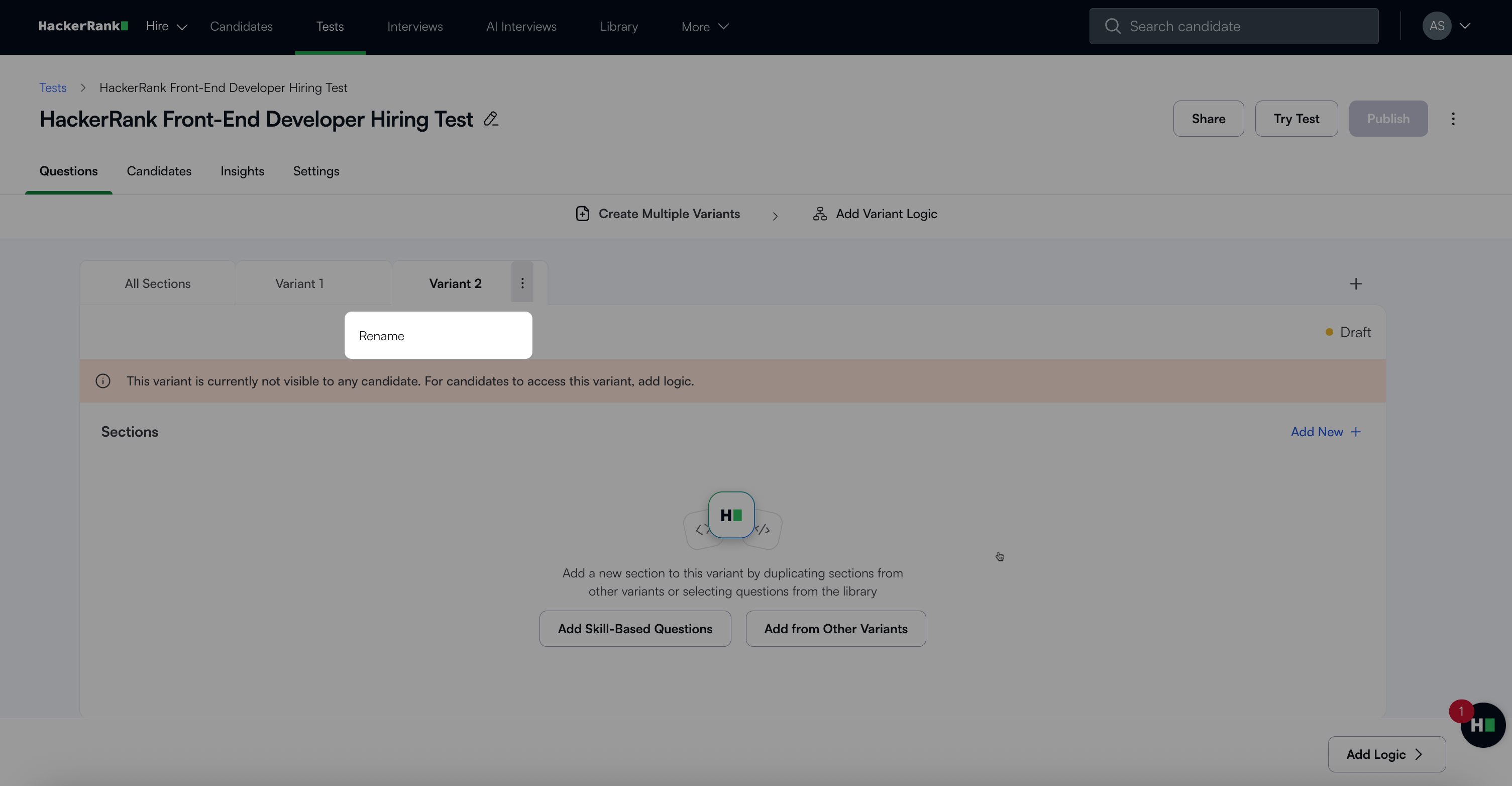
Enter the new name.
Click Save.
Adding questions or sections to a variant
To add questions or sections:
Select the variant tab (for example, Variant 2).
Click Add New.
Choose one of the following options:
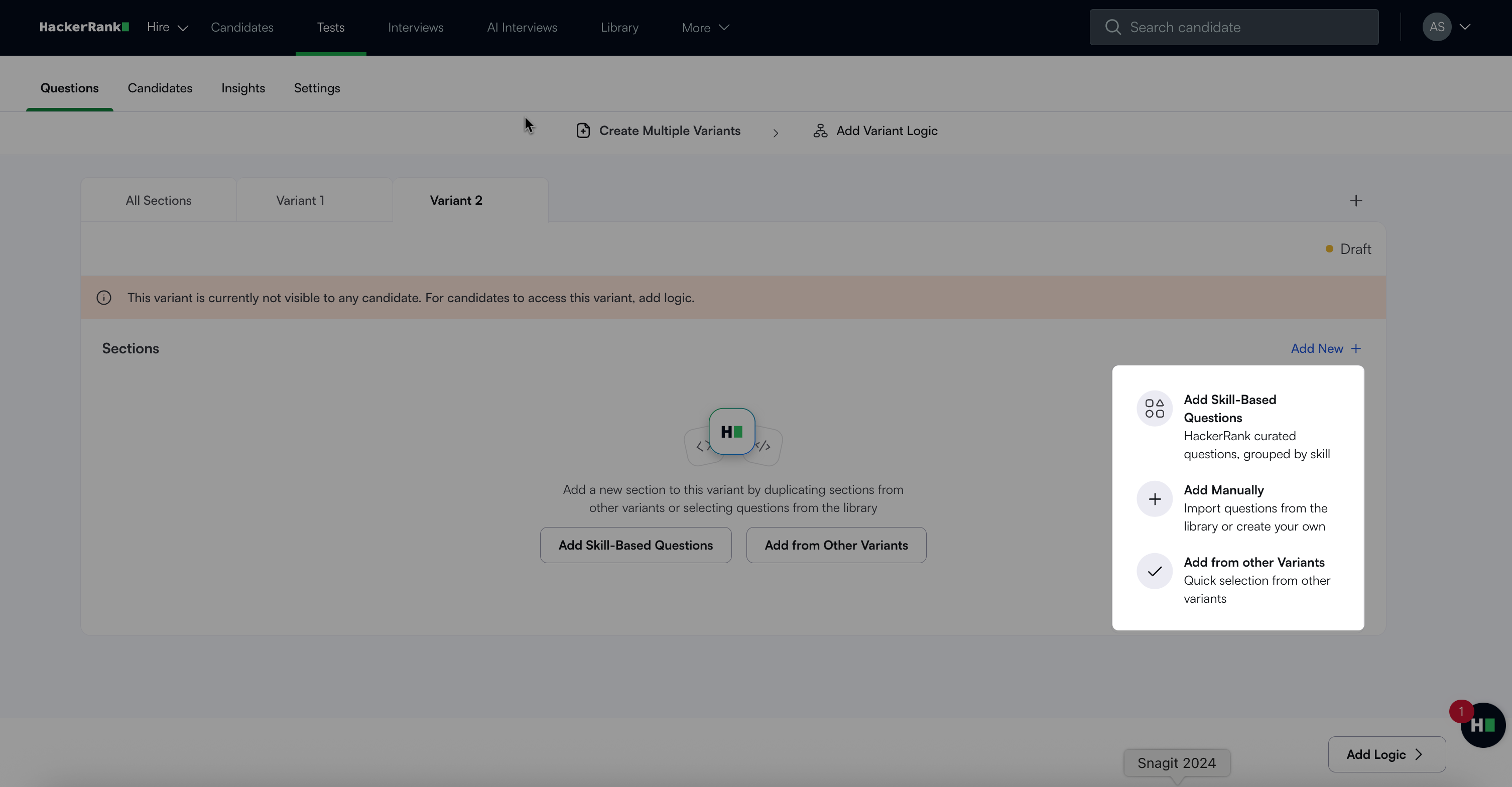
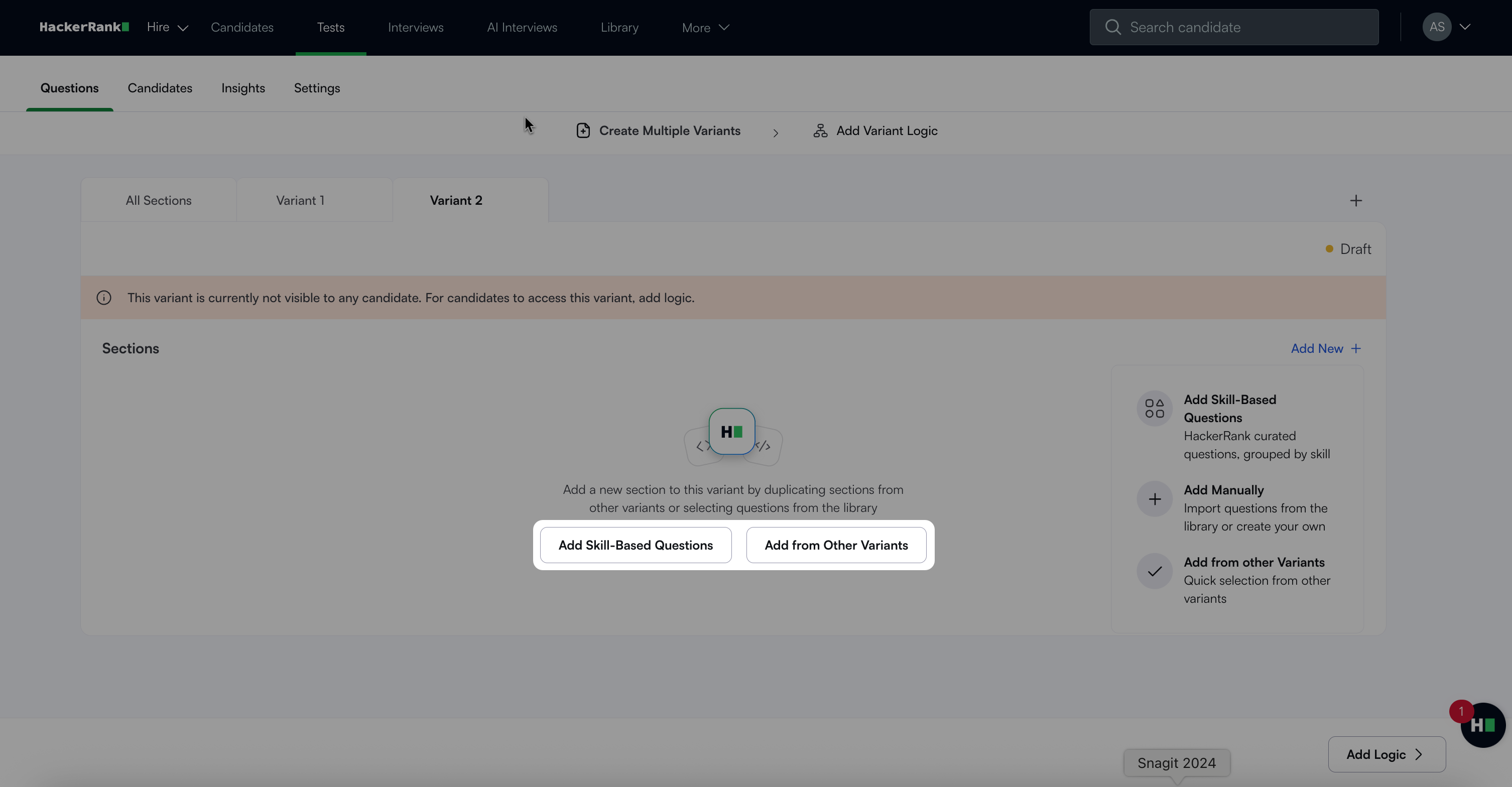
Add Skill-Based Questions: Use HackerRank-curated questions grouped by skill.
Add Manually: Select questions from the library or create custom questions.
Add from Other Variants: Reuse existing sections from other test variants.
Select the relevant questions or sections.
Click Add to include them in the variant.
Note: You can also add skill-based questions or reuse existing sections directly from the empty variant screen using the Add New Skill Bundle or Add from Other Variants buttons.
Deleting a variant
To delete a variant:
Click the more option menu (⋮) next to the variant name.
Select Delete.
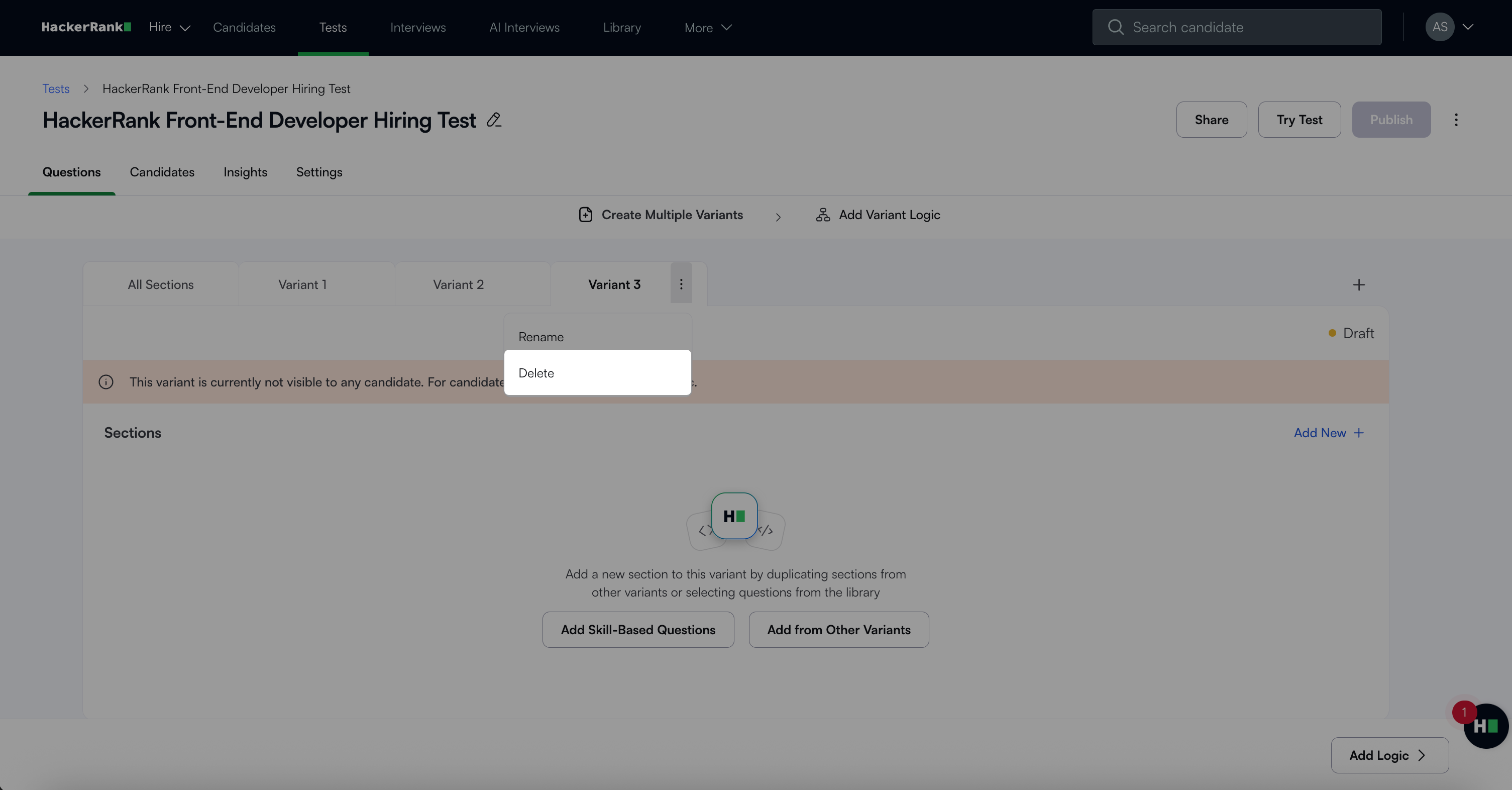
A confirmation dialog appears. If the variant is mapped to a candidate option, the system also removes the mapping.
Click Delete Variant to confirm.
Note: You cannot delete a variant if only two variants exist. A test requires at least two variants. To proceed, manually remove the sections from the variant instead.
To remove a section from a test variant:
Hover over the section you want to remove.
Click the trash icon that appears.
Assigning test variants to candidates
You can use routing logic to assign candidates to specific variants.
To configure logic:
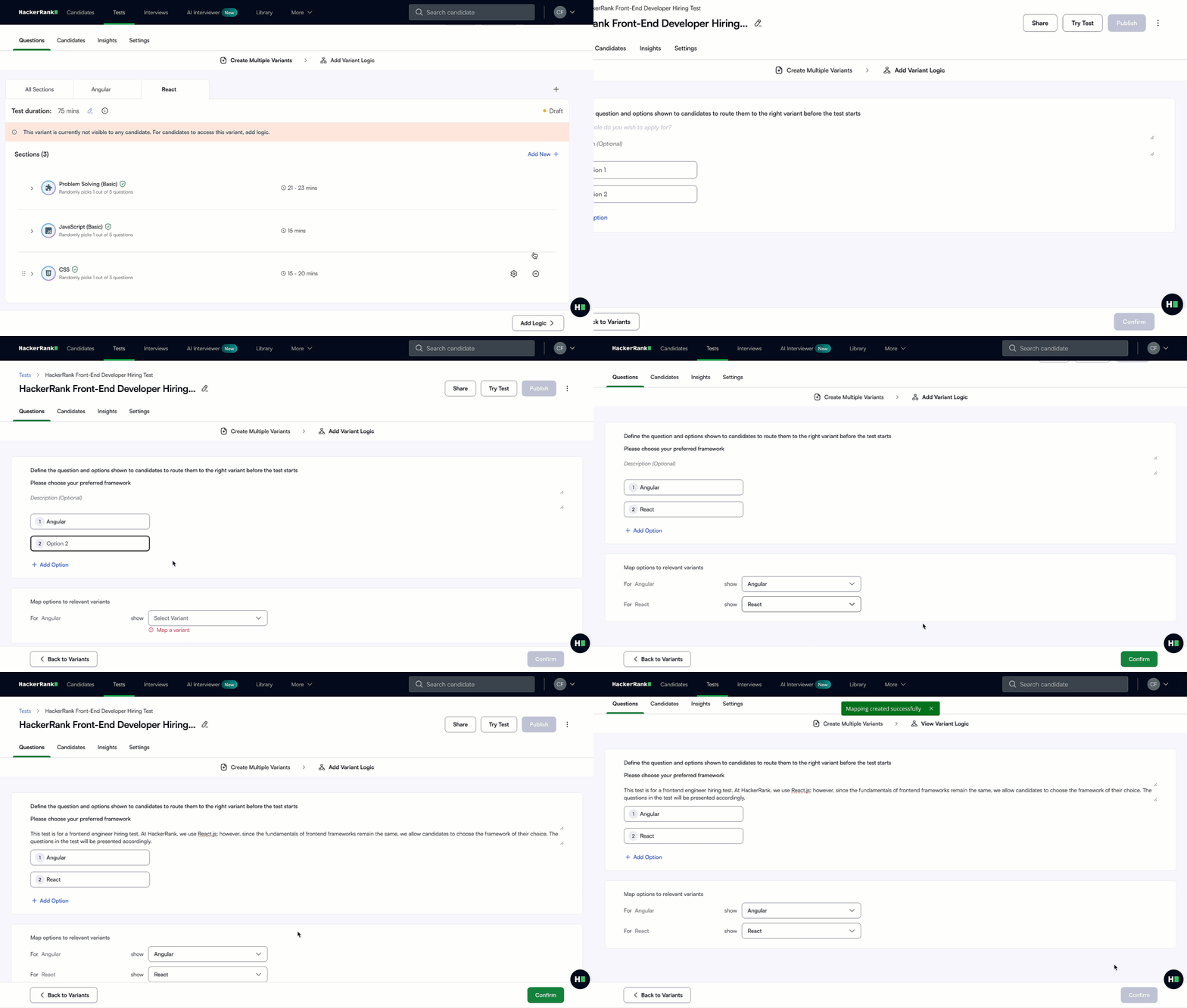
Click Add Logic in the bottom right corner. Alternatively, use Add Variant Logic in the top navigation bar.
Enter a routing question. (for example, What is your experience level?).
(Optional) Add description to provide additional context about the variant options.
Define the response options (For example, Less than 5 years, Greater than 5 years).
Select the appropriate variant for each option using the Select Variant dropdown.
Click Confirm to save and activate the routing logic.
After you configure routing logic, publishing becomes enabled.
Note: Variants without logic will not be visible to any candidate until you add logic.
Evaluating test variants
After a candidate completes their assigned variant, go to the Candidates tab to view the variant they used. The Candidate Option column displays the option selected by each candidate.
Use the Candidate Option filter to filter candidates by variant.
Note: For variant-based tests, you can add extra time at the section level for candidates. For more information, see Adding extra time in variant-based tests.
Additional note
The All Sections view allows you to edit sections that apply to all variants. Any changes you make here apply to the corresponding section in each variant.