Invite a New User
Last updated: February 13, 2026
You can invite new users to HackerRank for Work account and assign roles and team access.
Note: To add an existing user to a team, see 📄 Inviting an Existing User to a Team.
Prerequisite
You must have Company Admin access.
Inviting a new user
To invite a new user:
Log in to your HackerRank for Work account using your credentials.
Select your profile icon in the upper-right corner.
Select Teams Management from the drop-down menu.
Click Add New User under the Users tab.
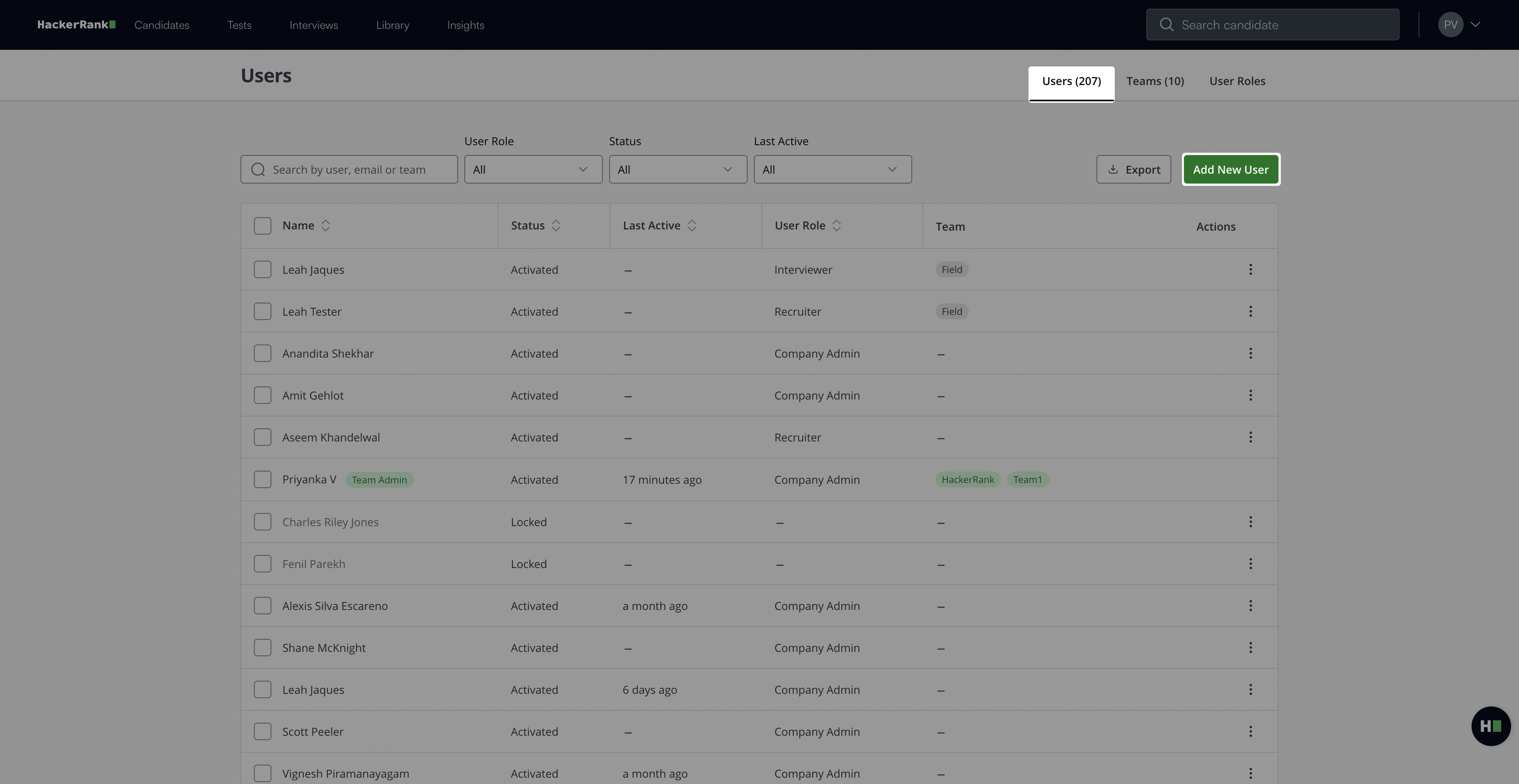
In the Add New User dialog, select one of the following options:
Email Invite: Invite a single user by email.
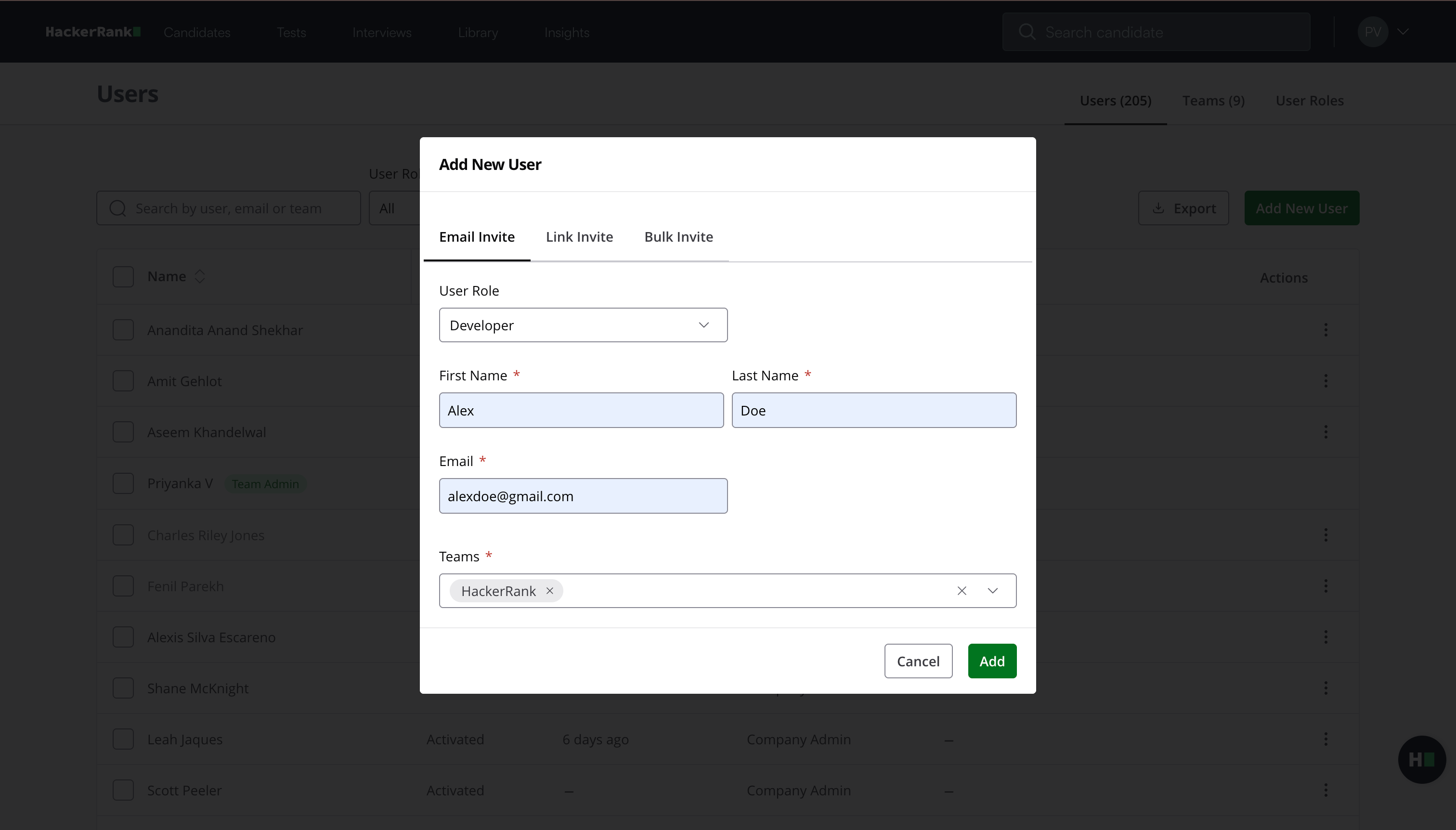
Select a user role from the User Role drop-down list. For more information about user roles, see 📄 Types of User Roles.
Enter the user’s name and email address.
Select one or more teams from the Teams drop-down list.
Click Add.
HackerRank sends an invitation email to the user.
Link Invite: Generate an invitation link and manually share it.
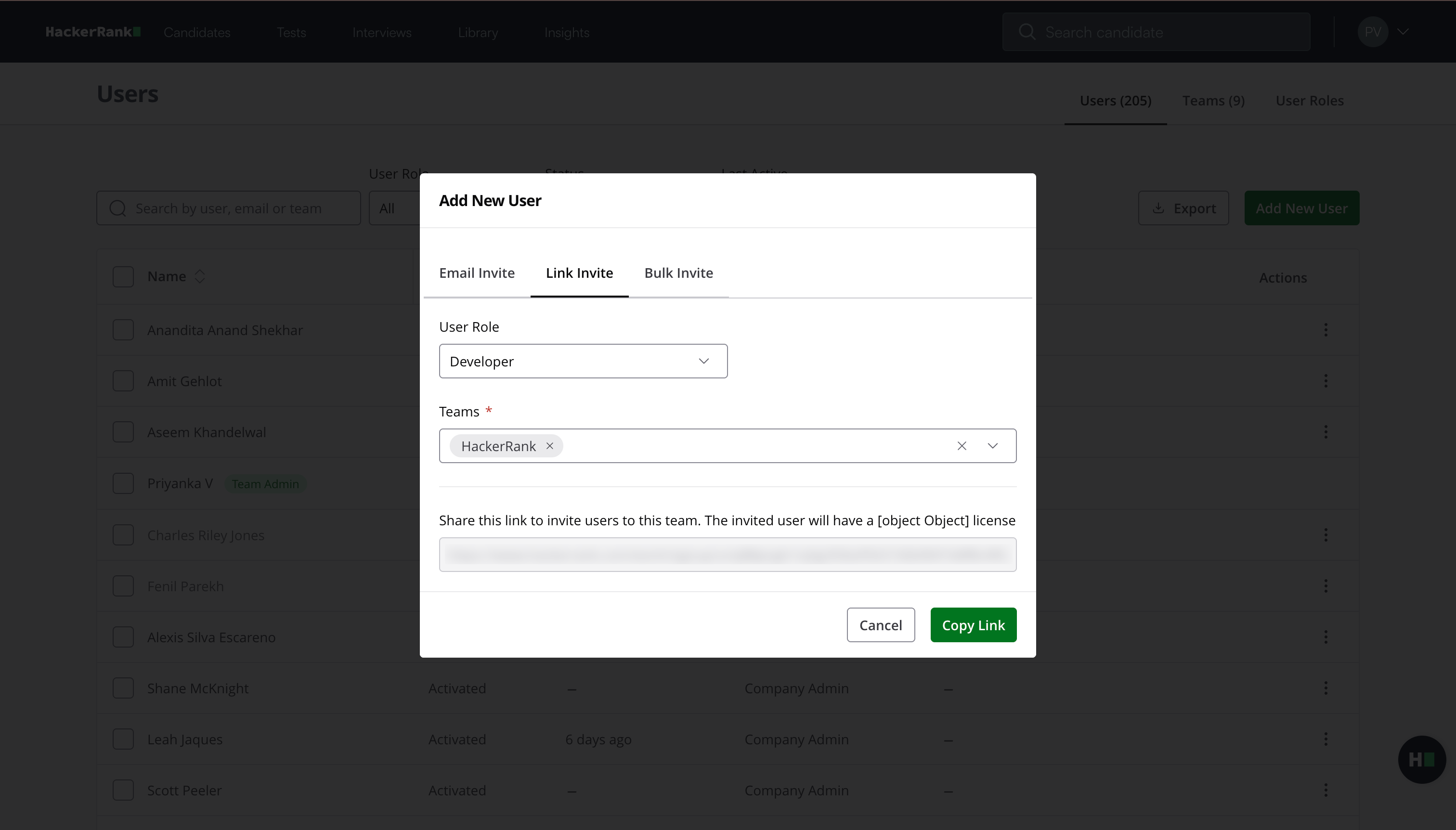
Select a user role from the User Role drop-down list. For more information, see 📄 Types of User Roles.
Select one or more teams from the Teams drop-down list.
Click Copy Link and share the link with the user.
Bulk Invite: Invite multiple users at once using a CSV file.
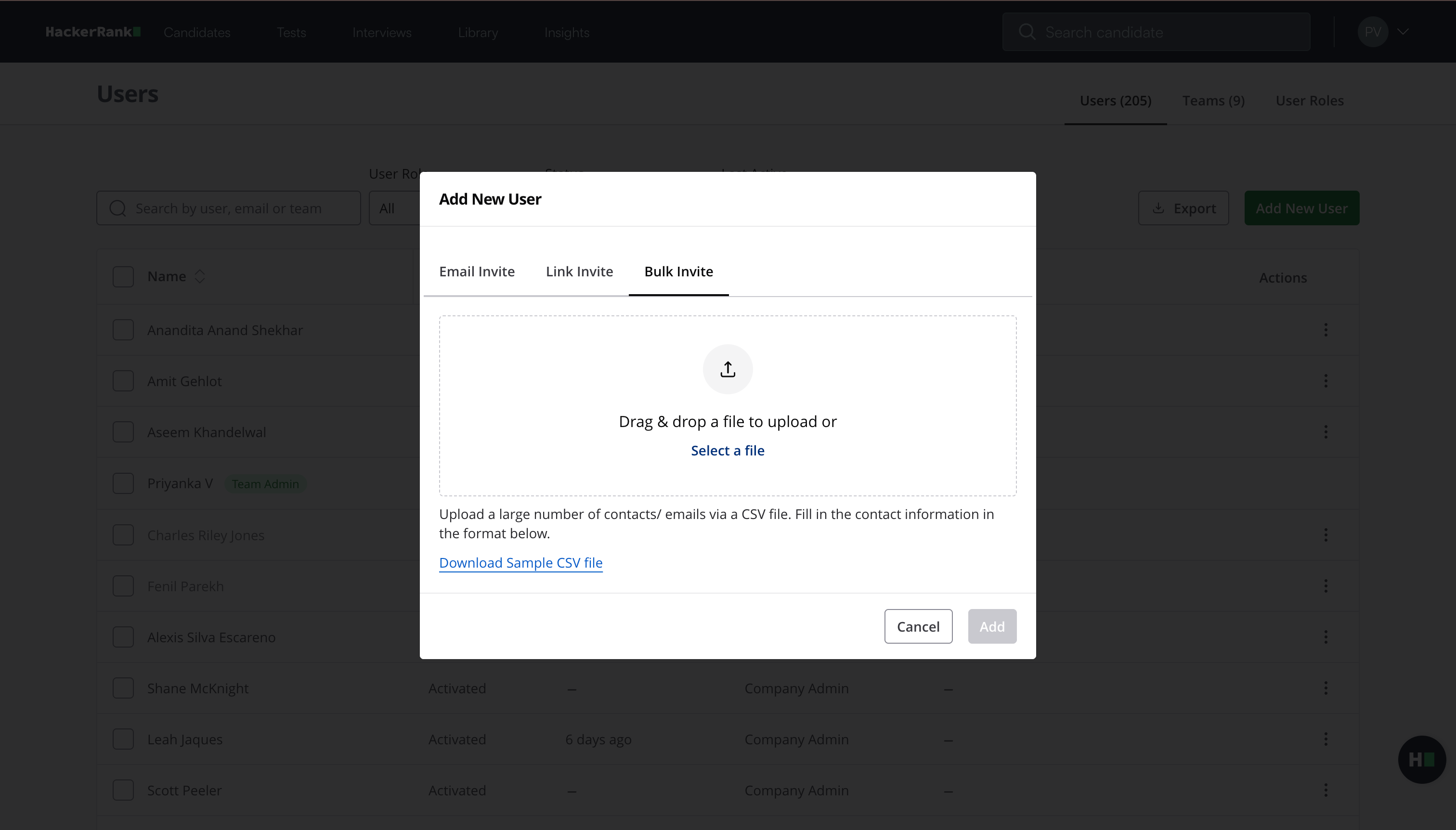
Click Download Sample CSV file to view the required format and create your CSV file.
Click Select a file to upload the CSV file, or drag and drop the file.
Click Add.
HackerRank sends invitation emails to all users listed in the CSV file.