Getting Started with Teams Management
Last updated: April 29, 2025
HackerRank’s Teams Management feature simplifies user organization and administration by enabling you to group employees (HackerRank users) into teams. This centralized approach helps manage operations, roles, and resources effectively.
Prerequisites and Access
Company Admin Access
You must have a Company Admin role to access the Teams Management section.Navigating to Teams Management
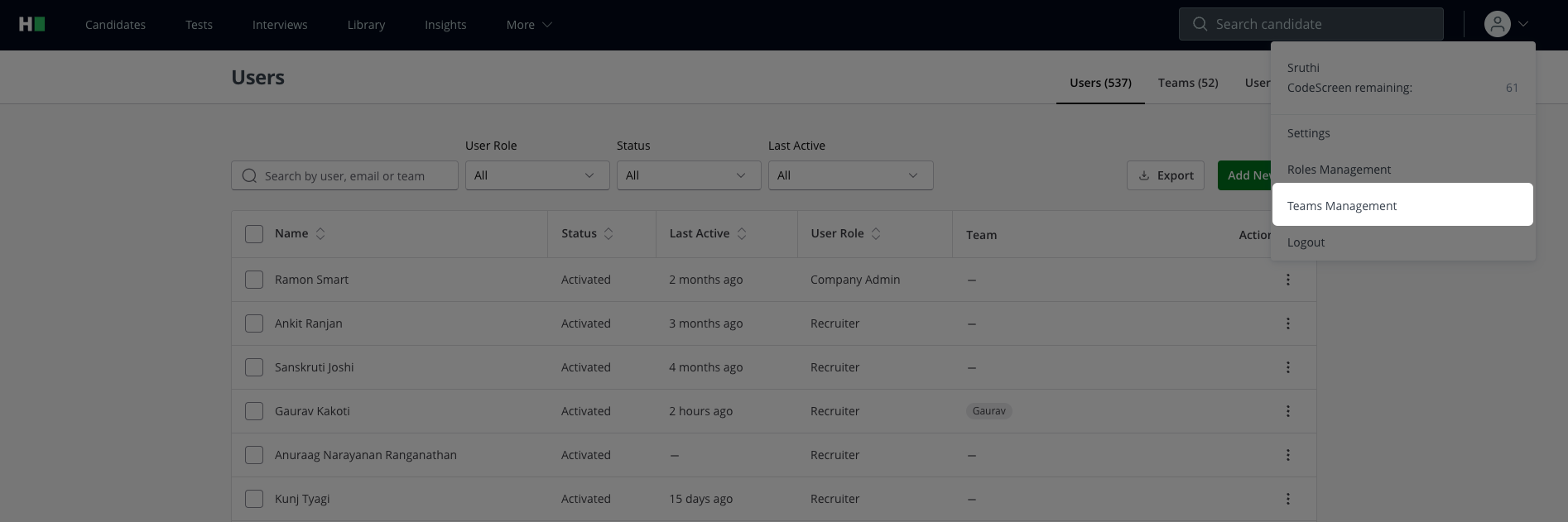
Click the profile icon in the top-right corner of the page.
Select Teams Management from the dropdown menu.
Teams Management Features
The Teams Management page provides three tabs to manage Users, Teams, and User Roles.
User Management
This section allows admins to manage individual users within the organization.
Search and Filter Users
Use the Search feature to locate users by name, email, or team.
Apply User Role, Status, and Last Active filters for refined searches.
Tip: Use the Last Active filter to identify and assess inactive users within a specific time range.
Add Users
Admins can add new users using the Add New User button with the following options:
Email Invite
Enter the user’s name and email address.
Assign a User Role and team.
Click Add to send an invitation email.

Link Invite
Assign a User Role and team.
Generate and share a link that users can use to join the selected team.

Bulk Invite
Upload a CSV file with user details such as names and email addresses.
Users will receive invitations based on the uploaded data.
Download a sample CSV file for format reference.

Transfer Ownership
Transfer resources like tests from one user to another.
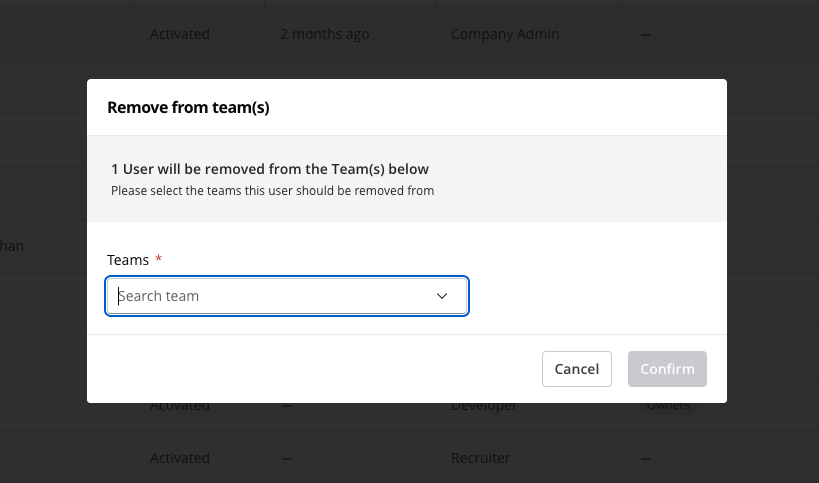
Click the three-dot icon next to the user’s name, select Remove from Teams, and confirm the new owner.
Bulk User Management
Admins can perform bulk actions on multiple users, such as:
Locking or unlocking accounts.
Adding or removing users from teams.
Export User Data
Using the Export option, you can select the users in bulk and export their data in a CSV file.
Tip: Use the Select All checkbox to efficiently manage all users across multiple pages.

Allow Bulk Export
Admins can now manage which user roles can export data using the new Allow Bulk Exports entitlement. This setting is available in Team Management > User Roles.
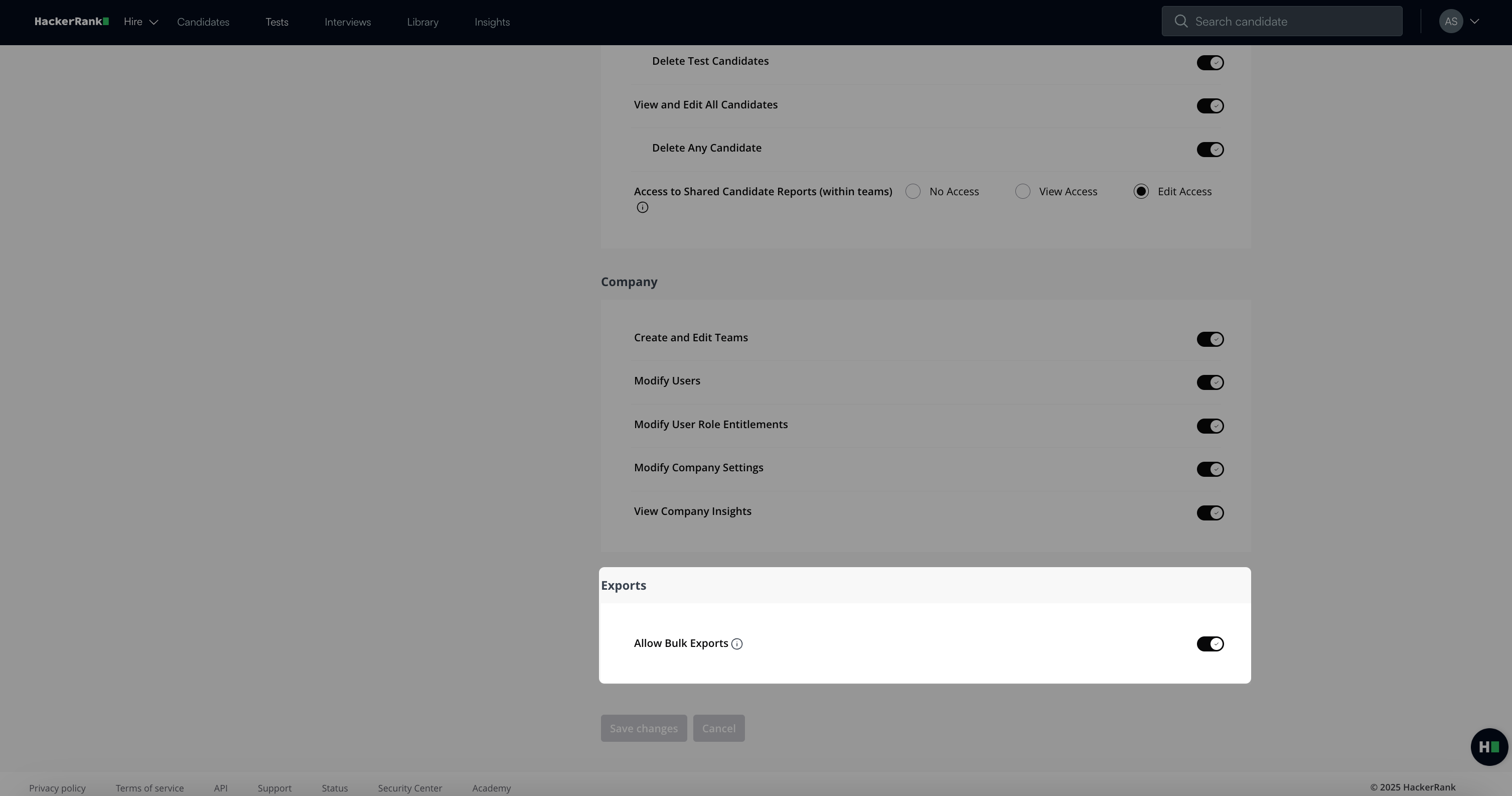
This entitlement is enabled by default and applies to all roles, including custom roles. When the entitlement is disabled, the Export button is hidden for users assigned to that role.
To access export functionality, users must also meet the one of following conditions:
Have View or Edit entitlement for the relevant functional area
Have base-level access to the object being exported
For example, to export content from My Library, the user must also have the View Question Library entitlement.
The Allow Bulk Exports entitlement applies to the following areas:
Test Exports:
Go to Tests > Export.
Test Candidate Attempt Exports:
Go to Tests > [Test Name] > Filter by Candidate Status > Export.
User Exports:
Go to Profile > Teams Management > Export.
Interview Exports:
Go to Interviews > Export.
My Library Exports:
Go to Library > Filter by My Company > Export.
Export All Data (Admins only):
Go to Insights > Download Test Data.
Custom Reports (Admins only):
Go to Insights > My Report > Create Report > Add Columns > Export.


Access Individual User Information
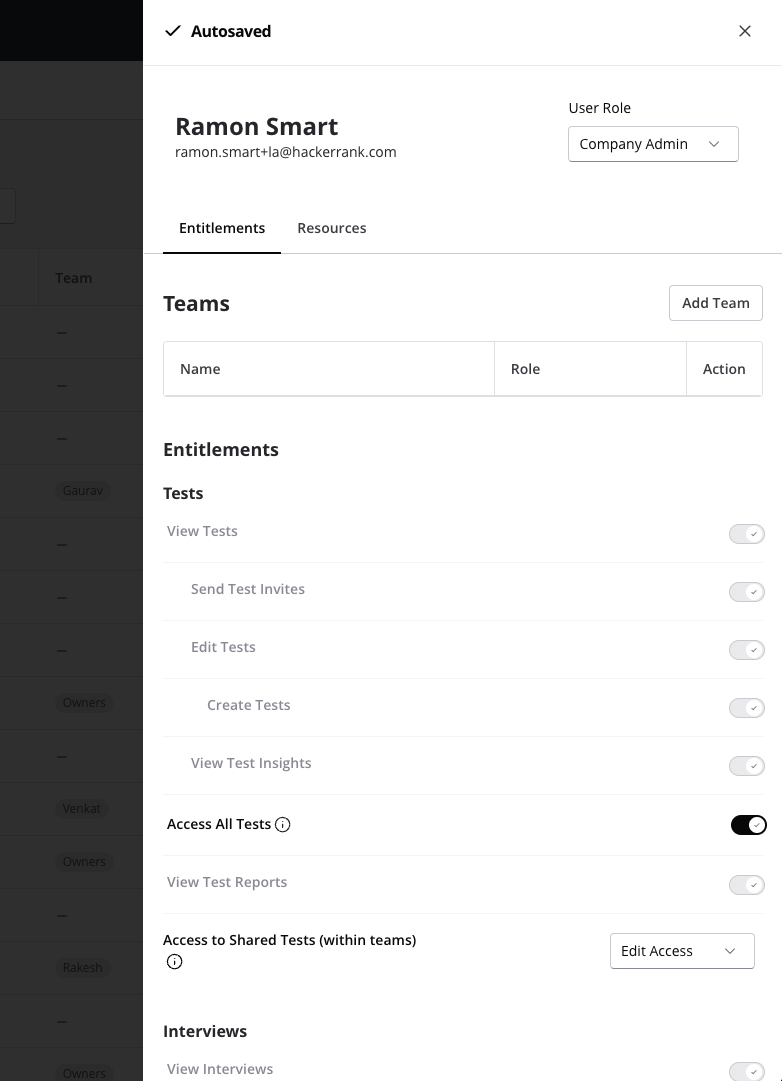
Click on a user’s name to open a collapsible panel, allowing you to:
Update their User Role.
Manage their Entitlements.
Control access to their Resources.
Team Level Management
This section focuses on organizing and managing teams.
Search and Filter Teams
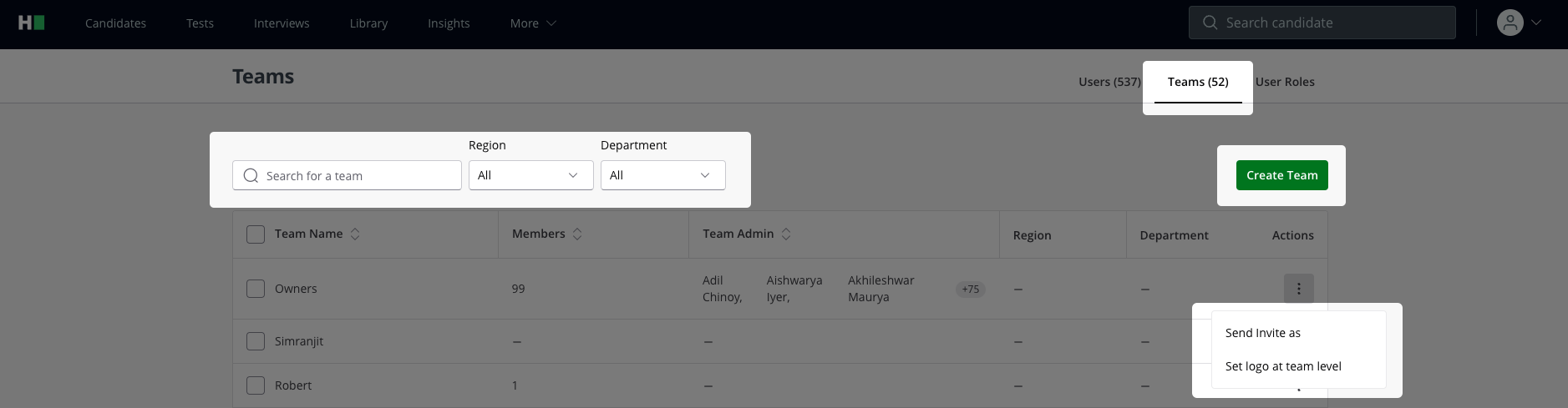
Use the Search bar and filters such as Region and Department to find specific teams.
Create a Team
Click Create Team.
Enter the team’s details, including name, region, and department. The Region and Department fields are optional.
Select team members and click Add.
Set Default Invitation Settings
Hover over a team name and click the three-dot icon to:
Configure Send Invite As to customize the sender name for team invitations.
Set a default logo for the team to appear in all communications.
Manage Teams
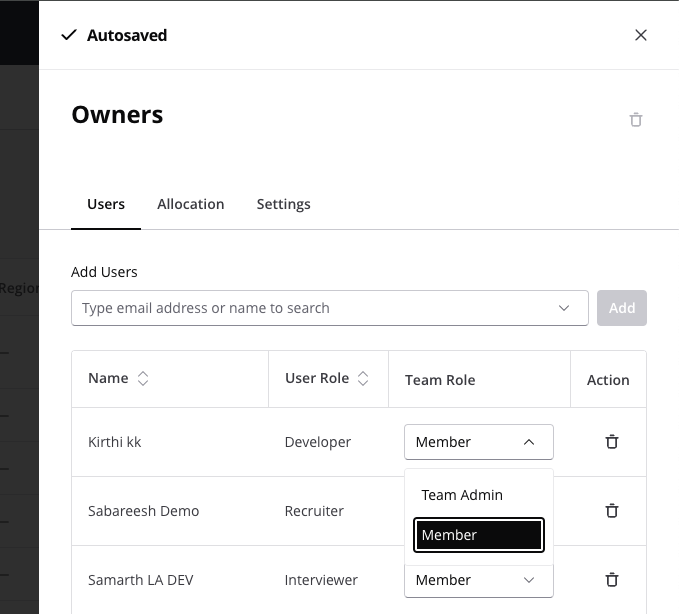
Open a team to update its membership and roles.
Add or remove members and change their roles to Team Admin or Member.
Delete a Team
Remove all members from the team before deletion.
Select the team and click the delete icon to finalize the process.
User Roles
Manage the default entitlements assigned to each user role in your company.
For more information, refer to the Flexible User Roles article.