Whiteboard Questions
Last updated: March 26, 2026
Whiteboard questions replicate traditional system design or brainstorming interviews in a digital, collaborative format. A whiteboard question provides candidates and interviewers with an online whiteboard to draw, sketch, and visually explain technical solutions.
Creating a whiteboard question
To create a whiteboard question:
Log in to your HackerRank for Work account using your credentials.
Go to the Library tab.
Click Create Question.
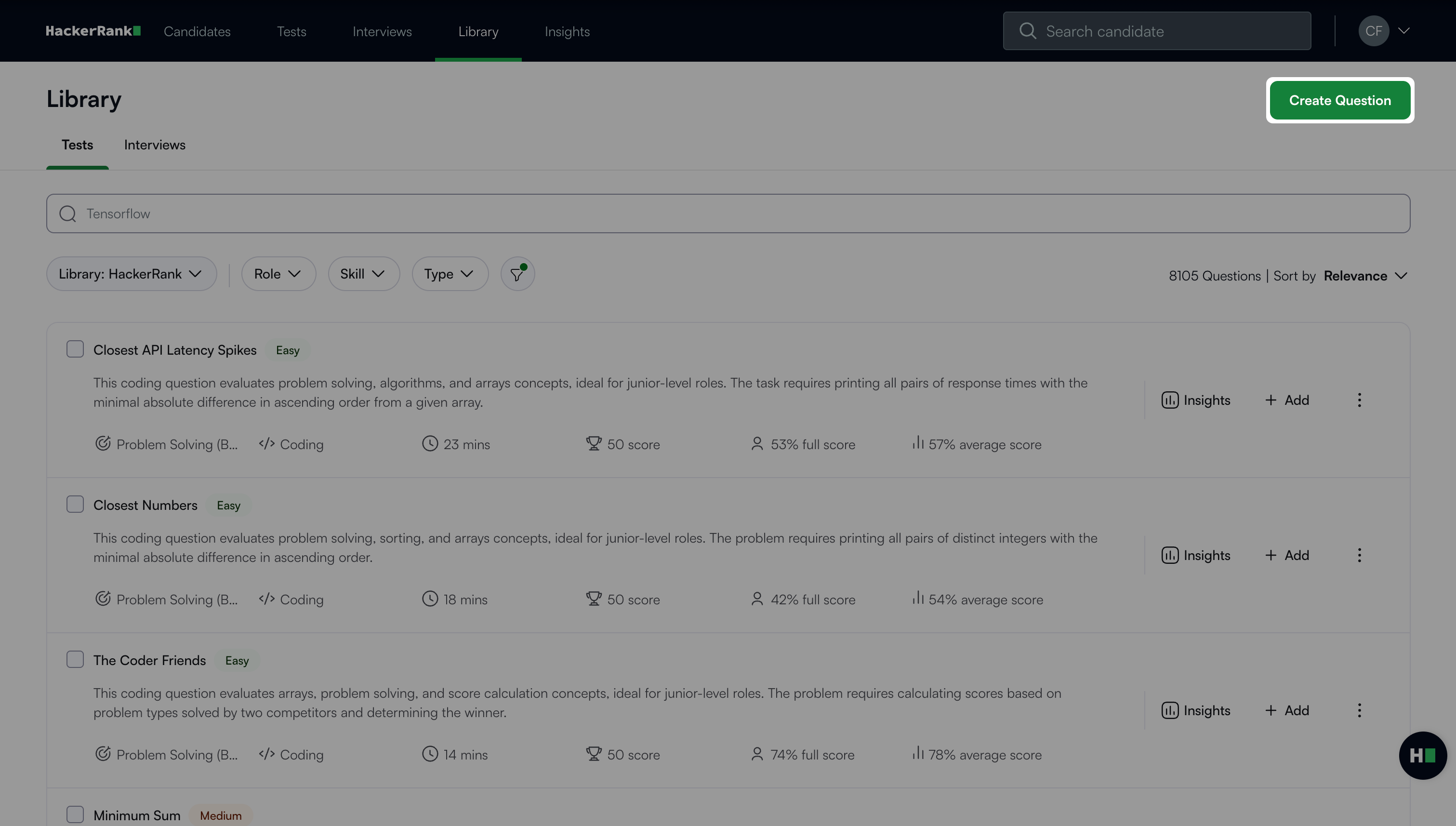
Select Whiteboard under General.
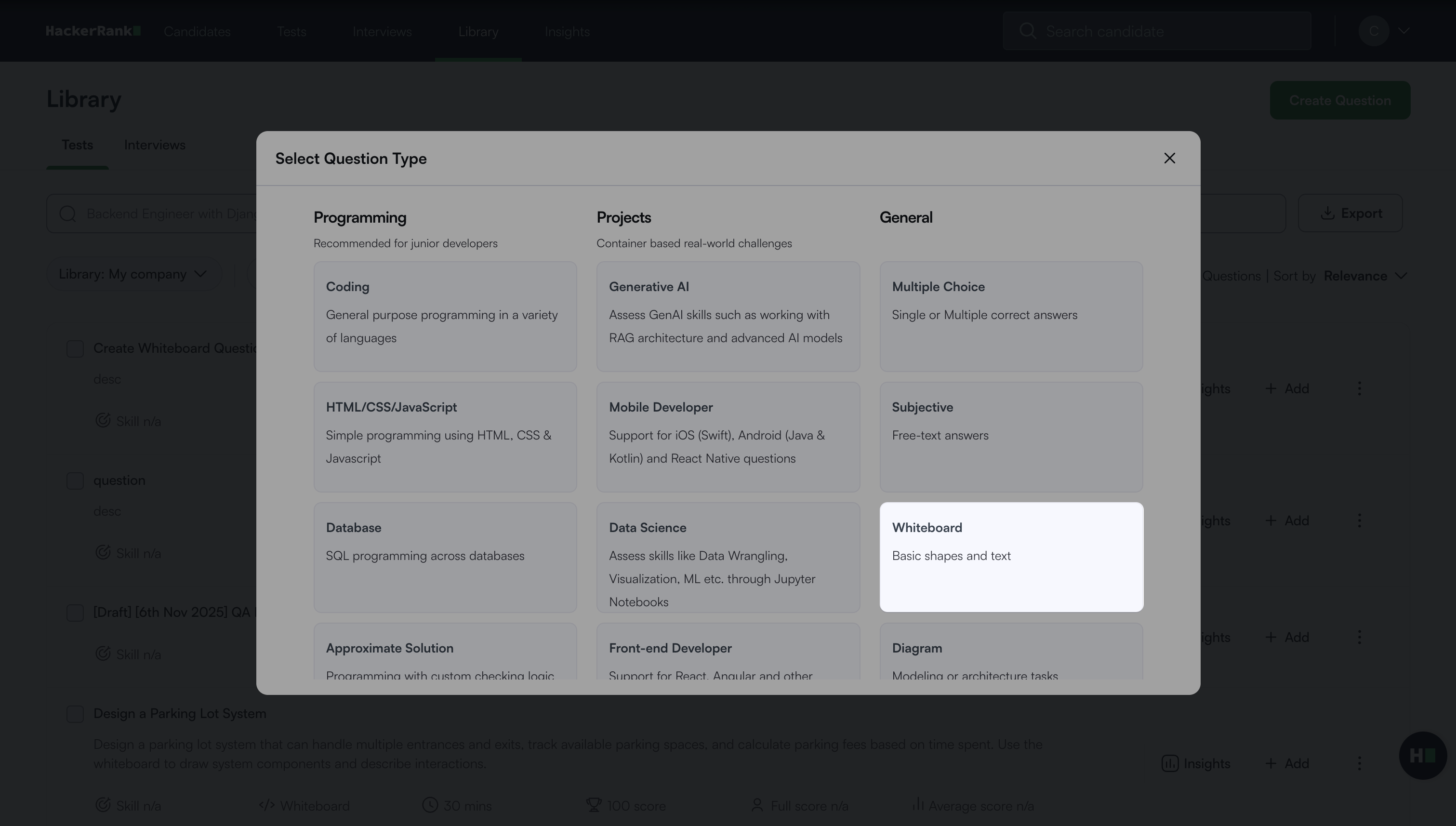
The whiteboard question creation workflow opens with the following two steps.
Step 1: Question Details
In the Problem details section:
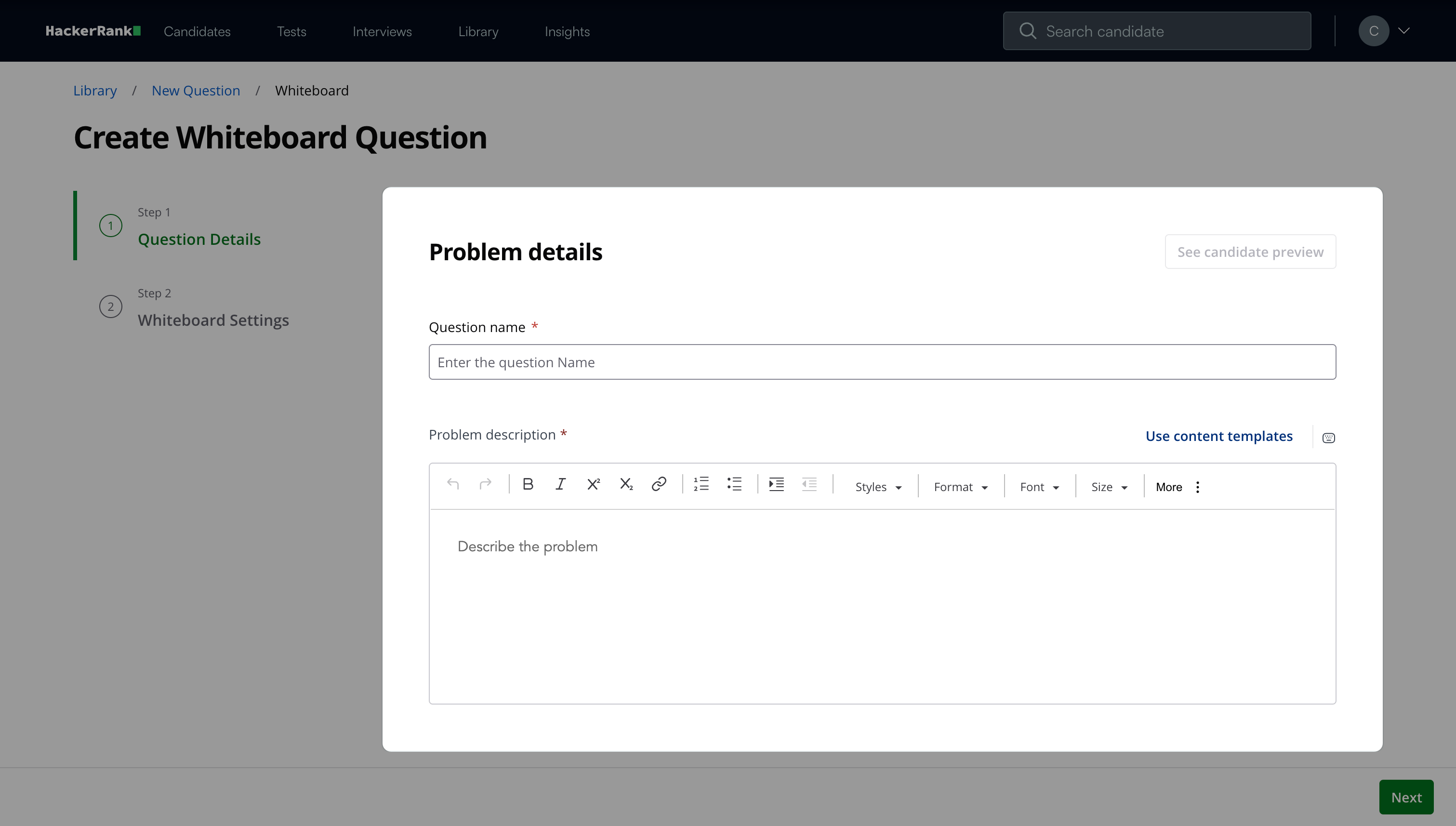
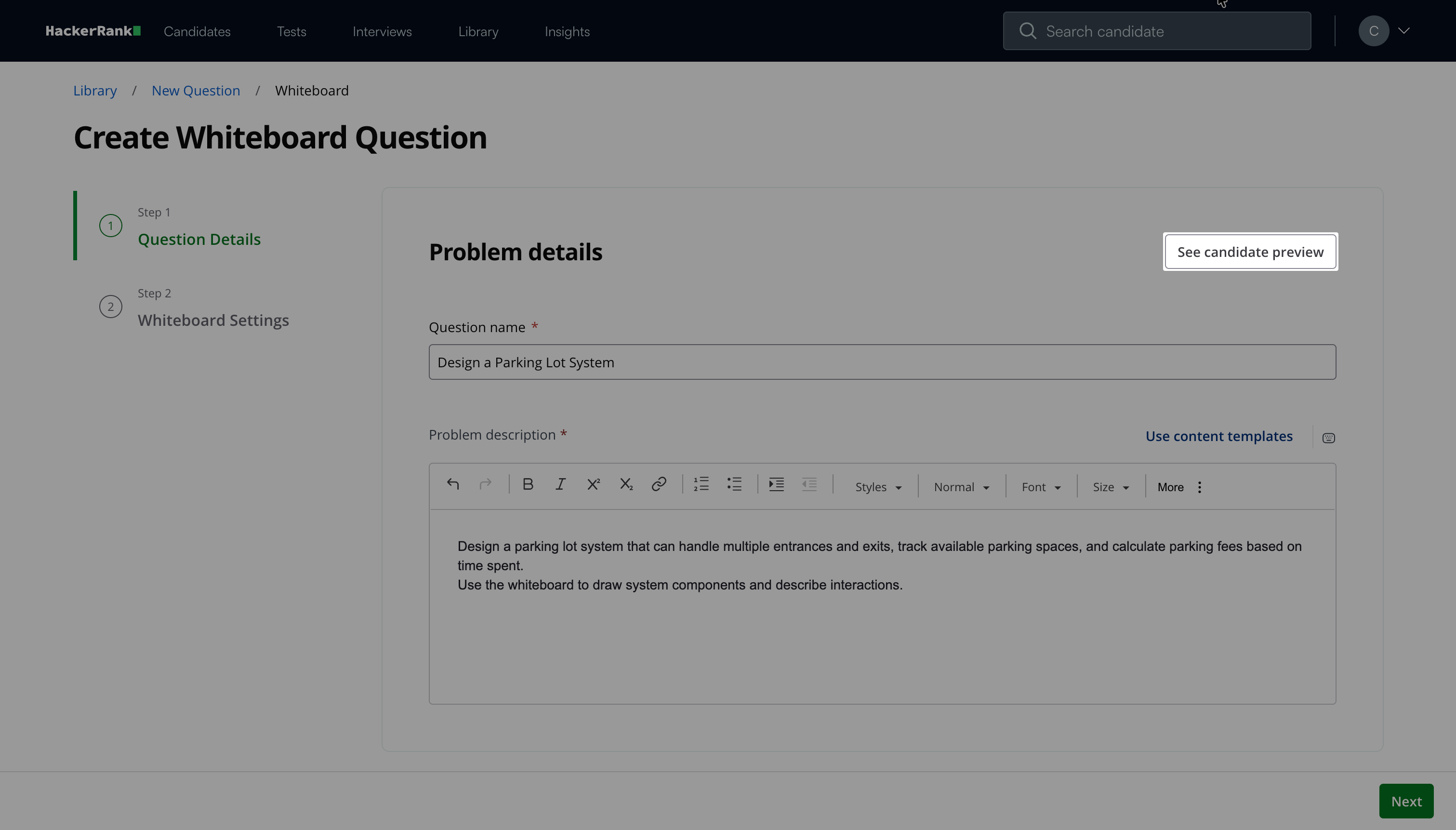
Enter the Question name.
Describe the problem in the Problem description field. You can use the formatting menu to format the text or to include elements such as tables or images.
Note: Click See candidate preview to view how the question appears to candidates.
In the Question properties section:
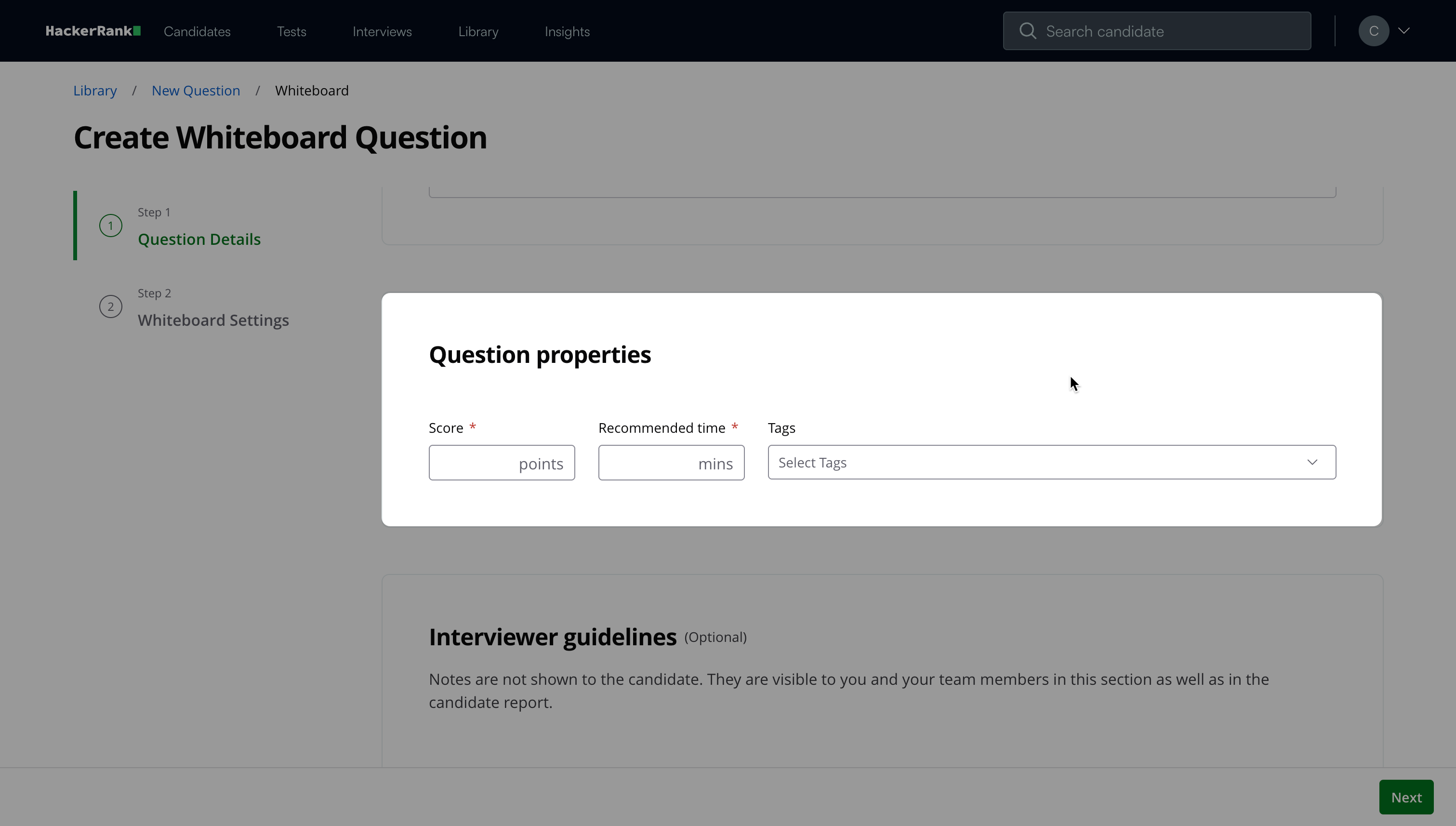
Enter the Score.
Add the Recommended time in minutes.
(Optional) Add Tags from the drop-down list or create new ones.
(Optional) Add Interviewer guidelines for internal use, such as evaluation notes, hints, or reference solutions.
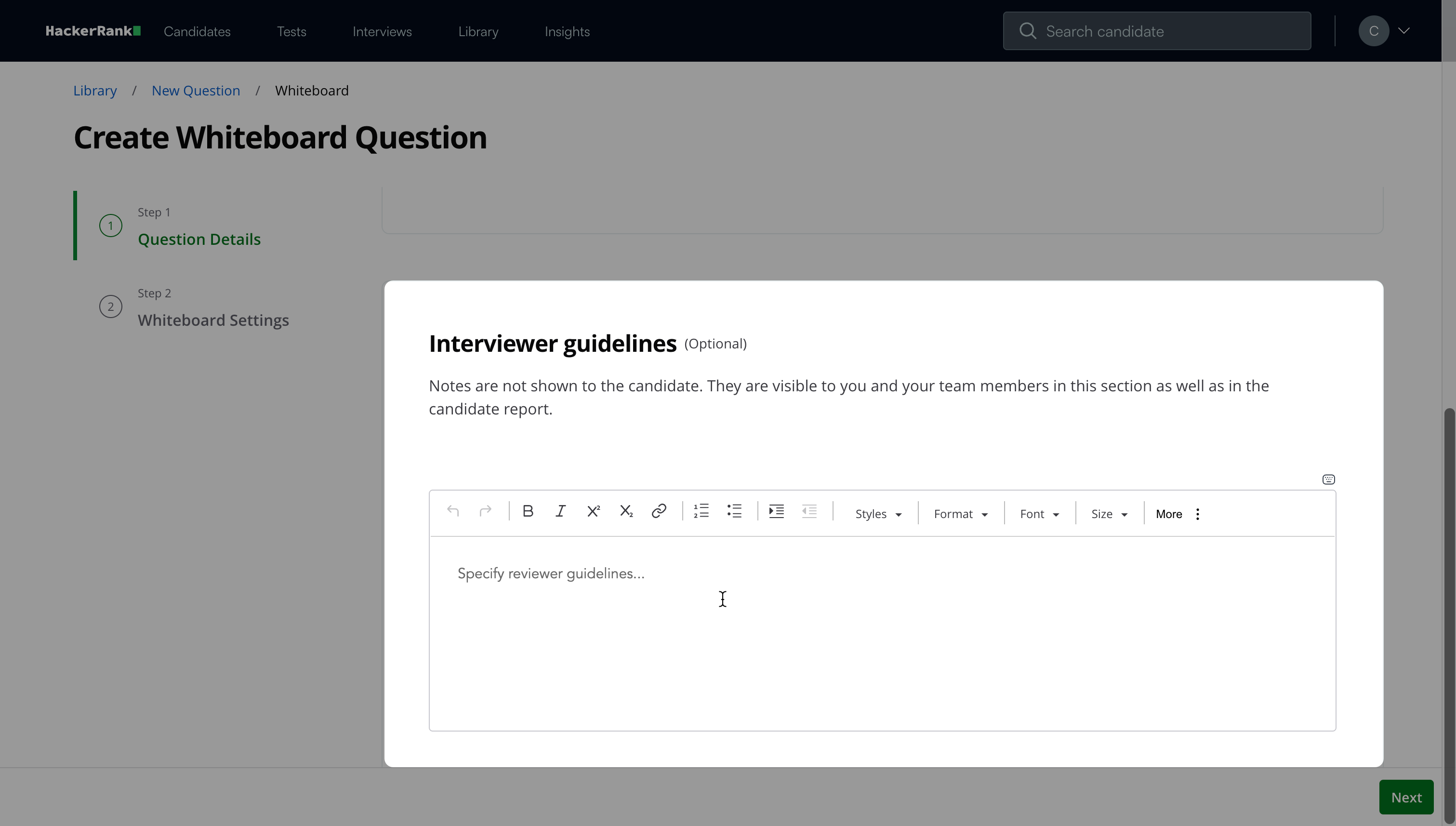
Click Next.
Step 2: Whiteboard Settings
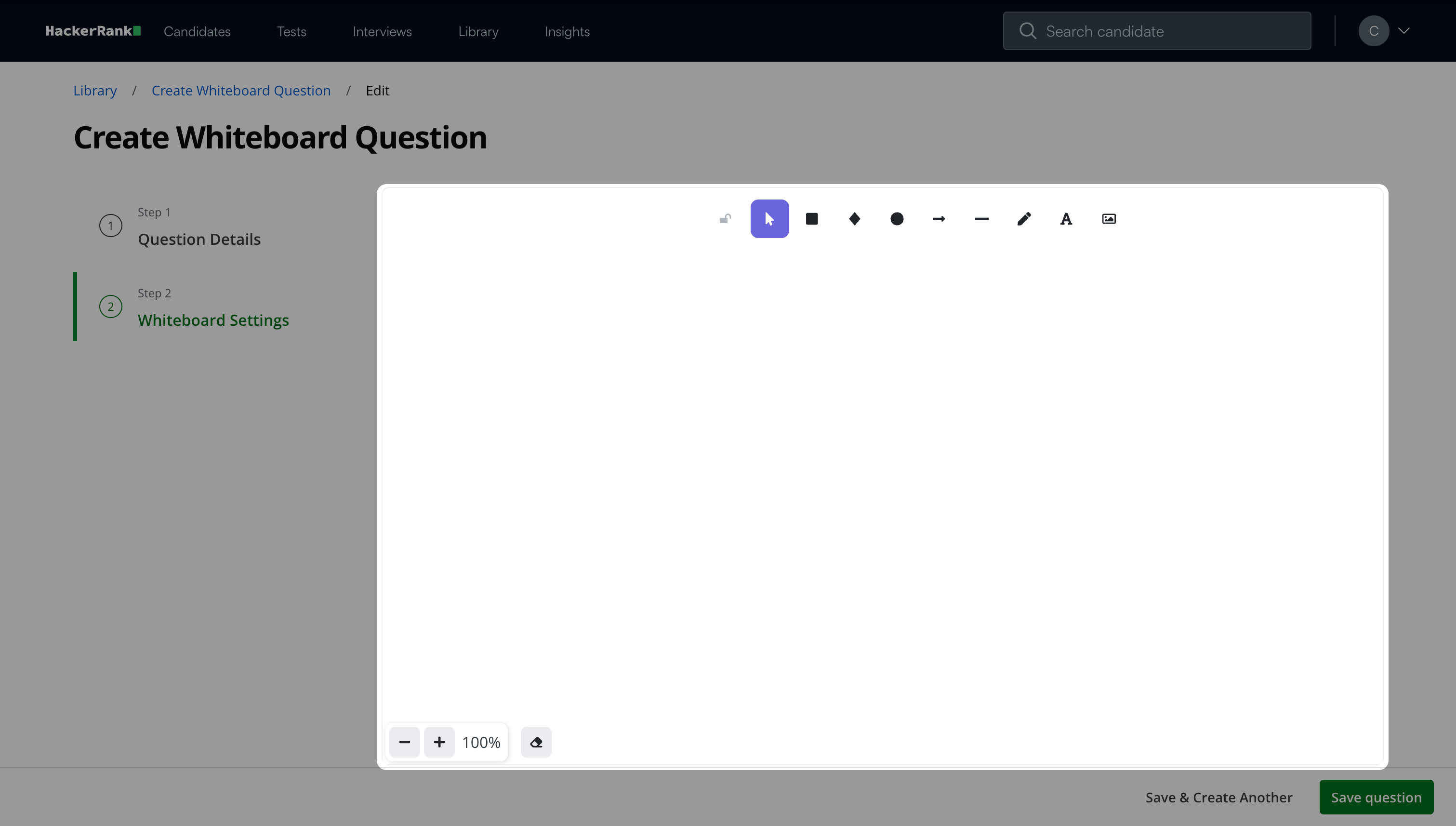
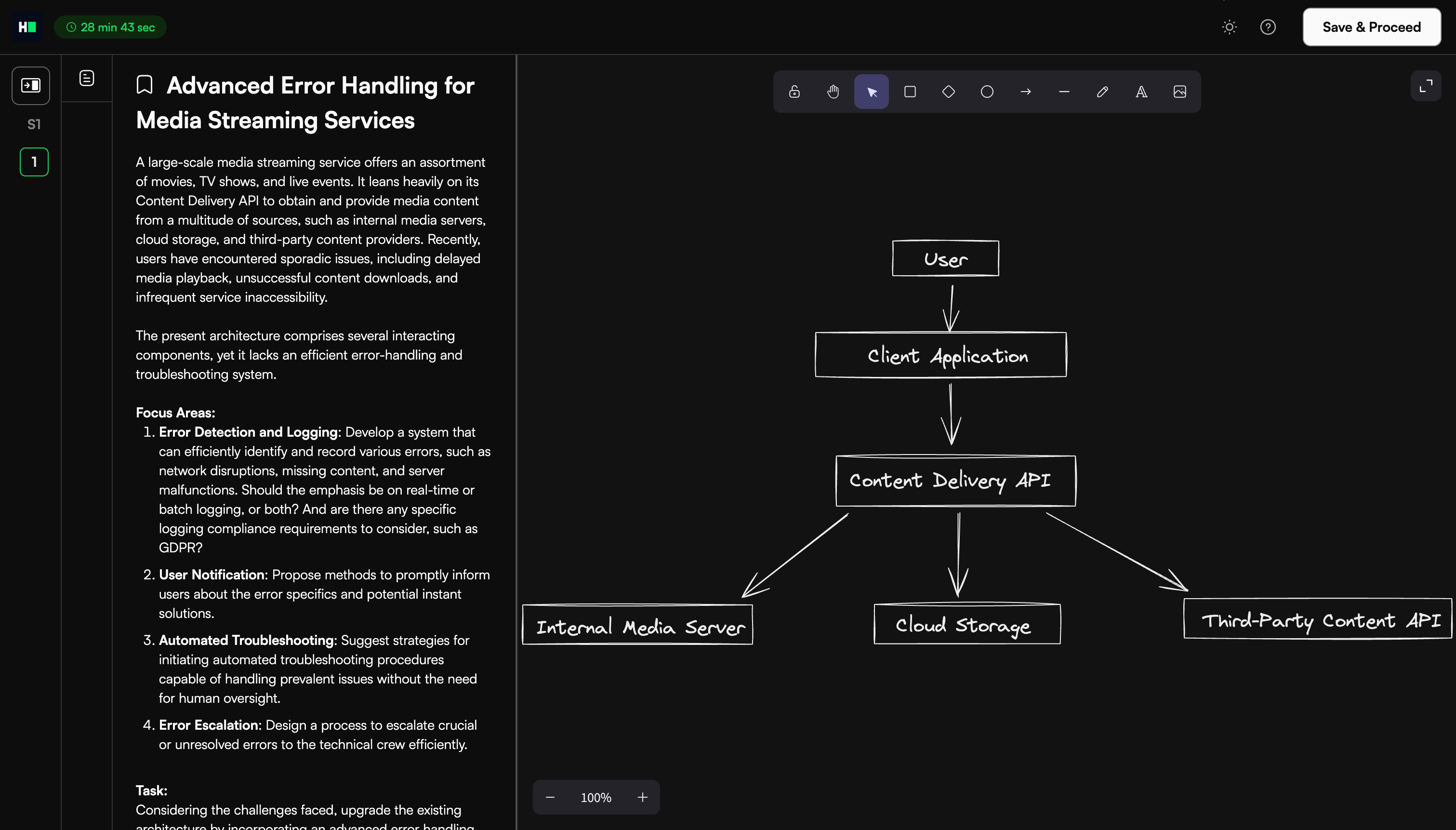
Draw the basic system design or diagram needed. The candidate uses this as a starting point during the test or interview. For more information, see Whiteboard components and tools.
Click Save question.
Note: Click Save & Create Another to create another question.
The question appears under My Company questions in the HackerRank Library.
Whiteboard components and tools
The virtual whiteboard includes the following components and tools.
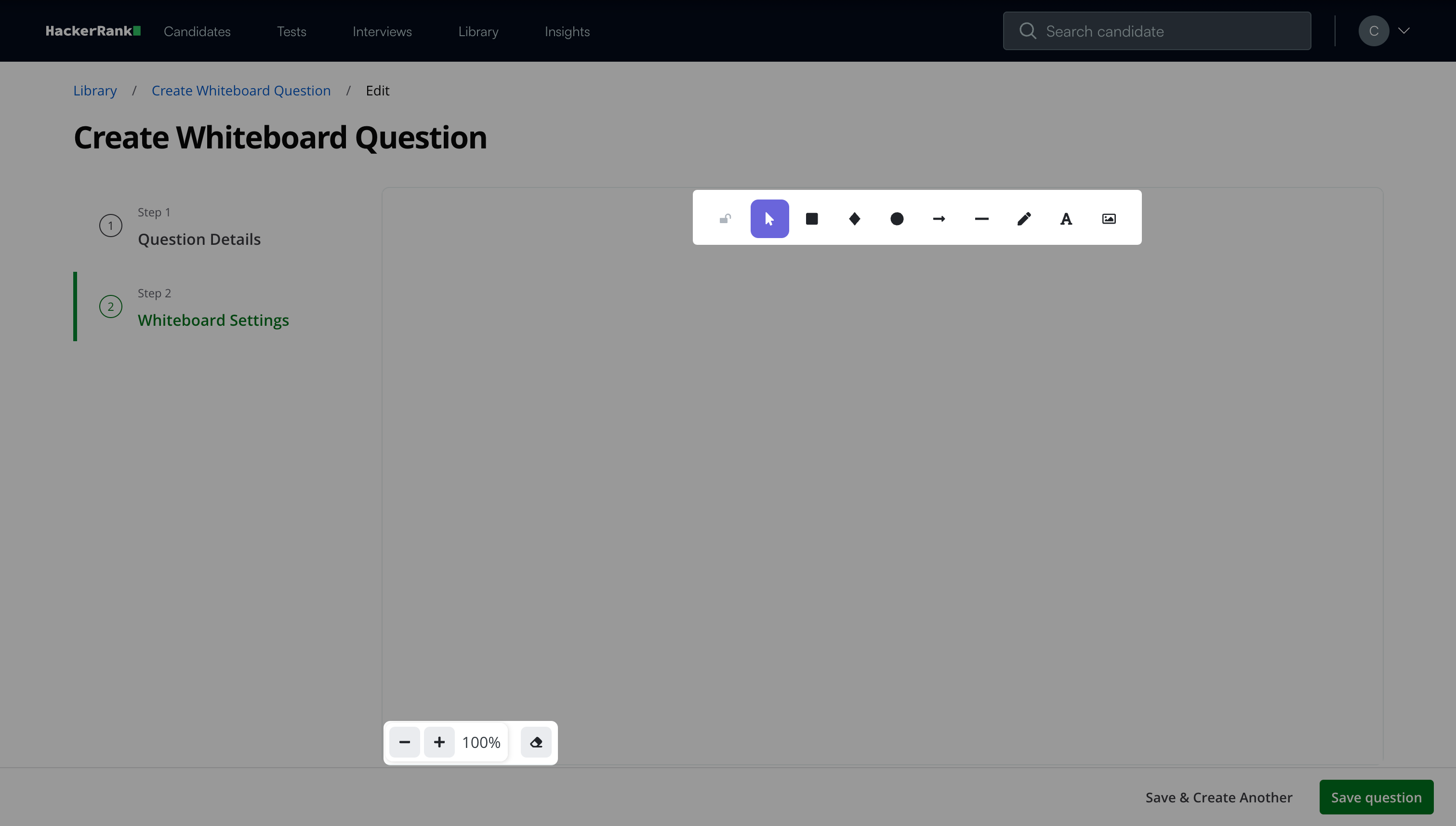
Canvas controls
Sketch and annotate without space limitations.
Scroll through the canvas to continue drawing seamlessly.
Use the + and – icons in the bottom-left corner to zoom in and out.
Use the eraser icon in the bottom-left corner to remove elements.
Drawing tools: The toolbar at the top of the whiteboard includes:
Selection tool: Select and move shapes or drawings. Drag handles around shapes to resize selected shapes. Press the Delete key on your keyboard to remove selected elements.
Shapes library: Insert common shapes such as squares, diamonds, and circles.
Arrow tool: Add directional arrows to diagrams.
Line tool: Draw straight lines for connections or boundaries.
Pen tool: Draw freehand sketches.
Text tool (A): Add labels, notes, or annotations.
Image upload icon: Insert predefined architecture diagrams and images to avoid redrawing company-specific architectures.
Candidate experience
The candidate can use the whiteboard to solve the question using the components and tools in the toolbar.
Scoring a Whiteboard Question in tests
Whiteboard questions require manual scoring. For more information on manual scoring, see 📄 Manual Scoring for General Questions.