Manage Email Alerts for Leaked Questions
Last updated: November 4, 2025
Email alerts for question leakage help you quickly identify and respond to leaked questions, maintaining the integrity and reliability of your hiring process.
Key benefits
Email alerts provide the following benefits:
Managed alerts: Receive notifications only for the tests you subscribe to, and set the email frequency to daily or weekly.
Easy leakage management: Use the direct link in each email alert to open the affected test and replace the leaked question immediately.
Enabling email alerts
You can enable email alerts for leaked questions at the company level, user level, or test level.
Enabling email alerts for all company tests
Note: You must have admin access to configure company-level settings.
To enable email alerts for all company tests:
Log in to your HackerRank for Work account using your credentials.
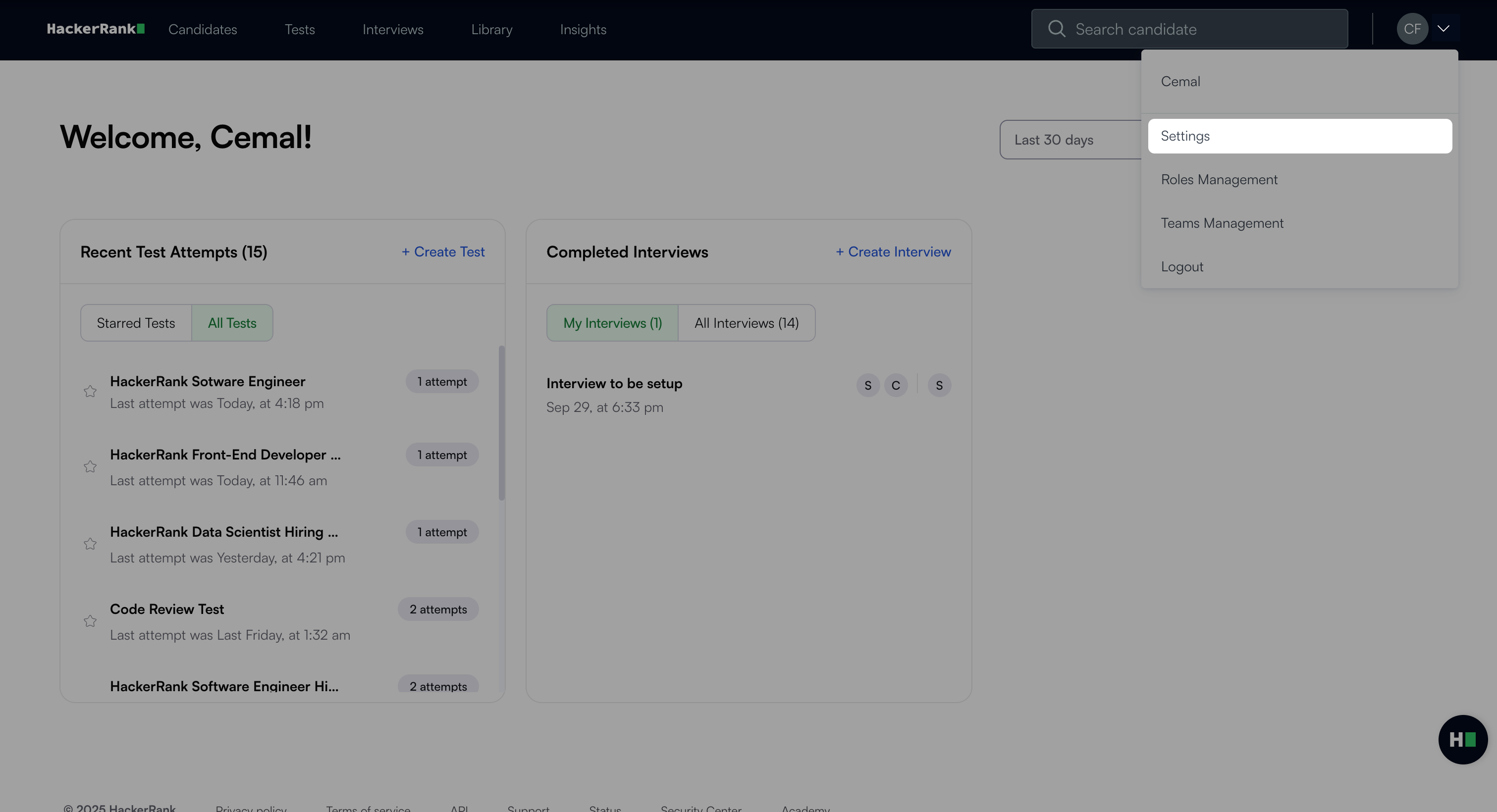
Click your profile icon in the upper-right corner.
Select Settings from the drop-down menu.
Go to Test Settings under the Company section.
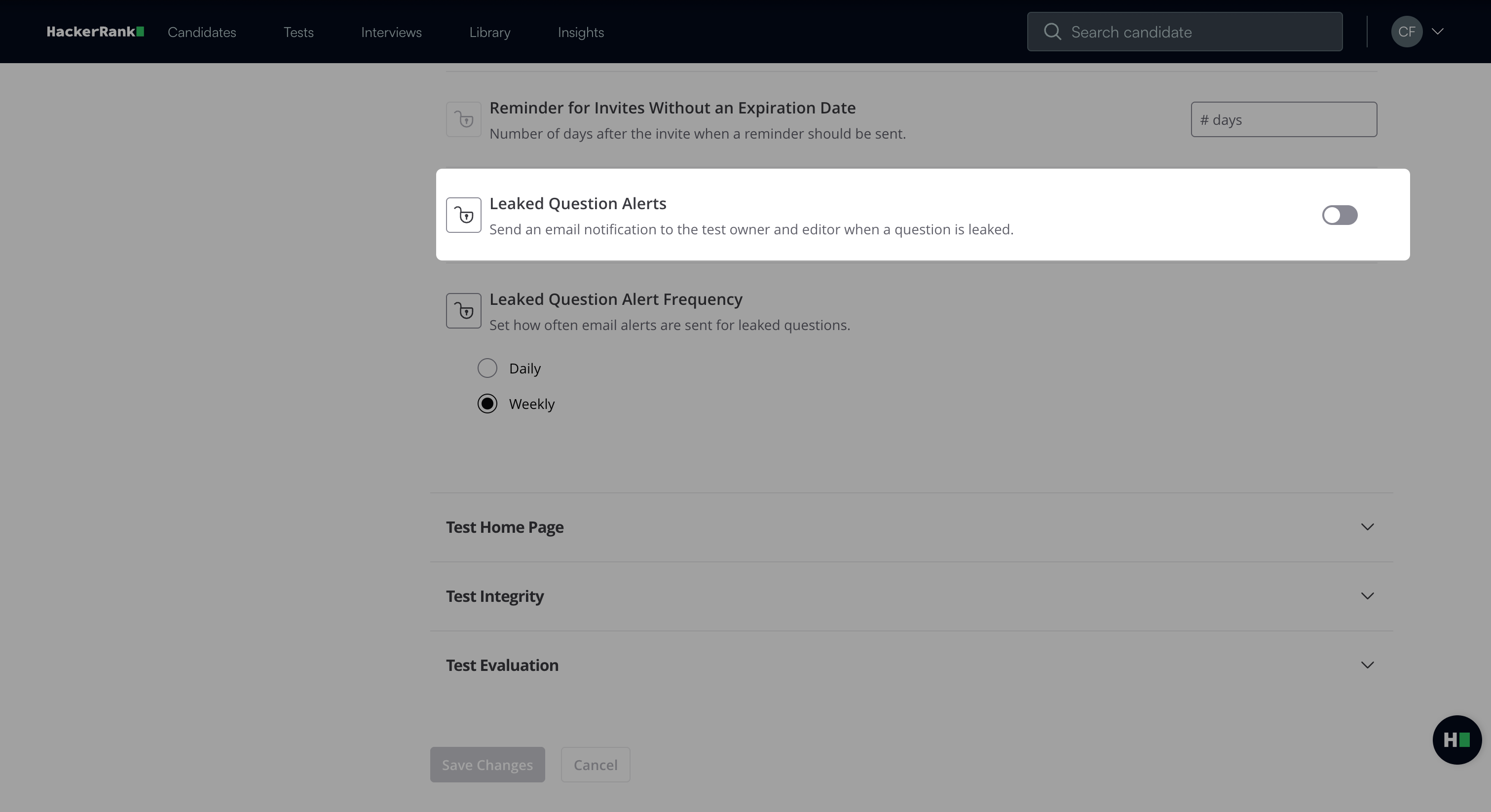
In the Test Emails section:
Turn on the Leaked Question Alerts toggle to enable email alerts.
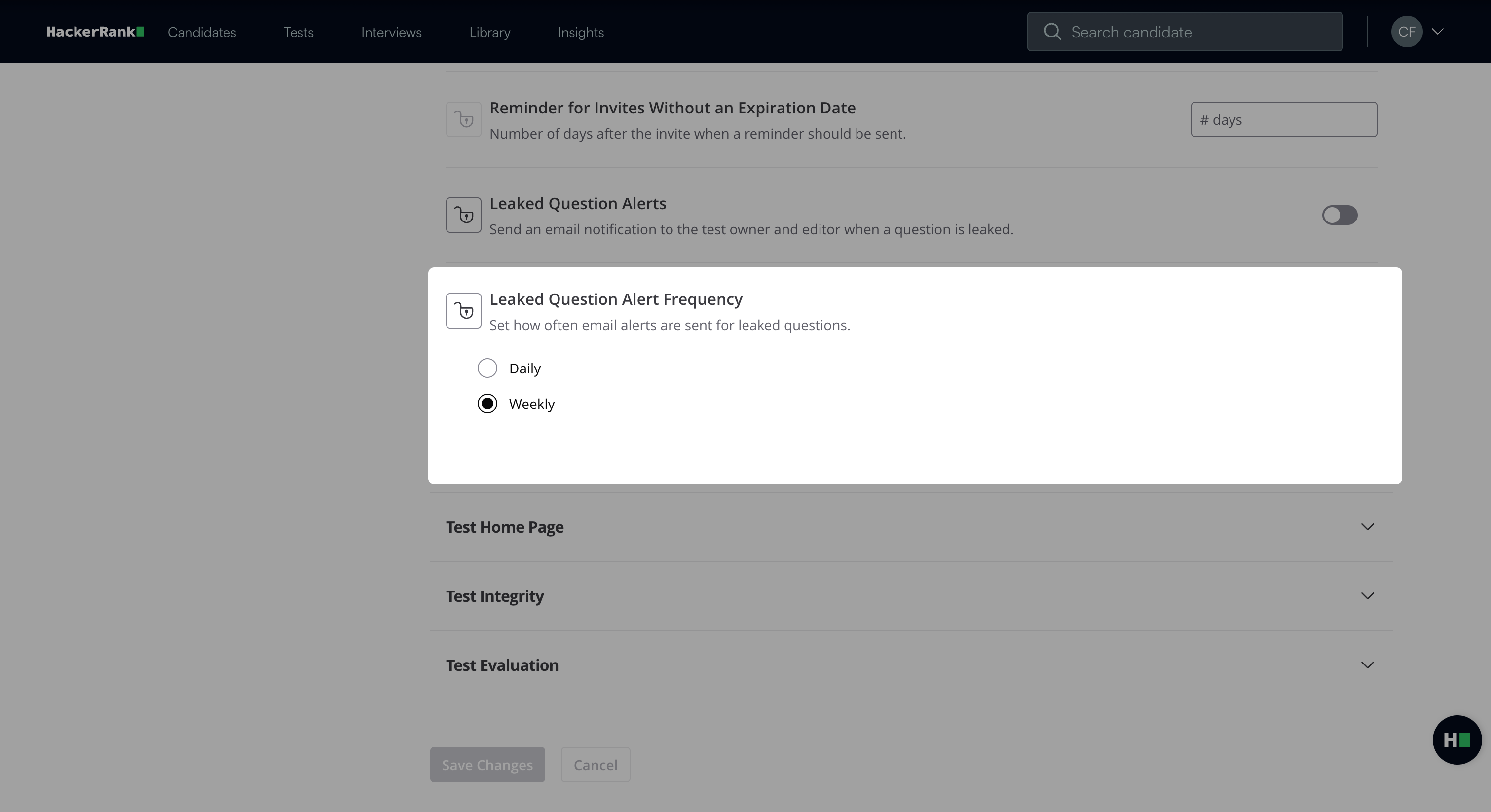
Select Daily or Weekly under Leaked Question Alert Frequency.
(Optional) Click the lock icon next to Leaked Question Alert and Leaked Question Alert Frequency to prevent individual overrides.
Click Save Changes.
All test owners and editors will receive an email notification when a question is leaked.
Enabling email alerts for your tests
You can enable email alerts for all the tests you have created.
To enable email alerts for all your tests:
Click your profile icon in the upper-right corner.
Select Settings from the drop-down menu.
Go to Email Notifications under the User section.
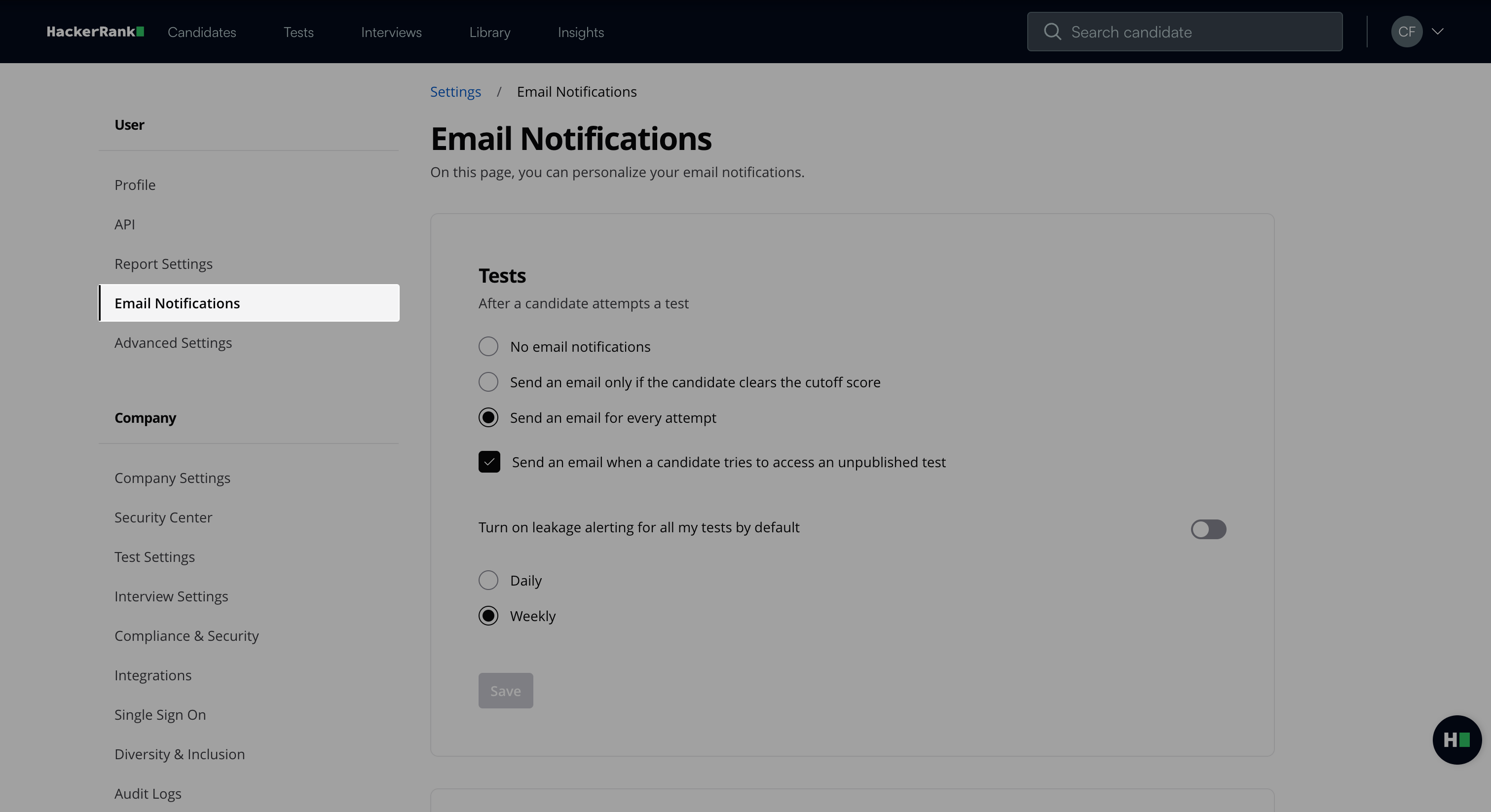
Toggle Turn on leakage alerting for all my tests by default to enable email alerts and select daily or weekly to receive alerts.
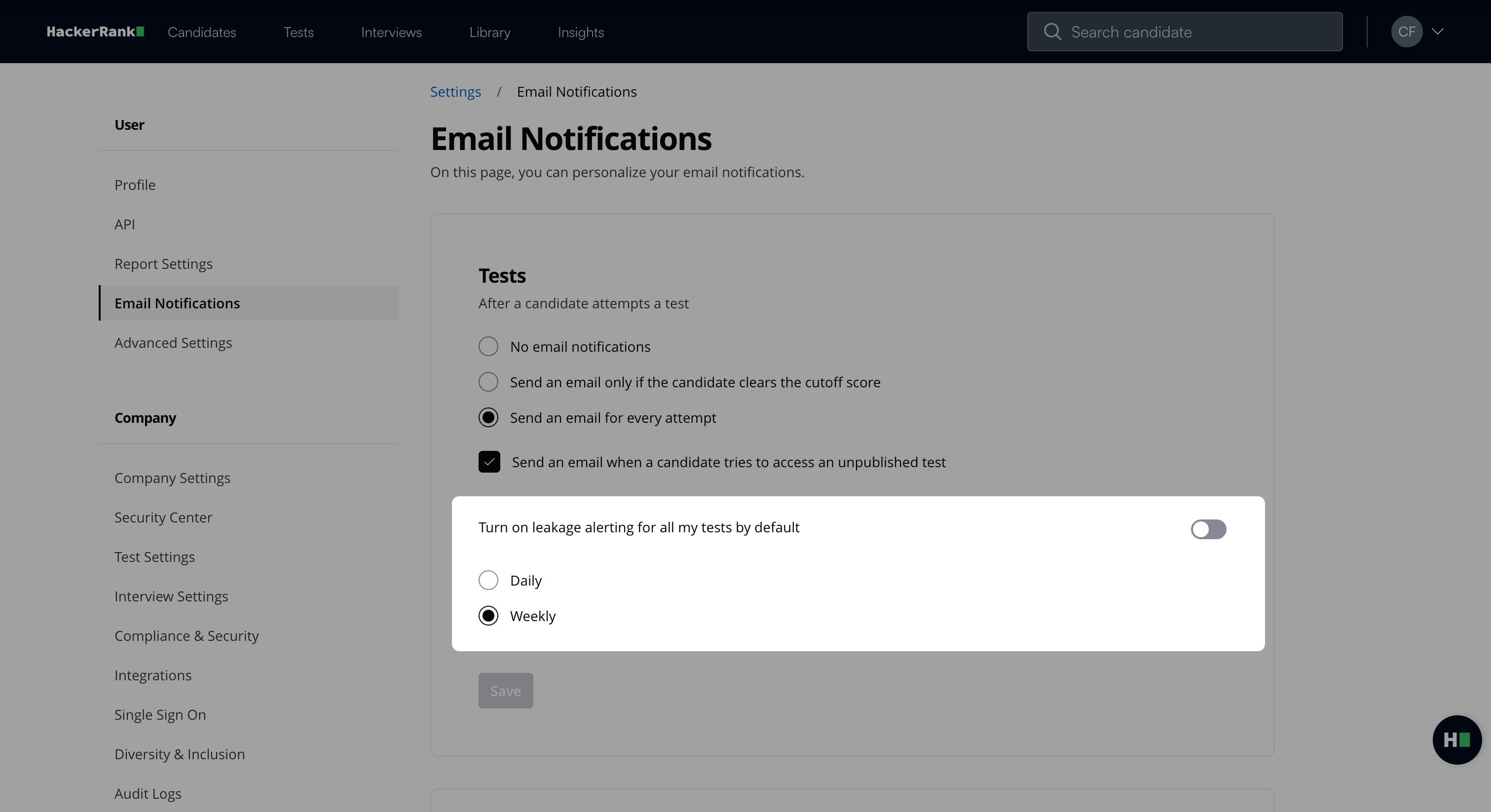
Click Save.
Enabling email alerts for a specific test
You can enable email alerts for a specific test that you own or created for other users within your company.
To enable email alerts for a specific test:
Go to the Tests tab.
Select the test for which you want to enable email alerts.
Go to the Settings tab.
Select Emails under the Test Administration section.
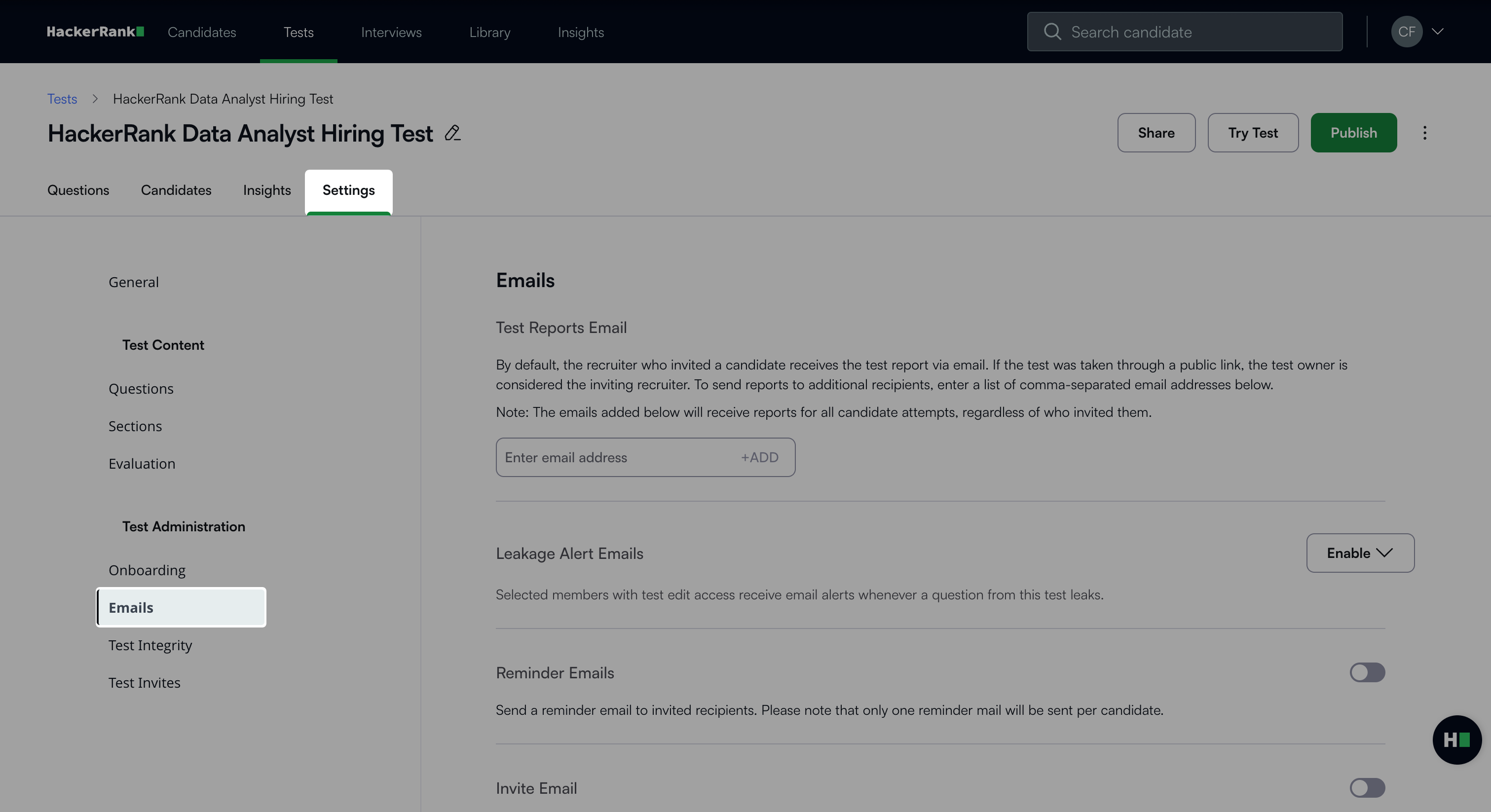
Click the Enable dropdown under Leakage Alert Emails.
Select the users who should receive the email alerts.
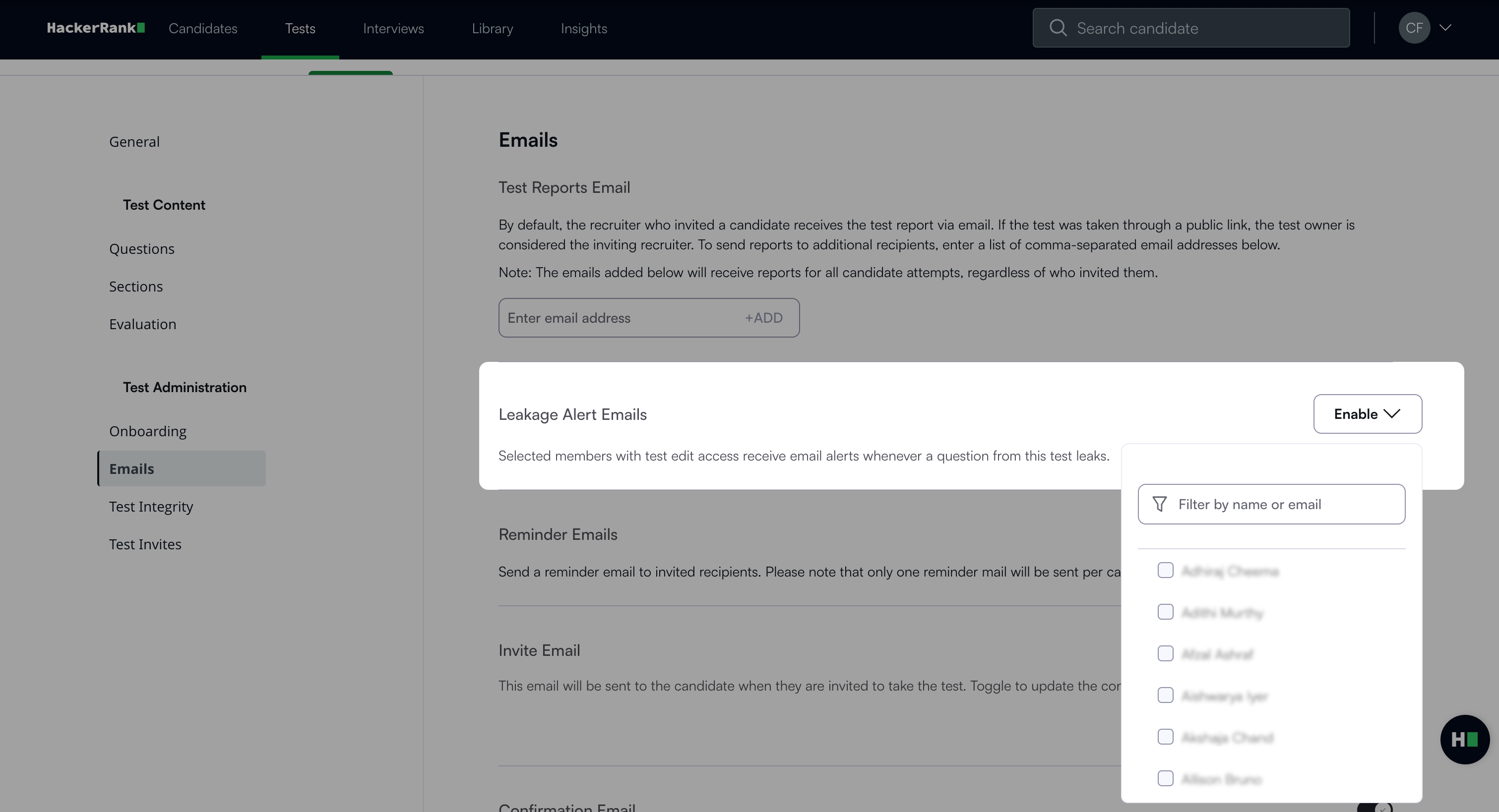
Click Save Changes.
Note: For more information on leaked questions, see 📄 Managing Leaked Questions.
Receiving and responding to email alerts
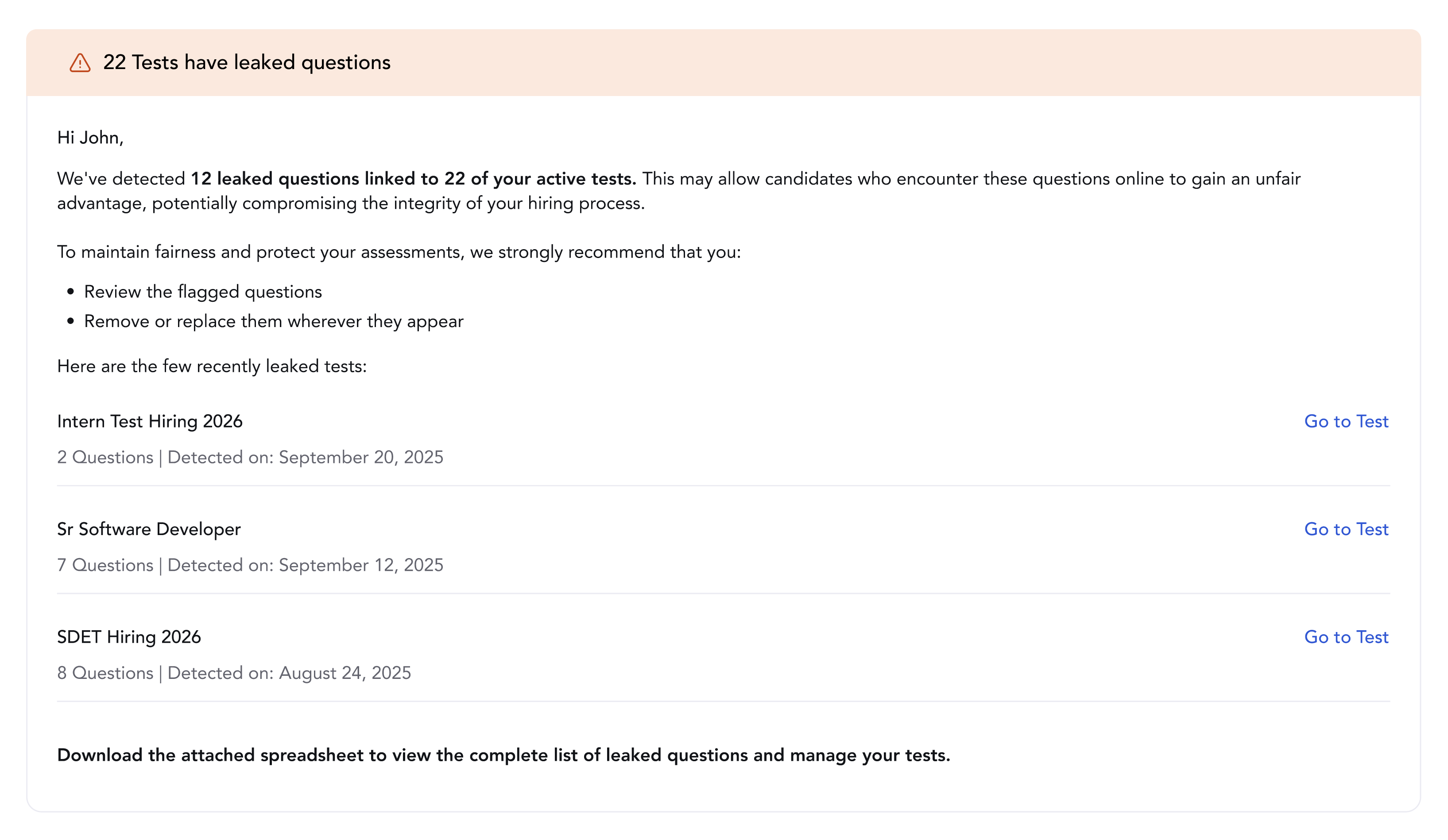
After you enable alerts, test editors receive an email that includes:
A list of tests with leaked questions.
Direct calls to action (CTAs) to manage each affected test.
Note: The list can include two types of leakages:
Questions that were not leakage-protected and got leaked (marked without a shield icon).
Questions that were leakage-protected, but the automatic replacement failed (marked with a shield icon).
If the email contains more than three tests, download the attached spreadsheet to see all leaked questions across the tests you are monitoring.