Manage Sections in Tests
Last updated: October 15, 2025
Sections help you organize test questions by topic or skill. You can also include code repositories as separate sections to assess real-world development skills. You can set time limits for each section and control how questions appear to candidates. You can configure multiple sections in a test to create a more focused and adaptive assessment experience.
Prerequisite
You must have created a test in your HackerRank account.
Add a section to a test
To add a new section:
Log in to your HackerRank for Work account using your credentials.
Go to the Tests tab.
Open the test you want to edit.
Go to the Questions tab.
Select Add New next to Sections.
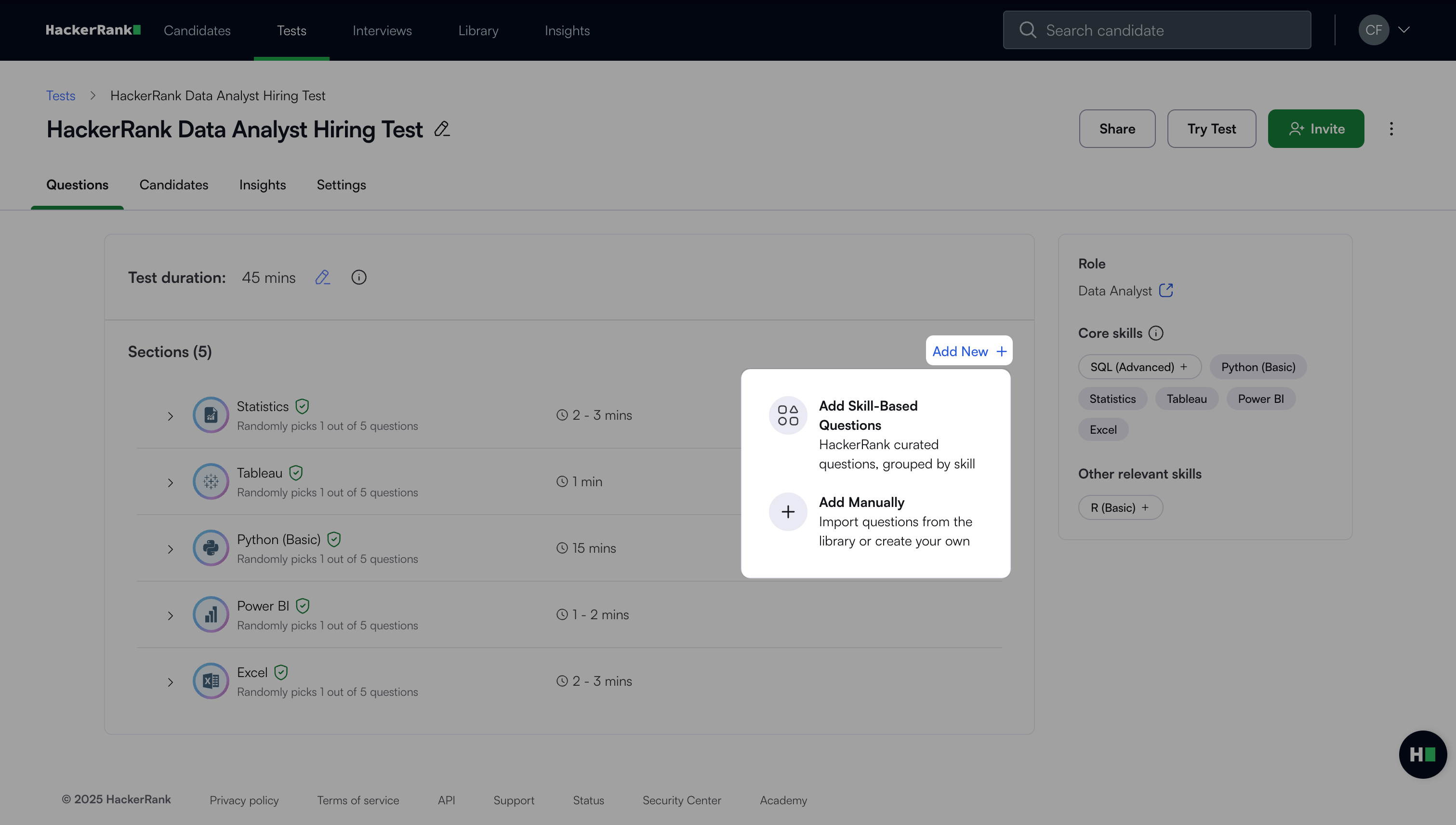
Choose one of the following:
Add Skill-Based Questions
Select Add Skill-Based Questions to create a section using HackerRank-curated questions grouped by skills.
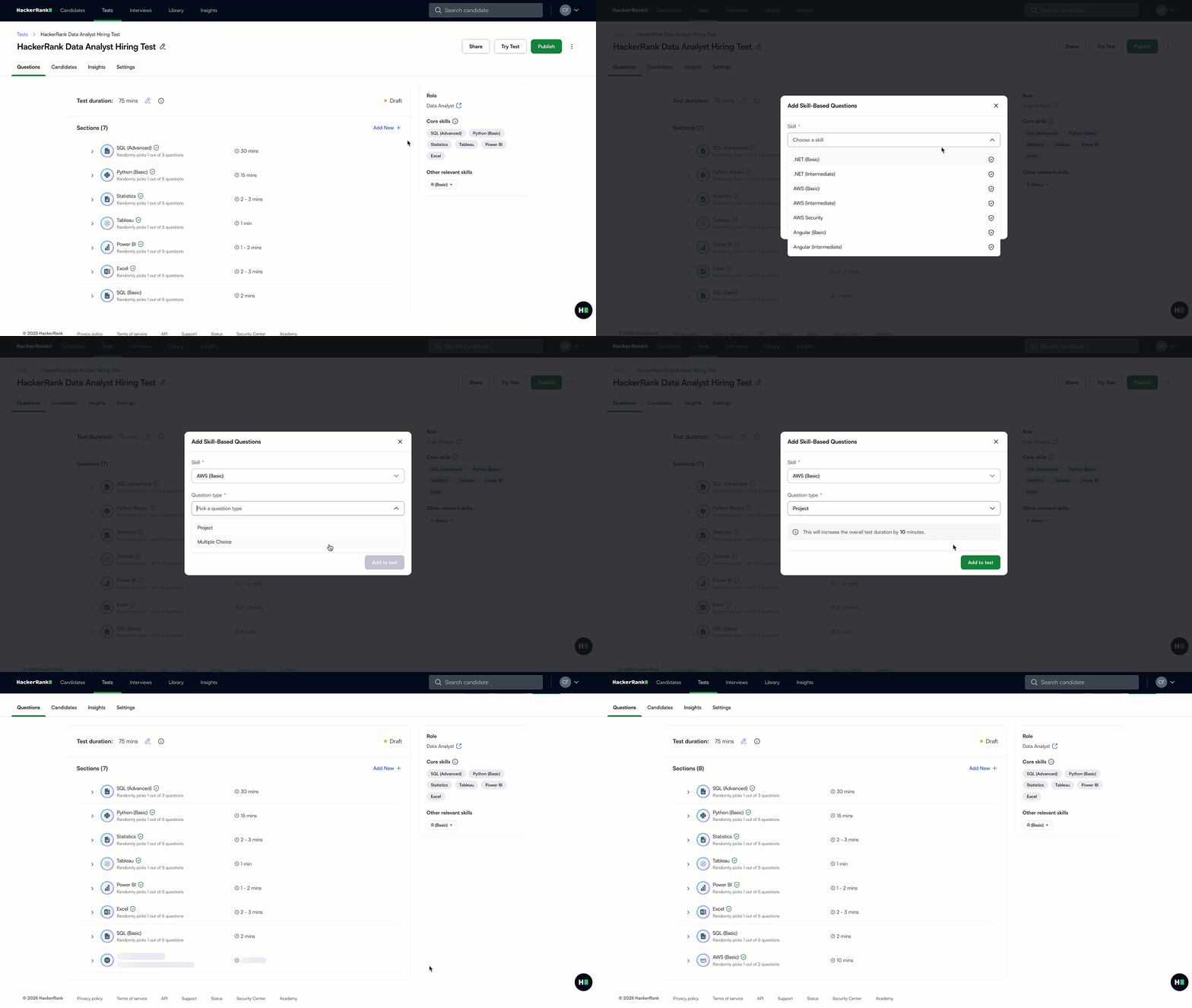
Select a Skill and Question type from the dropdown menu.
Click Add to test.
HackerRank automatically selects questions based on the chosen skill and type. To manage questions in a section, see Manage questions in a section.
Note:
Leak-protected skill sets display a safeguard icon next to the skill. HackerRank protects these sections from question leakage. If any question leaks, the system automatically replaces it.
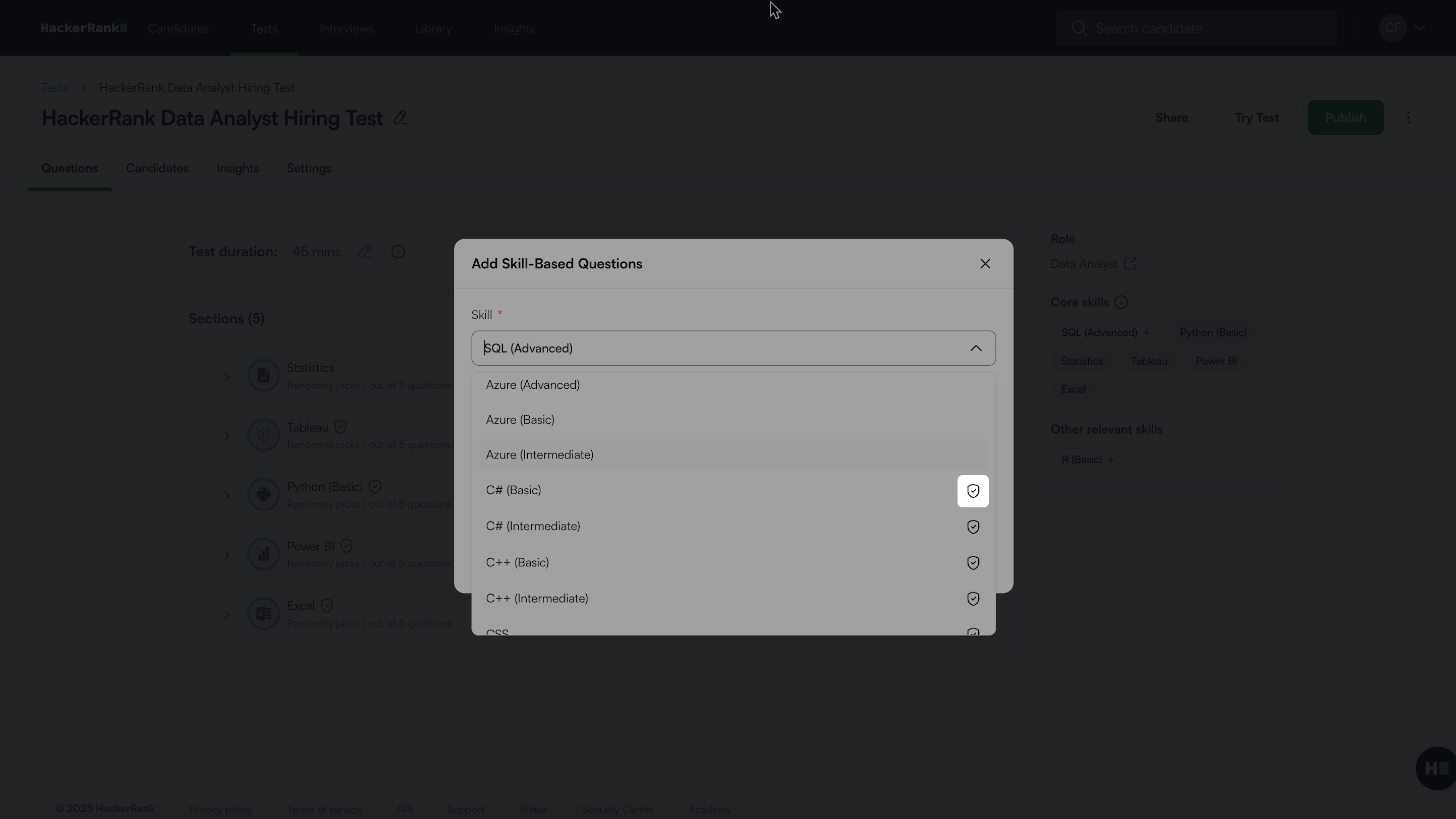
For more information about available skills in HackerRank, see Skill Directory.
Add Manually
Select Add Manually to create custom questions from the library or your own questions. A new section labeled Untitled appears at the bottom of the list.
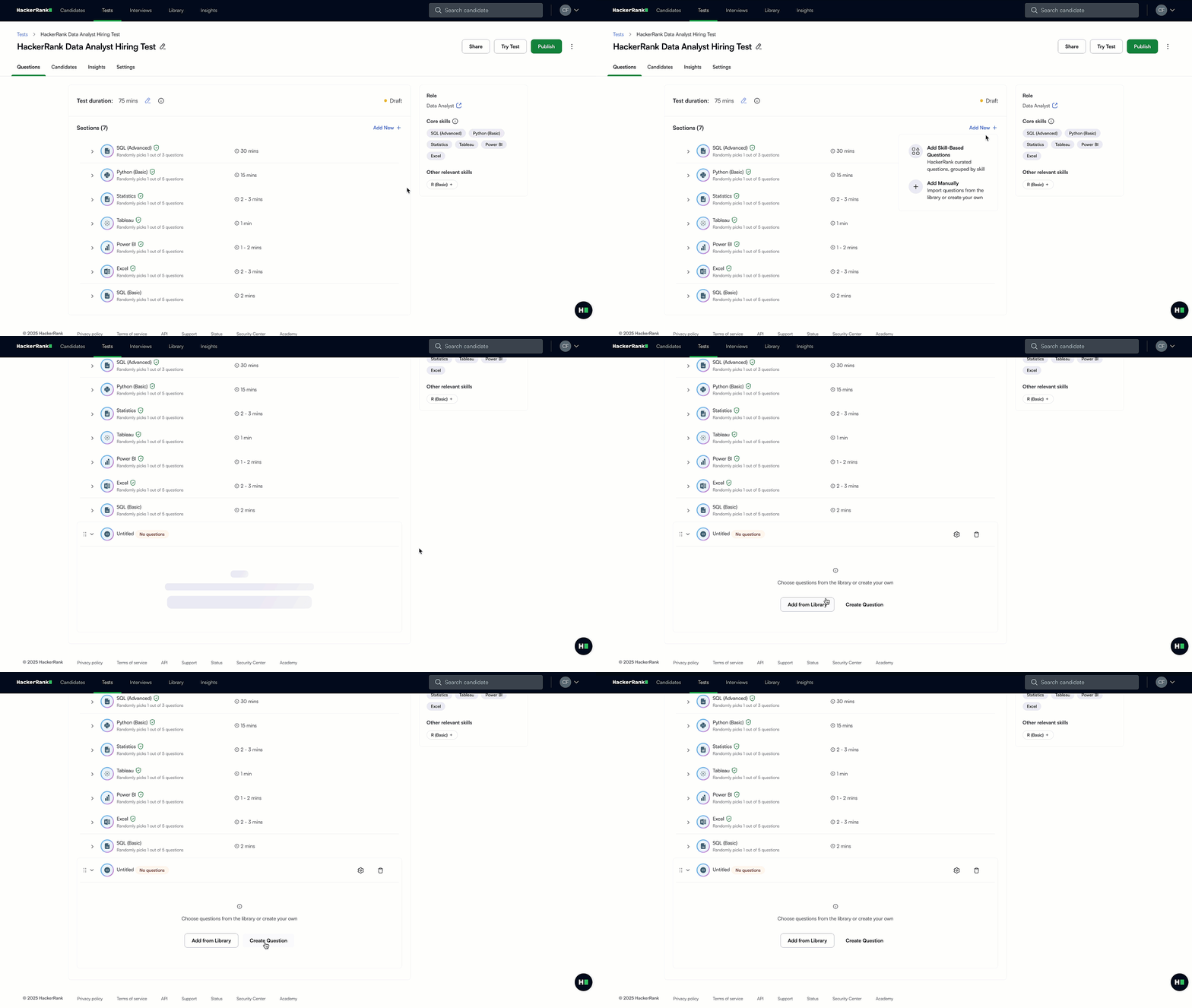
Note: To rename the section, see Configure section settings.
Choose how to add a question:
From the library
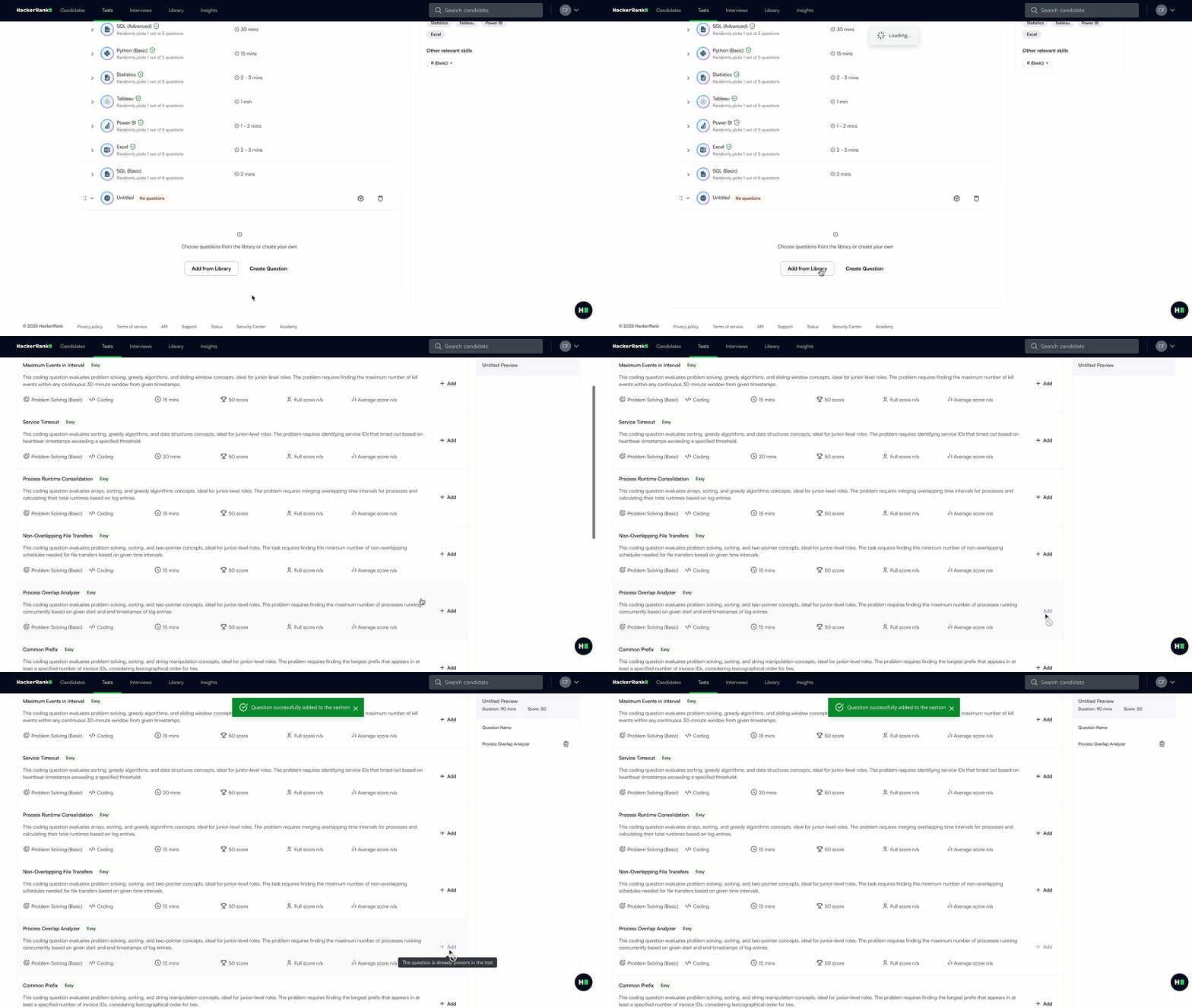
Click Add from Library to open the question library.
(Optional) Use filters or the search bar to find a question.
Click + Add next to the question you want to include.
Create your own
Click Create Question to write a new question. For more information, see 📄 Creating Questions.
Configure section settings
You can modify the section name, timing, and behavior.
To configure section settings:
Hover over the section name and select the settings icon.
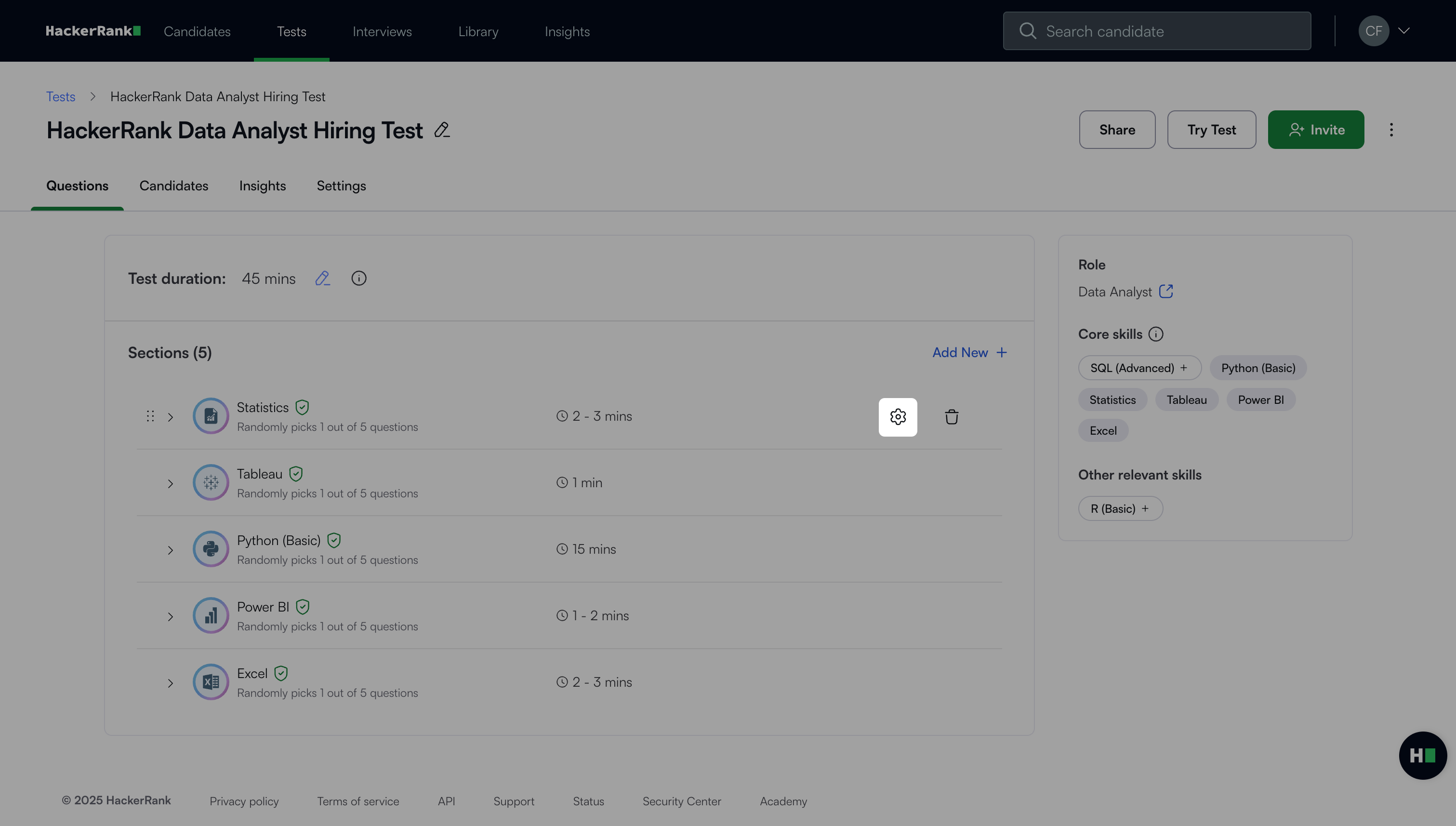
Update the section settings:
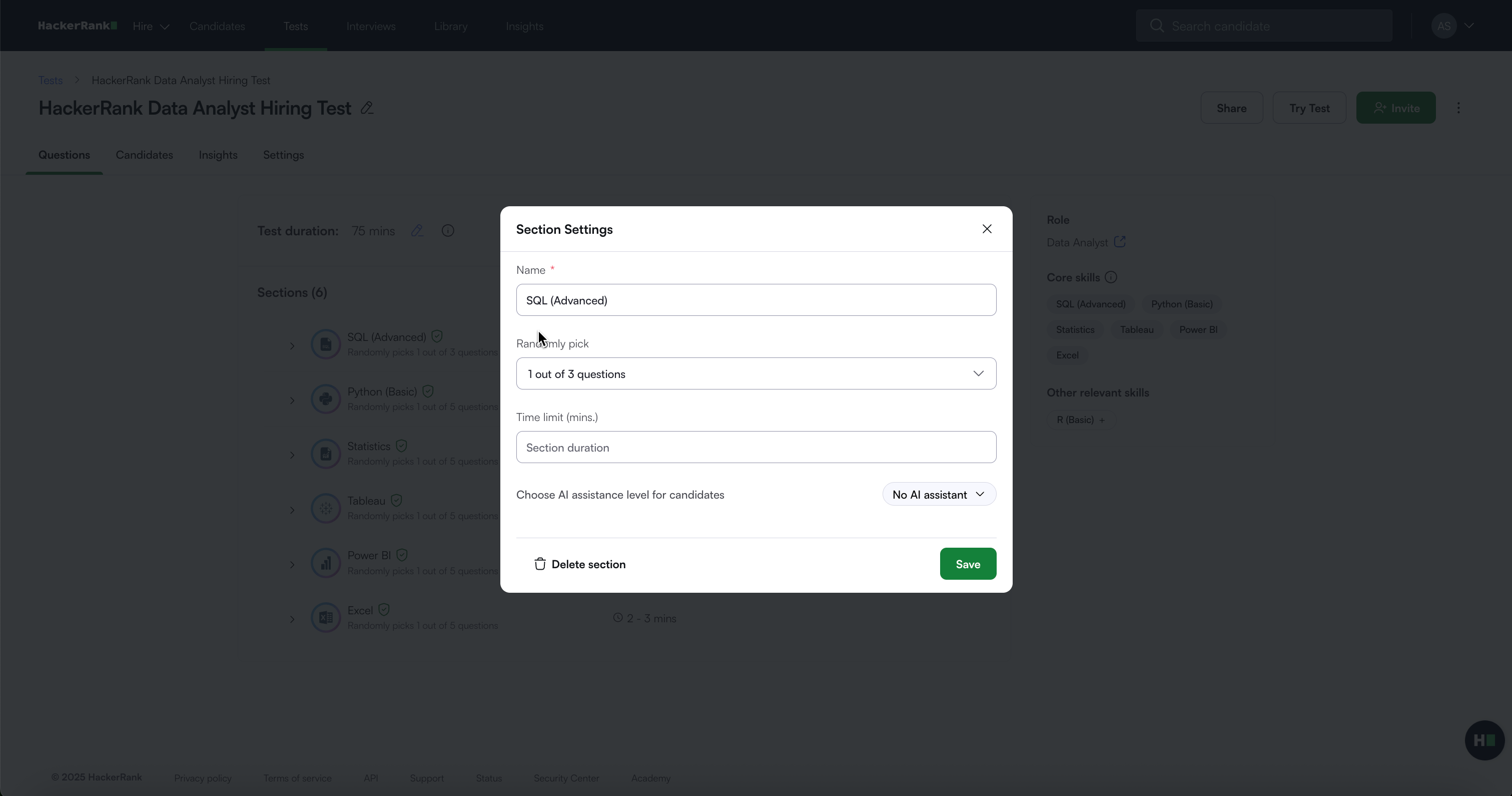
Name: Enter a section name.
Randomly pick (Optional): Select how many questions to show to each candidate.
Time limit (Optional): Define the time allowed for this section in minutes.
AI Assistance Level (Optional): Choose the level of AI assistance for candidates:
No AI assistant
Guarded AI assistant
For more information about AI Assistant, see 📄 AI-Assisted Tests.
Click Save.
Note: Random selection sections allow you to control the variety of questions across candidates.
Reorder a section
To reorder a section:
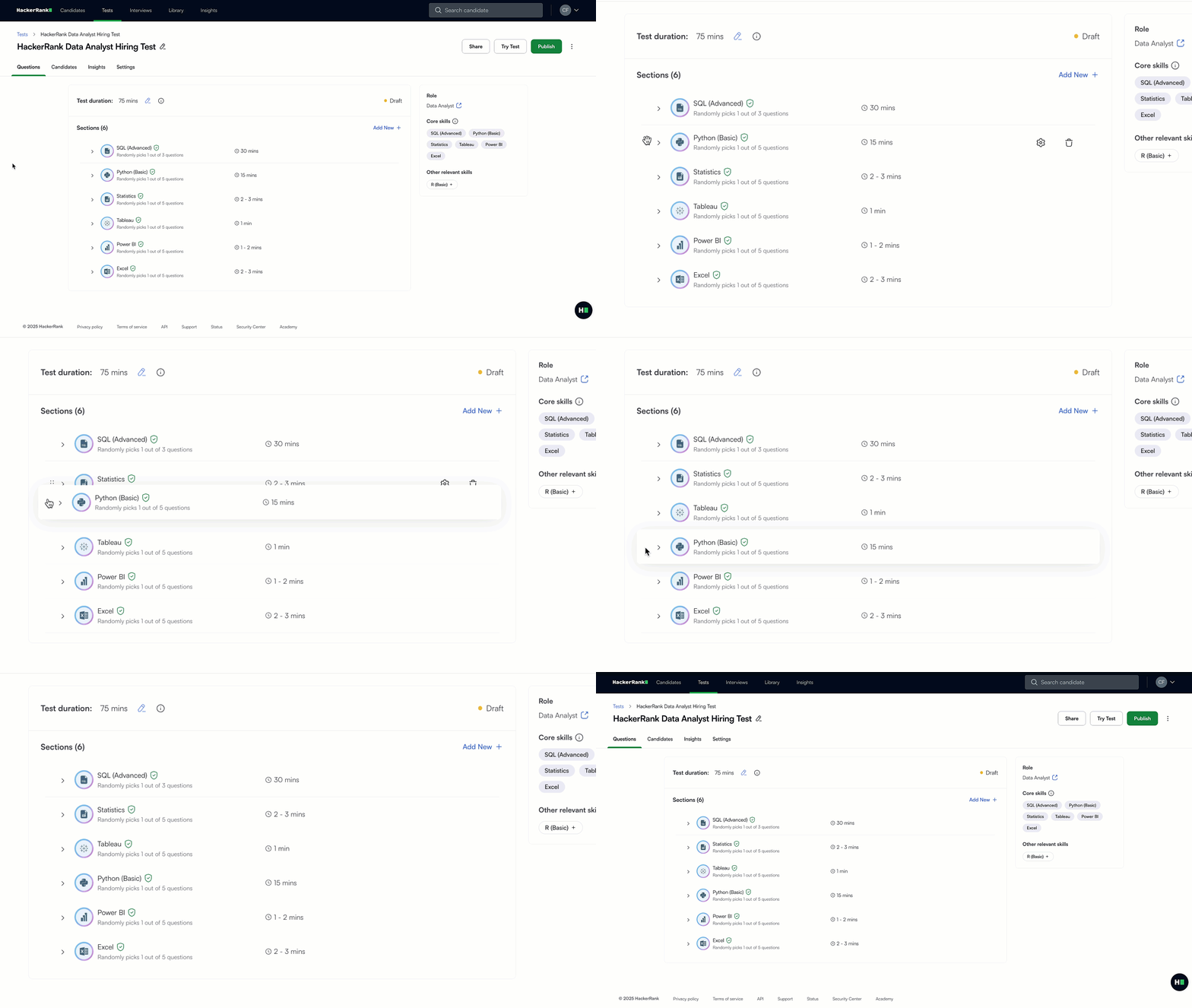
Hover over the section name.
Drag the drag handle (⋮⋮) to move the section to a different position.
Delete a section
To delete a section:
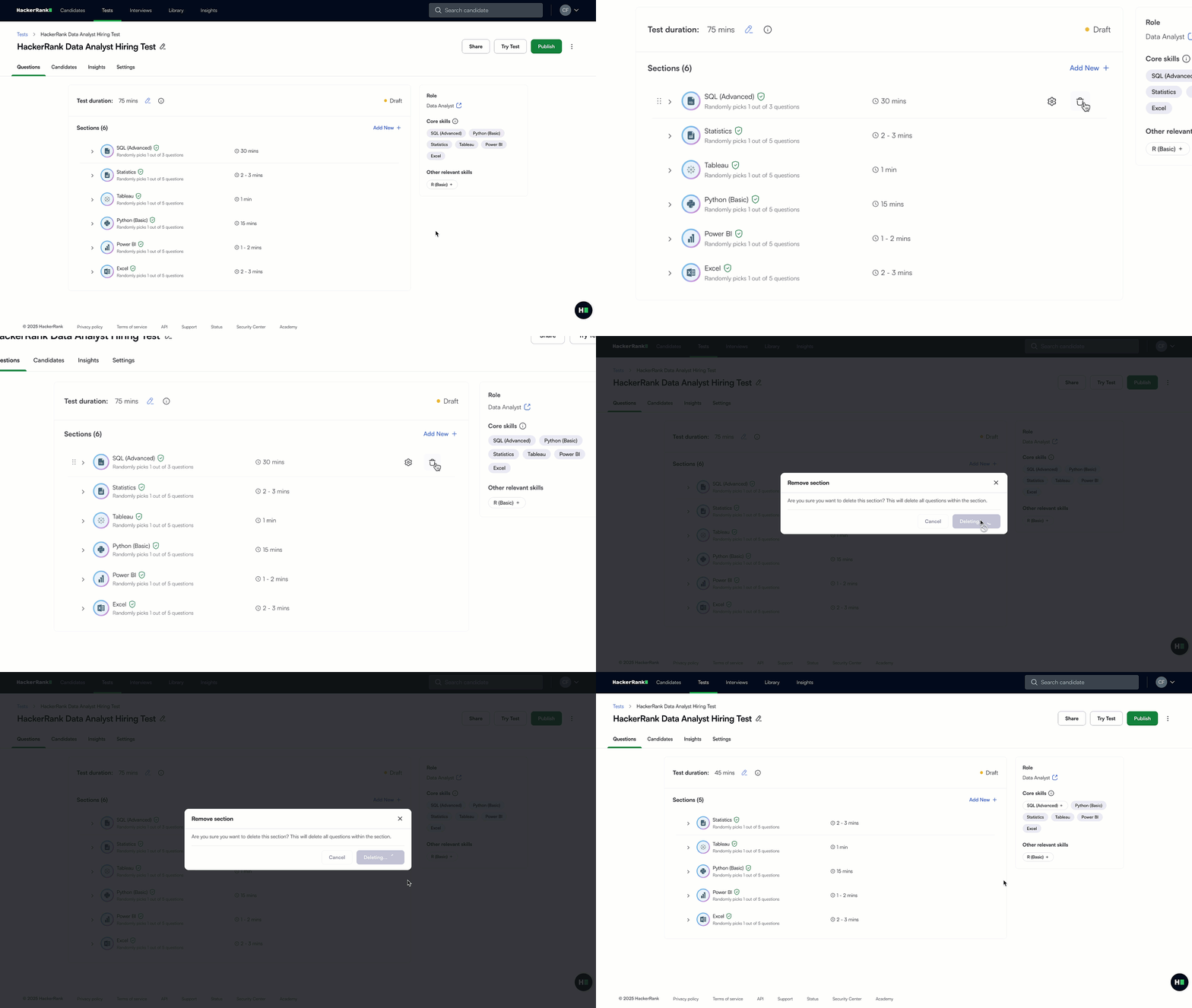
Hover over the section name and select the delete icon.
In the confirmation dialog, select Delete to remove the section permanently.
Note:
Deleting a section also removes all questions in that section.
You can also delete a section from the section settings icon.
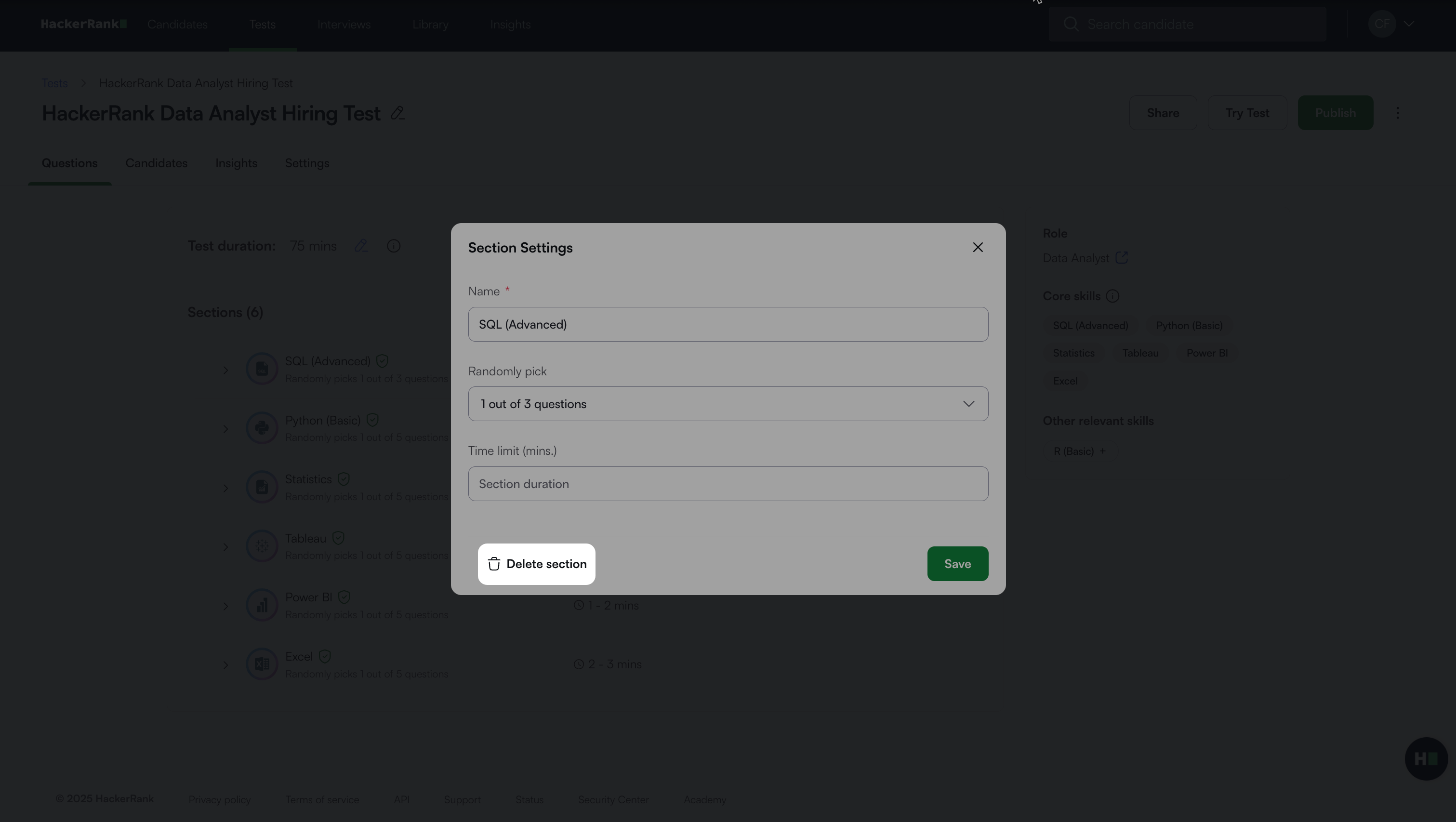
Manage questions in a section
You can add, try, replace, or remove questions within a section to control what candidates see and how the questions are presented.
Add a question
To add a question to a section :
Select the section you want to update. The questions in the section appear.
Choose how to add a question:
From the library
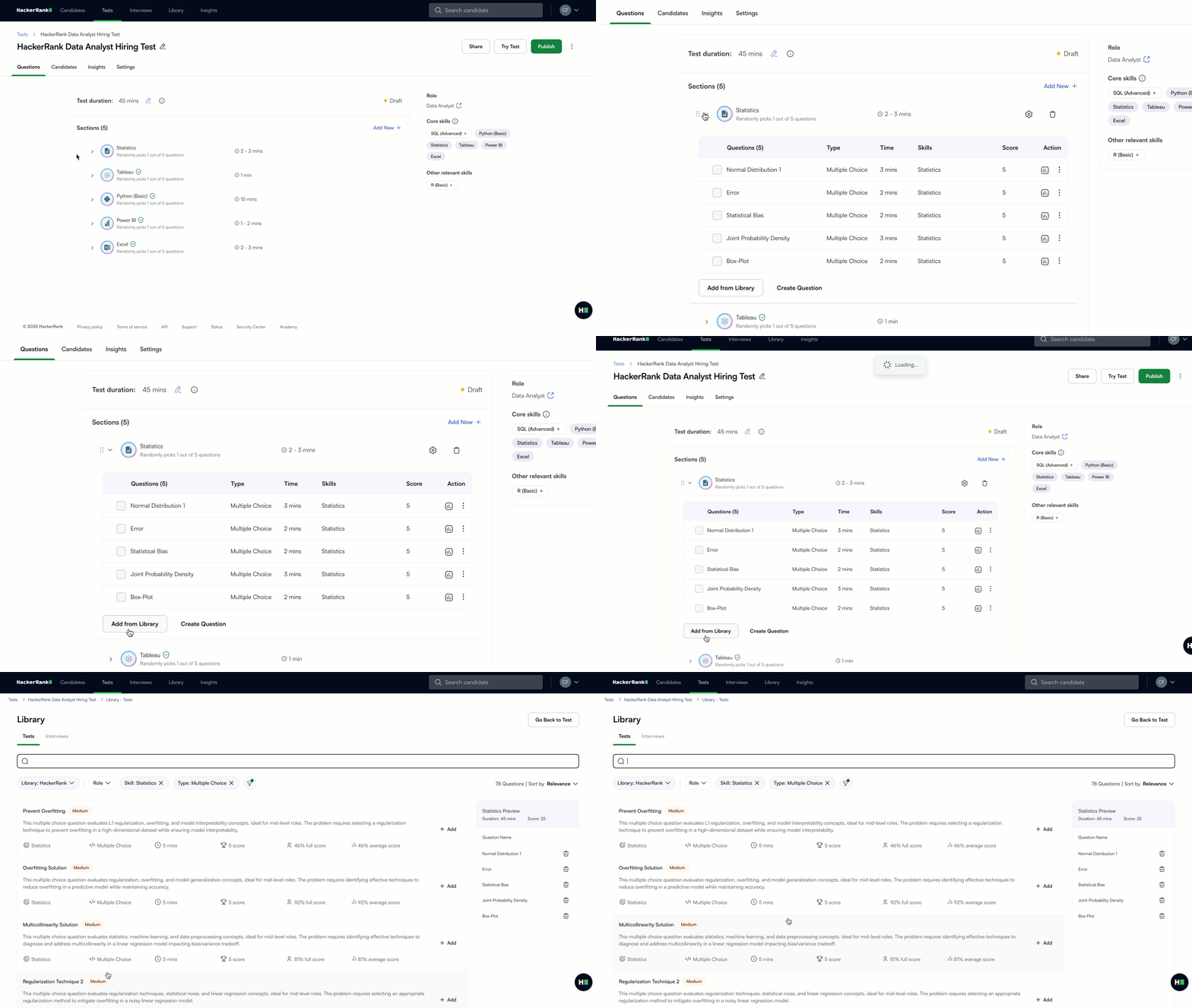
Click Add from Library to open the question library.
(Optional) Use filters or the search bar to find a question.
Click + Add next to the question you want to include.
Create your own
Click Create Question to write a new question. For more information, see 📄 Creating Questions.
Try a question
To try a question in a section:
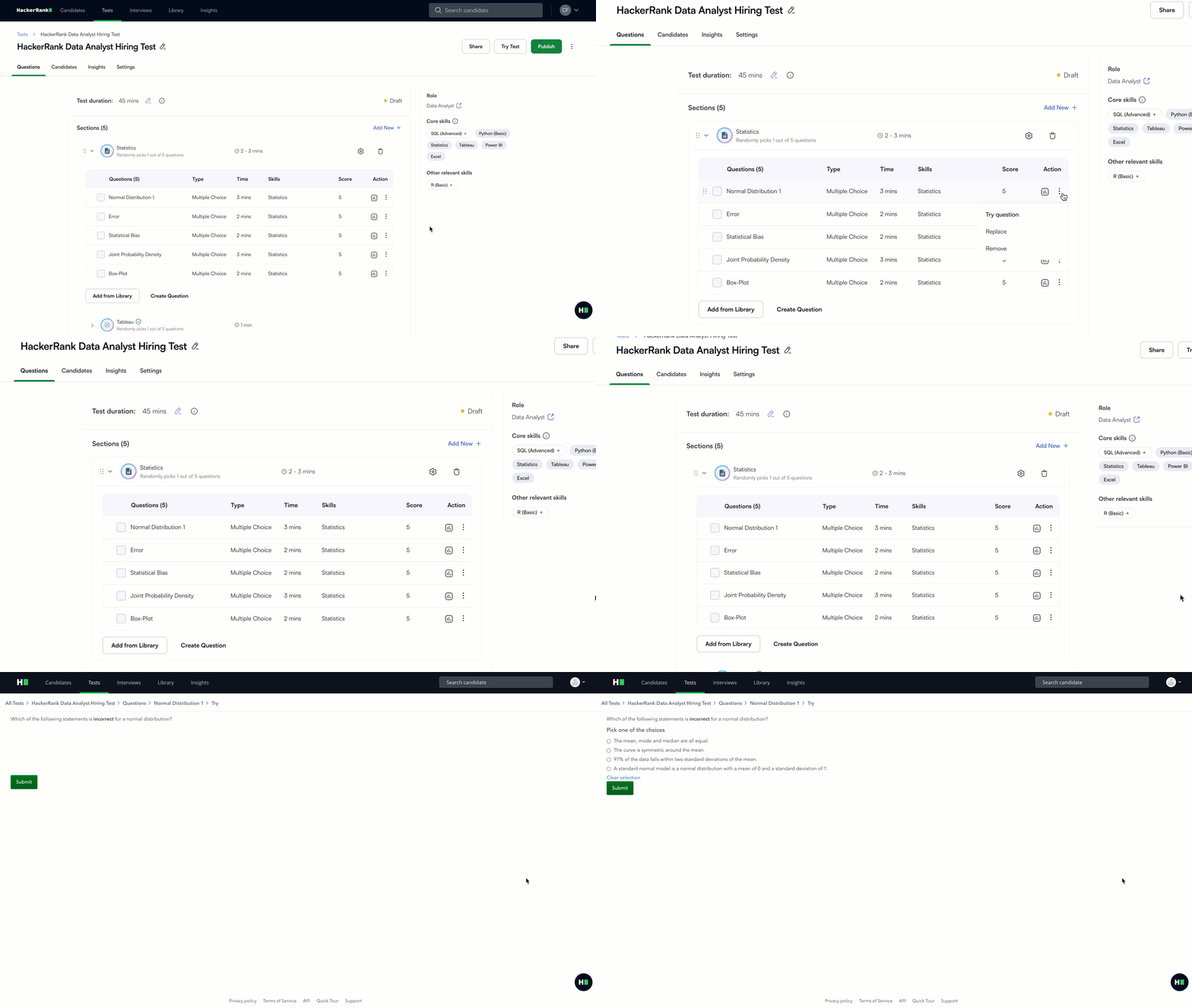
Click the more options menu (⋮) next to the question.
Select Try question. A new window opens showing how the question appears to the candidate.
Replace a question
To replace a question in a section:
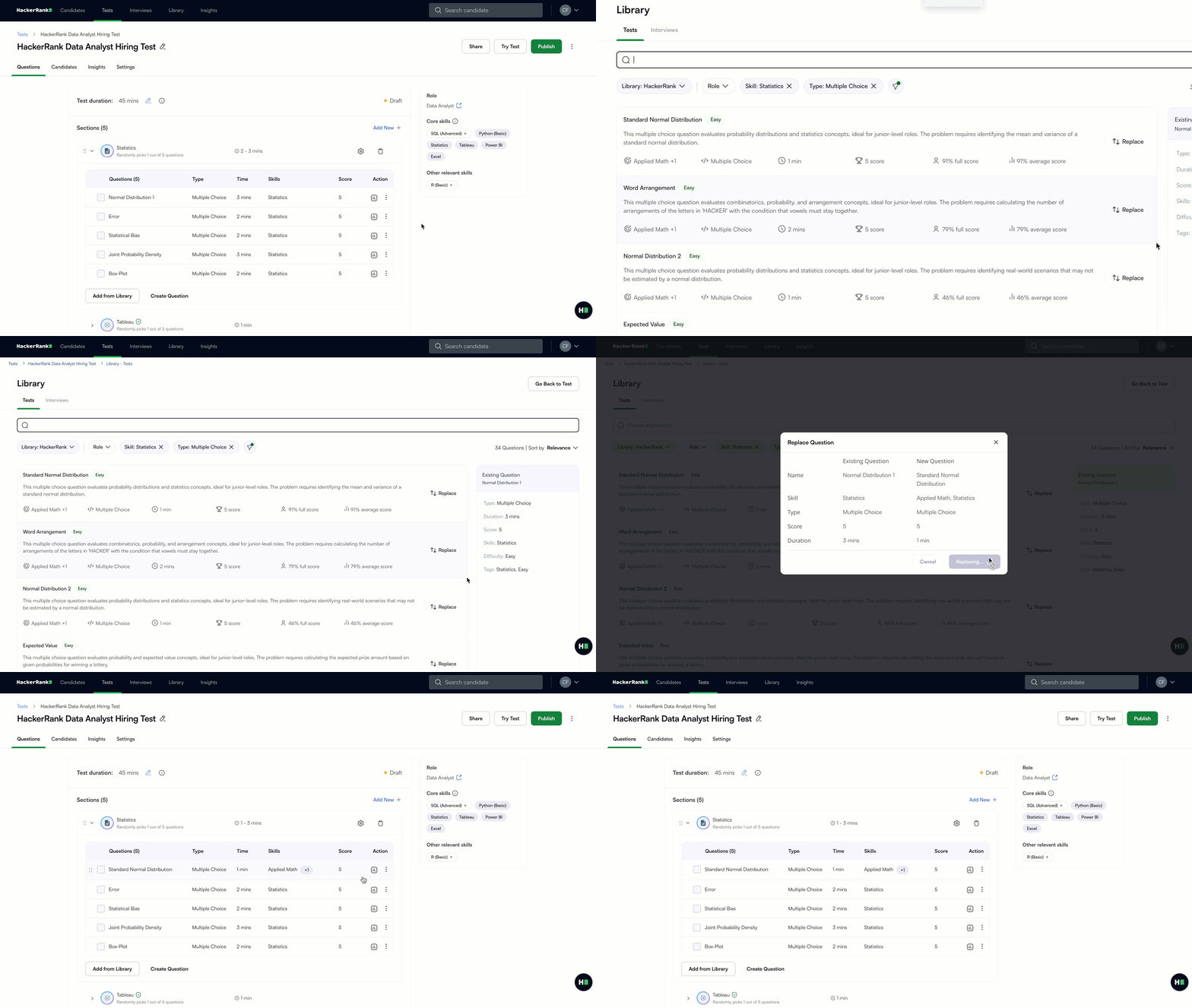
Click the more options menu (⋮) next to the question.
Select Replace. The Library opens with filters applied based on the original question’s type, skill, and difficulty.
Click Replace next to the question you want to use.
In the confirmation modal, compare the existing and new questions (name, skill, type, score, and duration).
Click Confirm.
Remove a question
To remove a question in a section:
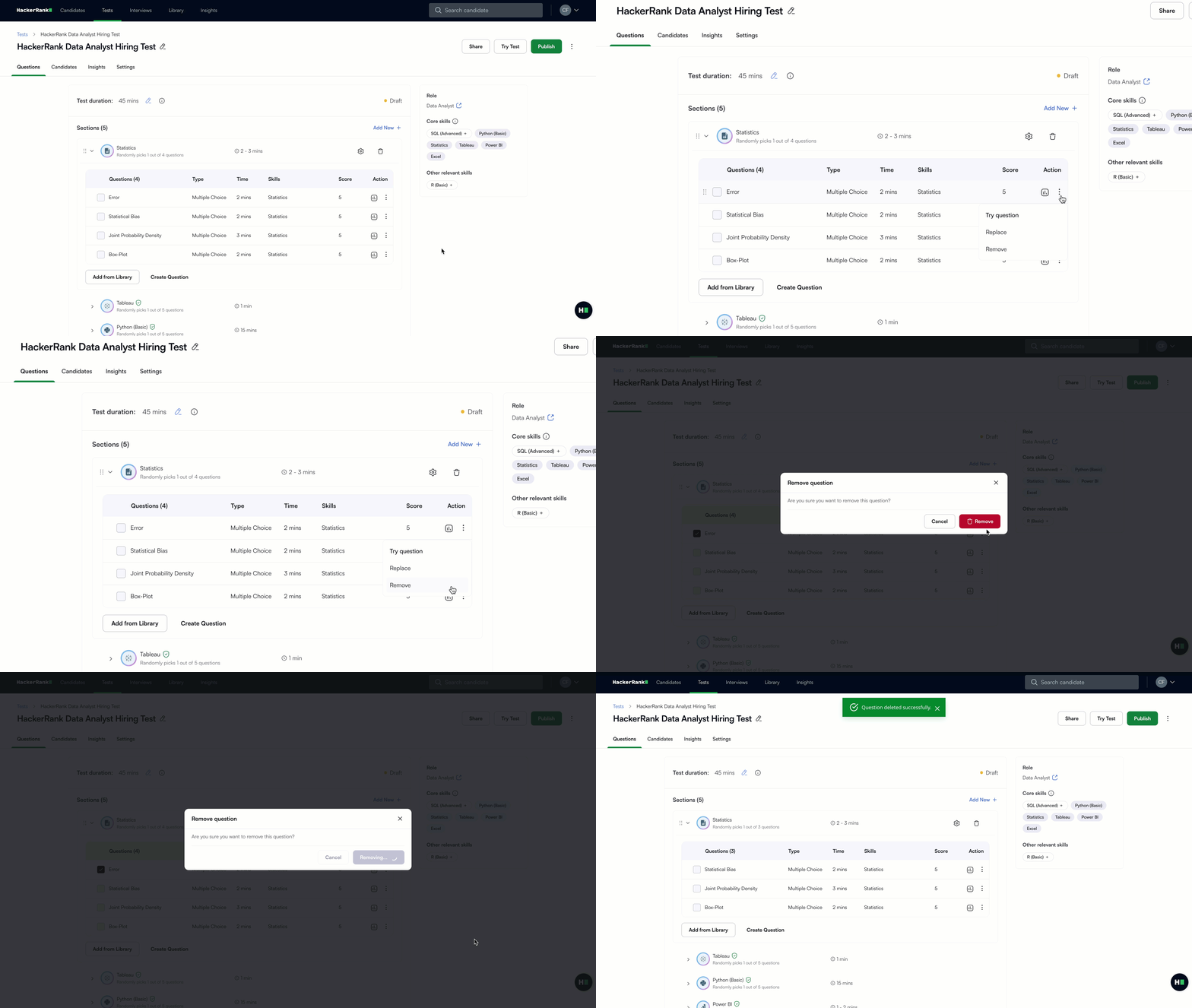
Click the more options menu (⋮) next to the question.
Select Remove.
In the confirmation dialog, click Delete to confirm.
Note:
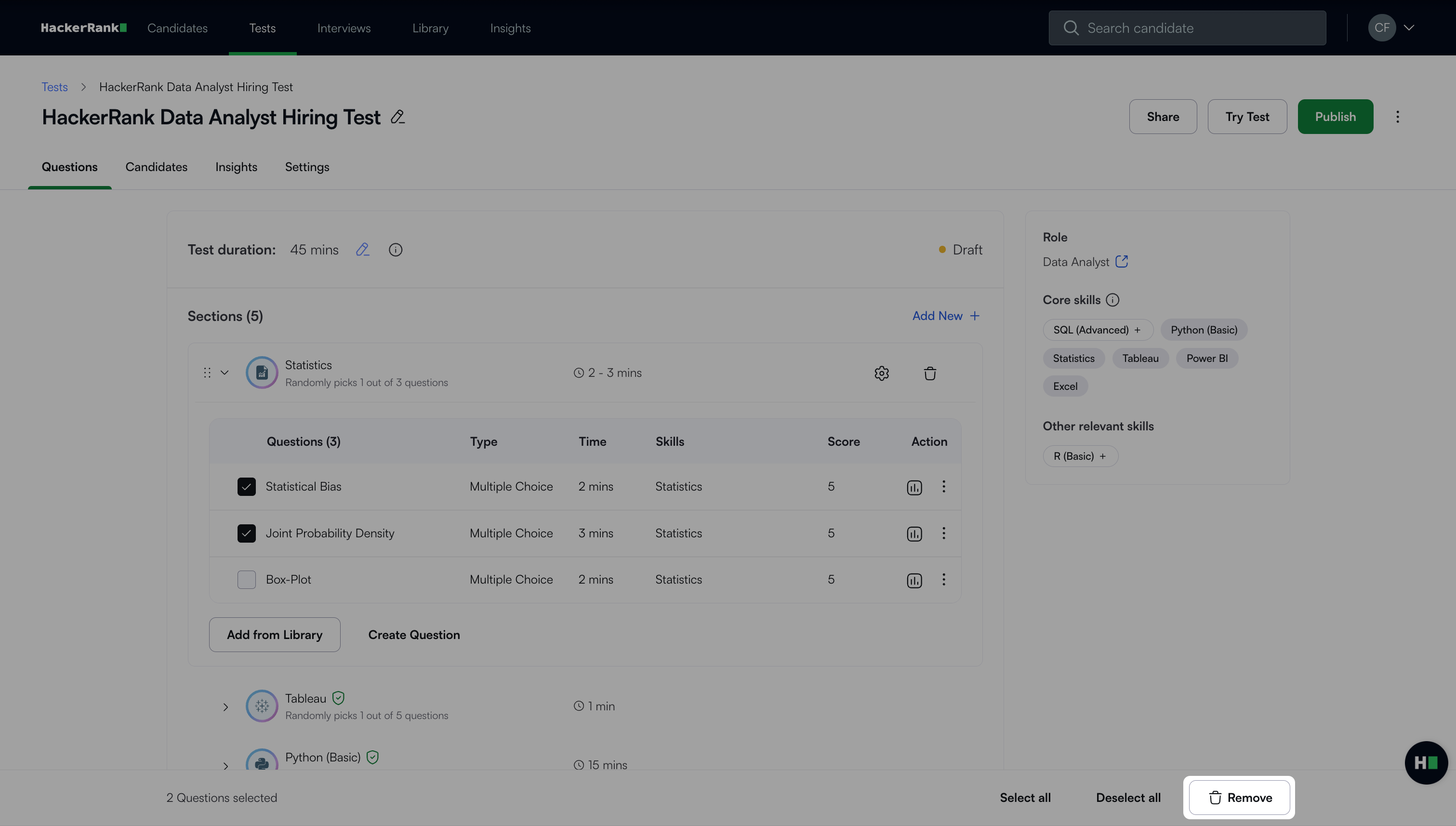
You can delete multiple test questions at once. Select the checkboxes next to the questions and click Remove.
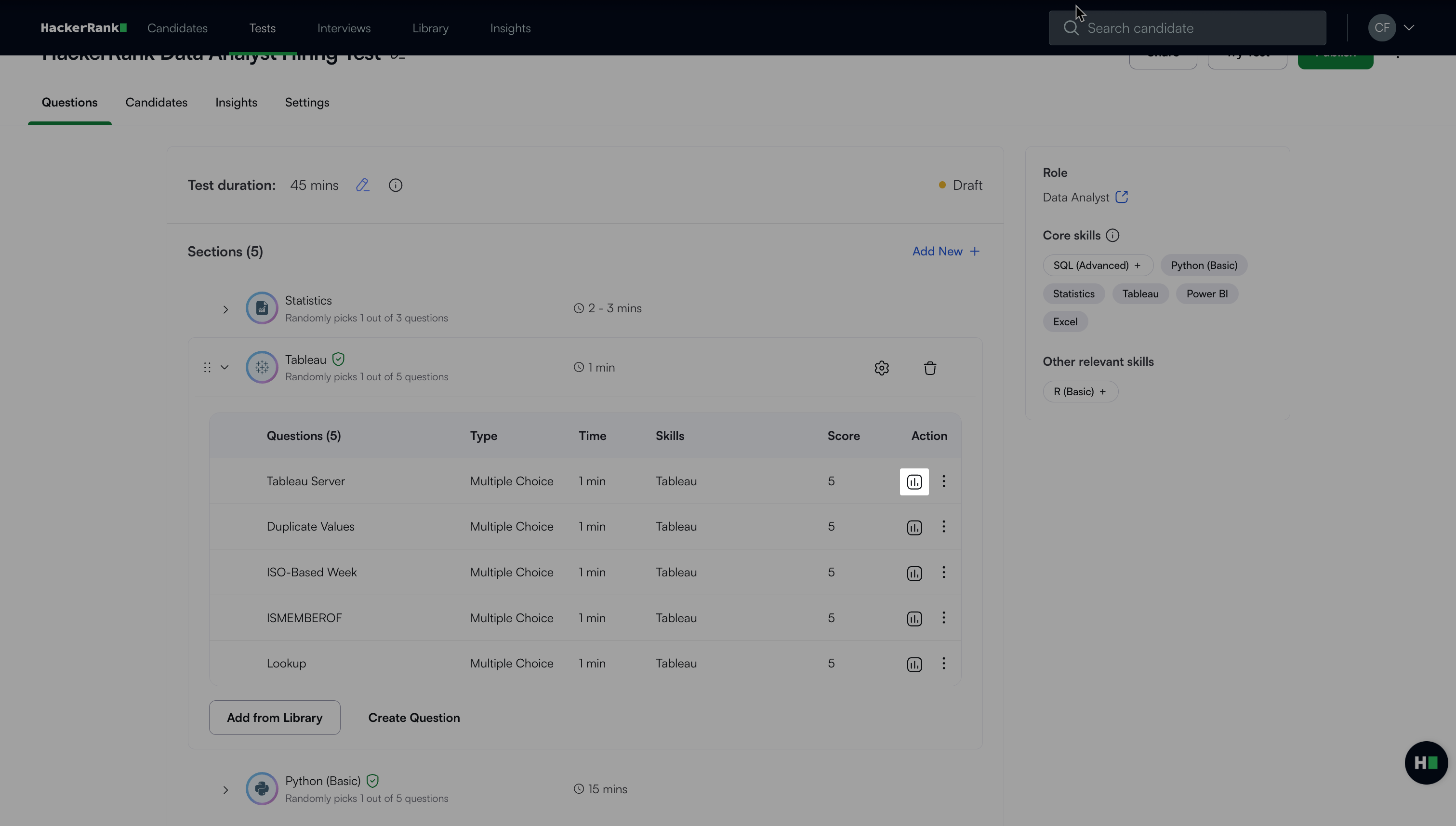
Select the Insights icon to view question insights. For more information, see 📄 View Test Question Insights.
Add a code repository section to a test
Code repository section allow you to assess a candidate’s ability to work with real-world codebases. Each repository includes the following task types that you can choose from:
Feature Building
Bug Fixing
Code Review
Currently, code repositories are available for the following roles:
Frontend Developer (React)
Senior Frontend Developer (React)
Backend Developer (Node.js)
Senior Backend Developer (Node.js)
You can add one or more repositories in a single test to evaluate different skill areas. You can also add code repositories alongside other skills and question types in the same test.
To add a code repository section:
Log in to your HackerRank for Work account using your credentials.
Go to the Tests tab.
Open the test you want to edit.
Go to the Questions tab.
Select Add New next to Sections.
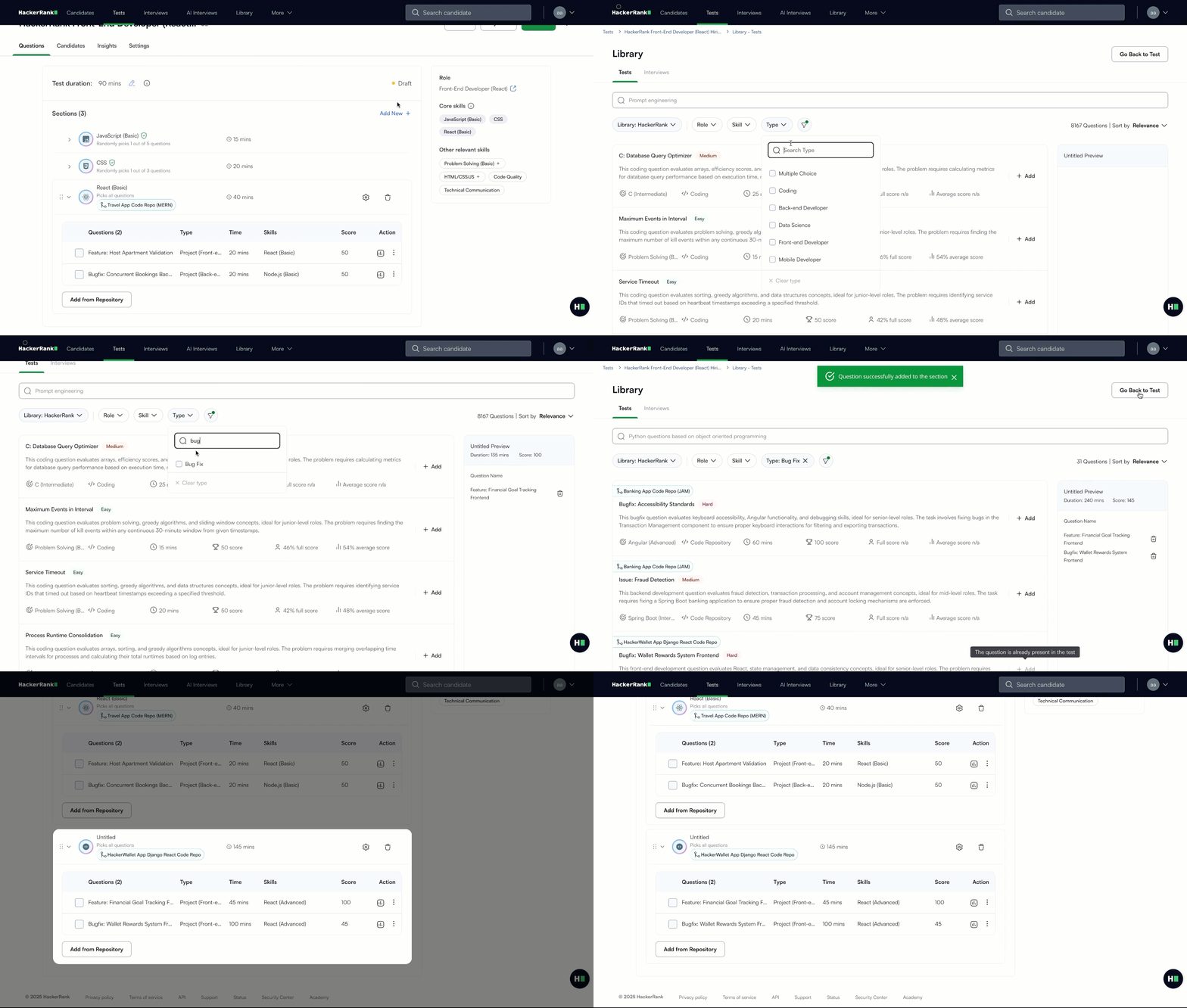
Select Add Manually. A new section labeled Untitled appears at the bottom of the list.
Note: To rename the section, see Configure section settings.
Click Add from Library to open the question library.
Use the Type filter and select Bug Fix, Feature, or Code Review to display only code repository questions.
Click + Add next to the code repositories you want to include.
Note: To add a code repository tasks to a code repository section, see Add a code repository task.
Add a code repository task
To add a code repository task to a code repository section:
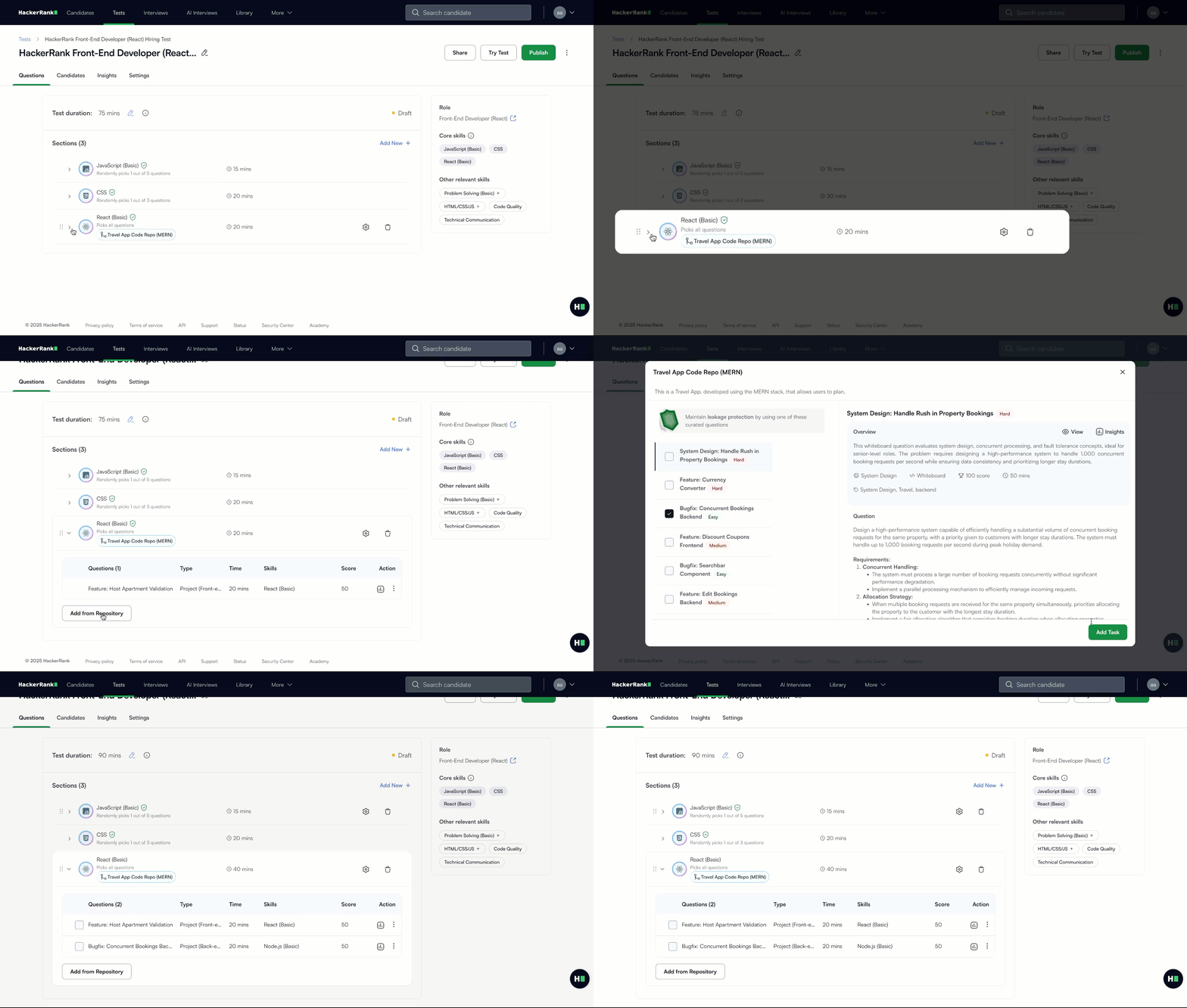
Select the code repository section you want to update.
Click Add from Repository to open the question library.
Select the checkbox next to the question you want to include.
Click Add Task.