Proctor Mode
Last updated: July 22, 2026
This feature is part of the AI Add-on. For more information, see 📄 HackerRank AI Add-on.
Proctor Mode is an AI-powered feature that simulates live human proctoring to help ensure test integrity without the complexity of manual oversight. It monitors candidate behavior during remote technical assessments and provides detailed post-test reports to support fair, data-driven hiring decisions.
While traditional human proctoring offers strong integrity controls, it is difficult to scale. Proctor Mode delivers a scalable alternative by replicating human-like supervision across large candidate pools.
With Proctor Mode, you can:
Set clear expectations upfront by showing candidates the test rules and guidelines before they begin.
Monitor for violations during the test, including behaviors such as tab switching, use of unauthorized tools, face detection anomalies, object detection in the webcam feed, conversation patterns in the code editor, or suspicious gaze patterns, and intervene when necessary.
Review a smart, human-like test report that highlights integrity issues through a clear summary and an in-depth session replay with labeled screenshots and flagged events.
Enable Proctor Mode
To use Proctor Mode in tests, you must enable it at both the Company level and the Test level.
To enable Proctor Mode:
Step 1: Enable Proctor Mode in Company Settings
Log in to your HackerRank for Work account using your credentials.
Go to Settings > Test Settings.
In the Test Integrity section, turn on Proctor Mode.
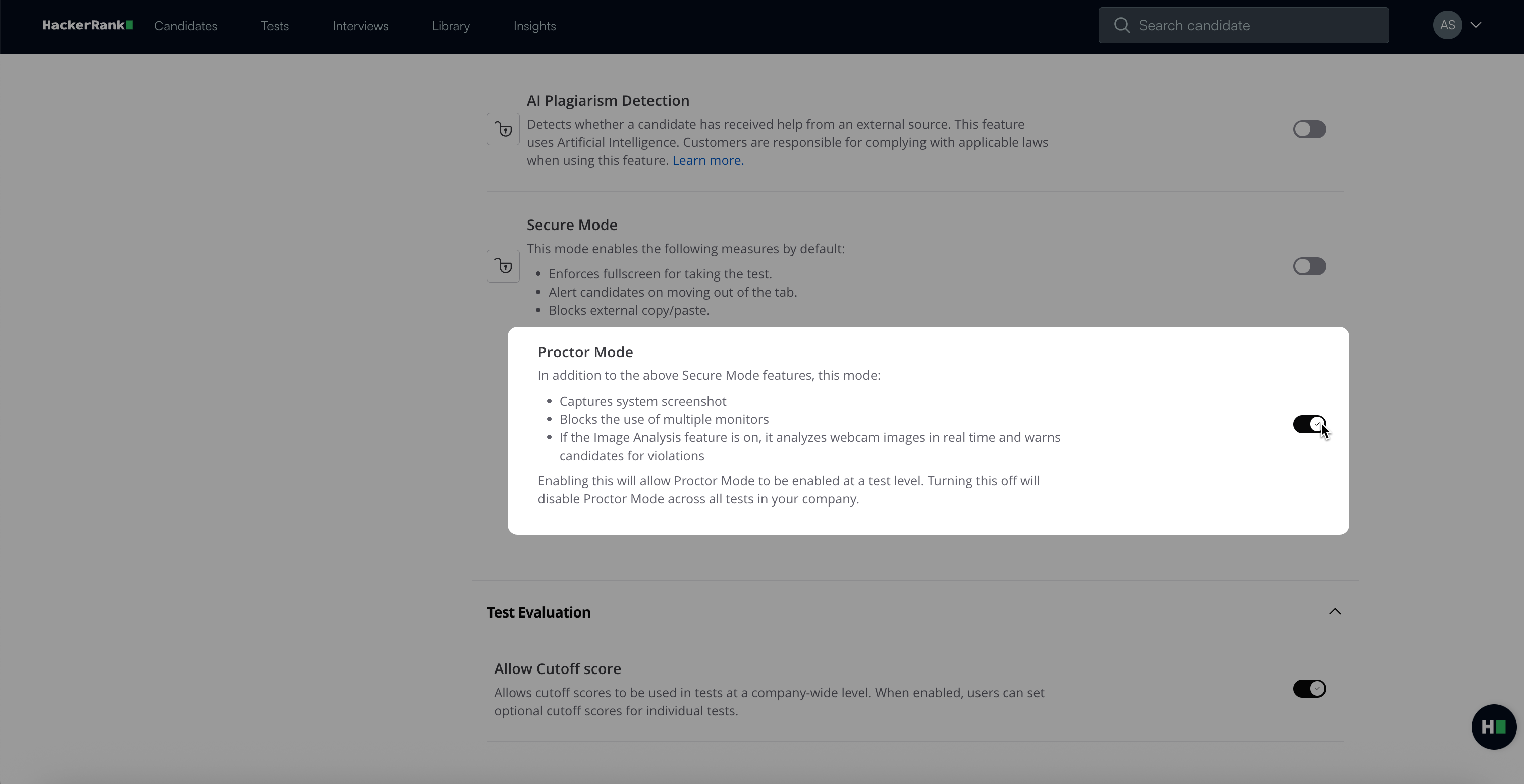
In the confirmation dialog box, click Agree & Enable.
Click Save Changes.
Step 2: Enable Proctor Mode at the test level
Go to the Tests tab.
Select the test you want to configure.
Go to Settings > Test Integrity.
Turn on the Proctor Mode toggle.
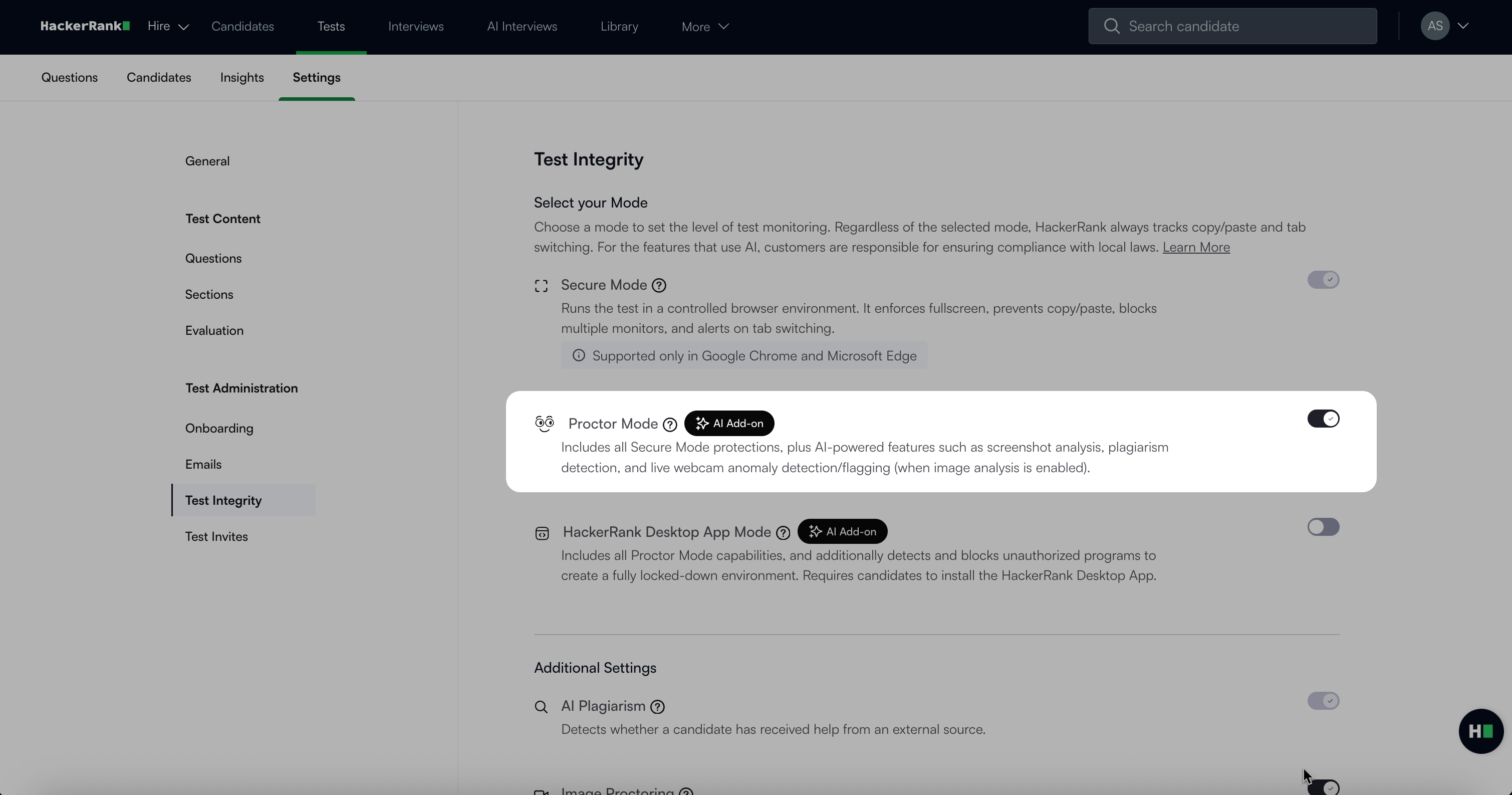
Click Save Changes.
Note: When Proctor Mode is enabled, AI Plagiarism Detection and Image Analysis are enabled by default. You can disable Image Analysis, but HackerRank recommends enabling it for full session integrity.
Proctor Mode compatibility
Proctor Mode compatibility includes the following:
Availability: Proctor Mode is available only for tests created after the July 2025 release. You cannot enable Proctor Mode for tests created before this release. If you used Proctor Mode during the limited availability phase, those tests continue to support it.
Supported question types: Approximate Solution, Code Repository, Code Review, Coding, Database, Diagram, File Upload, Multiple Choice (MCQ), Projects (Back-end Developer, Data Science, DevOps, Front-end Developer, Full-stack Developer, and QA), Sentence Completion, Subjective, and Whiteboard.
Locked setting: After you publish a test and candidates start attempting it, you cannot disable Proctor Mode. To conduct the test without Proctor Mode, clone the original test and invite candidates to the new test.
How Proctor Mode works
Proctor Mode replicates the stages of live proctoring through automated workflows before, during, and after the test session.
Proctor Mode simulates an ideal proctoring experience by focusing on the following areas:
Before the test: Set rules and guidelines
Proctor Mode starts with an onboarding flow that prepares candidates and helps prevent integrity issues:
System compatibility and permissions: Candidates must meet technical requirements for network stability, supported operating systems, and supported browsers. The test does not begin until all requirements are met.
Consent and test rules: Candidates review and acknowledge a list of prohibited actions, such as switching tabs or using external tools, and must give consent to proceed.
Permissions: Candidates must grant the following permissions to start the test:
Webcam access: Allows the system to monitor and record the candidate through the webcam during the test.
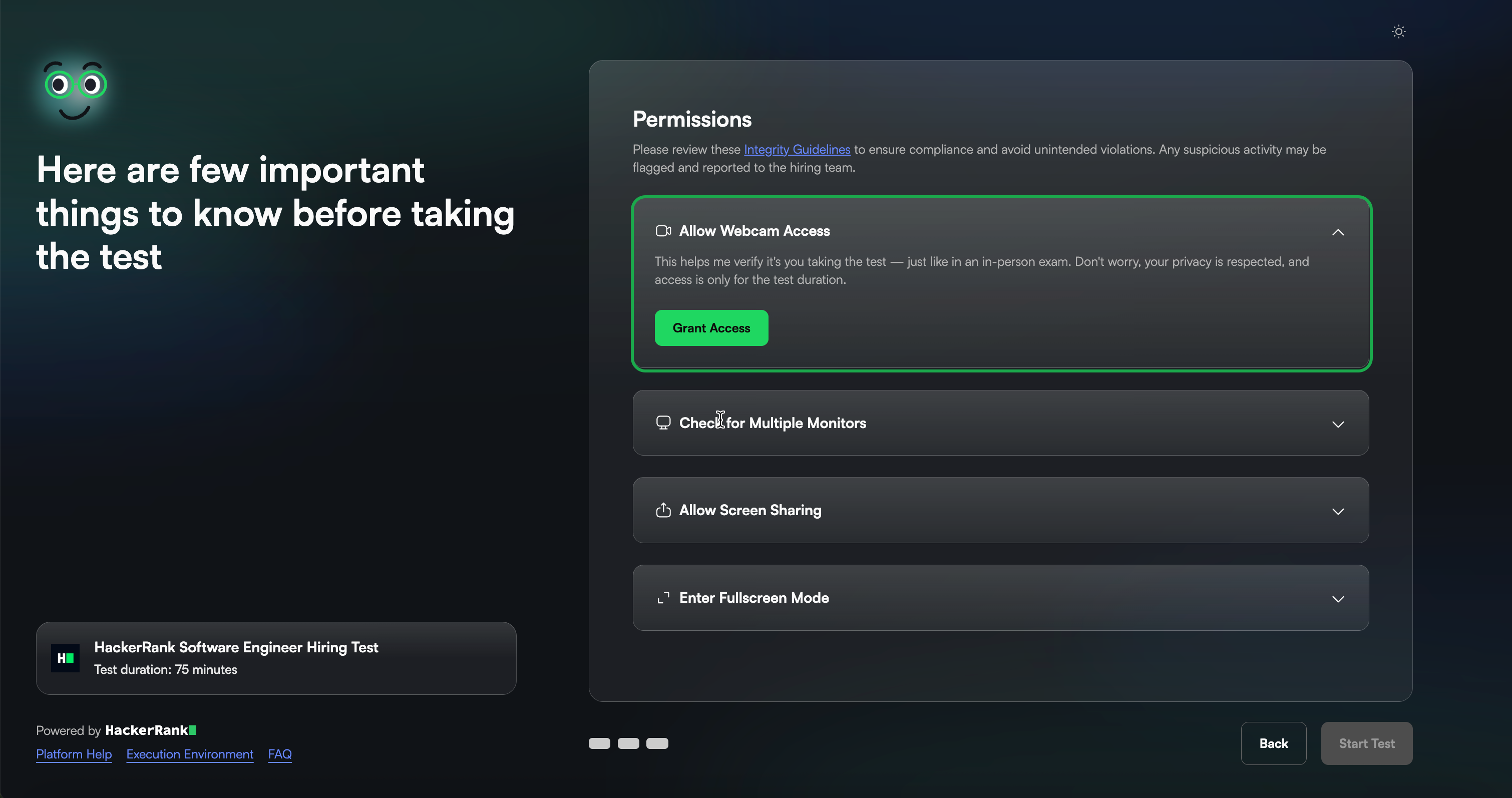
Multiple monitor check: The system checks for multiple monitors. Candidates can continue only if a single monitor is in use.
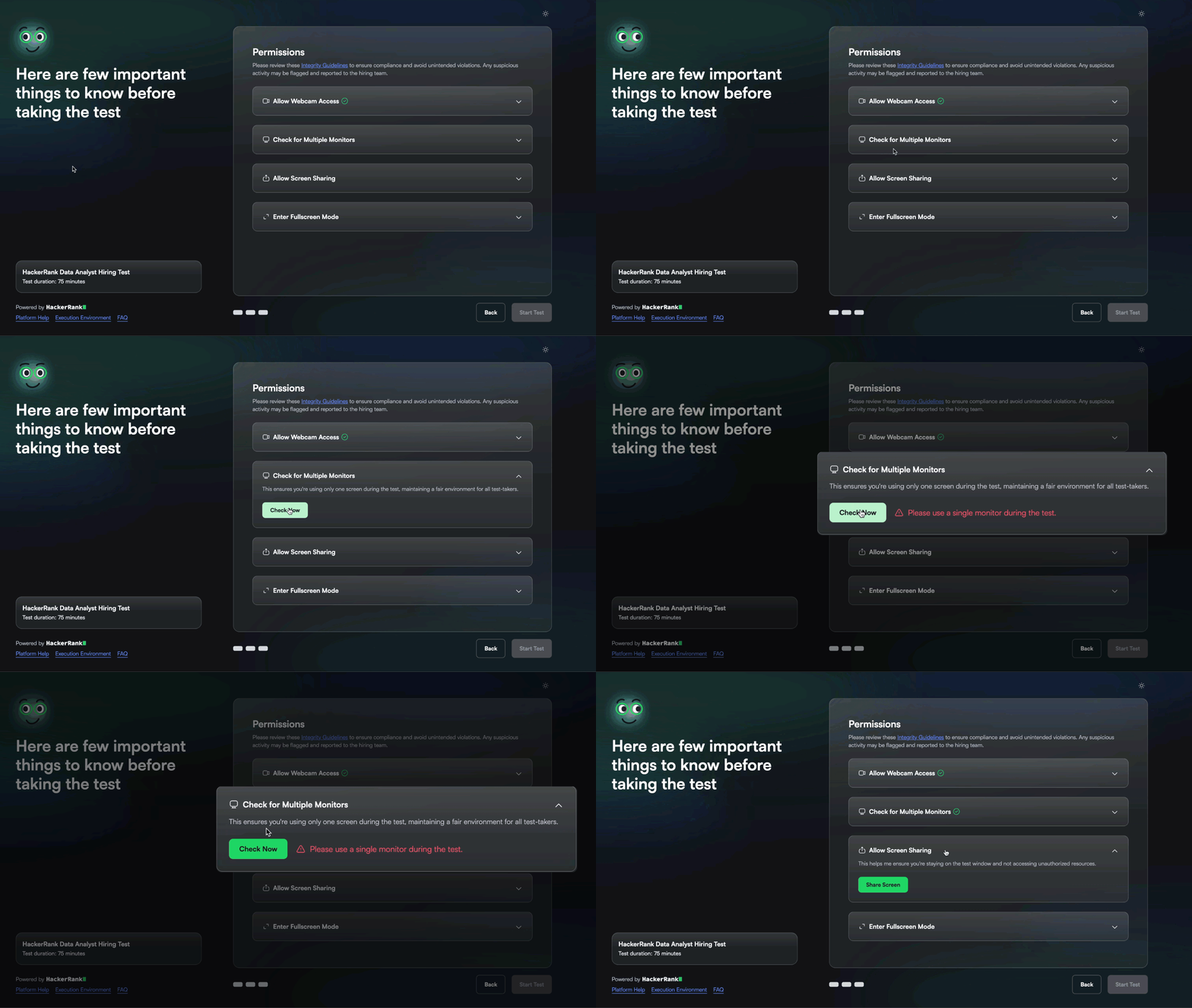
Screen sharing access: Allows the system to monitor the candidate’s screen activity during the test and verify that no unauthorized applications or resources are being used.
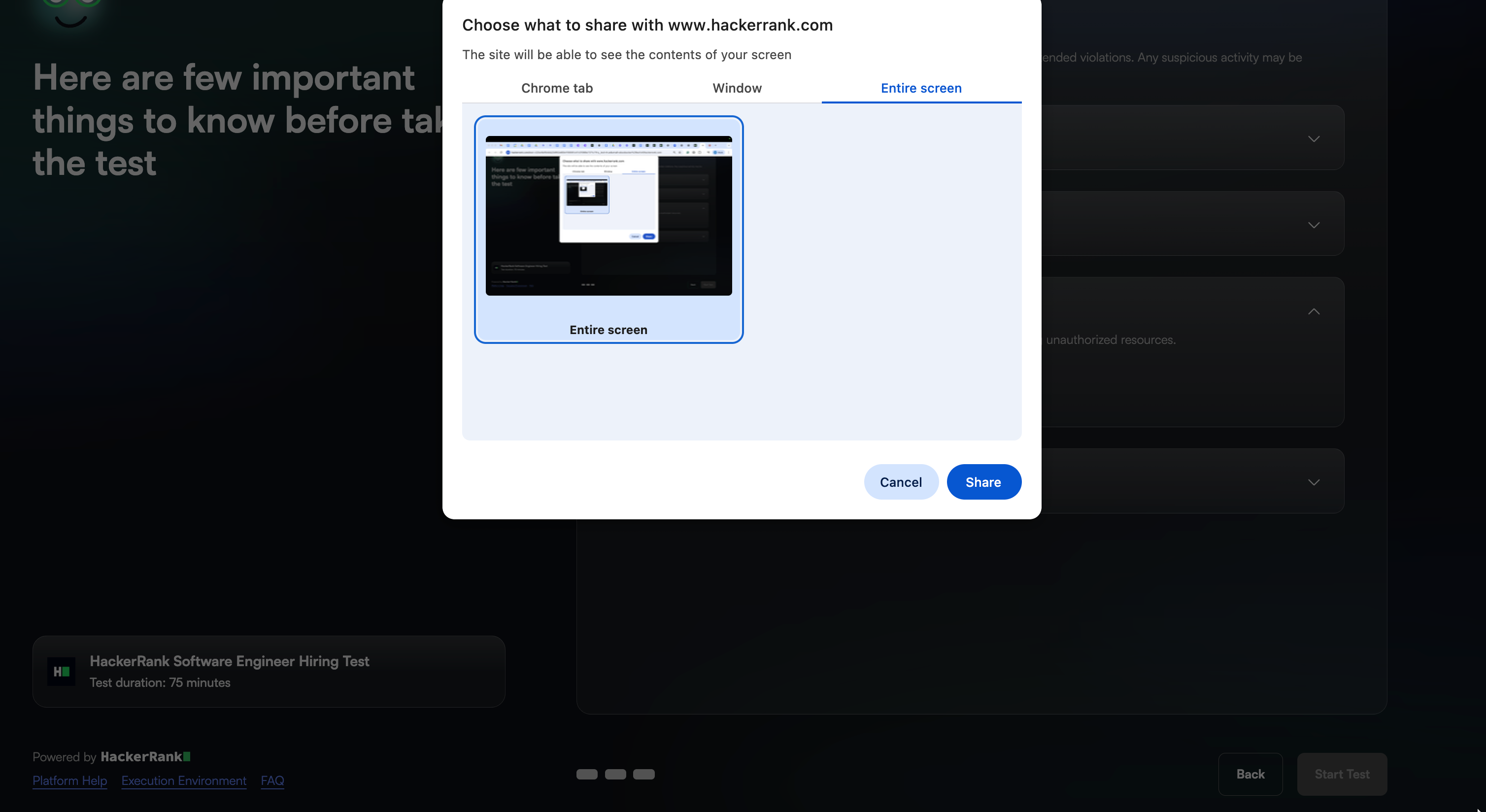
Full-screen mode: The test launches in full-screen mode to reduce distractions and reinforce integrity.
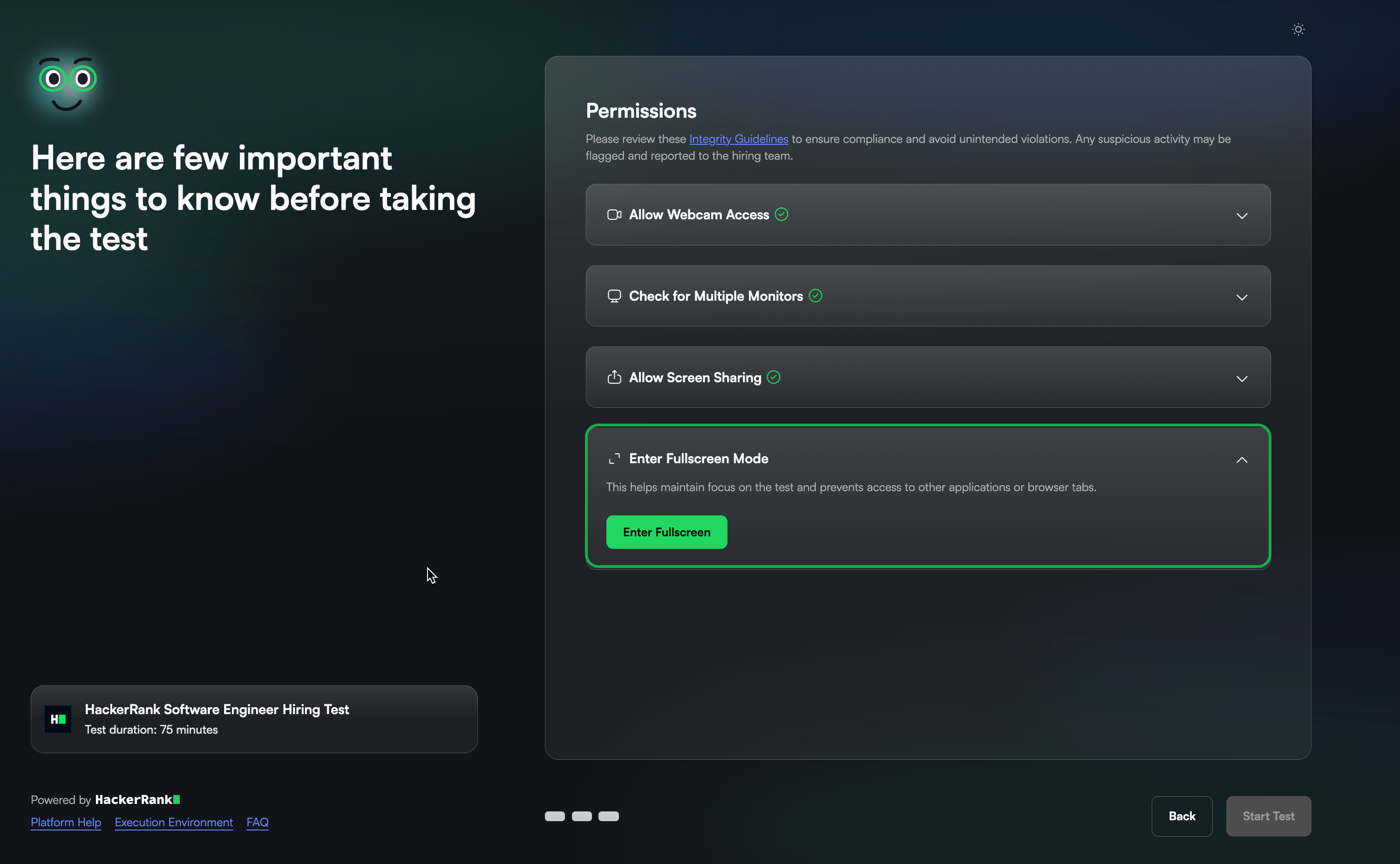
During the test: Monitor in real time
Proctor Mode uses AI to monitor candidate behavior and flag suspicious actions in real time.
Full-screen enforcement and tab monitoring: Attempts to exit full-screen mode or switch browser tabs are automatically flagged and logged.
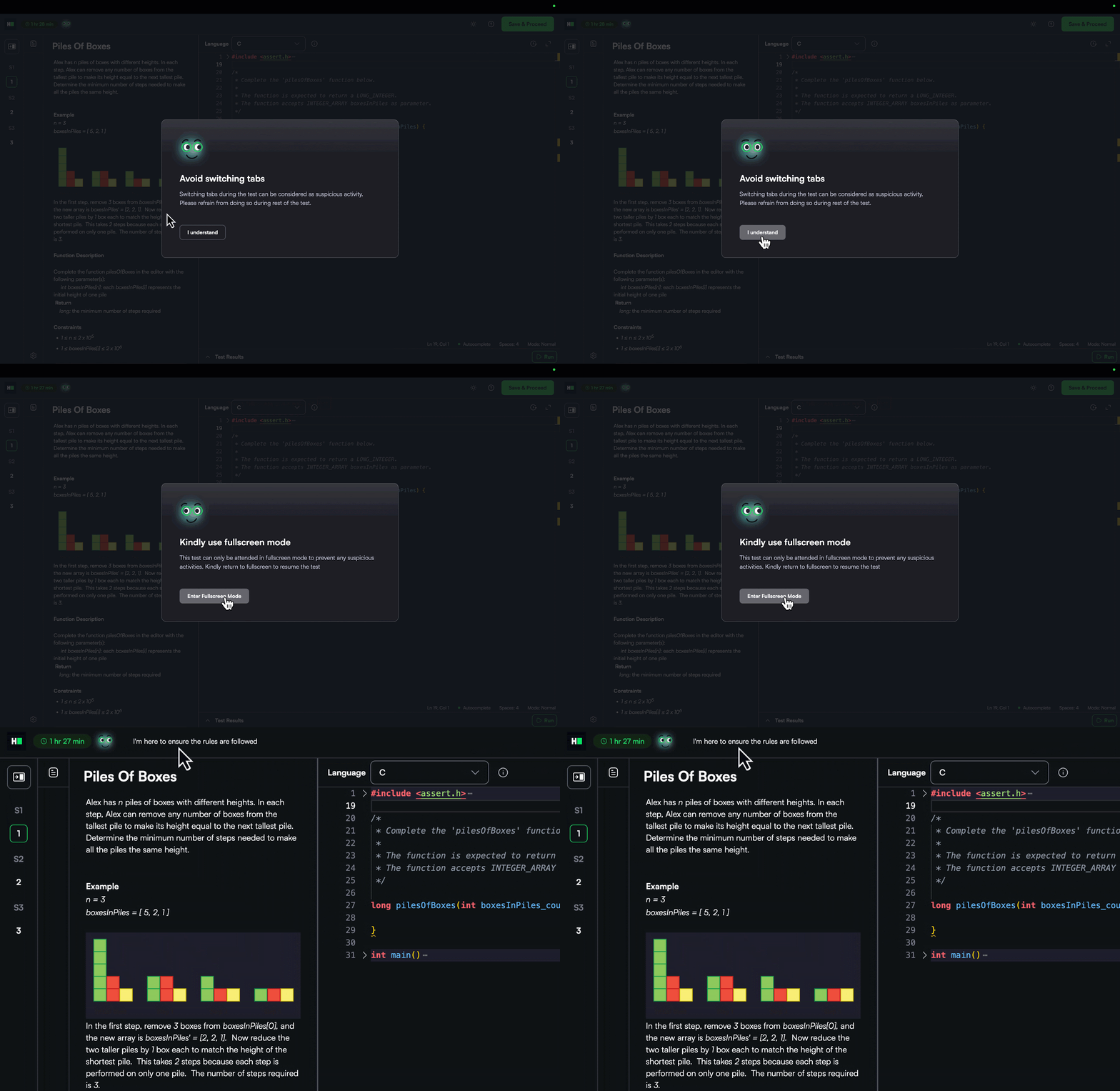
Webcam monitoring: AI continuously monitors candidate presence. If the candidate is not visible or multiple faces are detected, a warning appears and the event is recorded.
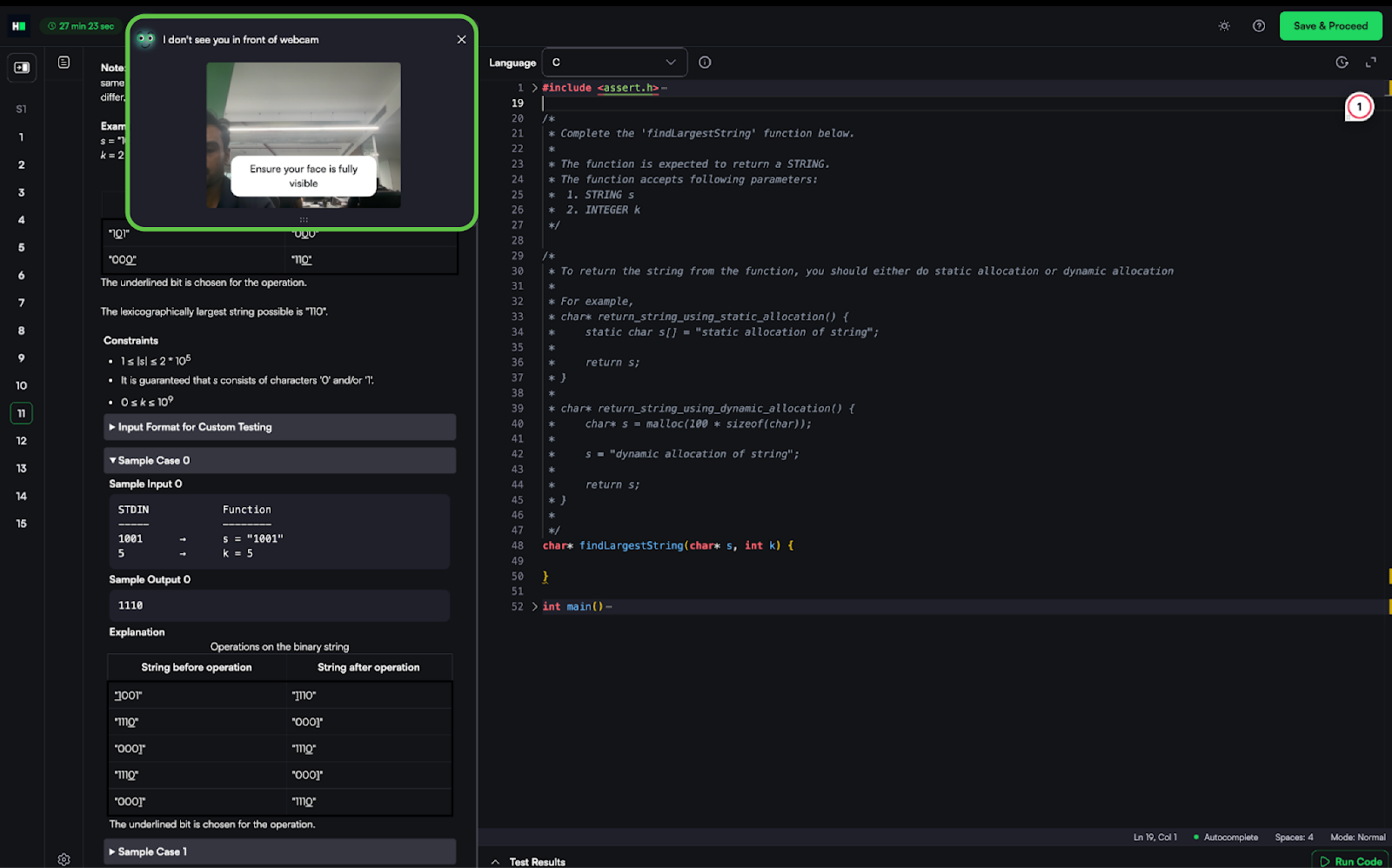
Object detection in webcam feed: Detects and flags mobile phones and tablets in the candidate’s webcam feed, including when devices are only partially visible in the frame. It captures images with the detected objects and adds them to the report for review.
Multiple monitor detection: The platform continuously verifies that only one monitor remains connected. It flags any new monitor connections made during the test.
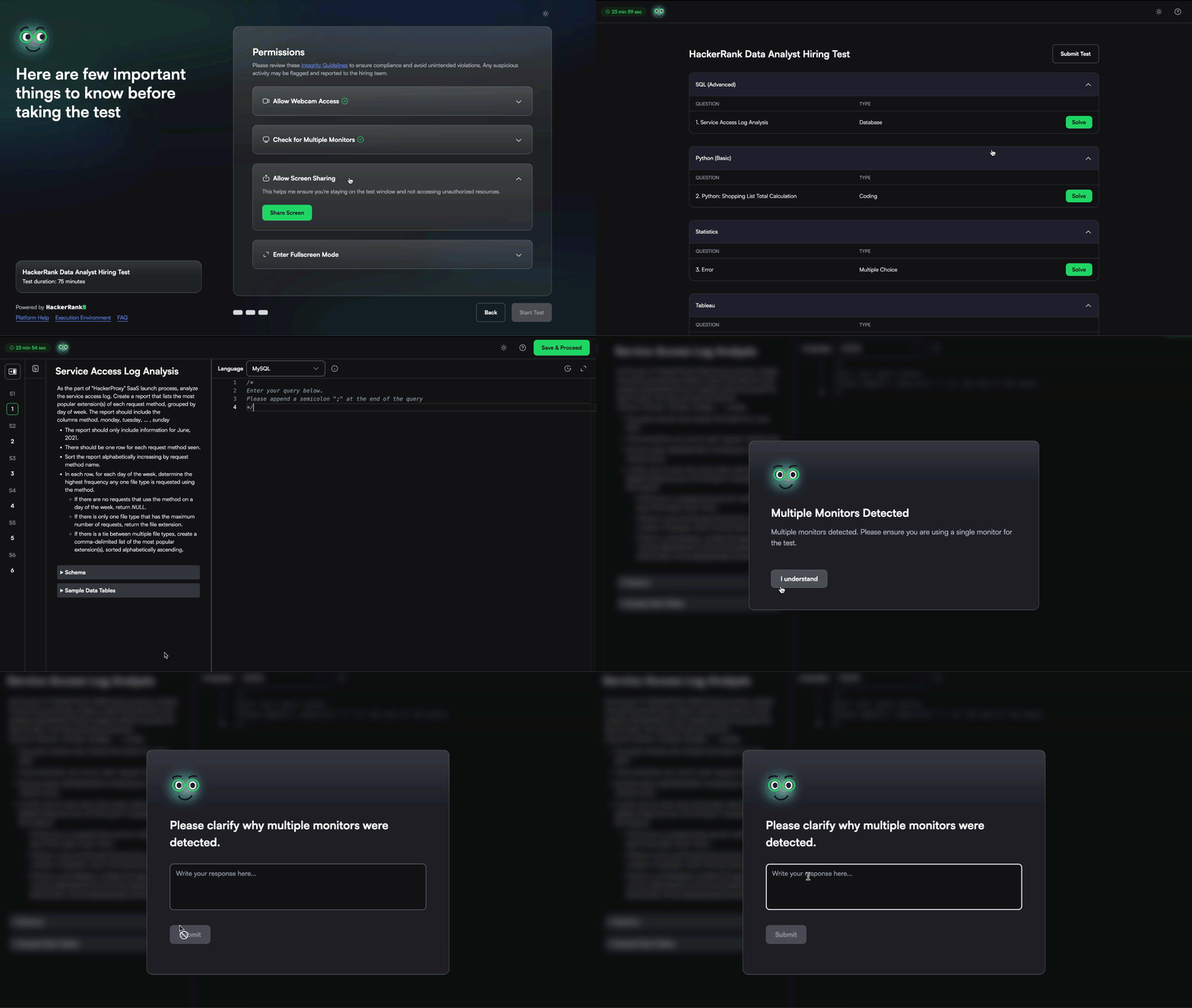
Session screenshots: Screenshots of the candidate’s system are captured periodically to detect unauthorized software or external resources.
Conversation detection in the code editor: Detects patterns where candidates type and delete content in the editor that may indicate external communication, including regional languages written in English. Such activity is flagged for review as potential external assistance.
Gaze detection: Analyzes the candidate's eye and head movements captured by the webcam to identify repeated patterns of looking away from the screen and returning to type, which may indicate the use of external resources such as a mobile phone or secondary display. Only high-confidence behavioral patterns are flagged as suspicious activity for review.
Note: The Gaze detection feature is currently available in limited availability. Contact your account manager to request access.
Copy-paste restrictions: Copy-paste functionality is disabled to prevent pasting content from external sources into the editor.
After the test: Generate post-test integrity report
Proctor Mode generates summary and detailed reports that help you assess candidate behavior and overall test integrity.
Summary report
The summary report offers a concise overview of the session, including:
Indication of whether integrity issues occurred
Integrity summary
Integrity results
Proctor Mode assigns a final integrity result of High or Medium based on the severity of detected issues.
Tests without candidate personal information
When a test does not capture candidate personal information (such as webcam images), Proctor Mode evaluates integrity in the following three areas:
Proctor Mode rules: Check whether a candidate violates Proctor Mode rules. For example, exiting full-screen mode, switching tabs, or leaving the test window.
Screenshots: Reviews periodic screen captures for suspicious activity during the candidate session.
Code Similarity: Compares the code submitted by a candidate with the code submitted by other candidates.
The Integrity Summary provides a consolidated view of all detected integrity signals for a candidate. It lets you preview issues and drill down into supporting evidence within the same section.
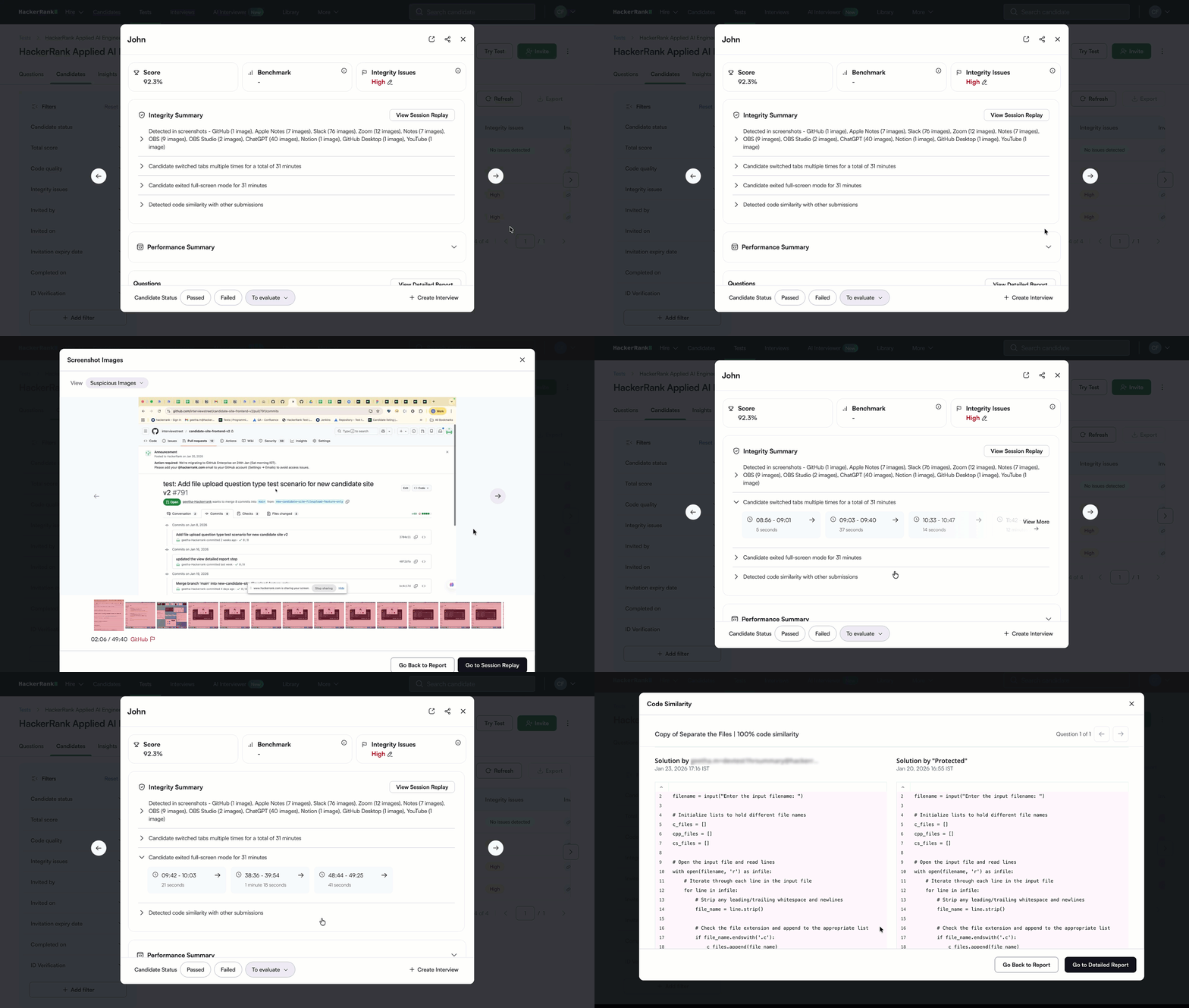
The Session Replay provides a timeline-based, video-style view of the test session. It includes the following features:
Recording of the candidate’s test session across the full browser screen
Lists all critical test events, including integrity events. You can search for events and click any event to jump to the corresponding timestamp in the recording.
Displays a synchronized timeline with test activity and screenshots by timestamp.
Analyzes screenshots automatically and highlights suspicious activity.
Tests with candidate personal information
When a test includes candidate personal information (such as webcam images), Proctor Mode evaluates the same three areas as tests without candidate personal information and also analyzes webcam images for potential violations, such as the candidate’s face missing for an extended period, multiple faces visible, or secondary faces detected.
The Integrity Summary provides a consolidated view of all detected integrity signals for a candidate, including issues detected in webcam analysis. It lets you preview issues and drill down into supporting evidence within the same section.
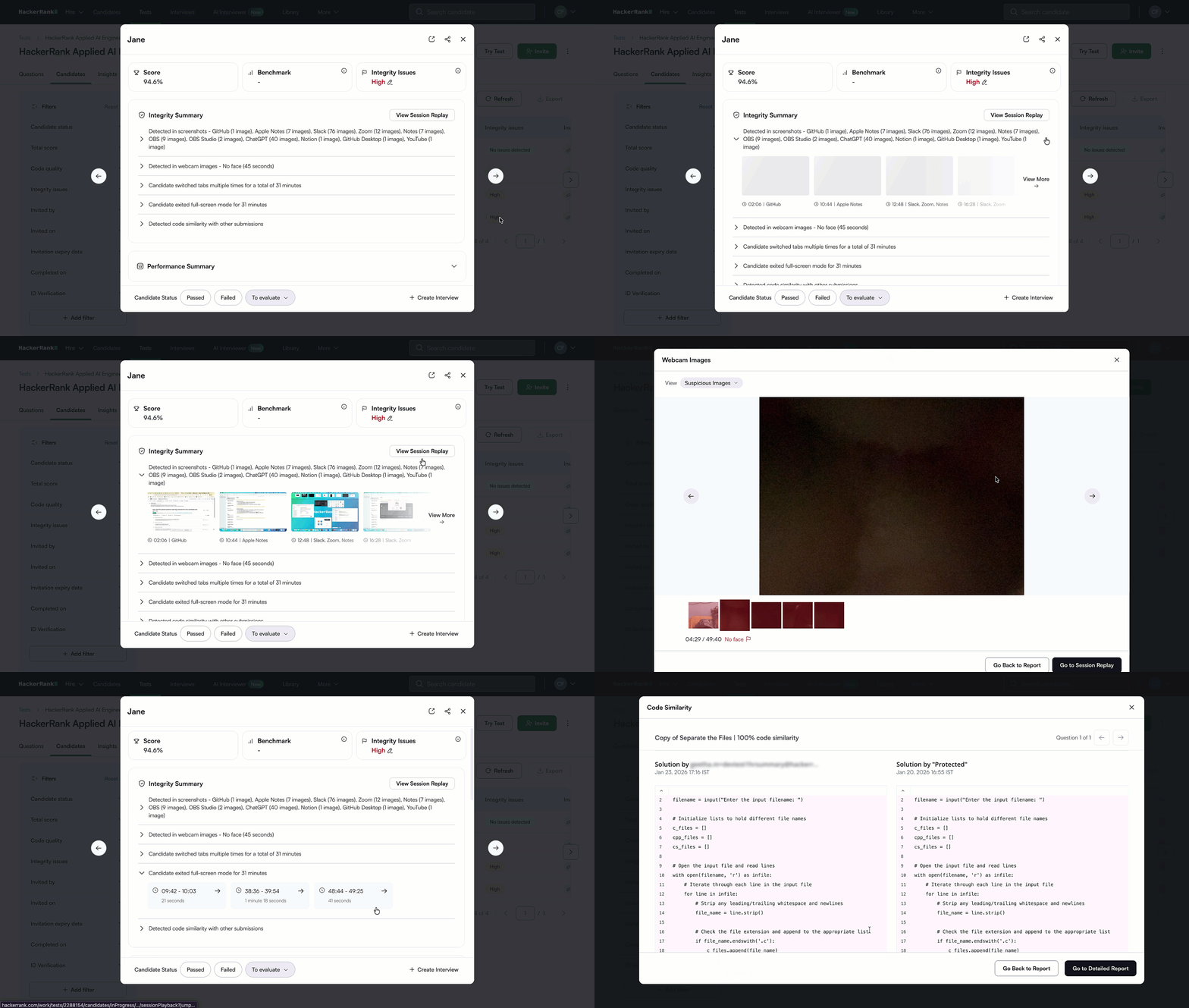
The Session Replay for these tests includes all the features available for tests without candidate personal information, along with the following additional capabilities:
Captures webcam images every five seconds.
Captures screenshots every 15 seconds and increases frequency around integrity violations to provide contextual evidence.
Displays a synchronized timeline with webcam images.
Note:
Proctor Mode uses Screenshot Analysis to examine captured images.
For more information on how to review integrity issues in Proctor Mode, see 📄 Review Integrity Issues in Proctor Mode.
Screenshot analysis
The system prompts candidates to share their entire screen. The platform captures screenshots every 15 seconds. When the system detects suspicious activity such as window switching or exiting full-screen mode, it reduces the capture interval to five seconds.
The system uses a model to analyze screenshots and detect unauthorized tools, including:
Tutorial websites, answer-sharing platforms, or GitHub repositories hosting leaked solutions.
External AI coding assistants, such as third-party AI tools or copilots, not integrated within HackerRank’s IDE.
Specialized browser extensions or invisible overlay applications that assist in answering coding questions.
Collaboration tools, such as video conferencing, messaging, or remote desktop applications.
Question-leaking tools, such as screen recorders or screenshot applications running in the background.
The system classifies each screenshot as suspicious or not suspicious and provides an explanation for any detected issues or tools. All suspicious screenshots appear highlighted in the Session Replay and on the candidate’s attempt timeline.