AI-Assisted Interviews
Last updated: September 18, 2026
This article applies to the legacy Interview experience. If your interview interface looks different, see 📄 AI Assistant in Interviewsfor the new Interview experience.
This feature is part of the AI Add-on. For more information, see 📄 HackerRank AI Add-on.
AI-Assisted Interviews allow interviewers to observe how candidates interact with an AI assistant in real time. This provides deeper insights into the candidate’s coding behavior, technical thinking, and ability to work with AI tools.
The interview takes place in a modern integrated development environment (IDE) that includes AI features such as inline code completions, file-aware chat, plan mode, and agent mode. These features closely resemble real-world developer tools such as GitHub Copilot and Cursor. Interviewers can evaluate not just problem-solving skills, but also how effectively candidates leverage AI to build solutions.
The AI Assistant operates in the following modes:
Unguarded: Allows candidates to interact freely with the AI, similar to real-world AI coding tools.
Guarded: Provides help with syntax, platform navigation, and conceptual guidance but does not generate complete solutions.
Note: Contact your account manager to change the default setting or to learn more about the available modes.
The AI Assistant currently supports the following question types:
Coding
Projects
Frontend
Backend
Full-Stack
Mobile
Generative AI
Code Repository
Key benefits
AI-Assisted Interviews offer signal-rich insights by enabling the following:
Real-world simulation: Mirrors a modern IDE where AI support is part of the development workflow.
Enhanced interviewer visibility: Displays how and when a candidate interacts with the AI assistant during the interview.
Post-interview transparency: Provides a complete chat transcript for interviewers to review and use when making informed hiring decisions.
Enable AI Assistant for interviews
You can enable the AI Assistant for candidates at the company level and control how it applies to interviews.
Enable AI Assistant in Company Settings
To enable AI Assistant:
Log in to your HackerRank for Work account using your credentials.
Go to Settings.
Select Interview Settings from the left panel under the Company section.
Scroll to AI Assistant for Candidates, and then turn on the toggle.
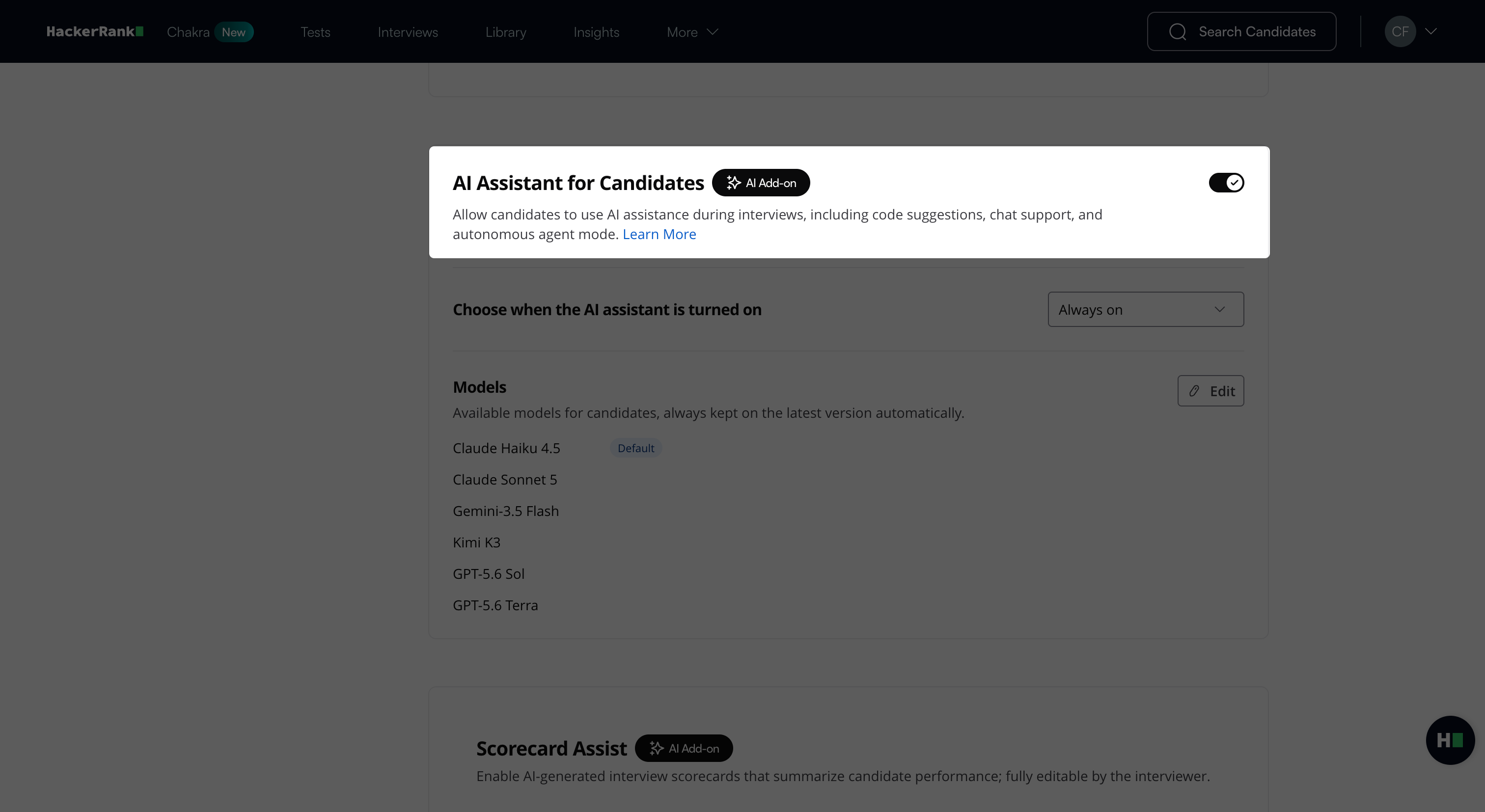
From the Choose how you want to enable the AI Assistant drop-down:
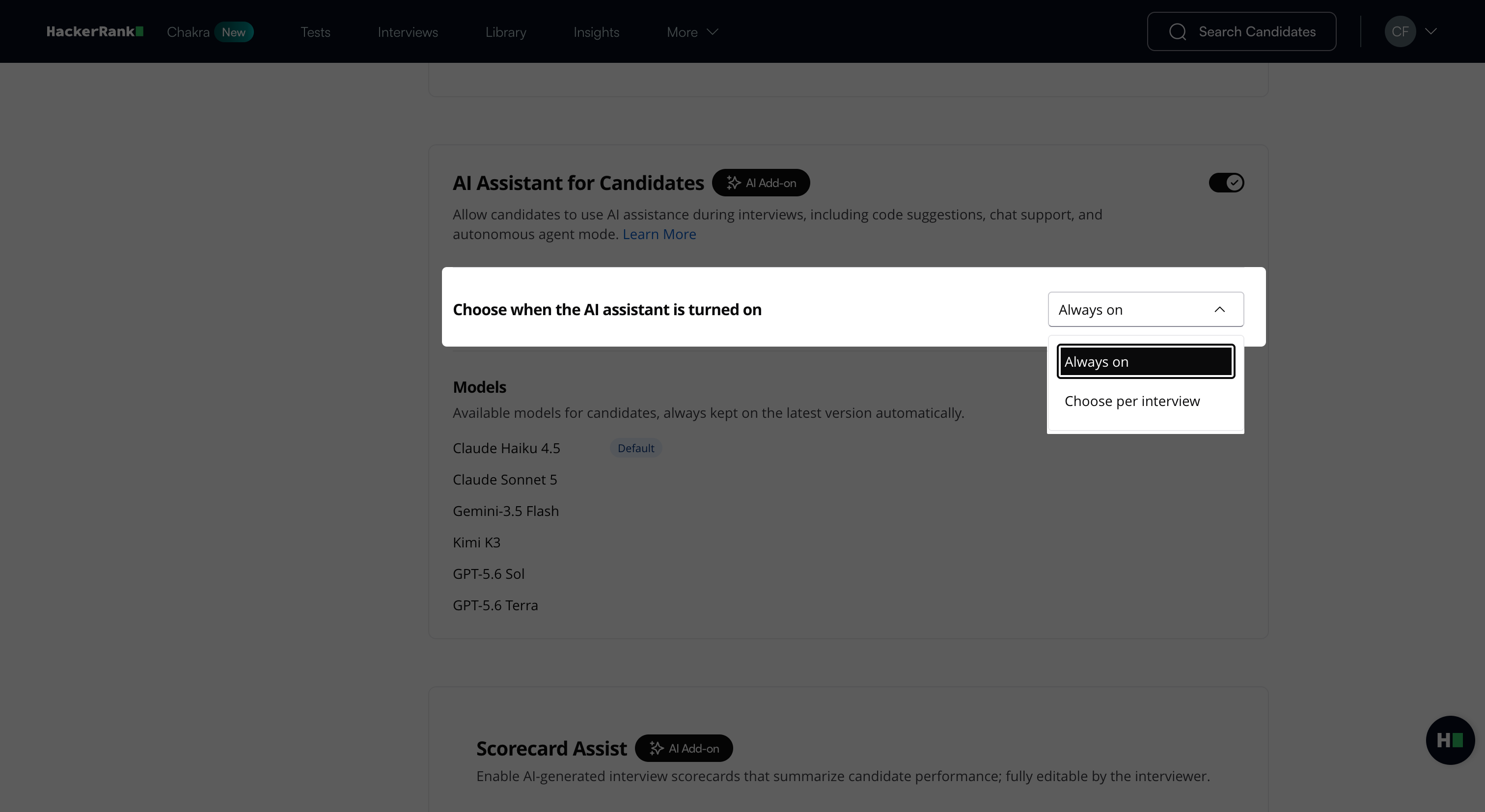
Select Always on to enable it by default for all new interviews.
Select Choose per interview to enable it individually for each interview.
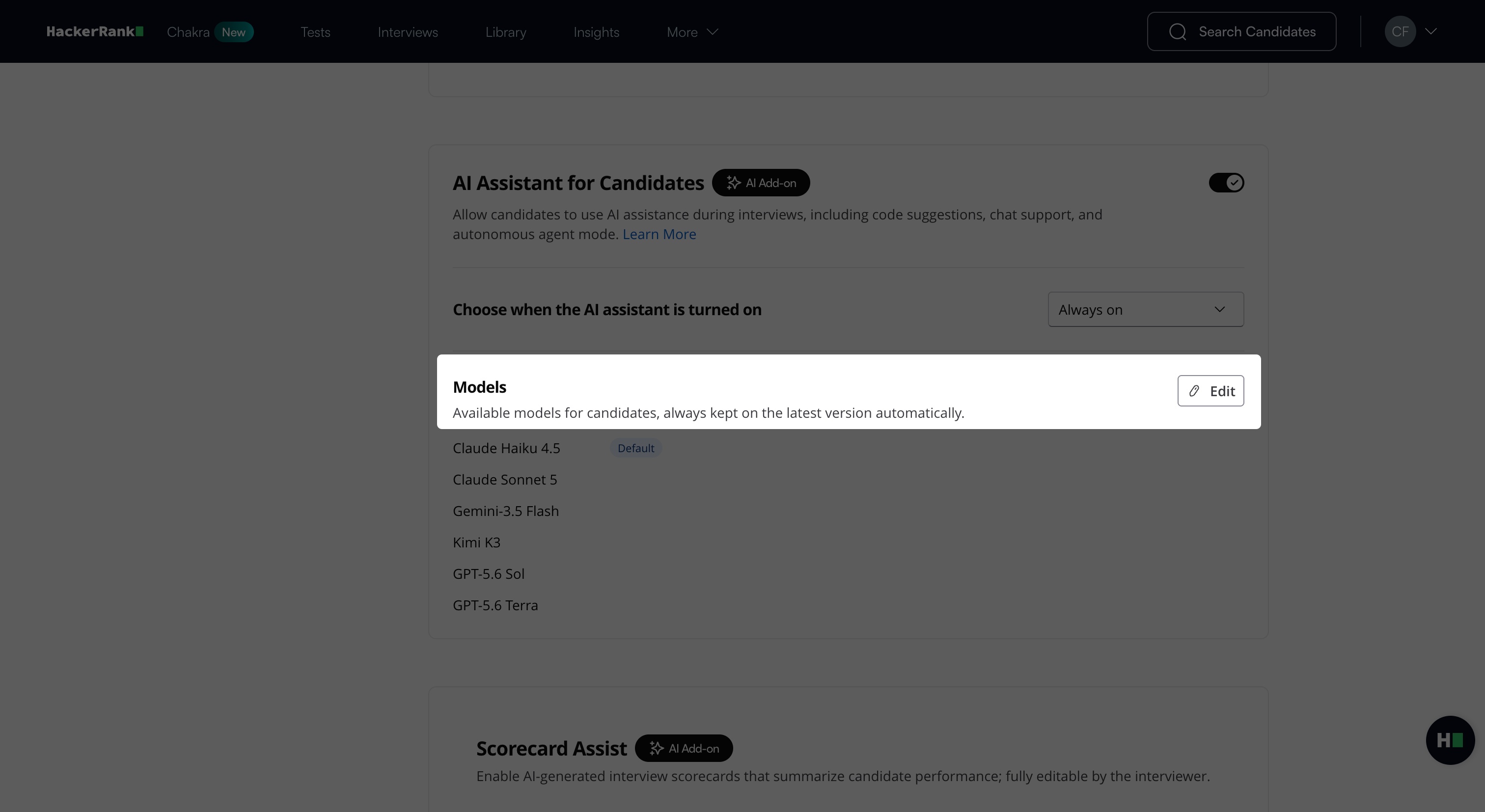
Under Models, select the AI models that candidates can use during the interview.
Click Edit.
In the Edit models dialog box, select the checkbox next to each model that candidates can use.
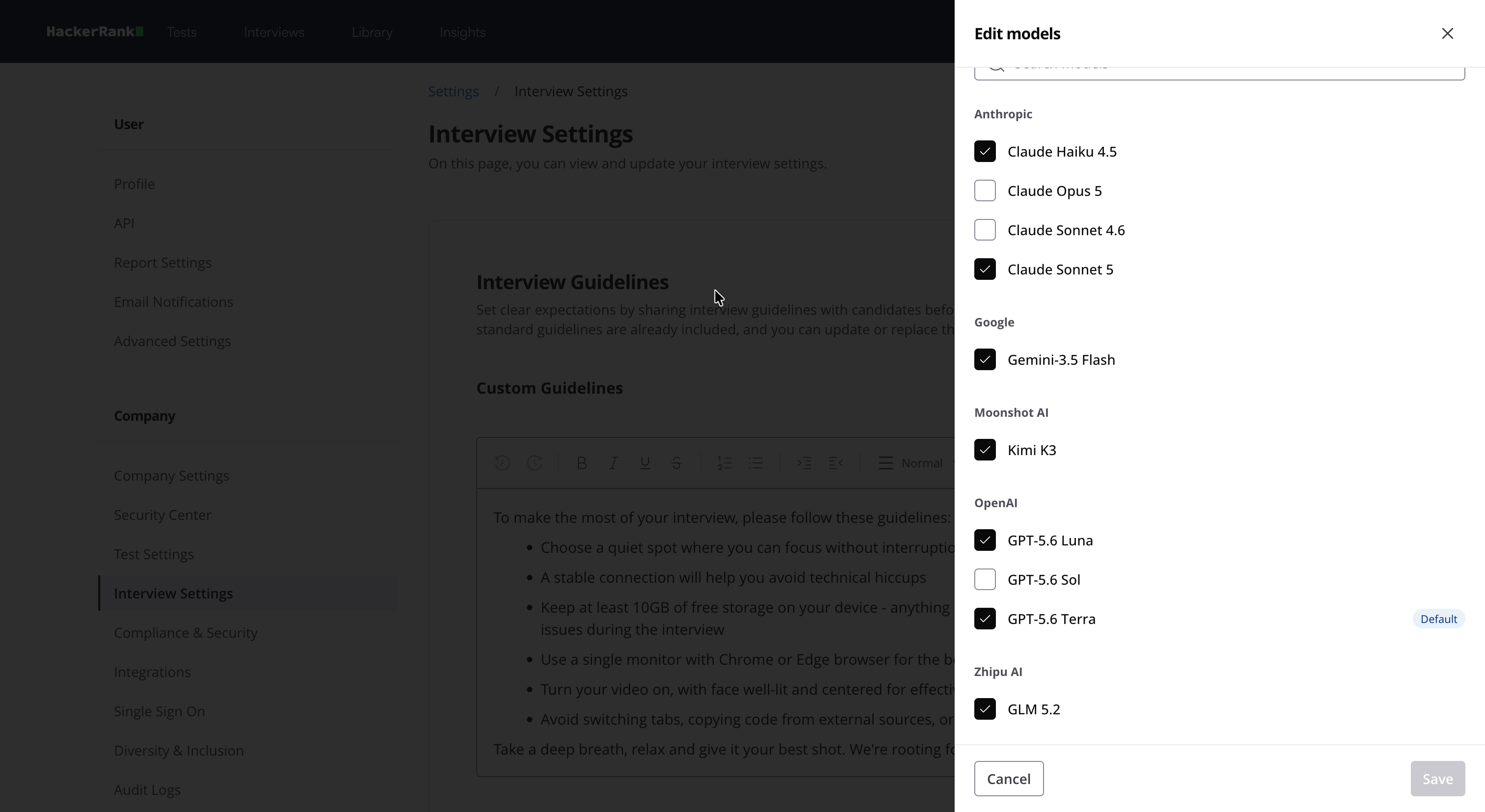
(Optional) Hover over a model and click Set as Default to set it as the default model for interviews.
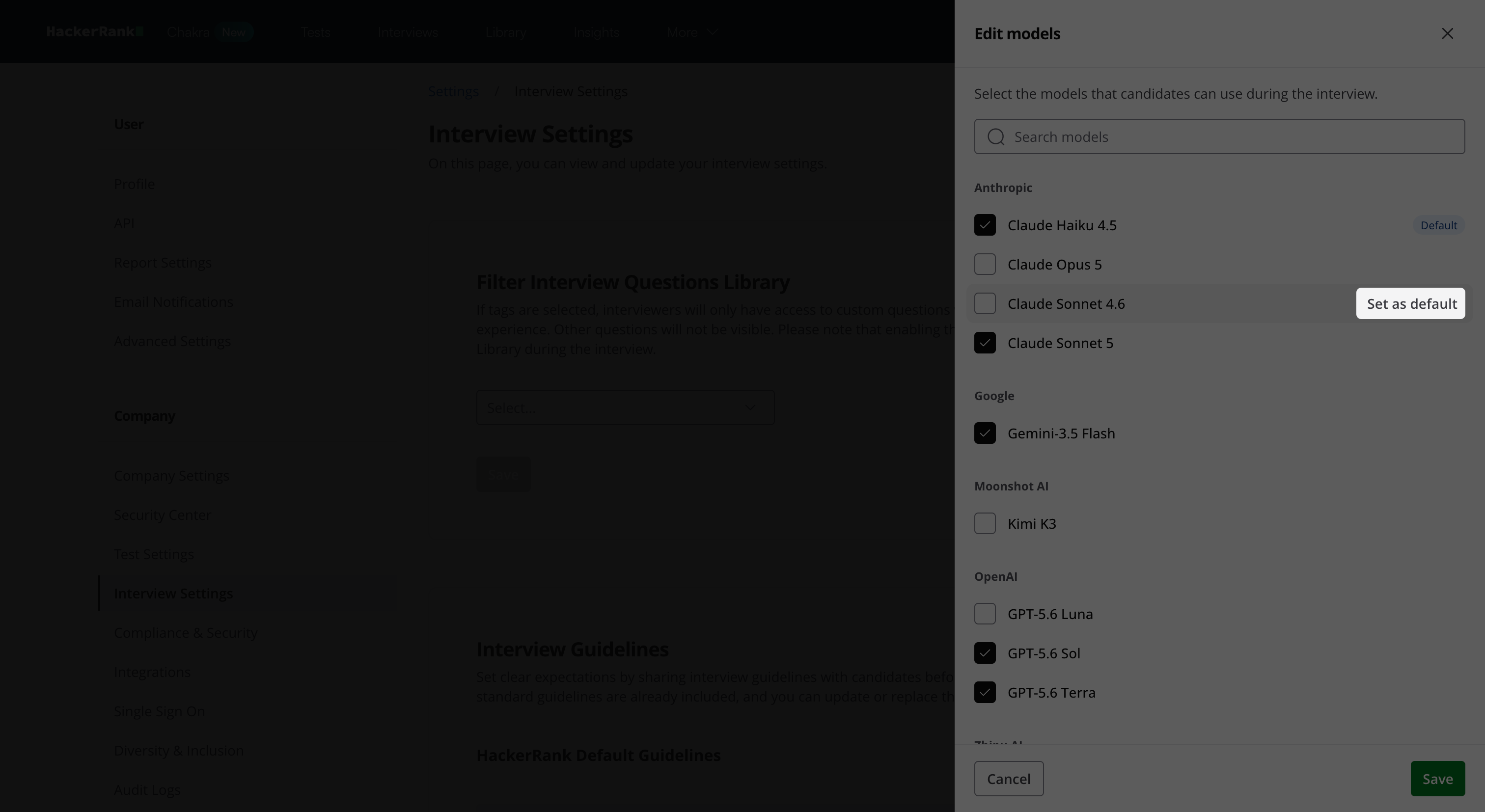
Click Save.
Note: Select at least two AI models so the AI Assistant can automatically switch models if one becomes unavailable.
Enable AI Assistant for a specific interview
Note: You can manually enable the AI Assistant for individual interviews only when Choose per interview is selected under AI Assistant for Candidates in company settings.
To enable the AI Assistant for a specific interview:
Go to Interviews > Interview List.
Select the interview you want to update.
In the Interview Details panel, turn on Enable AI Assistant under AI Assistant for Candidate.
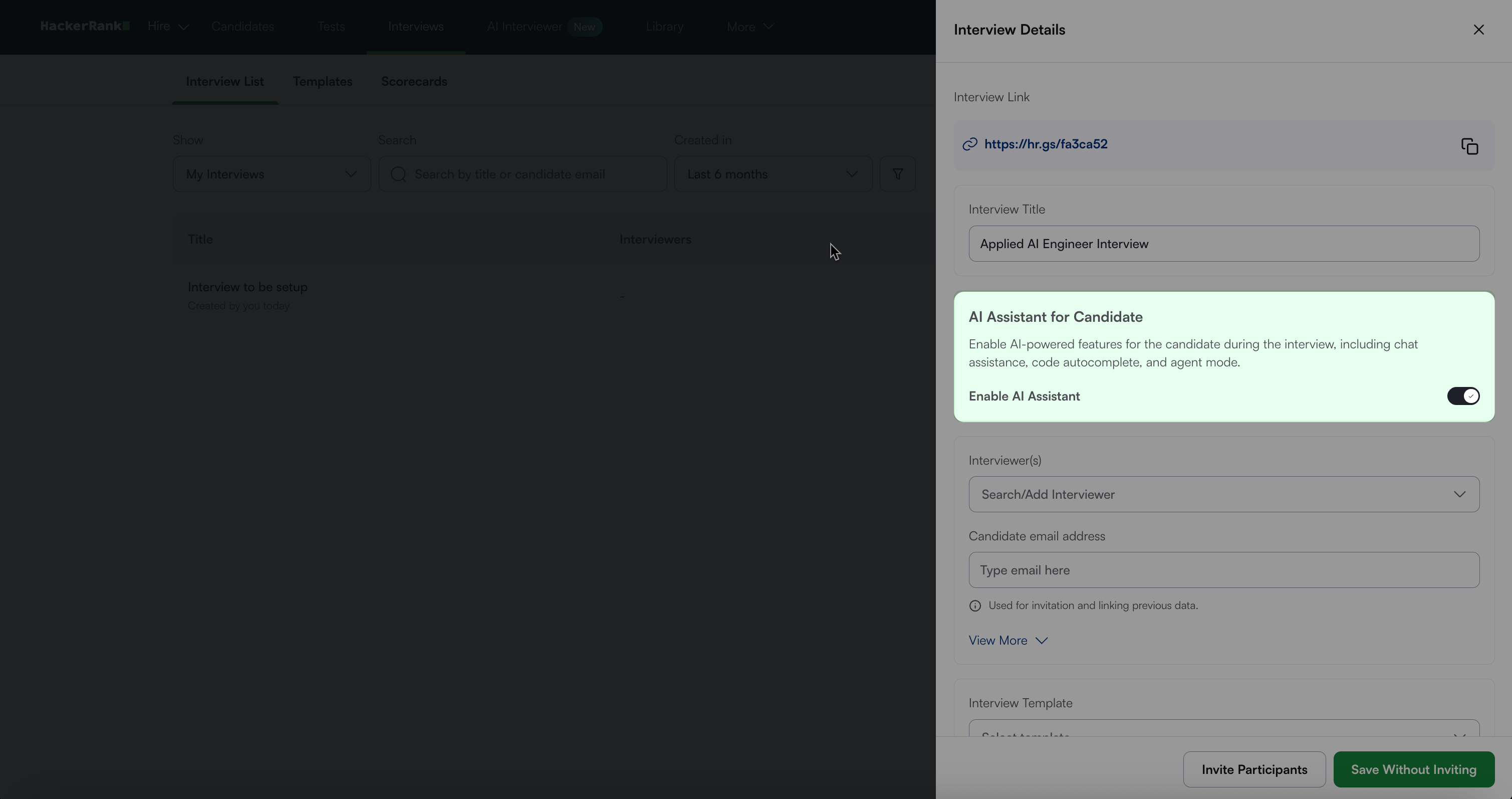
Click Save Without Inviting or Invite Participants.
For more information, see 📄 Create an Interview.
Enable AI Assistant for custom interview link
For a custom interview link, you can enable the AI Assistant by specifying it in the deeplink by adding the parameter ai_assistant_available=true.
Disable AI Assistant for a specific question
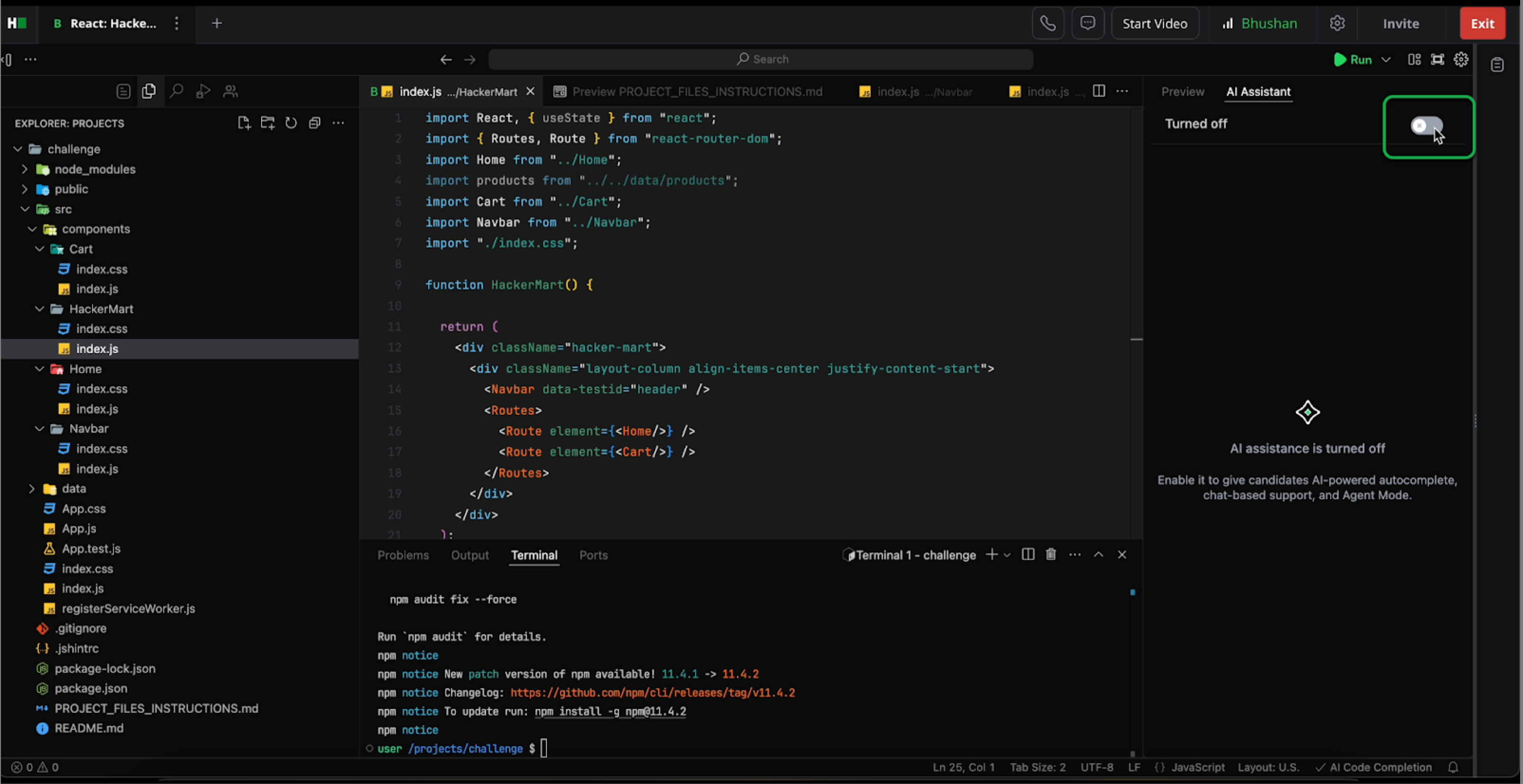
You can disable the AI Assistant for specific questions if you do not want candidates to use it.
To disable the AI Assistant for a specific question:
Import the supported question type during the interview.
Locate the AI Assistant toggle.
Turn off the toggle to prevent the candidate from using it.
Candidate experience
When you enable the AI Assistant for a supported question, candidates can interact with it in the following ways:
Plan Mode: Plan mode lets candidates develop an approach to a problem with the AI Assistant before they write any code. The AI Assistant reads the problem statement and existing code, asks clarifying questions when requirements are ambiguous, and generates a proposed implementation plan in Markdown format for review. Plan mode does not modify code. It only creates a plan for candidates to review before they begin implementation.
Plan mode also reduces unnecessary rework. Candidates can correct misunderstandings or adjust the proposed approach before the AI generates code. Resolving issues during the planning stage is faster than reviewing and undoing incorrect code after it is written.
Ask Mode: Candidates can ask questions about the problem statement, code, or specific files. Candidates must tag the
problem statementto provide context. The AI Assistant uses the tagged content to generate accurate responses.This helps you assess how well a candidate understands the task and how effectively they use the AI Assistant to plan their implementation. It also enables the AI Assistant to apply the same context throughout the interview.
Agent Mode: Candidates can switch to a mode designed for longer, multi-turn conversations. In this mode, candidates can ask the AI Assistant to write code, edit files, and perform actions directly from prompts. This mode is useful for complex tasks and step-by-step guidance.
The system displays a Pending tool call dialog while it prepares the requested action. Candidates can choose to Allow or Cancel the action.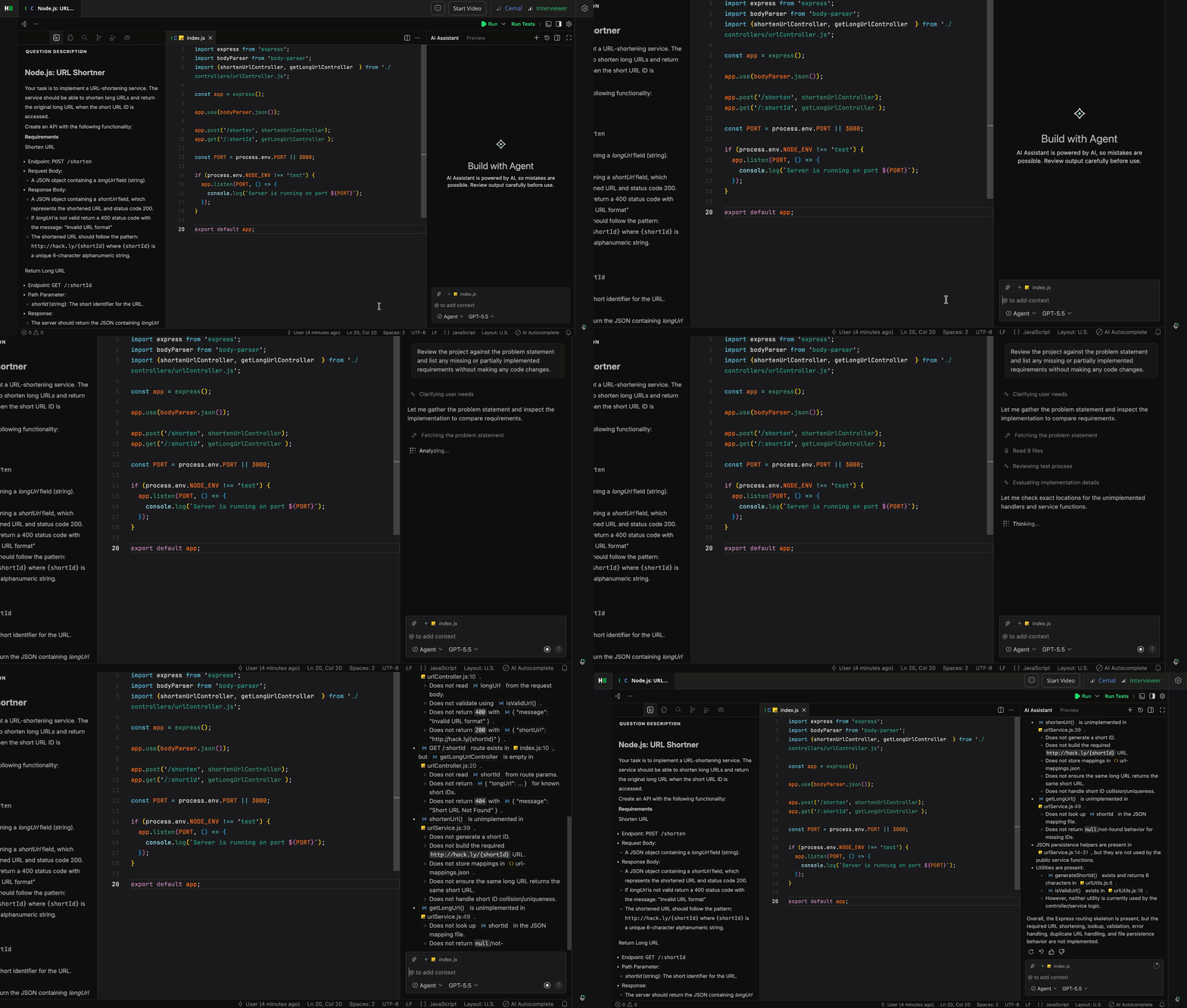
When candidates select Allow, the AI Assistant proceeds and generates code suggestions. Candidates can then Accept or Reject the suggestions.
When candidates select Cancel, the system stops the action, and no changes occur.
Inline Code Completions: As candidates type, the AI Assistant offers code suggestions directly in the editor. Candidates can choose to accept or ignore these suggestions.
Model Switching: Candidates can toggle between available models based on their preference or the task requirements. The AI Assistant currently supports the following models:
Claude Haiku 4.5
Claude Opus 5
Claude Sonnet 4.6
Claude Sonnet 5
Gemini-3.5 Flash
Kimi K3
GPT-5.6 Luna
GPT-5.6 Sol
GPT-5.6 Terra
GLM 5.2
The AI Assistant uses GPT-5.6 Terra by default.
Context window: The context window helps candidates understand how much information the AI assistant processes for the current request. For more information, see 📄 Context Window in AI-Assisted Interviews.
The table below shows the availability of AI Assistant features to candidates in each mode for Project and Code Repository questions.
Feature | Guarded Mode | Unguarded Mode |
Ask Mode | Available | Available |
Agent Mode | Not Available | Available |
Inline Code Completions | Not Available | Available |
Model Switching | Not Available | Available |
For Coding questions, both guarded and unguarded modes support only the Ask Mode.
Interviewer experience
During an interview, the interviewer can monitor the candidate’s interaction with the AI Assistant in real time.
The AI Assistant panel remains fully visible to the interviewer, displaying both the candidate’s prompts and the assistant’s responses as they occur.
Interviewers can review how candidates use Plan mode, Ask mode, and Agent mode during the interview to understand their problem-solving approach.
Plan mode helps interviewers understand how candidates approach a problem before they write code by showing how they guide the AI toward an effective approach, identify incorrect assumptions, or challenge unsuitable suggestions before code is generated.
Inline code completions accepted by the candidate appear directly in the shared code editor.
The interviewer retains full control of the session and can ask questions, add comments, or navigate files as usual.
Diff View lets interviewers compare a candidate's current project with its original state at the start of an interview, making it easier to understand how a solution evolved over time. Diff View is only available for front-end, back-end, and full-stack questions.
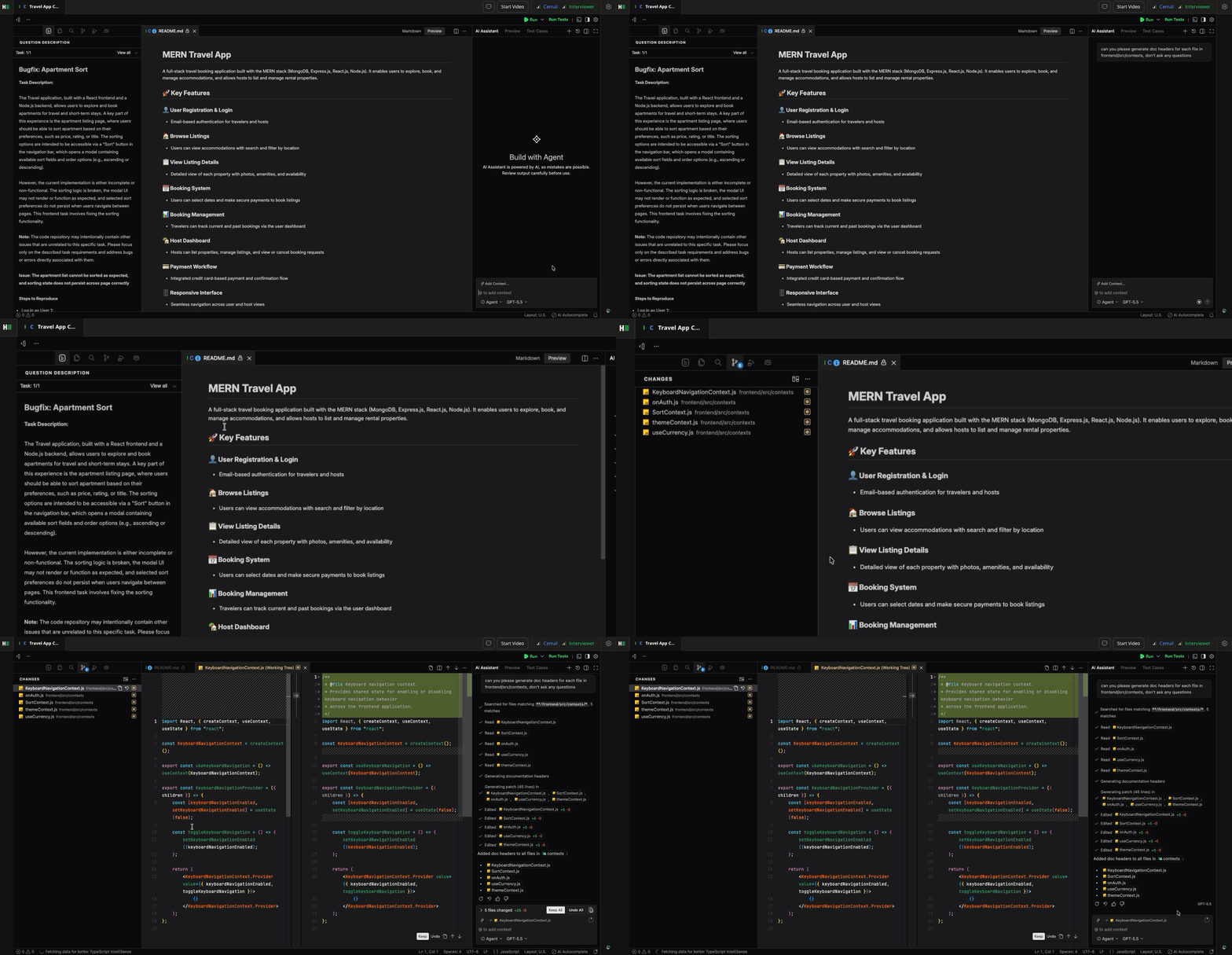
In Observation mode, the interviewer can view all AI Assistant interactions in real time. Live assistant edits and shared diff views remain synchronized between the interviewer and the candidate.

This visibility helps interviewers understand what changes occur, why they occur, and how the candidate responds. It also enables interviewers to assess the type of assistance the candidate seeks, such as syntax help, conceptual guidance, or full implementation suggestions.
The interviewer can disable the AI Assistant for specific questions, if needed. They can ask the candidate to explain their AI interactions to better understand their problem-solving approach.
Post-interview report
After the interview, the candidate report includes a detailed Chat Transcript, which provides a complete record of the conversation between the candidate and the AI Assistant.
To access the interview report, see 📄 Interview Report.
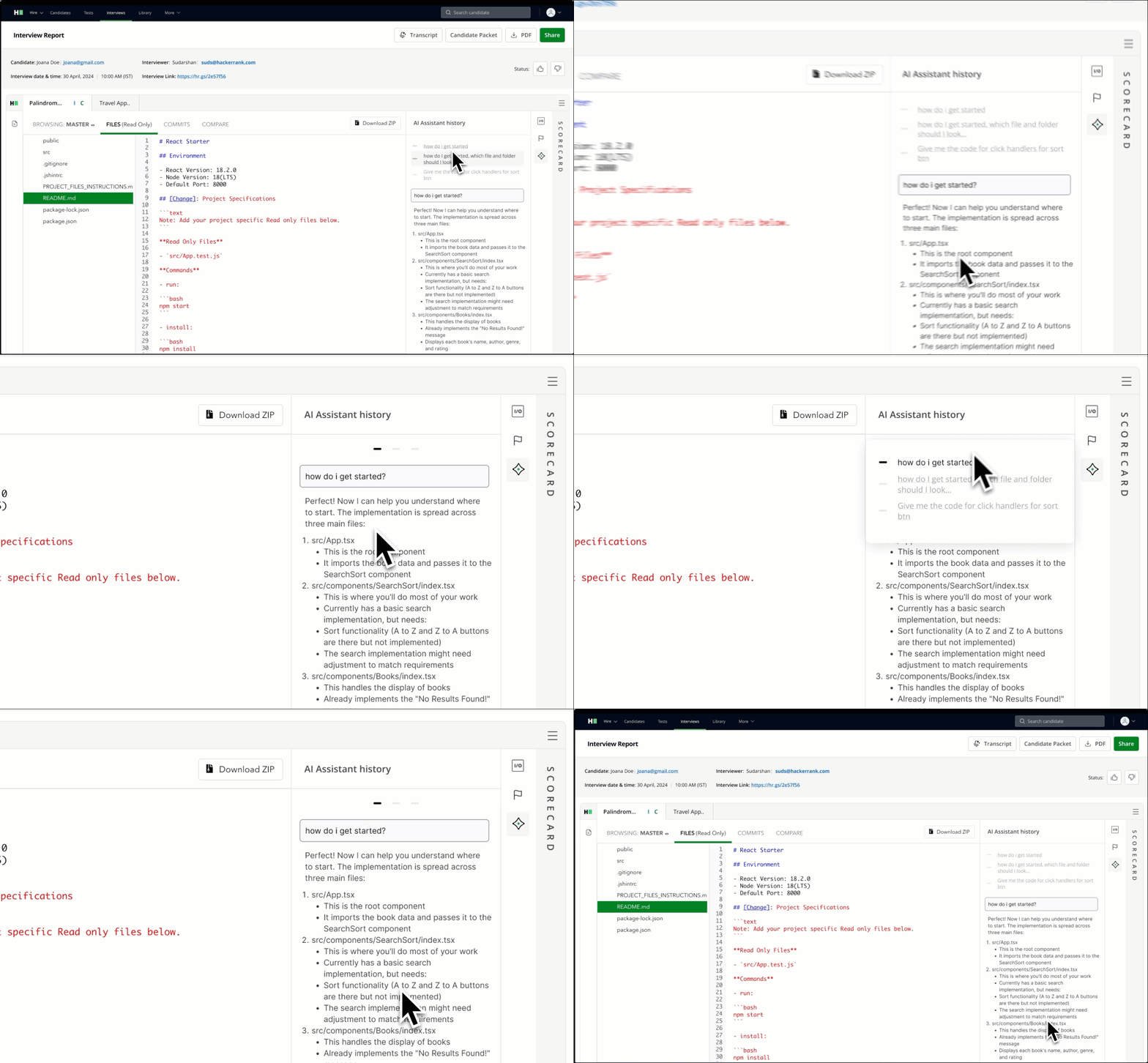
These insights offer transparency into the candidate’s support-seeking behavior, coding independence, and AI fluency—key factors in evaluating developer readiness.
Frequently Asked Questions (FAQ)
Which question types support the AI Assistant in interviews?
The AI Assistant currently supports the following question types in interviews:
Coding
Code Repositories
Projects
Frontend
Backend
Full-Stack
Mobile
Generative AI
What does unguarded mode mean?
In interviews, the AI Assistant operates in unguarded mode, which means:
It can provide complete answers or code snippets when prompted.
Candidates have full flexibility to explore ideas, ask for clarification, and request implementation help similar to how real-world AI programming tools work.
This unguarded setup is intentional and reflects the live, collaborative nature of interviews. The goal is to understand how candidates interact with AI tools in real time.
How does the AI Assistant in interviews differ from the AI Assistant in tests?
In HackerRank Tests, the AI Assistant operates in guarded mode. It provides limited support, such as syntax assistance, platform guidance, and conceptual help. It does not reveal full solutions.
In Interviews, the AI Assistant operates in unguarded mode. Because interviews are human-evaluated, the AI Assistant supports richer and more realistic interactions to reflect real-world development environments.
Can I disable the AI Assistant for specific interviews?
Yes. After you enable the AI Assistant at the company level, individual interviewers can choose whether to activate it for each question during a session. To do this, toggle the AI Assistant switch on or off at the question level within the interview.
Can I review how the candidate used the AI Assistant?
Yes. The interview report includes a complete chat transcript between the candidate and the assistant.
Are Plan mode interactions included in the interview evaluation?
Yes. Plan mode interactions appear in the AI Assistant transcript along with Ask mode and Agent mode interactions. Interviewers can consider these interactions as part of their overall evaluation of the candidate's problem-solving approach and AI collaboration skills.
Can candidates skip Plan mode?
Yes. Plan mode is optional. Candidates can switch directly from Ask mode to Agent mode or work entirely in Agent mode without using Plan Mode.
Note: If you have any questions or need assistance, contact support@hackerrank.com.