Create a Team
Last updated: February 23, 2026
You can create teams in HackerRank to match your company structure. Members of a team can view all tests, interviews, and other resources created within that team.
Prerequisite
You must have Company Admin access.
Creating a team
To create a team:
Log in to your HackerRank for Work account using your credentials.
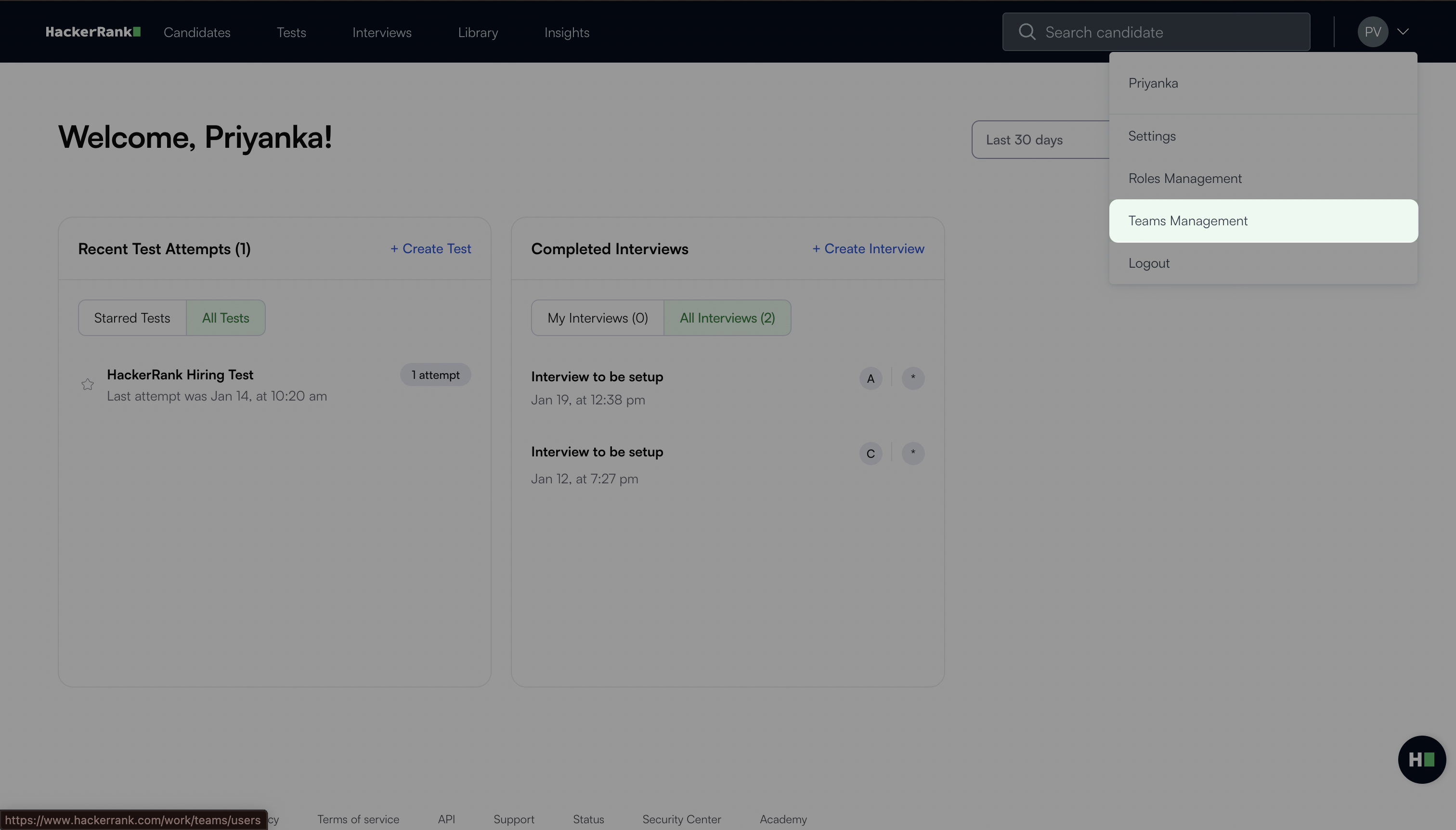
Select your profile icon in the upper-right corner.
Select Teams Management from the drop-down menu.
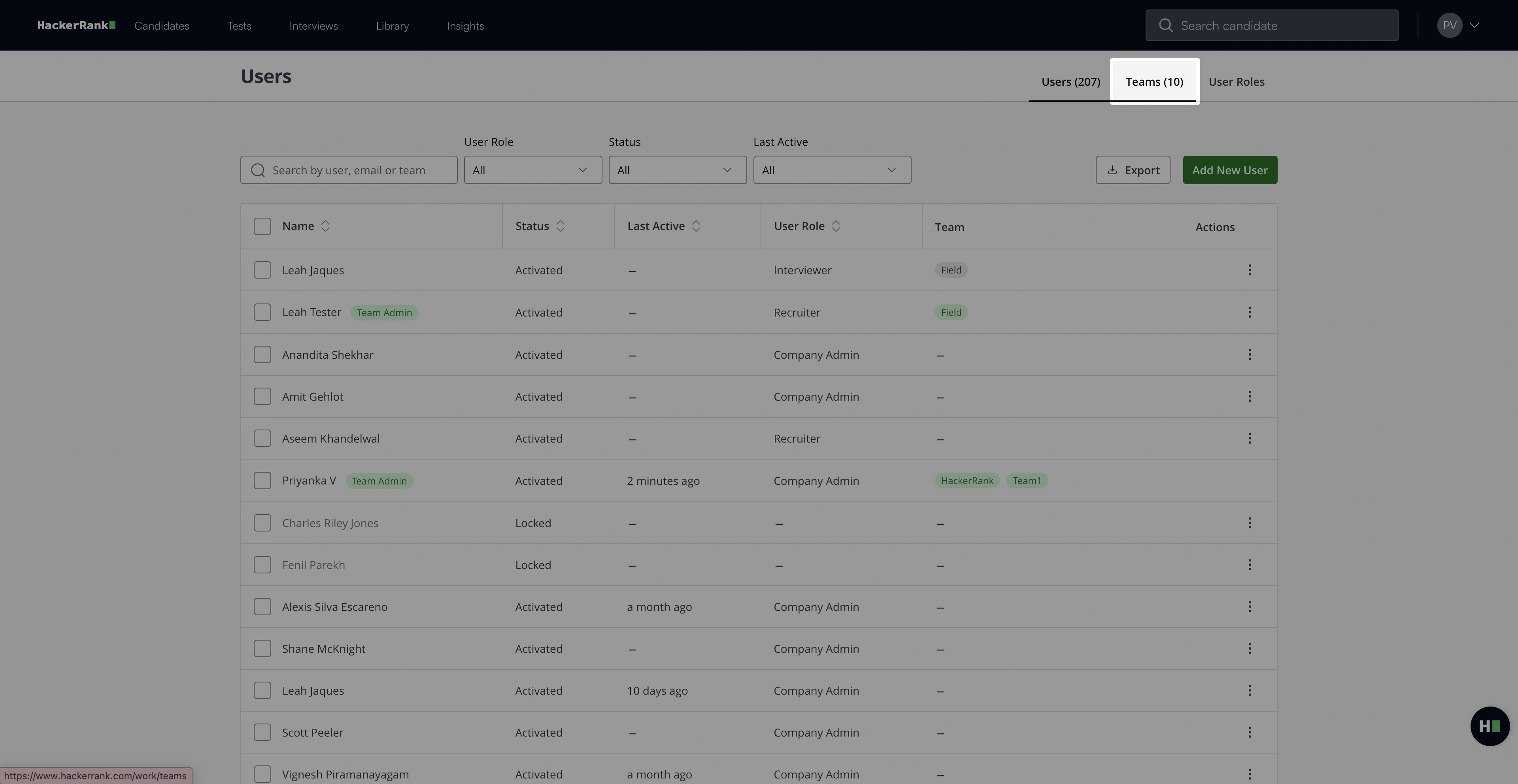
Go to the Teams tab.
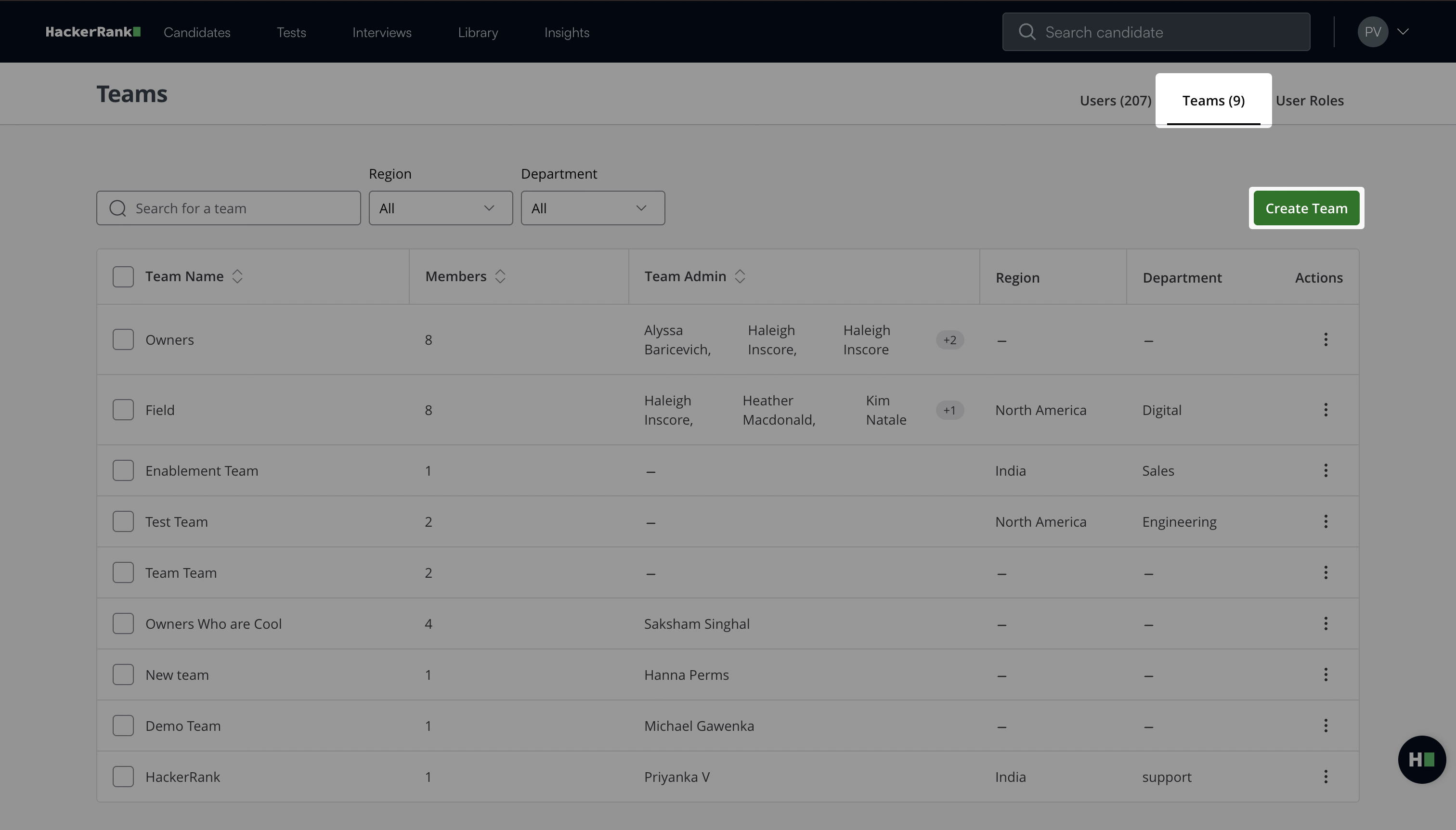
Click Create Team.
In the Create Team dialog, enter the following details:
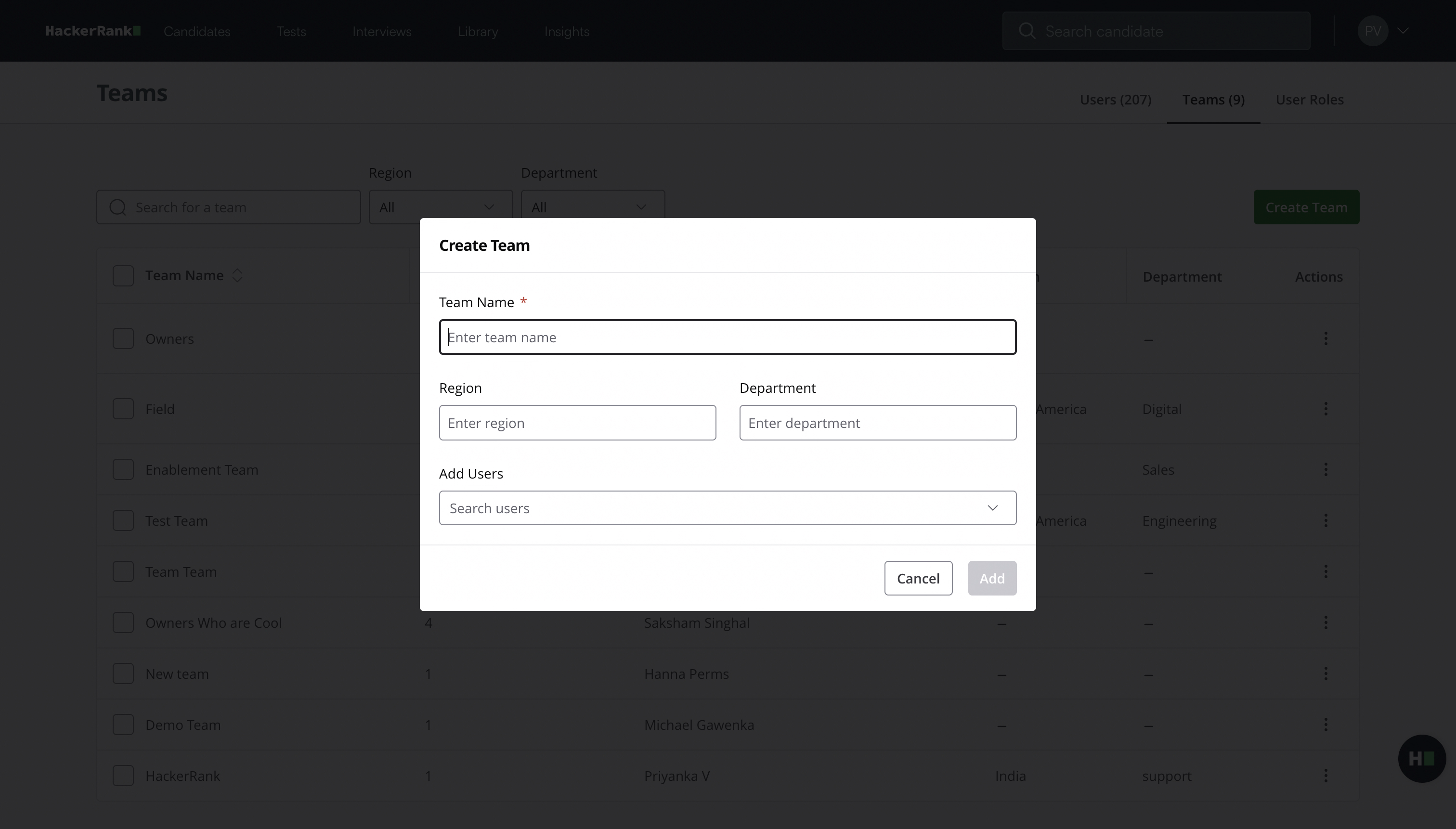
Team Name: Name of the team you want to create.
(Optional) Region: Indicates where the team operates, such as a city, country, or geographic area (for example, APAC or EMEA).
(Optional) Department: Indicates the company division the team belongs to, such as Sales, Engineering, or Human Resources.
(Optional) Add users: Type or select the users from the drop-down menu.
Note: The Add users drop-down list displays only existing users. To add a new user, see 📄 Invite a New User.
Click Add.
HackerRank creates the team and displays it under Team Management > Teams.
Each team can have one or more Team Admins. For more information, see 📄 Grant Team Admin Access.
Note: To update team details, see 📄 Updating a Team.